
One PDF, two PDFs, 100 PDFs—it doesn’t matter how many PDF documents you have, it’s possible to combine them all into a multi-page PDF on macOS. Creating a multi-page PDF doesn’t require any additional software, as you can merge these documents together using the Preview app.
There are other ways to edit a PDF, but none offer the simplicity of Preview for creating merged PDF documents. You can also use Automator, the automation app for macOS, to combine a large number of PDF documents at once. Let’s talk you through how to make a multi-page PDF on macOS using both methods.
Merging PDF Documents Into a Multi-Page PDF in Preview
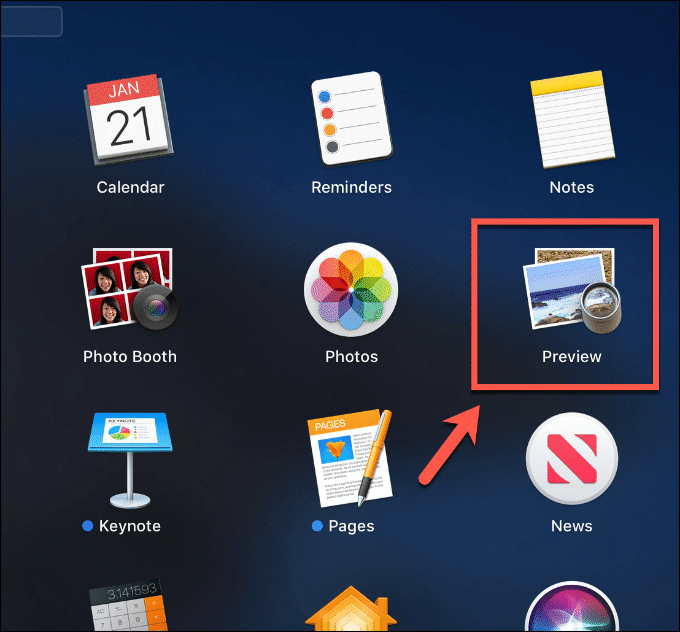
Preview is a core macOS app, so if you have a Mac, you don’t need to install anything to use it. You can find Preview in the Applications folder in Finder or launch it directly from Launchpad.
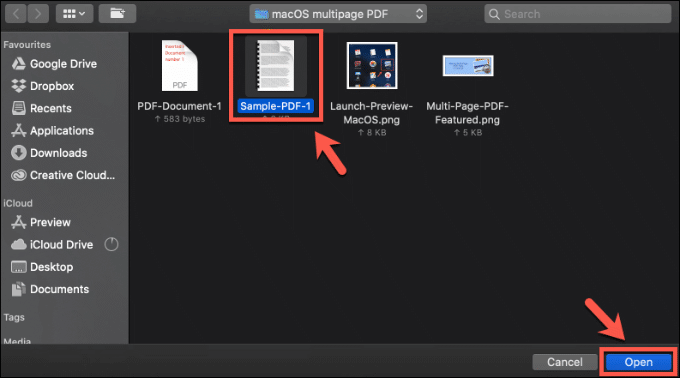
- To start, open your first PDF document in the Preview app. This is the document you want to merge other PDF documents into. Locate the document in the Preview window, then click the Open button.
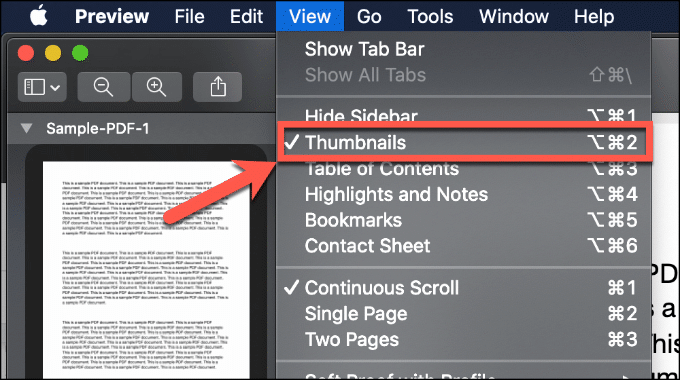
- You should be able to view thumbnails for each page in the left-hand menu. If you don’t, click View > Thumbnails.
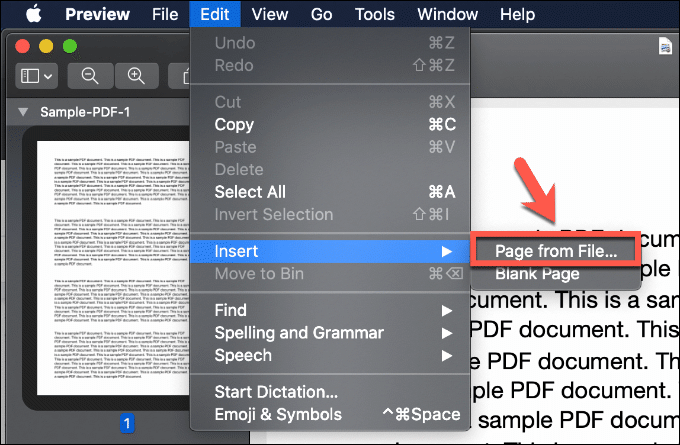
- Using the left-hand menu, scroll to find the location to insert your other PDF document (or documents). Click on a page thumbnail to make sure the position is selected—the inserted PDFs will appear below it. Once you’ve selected the right page, click Edit > Insert > Page from File.
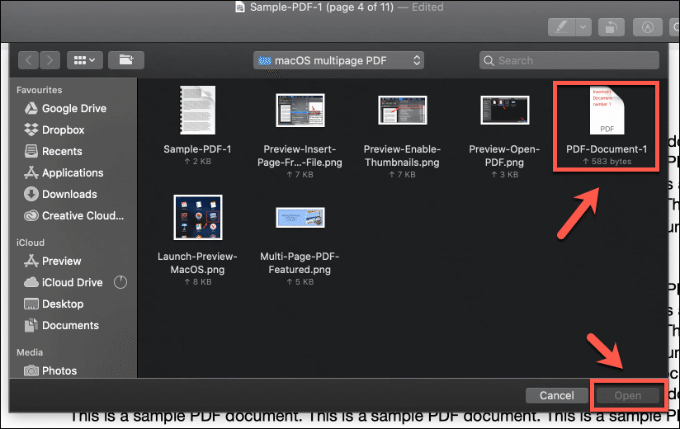
- In the Finder window that appears, locate your second document, then click Open to insert it.
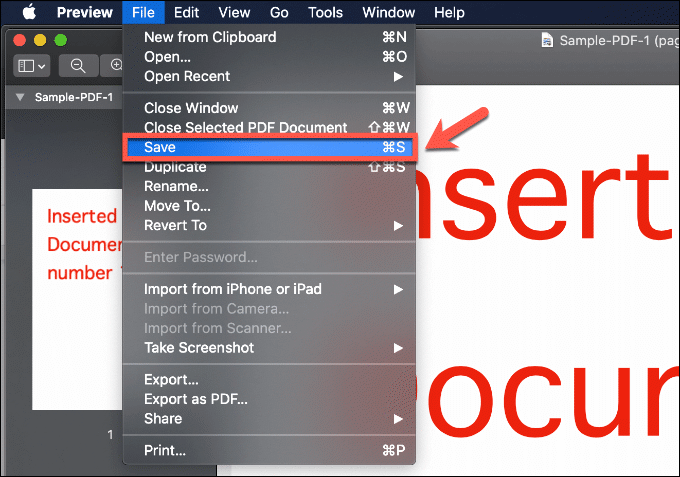
- Once inserted, the pages from your inserted PDF will appear as thumbnails in the left-hand side menu. Click File > Save to save the merged document.
You can repeat this method to merge more than two documents. You can delete excess files manually by selecting the thumbnail for a page in the left-hand menu, then pressing the delete key on your keyboard.
Merging Sections From Separate PDF Documents
The File > Insert > Page from File method for creating multi-page PDF documents works fine, but it will merge documents as a whole. To merge a section from one PDF document (for instance, pages 4-8 of a PDF) with another PDF, you’ll need to open both documents in Preview.
- Open Preview from the Launchpad or Applications folder in Finder, then open your first PDF document. Repeat the step for your second PDF document, and make sure you can view page thumbnails in both windows (View > Thumbnails).
- Scroll to find the start of the section you wish to copy in your second document. While holding the Command key, click to select each of the pages you wish to copy to your first PDF document in the left-hand menu.
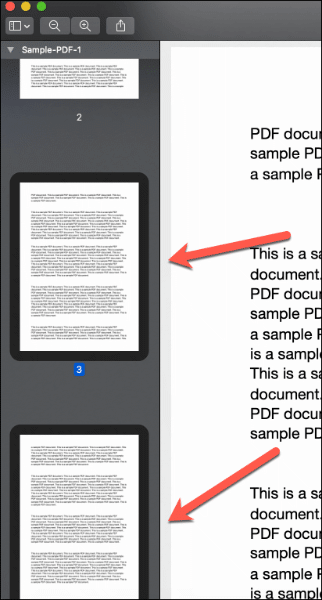
- With your pages selected, switch back to the Preview window containing your first document, making sure both windows are in view. In the Preview window containing your first PDF document, scroll to the position where you wish to insert the new pages. Using your mouse, drag the new pages to the Preview window containing your first PDF document, then drop them into place.
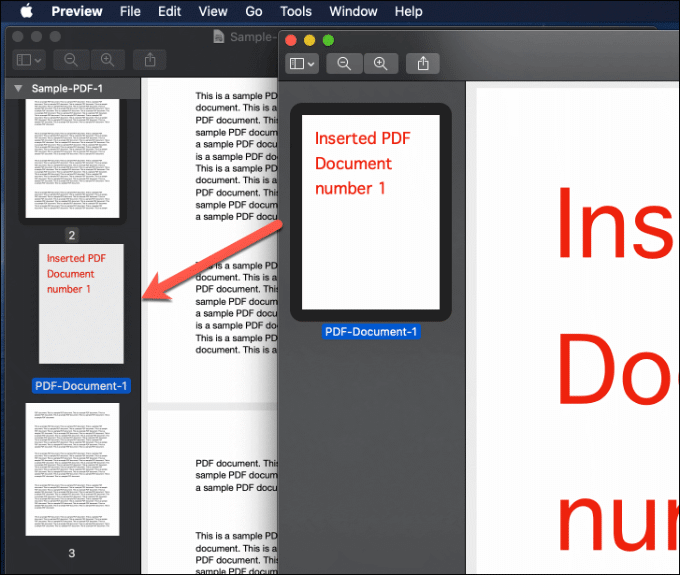
You can repeat these steps to create a multi-page PDF document using pages from multiple documents. Press File > Save to save the merge PDF document once you’ve finished.
Using Automator To Merge Several PDF Documents
Preview is great for merging PDF documents, but it can be a slow process. To speed things up, you can use the Automator app to create a multi-page PDF using several other PDF documents at the same time.
Automator is, as the name suggests, an automation app. It’s another core macOS app, so it should already be available for macOS users in the Applications folder in Finder, or as an app icon in Launchpad.
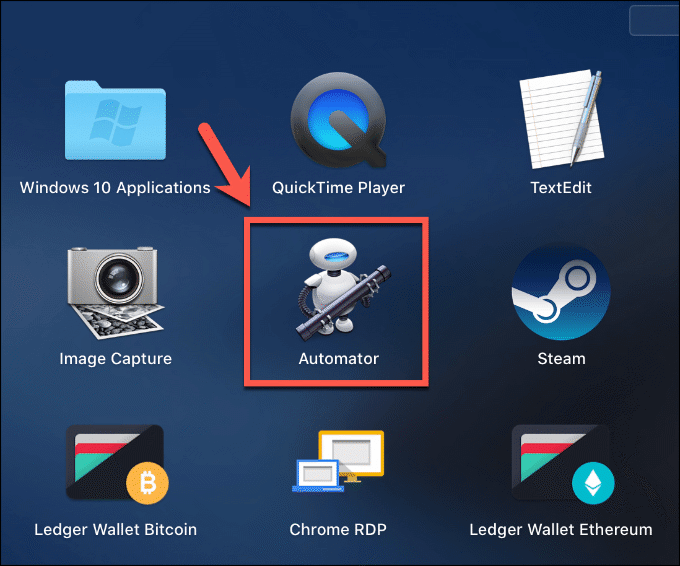
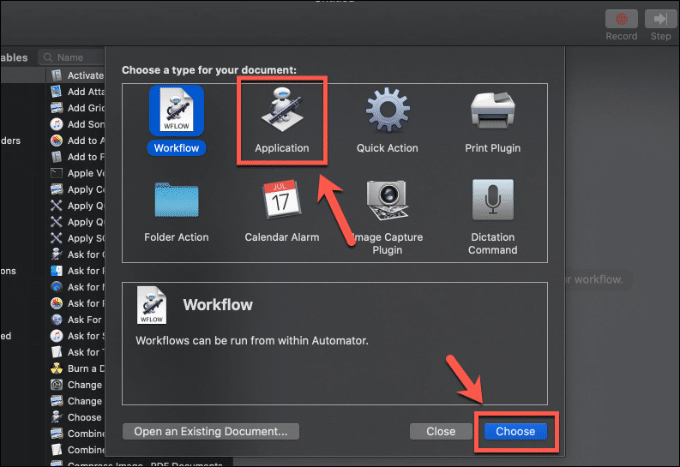
- When you first launch Automator, you’ll be asked what type of document you want to create. Click Application, then press the Choose button to confirm.
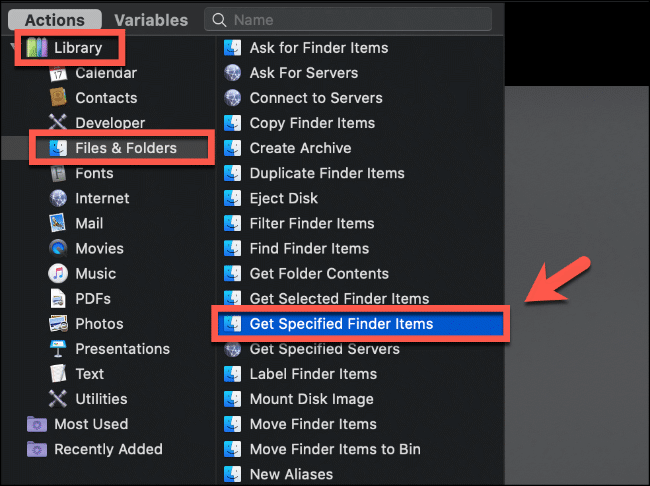
- The Automator window allows you to select the actions you’re looking to automate. You’ll want Automator to locate your PDF files first. In the left-hand Library menu, under the Files & Folders category, double-click the Get Specified Finder Items option to add it to your Automator workflow.
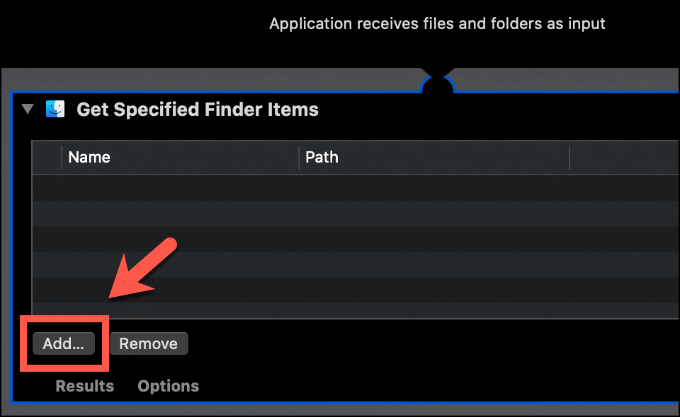
- In the workflow section on the right, click the Add button under the Get Specified Finder Items section.
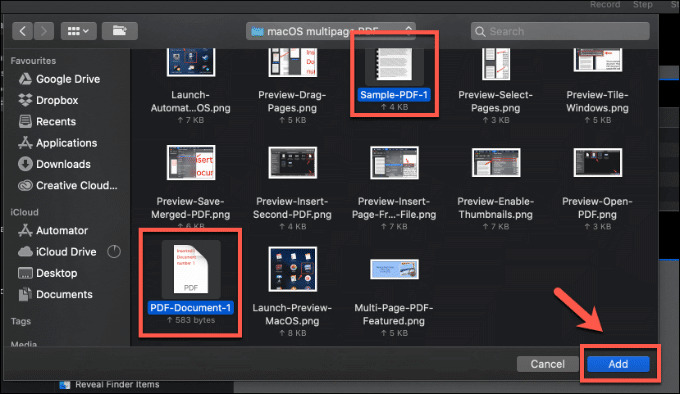
- Using the Finder window that appears, locate the PDF files you wish to merge, then press the Add button. You can add as many PDF documents as you like at this point.
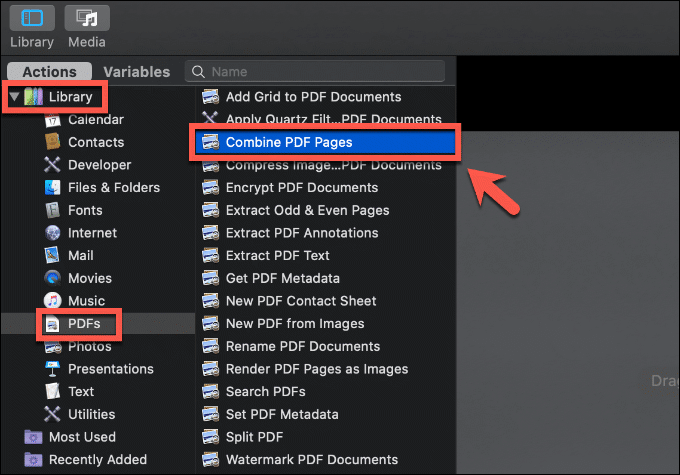
- Your PDF files will appear in the Get Specified Finder Items section in the Automator workflow. In the left-hand Library menu, under the PDFs section, double-click on the Combine PDFs action to add it to your workflow.
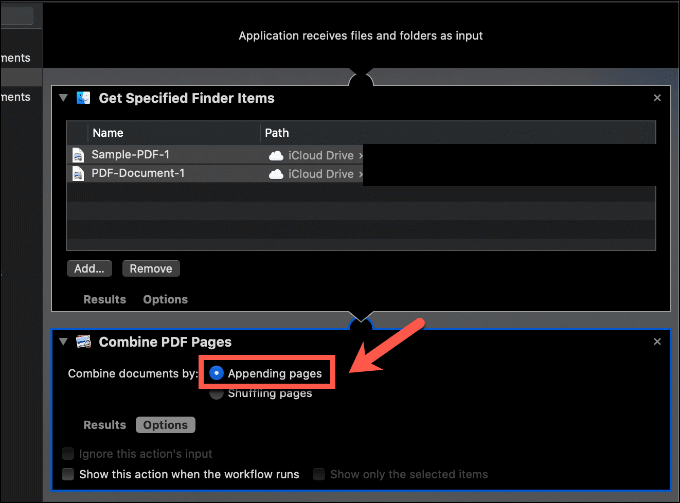
- Automator can either shuffle your PDF document pages or add them sequentially so they’re inserted one after another. Make sure that the Appending Pages option is selected in the Combine PDF options to make sure they’re added sequentially.
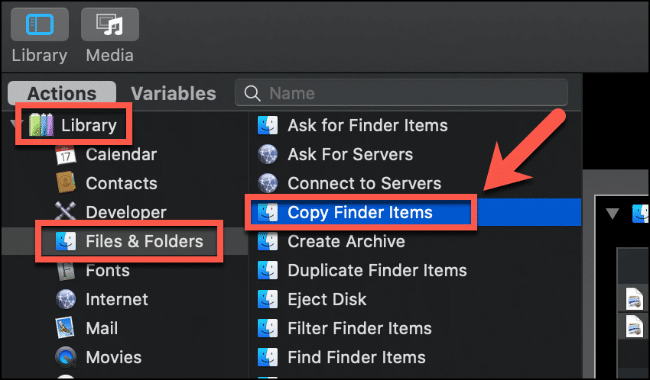
- You’ll want to set the location for Automator to save your new multi-page PDF document next. In the left-hand Library menu, under Files & Folders, double-click the Copy Finder Items option to add it to your workflow. This will default to saving your new file to the Desktop, but you can change this by clicking the drop-down menu in the Copy Finder Items workflow options.
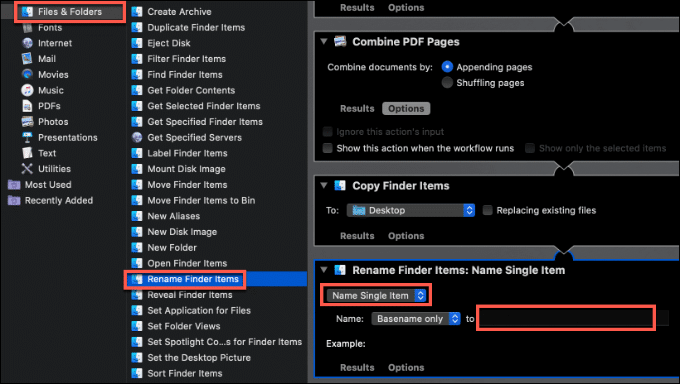
- Set a name for your new document by double-clicking Rename Finder Options under Library > Files & Folders. From the drop-down menu in the Rename Finder Items workflow options, select Name Single Item. Type a suitable name for your document in the Name options box.
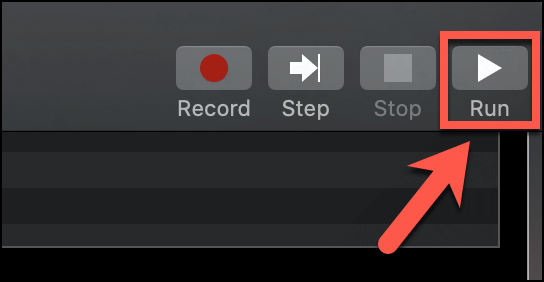
- Once you’re ready to create your multi-page PDF document, press the Run button in the top-right corner.
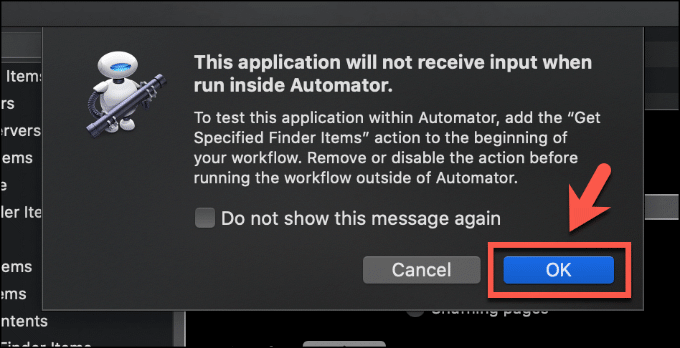
- Automator will warn you that it can’t run your application as a drag-and-drop operation. Press OK to ignore this warning.
Once Automator has run through the actions in your new application, your merged PDF document will appear in the location you specified. Click File > Save to save your Automator application for future use.
Other Ways To Create Multi-Page PDF Documents
Preview and Automator both offer a simple way to merge PDF documents in macOS, but if you’re running Windows, you can create multi-page PDFs in Photoshop. For other operating systems like Linux, use a web-based service like Google Docs to merge your PDF documents instead.
You can also use Preview to edit PDFs on Mac, adding new text and images to your documents.