
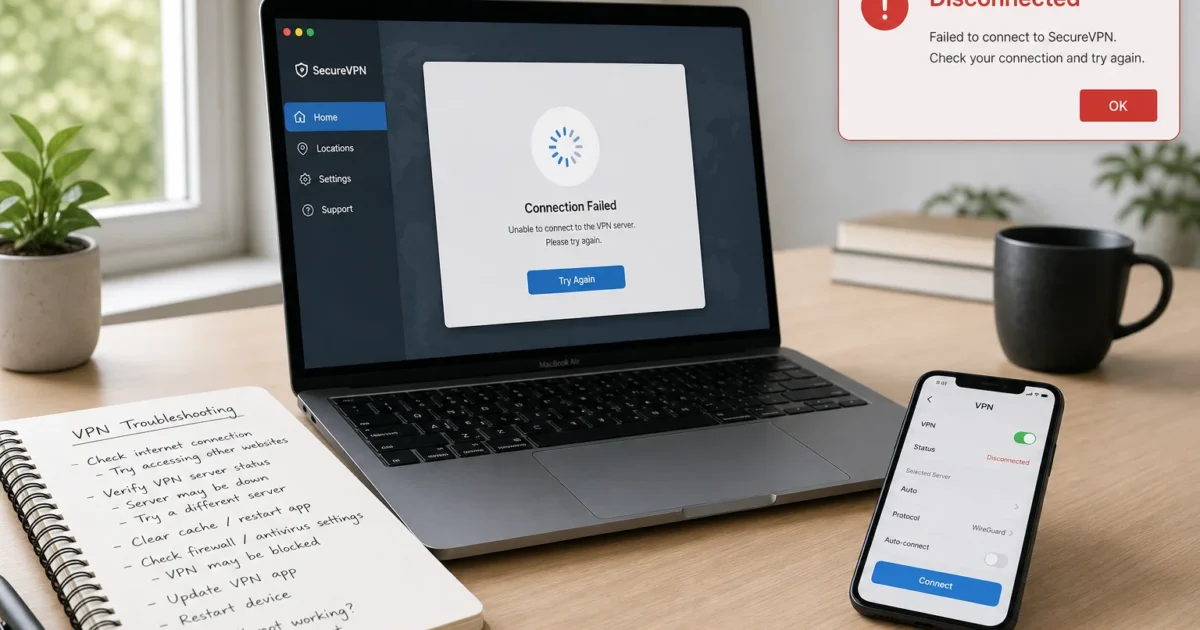
Your VPN was working fine last week. Now it won’t connect, or it connects but every website just spins forever. Did you upgrade to macOS 26 Tahoe recently? That’s probably not a coincidence. Apple quietly dropped support for an older VPN protocol a lot of people still depend on. Firewalls, stale apps, and permission glitches cause the rest.
This guide walks through why your VPN broke and how to fix it using the current System Settings app. No Terminal, no command-line detours.
Quick Diagnosis
Before you go chasing specific fixes, run through this 60-second checklist. It solves more VPN problems than you’d expect.
- Restart your Mac. This clears out stuck network extensions and processes more often than you’d think.
- Check your regular internet connection. Turn off the VPN and confirm Wi-Fi or Ethernet works normally. If the base connection is broken, the VPN isn’t your problem.
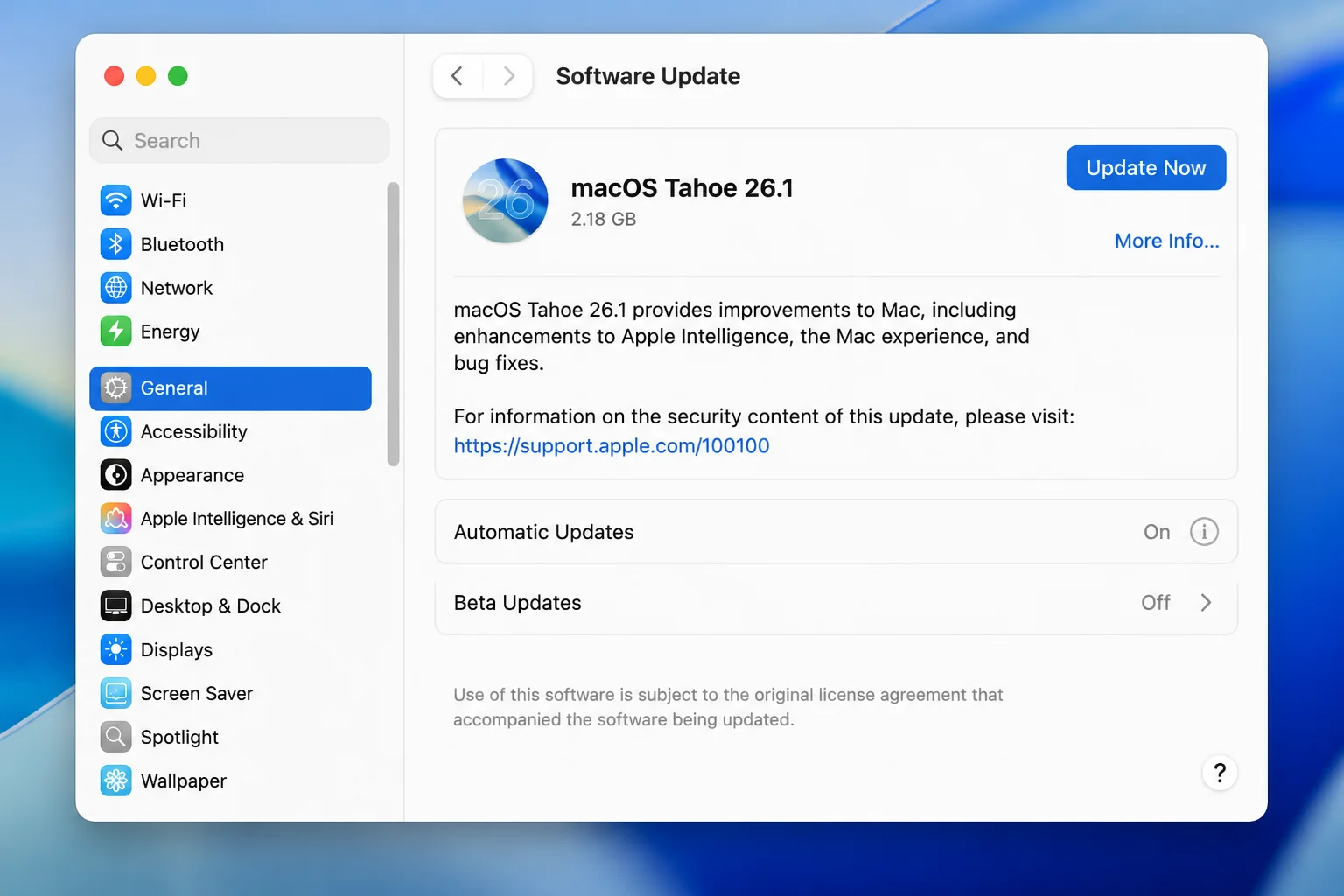
- Confirm you’re on the latest macOS. Go to System Settings > General > Software Update and install any pending updates. Apple patches VPN and networking bugs in point releases often.
- Update your VPN app. Open the app itself and check for an update, or grab the latest version from the provider’s website.
- Try a different network. Switch from Wi-Fi to a personal hotspot briefly to rule out a router-level block.
None of that worked? Keep going. The next section is the most likely culprit in 2026.
Why Your VPN Broke After Updating to macOS 26 Tahoe
Symptoms:
- VPN worked fine before your last macOS update, now it won’t connect
- You may see a connection error along the lines of “the protocol is no longer supported,” or the connection just times out
- The VPN was set up manually with a server address, shared secret, and account name (a classic sign of an older IPSec/L2TP setup)
Why it happens: macOS 26 Tahoe removed built-in support for older IPSec/L2TP encryption and authentication methods, specifically legacy algorithms like 3DES, SHA-1, and Diffie-Hellman groups below 14. Apple considered these outdated and less secure for years. Tahoe is where that finally caught up with everyone. L2TP/IPSec itself still works on Tahoe, but if your VPN configuration was still using one of those older algorithms, especially an employer-issued one or a router-based home VPN, it won’t connect until the encryption settings are updated. Doesn’t matter how many times you retype your password.
Fix:
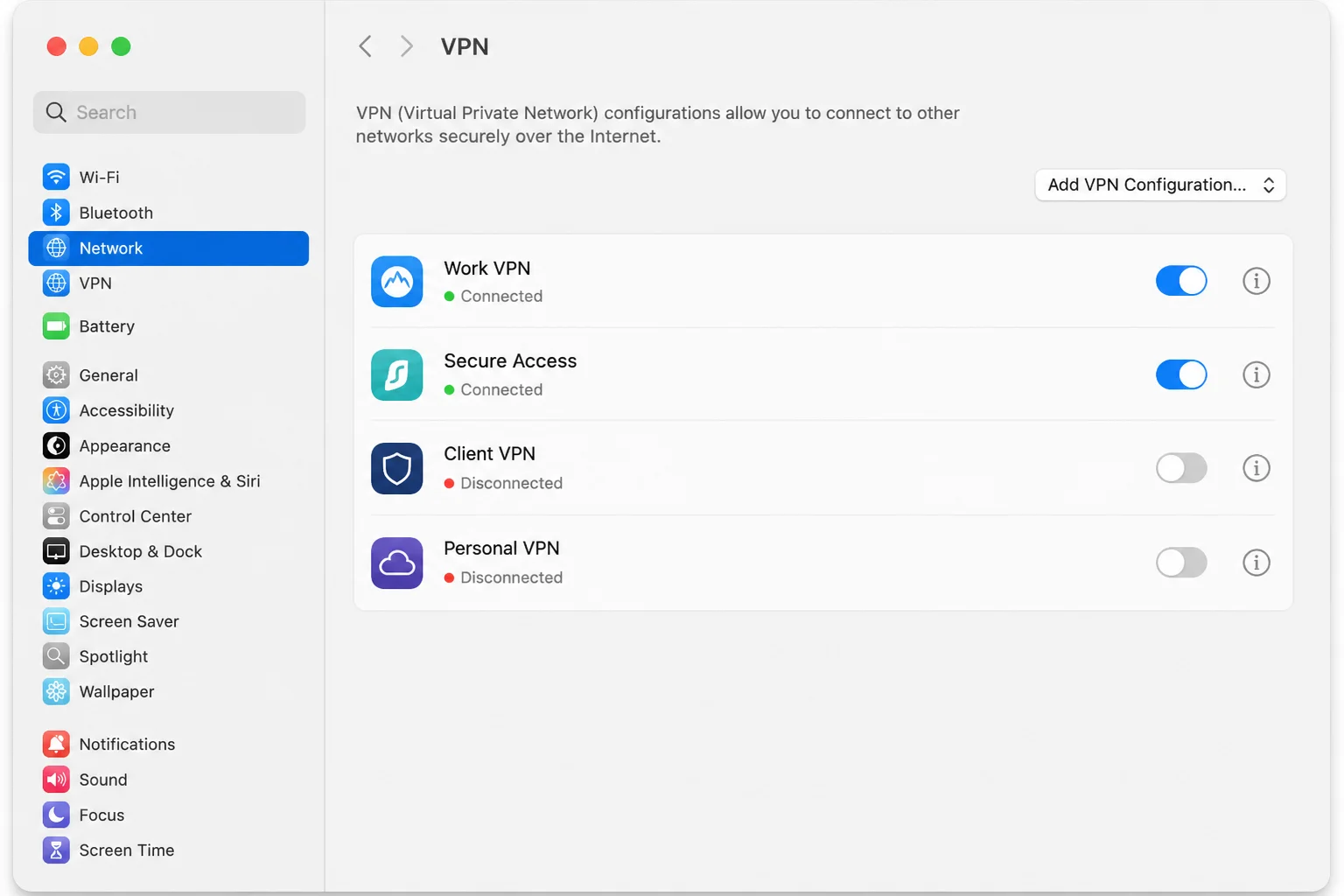
- Open System Settings > VPN and check the protocol listed for your connection. If you set it up yourself years ago, it may say L2TP over IPSec.
- Contact your VPN provider or IT department and ask for an updated configuration using IKEv2 or WireGuard instead. Most commercial VPN providers and modern routers already support these.
- If you manage your own VPN server, a home router VPN, say, update its firmware or software to enable IKEv2 or WireGuard. Then reconfigure your Mac using the new settings.
- Remove the old, non-working configuration (see “How to Remove a Broken VPN Configuration” below) and add the new one following your provider’s instructions.
Verify: Toggle the new VPN connection on from System Settings > VPN and confirm it shows Connected with a green status dot.
Tip: Not sure which protocol you’re using? If your VPN setup ever asked for a “shared secret” or “group name,” that’s an L2TP/IPSec giveaway. WireGuard and IKEv2 configurations typically use a certificate, key file, or QR code instead.
Common Issues and Solutions
VPN Client App Won’t Connect
Symptoms:
- App shows “Connection failed” or spins indefinitely on “Connecting…”
- Worked before a recent macOS or app update
Why it happens: VPN client apps rely on network extensions that need to stay in sync with macOS. When Apple changes networking behavior, like it did with macOS 26 Tahoe, an outdated client can break. That happens even if your VPN protocol itself is still fine.
Fix:
- Open the VPN app and look for an in-app update option, usually under its Settings or About menu.
- If no update is available in-app, visit the provider’s official website and download the latest version directly.
- Fully quit the app, reinstall the update, and restart your Mac.
- Reopen the app and try connecting again.
Verify: The app should show a Connected status with your assigned VPN IP address or server location displayed.
VPN App Never Got the Permissions It Needs
Symptoms:
- VPN toggles on but immediately turns back off
- No error message, the connection just silently fails
- You don’t remember approving any system prompts when you first installed the app
Why it happens: macOS requires explicit approval before a VPN app can install its network extension, the background component that actually creates the encrypted tunnel. If you dismissed that approval prompt, or it popped up while you were away, the app has no way to connect. This trips up more people than you’d expect. The prompt is easy to miss.
Fix:
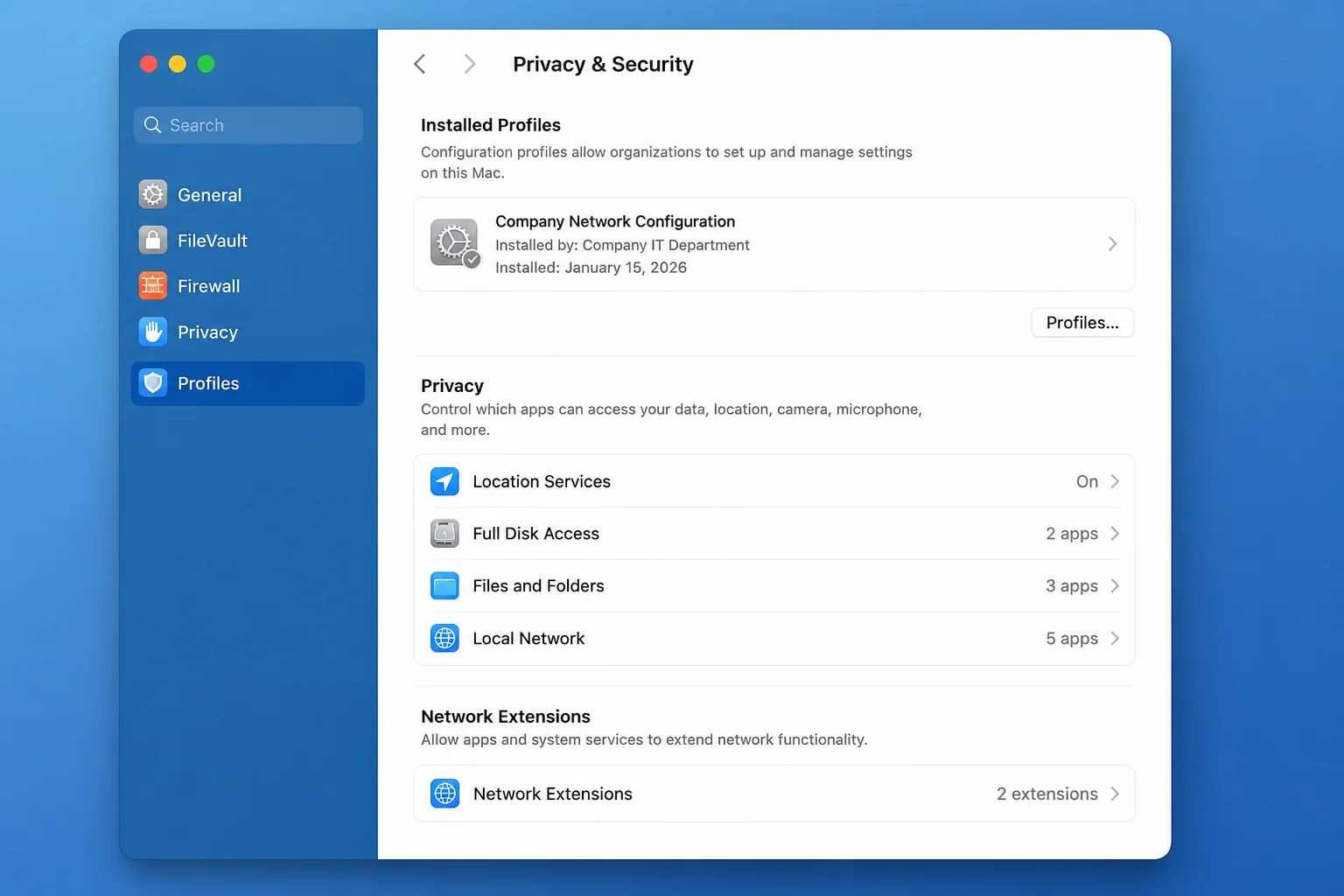
- Go to System Settings > Privacy & Security.
- Scroll down to look for pending approvals related to network extensions or background content, sometimes labeled with the VPN app’s name.
- Approve any pending request. If nothing appears, the extension may not be installed at all.
- If you don’t see any related entry, uninstall the VPN app completely, restart your Mac, then reinstall it and approve every permission prompt that appears during setup.
Verify: Reopen the VPN app and connect. If the toggle stays on and shows a connected status for more than a few seconds, you’re set.
VPN Connects, But There’s No Internet Access
Symptoms:
- VPN status shows Connected
- Web pages won’t load, or only some apps work
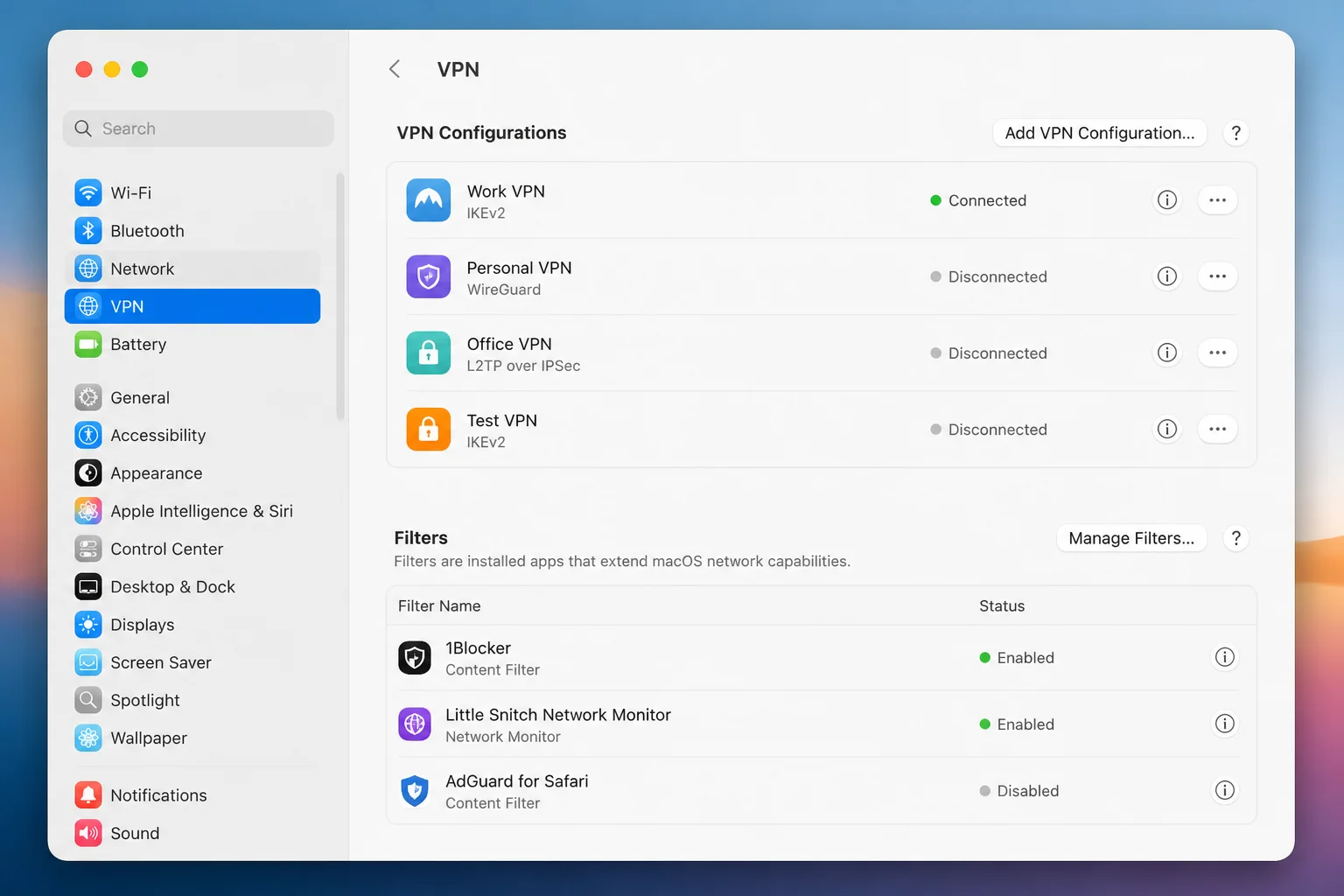
Why it happens: Once a VPN tunnel is active, all your traffic reroutes through it. That’s exactly when a firewall rule, or a separate “filter” app like a content blocker or security tool, can quietly block everything. macOS’s Network settings actually group VPNs and filter apps together for this reason.
Fix:
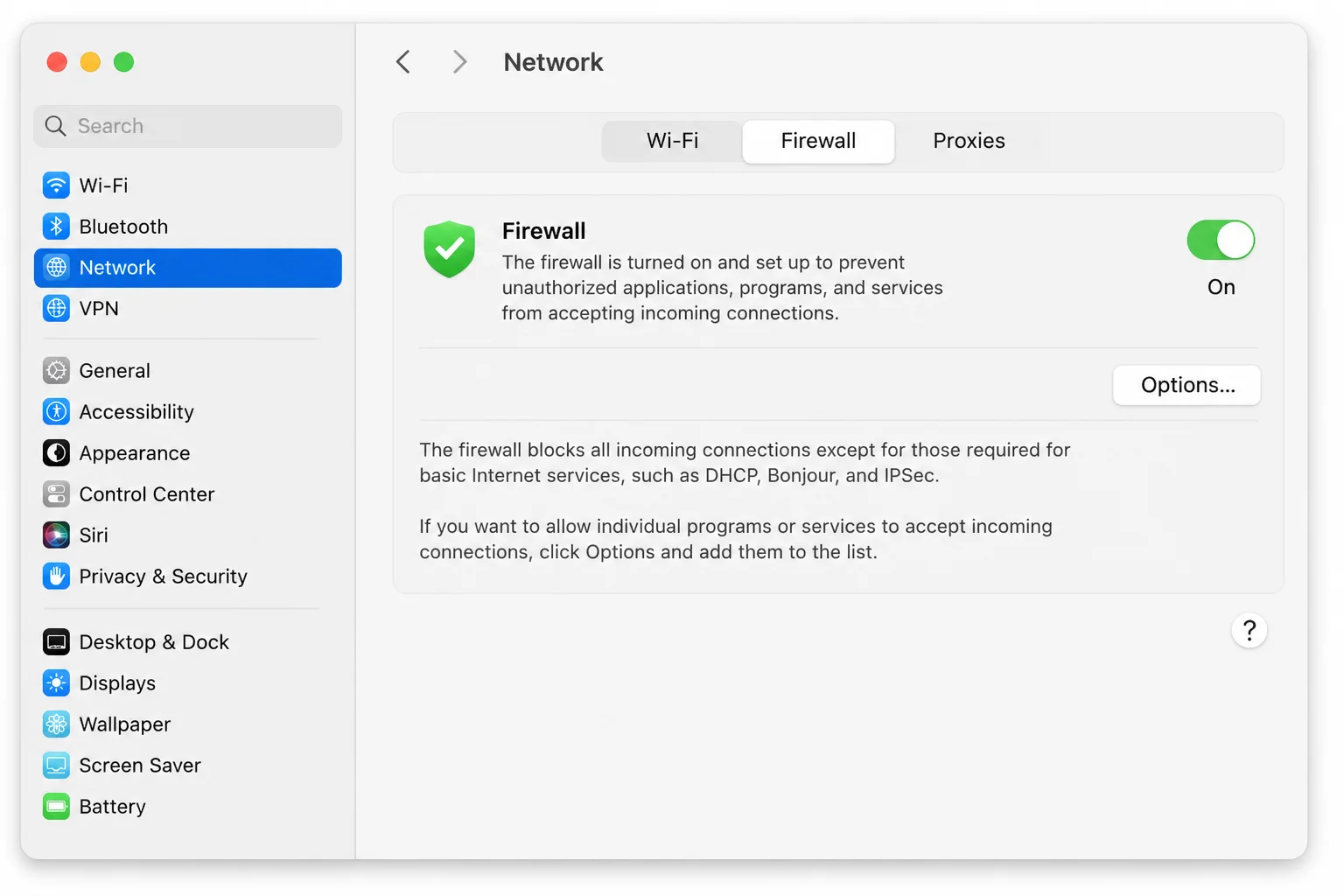
- Go to System Settings > Network > Firewall.
- Note whether the firewall is on. If it is, click the Options button next to it.
- Look for your VPN app in the list and make sure it’s set to allow incoming connections, not block them.
- As a test, temporarily turn the firewall off, then try your VPN again. If it works with the firewall off, turn the firewall back on. Then add a specific allow rule for your VPN app instead of leaving it disabled.
- Separately, go to System Settings > Network, then look for the VPN and Filters section in the sidebar. Check whether any filter or content-blocking app is listed and installed. These can interfere even if the firewall is set up correctly.
Verify: With the VPN connected, open a browser and load any website. If it loads normally, you’ve fixed it.
VPN Keeps Disconnecting or Dropping Repeatedly
Symptoms:
- Connection drops every few minutes
- You have to manually reconnect throughout the day
Why it happens: Frequent drops usually come from Wi-Fi instability. They can also come from a VPN app that hasn’t caught up with a macOS networking change, or a background process that’s stuck and needs a restart.
Fix:
- Turn Wi-Fi off and back on from the menu bar to rule out a flaky network connection.
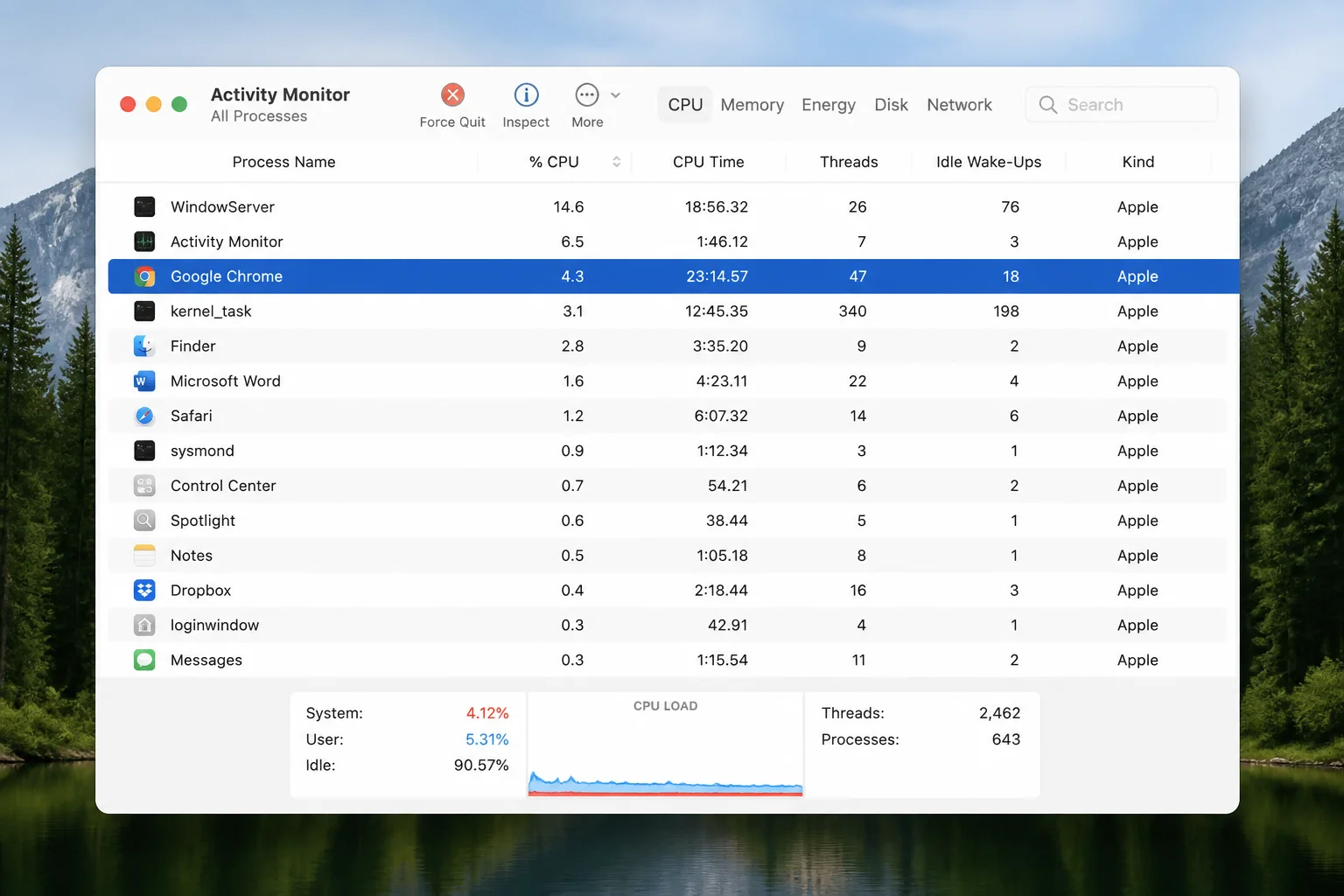
- Force-quit the VPN app if it’s become unresponsive. Open Activity Monitor (search for it with Spotlight,
Cmd + Space), find the VPN app’s process, select it, and click the X button in the toolbar to force it to quit.
- Relaunch the VPN app and reconnect.
- Confirm both macOS and the VPN app are fully updated (see the Quick Diagnosis section above).
Verify: Stay connected for at least 15–20 minutes without a drop. If it holds, you’re good.
DNS Errors or Websites Won’t Load After Connecting
Symptoms:
- VPN shows connected, but you get “server not found” errors
- Some sites load by IP address but not by name
Why it happens: This is a DNS (Domain Name System, the internet’s address book that turns website names into numeric addresses) routing problem. The VPN tunnel is active, but your Mac isn’t correctly sending DNS lookups through it.
Fix:
- Disconnect and reconnect the VPN. This alone resolves a surprising number of DNS hiccups.
- Open your VPN app’s settings and look for a DNS or split tunneling option. If split tunneling is on, try turning it off temporarily to test.
- If the issue persists, go to System Settings > Network, select your active connection (Wi-Fi or Ethernet), click Details, then DNS, and try adding a public DNS server like
1.1.1.1as a test.
Verify: With the VPN connected, try loading a website by name. If it loads, DNS is resolving correctly again.
Another VPN or Antivirus App Is Conflicting
Symptoms:
- Problems started after installing a second VPN app or a new security tool
- VPN connects but behaves inconsistently, or won’t connect at all
Why it happens: Multiple VPN clients or security tools can compete for control over the same network interfaces. This is a frustrating one to diagnose because each app reports itself as “working”; they’re just fighting each other in the background.
Fix:
- Identify any VPN or antivirus apps you’re no longer actively using.
- Use each app’s official uninstaller (usually found in its Applications folder entry or Settings menu) rather than just dragging it to the Trash. This makes sure its network extension gets removed too.
- Restart your Mac.
- Reconnect using only the one VPN app you actually need.
Verify: With only one VPN app installed, connect and confirm both stable connectivity and normal browsing.
How to Remove a Broken VPN Configuration
If you’ve switched providers or protocols and need to clean up an old, non-working entry:
- Go to System Settings > VPN.
- Click the info button (ⓘ) next to the outdated configuration.
- Click Remove Configuration, then confirm.
- Add the new configuration provided by your VPN provider or IT department.
Error Messages Table
| Error / Symptom | What It Means | Fix |
|---|---|---|
| “The protocol is no longer supported” | Your L2TP/IPSec settings use encryption (3DES, SHA-1, or an old Diffie-Hellman group) Apple no longer supports in Tahoe | Get an updated IKEv2, WireGuard, or modernized L2TP/IPSec config from your provider |
| “Connection failed” / spins on “Connecting…” | VPN app is outdated or a network extension permission is missing | Update the app; check Privacy & Security for pending approvals |
| Connected, but no websites load | Firewall or a filter app is blocking traffic | Check Network > Firewall and VPN and Filters |
| “Server not found” after connecting | DNS requests aren’t routing through the tunnel | Reconnect the VPN; check split tunneling/DNS settings in the app |
| Frequent disconnects | Unstable Wi-Fi, stuck process, or outdated client | Restart Wi-Fi, force-quit via Activity Monitor, update the app |
| VPN toggles on then immediately off | Network extension was never approved | Approve the prompt in Privacy & Security, or reinstall the app |
Configuration Issues to Watch For
A few setup mistakes cause problems that look like bugs but are really just misconfiguration:
- Wrong protocol selected: Manually entering server details for an old L2TP setup when your provider now issues IKEv2 or WireGuard profiles. Always use the exact configuration file or values your provider currently supplies, don’t reuse old notes.
- Duplicate VPN entries: Adding a new configuration without removing the old broken one, which leads to confusion about which one is actually active. Remove outdated entries from System Settings > VPN before adding new ones.
- Firewall set to block by default with no exception added: This silently blocks the VPN app’s traffic even though the VPN itself connects successfully. Add an explicit allow rule via Firewall > Options.
- Installing a configuration profile without approving it: Downloading a
.mobileconfigfile from your provider doesn’t finish the job. You still need to open System Settings > Privacy & Security, find the profile, and confirm installation.
When to Contact Your VPN Provider Instead of Self-Troubleshooting
Some issues aren’t fixable from your Mac alone. Reach out to your VPN provider or IT department when:
- You’ve confirmed your Mac, VPN app, and macOS are all fully updated, and it still won’t connect
- Your VPN configuration still uses L2TP/IPSec and you don’t have access to change the protocol yourself (common with employer or router-based VPNs)
- The provider’s app shows a server-side error rather than a connection timeout
- Other users on the same VPN service are reporting the same macOS 26 Tahoe compatibility issue
- You’re on a work VPN and don’t have permission to modify network extension approvals or firewall rules yourself
Most commercial VPN providers now post macOS 26 Tahoe compatibility notes on their support pages. Worth a quick check before you sink more time into this yourself.
Prevention Tips
- Keep both macOS and your VPN app updated: Enable automatic updates where possible so protocol changes don’t catch you off guard.
- Prefer modern protocols from the start: When setting up a new VPN, choose WireGuard or IKEv2 over L2TP/IPSec. They’re faster, more secure, and far less likely to get dropped in some future update.
- Review Privacy & Security after major macOS updates: Big releases like Tahoe sometimes reset or re-prompt for network extension permissions.
- Don’t stack VPN or security apps: Keep only the tools you’re actively using installed to avoid network conflicts.
Wrapping Up
Most Mac VPN problems in 2026 trace back to one of two things. Either macOS 26 Tahoe dropped legacy protocol support, or a firewall/permission setting is quietly blocking traffic. Work through the fixes above in order. You’ll likely be back online in a few minutes, not a few hours.
If you’ve tried everything here and it’s still not working, the problem probably lives on your provider’s server, not in your System Settings. At that point, stop troubleshooting and open a support ticket. You’ve done the part that was actually yours to fix.
| Step | Action | Applies To |
|---|---|---|
| 1 | Update macOS and your VPN app | All users |
| 2 | Check for L2TP/IPSec and switch to WireGuard/IKEv2 | macOS 26 Tahoe upgraders |
| 3 | Approve network extension permissions | New or reinstalled VPN apps |
| 4 | Check Firewall and VPN and Filters | Connected-but-no-internet issues |
| 5 | Remove conflicting VPN/antivirus apps | Multi-app setups |
| 6 | Contact your provider | Persistent or server-side issues |
Last updated: 2026-08-17 | Applies to macOS Sonoma 14 and later, including macOS 26 Tahoe
You can find more information on iPhone Control Center Not Working? 10 Fixes to Try or iPhone VPN Not Working? 8 Fixes to Try. For setting up a VPN on your iPhone, visit Set Up a VPN on iPhone: App and Manual Methods. If you’re experiencing issues with Chrome, check out Chrome Crashing on Mac? 7 Fixes to Try. You can also learn how to transfer data from Windows to Mac using Migration Assistant. Additionally, if you’re having trouble with AirPlay, see Airplay Not Working on Roku TV? Try These 8 Fixes Now. For FaceTime issues, visit “FaceTime Unavailable” Error: What It Means and How to Fix. Lastly, if you encounter Zoom installation errors, check out How to Fix Zoom “The Installation Failed” Error on Mac.
For more information on macOS and VPNs, you can visit Apple’s support page or learn about setting up a VPN connection on Mac. You can also find details on connecting your Mac to a VPN and what is L2TP/IPSec.