
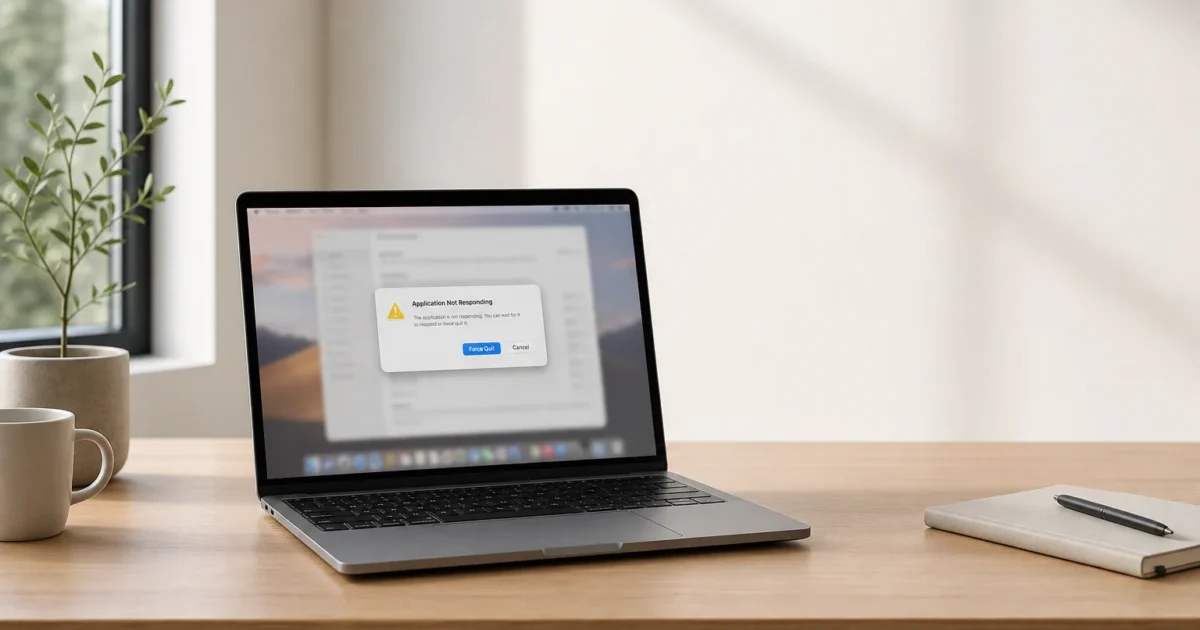
You force quit Chrome. It comes back. Ten minutes later it freezes again, beachball spinning, and you’re back at square one. Chrome crashing or freezing on a Mac feels random. It almost never is. Four causes explain most cases: a bad extension, a corrupted Keychain entry, a graphics driver conflict, or Chrome running low on memory.
This guide skips the generic “speed up Chrome” advice and goes straight after the crashing and freezing itself. No Terminal required. Work through the fixes in order, starting with the least invasive one, and you should have a stable browser again before you reach the end.
Quick Diagnosis: Crashing vs. Freezing vs. Slow
Before you touch anything, figure out which problem you actually have. The fix depends on it:
- Crashing: Chrome closes entirely, sometimes with a “Google Chrome quit unexpectedly” alert, and you have to relaunch it from scratch.
- Freezing (beachballing): Chrome’s window stays open but stops responding to clicks, typing, or scrolling. You’ll usually see the spinning rainbow “beachball” cursor when you hover over it.
- Slow performance: Chrome responds, but pages load slowly, tabs take a while to switch, or scrolling feels choppy. This is a performance issue, not a crash or freeze. If this is your main problem, a general Chrome speed guide will serve you better than this one.
To confirm which one you’re dealing with, open Activity Monitor (Applications > Utilities > Activity Monitor) and look at Chrome’s entry in the process list. If it’s flagged Not Responding, you’re dealing with a freeze. If Chrome disappears from the list entirely after an alert, that’s a crash.
Start with the basics. They sound too simple to matter, but they clear up more cases than you’d expect:
- Force quit and relaunch Chrome: Press
Cmd + Option + Esc, select Google Chrome, and click Force Quit. Reopen it and see if the problem repeats. - Restart your Mac: This clears out memory leaks and stuck background processes. They build up over days of uptime.
- Check for other apps overlapping with Chrome: Screen recording tools, VPNs, and antivirus software can conflict with Chrome’s rendering engine.
If the problem keeps coming back after that, work through the fixes below in order. They run from least invasive to most invasive, so you won’t nuke your settings before you need to.
Common Issues and Solutions
Problem: Chrome crashes shortly after launching or randomly during browsing
Symptoms:
- Chrome quits with a “Google Chrome quit unexpectedly” or crash-report dialog
- Crashes happen consistently on certain sites but not others
- Crashes started after installing a new extension
Why it happens: A misbehaving or outdated extension is the single most common cause of repeated Chrome crashes on Mac. Extensions run code inside Chrome’s own process. One badly written extension can take the whole browser down with it.
Fix:
- Open
chrome://extensionsby typing it into Chrome’s address bar and pressingReturn. - Toggle every extension off using the switches on the right side of each card.
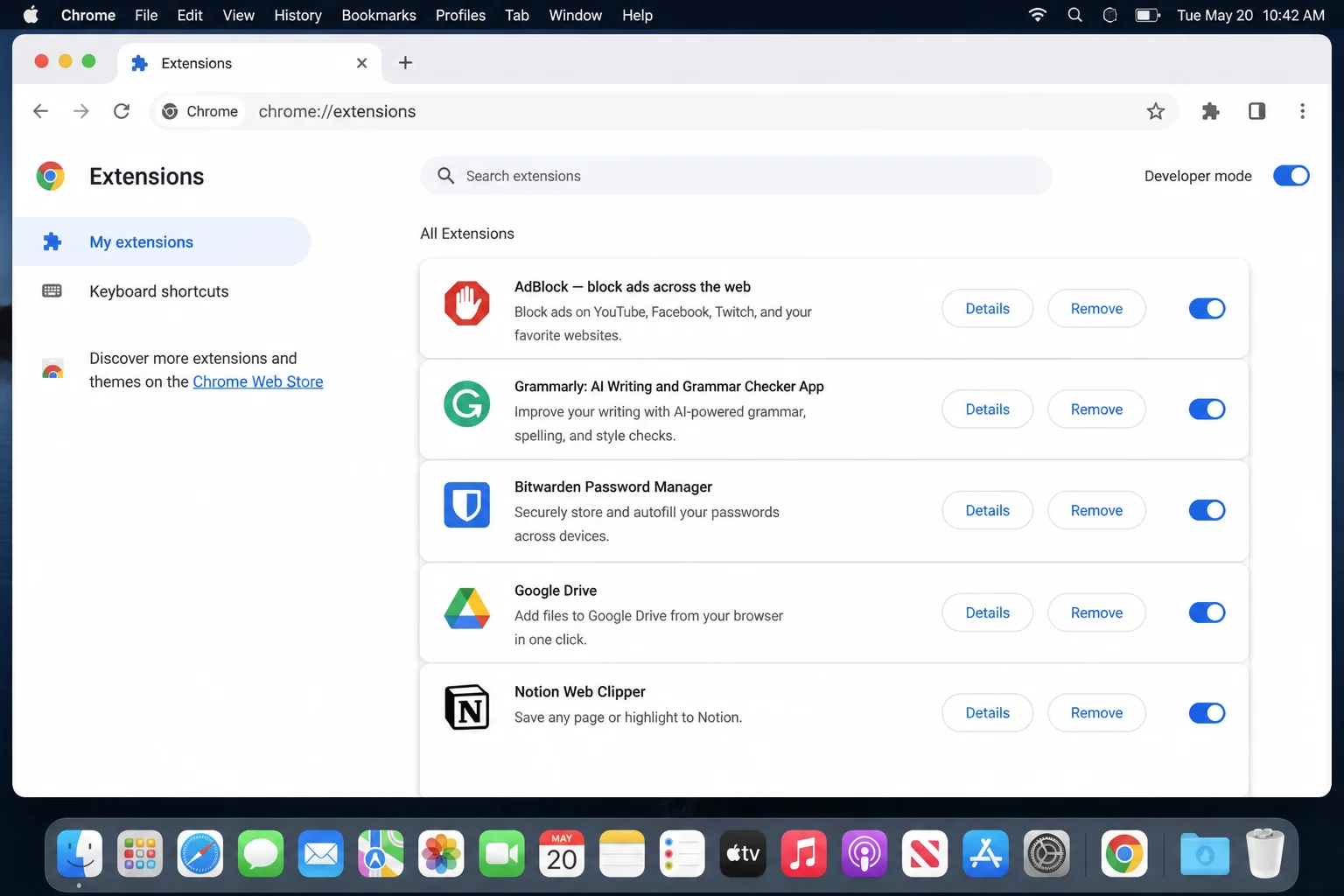
- Relaunch Chrome and use it normally for a while; browse the same sites and tabs that were causing trouble.
- If Chrome stays stable, go back to
chrome://extensionsand re-enable your extensions one at a time, relaunching Chrome after each one. - When the crash returns, the extension you just re-enabled is the culprit. Click Remove on its card to delete it.
Verification: Browse normally for at least a day with the remaining extensions active. If Chrome doesn’t crash, you’ve found and removed the problem extension.
> Tip: If you’re not sure which extensions you actually use, this is also a good time to remove ones you’ve forgotten about entirely. Fewer extensions means fewer things that can go wrong.
Problem: Chrome keeps asking for your Mac password, or crashes right after you enter it
Symptoms:
- A “Chrome wants to use your confidential information stored in your keychain” prompt keeps reappearing
- Chrome crashes or freezes immediately after you type your Mac login password
- Saved passwords in Chrome stop autofilling
Why it happens: Chrome stores an encryption key called Chrome Safe Storage in the macOS Keychain. It uses this key to encrypt your saved passwords and cookies. If this entry becomes corrupted, often after a macOS update or a Chrome update, Chrome can’t read it properly. That’s what triggers the repeated password prompts, freezes, or crashes.
Fix:
- Quit Chrome completely (
Cmd + Q). - Open Keychain Access (Applications > Utilities > Keychain Access).
- In the search field at the top right, type
Chrome.
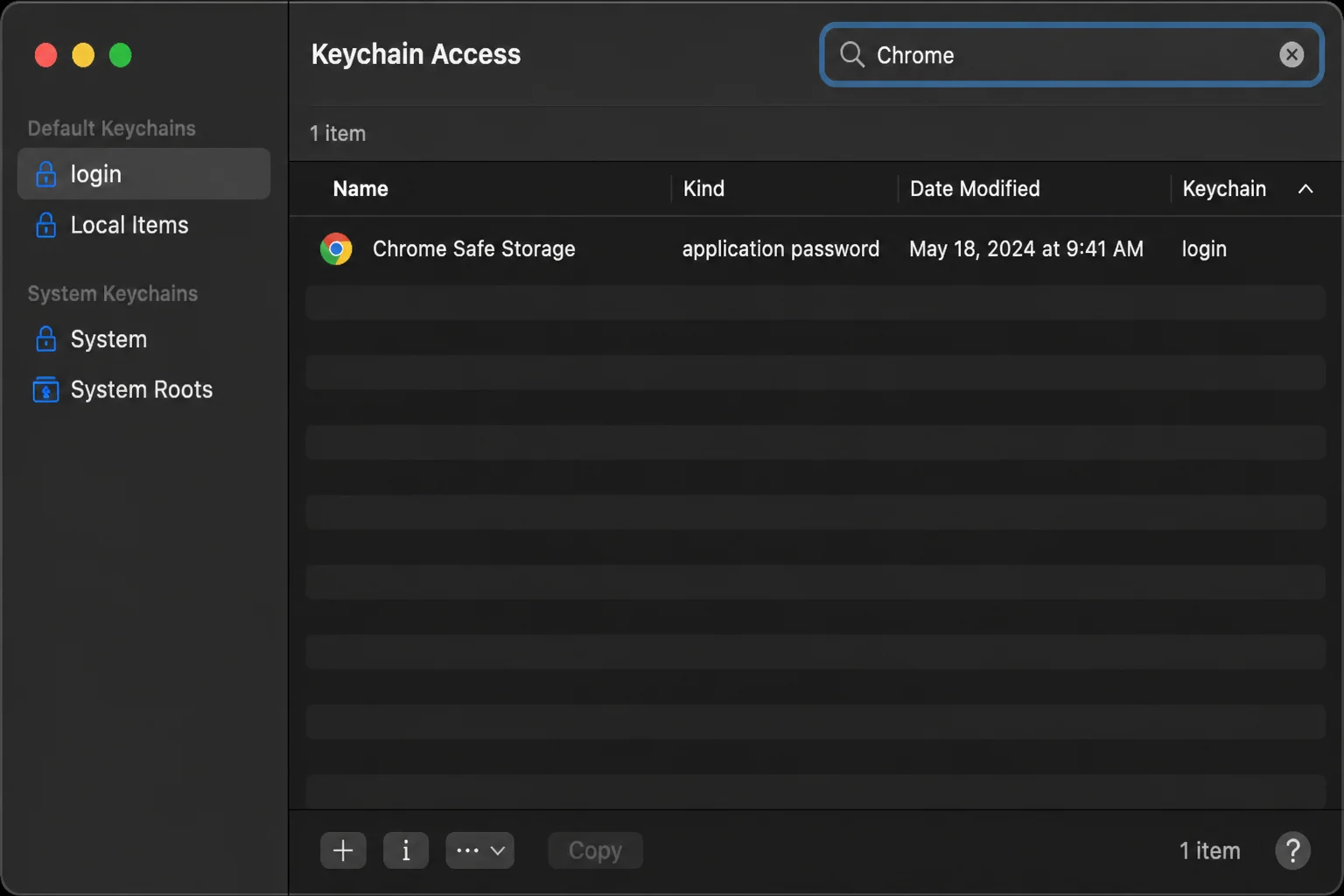
- Find the entry named Chrome Safe Storage. Select it and press
Cmd + Delete, then confirm. - Relaunch Chrome. It will silently regenerate a new Safe Storage entry, and you may be asked to re-save your Keychain permission the next time Chrome stores a password.
Verification: Browse for a few sessions and confirm the password prompts have stopped and Chrome no longer crashes when accessing saved logins.
> Tip: Deleting this entry does not delete your saved Chrome passwords: those live in Chrome’s own profile data, not the Keychain entry itself. Chrome just needs a fresh, uncorrupted key to read them with.
Problem: Chrome freezes or beachballs during video, scrolling, or with an external monitor connected
Symptoms:
- The beachball appears specifically during video playback, fast scrolling, or animations
- Freezing started after connecting an external display or docking station
- Problem began right after a macOS update
Why it happens: Chrome uses your Mac’s graphics processor (GPU) to render pages faster; this is called hardware acceleration. On certain Mac configurations, especially with external monitors or after a macOS graphics driver update, this GPU rendering can conflict with the system and cause Chrome to hang.
Fix:
- Open
chrome://settings/systemin Chrome’s address bar. - Turn off Use graphics acceleration when available.
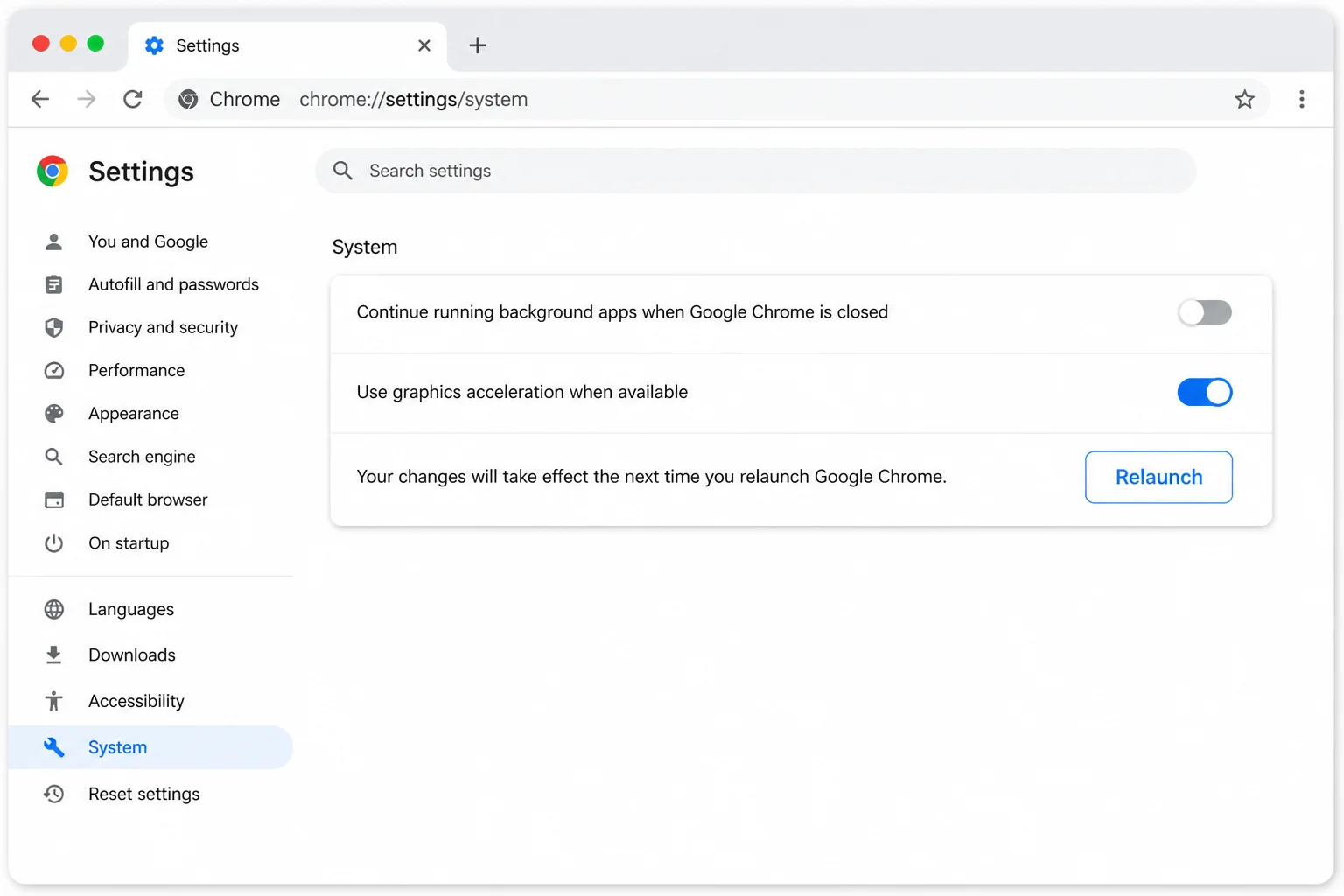
- Click the Relaunch button that appears at the top of the settings page to restart Chrome with the change applied.
Verification: Reproduce whatever triggered the freeze before (play a video, scroll a long page, or reconnect your external monitor). If the beachball doesn’t return, hardware acceleration was the cause.
> Tip: Disabling hardware acceleration can make some pages render a bit slower, since Chrome falls back to software rendering. That’s a fair trade if it stops the freezing. Worth revisiting after your next macOS or Chrome update, though, since the underlying driver conflict may get fixed on its own.
Problem: Your whole Mac feels sluggish and Chrome won’t respond, especially with lots of tabs open
Symptoms:
- Chrome becomes unresponsive only when many tabs are open
- The rest of your Mac slows down at the same time, not just Chrome
- Fans spin up and your Mac feels warm
Why it happens: Every open tab and extension uses a share of your Mac’s memory (RAM). When Chrome asks for more memory than your Mac has available, macOS starts swapping data to disk. This shows up as high memory pressure. It can freeze Chrome, and everything else, until memory frees up. This is especially common on 8 GB Macs with dozens of tabs open.
Fix:
- Open Activity Monitor (Applications > Utilities > Activity Monitor) and click the Memory tab.
- Look at the Memory Pressure graph at the bottom of the window. Green means you’re fine; yellow means memory is getting tight; red means your Mac is actively struggling to keep up.
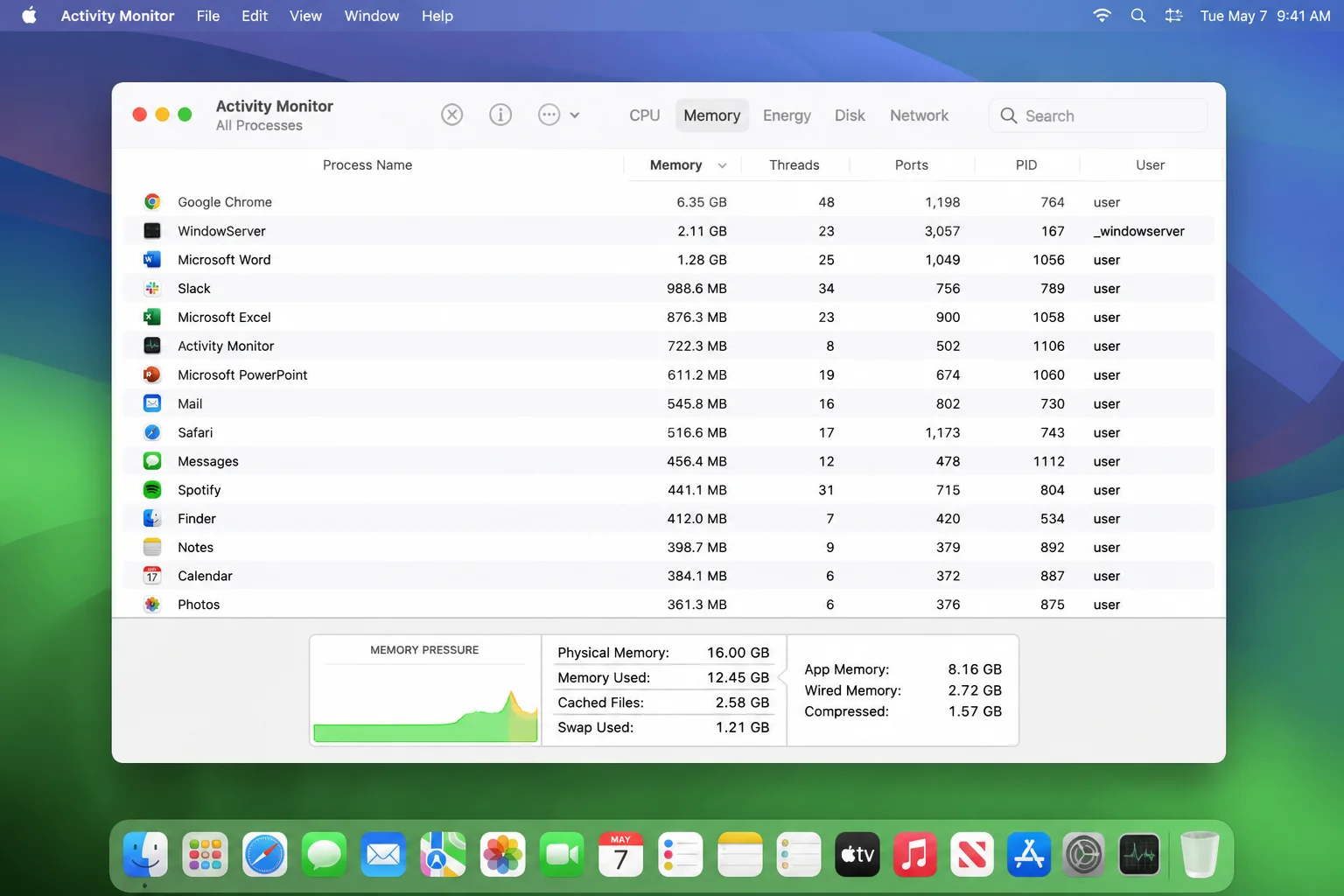
- If the graph is yellow or red, go back to Chrome and open its own Task Manager: click the three-dot menu (⋮) in the top-right corner, then More Tools > Task Manager.
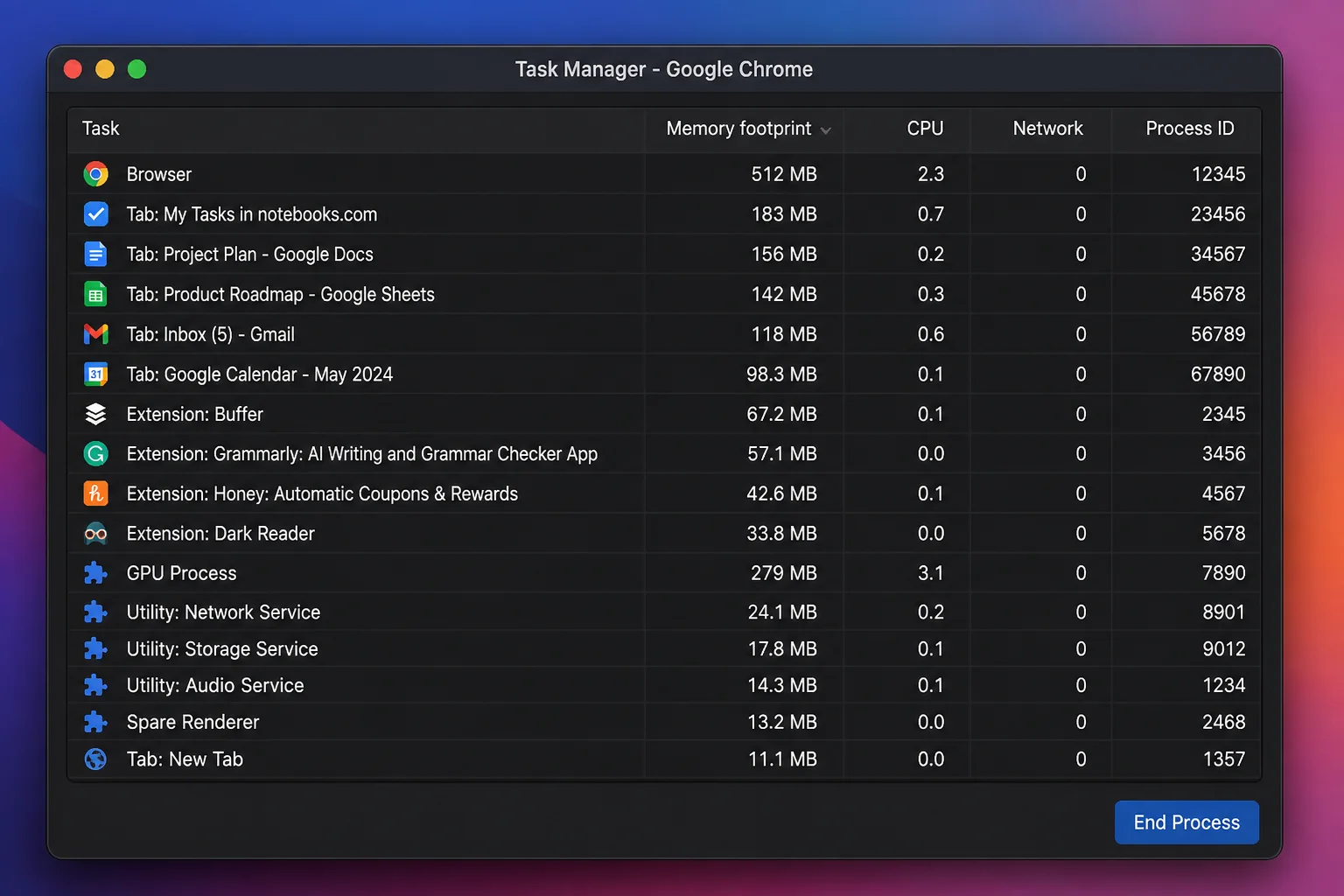
- Sort by the Memory Footprint column, select the tab or extension using the most memory, and click End process.
- Close any tabs you’re not actively using, and quit other memory-heavy apps running alongside Chrome.
Verification: Check the Memory Pressure graph again in Activity Monitor. Once it’s back to green and Chrome responds normally to clicks and scrolling, you’ve resolved the memory bottleneck.
Problem: Chrome still crashes or freezes after trying the fixes above
Symptoms:
- Crashes or freezes continue even with extensions disabled, hardware acceleration off, and memory pressure normal
- Problems seem random and aren’t tied to a specific tab or action
Why it happens: Chrome and macOS both ship regular updates that patch specific stability bugs. If you’re behind on either one, you may simply be missing the exact fix for the crash you’re experiencing.
Fix:
- In Chrome, click the three-dot menu (⋮) > Help > About Google Chrome. This opens
chrome://settings/help, which checks for updates automatically.
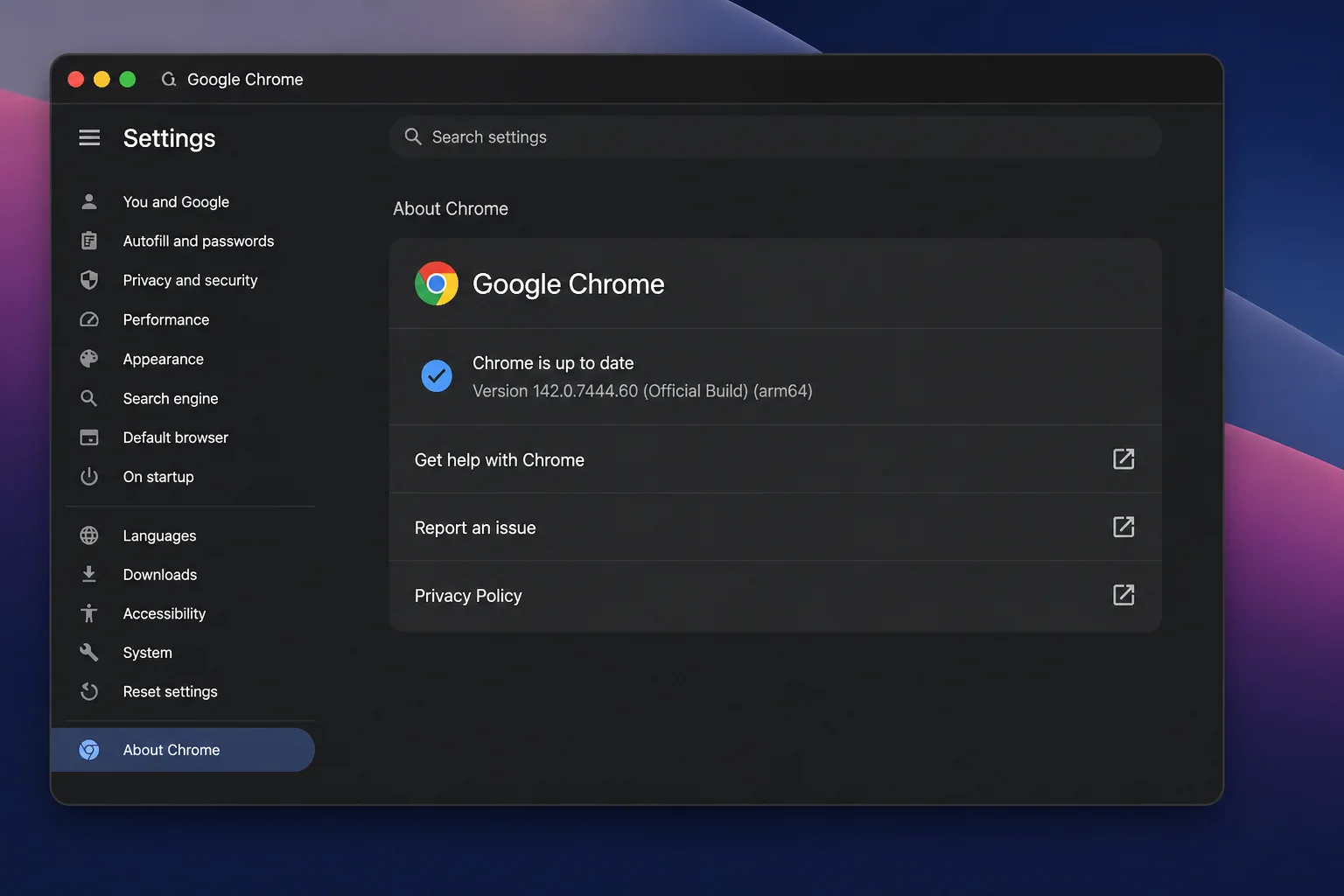
- If an update is available, let it download and click Relaunch to apply it.
- Separately, check macOS: go to the Apple menu > System Settings > General > Software Update.
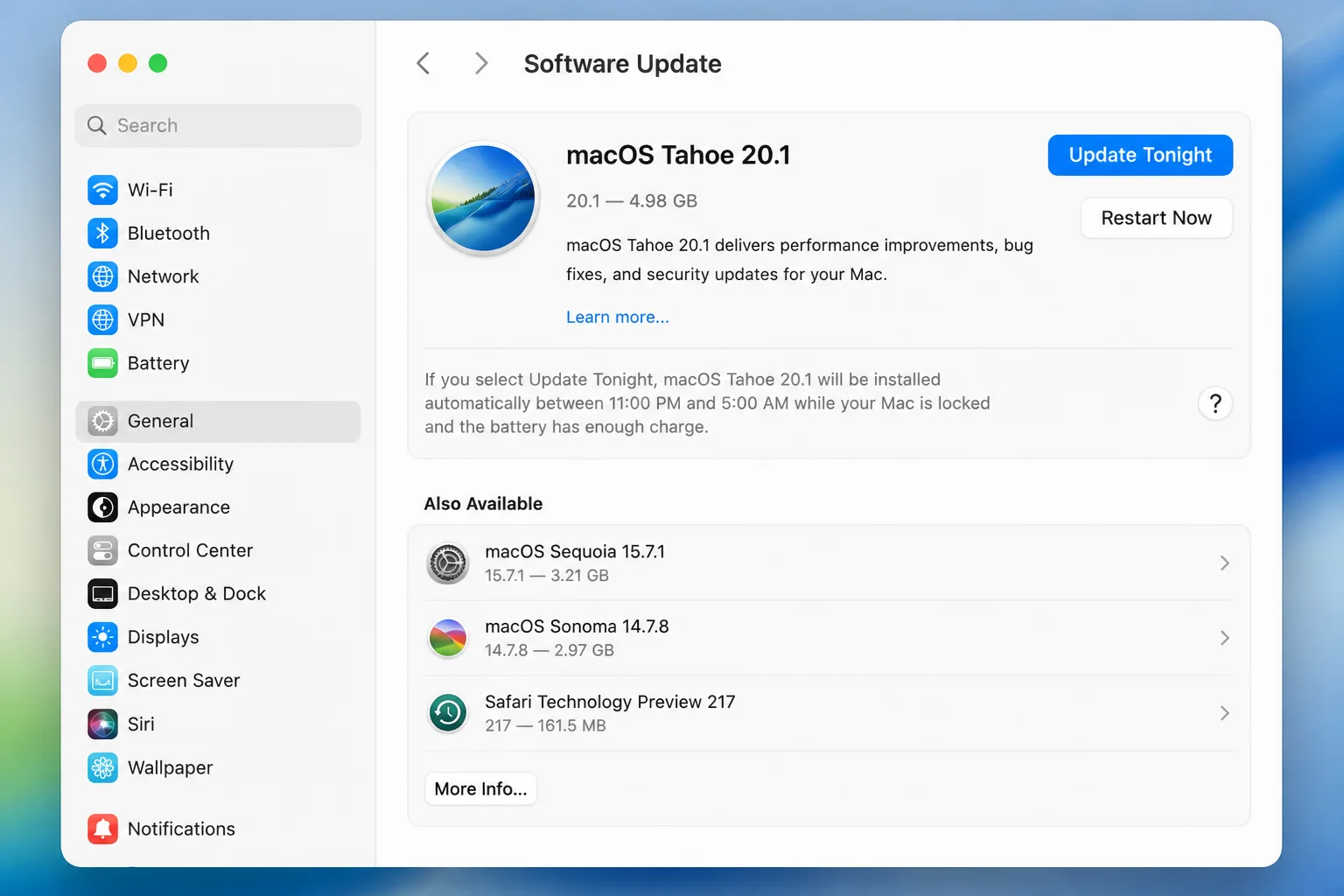
- Install any pending updates, then restart your Mac.
Verification: Confirm chrome://settings/help shows “Google Chrome is up to date” and Software Update shows no pending macOS updates, then use Chrome as you normally would for a few days.
Problem: Nothing above has fixed the crashing or freezing: last resort
Symptoms:
- You’ve isolated extensions, cleared the Keychain entry, toggled hardware acceleration, checked memory pressure, and updated everything, and Chrome is still unstable
Why it happens: At this point, the issue is likely corrupted preferences, cache, or profile data. It isn’t tied to any single setting you can toggle on its own.
Fix:
- Open
chrome://settings/resetin Chrome’s address bar. - Click Restore settings to their original defaults.
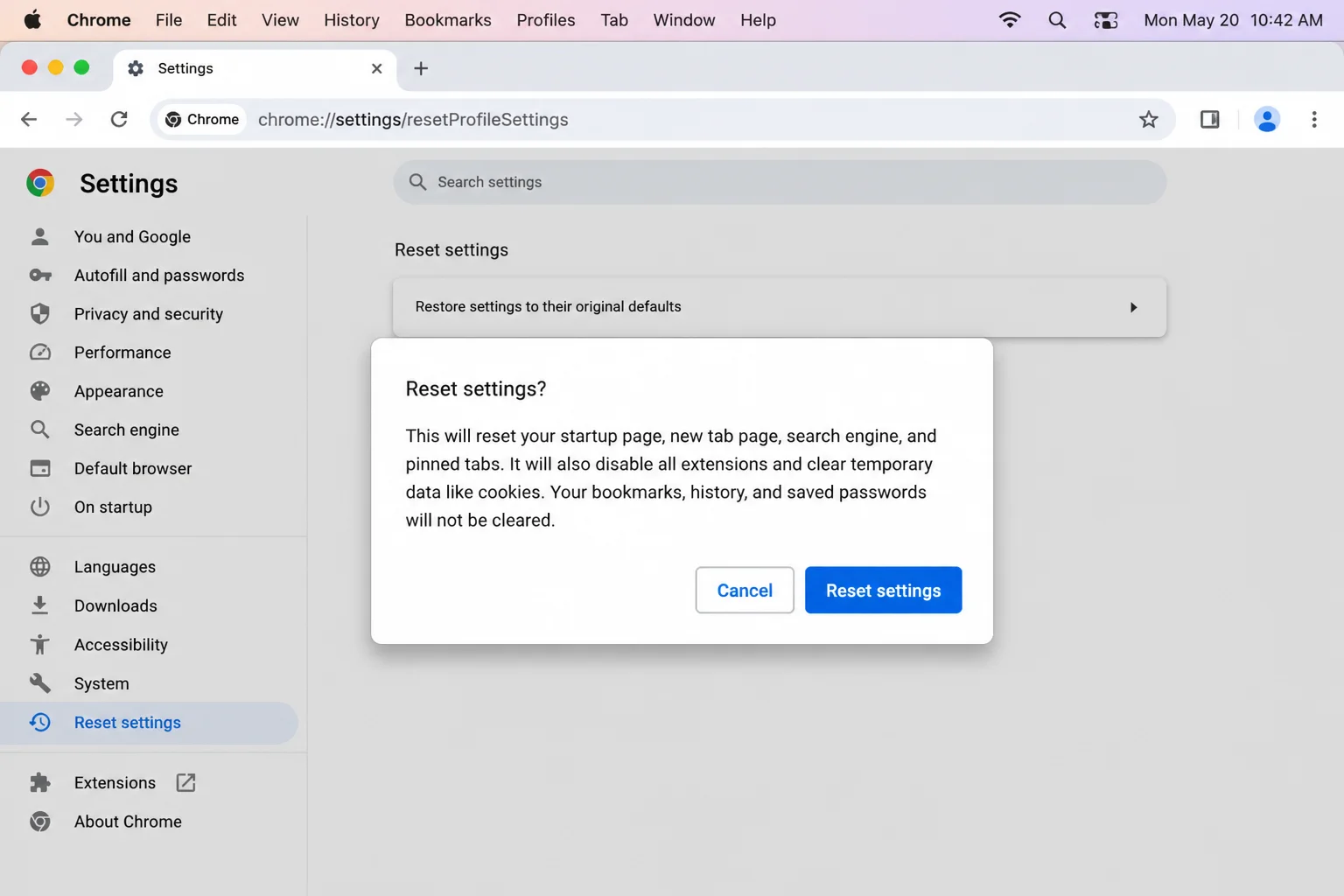
- Confirm by clicking Reset settings in the dialog that appears.
Verification: Chrome will reopen with a fresh new tab page and default search engine. Browse normally for a few days to confirm crashes and freezes no longer occur.
> Tip: Resetting does not delete your bookmarks, saved passwords, or browsing history. It only clears your startup pages, pinned tabs, new tab page, default search engine, and disables extensions (which you can re-enable individually afterward). You do not need to reinstall Chrome to fix crashing; this reset addresses the same underlying corruption without a full reinstall.
Error Messages Table
| Error Message | What It Means | Quick Fix |
|---|---|---|
| “Google Chrome quit unexpectedly” | A crash report macOS generates after Chrome’s process ends abnormally | Check chrome://extensions first; a bad extension is the most common cause |
| “Aw, Snap!” (page reload icon) | A single tab’s rendering process crashed, usually from a memory-heavy page | Reload the tab; if it repeats often, check memory pressure in Activity Monitor |
| “He’s dead, Jim!” | Chrome’s internal name for a fully crashed tab process (same cause as “Aw, Snap!”) | Close and reopen the tab; check for a runaway extension in that tab |
| “Chrome wants to use your confidential information stored in your keychain” (repeating) | Chrome’s Keychain access token has become corrupted or is stuck in a permission loop | Delete the Chrome Safe Storage entry in Keychain Access |
| Spinning beachball cursor over Chrome’s window | macOS reports the app is not responding to input | Check Activity Monitor for “Not Responding,” then test hardware acceleration and memory pressure |
| “Out of memory” or blank white tab | The tab’s process ran out of available RAM | Close unused tabs, check Memory Pressure, quit other memory-heavy apps |
| “This page was reloaded because it was inactive” | Chrome discarded a background tab to free memory; not a crash | Informational only; reopen the tab to restore it |
Platform-Specific Issues
On Apple Silicon Macs (M1 and later)
Most crashing and freezing issues behave the same as described above. But if you’re running an older Intel-only extension or a legacy plug-in, Chrome may run it through Apple’s Rosetta translation layer. That can add instability. Check chrome://extensions for any extension that hasn’t been updated recently, and consider removing it if a native alternative exists.
On Intel Macs with an external monitor or docking station
Freezing tied to hardware acceleration is more common on Intel Macs using discrete or switchable graphics. That’s common in 15-inch and 16-inch MacBook Pro models from recent years, especially when driving one or more external displays through a dock. If you regularly connect external monitors, hardware acceleration should be one of the first fixes you try, not the last.
Configuration Issues
A few common setup mistakes make crashing and freezing worse without users realizing it:
- Leaving “Continue running background apps when Google Chrome is closed” enabled: Found at
chrome://settings/system, this keeps Chrome processes alive in the background after you close the window. If Chrome is unstable, turn this off so a full quit actually clears all its processes. - Re-enabling all extensions at once after testing: This defeats the purpose of extension isolation. Always re-enable one at a time and use Chrome for a while before adding the next.
- Skipping the Relaunch step: Toggling hardware acceleration or resetting settings doesn’t take effect until Chrome restarts. Always use the in-app Relaunch button rather than assuming the change applied immediately.
- Confusing iCloud Keychain with the local login Keychain: The Chrome Safe Storage entry lives in your Mac’s local login keychain, not iCloud Keychain. Make sure you’re searching within the correct keychain in Keychain Access (the login keychain, shown in the sidebar).
Getting Help
If you’ve worked through every fix above and Chrome is still unstable, gather this information before reaching out for support:
- Chrome’s crash history: Type
chrome://crashesinto the address bar to see a list of recent crash reports with IDs. - Chrome version and OS details: Type
chrome://versionfor your exact Chrome build, profile path, and command-line flags in use. - macOS crash logs: Open Console.app (Applications > Utilities > Console) and check
~/Library/Logs/DiagnosticReportsfor Chrome-related crash logs with timestamps matching your incidents. - Google’s official troubleshooting page: Fix Chrome not working or opening
- Chrome Help Community: Google’s official user forum for reporting persistent bugs
- Apple Support Communities: Useful if the freezing seems tied to macOS or Keychain behavior rather than Chrome itself
Prevention Tips
- Keep Chrome and macOS updated: Turn on automatic updates for both so stability fixes reach you without manual checks.
- Audit extensions periodically: Every few months, remove extensions you no longer use from
chrome://extensions. - Watch your tab count: If you regularly run 40+ tabs, consider using Chrome’s tab groups or bookmarking sessions instead of leaving everything open indefinitely.
- Don’t ignore early beachballs: A single freeze that resolves itself is normal; recurring ones are a signal to check memory pressure before it gets worse.
- Back up bookmarks occasionally: Export bookmarks from
chrome://bookmarks> three-dot menu > Export bookmarks so you’re never worried about losing them, even though a settings reset won’t touch them.
Frequently Asked Questions
Why does Chrome keep crashing on my Mac?
Most repeated crashes come down to a misbehaving extension or a corrupted Chrome Safe Storage entry in Keychain Access. Start with extension isolation. It’s the most common cause and the easiest to test.
Why does Chrome freeze or beachball on my Mac?
Freezing is usually tied to hardware acceleration conflicts with your Mac’s graphics processor, or to high memory pressure from too many open tabs. Check chrome://settings/system and Activity Monitor’s Memory tab.
How do I know if a Chrome extension is causing crashes?
Disable all extensions at chrome://extensions, then use Chrome normally to confirm it’s stable. Re-enable them one at a time, relaunching after each, until the crash reappears.
What is the Chrome Safe Storage entry in Keychain Access and why does it cause problems?
It’s the encryption key Chrome uses to protect saved passwords and cookies. When it becomes corrupted, usually after a system or Chrome update, it can cause repeated password prompts, crashes, or freezes. Delete it and let Chrome regenerate it.
Should I turn off hardware acceleration in Chrome on a Mac?
Only if you’re seeing freezes tied to video, scrolling, or an external monitor. It can make rendering a bit slower, but that’s a fair trade if it stops the freezing. You can re-enable it later after a macOS or Chrome update.
How do I check if Chrome is using too much memory on my Mac?
Open Activity Monitor’s Memory tab and look at the Memory Pressure graph. Yellow or red means Chrome, or another app, is straining your available RAM. Use Chrome’s own Task Manager to find the specific tab responsible.
Will resetting Chrome delete my bookmarks or passwords?
No. Resetting Chrome at chrome://settings/reset only clears your startup pages, new tab page, pinned tabs, and default search engine, and it disables extensions. Bookmarks, saved passwords, and browsing history all stay intact.
Do I need to reinstall Chrome to fix crashing?
Usually not. The fixes in this guide cover extensions, Keychain, hardware acceleration, memory, updates, and a settings reset. Together they resolve the vast majority of crashing and freezing issues without a full reinstall.
Wrapping Up
Nine times out of ten, Chrome crashing or freezing on a Mac traces back to one of the usual suspects: a bad extension, a corrupted Keychain entry, a graphics conflict, or memory pressure. Work the list in order, from extensions down to a settings reset. You’ll land on stable ground without losing a single bookmark or saved password.
Still stuck after all seven fixes? Open Safari for a day and see if the problem follows you. If it doesn’t, you’re dealing with something Chrome-specific, not a deeper issue with macOS.
| Step | Action | Applies To |
|---|---|---|
| 1 | Diagnose: crash, freeze, or slow performance | All cases |
| 2 | Disable extensions one at a time | Frequent crashes |
| 3 | Delete Chrome Safe Storage in Keychain Access | Password prompt loops, crashes |
| 4 | Turn off hardware acceleration | Freezing during video/scrolling |
| 5 | Check Memory Pressure in Activity Monitor | Freezing with many tabs open |
| 6 | Update Chrome and macOS | Ongoing, unexplained issues |
| 7 | Reset Chrome settings | Last resort, nothing else worked |
Last updated: July 22, 2026 | Applies to Google Chrome on macOS