
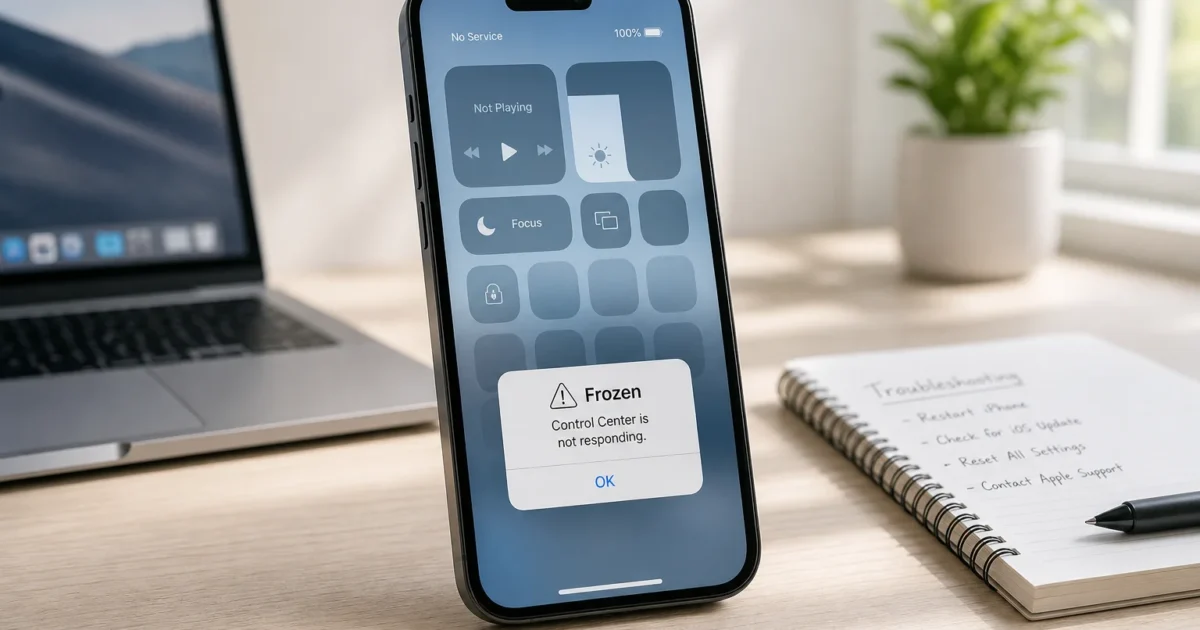
Control Center should appear with one swipe, so it’s irritating when nothing happens. The cause is usually a blocked access setting, the wrong gesture, a stuck app, or a screen edge that isn’t detecting touch.
Start with the quick checks below. They’ll help you avoid resetting settings when the problem is only a disabled switch or an awkward swipe.
Quick Diagnosis
First, check exactly where Control Center fails:
- Try opening Control Center from the Home Screen.
- Open an app and try again.
- Lock the device, wake the screen, and try from the Lock Screen.
- Test taps and swipes along the same screen edge in another app.
- Check whether the whole panel is frozen or only one control fails.
That location matters. If Control Center works on the Home Screen but nowhere else, for example, the display itself is probably fine.
| Symptom | Likely cause | First fix to try |
|---|---|---|
| It fails everywhere | Wrong gesture, touch interference, or an iOS problem | Check the gesture and screen |
| It works on the Home Screen but not in apps | Access Within Apps is off | Enable app access |
| It works when unlocked but not on the Lock Screen | Lock Screen access is off | Enable Control Center under Allow Access When Locked |
| It opens but does not respond | Frozen app or temporary iOS problem | Close the app, then restart |
| One button is missing | The control was removed or is unavailable | Add the control again |
| The same screen edge fails in other apps | Case, protector, screen, or digitizer problem | Remove accessories and test the display |
Common Issues and Solutions
Problem 1: Control Center Will Not Open Anywhere
Symptoms:
- Control Center will not swipe down or up.
- The gesture returns you to the Home Screen or does nothing.
- The problem occurs on the Home Screen, in apps, and on the Lock Screen.
Why it happens: Face ID and Home-button iPhones use different gestures. Starting even a little too far from the edge can make iOS treat your swipe as an app gesture.
Fix:
- On an iPhone with Face ID, such as an iPhone 15 or later, place your finger at the top-right corner near the battery icon.
- Swipe straight down at a steady speed.
- On an iPhone with a Home button, such as an iPhone SE, begin at the bottom edge and swipe up.
- Repeat the gesture from the Home Screen before testing it inside an app.
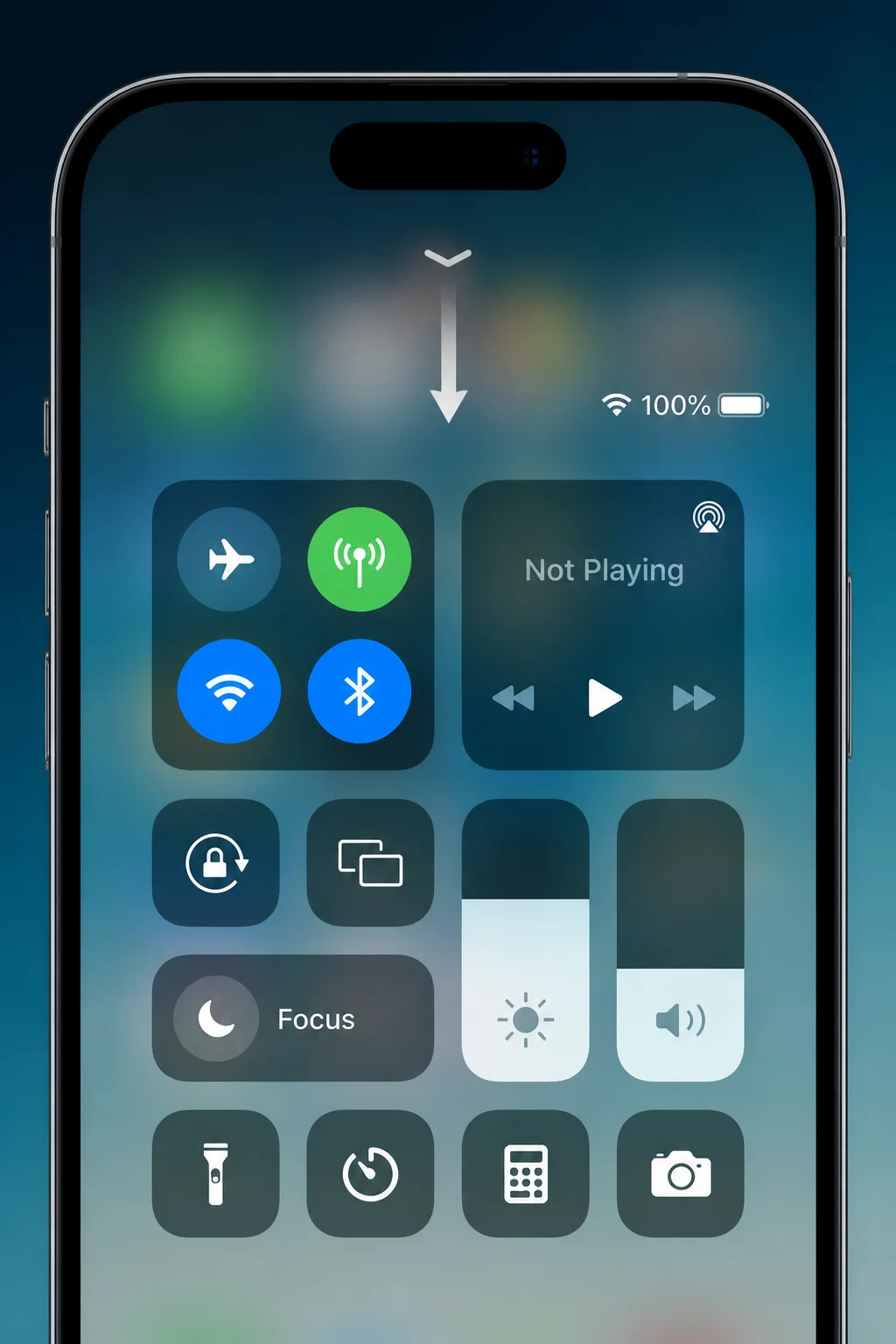
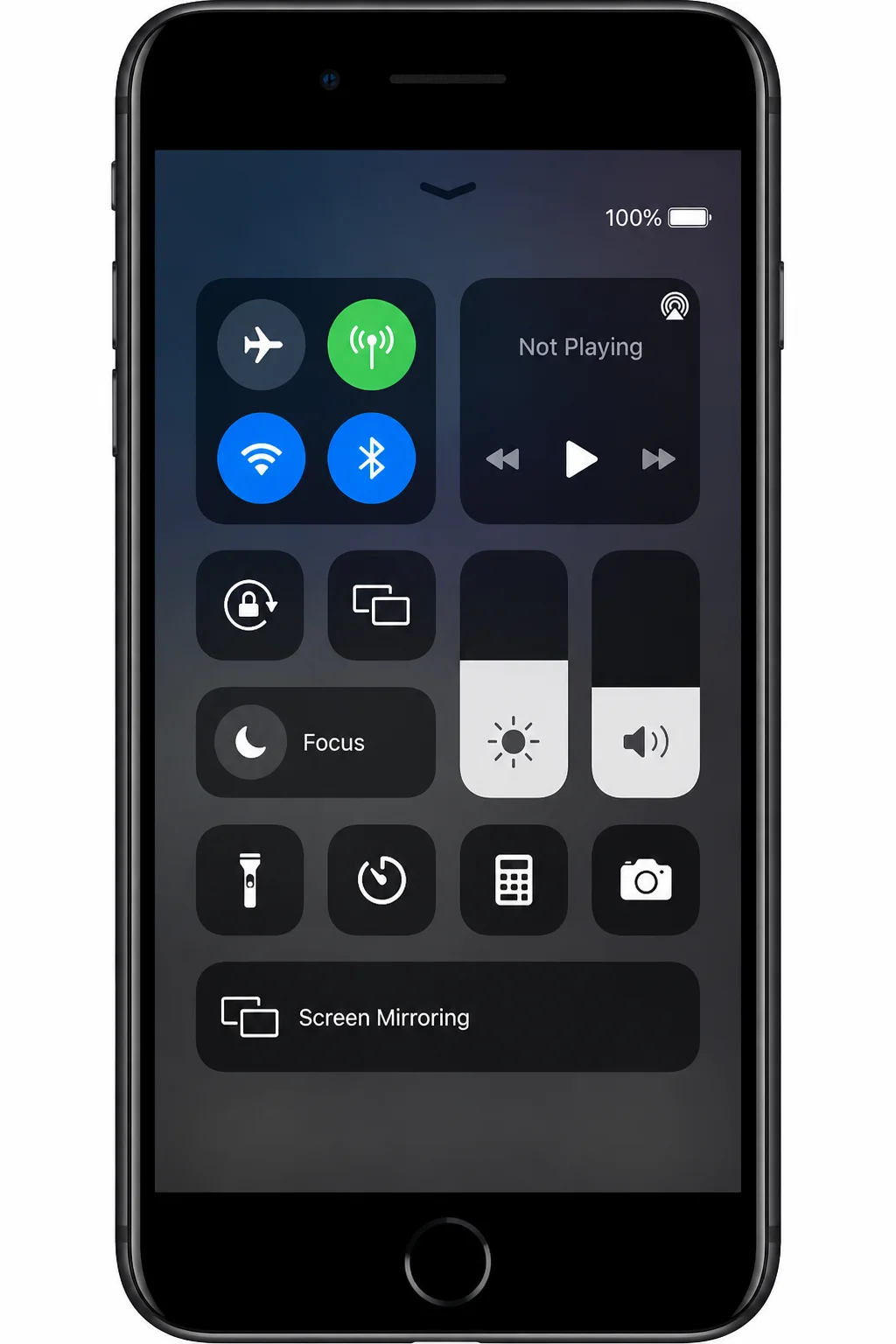
Verify: Control Center should slide over the Home Screen. If you’re using the correct gesture and it still fails everywhere, move on to the screen checks below.
Problem 2: A Frozen App Blocks Control Center
Symptoms:
- Control Center stops opening while one app is on screen.
- The foreground app ignores taps or gestures.
- Control Center works again after returning to the Home Screen.
Why it happens: A frozen app can interfere with touch input or leave part of the iOS interface unresponsive. This often feels like a Control Center problem because that’s the first gesture you notice failing.
Fix:
- On a Face ID iPhone or iPad without a Home button, swipe up from the bottom and pause in the middle to open the App Switcher.
- On a Home-button device, double-press the Home button.
- Find the frozen app.
- Swipe its preview upward to close it.
- Return to the Home Screen and retry Control Center.
Force-closing makes sense when an app is stuck. Don’t make a habit of closing every app, though. Reloading them can use more battery than leaving them suspended.
Verify: Reopen the app and test Control Center again. If the problem returns only in that app, update or reinstall it.
Problem 3: Control Center Opens but Is Frozen
Symptoms:
- The panel appears, but buttons ignore taps.
- Brightness or volume controls will not move.
- Control Center remains stuck on screen.
Why it happens: A temporary iOS interface process may have stopped responding. A normal restart clears that process without changing your data or settings.
Fix:
- If the device responds, open Settings > General > Shut Down.
- Drag the power slider.
- Wait about 30 seconds, then hold the side or top button until the Apple logo appears.
- If the whole device is frozen, use the force-restart sequence for your model.
For most modern iPhones, press and release Volume Up, press and release Volume Down, then hold the Side button until the Apple logo appears. Keep holding if the screen briefly goes dark.
Button sequences differ on older iPhones and iPads. Use Apple’s instructions for your exact model if that sequence doesn’t apply.
Verify: Open Control Center and test several controls, including brightness and volume. One working button doesn’t prove the whole panel has recovered.
Problem 4: Control Center Does Not Work Inside Apps
Symptoms:
- Control Center works on the Home Screen.
- It will not open over Safari, a game, or another app.
- Swiping triggers an action in the app instead.
Why it happens: Access Within Apps is disabled. Some full-screen apps also capture the first swipe, so iOS may require a second swipe from the same edge.
Fix:
- Open Settings.
- Tap Control Center.
- Turn on Access Within Apps.
- Return to the affected app and repeat the correct gesture.
- In a full-screen game or video app, try the edge gesture a second time if the first swipe reveals an indicator.
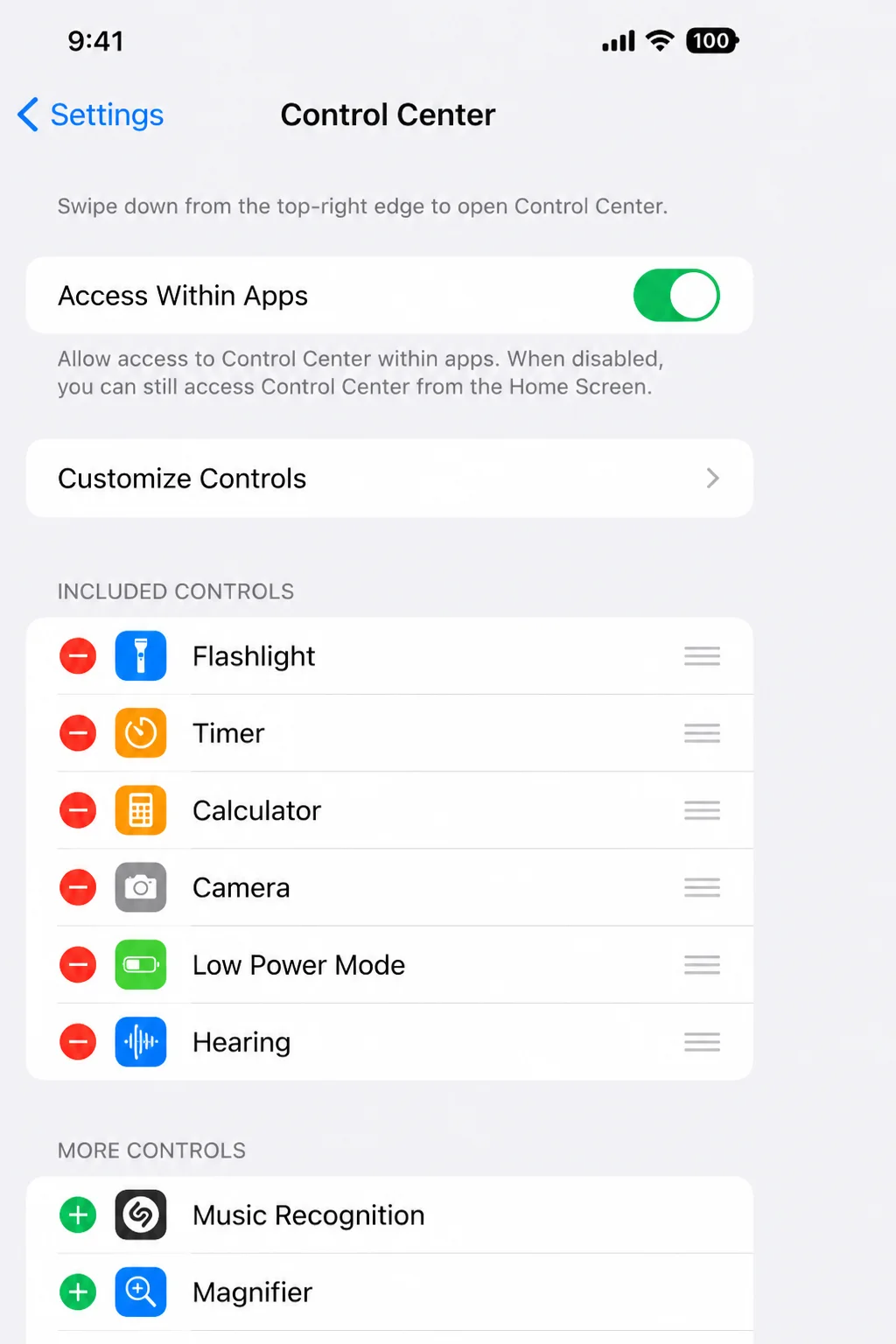
Verify: Control Center should now open over the app. If it already worked on the Home Screen, this switch is the first setting I’d check.
Problem 5: Control Center Will Not Open from the Lock Screen
Symptoms:
- Control Center works after unlocking the iPhone.
- Nothing happens when you swipe from the Lock Screen.
Why it happens: Lock Screen access is disabled. Apple provides this option because Control Center exposes features such as Airplane Mode and wireless controls while your phone is locked.
Fix:
- Open Settings > Face ID & Passcode. On a Home-button iPhone, choose Touch ID & Passcode.
- Enter your passcode privately.
- Scroll to Allow Access When Locked.
- Turn on Control Center.
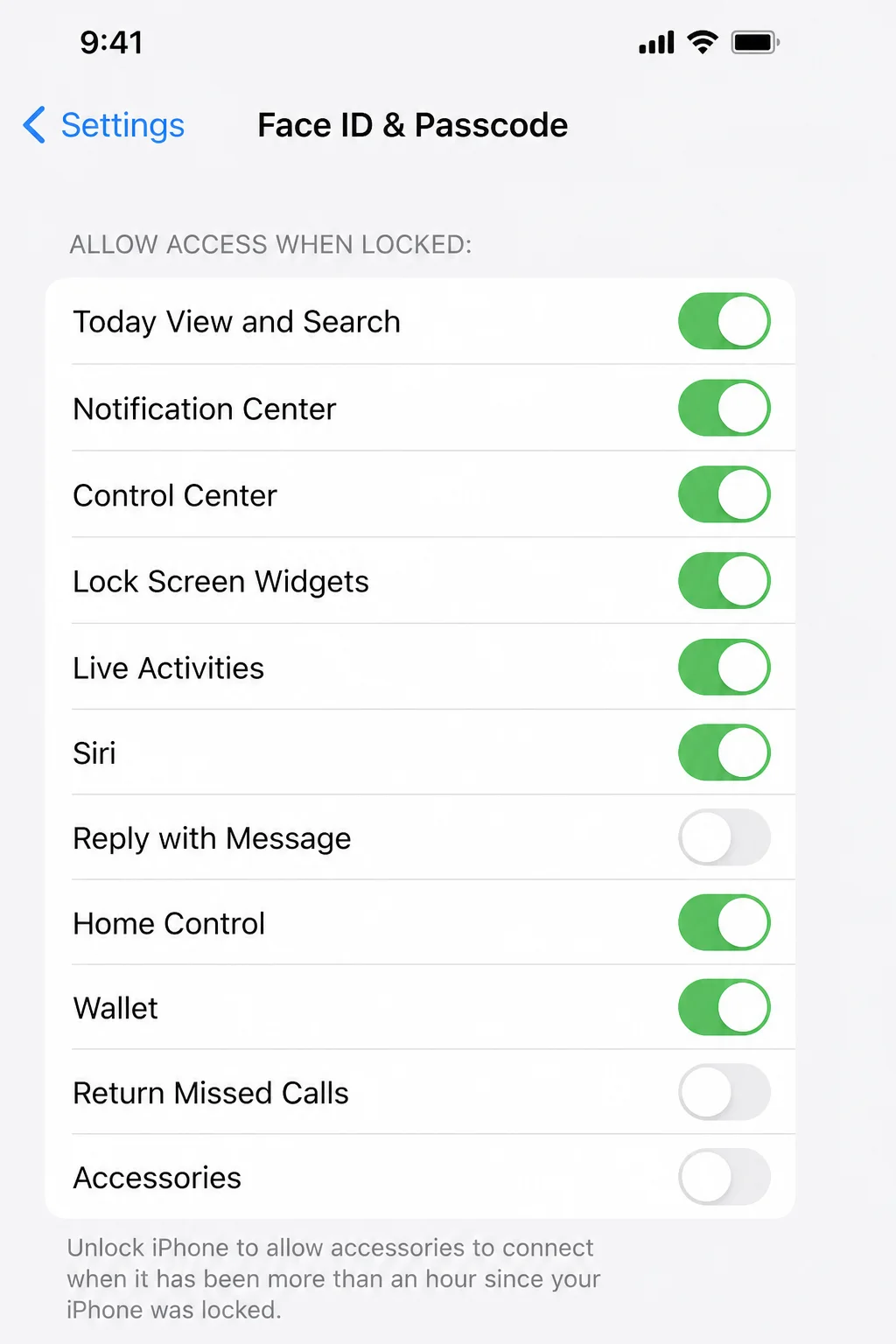
Verify: Lock and wake the device, then use the gesture for your model.
Enabling this setting makes Control Center available without authentication. That’s convenient, but it also means anyone holding the locked phone can reach the controls Apple permits there.
Problem 6: The Screen Edge Does Not Detect the Swipe
Symptoms:
- Swipes fail near the top or bottom edge.
- The same area misses taps in other apps.
- The problem began after adding a case or screen protector.
- The display is cracked, wet, or damaged.
Why it happens: Dirt, moisture, a tight case, or a poorly fitted protector can interfere with edge touches. A damaged digitizer, which is the screen layer that detects touch, can cause the same pattern.
Fix:
- Disconnect charging cables and accessories.
- Dry the screen and clean it with a soft, lint-free cloth.
- Remove the case.
- If practical, temporarily remove a lifting or damaged screen protector.
- Test the affected edge in another app by drawing, scrolling, or moving an icon near it.
- Rotate the device and compare how the same physical area responds.
Don’t use household cleaners or soak the display. Liquid can reach openings around the speaker and buttons, even on a water-resistant iPhone.
Verify: If the gesture works after removing an accessory, replace that accessory. If one physical strip fails in several apps after a restart, the screen is more likely to be the cause than iOS.
Problem 7: VoiceOver Changes the Gesture
Symptoms:
- Control Center stopped opening after VoiceOver was enabled.
- One-finger swipes select or announce items instead.
- Other accessibility gestures behave differently than expected.
Why it happens: VoiceOver changes how iPhone and iPad interpret taps and swipes. With VoiceOver active, select the status information at the top of the screen, then swipe up with three fingers to open Control Center.
Fix:
- Open Settings > Accessibility > VoiceOver.
- If you do not need VoiceOver, turn it off.
- If you use VoiceOver, keep it enabled and use its Control Center gesture.
- Review other enabled options under Settings > Accessibility > Touch, including AssistiveTouch and Touch Accommodations, if touch behavior still feels unusual.
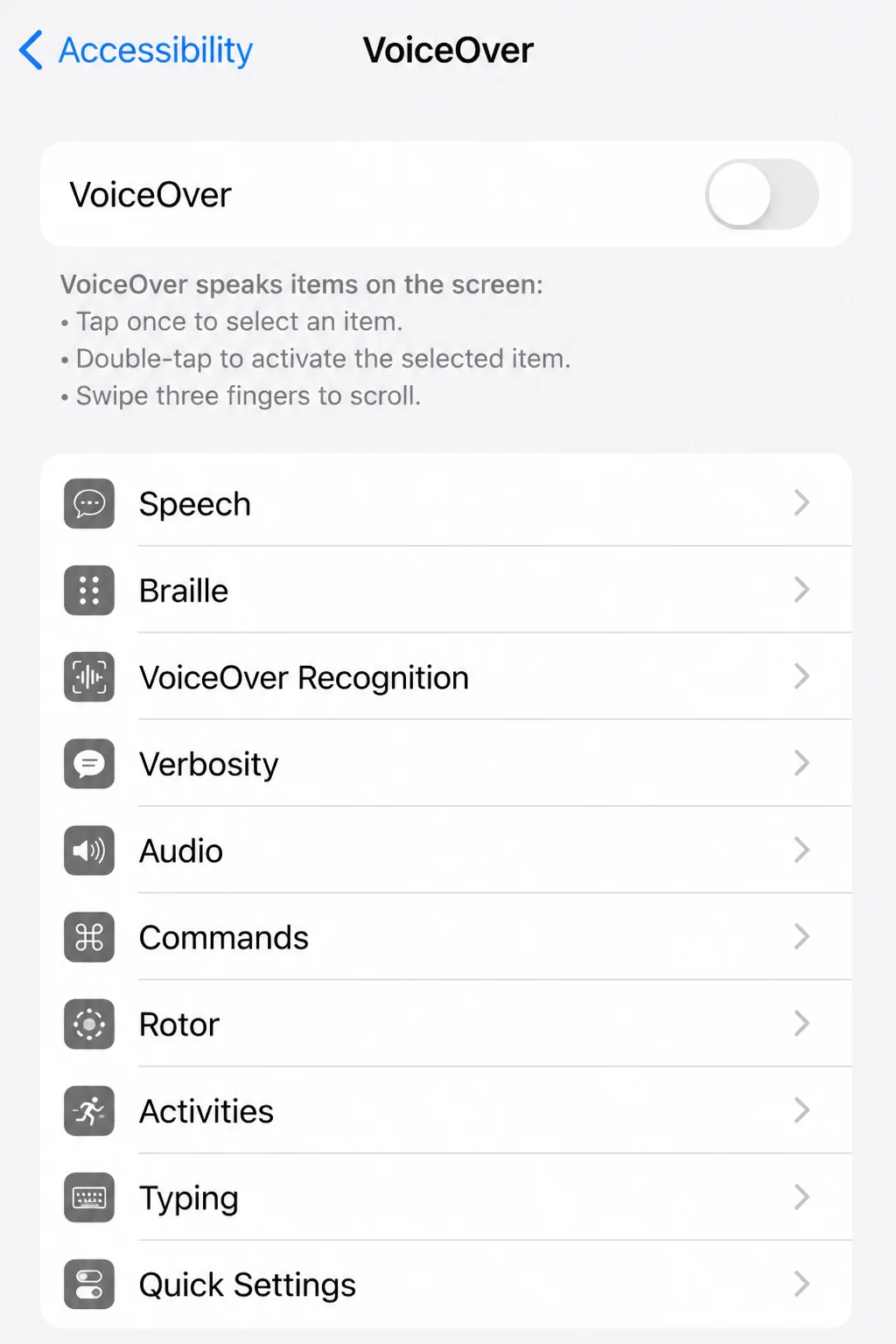
Verify: Open Control Center with the gesture that matches your current accessibility setup. Turning VoiceOver off only to restore familiar gestures removes its spoken interface too, so leave it enabled if you depend on it.
Problem 8: A Control Is Missing or Does Not Respond
Symptoms:
- Control Center opens normally, but a button is gone.
- One control ignores taps while other controls work.
- A control disappeared after editing the layout or updating iOS.
Why it happens: The control may have been removed, moved to another Control Center page, or saved with a damaged configuration. If the rest of the panel works, you can focus on that single control.
Fix:
- Open Control Center.
- Touch and hold an empty area to enter editing mode.
- Check other Control Center pages for the missing item.
- Remove the affected control if it is still present.
- Choose the option to add a control, then add it again.
- Tap an empty area or exit editing mode when finished.
The exact editing buttons and labels can vary by iOS or iPadOS release. Check every Control Center page before adding another copy, since a moved control is easy to overlook.
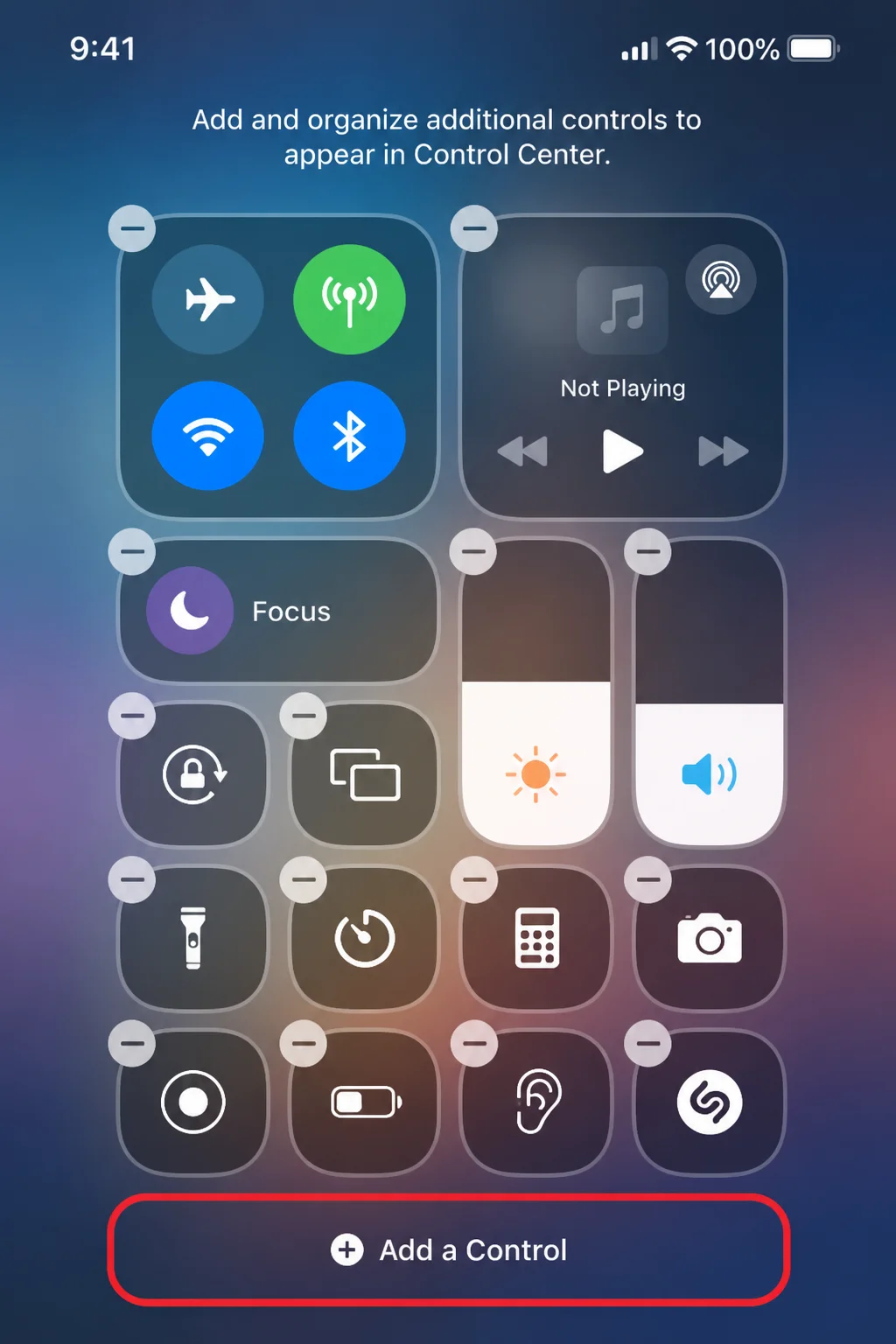
Verify: Exit editing mode and tap the re-added control. If it opens or depends on a third-party app, update that app as well.
Problem 9: Screen Time Restrictions Block Changes
Symptoms:
- Control Center settings cannot be changed.
- Options are unavailable on a child or managed device.
- The issue appeared after Screen Time restrictions were enabled.
Why it happens: Content & Privacy Restrictions can limit changes to device features and related settings. Not every iOS release includes a dedicated Control Center restriction, so its absence is normal.
Fix:
- Open Settings > Screen Time.
- Tap Content & Privacy Restrictions.
- Review the available restrictions and Allowed Changes options.
- If this is a child’s device, ask the family organizer to review the settings.
- If the device belongs to a school or employer, check Settings > General > VPN & Device Management. Only the administrator may be able to change managed settings.
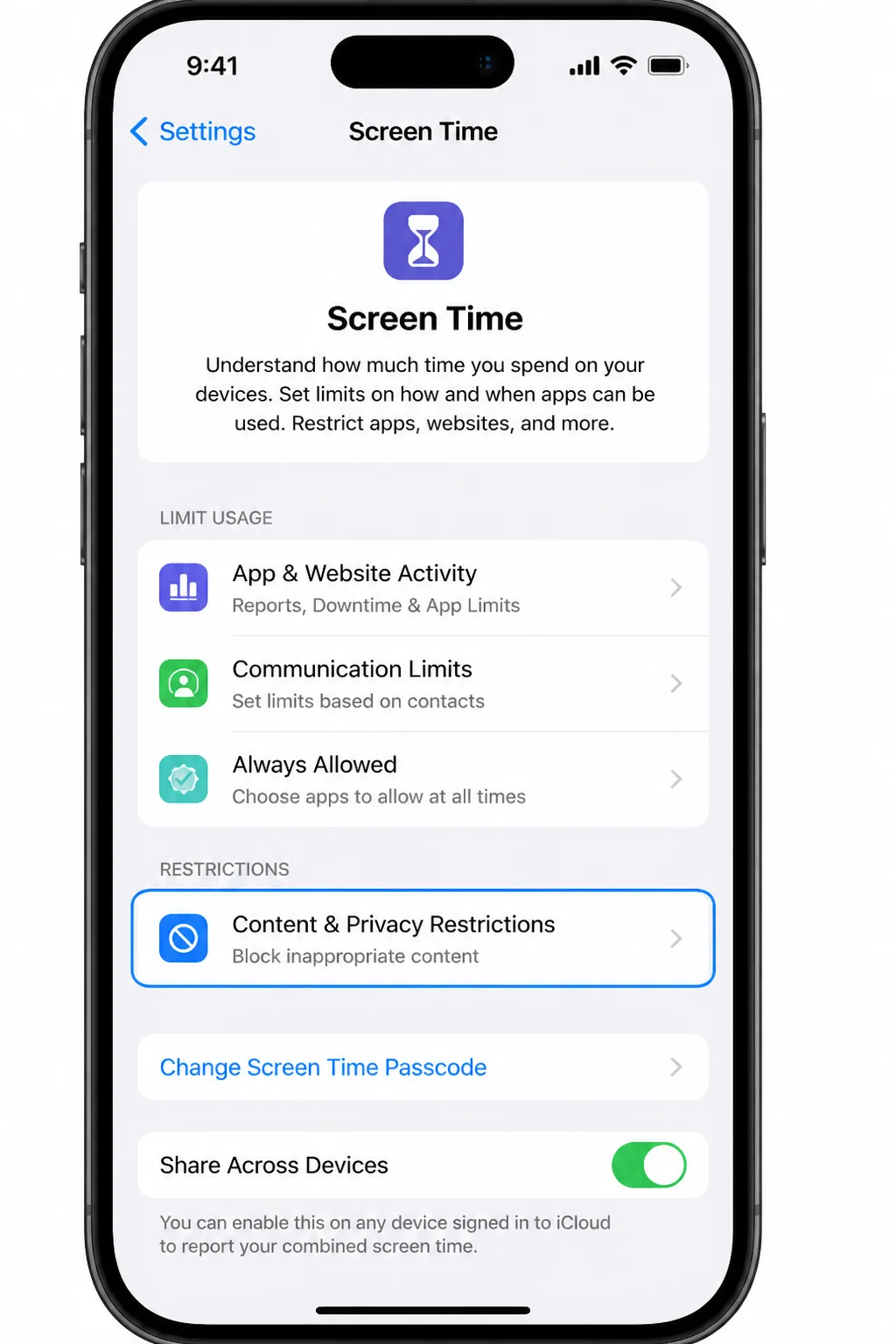
Verify: After changing an applicable restriction, return to Control Center and test access. Don’t disable parental or workplace controls unless you have permission.
Problem 10: An iOS Bug or Damaged Setting Persists
Symptoms:
- Control Center still fails after a restart.
- The problem began after an iOS issue or incomplete update.
- Several interface features behave incorrectly.
Why it happens: A newer iOS release may contain a fix for the interface problem. If an update doesn’t solve it, a conflicting or damaged system preference may be responsible.
Fix the software first:
- Back up important information.
- Connect the device to power and Wi-Fi.
- Open Settings > General > Software Update.
- Install an available update.
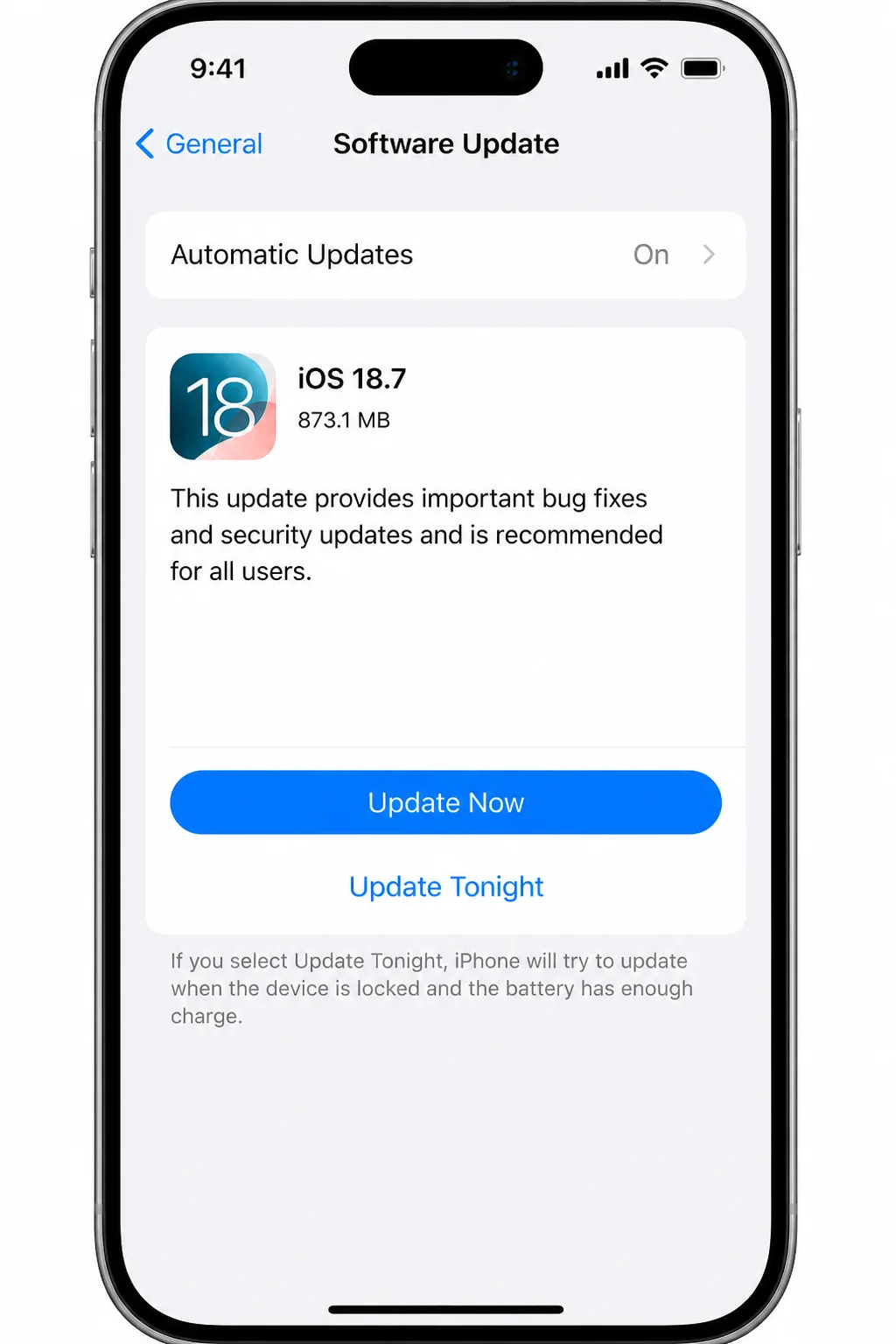
Test Control Center after the update. There’s no benefit in resetting every preference if the update already fixed the problem.
Last software step: Reset All Settings:
- Open Settings > General > Transfer or Reset iPhone. On iPad, choose Transfer or Reset iPad.
- Tap Reset.
- Select Reset All Settings.
- Enter the passcode and confirm only when you are ready.
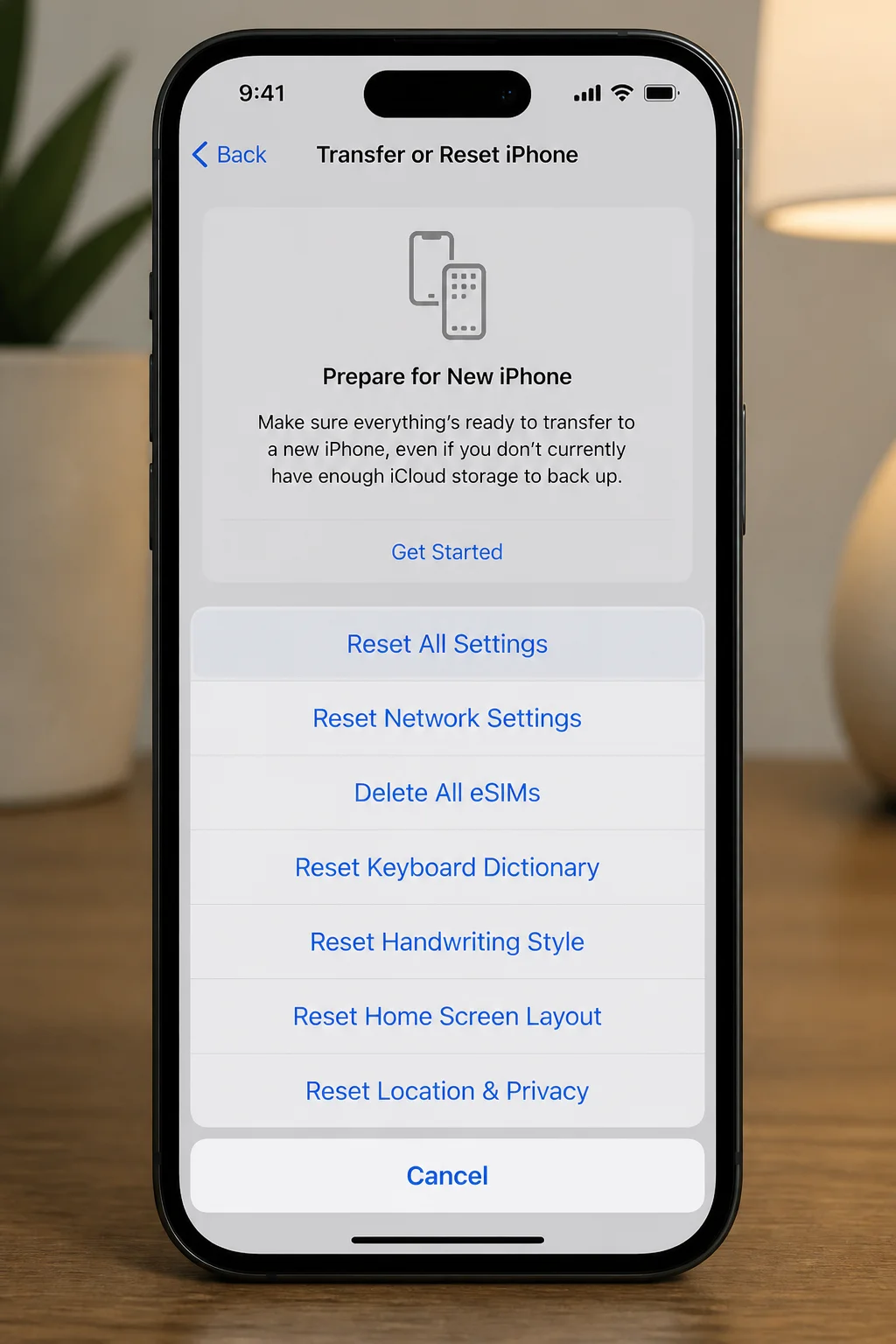
Reset All Settings does not delete your photos, messages, or apps. It resets system preferences, including network, privacy, keyboard, and Apple Pay-related settings. You’ll need to reconnect to Wi-Fi and may need to configure several preferences again.
I’d avoid erasing the device solely for a Control Center problem. If updating and resetting settings don’t work, Apple Support can check the display and system diagnostics before you take that larger step.
Verify: After the device restarts, test Control Center before changing other settings. This gives you a clean test and helps identify whether a restored preference causes the problem again.
Error Messages and Disabled Controls
Control Center rarely shows traditional error codes. Its messages usually come from the service connected to a particular button.
| Message or state | What it means | What to do |
|---|---|---|
| “Unable to Join Network” | The Wi-Fi control worked, but the connection failed | Open Settings > Wi-Fi, select the network, and check its password or signal |
| “Bluetooth Unavailable” | Bluetooth did not start correctly | Restart the device, then update iOS |
| “AirPlay: Unable to Connect” | The receiving device is unavailable or on another network | Confirm both devices use the same Wi-Fi network |
| “Screen Recording Failed to Save” | Storage, restrictions, or protected content blocked the recording | Check Settings > General > iPhone Storage and review Screen Time |
| A control is gray | The related feature is unavailable, restricted, or waiting on another setting | Touch and hold the control for details, then check its Settings page |
| No message; the panel ignores every tap | The interface or device is frozen | Restart or force restart the device |
An error from Wi-Fi, AirPlay, or Screen Recording means that service needs attention. Control Center did its job if it opened and passed the command along.
Platform-Specific Issues
On iPhone
Face ID iPhones use a downward swipe from the top-right corner. Home-button iPhones use an upward swipe from the bottom edge.
Lock Screen access is controlled through Settings > Face ID & Passcode or Settings > Touch ID & Passcode. Which menu you see depends on your iPhone’s authentication hardware.
On iPad
On current iPads, swipe down from the top-right corner. If an Apple Pencil, case, keyboard, or full-screen app appears to interfere, disconnect or remove it temporarily. Then test with your finger from the Home Screen.
Restart an iPad through Settings > General > Shut Down. On an iPad without a Home button, a force restart generally uses Volume Up, Volume Down, then the Top button. Models with a Home button use a different sequence, so check Apple’s model-specific instructions before forcing a restart.
Configuration Issues to Check
These setup problems are easy to miss, especially if Control Center works in one place but fails in another:
- Wrong gesture: Use top-right and down on Face ID iPhones and current iPads; use bottom edge and up on Home-button iPhones.
- App access disabled: Open Settings > Control Center and enable Access Within Apps.
- Lock Screen access disabled: Open Settings > Face ID & Passcode or Touch ID & Passcode, then enable Control Center under Allow Access When Locked.
- Control moved to another page: Open Control Center and swipe through its pages before adding a duplicate.
- Accessibility gesture overlooked: Review Settings > Accessibility when normal touch behavior changes.
- Restrictions assumed rather than checked: Review the options shown under Settings > Screen Time > Content & Privacy Restrictions for your iOS version.
Change one item, then test again. Adjusting several switches at once makes it harder to identify which setting fixed the issue.
Getting Help
Contact Apple Support if the same top or bottom strip of the display fails in several apps. Remove the case and protector, clean the screen, restart, and update iOS first. Cracks, liquid exposure, ghost touches, or a recent screen replacement also point toward a digitizer or display problem.
Before contacting support, note:
- Your iPhone or iPad model
- The iOS or iPadOS version under Settings > General > About
- Whether the issue occurs everywhere, only in apps, or only on the Lock Screen
- Whether removing the case or screen protector changes the result
- Which controls fail
- When the problem began
Those details save time when support asks you to repeat the same tests. If you’ve been swiping at a dead screen edge for 10 minutes, you’ve already gathered useful evidence.
If Apple asks for diagnostic information, analytics may appear under Settings > Privacy & Security > Analytics & Improvements > Analytics Data. These files are technical and may contain device details, so share them only through an official support channel.
Use Apple’s Control Center documentation for current gestures and customization instructions. You can also visit the Apple Support website, use the Apple Support app, or arrange service with Apple or an Apple Authorized Service Provider.
Prevention Tips
- Keep iOS updated: Check Settings > General > Software Update for bug and security fixes.
- Use a well-fitted protector: Avoid protectors that lift or cover the active display edges.
- Keep the display dry: Moisture can make edge gestures unreliable.
- Change one setting at a time: Test Control Center after editing accessibility, Screen Time, or Lock Screen options.
- Restart after persistent glitches: A restart is quicker and carries less disruption than resetting settings.
- Back up regularly: A current iCloud or computer backup makes deeper troubleshooting less stressful.
Wrapping Up
| Step | Action | Applies to |
|---|---|---|
| 1 | Test the correct edge gesture | All devices |
| 2 | Close a frozen app and restart | Frozen or unresponsive interface |
| 3 | Check app and Lock Screen access | Location-specific failures |
| 4 | Inspect accessibility, restrictions, and controls | Changed gestures or missing buttons |
| 5 | Update iOS, then reset settings if needed | Persistent software problems |
| 6 | Contact Apple Support | Repeated edge-touch or display failures |
Control Center usually starts working after correcting the gesture, enabling an access switch, or restarting iOS. Those fixes take a few minutes and leave your data alone.
Reset All Settings is a sensible final software test, but it creates cleanup work afterward. If one screen edge fails across several apps, I’d skip a full erase and ask Apple to inspect the display.
Last updated: August 15, 2026 | Applies to Control Center on iPhone and iPad