

You know the drill. You need one specific photo: your dog at the beach, that receipt from March. Instead you’re thumb-scrolling through eight hundred screenshots and blurry accidental shots of your pocket. It’s tedious, and it’s also completely unnecessary. The Photos app on iPhone has a search feature that finds pictures by person, place, date, object, or even a full sentence describing the scene.
This guide shows you exactly where to tap and what to type. It works whether you’ve got the latest iPhone 16 Pro or an older model running the standard search tools, no Apple Intelligence required for most of it.
What Is iPhone Photos Search?
Photos search lets you type a word, name, or phrase and pull up matching pictures instantly. No manual scrolling. It works by analyzing your photo library on-device to recognize people, pets, places, objects, and even text in images, then indexing all of it so you can search it the way you’d search the web.
On iPhone 15 Pro, iPhone 16 models, and later, Apple Intelligence adds a natural-language layer on top. That means you can type conversational queries like “dog running on the beach at sunset” instead of hunting for the one keyword that might match.
Before You Begin
Make sure you have:
- An iPhone running iOS 26 (for the current Search layout described here)
- Photos with at least a small library of images already on the device
- An Apple ID signed in, ideally with iCloud Photos turned on so your library stays synced and fully indexed
- For natural-language search specifically: an iPhone 15 Pro, any iPhone 16 model, or later, with Apple Intelligence enabled
| Requirement | Details |
|---|---|
| Device | Any iPhone for baseline search; iPhone 15 Pro/16 or later for natural-language search |
| OS version | iOS 26 or later (check in Settings > General > About) |
| Apple Intelligence | Required only for natural-language queries; toggle in Settings > Apple Intelligence & Siri |
| Storage/sync | iCloud Photos recommended so search covers your entire library, including items not downloaded locally |
You’ll need an Apple ID signed in on your device. Check in Settings > [your name].
Step-by-Step Guide
Step 1: Open the Photos App and Find Search
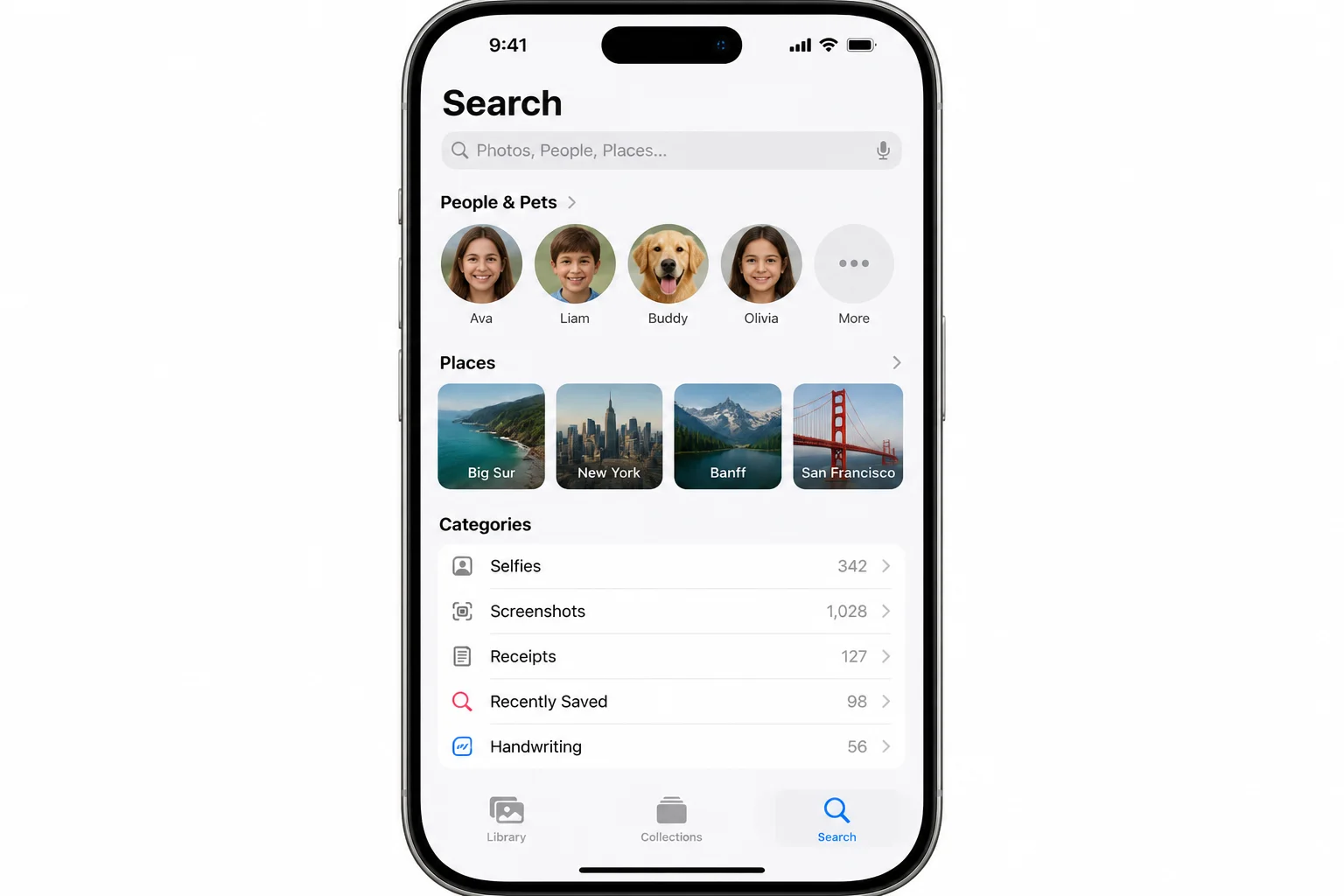
iOS 26 redesigned the Photos app, and Search moved. If you’re used to hunting for a magnifying glass off to the side, that’s not where it lives anymore. Open the Photos app from your Home Screen and look at the bottom of the screen. Search now has its own icon in the main tab bar, alongside Library and Collections (Albums lives inside Collections, not as a separate top-level tab). Tap the magnifying-glass icon to jump straight in.
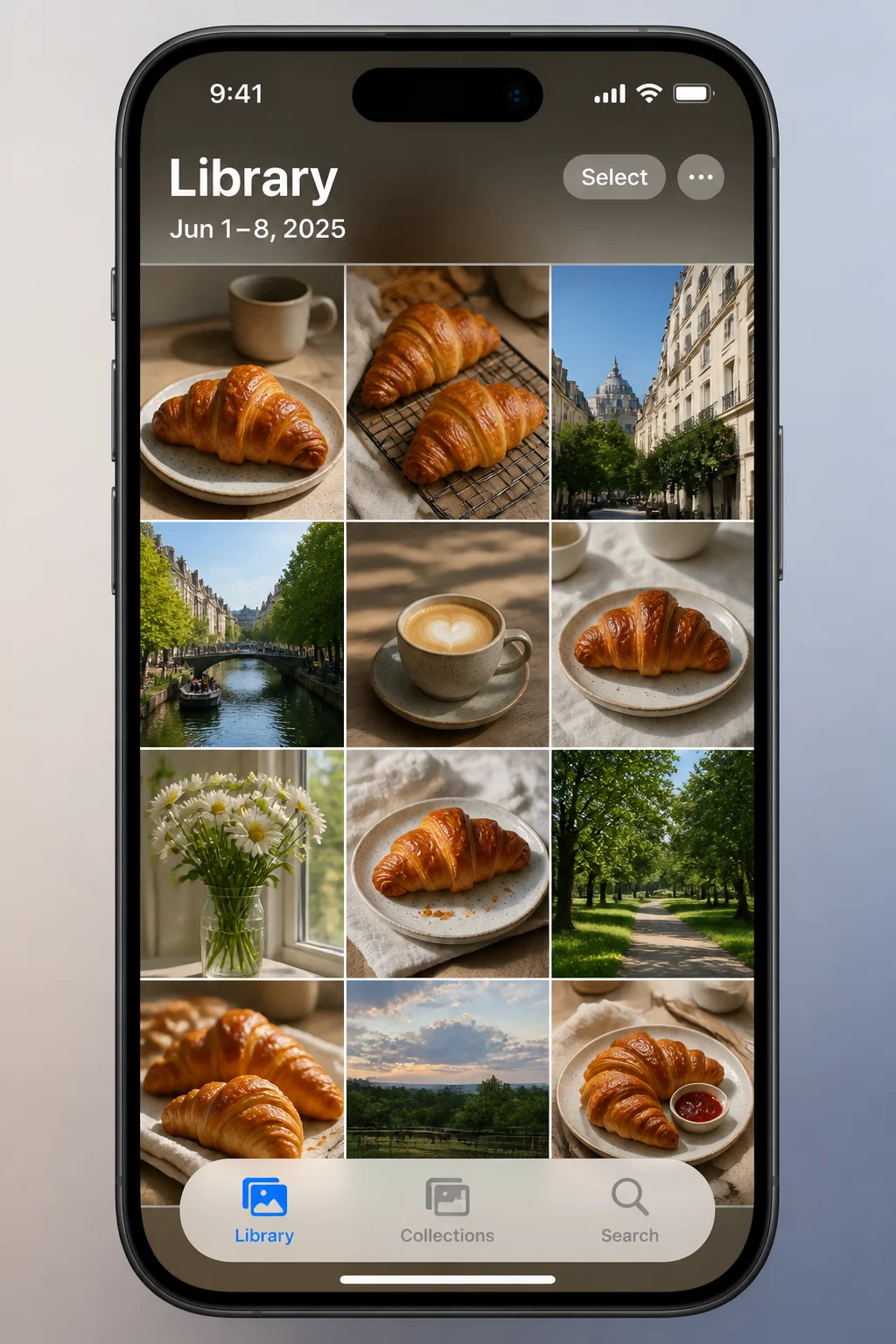
Tip: If you’re used to swiping down on the Library grid to reveal a search bar from older iOS versions, that gesture may still work, but the dedicated tab is the fastest, most reliable way to get there in iOS 26.
Step 2: Type a Basic Keyword Query
Tap the search field at the top and type something simple: a person’s name, a place, or an object. Photos matches against its on-device index of recognized faces, locations, and objects.
Try typing any of these into the search field:
dog
Paris
birthday cake
receipts
As you type, Photos shows live suggestions below the search bar. Tap one to jump straight to results, or keep typing for something more specific.
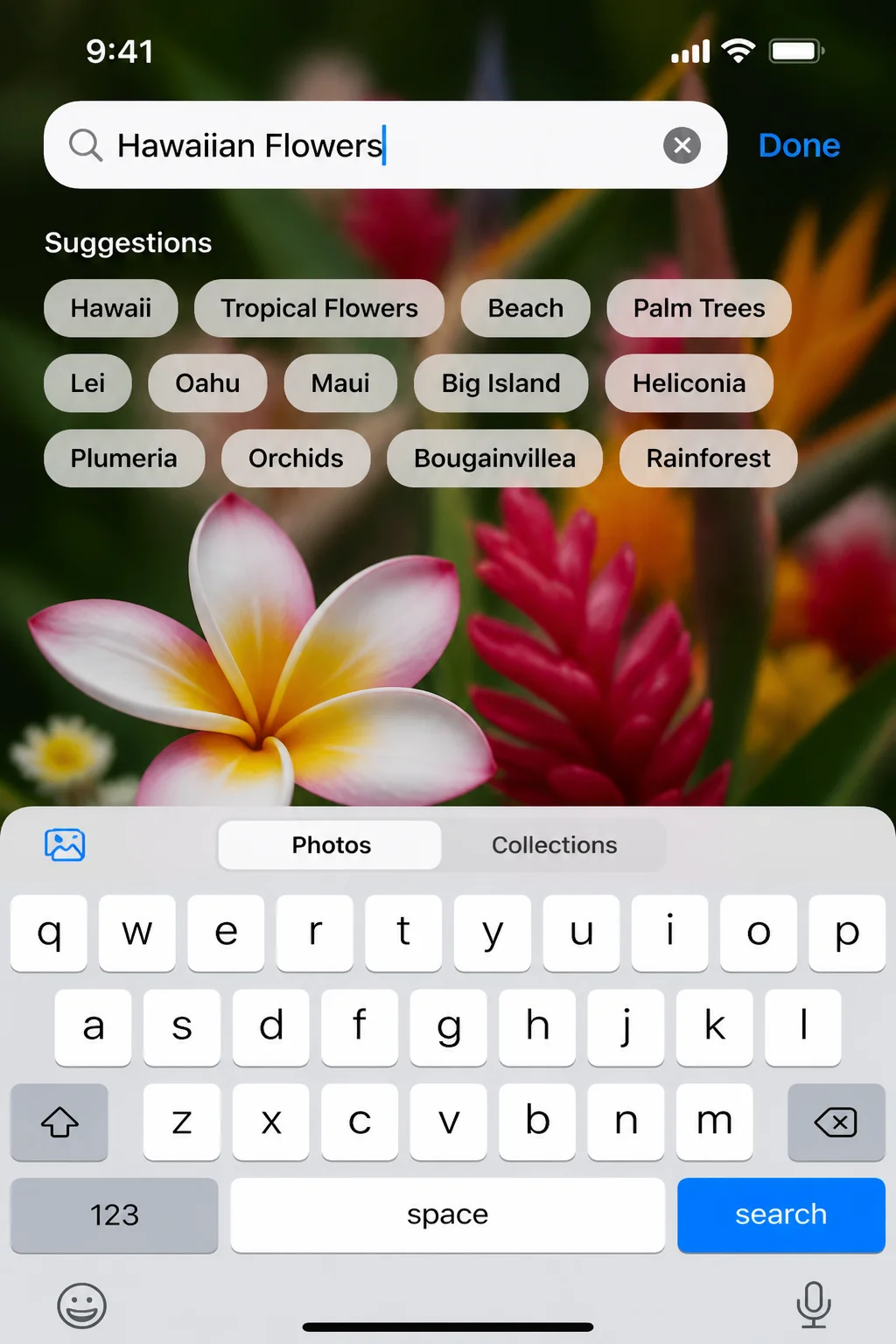
Step 3: Review Your Search Results
After you tap a suggestion or hit return, Photos shows a scrollable grid of matching thumbnails. Tap any thumbnail to open the full photo, swipe to browse nearby matches, or tap Done to return to your results grid.
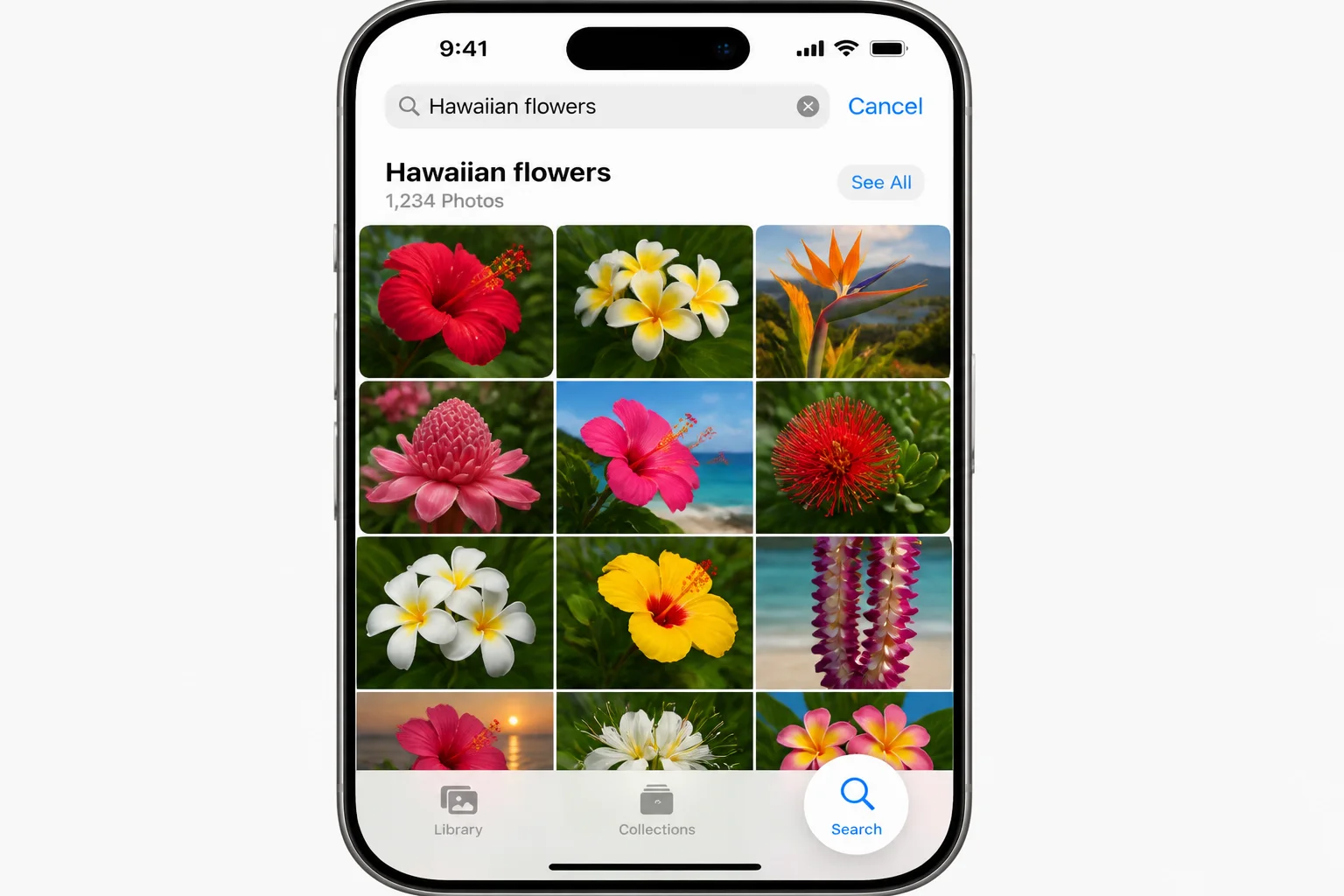
Expected result: You should see a grid of relevant photos within a second or two. If your library is large, results may take a moment to fully populate the first time you search after an update; that’s normal, give it a beat.
Step 4: Try a Natural-Language Query (Supported iPhones Only)
If you’re on an iPhone 15 Pro, an iPhone 16 model, or later with Apple Intelligence turned on, skip single keywords and type full sentences instead. Photos reads the whole phrase and combines multiple ideas, subject, action, setting, even lighting, into one search.
Try queries like:
me at the beach last summer
dog running on the beach at sunset
kids blowing out birthday candles
red car parked in front of a brick house
Natural-language search understands relationships between these concepts, so it’s smarter than matching each word on its own. It’s especially handy when you remember a scene clearly but can’t recall names, dates, or where you were.
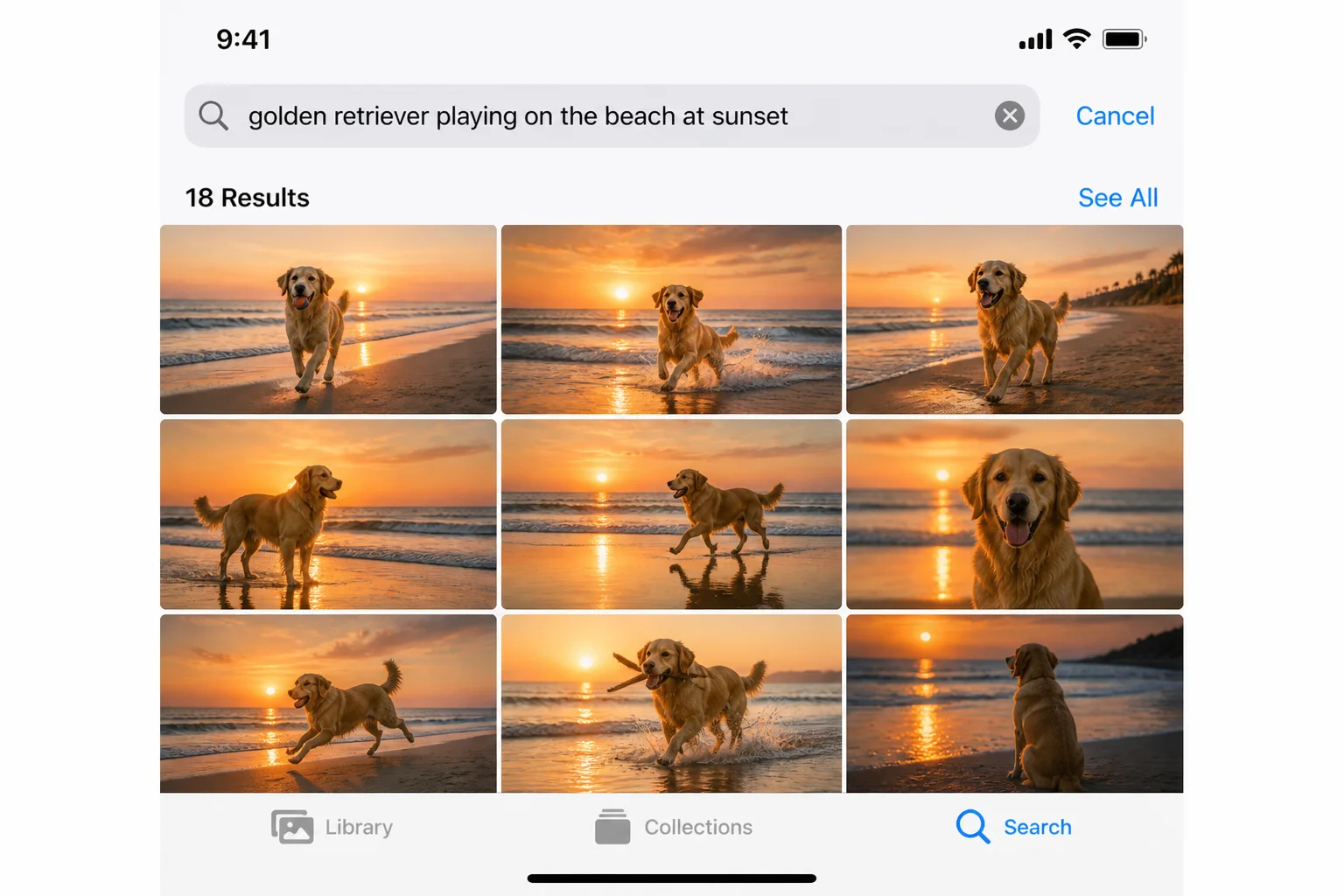
Tip: Natural-language search works best with specific, descriptive phrases. “Photo from vacation” is too vague; “me hiking on a mountain trail” gives Photos more to work with.
Step 5: Confirm Apple Intelligence Is Turned On
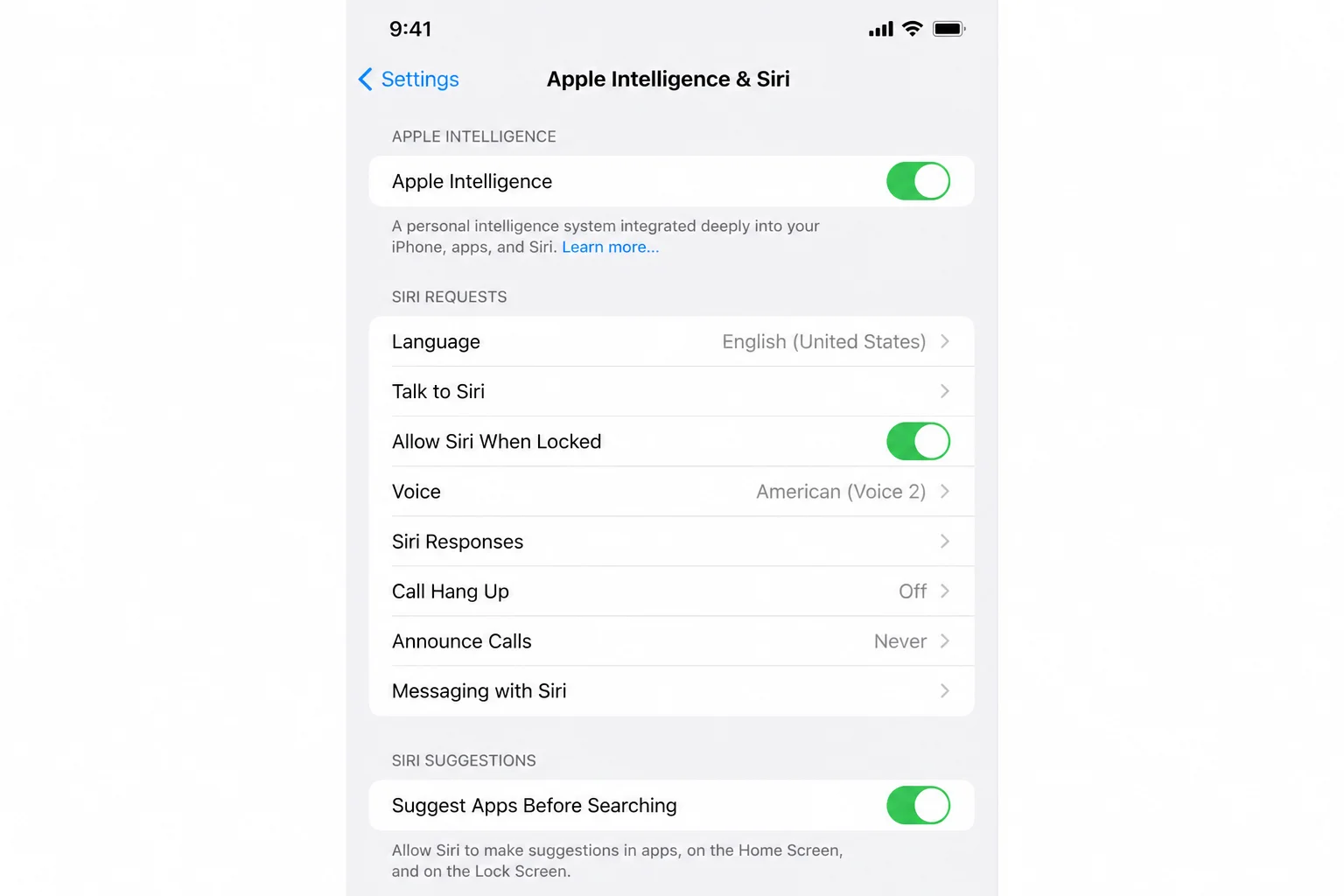
Natural-language search depends on Apple Intelligence being enabled, even on supported hardware. Go to Settings > Apple Intelligence & Siri and make sure it’s on. If this is your first time enabling it, your iPhone may take a few minutes to finish setup before search improves.
Step 6: Use People & Pets as a Search Shortcut
Sometimes you know exactly who’s in the photo but can’t come up with the right words. Skip typing entirely. From the Search tab, scroll down (or tap People & Pets if it appears as a category) to see a grid of faces and pets Photos has automatically recognized in your library.
Tap any face or pet tile to instantly see every photo containing that person or pet, sorted by date.
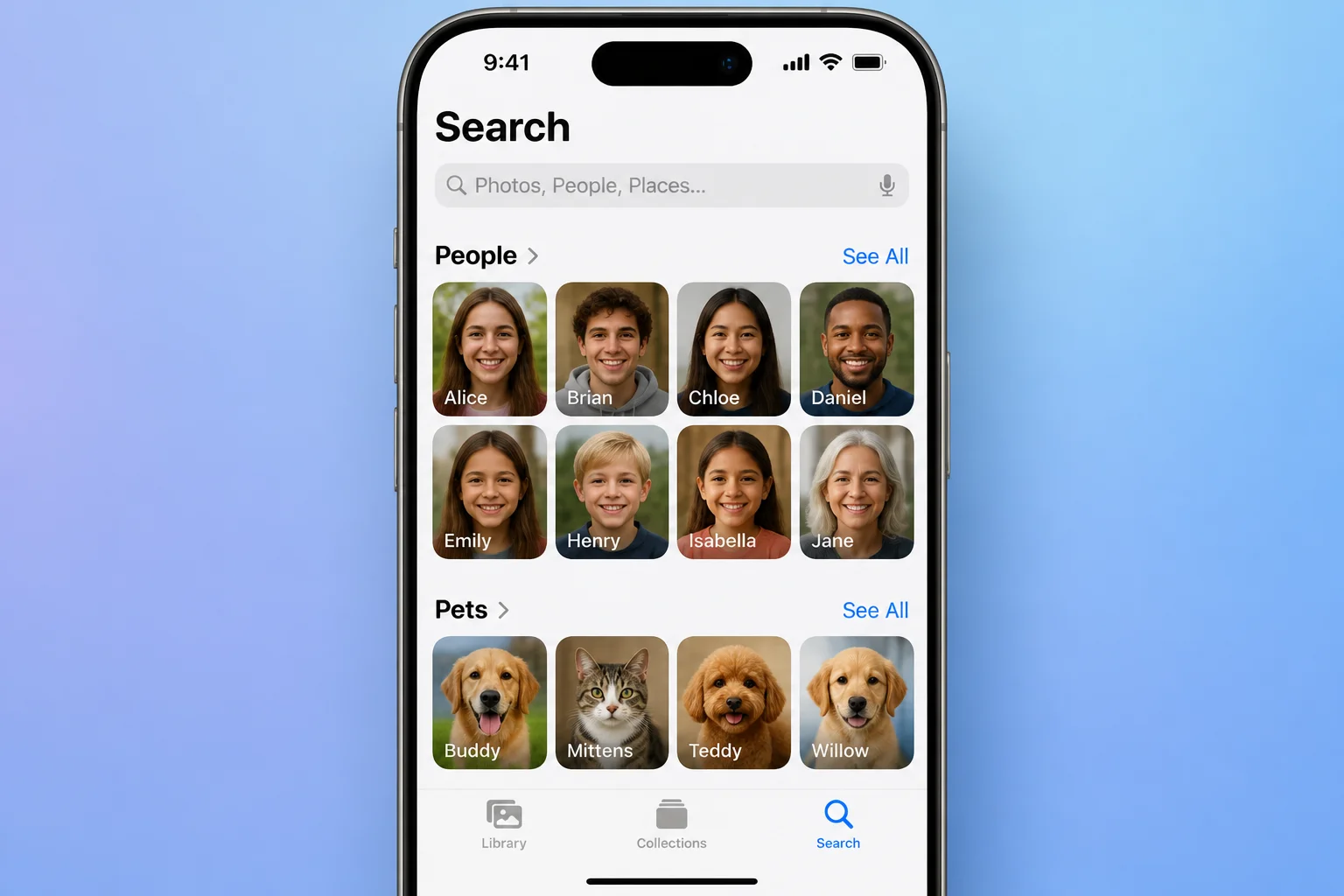
Tip: If a person or pet isn’t showing up in People & Pets yet, tap a few of their photos and manually confirm the name. Photos gets more accurate over time as it collects confirmed examples.
Step 7: Use Places to Search by Location
If you remember where a photo was taken but not when, tap Places from the Search tab. Photos shows a map with pins clustered wherever your geotagged photos were captured. Pinch to zoom into a city or neighborhood, then tap a pin cluster to see every photo taken there.
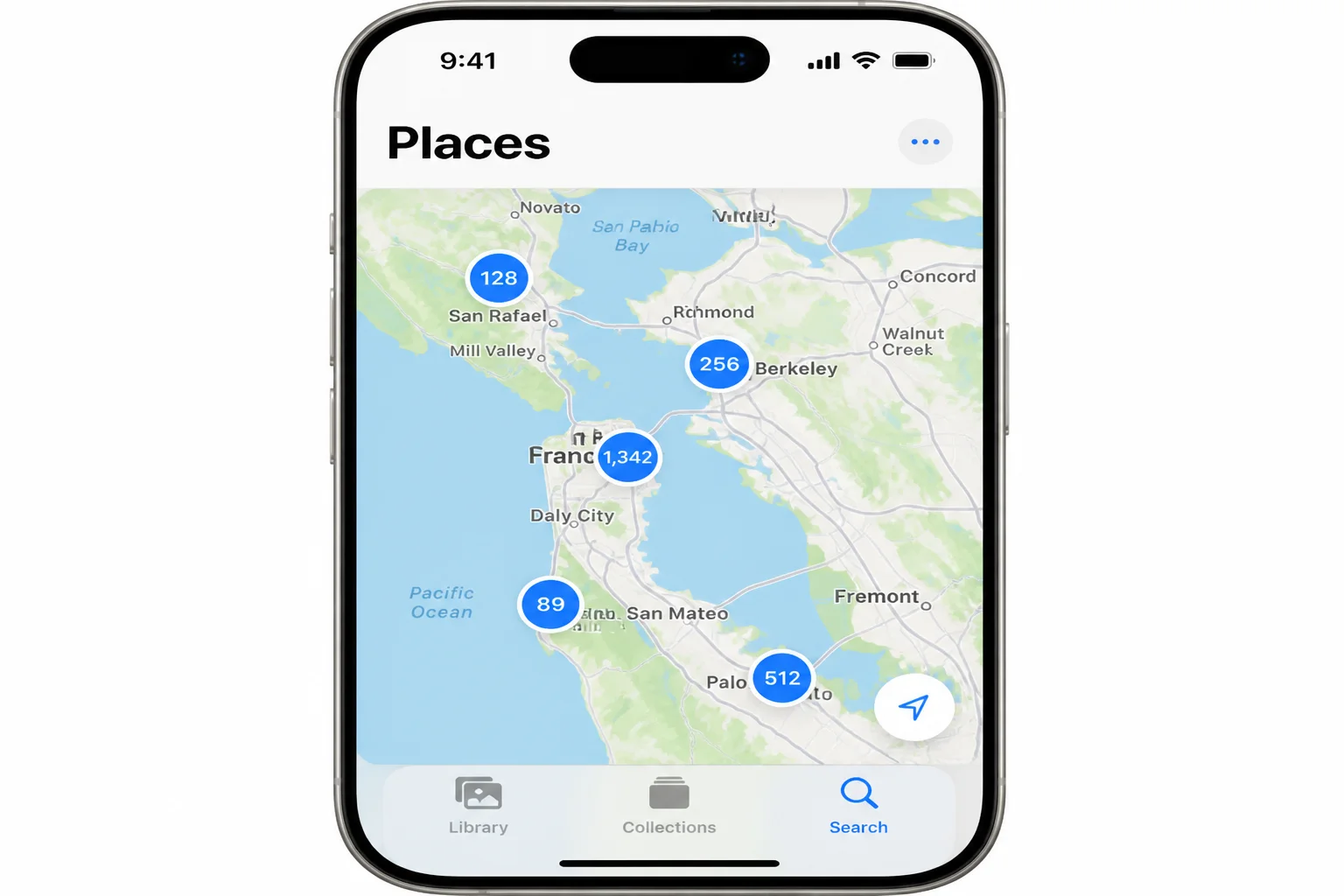
Note: Places only works for photos with location data attached. If Location Services was off in Settings > Privacy & Security > Location Services > Camera when a photo was taken, it won’t show up on the map.
Step 8: Browse Categories When You’re Not Sure What to Type
Below People & Pets and Places, the Search tab surfaces auto-generated categories like Selfies, Screenshots, Receipts, and Live Photos. These help when you don’t have a specific word in mind but know roughly what you’re after, like hunting down a screenshot of a confirmation email, say, when nothing you type quite matches.
Configuration
Search accuracy depends on a few settings working together in the background:
- iCloud Photos: Settings > [your name] > iCloud > Photos. Turning this on keeps your entire library synced and searchable across devices, beyond what’s stored locally on this iPhone.
- Apple Intelligence & Siri: Settings > Apple Intelligence & Siri. Must be enabled for natural-language search on supported hardware.
- Location Services for Camera: Settings > Privacy & Security > Location Services > Camera. Controls whether new photos get geotagged, which powers the Places view.
None of these need ongoing maintenance. Set them once and Photos handles indexing automatically in the background, usually while your iPhone is charging and connected to Wi-Fi.
Tips and Troubleshooting
Search isn’t finding a photo you know exists
Why it happens: The photo may lack clear metadata, no location tag, a blurry or partially obscured subject, or poor lighting that trips up on-device recognition. It could also be sitting in the Hidden or Recently Deleted album, which search excludes by default.
Fix: Try broader or alternate keywords (“cake” instead of “birthday cake”), check Albums > Hidden and Recently Deleted manually, or fall back to People & Pets, Places, or scrolling to the approximate month in Library > Years/Months view.
Natural-language search option isn’t showing up
Why it happens: Your iPhone model doesn’t support Apple Intelligence, or the feature hasn’t been turned on yet.
Fix: Confirm your model is iPhone 15 Pro, any iPhone 16, or later in Settings > General > About. If it qualifies, go to Settings > Apple Intelligence & Siri and enable it. On older or base models (iPhone 15, iPhone 14, and earlier), you only get baseline keyword search, that’s a hardware limit, not something you’re doing wrong.
Search results seem incomplete or missing recent photos
Why it happens: iCloud Photos may still be syncing, or on-device indexing hasn’t caught up after importing a large batch.
Fix: Confirm you’re on Wi-Fi, check sync progress in Settings > [your name] > iCloud > Photos, and give it time. Indexing thousands of new photos can take a while in the background.
People & Pets doesn’t recognize someone
Why it happens: Face and pet recognition needs several clear, front-facing examples before it builds a reliable profile.
Fix: Manually tag the person or pet in a handful of clear photos. Recognition improves within a day or so as the model reprocesses your library.
Wrapping Up
Once tapping Search becomes a habit, scrolling through months of camera roll to find one picture starts to feel like a waste of a perfectly good thumb. Baseline search, covering people, places, dates, and keywords, already covers most everyday needs on any iPhone.
If you’ve got an iPhone 15 Pro or 16 series with Apple Intelligence turned on, natural-language queries take it further, letting you describe a half-remembered moment instead of guessing at keywords.
| Step | Action | Applies To |
|---|---|---|
| 1–3 | Open Search tab, type a keyword, review results | Any iPhone |
| 4–5 | Type a natural-language phrase, confirm Apple Intelligence is on | iPhone 15 Pro/16 or later |
| 6 | Use People & Pets to find someone by face | Any iPhone |
| 7 | Use Places to search by location on a map | Any iPhone with geotagged photos |
| 8 | Browse auto-generated categories as a fallback | Any iPhone |