
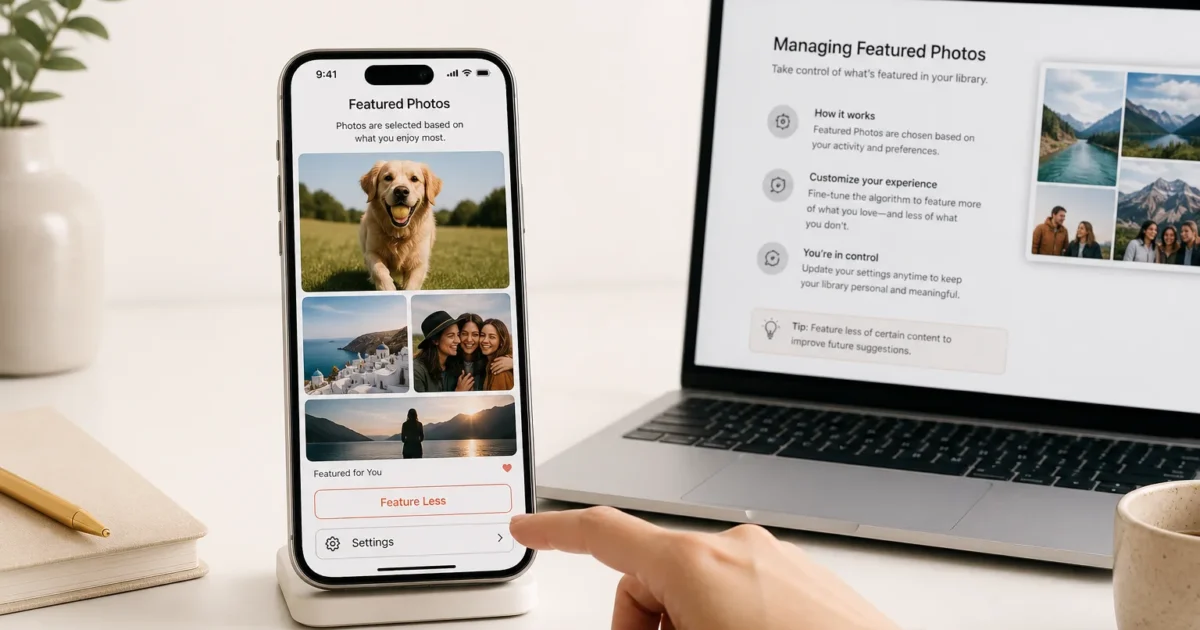
If you’ve spent ten minutes tapping around the Photos app looking for a “Set as Featured Photo” button, stop. It’s not there. Featured Photos is picked automatically by your iPhone, not by you, which is exactly why the same three photos of your dog keep showing up on your Lock Screen while that one great vacation shot never does.
Here’s the good news: you’re not stuck watching the algorithm do whatever it wants. Favoriting photos, telling Photos to feature certain people or places less, and pulling individual images out of rotation all give you real, lasting influence. This guide walks through how the system actually decides what to show you, and how to bend it toward what you actually want to see.
What Is Featured Photos?
Featured Photos is a built-in part of the Photos app on iPhone and iPad running iOS/iPadOS 17 or later. It scans your camera roll on-device, looking at people, pets, places, and dates, then surfaces highlights in the Photos tab’s For You section, inside Memories, and on the Photos widget you can add to your Home Screen, Today View, or Lock Screen.
There’s no manual picker, so Apple’s algorithm alone decides what counts as a “highlight.” That’s why the same face or vacation photo can feel like it won’t leave you alone, or why a photo you genuinely love never gets picked. You do have levers to pull, though. Marking photos as Favorites, telling Photos to feature certain people or places less, and removing individual images from rotation all shift what shows up, and the changes stick.
Before You Begin
Make sure you have:
- An iPhone running iOS 17 or later, or an iPad running iPadOS 17 or later
- The built-in Photos app (no download needed; it’s pre-installed)
- A photo library with at least a handful of photos so the algorithm has material to work with
- A few minutes to check your Settings > Photos panel
| Requirement | Details |
|---|---|
| Device | iPhone or iPad |
| OS version | iOS/iPadOS 17 or later (check in Settings > General > About) |
| Cost | Free; Featured Photos is a built-in Photos app feature, no subscription required |
| iCloud Photos | Not required; Featured Photos works whether or not iCloud Photos is turned on |
Step-by-Step Guide
Step 1: Find where Featured Photos actually appears
Before changing anything, it helps to know where this feature shows up so you can check your results later.
Open the Photos app and tap the For You tab at the bottom (on some iPad layouts, this may appear as Albums > For You depending on orientation). You’ll see a Memories carousel near the top and a Featured Photos section below it, showing a rotating set of recent highlights.
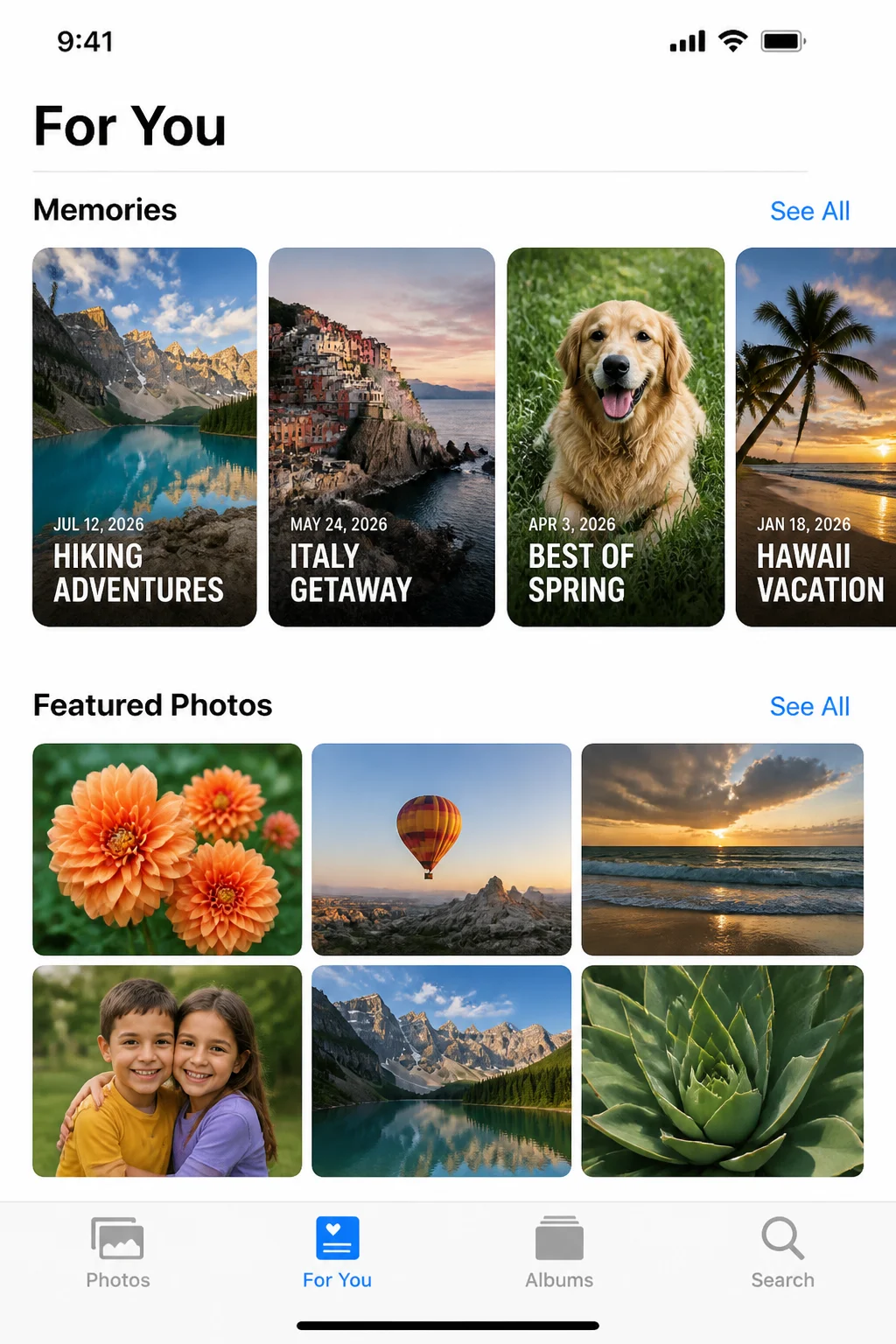
Tap the Featured Photos row (or its arrow) to see the full grid of currently featured images.
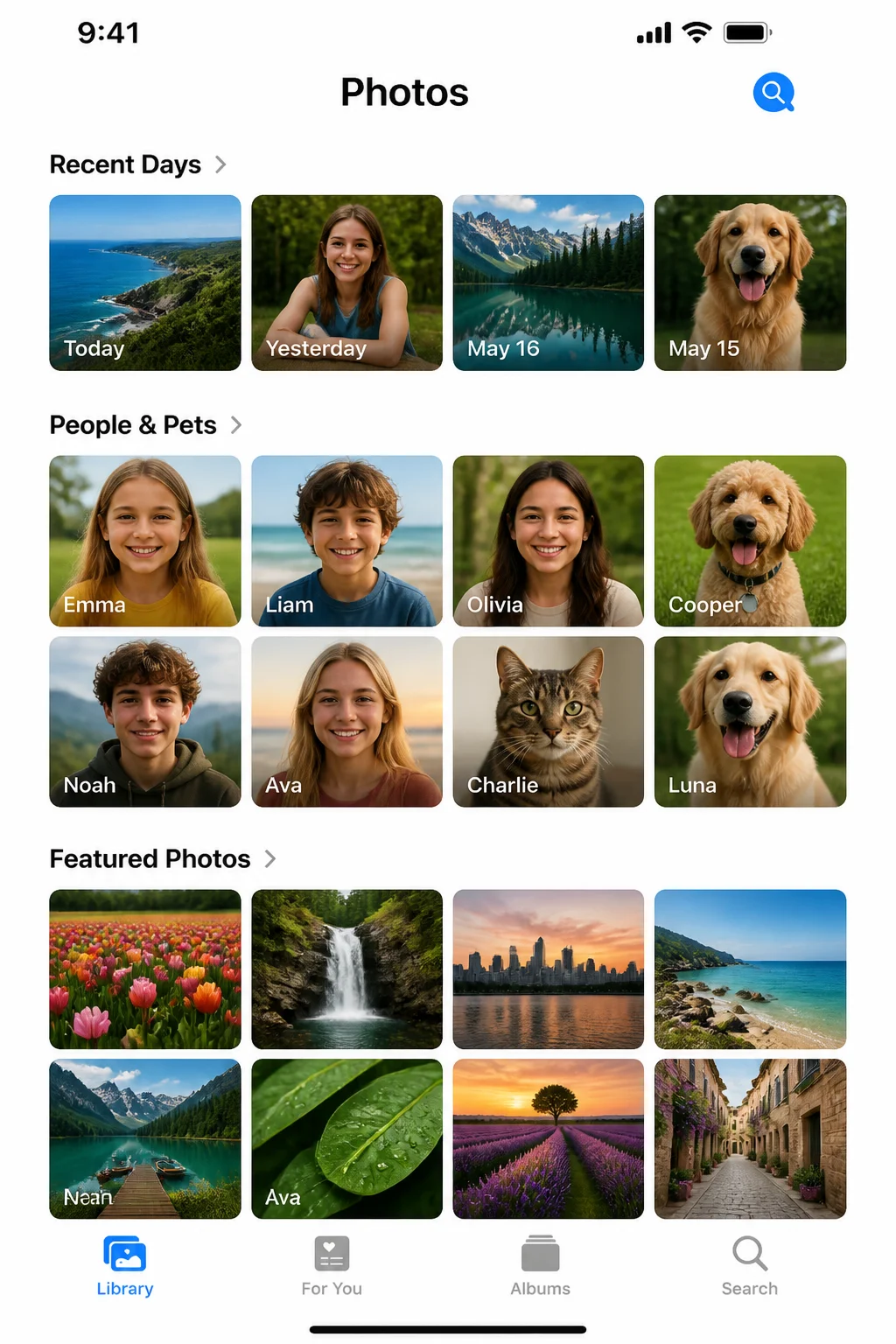
Tip: The same underlying selection also feeds the Photos widget’s “Featured” style. If you’ve never customized your widget, check out our guide on customizing the Photos widget for more detail. This article focuses on the Featured Photos engine itself.
Step 2: Mark photos as Favorites to boost their odds
There’s no direct “feature this” switch, but marking a photo as a Favorite is the closest thing to it. Favorited photos are more likely to be pulled into Featured Photos, Memories, and the Featured-style widget.
Open any photo in the Photos app, then tap the heart icon in the toolbar at the bottom of the screen.
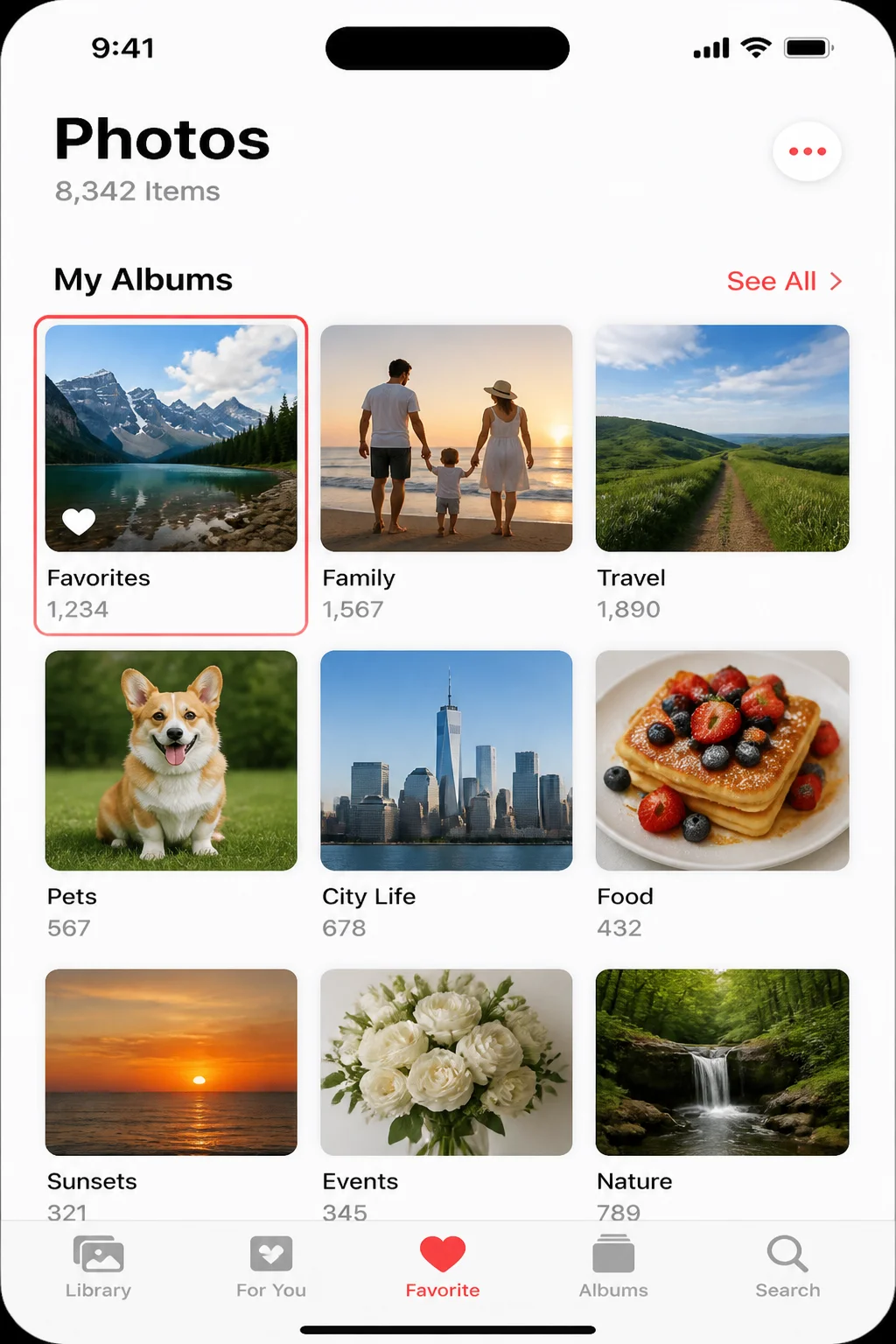
Repeat this for a handful of photos you’d like to see surfaced more often: recent trips, your kids, a pet, whatever matters to you. It’s a nudge, not a guarantee. But favoriting several related photos noticeably increases how often that person, pet, or trip shows up.
Tip: You can view everything you’ve favorited by going to Albums > Favorites in the Photos app.
Step 3: Remove a single unwanted photo from Featured Photos
If one specific image keeps popping up somewhere you don’t want it, like the Lock Screen widget, you can pull just that photo out of rotation without deleting it from your library.
Open the photo from the Featured Photos section, tap the More button (•••) in the top-right corner, then tap Remove from Featured Photos.
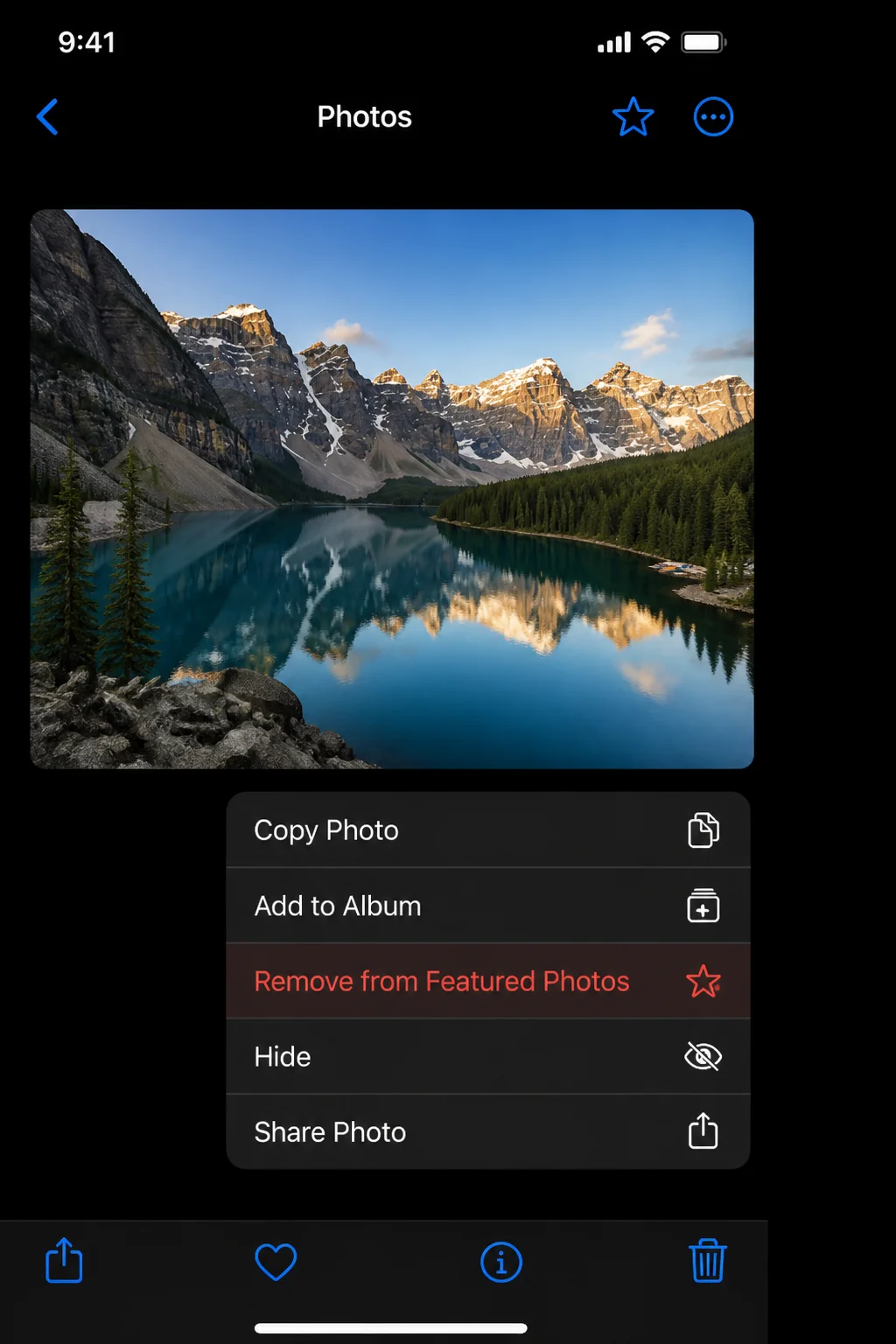
The photo stays in your library and in albums; it just stops appearing in the Featured Photos rotation, Memories, and the Featured-style widget going forward.
Step 4: Feature a specific person less (or never)
If someone, whether an ex, a coworker, or anyone else, keeps showing up in Memories and Featured Photos more than you’d like, you can tone that down or shut it off completely.
Go to Albums > People & Pets in the Photos app.
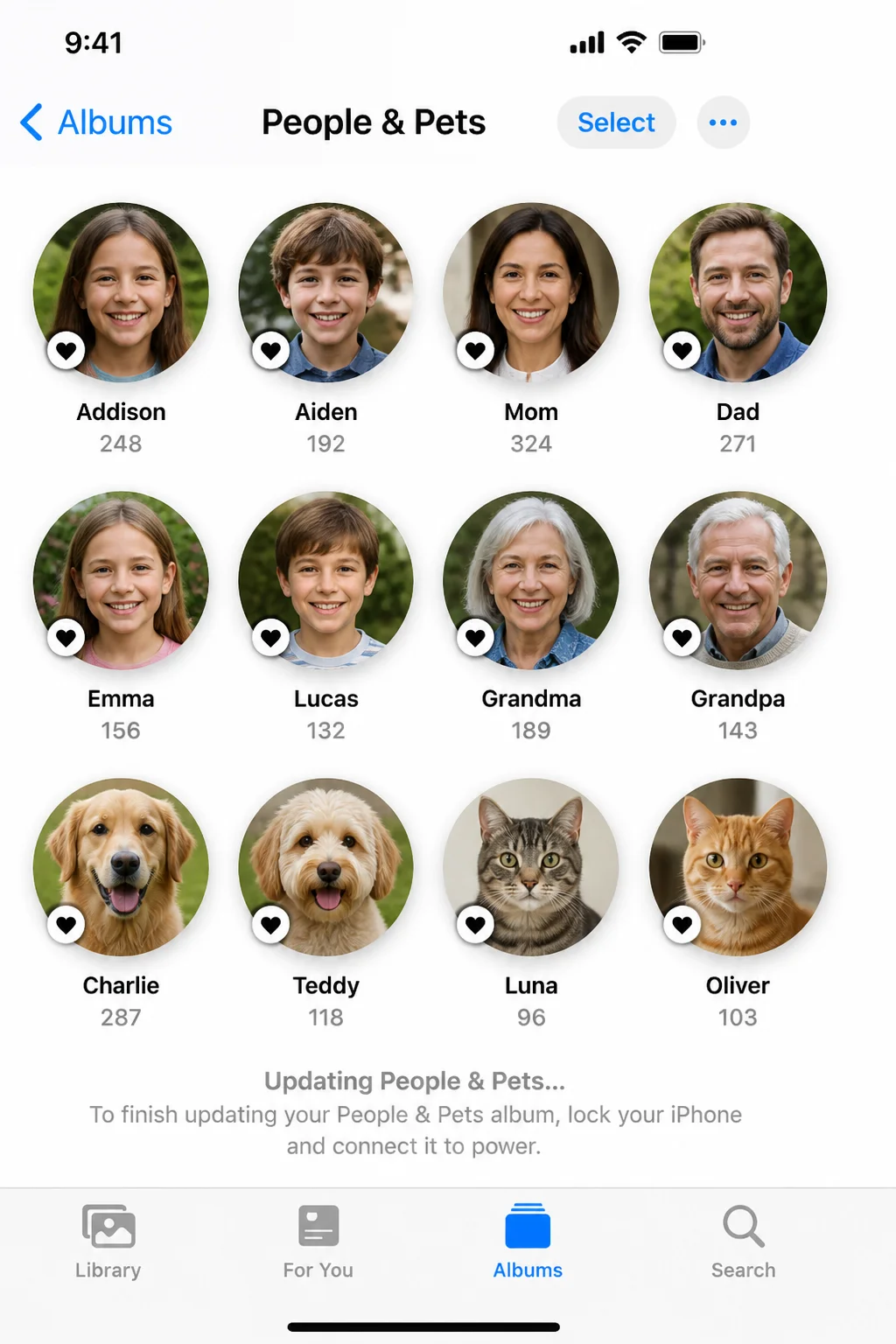
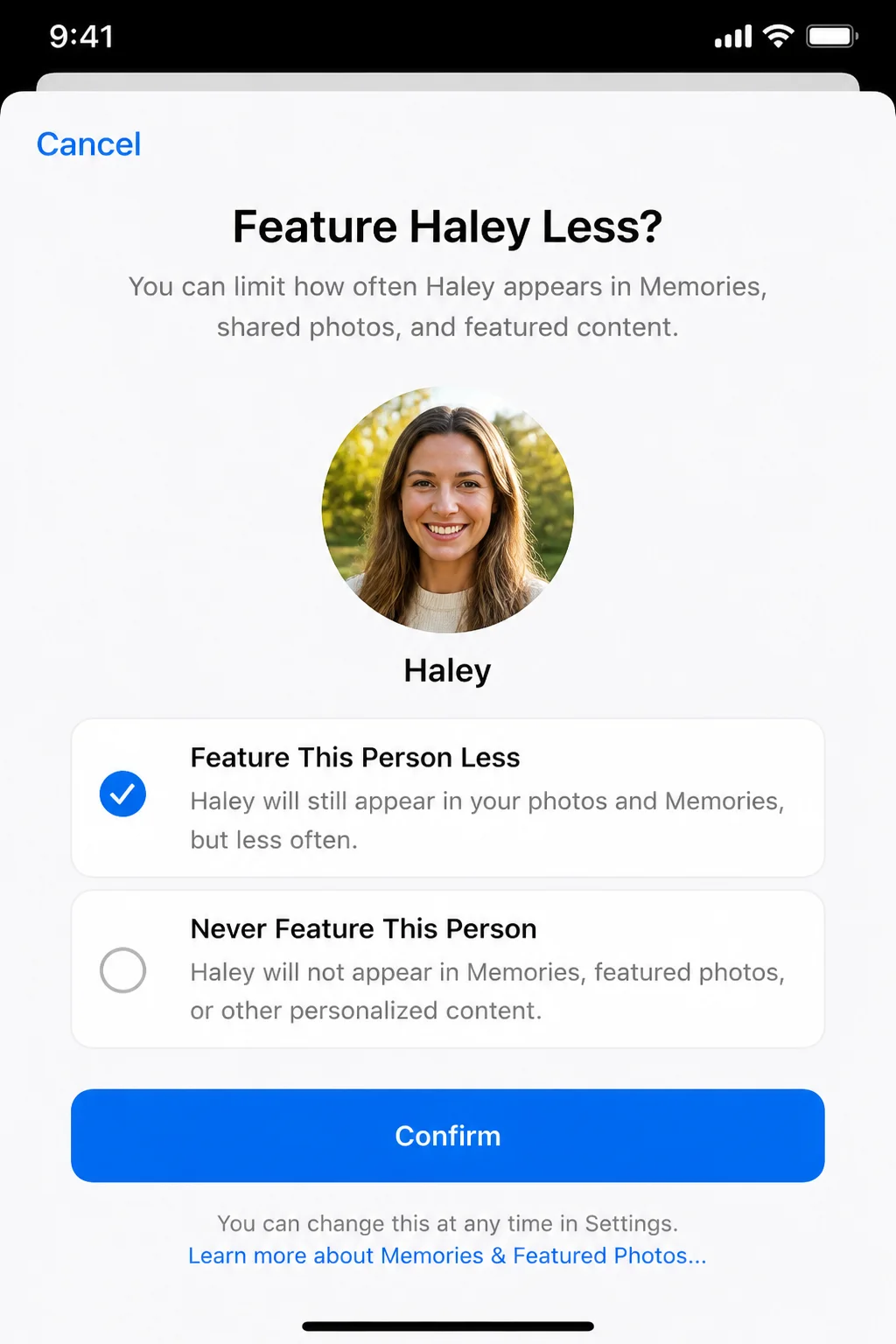
Tap the person’s face to open their detail page, then tap More (•••). Choose Feature This Person Less to reduce how often they appear, or Never Feature This Person to exclude them entirely from Featured Photos and Memories. Confirm your choice when prompted.
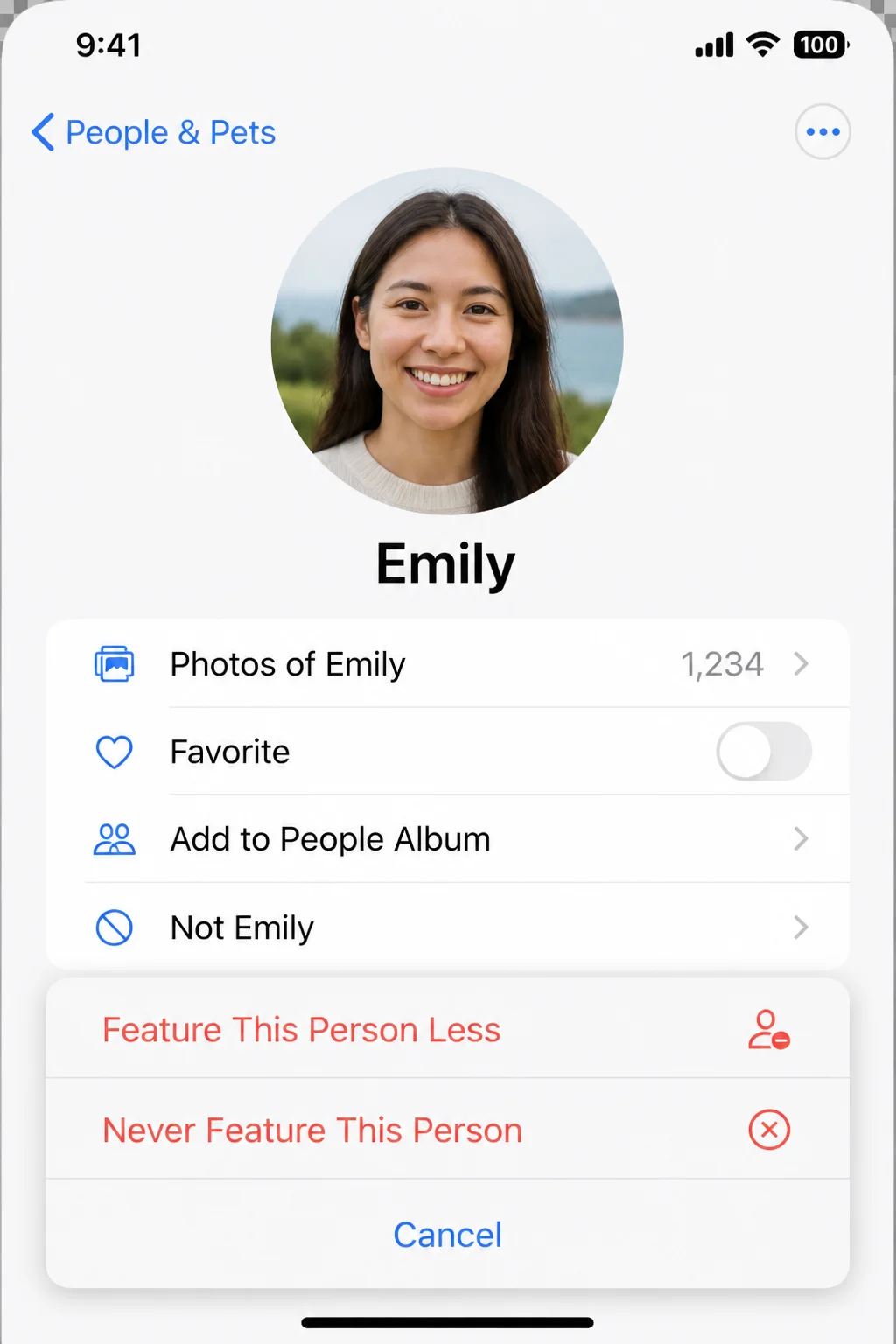
Tip: This setting only affects Featured Photos and Memories; it doesn’t hide or delete the person’s photos anywhere else in your library.
Step 5: Feature a specific day or place less
Memories are often built around a date or location, and sometimes you want less of a certain trip or time period surfacing: a stressful move, a breakup, a hospital stay. Apple can’t know that context on its own, but you can teach it.
Open a Memory from the For You tab, tap More (•••) in the top-right corner, then choose Feature This Day Less or Feature This Place Less, depending on what’s shown.
This reduces, rather than fully blocks, how often photos tied to that date or location get pulled into future Memories and Featured Photos.
Step 6: Turn off Featured Photos entirely
If you’d rather skip the algorithm altogether, one switch turns off Memories and Featured Photos everywhere: the Photos tab, Memories, and the Photos widget.
Go to Settings > Apps > Photos (on some iOS versions this appears simply as Settings > Photos), then turn off Show Featured Content. While you’re there, you can also turn off Show Holiday Events if you don’t want holiday-themed memories surfacing based on your region.
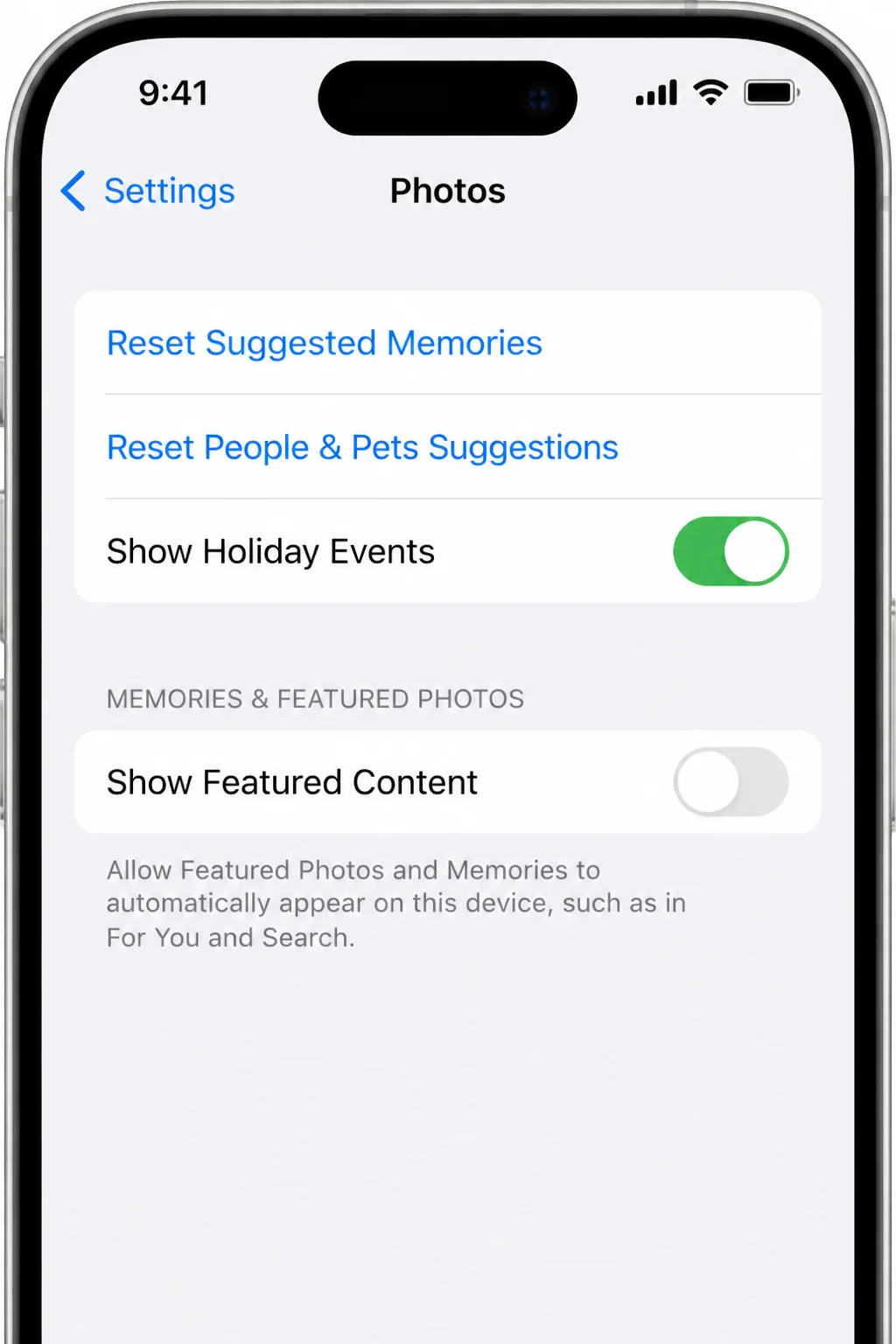
You can also reach this from inside the app: open Photos > Albums, tap your account icon in the top-right corner, and toggle Show Featured Content from there.
Warning: Turning this off removes the Featured Photos section from the For You tab, disables the Memories carousel, and makes any Featured-style widget go blank. It’s reversible any time; just flip the switch back on.
Configuration
The controls above are settings you can revisit any time your featured content drifts somewhere you don’t like.
| Setting | Where to find it | What it does |
|---|---|---|
| Favorite | Heart icon on any open photo | Increases odds a photo is featured |
| Remove from Featured Photos | Photo > More (•••) | Removes one image from rotation only |
| Feature This Person Less / Never | People & Pets > person > More | Reduces or blocks a person from Memories/Featured Photos |
| Feature This Day/Place Less | Open Memory > More | Reduces photos tied to a date or location |
| Show Featured Content | Settings > Photos | Master on/off switch for Memories + Featured Photos everywhere |
| Show Holiday Events | Settings > Photos | Toggles holiday-based memories on/off |
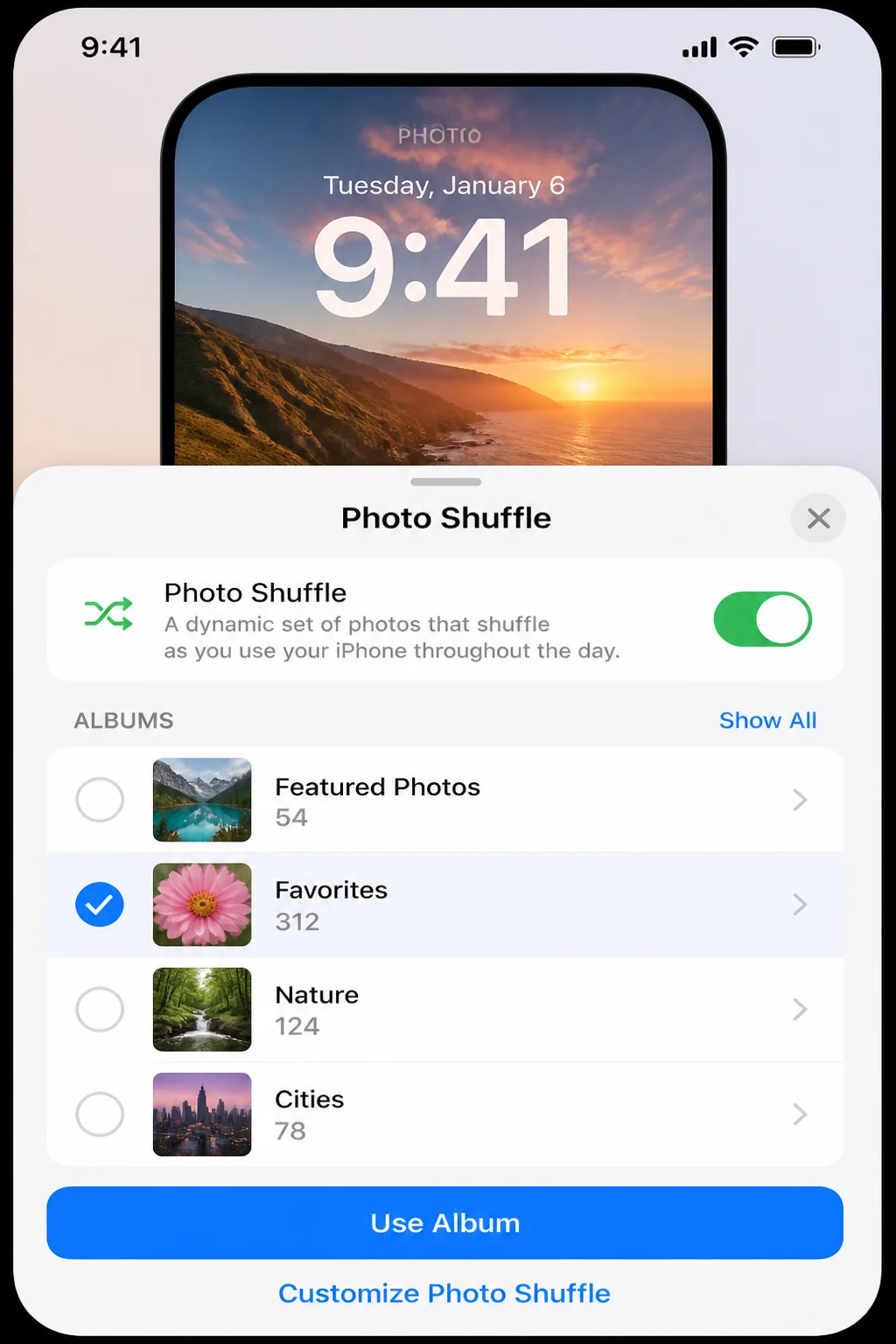
If you want guaranteed, full manual control instead of nudging an algorithm, skip Featured Photos altogether. Create a custom album with exactly the photos you want, then set your Photos widget to the Albums style pointed at that album, or use a Lock Screen Photo Shuffle wallpaper sourced from the same album. Both pull only from photos you’ve placed there. No algorithm involved, no surprises.
Tips and Troubleshooting
Featured Photos section is empty or missing. This almost always means Show Featured Content got turned off, sometimes by accident while browsing settings. Go to Settings > Photos and turn it back on. Give it a few minutes to repopulate.
The widget shows a gray box saying “Featured Content is Turned Off.” This is expected once you’ve disabled the master switch. Either re-enable Show Featured Content in Settings > Photos, or touch and hold the widget and choose Remove Widget if you’d rather not see it at all.
The same unwanted photo or person keeps resurfacing. Double-check you actually confirmed the change. Both Remove from Featured Photos and Never Feature This Person show a confirmation step, and it’s easy to tap away before it registers. Try the action again and watch for the confirmation prompt.
Featured Photos looks stale or isn’t updating. New photos need time for on-device analysis before they’re eligible to be featured. This can take a few hours after a big import, especially on a device with a large library. Make sure Show Featured Content is on, that your recent photos have finished syncing (check for a small cloud/progress icon), and give it overnight if you just added a lot of images at once.
Holiday memories keep showing up and you don’t want them. Turn off Show Holiday Events in Settings > Photos. This is separate from the main Featured Content switch, so you can keep regular Featured Photos while dropping holiday-specific ones.
You want one exact photo to always appear on your Lock Screen. Skip Featured Photos entirely. Set that single image as a static wallpaper, or build a small custom album and use it with Photo Shuffle for a guaranteed, curated rotation.
Wrapping Up
There’s still no button that says “feature this photo,” and there never will be. But between Favorites, Feature Less, and Remove from Featured Photos, you’ve got real steering power over what Apple’s algorithm shows you, plus a full off switch if you’d rather not play along at all.
If you need guaranteed control, like a Lock Screen you’re actually going to show people, don’t fight the algorithm. Build a custom album, point Photo Shuffle at it, and let it run. It’s more predictable than nudging Apple’s picks, and it never has an off day.
| Step | Action | Applies To |
|---|---|---|
| 1 | Check Featured Photos in For You tab | iPhone, iPad |
| 2 | Favorite photos to boost odds | iPhone, iPad |
| 3 | Remove a single photo from rotation | iPhone, iPad |
| 4 | Feature a person less/never | iPhone, iPad |
| 5 | Feature a day/place less | iPhone, iPad |
| 6 | Turn off Show Featured Content | iPhone, iPad |
Resources
- Apple Support: Manage memories and featured photos in Photos on iPhone
- Apple Support: Hide people, memories, and holidays in Photos on iPhone
- Apple Support: Share or delete memories in Photos on iPhone
- Apple Personal Safety Guide: Feature a person, a place, or a memory less often
- For more on customizing your iPhone experience, consider customizing your iPhone’s Lock Screen or learning about iOS tips and tricks.
- To learn more about Photos app features, visit Apple’s guide on managing memories and featured photos.