

Gmail refusing to load on your Mac is frustrating, especially when you see a blank page, spinner, or sign-in loop. If you’ve watched that spinner for 10 minutes, don’t panic. A few quick tests can tell you whether Gmail, your browser, or the network is causing it.
These steps cover Gmail in Safari and Chrome on supported macOS versions. You’ll also find checks for Windows and other desktop browsers.
Quick Diagnosis: Fix Gmail Not Loading on Mac
Try these checks in order. Stop when Gmail starts working.
- Reload Gmail: Open mail.google.com and press
Cmd + R. - Check another website: If nothing loads, fix the internet connection first.
- Open a private window: In Safari, choose File > New Private Window. In Chrome, choose File > New Incognito Window.
- Try the other browser: Compare Safari and Chrome on the same Mac and network.
- Try another device: Open Gmail on your phone while it’s connected to the same Wi-Fi.
- Try another network: Connect the Mac to your personal hotspot for a minute.
- Check browser support: Google recommends a current, supported browser for the latest Gmail experience.
That may feel like a lot of testing. Still, each result rules out a whole group of causes. You’ll have useful evidence before deleting data or changing network settings.
| Test result | Likely cause | Next action |
|---|---|---|
| Gmail fails only in Safari | Safari data, an extension, or a privacy feature | Follow the Safari fixes |
| Gmail fails only in Chrome | Chrome data, an extension, or the current profile | Follow the Chrome fixes |
| Gmail works only in a private window | Cookies, cache, or an extension in the normal session | Test extensions, then remove site data |
| Gmail fails in every browser but works through a hotspot | Router, Domain Name System (DNS), proxy, or network filter | Check the original network |
| Gmail fails everywhere and on multiple networks | Gmail service, account session, or wider Google issue | Check service status and contact Google |
Common Issues and Solutions
Problem 1: Gmail Shows a Blank Page in Safari
Symptoms:
- Gmail stays white or never finishes loading.
- The inbox appears only partly.
- Chrome works on the same Mac.
Why it happens: Safari may need an update, or Gmail’s saved website data may be damaged. Extensions and content blockers can also stop scripts that Gmail needs to show the inbox.
Fix:
- Open a Safari private window using File > New Private Window.
- Visit mail.google.com.
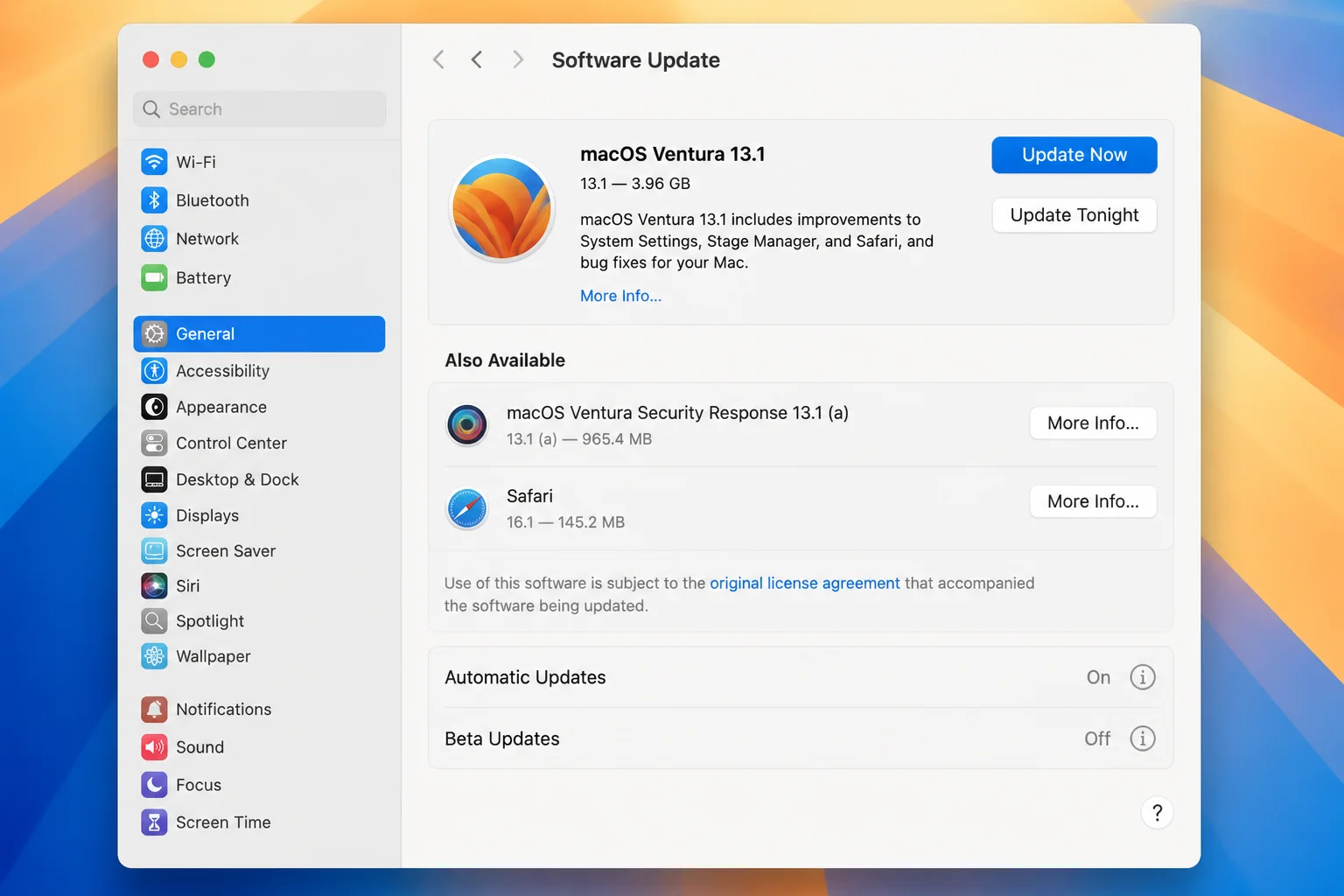
- If Gmail works there, close the private window. Open Apple menu > System Settings > General > Software Update.
- Check the Also Available area for a separate Safari update.
- Install any relevant update, restart Safari, and test Gmail again.
Safari updates come through macOS Software Update, not the Mac App Store. That’s easy to miss after switching from Windows, where browsers usually manage their own updates. Apple lists the changes in its Safari release notes.
Verify: Reload Gmail in a normal Safari window. If the blank page returns, continue with the site-data and extension checks below.
Problem 2: Gmail Does Not Load in Chrome
Symptoms:
- Gmail remains on a loading screen.
- Chrome displays an incomplete inbox.
- Safari opens Gmail normally.
Why it happens: Chrome may need an update. Cached files, cookies, extensions, or the active Chrome profile can also become damaged.
Fix:
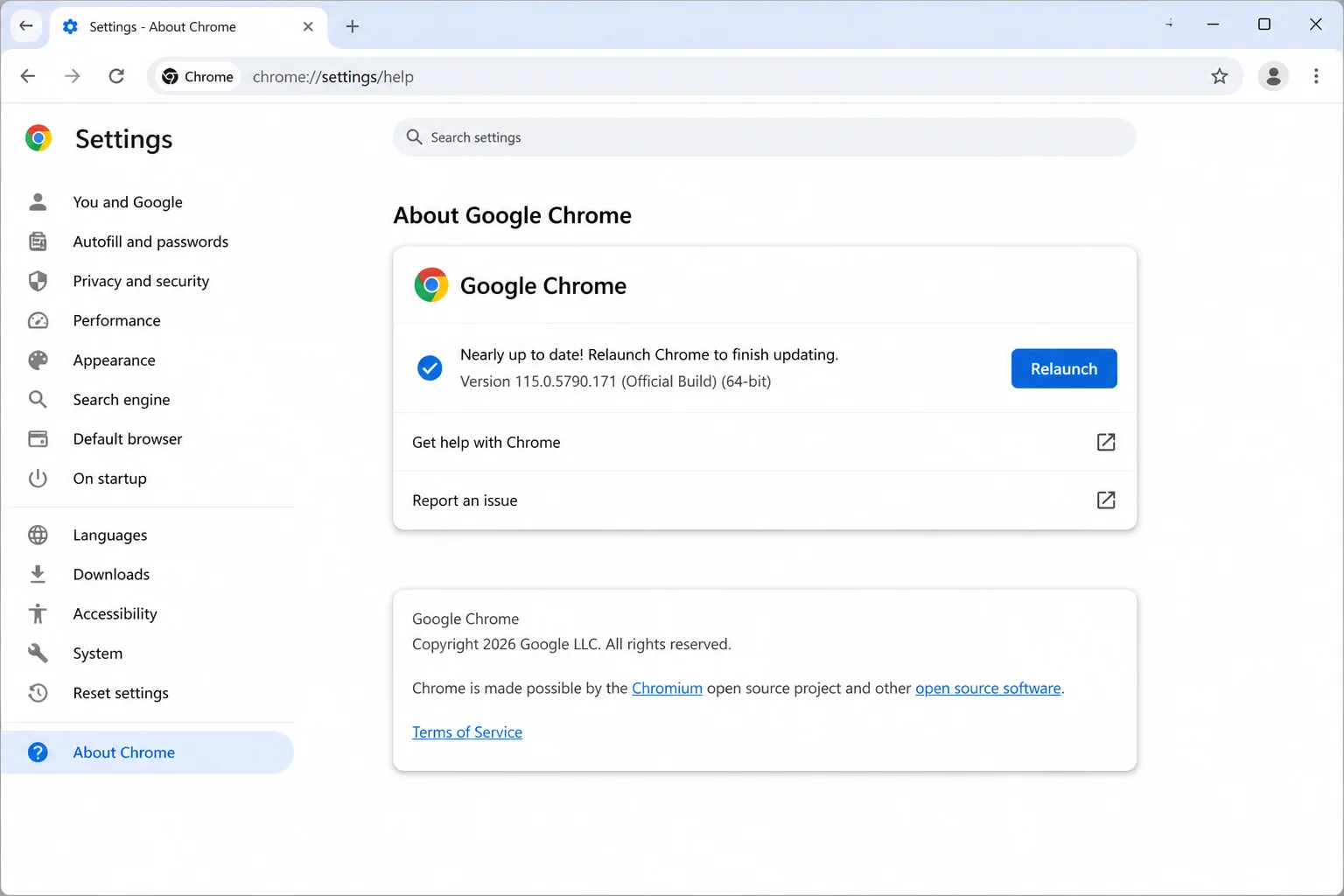
- Open Chrome menu > Help > About Google Chrome.
- Wait while Chrome checks for updates.
- Click Relaunch if that button appears.
- Open File > New Incognito Window.
- Visit Gmail without adding or enabling anything in that window.
Verify: If Gmail works in Incognito, Gmail and your basic connection are probably fine. The normal Chrome session is now the main suspect, so test its extensions next.
Problem 3: Gmail Works Only in Private or Incognito Mode
Symptoms:
- Gmail works in a private window but not a normal one.
- Reloading the normal window makes no difference.
- Other websites work.
Why it happens: Private windows use a separate, temporary session. They don’t reuse the same cookies or cached data. Many extensions also stay off unless you’ve allowed them. If Gmail works privately, the cause is usually session data or an extension.
This is useful evidence. You still have a problem, but you’ve narrowed it to one browser session without changing the account.
Fix:
- Return to a normal browser window.
- Disable browser extensions for a short test.
- Reload Gmail after each test.
- If disabling extensions doesn’t help, remove Gmail-related website data.
- Close and reopen the browser, then sign in again.
Verify: Gmail should load in a normal window after you remove the faulty extension or damaged site data.
Problem 4: A Content Blocker or Extension Stops Gmail
Symptoms:
- Gmail works when extensions are disabled.
- Buttons, message lists, or side panels don’t appear.
- The browser reports that a resource was blocked.
Why it happens: Ad blockers, privacy tools, script filters, antivirus add-ons, and content blockers can block Gmail code or Google sign-in requests. They can’t always tell tracking scripts from code the page needs.
Fix in Safari:
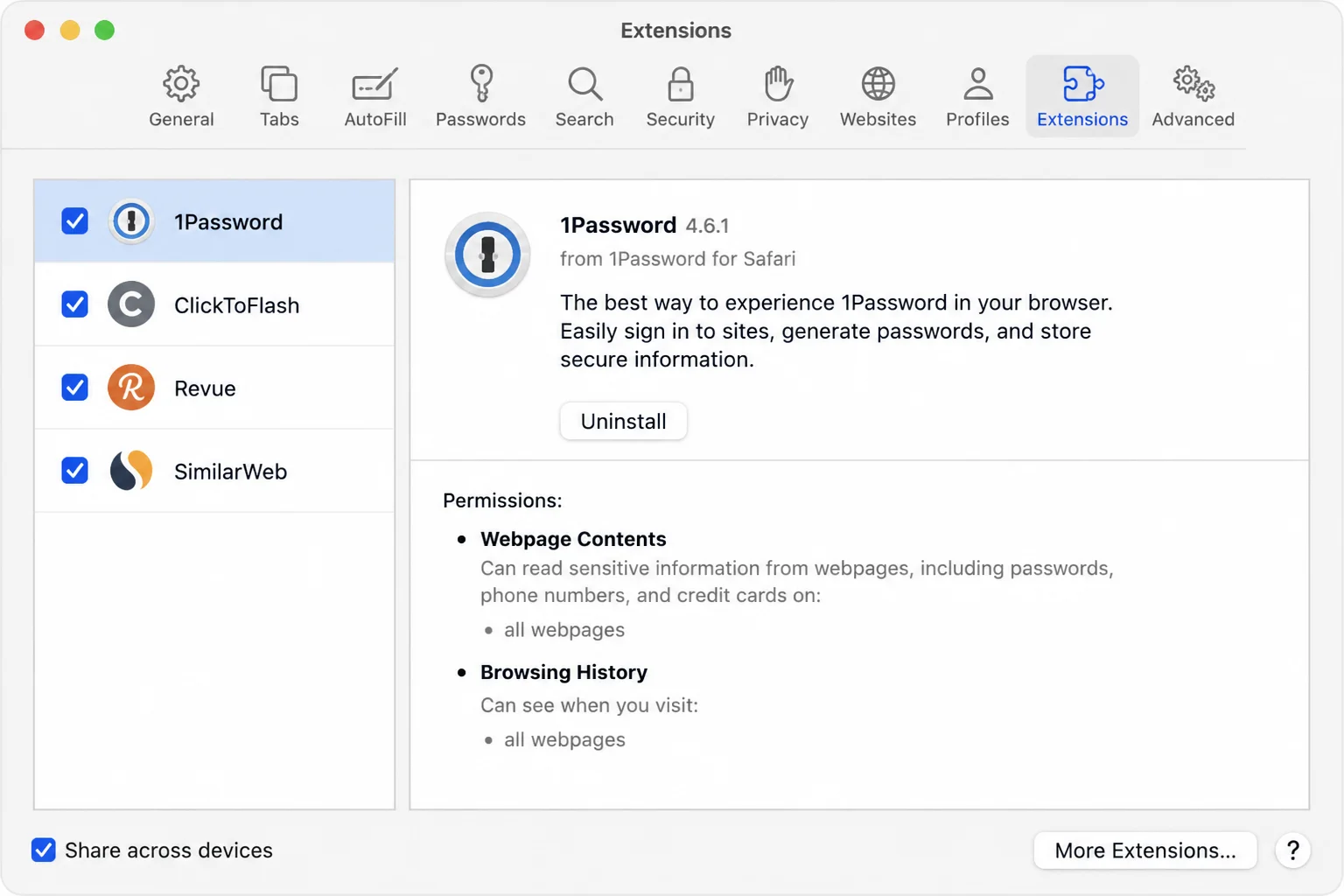
- Open Safari > Settings > Extensions.
- Note which extensions are enabled.
- Turn them off for a short test.
- Reload Gmail.
- Turn extensions on one at a time. Test Gmail after each one.
Fix in Chrome:
- Enter
chrome://extensions/in the address bar. - Turn off each extension using its switch.
- Reload Gmail.
- Turn extensions back on one at a time until the problem returns.
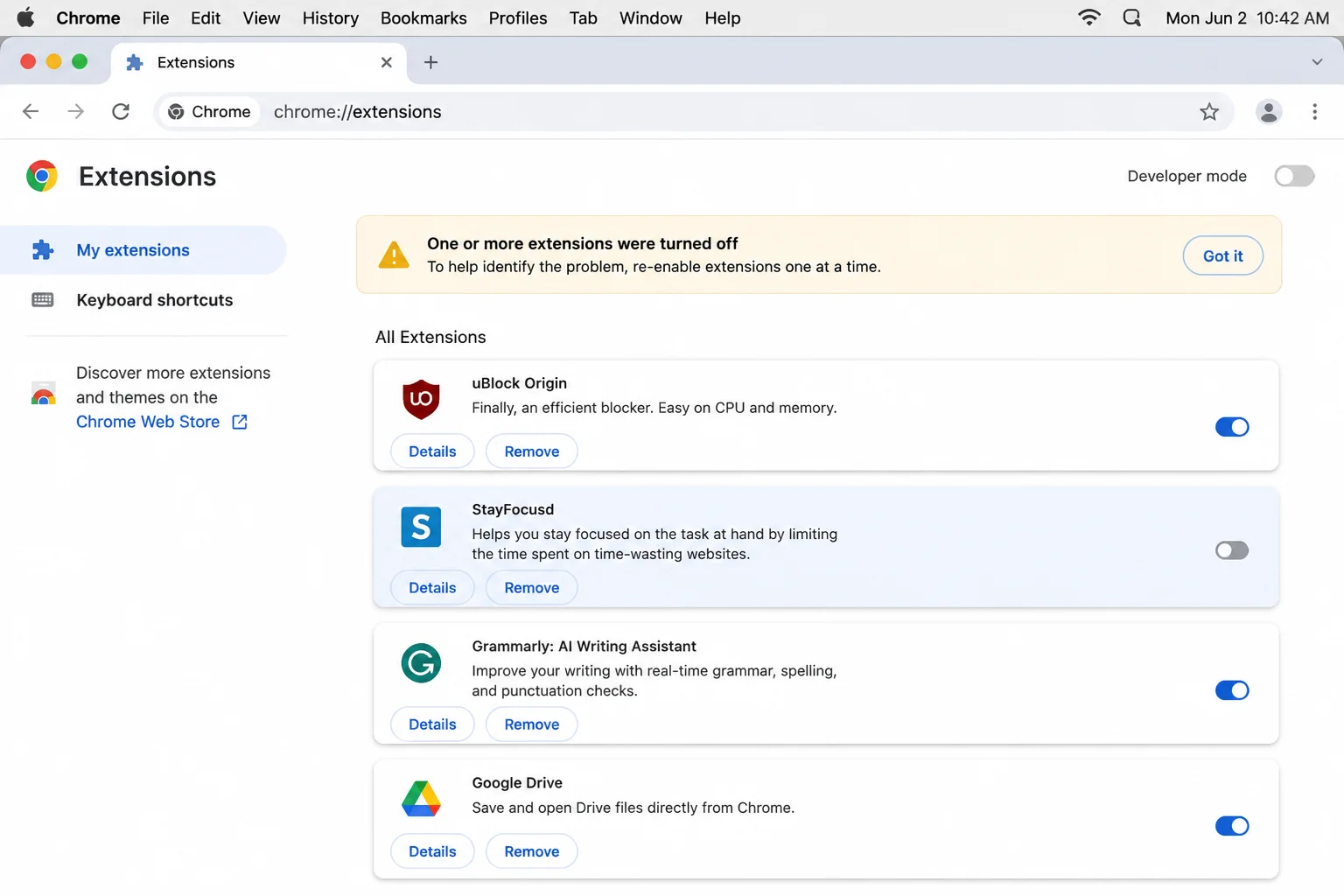
I’d avoid leaving security software disabled after this test. Update the problem extension, allow Gmail when appropriate, or contact the developer. Leaving protection off creates a larger security risk.
Verify: Gmail should keep loading after you turn every extension back on except the blocker.
Problem 5: Gmail Keeps Returning to the Sign-In Page
Symptoms:
- A successful sign-in returns to the login page.
- Gmail keeps asking for your credentials.
- The loop stops in a private window.
Why it happens: Google sign-in uses cookies across Gmail and other Google domains. If those cookies are damaged, blocked, or deleted, the browser can’t keep you signed in.
Repeated sign-in screens can look like an account problem. If private browsing works, clear only the affected site data first.
Fix in Safari:
- Open Safari > Settings > Privacy.
- Click Manage Website Data.
- Search for
google. - Select the relevant Google and Gmail entries, then click Remove.
- Click Done, quit Safari, and reopen Gmail.
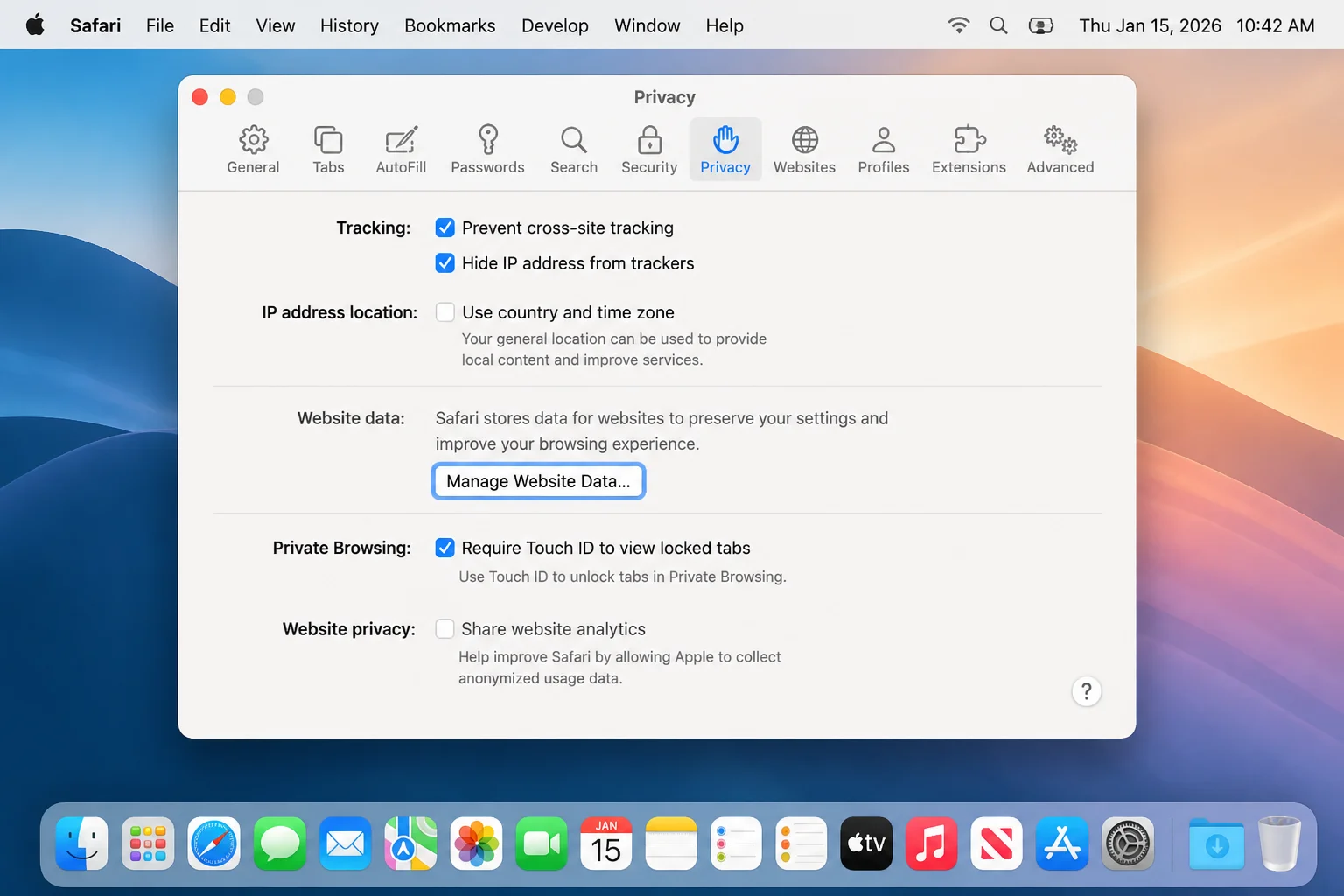
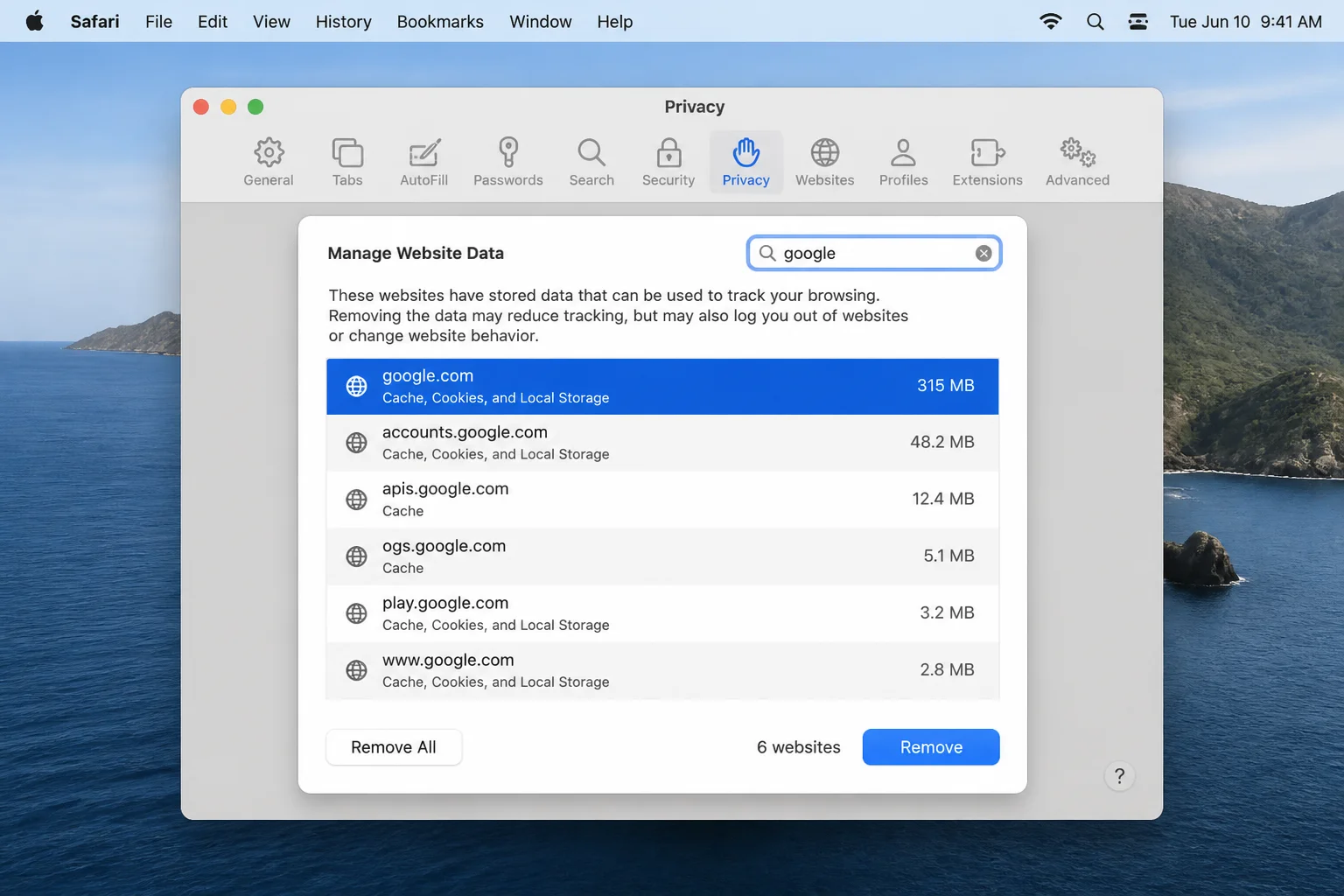
Removing this data signs you out of affected Google sites. That’s inconvenient, but it disrupts less than erasing cookies for every website.
Fix in Chrome:
- Open Chrome menu > Settings > Privacy and security > Third-party cookies > See all site data and permissions.
- Search for
google. - Remove the relevant Gmail and Google entries.
- Restart Chrome and sign in again.
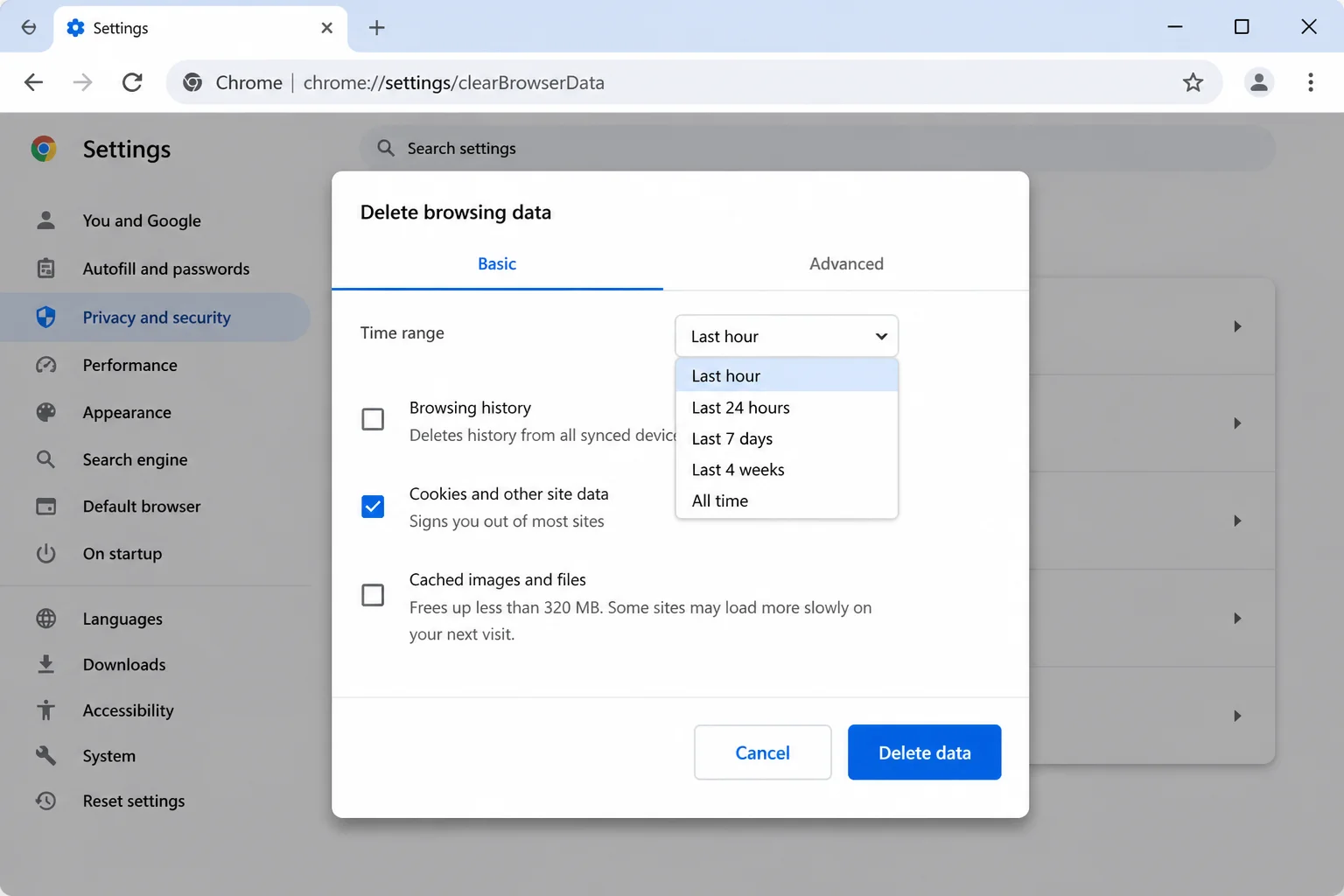
If targeted removal isn’t available or doesn’t work, open Settings > Privacy and security > Delete browsing data. Check the time range before selecting cookies and cached files. A broad deletion can sign you out across the web.
Verify: Close Gmail, reopen it, and confirm that you stay signed in.
Problem 6: A VPN, Private Relay, or Proxy Blocks Gmail
Symptoms:
- Gmail fails in both Safari and Chrome.
- Gmail works after switching networks.
- Gmail works on a phone using cellular data.
Why it happens: A virtual private network (VPN), iCloud Private Relay, proxy, security filter, or managed network can change or block Gmail traffic.
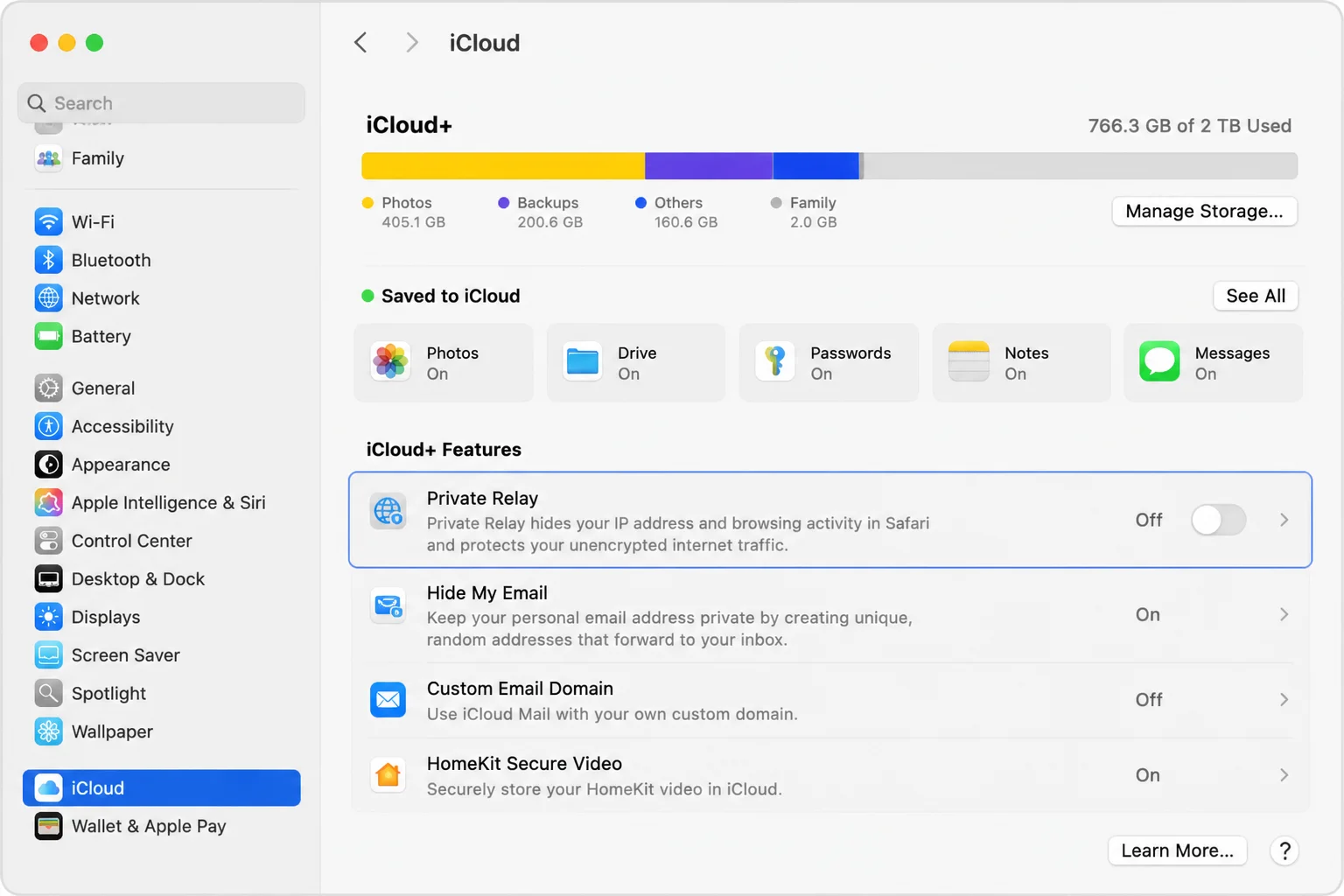
Apple puts Private Relay under your iCloud settings because it belongs to iCloud+, rather than your Wi-Fi setup. It mainly affects Safari traffic, so comparing Chrome is useful here.
Fix:
- Disconnect your VPN briefly and reload Gmail.
- If you use iCloud+, open Apple menu > System Settings > Apple Account > iCloud > Private Relay.
- Turn Private Relay off only long enough to test Safari.
- Turn on any protection that isn’t responsible.
- Check System Settings > Network > Wi-Fi > Details > Proxies for a proxy you recognize.
- Connect to a personal hotspot and test again.
If Gmail works on your hotspot but fails at school or work, contact the network administrator. Don’t bypass company or school controls. The filter may be required by policy.
Verify: Reconnect each network or privacy service one at a time. Gmail should fail only when the responsible service is active.
Problem 7: DNS or Wi-Fi Prevents Gmail From Connecting
Symptoms:
- Gmail fails in every browser on one network.
- A hotspot fixes the problem.
- Other Google pages are slow or unreliable.
Why it happens: DNS turns mail.google.com into the network address your browser needs. A broken or filtered DNS server, router, or internet provider can stop that lookup.
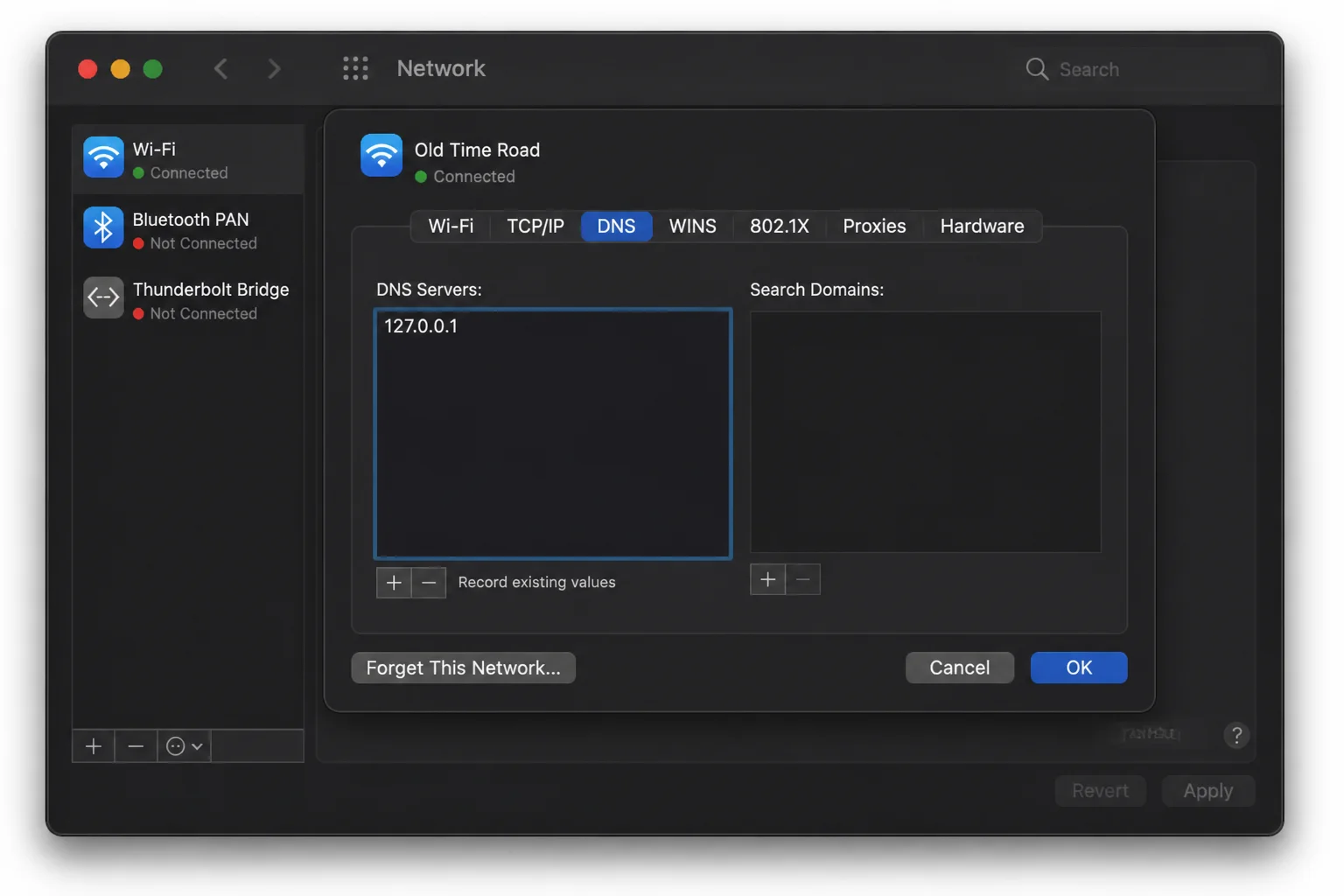
DNS changes affect the whole connection, so record the current values first. A screenshot is enough. You’ll want an easy way back if the new setting doesn’t help.
Fix:
- Restart the Mac and router.
- Open Apple menu > System Settings > Network > Wi-Fi > Details > DNS.
- Record the current DNS entries before changing anything.
- If DNS was set by hand, restore your provider’s automatic setting. You can also use a trusted service approved for that network.
- Test Gmail again.
Verify: Open Gmail in both Safari and Chrome. If the hotspot works but your main connection still fails, contact the network administrator or internet provider.
Problem 8: Chrome’s Current Profile Is Damaged
Symptoms:
- Gmail fails after cache and extension checks.
- Gmail works in Incognito.
- Other Chrome profiles work correctly.
Why it happens: Each Chrome profile stores its own cookies, extensions, permissions, and browser state. A clean profile can expose a deeper fault in your usual profile.
Creating another profile takes a few minutes. Moving bookmarks, passwords, and settings takes longer, though. Use the new profile as a test until you’ve confirmed the cause.
Fix:
- Open Chrome’s profile menu beside the address bar.
- Choose Add or Add Chrome profile.
- Continue without turning on sync if Chrome offers that option.
- Open Gmail before adding extensions.
- Keep the original profile until you’ve confirmed the clean profile works.
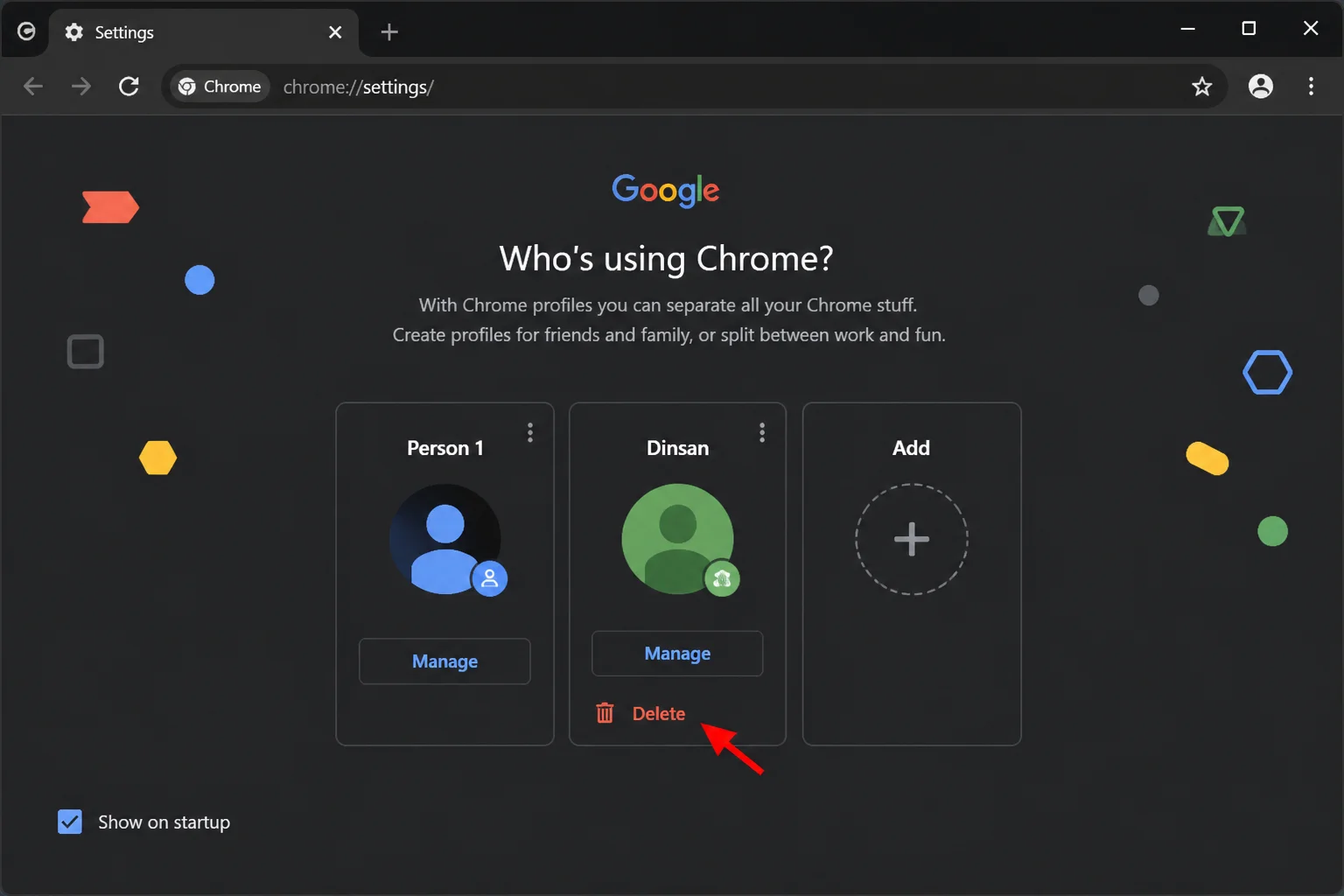
I’d skip this step until you’ve tested updates, extensions, and targeted site-data removal. A clean profile is useful for diagnosis. One broken Gmail session doesn’t justify deleting your main profile.
Verify: If Gmail works each time in the clean profile, repair or replace the original Chrome profile.
Problem 9: The Browser Is Too Old for Gmail
Symptoms:
- Gmail shows a compatibility warning.
- Chrome can’t install its latest update.
- The Mac can’t upgrade to the required macOS release.
Why it happens: Current browsers stop supporting older macOS versions over time. According to the supplied 2026 compatibility research, Chrome 151 and later require macOS 13 or newer.
This can be an awkward answer for an older Mac that still works well. The browser may open pages, but missing security updates make it a poor choice for daily email.
Fix:
- Check macOS under Apple menu > About This Mac.
- Check Chrome under Chrome menu > Help > About Google Chrome.
- Install a supported macOS update if the Mac offers one.
- If the Mac can’t upgrade, use a browser that still gets security updates for that macOS version.
An old Mac may keep running its last compatible Chrome build. The build can still lose security support. Safari is a reasonable fallback while Apple continues to update it on that Mac.
Verify: Confirm that the browser reports itself as current and Gmail no longer shows a compatibility warning.
Gmail Error Messages Explained
Gmail’s messages often describe the result rather than the cause. Use them as a starting point. Then compare browsers and networks before changing settings.
| Message or symptom | What it usually means | What to do |
|---|---|---|
| “Temporary Error” | Gmail or the current session had a short failure | Reload, wait briefly, then test another browser |
| “Oops… the system encountered a problem” | A Gmail request failed because of service, browser, or network trouble | Test a private window and another network |
| “This browser or app may not be secure” | The browser is outdated or the sign-in flow is unsupported | Update the browser; don’t weaken account security |
| “Cookies are disabled” | Google can’t save the sign-in session | Allow required cookies and disable cookie-cleaning extensions temporarily |
| “Offline” or “No connection” | The browser can’t reach Gmail | Check Wi-Fi, VPN, proxy, DNS, and another website |
| Blank page or endless loading | Scripts or stored data failed before Gmail could show an error | Compare browsers, then test extensions and site data |
| Repeated sign-in page | Google cookies are blocked, damaged, or deleted | Remove only relevant Google site data and sign in again |
Platform-Specific Issues
On macOS
Safari updates come through Apple menu > System Settings > General > Software Update. Chrome updates through Chrome menu > Help > About Google Chrome.
Safe Mode can find third-party software that starts with macOS. If Gmail works in Safe Mode, test VPN, security, filtering, and login-item software one item at a time. Safe Mode changes several system behaviors, so treat the result as a clue rather than a full diagnosis.
On Windows
Gmail doesn’t need a separate desktop app. Open it in a current browser at mail.google.com.
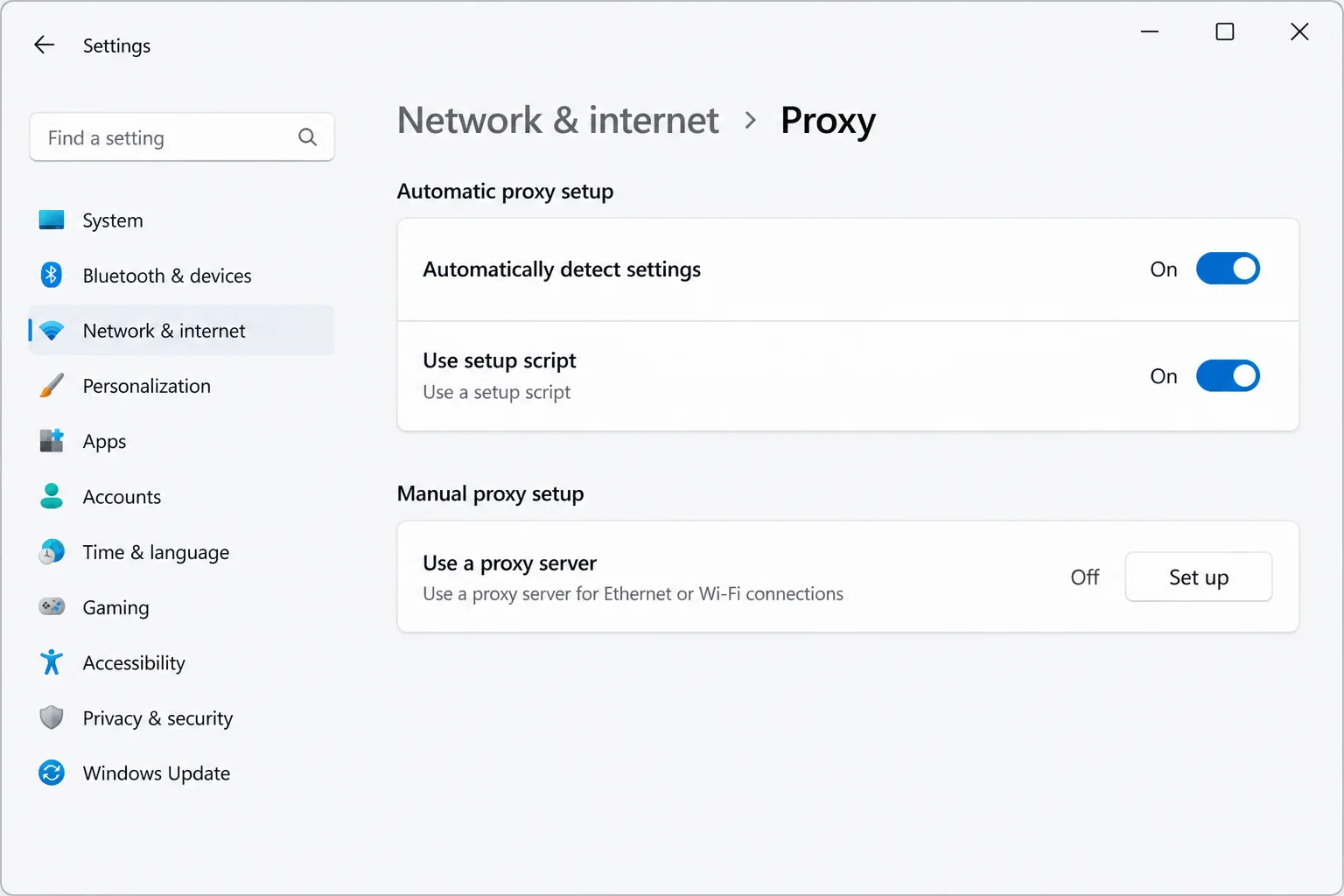
To update Chrome, choose Chrome menu > Help > About Google Chrome. To check a proxy, open Settings > Network & internet > Proxy. Disconnect only unknown or unneeded personal proxy settings. Ask an administrator before changing a managed PC.
Use Ctrl + Shift + N to open Chrome Incognito on Windows. The Mac shortcut uses the Command key. It’s one of those small differences that soon becomes automatic.
On the Web
Gmail behaves much the same in supported desktop browsers. Test mail.google.com in a private window, then try a second browser.
If Gmail fails across browsers, devices, and networks, check Google’s service status. Also read the official Gmail browser support guidance. Community reports can confirm a shared problem, but their fixes may address a different cause.
Configuration Issues to Check
One privacy setting can cause the problem, but several filters make testing harder. Check these common setup issues:
- Blocking all cookies: Gmail needs cookies for sign-in. Use targeted privacy controls instead of blocking every Google cookie.
- Automatic cookie deletion: A privacy extension may erase the session whenever Chrome or Safari closes.
- Overlapping filters: A VPN, DNS filter, antivirus web shield, and content blocker can interfere at different points. Pause and restore them one at a time.
- Unrecognized proxy: Check System Settings > Network > Wi-Fi > Details > Proxies before changing DNS.
- Unsupported browser: A browser may open Gmail while still being outdated and unsafe.
- Broad data deletion: Remove Gmail and Google site data first. Clearing all cookies signs you out of many websites.
Change one item, reload Gmail, and record the result. If you change four settings together, you won’t know which one fixed it.
Getting Help
Before contacting support, record:
- Your Mac model and macOS version from Apple menu > About This Mac
- Safari or Chrome version
- Whether Gmail works in a private window
- Whether it works in another browser
- Whether it works through a personal hotspot
- The exact error message and time it appeared
For Chrome details, enter chrome://version/ and record the version number and profile path. Don’t share the contents of your profile folder. In Safari, open Safari > About Safari to find the version.
These details can save several rounds of basic troubleshooting. They also help support staff tell an account issue from a browser or network fault.
Contact:
- A school or workplace administrator if Gmail fails only on its managed network or device.
- Your internet provider if several devices fail only on your home connection.
- Apple Support if Safari or macOS networking fails while Chrome and other devices work.
- Google Help if Gmail fails across current browsers and separate networks, or Google reports a service problem.
Never send support screenshots that show messages, email addresses, account names, one-time passcodes, captchas, or sign-in challenges. Crop the image or cover those details before sharing it.
Prevention Tips
- Keep macOS updated: Check System Settings > General > Software Update regularly.
- Keep Chrome updated: Review Help > About Google Chrome after long periods without restarting.
- Limit extensions: Keep only the extensions you use, and update them.
- Change one setting at a time: This helps you find the cause and restore protections safely.
- Avoid routine all-site cookie wipes: Target Gmail-related data first.
- Record custom network settings: Save existing DNS and proxy values before editing them.
- Keep a fallback: Apple Mail or Outlook can give you temporary Gmail access, though neither fixes the browser problem.
Apple Mail is handy when you need to send something right away. Still, the workaround doesn’t repair your browser. Return to the browser issue when you have time to test it one step at a time.
Wrapping Up
| Step | Action | Applies To |
|---|---|---|
| 1 | Compare normal, private, and second-browser results | Web, macOS, Windows |
| 2 | Update the affected browser | Safari, Chrome |
| 3 | Test extensions, then remove targeted site data | Safari, Chrome |
| 4 | Compare the normal network with a hotspot | macOS, Windows |
| 5 | Test a clean profile or contact the right support team | Chrome or persistent failures |
The fix is usually small: update the browser, remove a problem extension, or clear only Gmail-related site data. Start with private-window and second-browser tests. They cut down the guesswork before you change anything disruptive.
Once Gmail loads, restore each VPN, privacy feature, and extension that didn’t cause the problem. You’ll keep your chosen protections while fixing the setting, extension, or service that failed.