
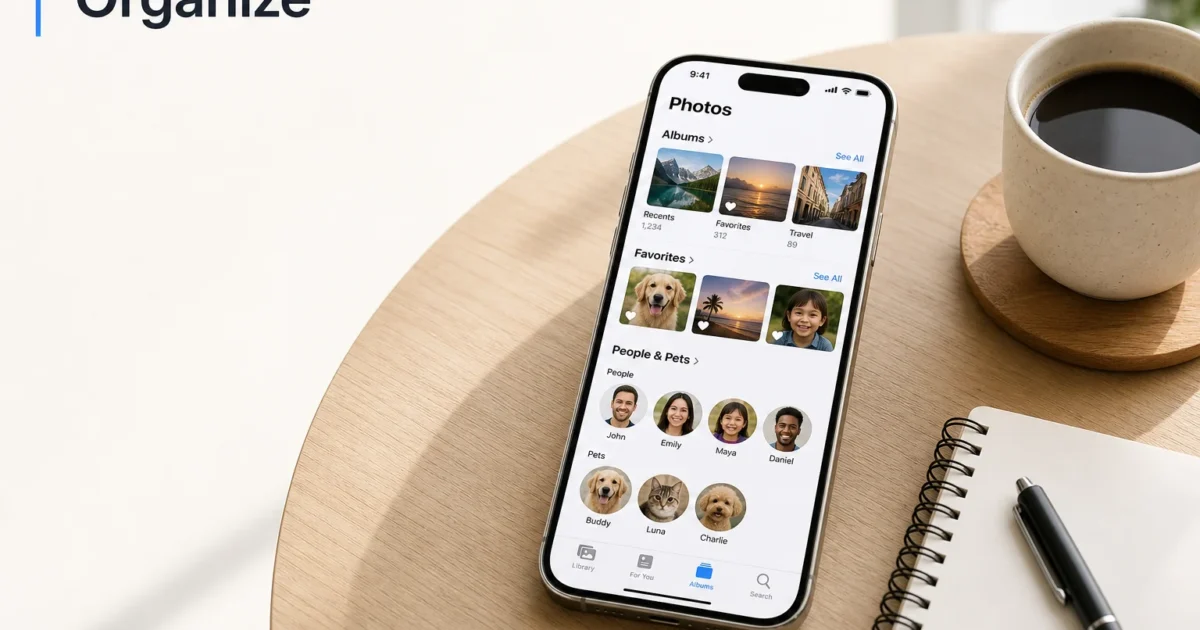
If your Camera Roll has ballooned into 12,000 photos and you can never find the one you actually want, you’re not alone. You don’t need a third-party app to fix this, either. The Photos app on your iPhone already sorts everything into Favorites, People & Pets, and Albums. You just need to know where Apple moved things this time.
This guide walks through the current Collections layout, step by step. By the end, you’ll find any photo in seconds instead of scrolling for minutes.
What Is the Photos App’s Collections System?
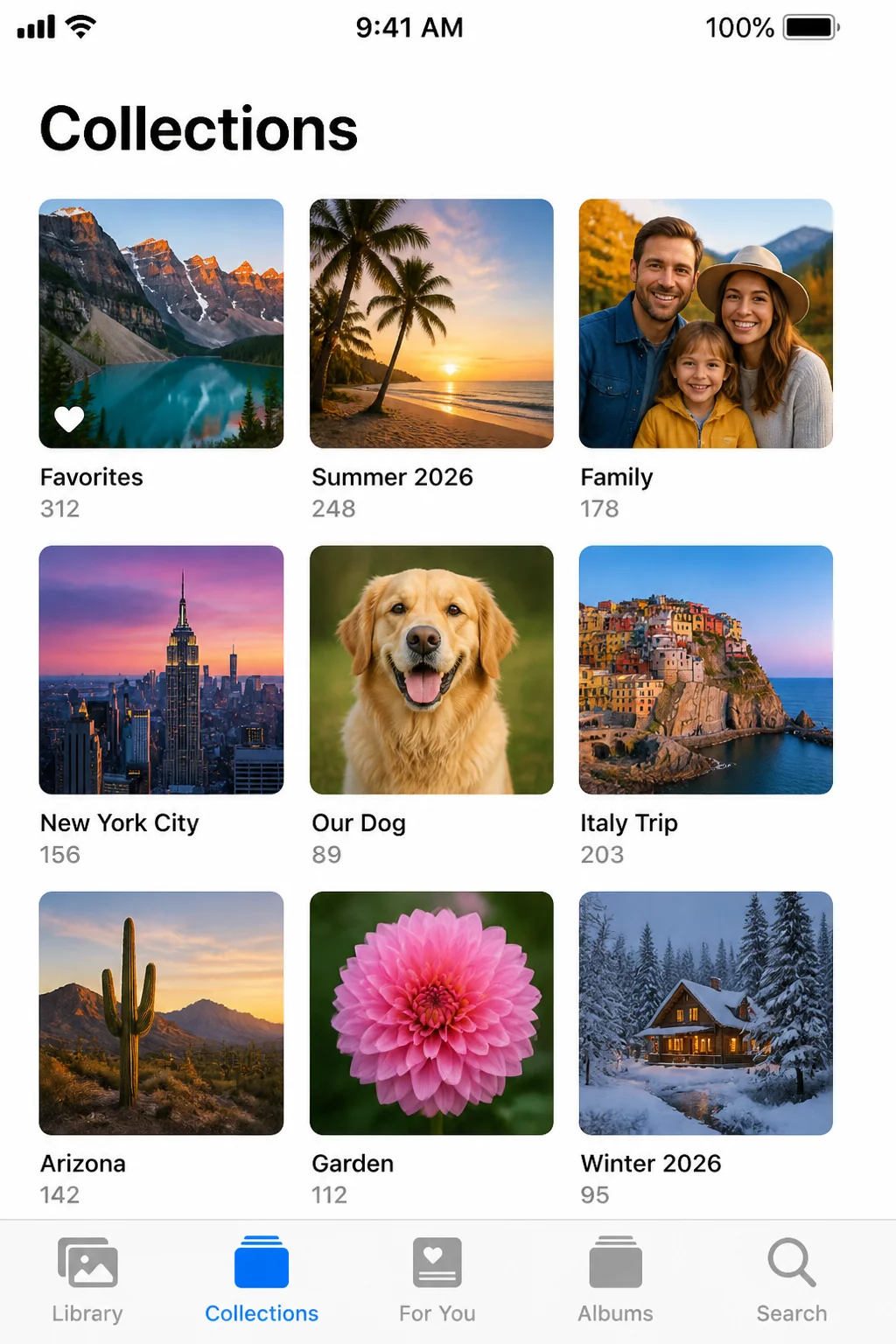
Photos comes pre-installed on every iPhone. There’s nothing to download, nothing to install. What trips people up is the layout: Apple reorganized it, and the app now splits into two main tabs. Library shows every photo and video you’ve ever taken, newest first. Collections is where Photos automatically sorts things into useful groups: Favorites, Albums, and People & Pets.
Think of Collections as Apple’s version of smart folders. You’re not manually dragging photos into folders the way you might on a Windows PC. Your iPhone uses on-device intelligence to recognize faces, pets, and photos you’ve hearted, then puts them somewhere you can jump to instantly. If you’re coming from Android or Windows, this is the big mental shift: you’re not building an organization system from scratch. You’re mostly just naming and pinning the one Apple already built for you.
Before You Begin
Make sure you have the following before starting:
- An iPhone running a current version of iOS (this guide reflects iOS 26’s Collections layout)
- Your Apple ID signed in on the device
- A few minutes to review your existing photo library
| Requirement | Details |
|---|---|
| Device | Any iPhone that supports iOS 26 |
| OS version | iOS 26 or later (check in Settings > General > About) |
| Recognition support | iOS 17 or later for People & Pets (dogs and cats) recognition |
| Recommended | iCloud Photos turned on so favorites and named people/pets sync across your iPhone, iPad, and Mac |
You’ll need an Apple ID signed in on your device to use Shared Albums and iCloud sync. Check in Settings > [your name].
Step-by-Step Guide
Step 1: Update iOS to get the current Collections layout
If your Photos app looks different from a screenshot you found online, with no Library/Collections tab switcher and Favorites sitting somewhere else entirely, you’re probably on an older iOS version. Apple reorganized this navigation more than once. Update first, and the rest of this guide will match what you see.
Go to Settings > General > Software Update, then tap Update Now if one is available.
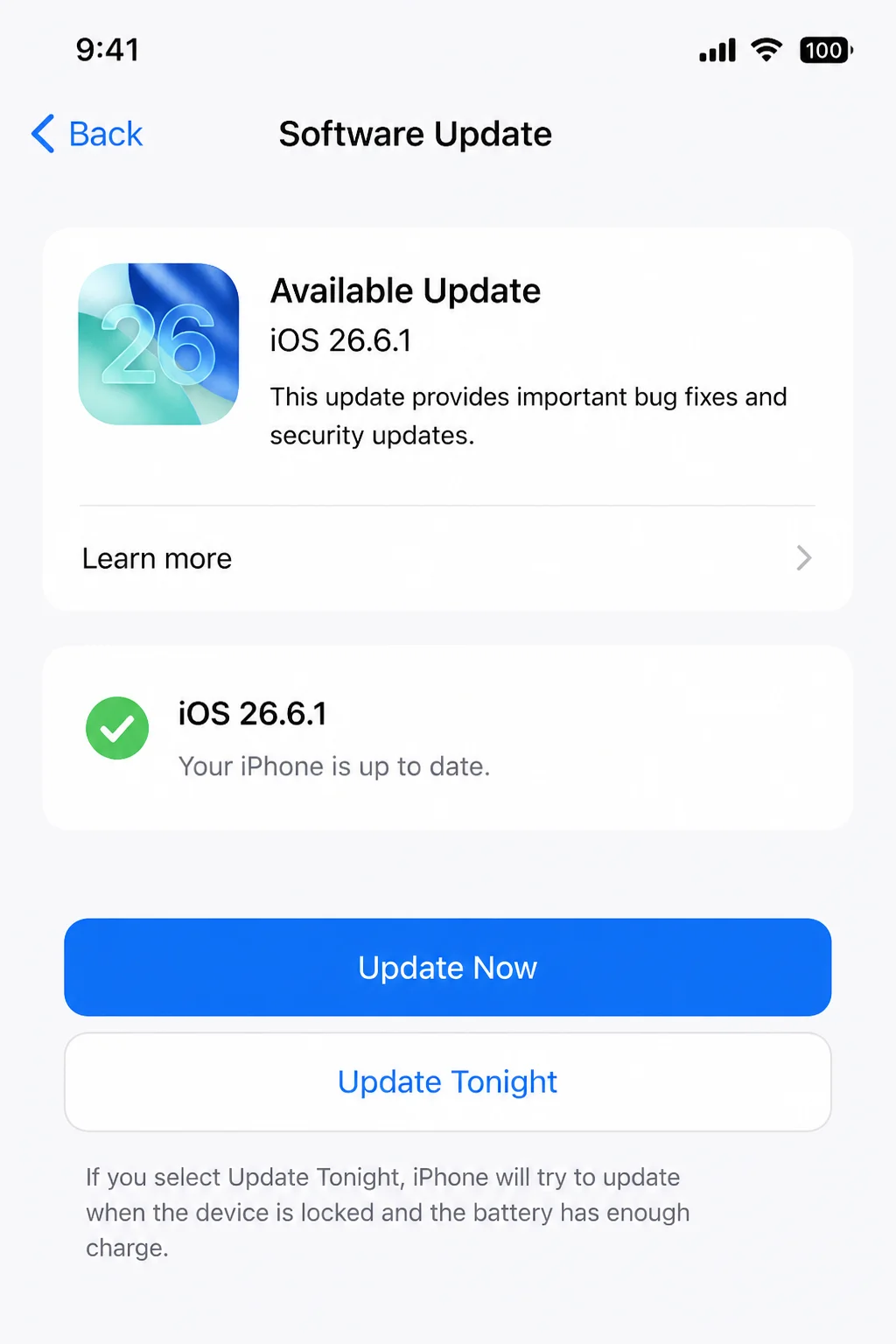
Tip: This is also the fastest fix if your Photos app “looks different from an old tutorial.” Apple changes this layout periodically, and the Library/Collections split described here is specific to the current iOS structure.
Step 2: Turn on iCloud Photos
This step is optional, but I’d turn it on. Without it, your favorites and named people stay stuck on this one iPhone. With it on, everything syncs to your iPad, Mac, and iCloud.com automatically.
Go to Settings > [your name] > iCloud > Photos, then turn on Sync this iPhone.
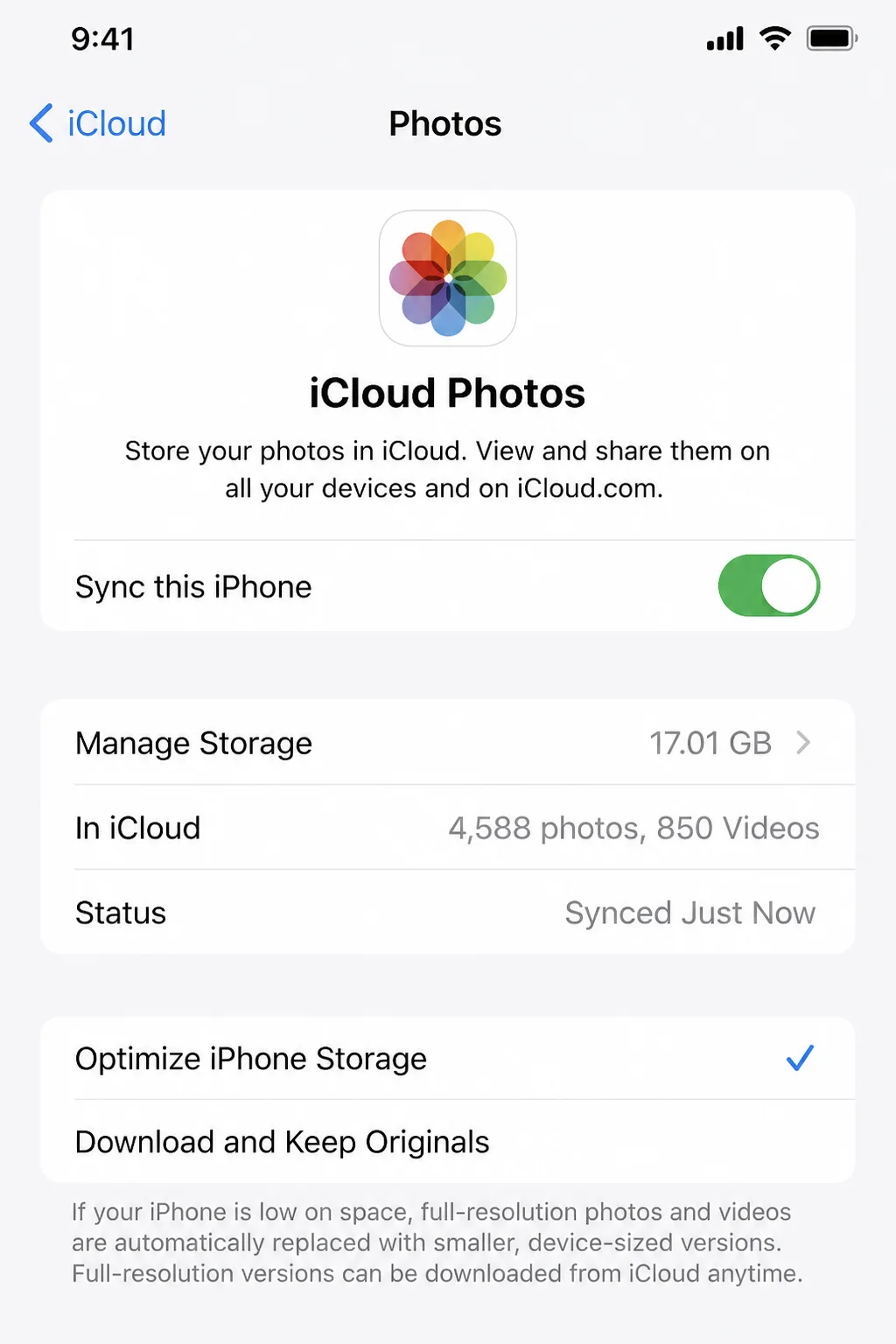
Tip: Turning this on keeps smaller versions of photos on your device by default and stores full-resolution originals in iCloud. This is the Optimize iPhone Storage setting on the same screen, worth knowing about if you’re low on storage.
Step 3: Open Photos and find the Library vs. Collections split
Open the Photos app. At the bottom of the screen, you’ll see two tabs: Library and Collections.
Library shows every photo and video you have, newest first, like a traditional Camera Roll. Collections is the organizational hub. This is where Favorites, People & Pets, and Albums all live now.
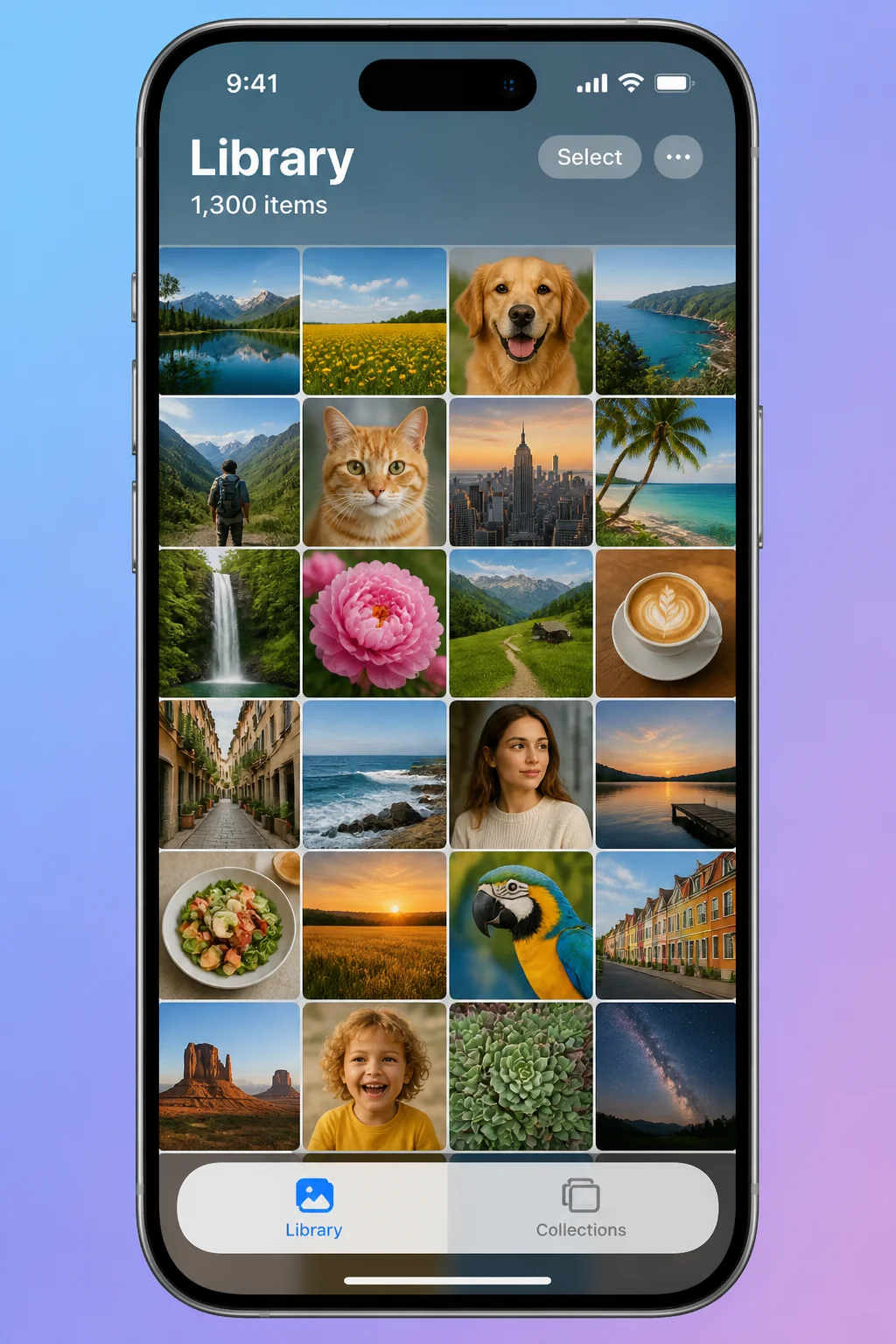
For everyday browsing, you’ll live in Library. For finding something specific, Collections is where you’re headed for the rest of this guide.
Step 4: Find Favorites under Collections > Pinned
This is the step most people search for. Favorites used to have its own tab. Now it lives inside Collections, which confuses a lot of longtime iPhone users too.
Tap the Collections tab, then look at the top of the screen under Pinned. Favorites should be one of the tiles there by default.
Go to Photos > Collections > Pinned > Favorites.
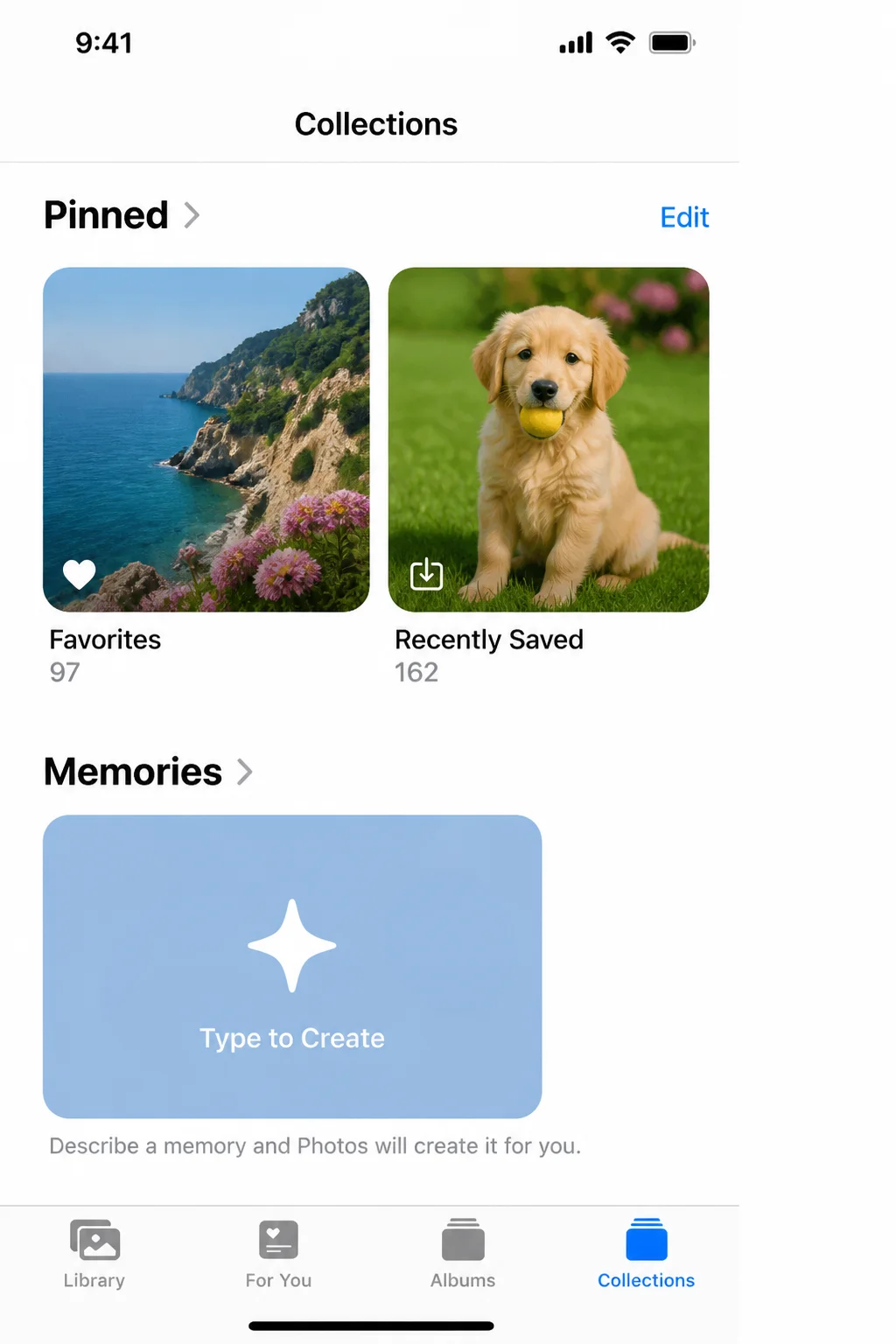
Tap Favorites to open the grid of everything you’ve hearted.
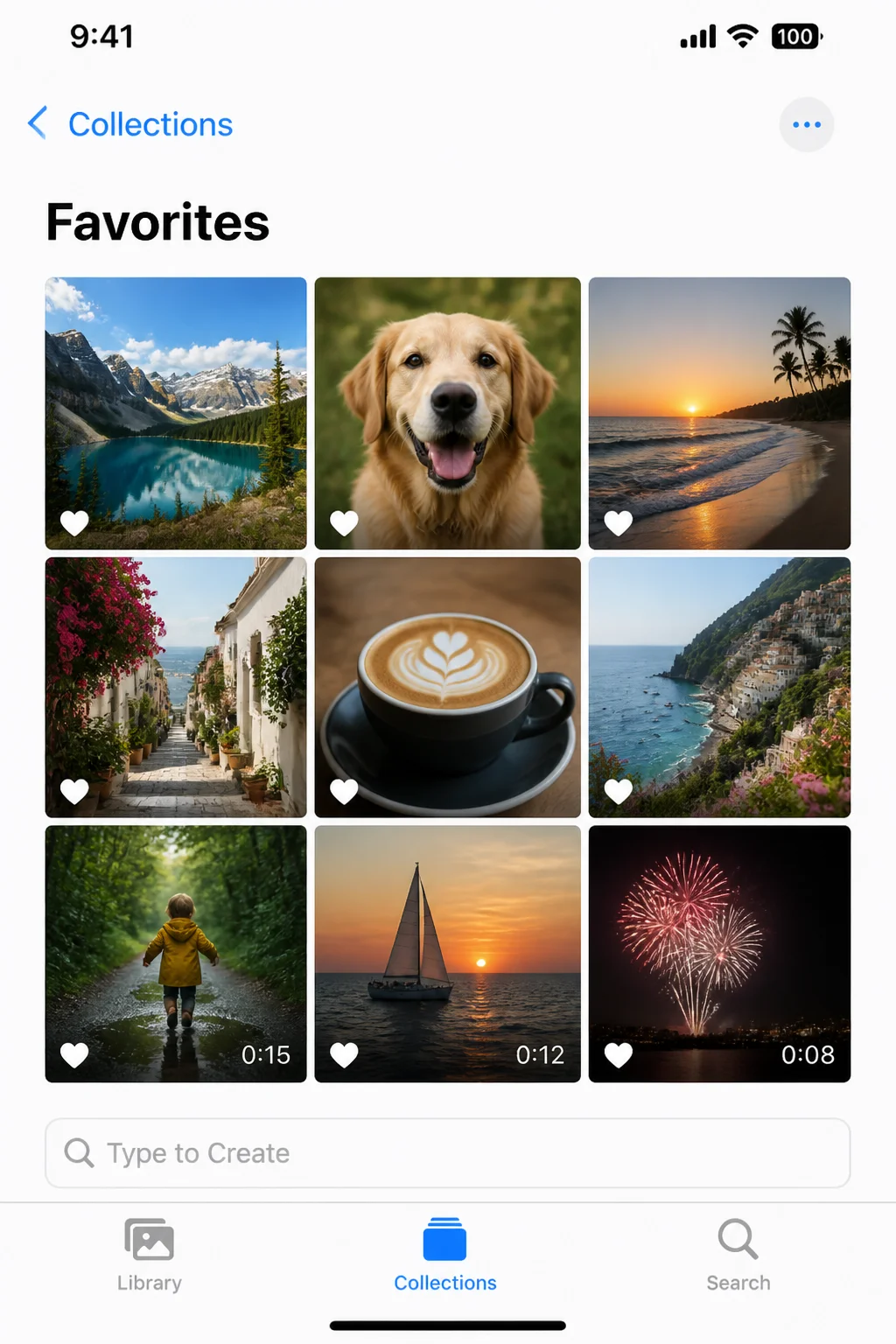
To add a new photo to Favorites, open any photo in Library, tap the heart icon at the bottom of the screen, and it appears in this collection immediately.
Tip: If Favorites isn’t showing up under Pinned, it may have been unpinned at some point. Jump ahead to Step 8 to re-add it.
Step 5: Explore People & Pets recognition
Photos uses on-device machine learning to recognize faces, and since iOS 17, dogs and cats too, grouping photos of the same person or pet together automatically. No photo ever leaves your device for this to work, which is a nice contrast to how some cloud photo services handle it.
Tap Collections, then scroll down and tap People & Pets.
Go to Photos > Collections > People & Pets.
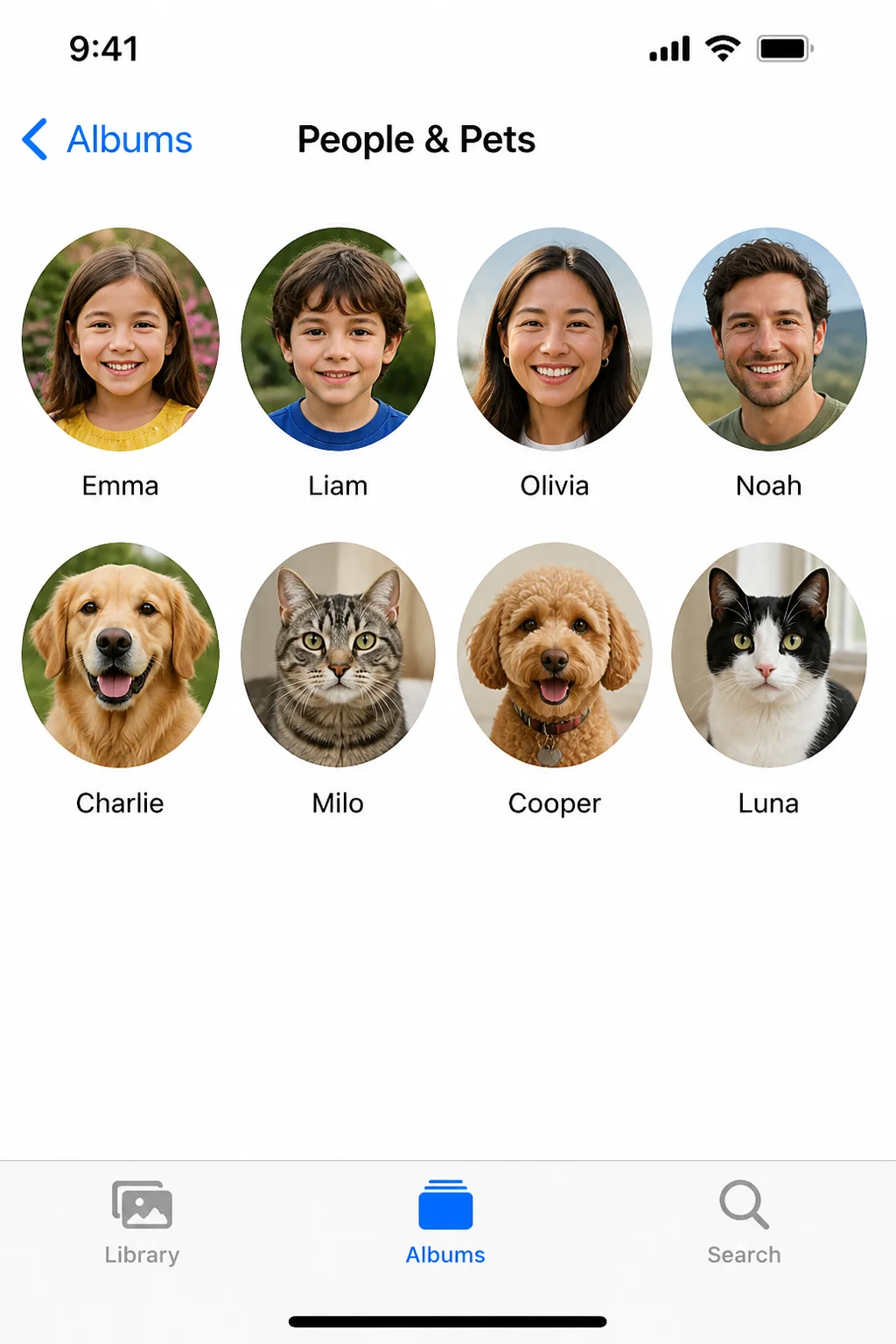
You’ll see a tile for each person or pet the app has picked out, plus some unnamed entries marked with a question mark. That just means Photos hasn’t seen enough of that face yet to group it confidently.
Step 6: Name a person or pet
Naming someone makes their photos searchable by name and keeps that name synced across your Apple devices if iCloud Photos is on.
Open any photo containing an unnamed face, tap the Info button (the ⓘ icon), then tap the face marked with a question mark. Tap Name This Person (or Name This Pet for a dog or cat), type the name, and tap Done.
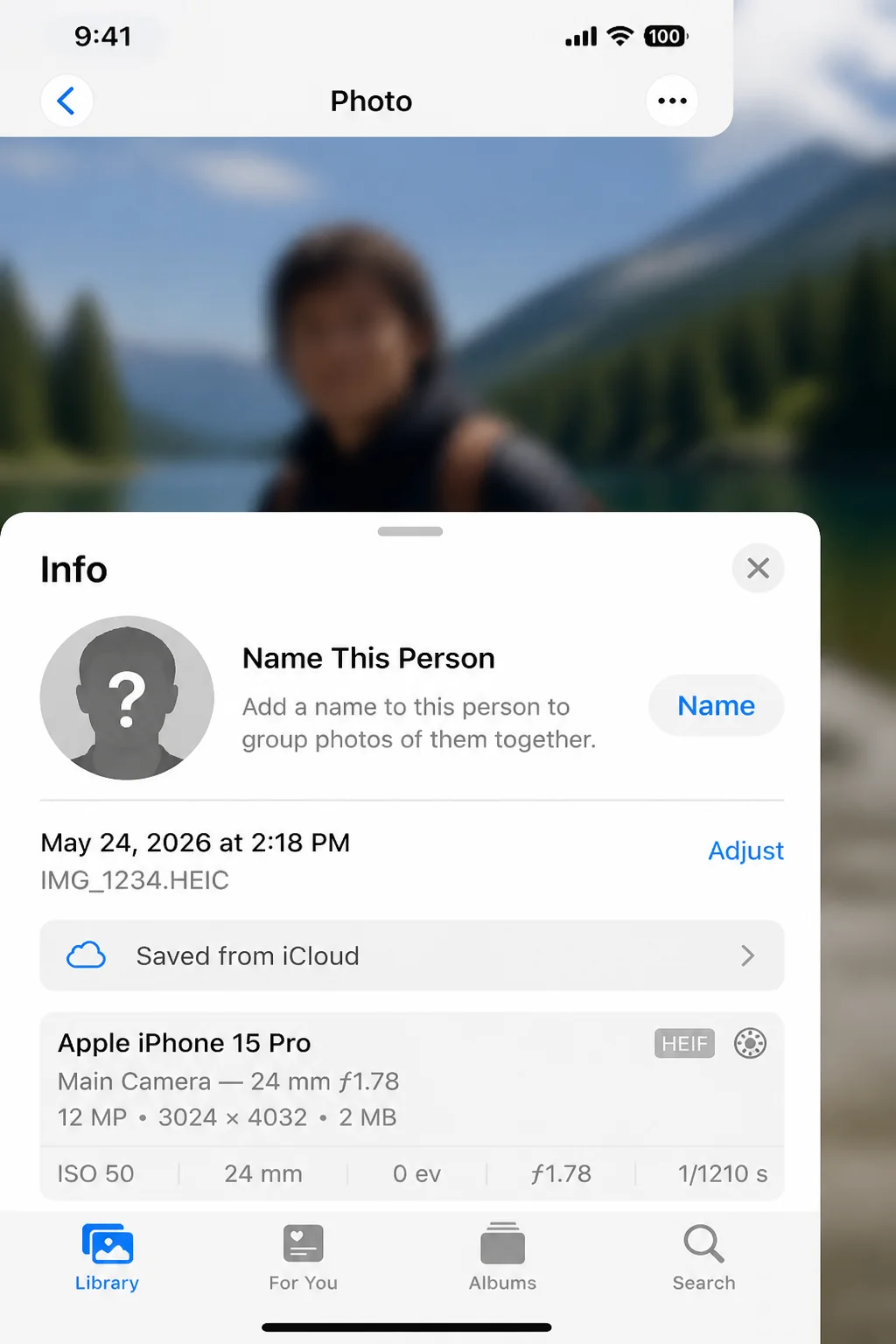
Tip: You can also tap directly into a person’s tile from People & Pets, tap the three-dot menu, and choose Add Name from there. Same result, different entry point.
Step 7: Merge duplicate people or pets
Recognition isn’t perfect. A different angle, different lighting, or a new haircut can cause Photos to create a second entry for someone who already has a named tile. Annoying, but easy to clean up.
Go to Collections > People & Pets, tap Select in the top corner, then tap both tiles that represent the same person. Tap Merge, then confirm by tapping Merge Photos.
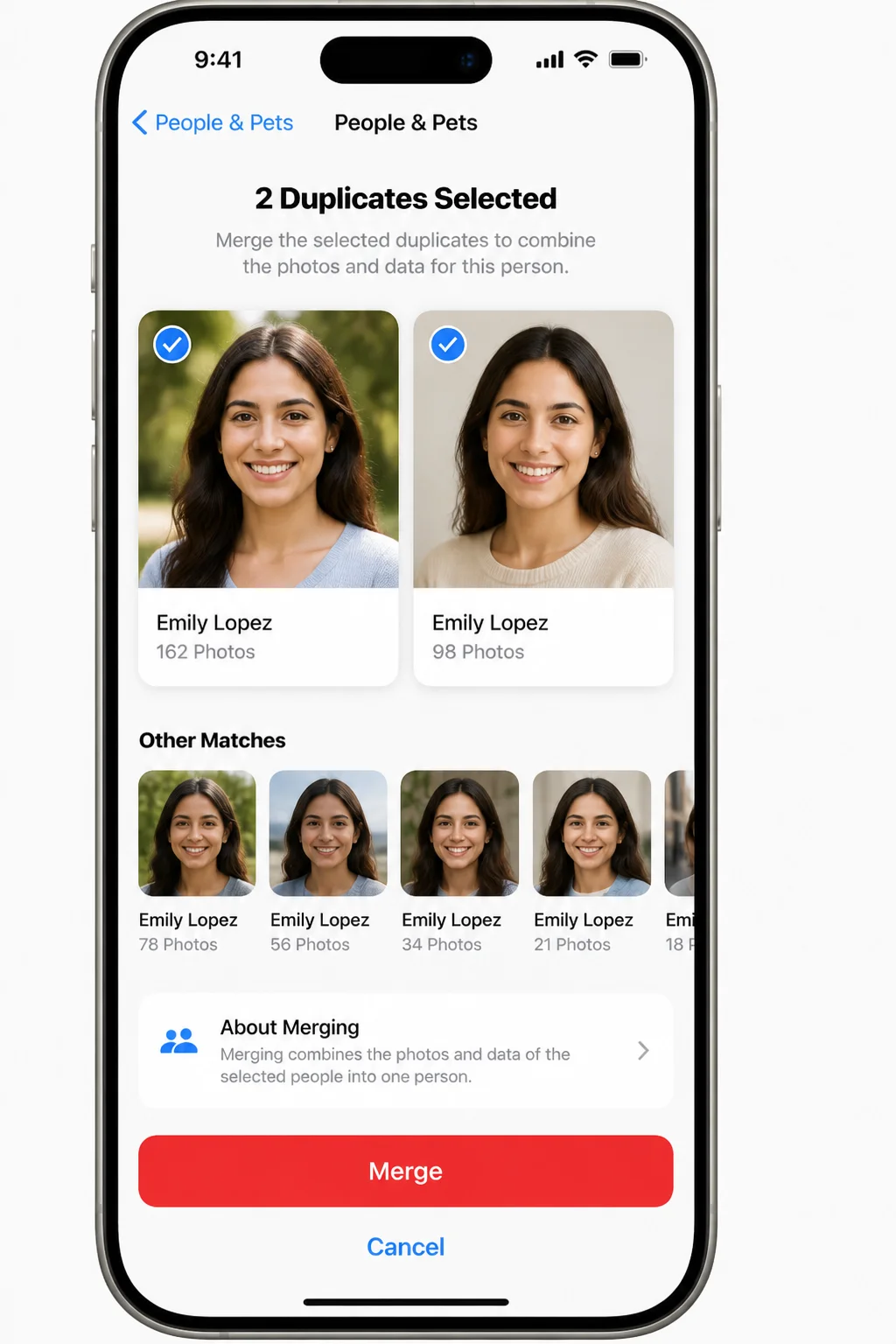
Both entries combine into one, keeping the name and photo count accurate.
Step 8: Browse and create Albums
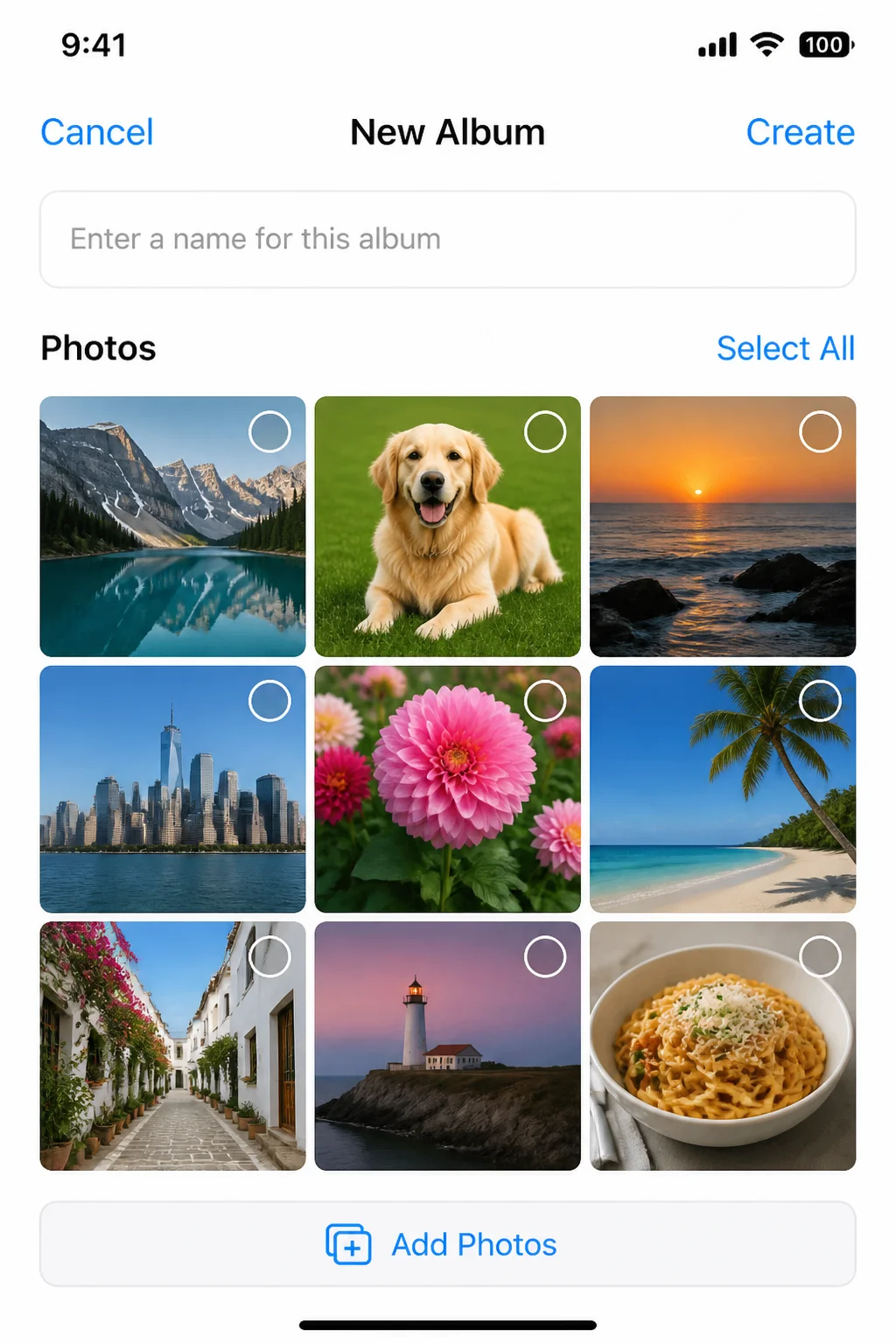
Albums are different from the automatic Collections groupings. An Album is a folder you build manually, useful for a trip, an event, or any set of photos you want grouped together on purpose.
To browse existing albums, go to Collections > Albums.
To create a new one, tap the + button in the top corner, then tap New Album. Give it a name, something like “Italy Trip 2026,” and tap Save. Photos will prompt you to select photos to add right away, or you can add them later by opening any photo, tapping the Share icon, and choosing Add to Album.
Step 9: Set up a Shared Album
Shared Albums let family or friends contribute photos to one shared space without giving them access to your entire library. This is genuinely one of my favorite Photos features, great for a wedding, a group trip, or a shared kids’ album with grandparents who just want to see the pictures without learning a whole new app.
First, confirm Shared Albums is turned on: go to Settings > [your name] > iCloud > Photos, and turn on Shared Albums.
Back in Photos, go to Collections > Albums, tap +, then tap New Shared Album. Name it, tap Next, then enter the email addresses or phone numbers of the people you want to invite and tap Create.
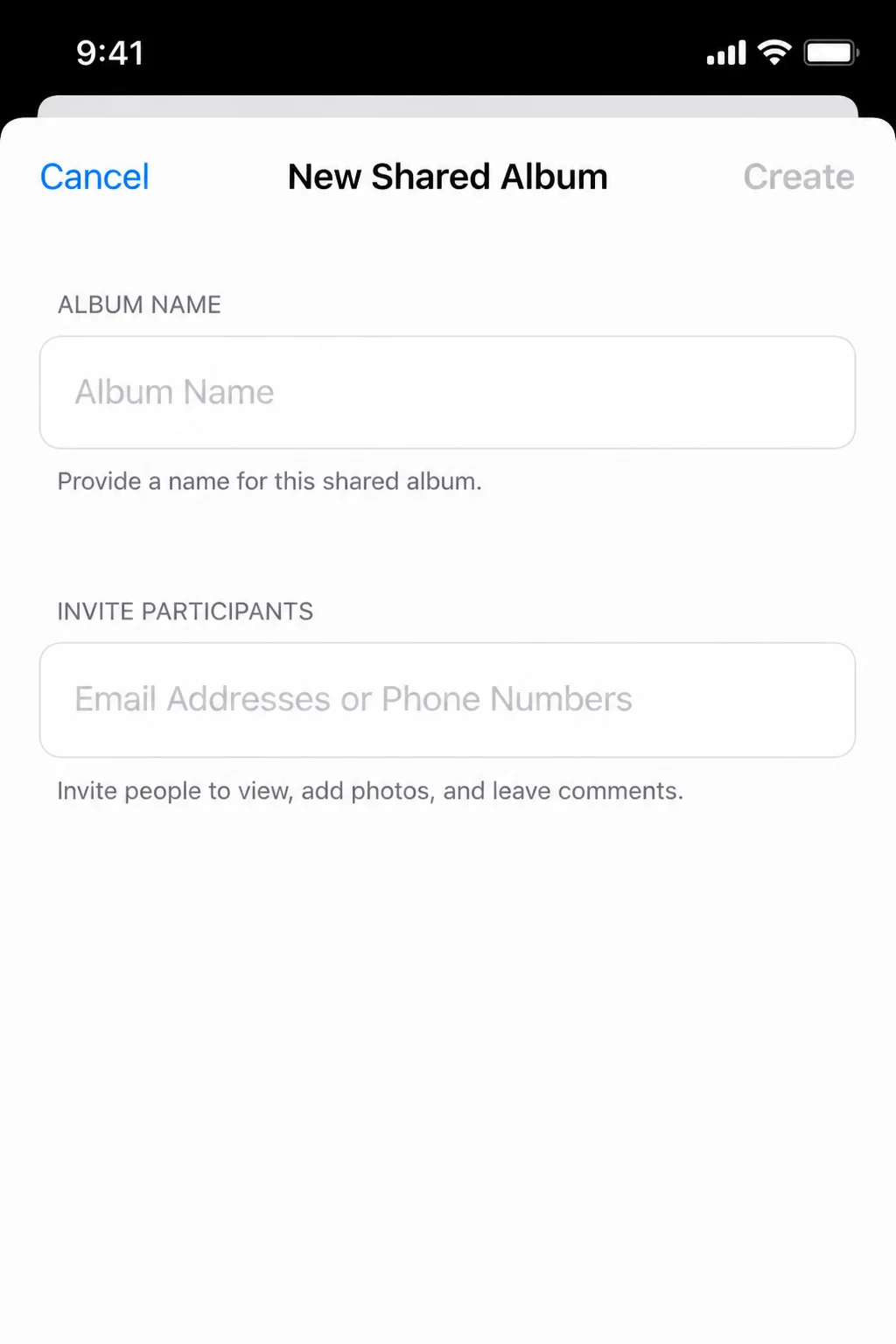
Warning: Anyone you invite needs an Apple ID to view and contribute to a Shared Album through the Photos app. They can still view a public link in a web browser without one, if you enable that option.
Step 10: Pin and reorder your most-used Collections
If you check Favorites and one specific album constantly but rarely open the others, put them at the top so you’re not scrolling every time.
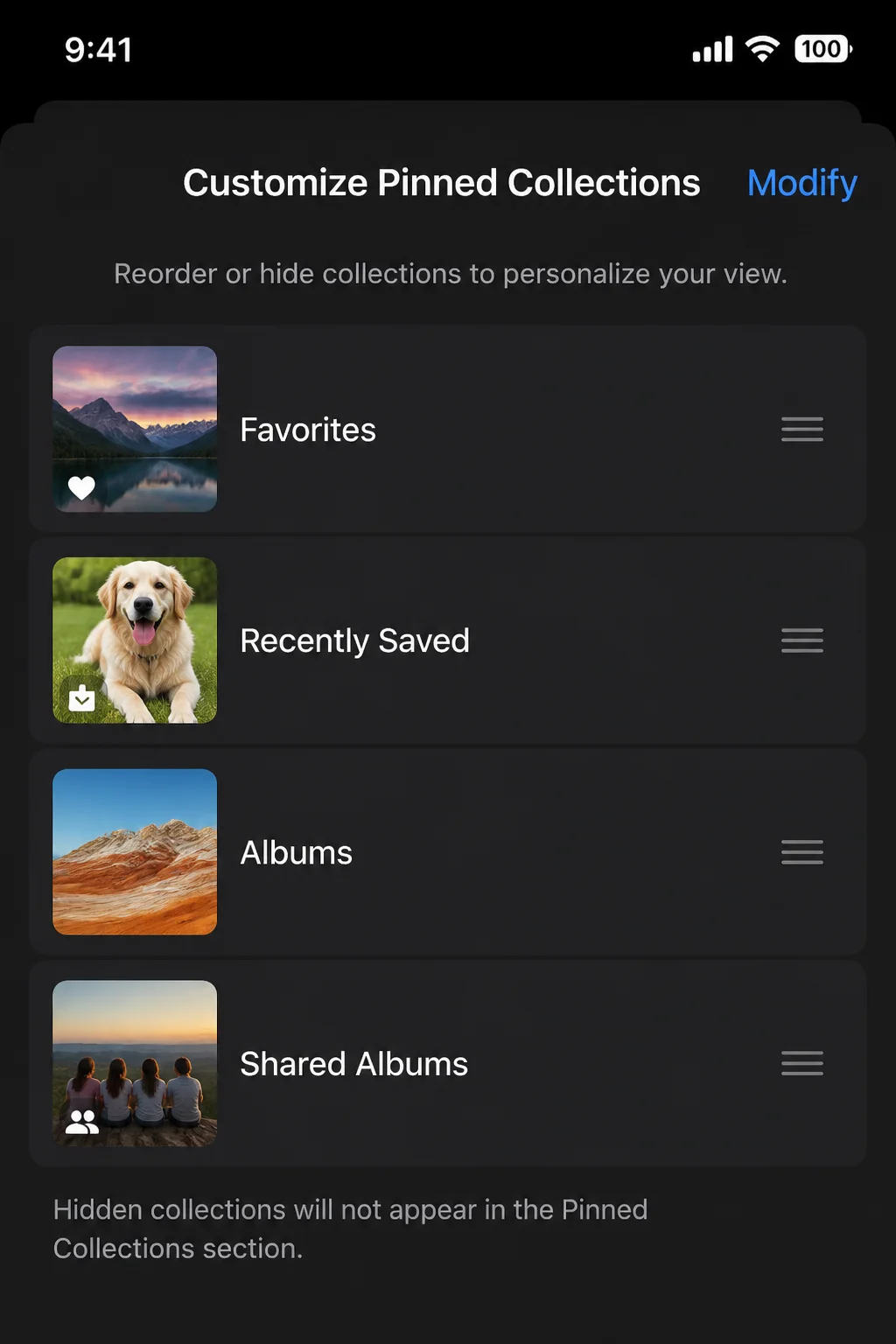
Go to Collections, then tap Edit next to Pinned. Tap the plus or checkmark icon next to any collection to pin it, and use the reorder handles on the right side to drag pinned items into the order you want. Tap Done when finished.
Configuration
A few settings shape how Collections behaves day to day:
| Setting | What it does | Where to find it |
|---|---|---|
| Pinned Collections | Controls which categories appear at the top of the Collections tab | Collections > Edit (next to Pinned) |
| Display size | Switches between larger tiles and a denser grid when browsing Collections | Tap the grid/size icon in the top corner of a Collections view |
| iCloud Photos | Syncs your library, favorites, and named people/pets across devices | Settings > [your name] > iCloud > Photos |
| Shared Albums | Master switch that must be on before creating or joining a shared album | Settings > [your name] > iCloud > Photos |
Tips and Troubleshooting
Favorites isn’t under Pinned anymore. It may have gotten unpinned during an update. Go to Collections > Edit (next to Pinned) and add it back. See Step 10.
The same person appears twice in People & Pets. This is a common recognition glitch, not something you did wrong. Use Select > choose both tiles > Merge, as covered in Step 7.
Photos won’t let you name a face. You can actually name someone right from the People & Pets grid: open the collection, tap their thumbnail, then tap Name This Person (or Name This Pet). If that doesn’t work for a specific photo, open it individually, tap Info, then tap the question-mark face to get the same prompt.
Your Photos app looks nothing like an older tutorial or screenshot. Apple has changed this layout more than once. If you’re on an older iOS version, the Library/Collections split and Pinned section described here may not exist yet. Update via Settings > General > Software Update.
Search inside a Collection acts glitchy. Some users report this behavior, though Apple hasn’t documented it as a known issue. If search feels unreliable, force-quit and reopen Photos, or run the same search from the Library tab instead.
A Shared Album or group you just made seems to vanish. Quit and relaunch Photos. For most people this is just a display refresh issue, not lost data, though Apple doesn’t document the behavior directly. Still, it’s the kind of thing that makes your stomach drop for a second.
Can’t create or join a Shared Album at all. Double-check that Shared Albums is toggled on under Settings > [your name] > iCloud > Photos. It has to be enabled before the option even shows up in the app.
Wrapping Up
Once Favorites is pinned, your most-photographed people and pets are named, and you’ve got an album or two set up for the stuff you actually revisit, your iPhone library stops feeling like an endless scroll. It starts feeling like a system you actually trust. Apple’s on-device recognition does most of the heavy lifting here; the only real work is a few minutes of naming faces and merging the occasional duplicate.
Not bad for a feature you already had installed.
| Step | Action | Applies To |
|---|---|---|
| 1–2 | Update iOS, turn on iCloud Photos | Setup |
| 3–4 | Learn Library vs. Collections, find Favorites | Navigation |
| 5–7 | Browse, name, and merge People & Pets | Organization |
| 8–9 | Create Albums and Shared Albums | Organization |
| 10 | Pin and reorder Collections | Customization |
Resources
- Apple Support: Find your favorite photos and videos on iPhone
- Apple Support: Browse your photo collections on iPhone
- Apple Support: Find and name people and pets in Photos on iPhone
- Apple Support: Create and work with photo albums on iPhone
- Apple Support: Create shared albums on iPhone
- Apple Support: Merge duplicate people in Photos