

A dead MacBook keyboard can feel like an expensive repair. Often, the cause is simpler: an Accessibility option, the wrong layout, a software fault, or debris under one key.
We’ll start with free checks and leave repair decisions until the evidence points there. These paths apply to MacBook Air and MacBook Pro models running macOS Tahoe 26. Older macOS versions may use different labels or locations.
Quick Diagnosis
First, check whether the whole keyboard has failed or only certain keys. This distinction keeps you from changing settings that aren’t related.
- Use the trackpad to open TextEdit, then create a blank document.
- Test letters, numbers, punctuation, the space bar, arrow keys, and modifiers such as Shift and Command.
- Note whether no keys work, specific keys fail, or keys produce the wrong characters.
- Try typing at the login screen and in another app. If only one app has the problem, check its shortcuts and settings.
- If nothing responds, connect a known-working USB keyboard. A previously paired Bluetooth keyboard also works for this test.
| Symptom | Likely cause | Best first check |
|---|---|---|
| No built-in keys work | macOS fault, software conflict, or hardware failure | Restart and test an external keyboard |
| One or two keys fail | Debris, a damaged key, or local wear | Inspect and clean the affected area |
| Keys respond after a long hold | Slow Keys | Check Accessibility settings |
| Letters move the pointer | Mouse Keys | Turn off Mouse Keys |
| Wrong symbols appear | Incorrect input source | Select the correct keyboard layout |
| External keyboard works normally | Built-in keyboard or related hardware | Run diagnostics and request an assessment |
Common Issues and Solutions
Problem 1: No Built-In Keys Respond
Symptoms:
- The keyboard does nothing in every app.
- Keyboard shortcuts don’t work.
- The trackpad may still respond normally.
Why it happens: A temporary macOS fault can stop keyboard input. Conflicting software, liquid damage, or a failed keyboard connection can cause the same symptom. Internal connections need proper diagnosis, so don’t open the MacBook or try to reseat a cable.
Solution:
- Use the trackpad to open the Apple menu.
- Select Restart.
- After macOS loads, test the built-in keyboard in TextEdit.
- If you can’t control the Mac, connect an external keyboard and restart with it.
- If the Mac is frozen, hold the power button until it turns off. Wait several seconds, then turn it on again. A forced shutdown can discard unsaved work.
Verification: Type a complete sentence, then test Command + Space. If every key responds, a temporary software fault was likely responsible.
Problem 2: Keys Respond Slowly or Modifiers Behave Strangely
Symptoms:
- A key works only after you hold it down.
- Short presses seem to be ignored.
- Shift, Control, Option, or Command seems to remain active.
Why it happens: Slow Keys makes macOS wait before accepting a key press. Sticky Keys lets you press modifier keys separately instead of holding them. Both can be useful, but they’re confusing when enabled by accident.
Solution:
- Open Apple menu > System Settings.
- Select Accessibility > Keyboard.
- Turn off Slow Keys while testing.
- Turn off Sticky Keys while testing.
- Return to TextEdit and use short, normal key presses.
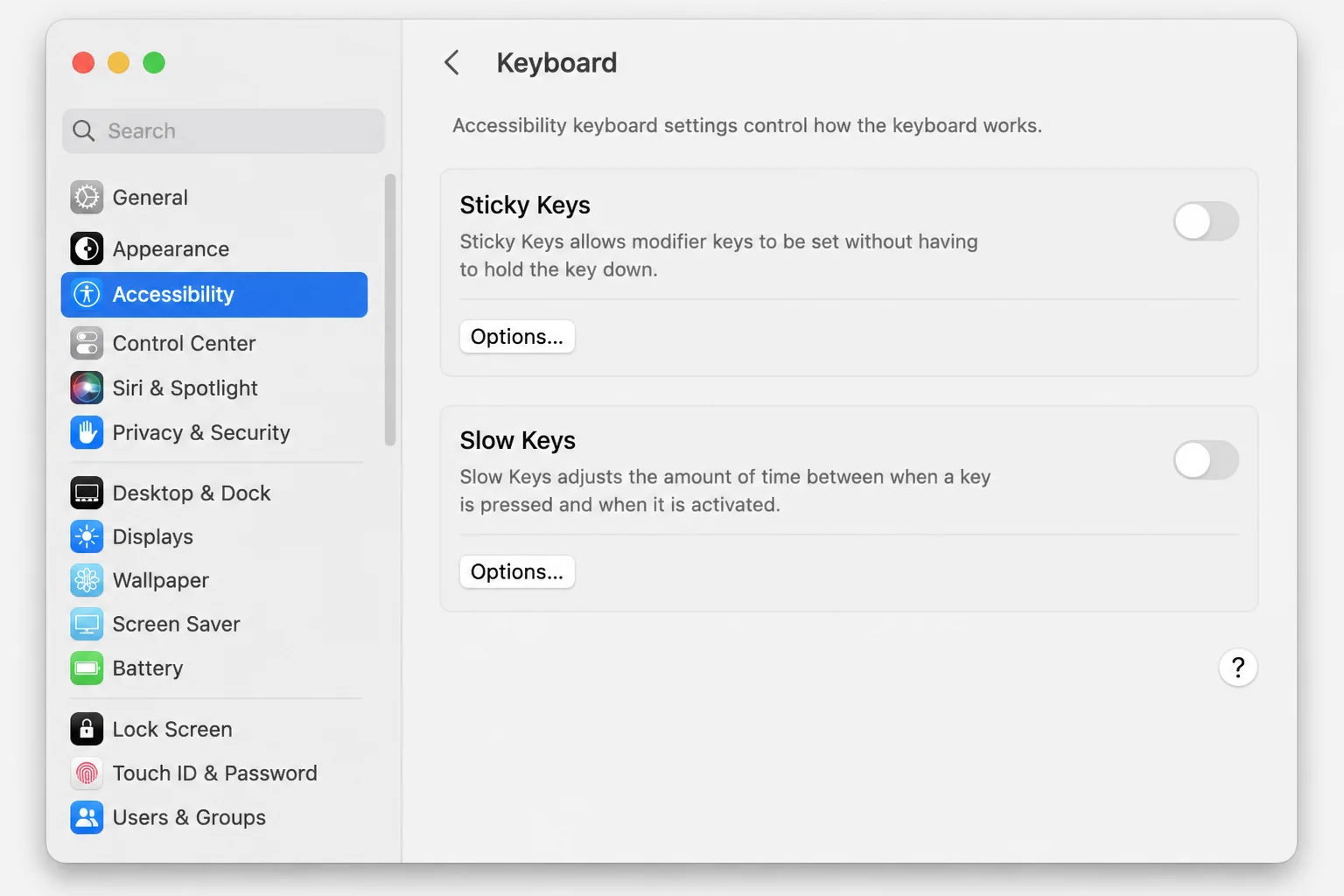
Verification: Each key should register right away. Modifier keys should stop affecting later presses when you release them.
Problem 3: Letter or Number Keys Move the Pointer
Symptoms:
- Certain keys move the pointer instead of typing.
- Normal text entry is unavailable or inconsistent.
- The issue began after changing Accessibility options.
Why it happens: Mouse Keys uses the keyboard to control the pointer. While it’s on, macOS redirects some key presses away from text entry.
This can look strange if you don’t remember turning it on. The keyboard itself may be working correctly.
Solution:
- Open Apple menu > System Settings > Accessibility.
- Select Pointer Control.
- Open Alternative Control Methods, if shown.
- Turn off Mouse Keys.
- Test the affected keys in TextEdit.
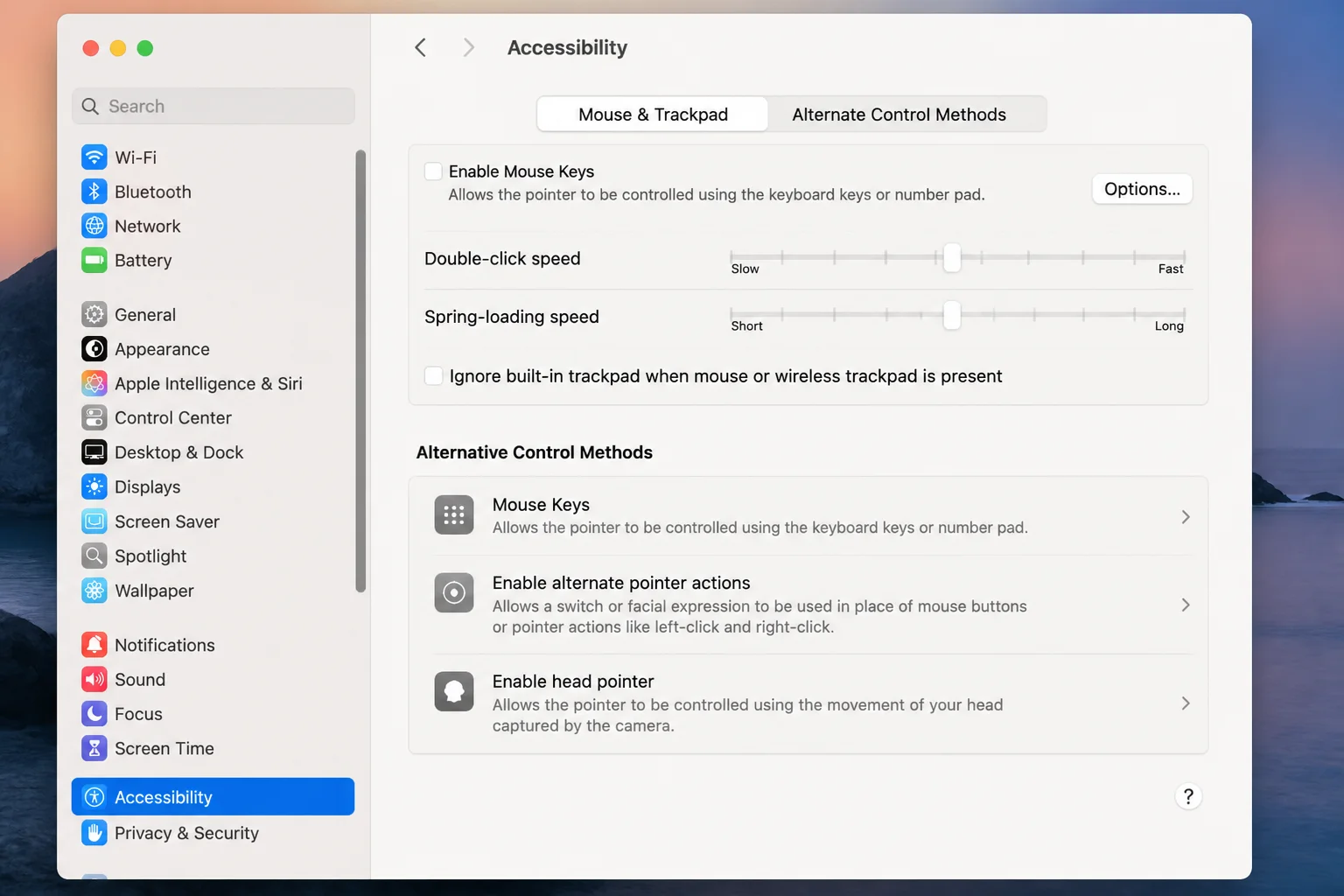
Verification: Letters and numbers should enter characters rather than move the pointer.
Problem 4: Keys Type the Wrong Characters
Symptoms:
- Punctuation appears in unexpected places.
- Pressing one letter produces another.
- The keyboard acts like a layout from another country.
Why it happens: macOS may have selected the wrong input source. U.S., British, French, and Dvorak layouts assign different characters to some keys.
A shortcut can switch layouts without much warning. Check the selected layout before blaming the keyboard.
Solution:
- Open Apple menu > System Settings > Keyboard.
- Find Text Input, then click Edit.
- Review the listed input sources.
- Add the correct layout if it’s missing, and remove layouts you don’t use.
- Turn on Show Input menu in menu bar.
- Open the Input menu in the menu bar and select your intended layout.
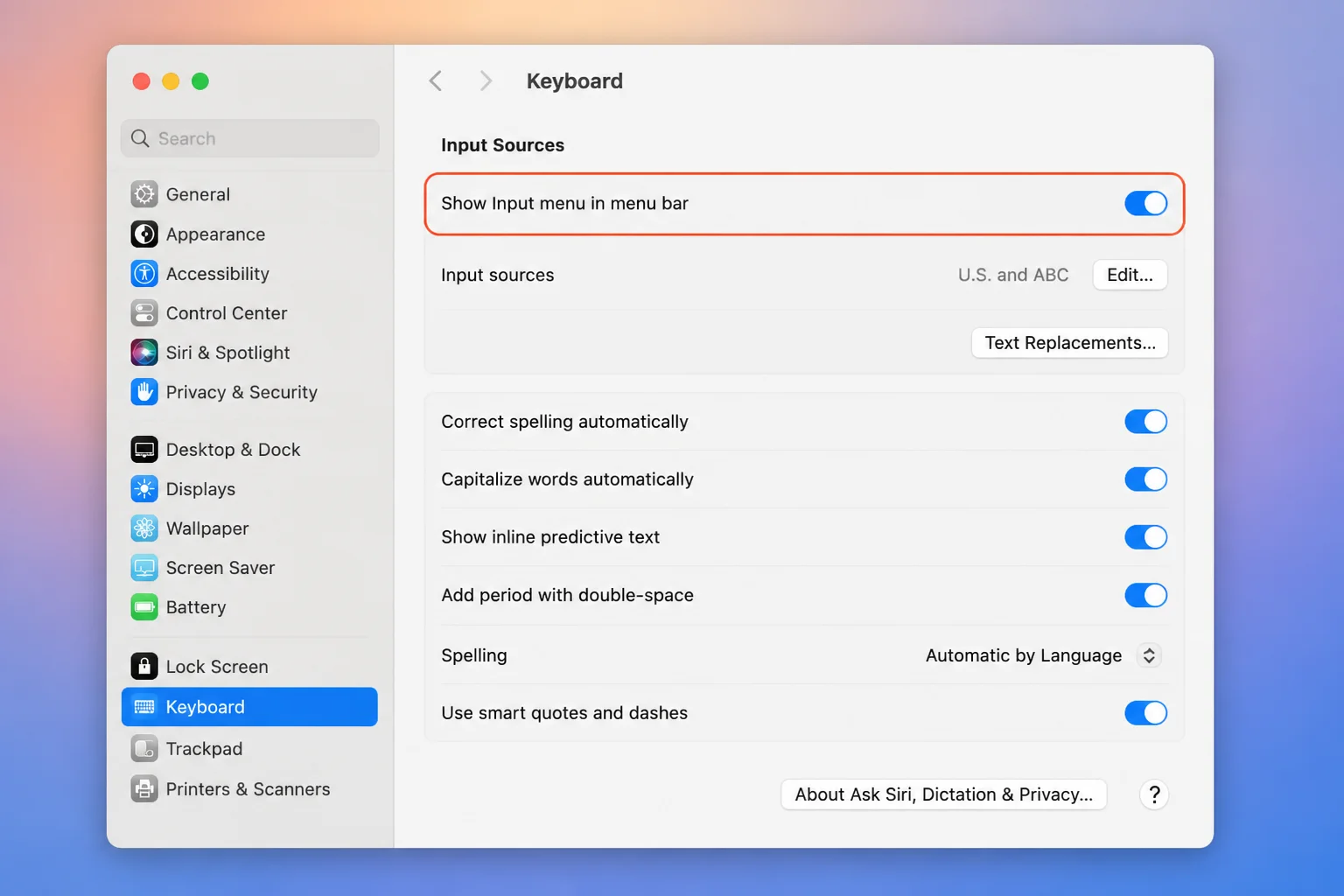
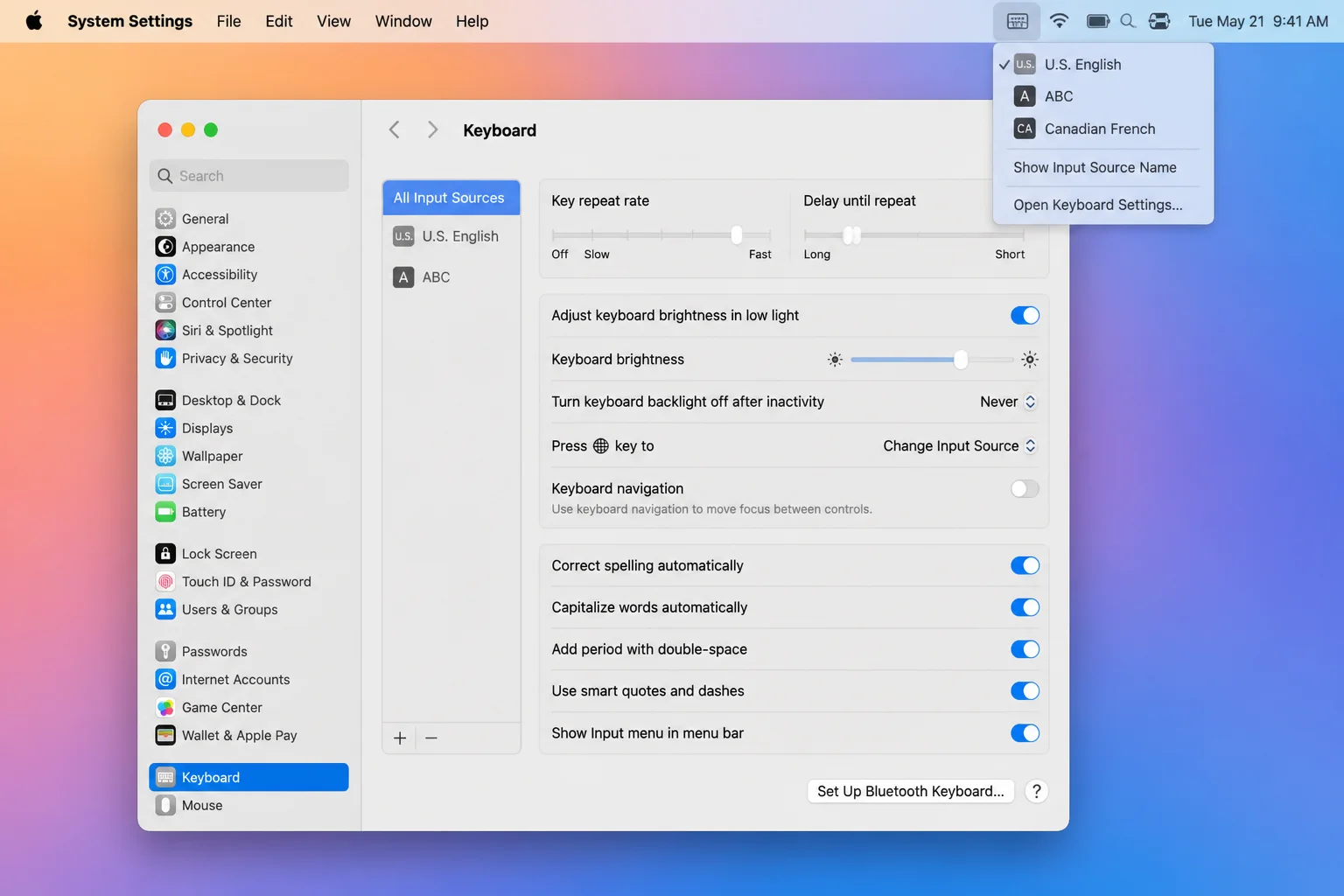
Verification: Open Keyboard Viewer from the Input menu. Compare its layout with the characters that appear in TextEdit.
Problem 5: The Problem Started After a macOS Glitch
Symptoms:
- The keyboard stopped responding after sleep, an app crash, or an update.
- Restarting helps only briefly.
- The failure affects several apps.
Why it happens: A macOS bug or damaged system file can interfere with keyboard input. Apple sends fixes for known system problems through software updates.
An update is worth trying when several apps have the fault. It won’t repair a broken key or spill damage.
Solution:
- Save your work and connect the MacBook to reliable power.
- Open Apple menu > System Settings > General > Software Update.
- Install any stable update offered for your Mac.
- Restart when prompted, then test the keyboard again.
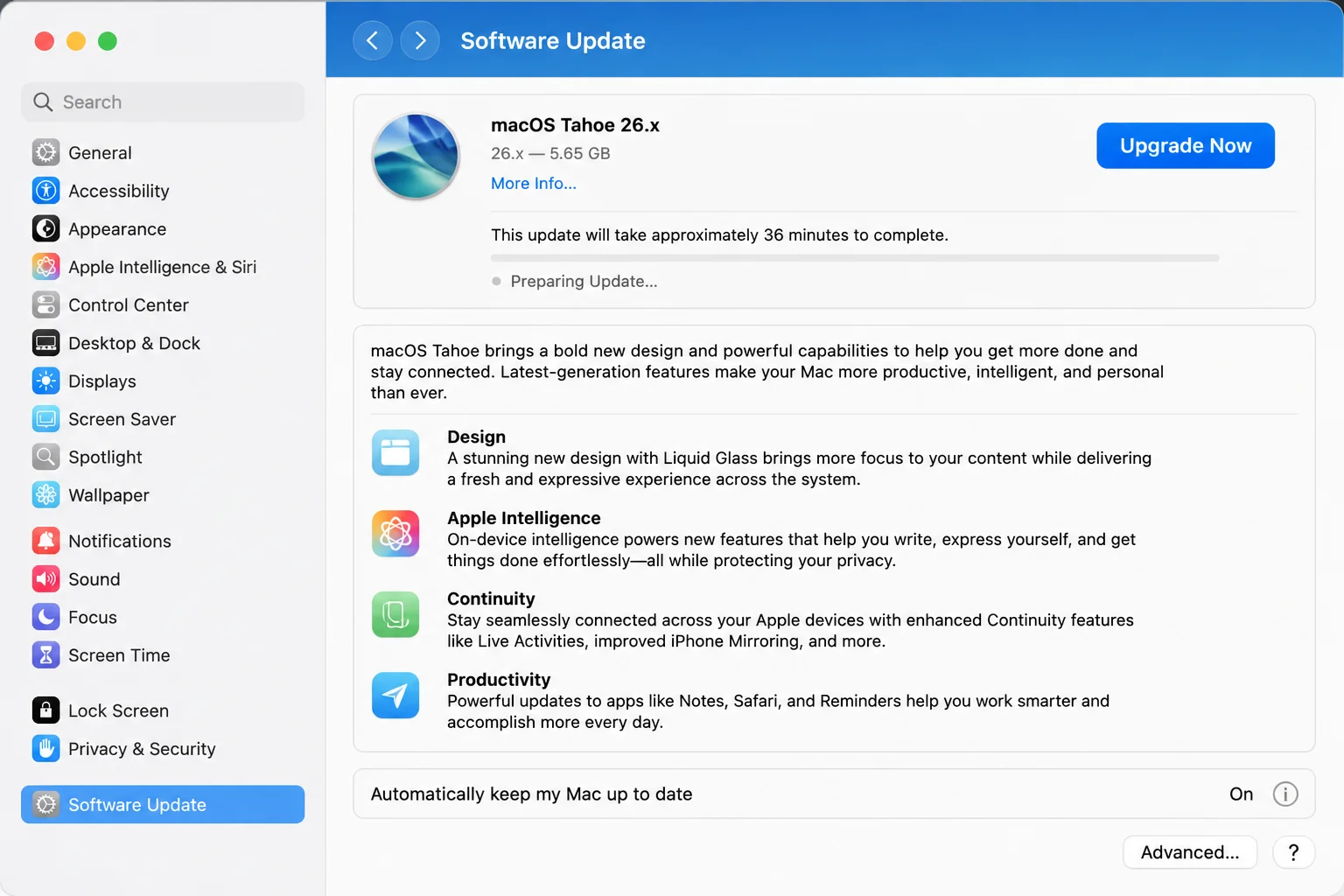
Verification: Test the keyboard after the update and one more restart. If the same keys still fail, continue with the hardware checks.
Problem 6: An External Device Is Causing a Conflict
Symptoms:
- The built-in keyboard fails when a dock, hub, controller, or second keyboard is connected.
- The issue started after adding a USB or Bluetooth accessory.
- Keys repeat or shortcuts fire unexpectedly.
Why it happens: A faulty accessory, adapter, remapping app, or stuck key can send unwanted input. A dock adds another possible failure point between the Mac and its accessories.
The one-at-a-time test takes a few minutes, but it gives you a clear answer.
Solution:
- Disconnect external keyboards, hubs, controllers, and other devices you don’t need.
- Open Apple menu > System Settings > Bluetooth, then disconnect nearby keyboards you aren’t using.
- Restart the MacBook.
- Test the built-in keyboard.
- Reconnect devices one at a time until the problem returns.
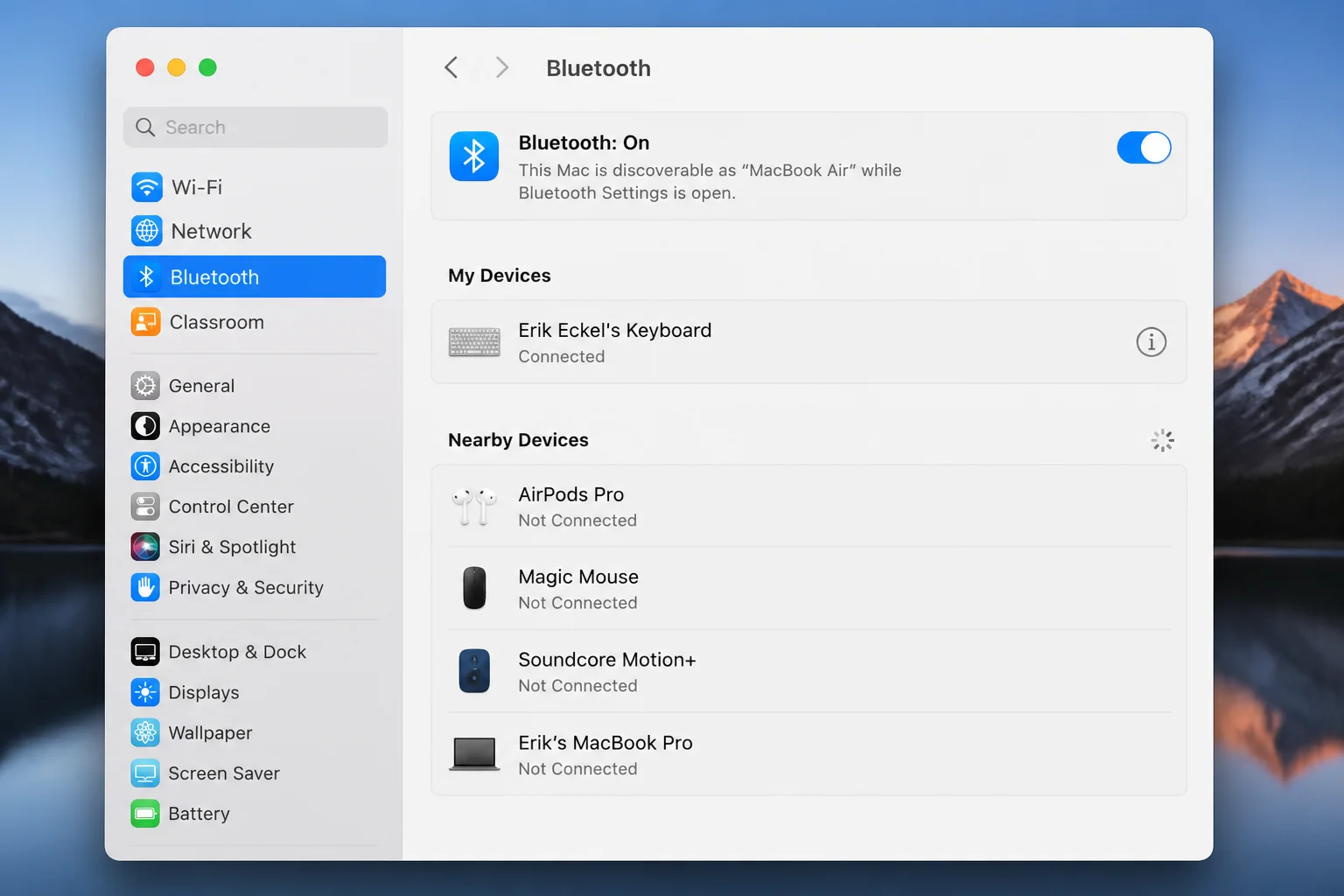
Verification: If one device brings the problem back, try another port or test it with another Mac. Don’t replace it until you’ve ruled out the adapter or port.
Problem 7: One or a Few Keys Are Stuck
Symptoms:
- A key feels stiff, loose, or different from nearby keys.
- One character doesn’t appear or repeats.
- The rest of the keyboard works normally.
Why it happens: Crumbs, dust, or local damage can block one key mechanism. When other keys work, a system-wide macOS setting is a less likely cause.
Resist the urge to pry off the keycap. MacBook key mechanisms are thin, and their small plastic clips break easily.
Solution:
- Shut down the MacBook and unplug it from power.
- Check for visible debris without removing the keycap.
- Follow Apple’s model-appropriate keyboard cleaning guidance.
- If Apple recommends compressed air, keep the supplied straw attached. Follow the stated angle and spraying pattern.
- Never spray liquid cleaner onto the keyboard or force a keycap upward.
Verification: Once the MacBook is dry and free of debris, start it and test the key several times in TextEdit. Arrange service if the key remains loose, damaged, or unreliable.
Problem 8: The Built-In Keyboard Fails but an External Keyboard Works
Symptoms:
- A known-working USB or Bluetooth keyboard types normally.
- The built-in keyboard remains unresponsive.
- macOS otherwise works as expected.
Why it happens: This result points toward the built-in keyboard or related laptop hardware. It doesn’t identify the failed part, so keep testing before approving a repair.
A USB keyboard is better for this check because it avoids pairing and battery problems. Use Bluetooth if that’s what you have.
Solution:
- Connect a known-working USB keyboard directly or through a trusted adapter.
- If you’re using Bluetooth, charge the keyboard and switch it on.
- Open Apple menu > System Settings > Bluetooth, then connect the keyboard.
- Test both keyboards in the same TextEdit document.
- Continue with Safe Mode and Apple Diagnostics before paying for repair.
Verification: If only the external keyboard works during normal startup, in Safe Mode, and across several apps, request a professional assessment.
Problem 9: The Keyboard Works Only in Safe Mode
Symptoms:
- The keyboard fails after a normal startup.
- It works when the Mac starts in Safe Mode.
- The problem may follow the installation of an input utility or system extension.
Why it happens: Safe Mode limits startup software and runs basic system checks. If the keyboard works there, a login item, remapper, driver, or similar app is the likely cause.
Safe Mode may look different, and some services won’t work. That’s expected during this test.
Solution on a MacBook with Apple silicon:
- Shut down the Mac.
- Press and hold the power button until startup options appear.
- Select the startup disk.
- Hold Shift, then click Continue in Safe Mode.
Solution on an Intel-based MacBook:
- Restart the Mac.
- Immediately hold Shift until the login window appears.
- Sign in. macOS may ask you to sign in twice.
Verification: Test the keyboard in Safe Mode. If it works, restart normally and open Apple menu > System Settings > General > Login Items & Extensions. Disable recent input tools one at a time. Test after each change.
Problem 10: You Want to Reset the SMC
Symptoms:
- Basic software checks didn’t help.
- An older troubleshooting guide recommends an SMC reset.
Why it happens: The System Management Controller, or SMC, manages some power and hardware functions on Intel Macs. Apple silicon Macs handle those tasks differently, so restart them first.
Don’t use a key sequence copied from a general guide. The steps depend on your hardware. You may have Apple silicon, an Intel Mac with Apple’s T2 Security Chip, or an older Intel model.
Solution:
Identify the exact Mac through Apple menu > About This Mac. Then check Apple’s current steps for that model before trying an SMC reset.
An SMC reset can’t repair spill damage, a broken key, or a damaged internal part. I’d skip this step unless you’ve confirmed that the steps support your exact Intel model.
Verification: Start the Mac after completing Apple’s model-specific steps, then test the keyboard. If nothing changes, continue to diagnostics.
Problem 11: Apple Diagnostics Reports a Possible Fault
Symptoms:
- Software checks don’t restore the keyboard.
- The external keyboard works while the built-in one doesn’t.
- Apple Diagnostics displays a reference code.
Why it happens: Apple Diagnostics checks supported internal hardware. It may find a fault that needs service. A “No issues found” result can’t rule out every mechanical or intermittent keyboard problem.
If you’ve been staring at the diagnostics screen for several minutes, don’t panic. Let the test finish, then record its exact wording.
Solution on Apple silicon:
- Shut down the Mac and disconnect devices you don’t need.
- Press and hold the power button until startup options appear.
- Press and hold
Command + Dwhen prompted.
Solution on an Intel-based Mac:
- Shut down the Mac and disconnect devices you don’t need.
- Turn it on and immediately hold
D. - If that doesn’t work, try
Option + Dto use internet-based diagnostics.
Record any reference code exactly as displayed. See Apple’s Diagnostics instructions for current model-specific steps.
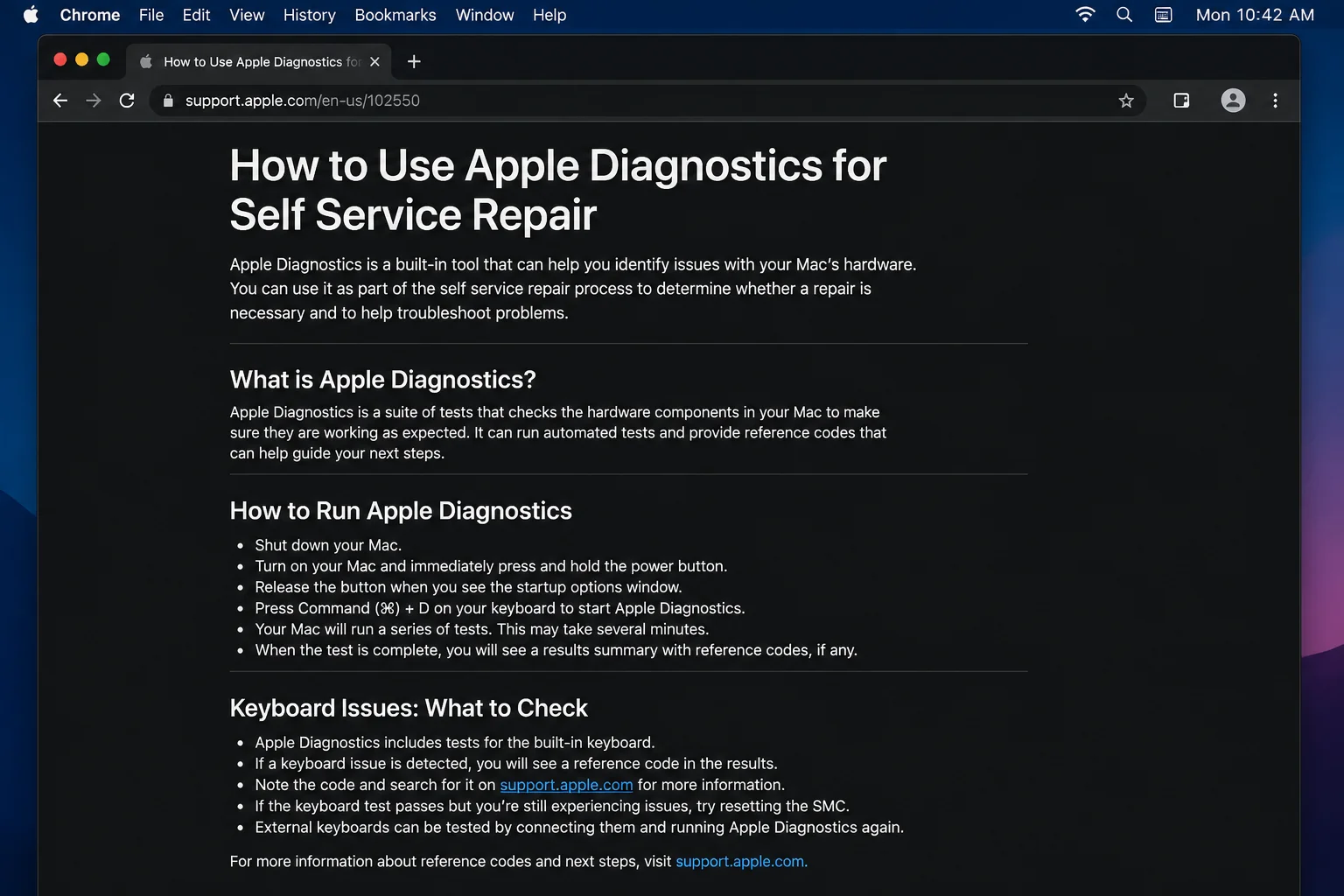
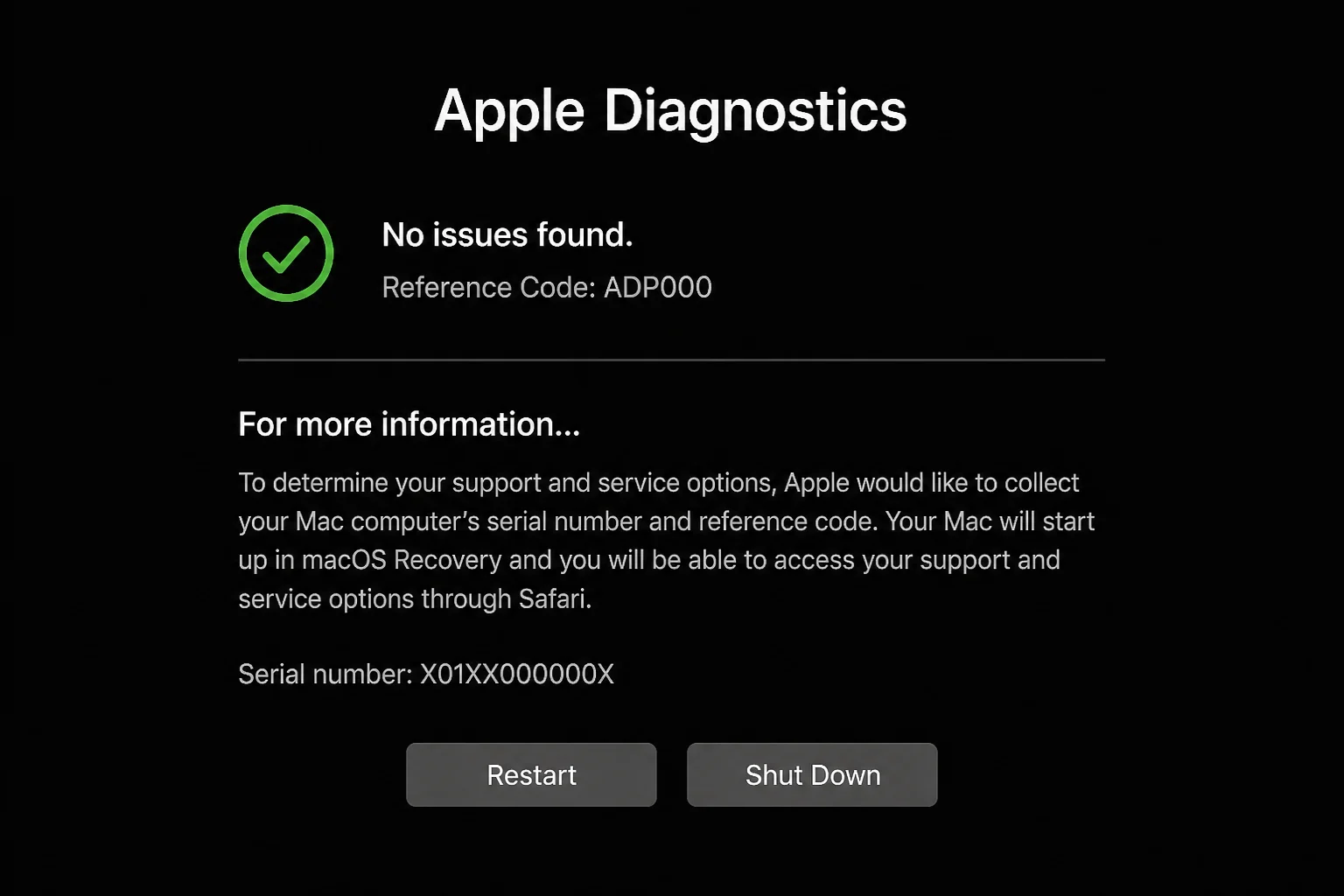
Verification: If diagnostics reports no issue, test the keyboard again in macOS. If it displays a code, give the full code to Apple or an Apple Authorized Service Provider.
Problem 12: The Keyboard Stopped Working After a Spill or Impact
Symptoms:
- Keys became unreliable after liquid exposure.
- The keyboard, case, or trackpad looks swollen or distorted.
- Keys feel loose after a drop.
- The Mac shuts down, gets hot, or behaves unpredictably.
Why it happens: Liquid and impact damage can affect the keyboard, battery, and other parts. Settings, updates, restarts, and SMC procedures can’t repair physical damage.
Stop troubleshooting at this point. Repeatedly powering on a wet Mac can turn a small problem into a larger repair.
Solution:
- Stop using the Mac.
- Disconnect external power when it’s safe.
- Don’t apply cleaner, heat, or compressed air to a wet MacBook.
- Don’t keep turning it on to “check” whether it recovered.
- Arrange an assessment through Apple, an Apple Authorized Service Provider, or a qualified independent provider.
Verification: A technician should inspect the Mac before you use it again.
Error Messages and Diagnostic Results
These messages can separate a settings problem from a connection or hardware fault. Copy any diagnostics code exactly. One missing character can point support toward the wrong result.
| Message or result | What it means | What to do |
|---|---|---|
| “Slow Keys: On” or a key-acceptance sound | macOS waits before accepting a press | Turn off Accessibility > Keyboard > Slow Keys |
| Mouse Keys indicator or pointer movement while typing | Keyboard keys are controlling the pointer | Turn off Accessibility > Pointer Control > Mouse Keys |
| “Connection Rejected” or “Not Connected” for Bluetooth | Pairing failed or the keyboard disconnected | Charge it, restart Bluetooth, then reconnect |
| “No issues found” in Apple Diagnostics | The test didn’t detect supported hardware faults | Continue software isolation; intermittent faults may still need service |
| Apple Diagnostics reference code | Diagnostics detected or suspects a hardware issue | Record the full code and give it to a service provider |
| Globe or Input menu shows an unexpected layout | The wrong input source is active | Select the intended layout from the Input menu |
Platform-Specific Issues
Apple Silicon MacBook Models
MacBook Air and MacBook Pro models with Apple silicon use the startup-options screen for Safe Mode and Apple Diagnostics. Hold the power button while the Mac starts to reach that screen.
These models don’t use the SMC reset steps found in guides for older Intel MacBooks. Restart the Mac first when checking power or hardware-management problems.
Intel-Based MacBook Models
Intel MacBooks use startup keys such as Shift for Safe Mode and D for diagnostics. Press them as soon as you turn on or restart the Mac.
SMC steps vary based on whether the Mac has Apple’s T2 Security Chip. Confirm the exact model under Apple menu > About This Mac before following a reset sequence.
Configuration Issues to Check
A healthy keyboard can seem broken when macOS redirects or delays its input. You can review these settings in a few minutes:
- Slow Keys enabled: Open System Settings > Accessibility > Keyboard. Turn it off if you want keys to respond right away.
- Sticky Keys enabled: Check the same panel when Shift, Control, Option, or Command seems stuck. Turning it off restores normal modifier-key behavior.
- Mouse Keys enabled: Open System Settings > Accessibility > Pointer Control and review Mouse Keys. Turn it off if typing moves the pointer.
- Wrong input source: Open System Settings > Keyboard > Text Input > Edit. Select the layout printed on your keyboard.
- Keyboard remapping software: Temporarily disable shortcut managers, gaming tools, and remappers. These apps can replace normal keys with commands.
- Unwanted Bluetooth keyboard: Disconnect it under System Settings > Bluetooth. A stuck key on another keyboard can affect your MacBook.
Change one item at a time and test in TextEdit after each change. This approach identifies the cause and keeps each change easy to reverse.
Getting Help and Repair Options
Contact Apple or a repair provider if the built-in keyboard fails in Safe Mode. You should also seek help if safe cleaning doesn’t work or physical damage caused the problem. Apple’s Mac laptop repair page explains service and coverage options.
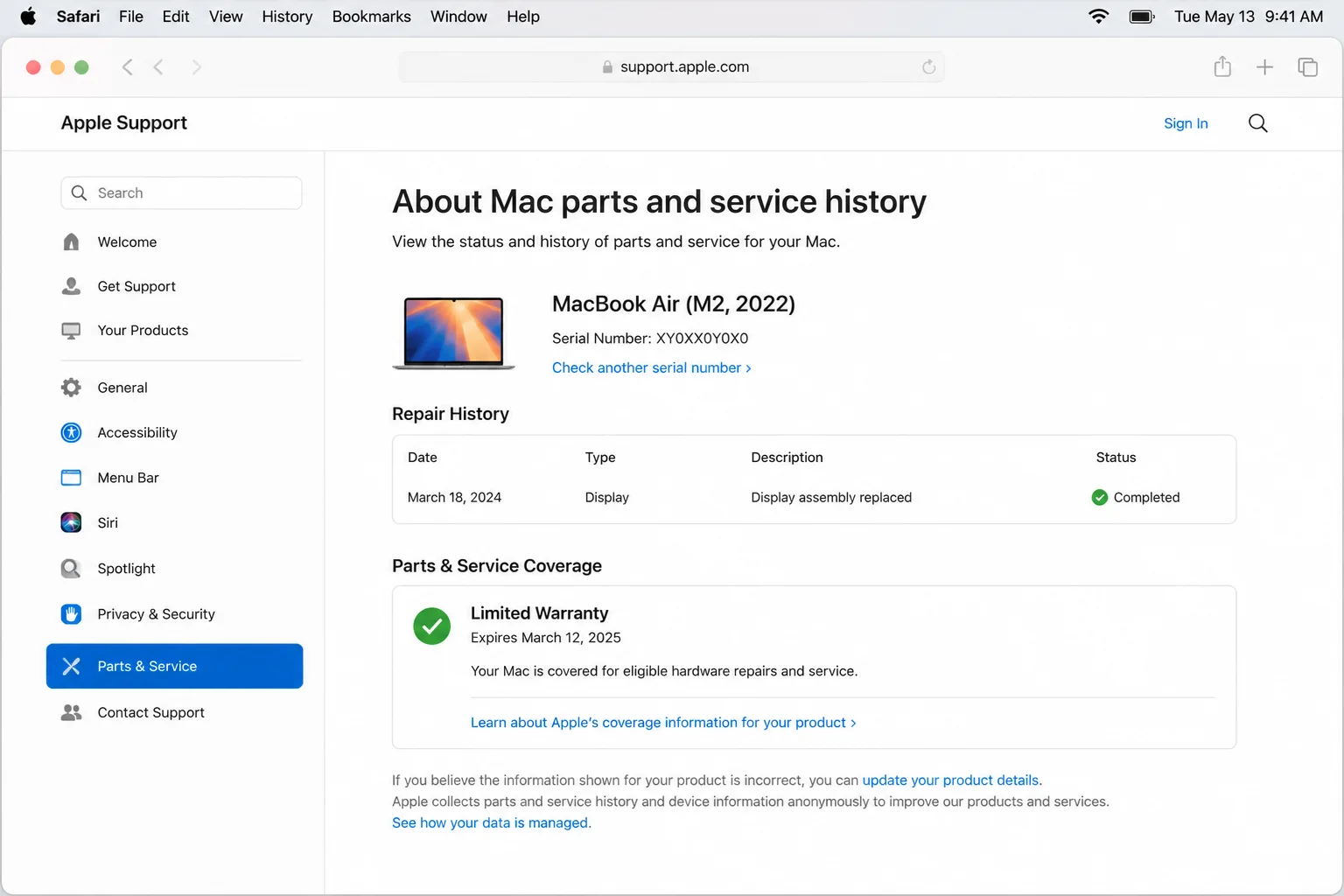
Before contacting support, collect:
- The Mac model and serial number from Apple menu > About This Mac
- The installed macOS version
- Any Apple Diagnostics reference code
- Whether an external keyboard works
- Whether the keyboard works in Safe Mode
- When the issue began and whether a spill or impact occurred
These details save a round of basic questions. They also help the repair provider separate a software conflict from a hardware fault.
For software conflicts, open Finder > Go > Go to Folder and enter /Library/Logs/DiagnosticReports/. These reports are technical and easy to misread. Share the relevant files with support instead of deleting them.
Warranty and AppleCare coverage depend on the Mac, plan, region, and damage. Accidental damage may carry a service fee, and some failures aren’t covered. Check Apple’s repair coverage information and current AppleCare fees and deductibles.
Ask for a written estimate for your exact model before approving work. MacBook keyboard replacement doesn’t have one dependable price. Apple, authorized providers, and independent shops may use different parts, warranties, and repair methods.
An external keyboard is a sensible, low-cost workaround for a MacBook that stays at a desk. USB models need no pairing. Bluetooth clears away the cable but adds charging and connection concerns. Both options reduce portability, which matters if you travel with the MacBook.
Prevention Tips
You can’t prevent every keyboard fault, but a few habits reduce common risks:
- Keep drinks away from the MacBook and avoid eating directly over it.
- Clean the keyboard only with Apple-safe methods.
- Don’t remove keycaps unless Apple or a qualified technician tells you to.
- Install stable macOS updates after backing up important data.
- Review Accessibility settings before assuming the keyboard has failed.
- Disconnect suspect docks and accessories when input problems begin.
- Back up the Mac regularly so hardware failure doesn’t put your files at risk.
A regular backup protects more than your keyboard troubleshooting. If the Mac needs depot service or replacement, your files won’t depend on the damaged computer starting.
Wrapping Up
| Step | Action | Applies to |
|---|---|---|
| 1 | Separate total failure from partial failure | Every MacBook |
| 2 | Restart and check Accessibility settings | Software-like symptoms |
| 3 | Verify the layout and install updates | Wrong or inconsistent input |
| 4 | Test externally, in Safe Mode, and with Diagnostics | Persistent failures |
| 5 | Request model-specific service pricing | Likely hardware damage |
Start with the free checks because macOS settings can imitate hardware failure. If an external keyboard works while the built-in one fails everywhere, you have useful evidence for a repair assessment.
Stop using the Mac if you see spill damage, swelling, heat, or a distorted case. Arrange service and get a written estimate for your model before choosing between repair and an external keyboard.