

When an iPhone VPN stops working, you may want to delete every profile and start over. Hold off. The fault often lies with one VPN server, one Wi-Fi network, or your provider’s account system.
Start with the quick tests below. Make the smallest change that fits the result. These steps cover iOS 18 and newer versions available in 2026, though VPN app labels vary.
Quick Diagnosis: Find Out What Is Failing
Run these four tests before changing any settings. They’ll show whether the failure follows the VPN service, network, or iPhone.
1. Test the Internet Without the VPN
Open your VPN provider’s app and tap Disconnect. Then open Safari and load two or three websites you use often.
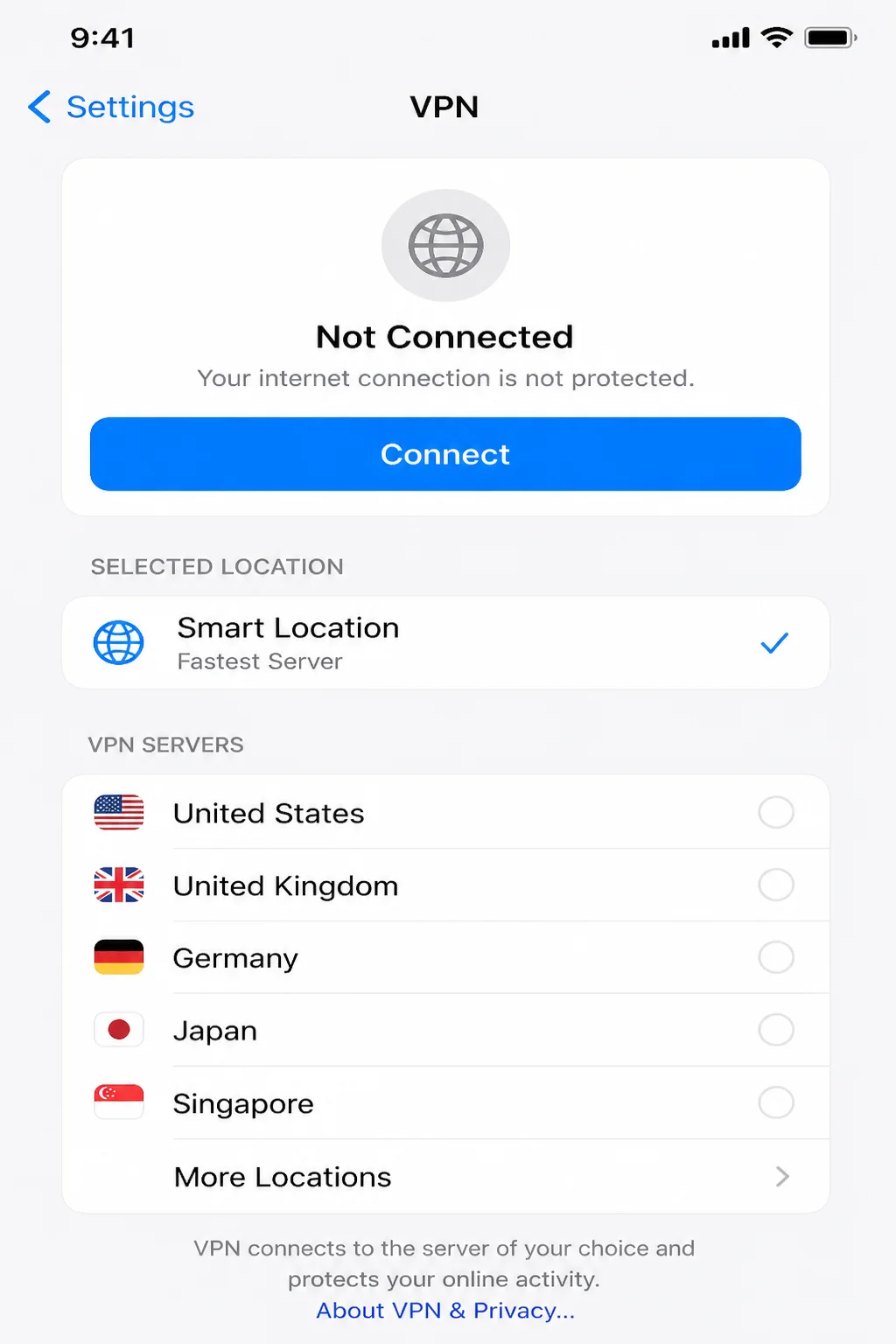
If those sites still won’t load, troubleshoot Wi-Fi or cellular first. The VPN probably isn’t causing the current problem.
If Safari works while the VPN is disconnected but stops after you reconnect, continue with the next checks.
2. Try Another VPN Server
Disconnect from the current server and choose another location if your provider allows it. Try a nearby server because it will usually have less delay.
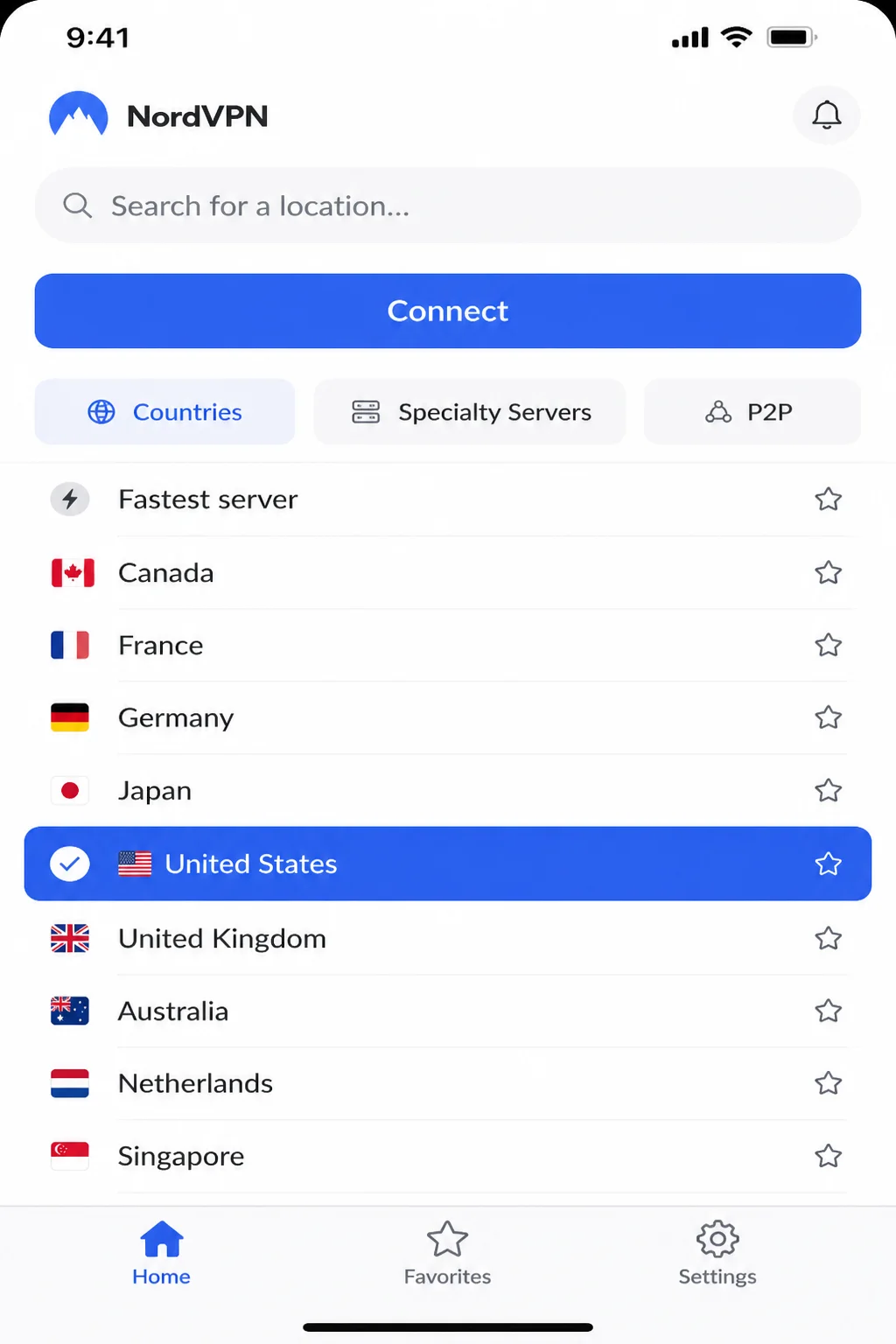
If the second server works, the first may be offline or overloaded. You don’t need to change your iPhone settings.
Some providers choose servers automatically and don’t offer a list. Skip this test if yours works that way.
3. Compare Wi-Fi and Cellular
Open Settings > Wi-Fi and turn Wi-Fi off. Test the VPN over cellular, then turn Wi-Fi back on and test again.
Use Settings for this comparison. Control Center’s Wi-Fi button may only drop the current connection for a while, which can confuse the result.
The comparison points you in one of three directions:
- If the VPN works on cellular but fails on Wi-Fi, that network may need a browser sign-in or block VPN traffic.
- If it works on Wi-Fi but fails on cellular, test cellular without the VPN. Also confirm that the VPN app has cellular access.
- If it fails on both, check the provider, account, app, and saved VPN setup.
4. Check the Provider and Your Account
Open the VPN provider’s status or support page in Safari. Confirm these details:
- The VPN service is working.
- Your subscription is active.
- Your login details are correct.
- The selected server is available.
- Your account hasn’t reached its device limit.
For a work VPN, your email and VPN passwords may differ. Your employer may also require a certificate or approval from IT.
Symptoms and Quick Fixes
| Symptom | Likely Cause | Quick Fix |
|---|---|---|
| VPN connects, but websites and apps have no internet | Failed server or conflict with another network-filtering service | Reconnect, choose another server, and test other user-controlled security services one at a time |
| VPN disconnects when the iPhone sleeps | Provider app behavior, connection setting, or outdated app | Review the provider’s connection options and update the app and iOS |
| VPN works on cellular but not Wi-Fi | Browser sign-in page, restricted network, or Wi-Fi problem | Disconnect the VPN, complete the Wi-Fi sign-in page, and reconnect |
| VPN works on Wi-Fi but not cellular | Cellular connection or provider connection method | Test cellular without the VPN, then try another server or supported connection method |
| “Authentication failed” or “Invalid credentials” appears | Incorrect password, inactive account, or expired work credentials | Re-enter the login, check the subscription, or contact the administrator |
| One server fails but other servers work | Server outage or heavy demand | Use a working server and report the failed one to the provider |
| VPN won’t connect on any network | Provider outage, account problem, app issue, or broken profile | Check account status, restart the app, update it, and inspect the affected profile |
| VPN switch turns itself back on | Connect-on-demand or another VPN/security app | Check the provider’s automatic connection settings and installed profiles |
Common Issues and Solutions
Problem 1: The VPN Will Not Connect on Any Network
Symptoms:
- The app remains stuck on “Connecting.”
- The connection button changes back to disconnected.
- The VPN fails on both Wi-Fi and cellular.
- Every available server fails.
- The app reports a general connection error.
Why it happens: A provider outage, inactive subscription, bad login, old app, failed server, or damaged setup can block every connection. Check the service and account first so you don’t change unrelated iOS settings.
Fix:
- Disconnect the VPN.
- Confirm that Safari works without the VPN.
- Check the provider’s status page for an outage.
- Sign in to the provider’s website or app and confirm that your subscription is active.
- Check whether your plan has a device limit.
- Re-enter your credentials if the app requests them.
- Choose another server if the app provides a server list.
- Close and reopen the VPN app.
On an iPhone with Face ID, swipe up from the bottom edge and pause. Swipe sideways to find the VPN app, then swipe its preview upward. On an iPhone with a Home button, double-press the Home button.
Reopen the app and tap Connect.
Verification: Wait until the provider app shows that it’s connected. Open Safari and load a new webpage instead of refreshing one that was already open.
Tip: Force-closing is useful when an app has frozen. You shouldn’t need to do it after every connection. If the app keeps freezing, update it or contact the provider.
Problem 2: One VPN Server Does Not Work
Symptoms:
- One city or country remains stuck on “Connecting.”
- Other VPN locations connect normally.
- The problem began without any iPhone changes.
- Internet access returns when you select another server.
Why it happens: A VPN server can go offline, get crowded, or enter maintenance. The provider has to fix that server. Changes to your iPhone’s network settings won’t repair it.
Fix:
- Open the VPN provider’s app.
- Tap the current Server, Location, or similar selector.
- Choose another server, preferably in the same region.
- Tap Connect.
- If available, try the provider’s automatic or recommended-server option.
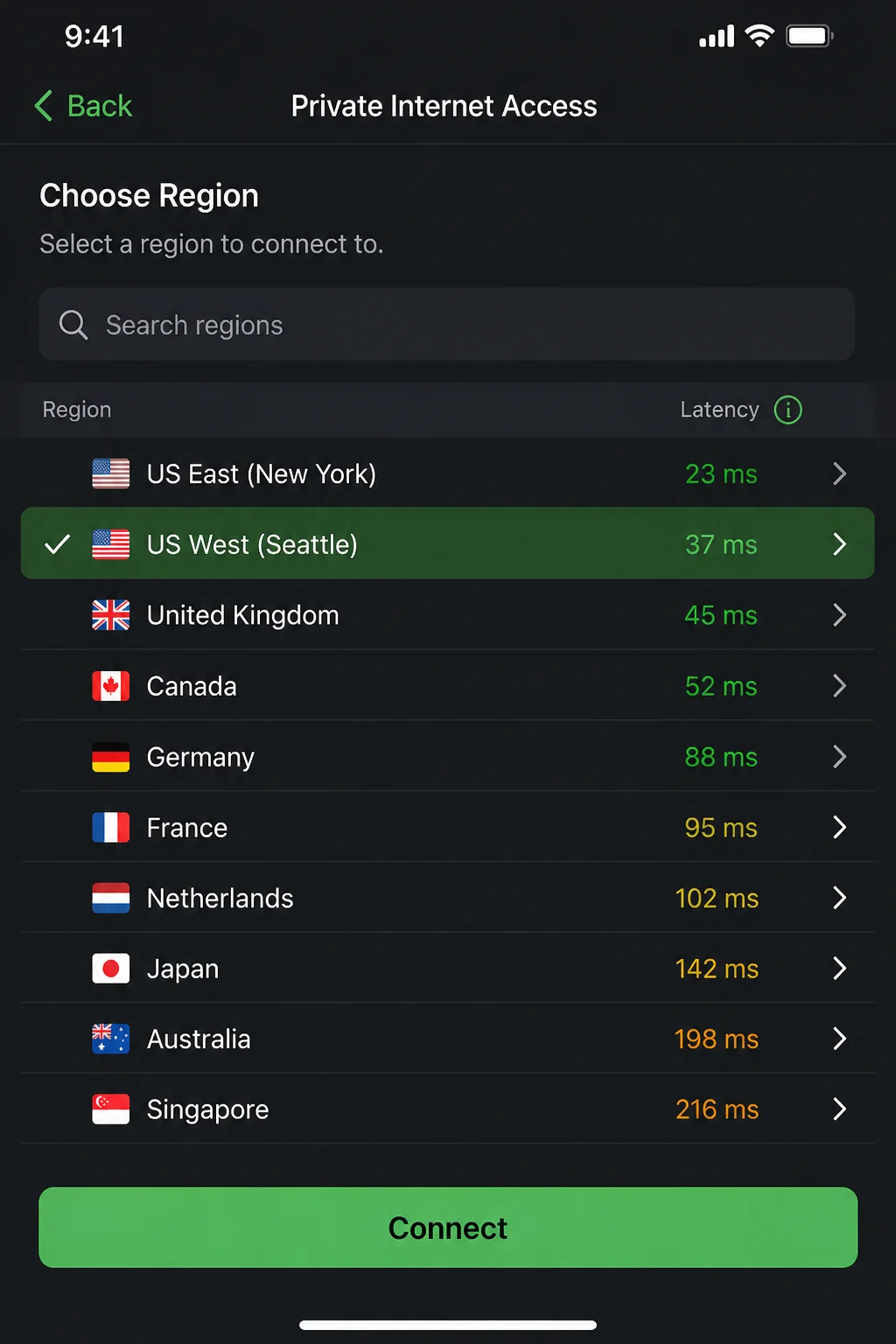
Verification: Confirm that the new server connects and Safari loads websites. Keep using that server for now. Report the failed location if it remains unavailable.
I’d skip a network reset for one bad server. The reset erases useful network data and can’t fix the provider’s equipment.
Problem 3: The VPN Works on Cellular but Not Wi-Fi
Symptoms:
- The VPN connects after Wi-Fi is turned off.
- It fails at a hotel, airport, cafe, school, or workplace.
- Safari doesn’t load pages on Wi-Fi until you sign in.
- The same VPN works on your home network.
Why it happens: Public Wi-Fi often uses a captive portal. That’s the browser page that asks you to accept terms, enter a room number, or sign in. Some schools, workplaces, and public networks also block VPN connections.
Fix:
- Open the VPN app and tap Disconnect.
- Go to Settings > Wi-Fi and confirm that you joined the intended network.
- Open Safari and visit a normal website.
- Complete the network’s browser sign-in page if it appears.
- Confirm that Safari can load a webpage without the VPN.
- Return to the VPN app and tap Connect.
- If it still fails, select another VPN server.
- Try another provider-supported connection method if the app offers one.
You’ll usually find that choice in the provider app under Settings > Protocol, Connection, or VPN Protocol. Some apps choose the method automatically and don’t show this control.
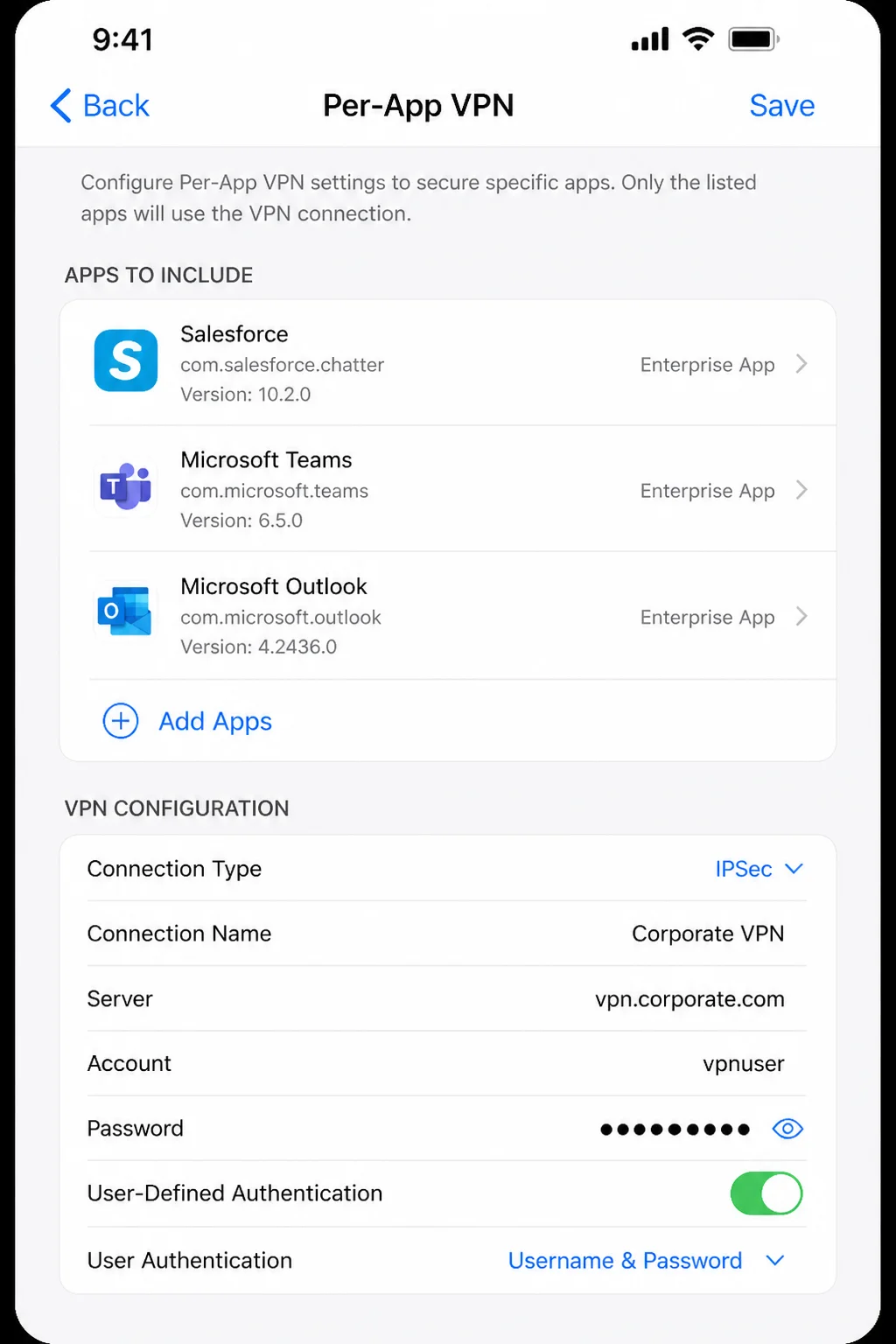
Verification: Load a webpage while Wi-Fi and the VPN are both connected. Switch to cellular and repeat the test.
If the VPN fails only at one school, office, hotel, or public hotspot, ask whether the network blocks VPN traffic. Your iPhone may be working correctly.
Problem 4: The VPN Works on Wi-Fi but Not Cellular
Symptoms:
- The VPN connects at home but fails when Wi-Fi is off.
- Cellular apps work until the VPN connects.
- The provider reports a connection timeout only over cellular.
- Switching back to Wi-Fi fixes the problem.
Why it happens: The cellular signal may be weak or unavailable for a short time. A VPN server or connection method may also work poorly on your carrier’s network.
Fix:
- Disconnect the VPN.
- Go to Settings > Cellular and confirm that Cellular Data is on.
- With Wi-Fi off, open Safari and test normal internet access.
- Scroll through Settings > Cellular and find your VPN app in the app list. If it appears, make sure cellular access is enabled.
- Reopen the VPN app and connect again.
- Select another server if available.
- Try another supported connection method if the provider offers that control.
- Turn Airplane Mode on for about 10 seconds, then turn it off and reconnect.
Verification: Keep Wi-Fi off and confirm that the VPN app says connected. Then load a new page in Safari.
If cellular internet fails with the VPN disconnected, fix the cellular connection first. Your carrier may need to check your account or nearby service.
Problem 5: The VPN Connects, but There Is No Internet
Symptoms:
- The app says “Connected,” but Safari can’t load pages.
- Messages, Mail, or streaming apps stop working.
- Internet access returns as soon as you disconnect the VPN.
- The VPN icon appears, but no data moves.
Why it happens: The VPN may create a tunnel while its server fails to pass traffic. Another VPN, security app, content filter, or privacy service may also compete for the connection.
Fix:
- Disconnect and reconnect the VPN once.
- Select another server if available.
- Close and reopen the VPN app.
- Check Settings > General > VPN & Device Management > VPN for multiple configurations.
- If you installed two consumer VPN or security apps yourself, disconnect the one you aren’t testing.
- Pause a user-controlled content filter or web-protection feature for a moment, then test the VPN.
- Restore that protection after the test.
- If you use iCloud Private Relay, test it separately as described below.
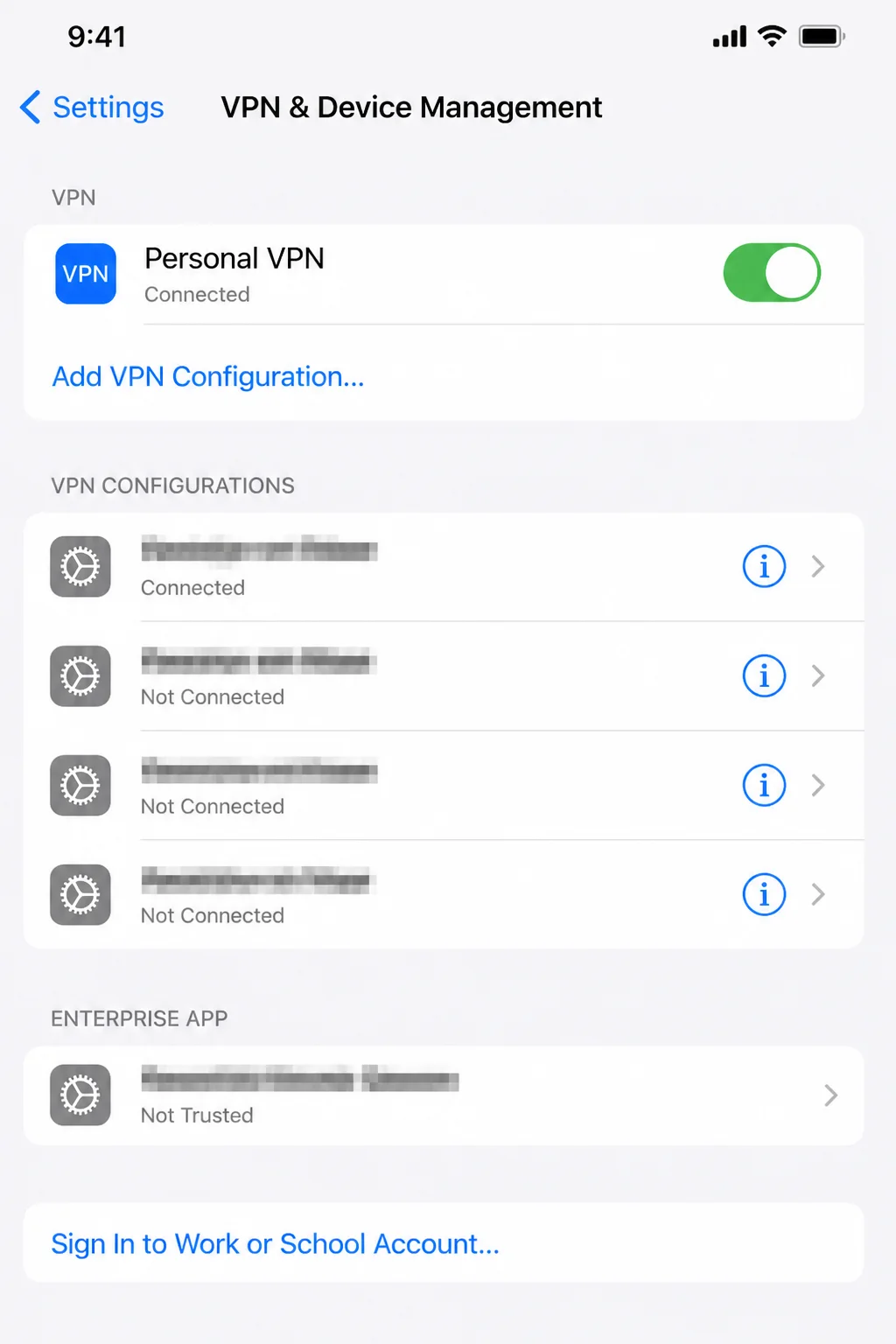
Verification: Reconnect with only the VPN under test active. Open Safari and two other online apps. If they work, turn your other protections on one at a time until you find the conflict.
Leave workplace profiles, certificates, device management, and managed filters alone. If an item says an organization manages it, contact that organization’s administrator.
Problem 6: The VPN Shows an Authentication Error
Symptoms:
- “Authentication failed” appears.
- The app reports “Invalid credentials.”
- You see “Account expired” or “Subscription inactive.”
- A work VPN asks repeatedly for a password.
- A login that worked before suddenly fails.
Why it happens: The username or password may be wrong. The subscription may have expired, or the provider may require a new sign-in. Work credentials and certificates can also expire.
Fix:
- Type the username and password again instead of using an old saved entry.
- Check for accidental spaces and letter-case differences.
- Sign in to the provider’s account page and confirm that the subscription is active.
- Check the provider’s app or website for an account notice.
- If you recently changed your account password, sign out of the VPN app and sign back in.
- Follow the provider’s official password-reset process if needed.
- For a work VPN, stop after one careful retry and contact your administrator if it still fails.
Verification: A successful connection should remain active without another login prompt. Open Safari after connecting.
Don’t keep guessing a workplace password. Too many attempts can lock the account. A certificate-based VPN may not have a password you can change.
Problem 7: The VPN Disconnects When the iPhone Sleeps
Symptoms:
- The VPN is disconnected when you unlock the iPhone.
- Apps briefly lose access after the screen wakes.
- You must restart the connection several times each day.
- The problem began after an app or iOS update.
Why it happens: Sleep behavior depends on the provider, its app, and the saved VPN setup. Some apps reconnect on their own. Others disconnect to save power or when the network changes.
Fix:
- Open the VPN app and review its Settings or Connection section.
- Look for an option such as Auto-Connect, Connect on Demand, or Always On.
- Enable only the option recommended by your provider.
- Reconnect the VPN.
- Update the VPN app and iOS using the steps in the next section.
- Restart the iPhone.
- If the issue continues, check the provider’s support page for sleep and auto-connect behavior.
Verification: Connect the VPN and lock your iPhone for several minutes. Unlock it and check the VPN app before opening another online app.
Tip: A short reconnect may happen when the phone moves between Wi-Fi and cellular. Repeated drops on the same network need more attention.
Problem 8: The VPN Profile Is Broken or Duplicated
Symptoms:
- The app can’t repair or replace its setup.
- Two profiles from the same consumer VPN appear.
- An old provider profile remains after you reinstall the app.
- The affected profile reports missing or invalid settings.
Why it happens: A consumer VPN setup may become old or remain after a failed app update. Removing the confirmed faulty profile lets many provider apps create a fresh one.
Fix:
- Open Settings > General > VPN & Device Management > VPN.
- Find the profile belonging to the consumer VPN you are troubleshooting.
- Tap its information button.
- Confirm that its name matches the provider and app you are diagnosing.
- Open Settings > General > VPN & Device Management and check whether the device is organization-managed.
- Remove the profile only if you created it through your own consumer VPN app and have confirmed it is the broken one.
- Reopen the provider app and follow its supported process to recreate the configuration.
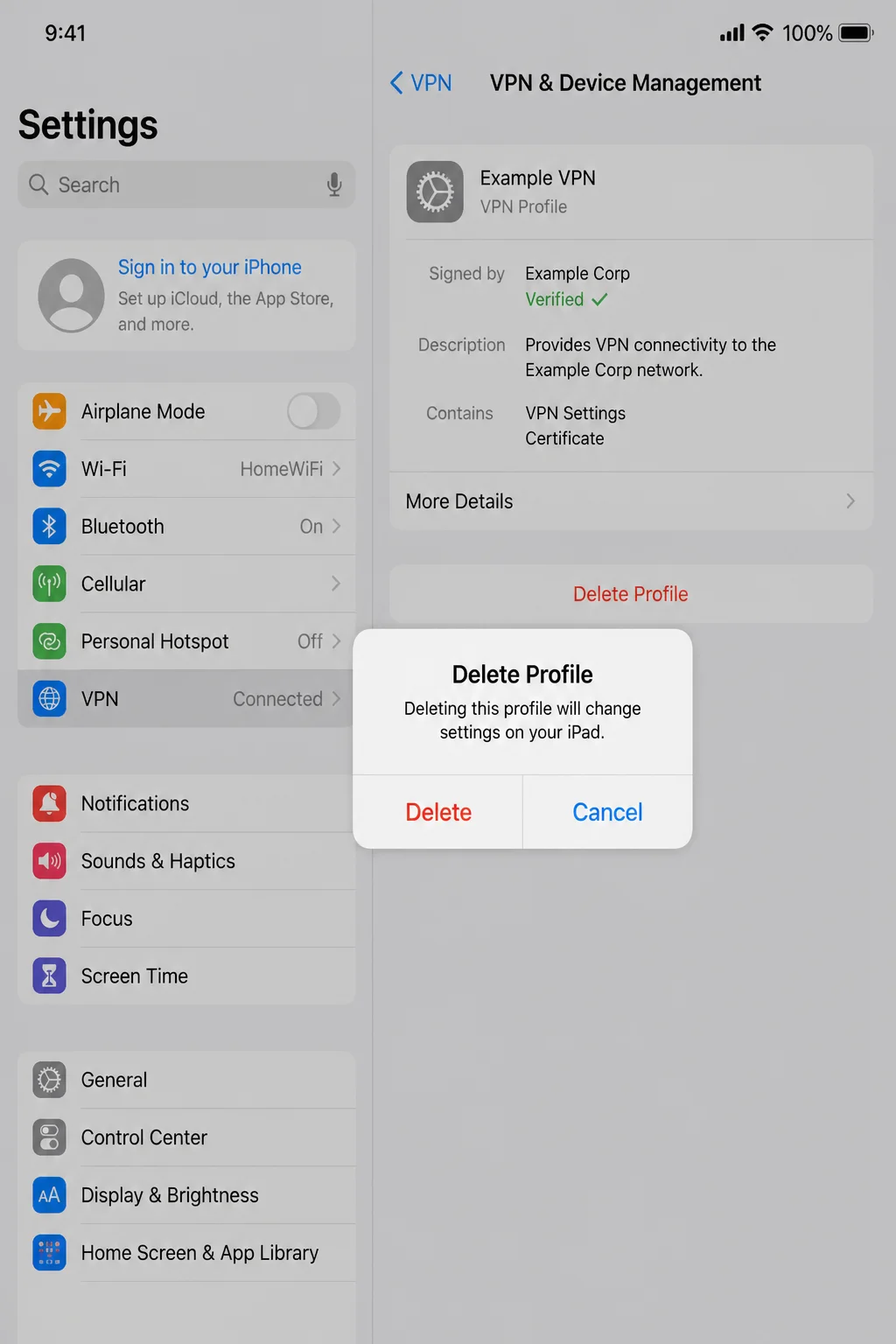
Verification: Return to Settings > General > VPN & Device Management > VPN. Confirm that the provider created one valid setup. Then connect through its app and test Safari.
Never delete a profile you don’t recognize. Keep Mobile Device Management (MDM), certificates, content filters, and managed VPN profiles unless your employer or school tells you otherwise.
Error Messages Explained
Providers use different wording, but these messages usually point to the same problems.
| Error message | What it usually means | What to do |
|---|---|---|
| “Authentication failed” | The service rejected the login or organization-issued credentials | Re-enter the login, check the account, or contact the work administrator |
| “Invalid username or password” | The entered credentials don’t match the account | Type them again and use the provider’s official password-reset option if needed |
| “Subscription expired” or “Account inactive” | The VPN account can’t create a connection | Check billing or subscription status with the provider |
| “Server unavailable” | The selected provider server is offline or too busy | Choose another server and retry later |
| “Connection timed out” | The server didn’t respond in time | Test another server, network, or supported connection method |
| “Unable to establish VPN connection” | A general failure involving the network, server, app, or profile | Test without the VPN, compare Wi-Fi and cellular, then restart the app |
| “No internet connection” | The current Wi-Fi or cellular connection may be down before the VPN starts | Disconnect the VPN and test Safari first |
| “Configuration error” or “Invalid configuration” | The stored VPN profile may be incomplete or outdated | Update the app, inspect the affected profile, and remove only a confirmed broken consumer profile |
| “Permission required” | The app needs permission to add or use a VPN configuration | Follow the provider’s normal permission prompt; don’t approve an unfamiliar app |
| “Device limit reached” | The account already has the maximum number of permitted devices | Remove an old device through the provider account or contact its support team |
| “Certificate expired” | A certificate used by a work or school VPN is no longer valid | Contact the administrator; don’t delete certificates yourself |
| “Network restricted” | The current network may block the provider’s connection method | Complete any Wi-Fi sign-in, try another supported method, or ask the network owner |
Update the VPN App, iOS, and Restart
Software updates can fix connection bugs and compatibility problems. Do these steps before you reset network settings.
Update the VPN App
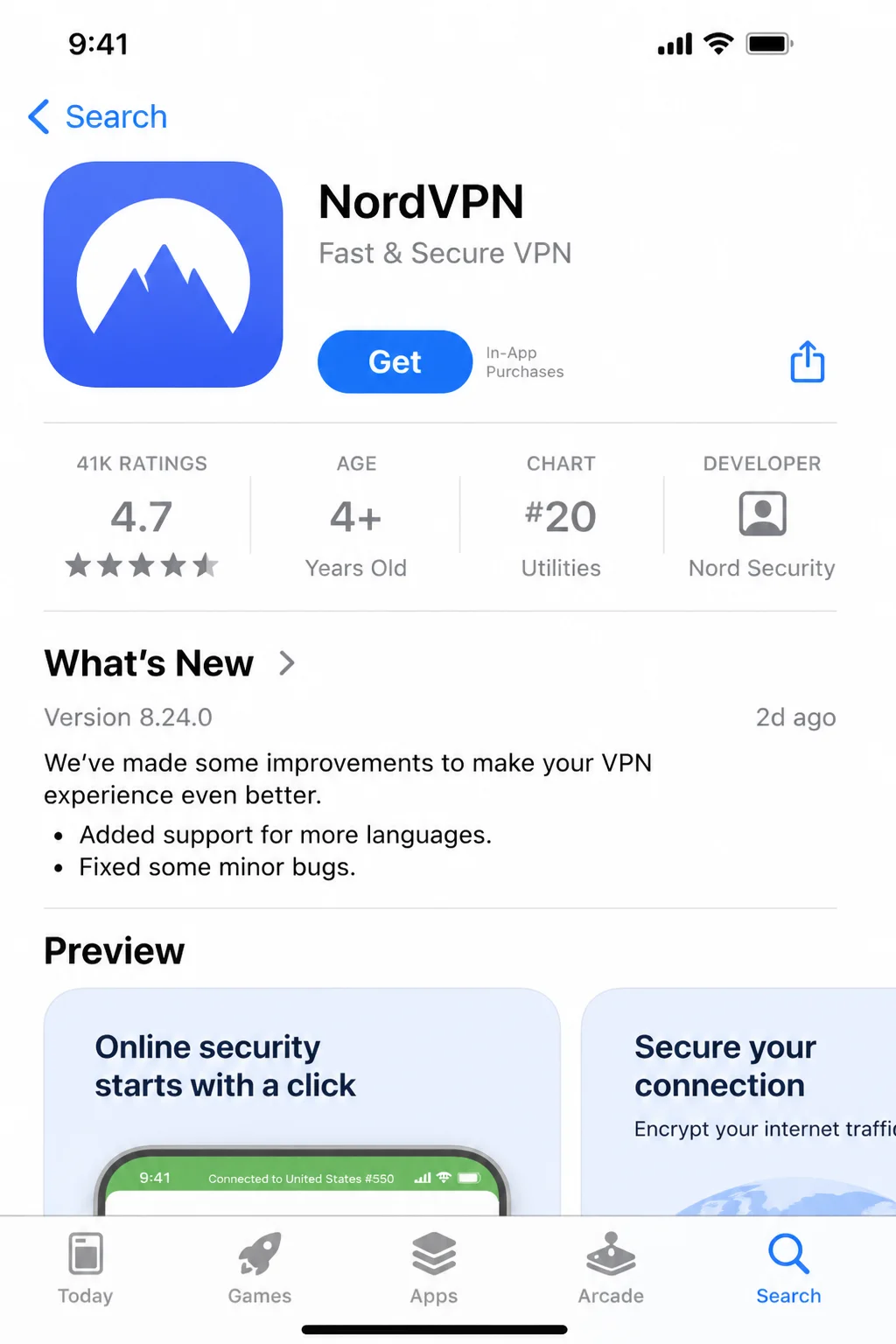
- Open the App Store.
- Search for the VPN provider’s app.
- Open its product page.
- Tap Update if that button appears. If you see Open, the installed version is current.
Update iOS
- Connect the iPhone to power and a working Wi-Fi network.
- Open Settings > General > Software Update.
- Install an available update.
- Follow the on-screen prompts.
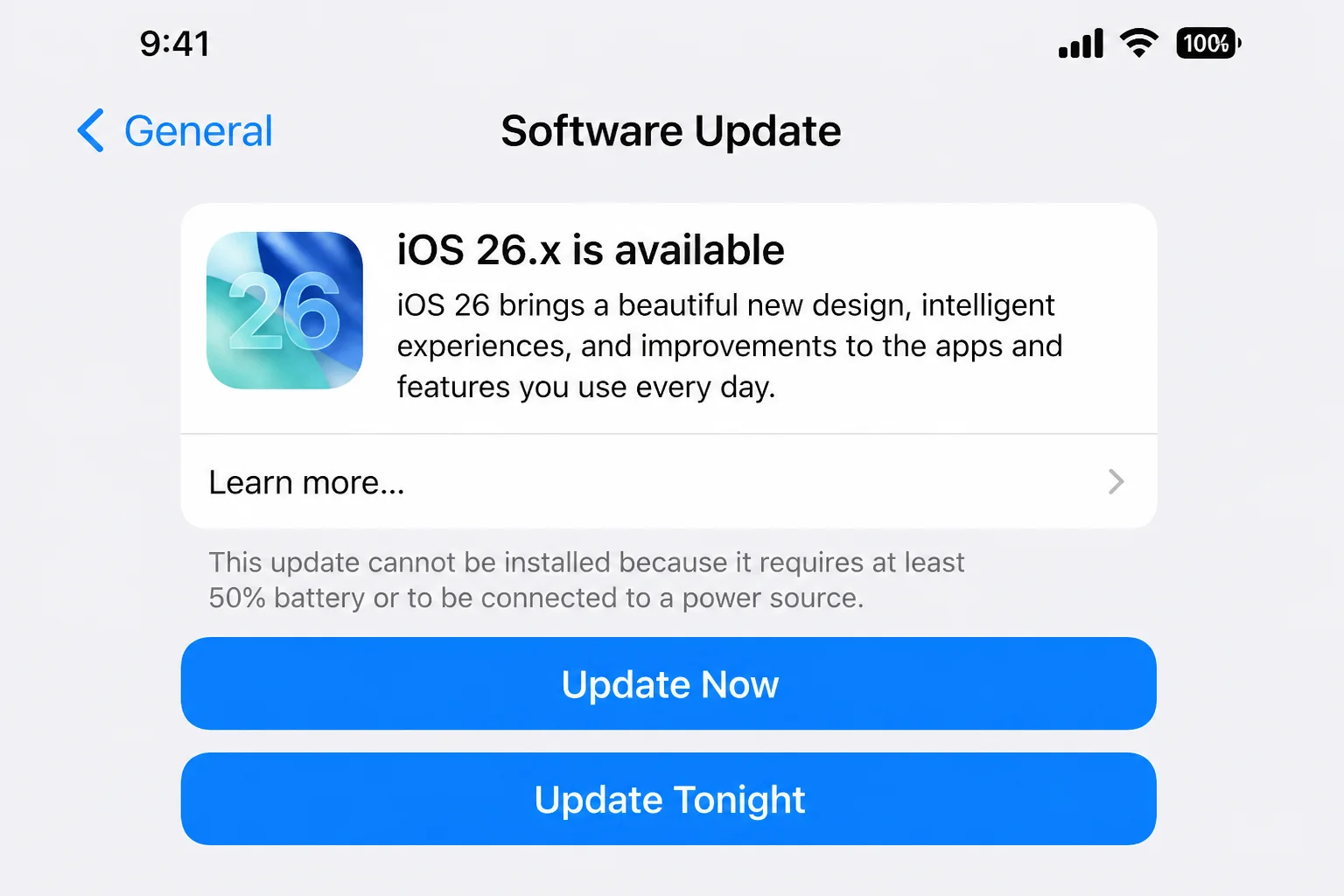
Apple lists its current update steps in the official iPhone User Guide.
Restart the iPhone
On an iPhone with Face ID, hold either volume button and the side button until the power slider appears. Drag the slider and wait for the phone to turn off. Hold the side button to turn it on again.
On an iPhone with a Home button, hold the side or top button until the slider appears.
Verification: Test normal internet access after the restart. Then open the updated VPN app, connect, and test Safari again.
Platform-Specific Issues
On iPhone
These steps focus on iPhone. In iOS 18 and later, you’ll usually find installed VPN profiles under Settings > General > VPN & Device Management > VPN.
If you can’t find that menu, pull down on the main Settings screen to show the search field. Search for:
VPN
A provider’s app and its iOS VPN profile control different parts of the connection. The app usually handles servers and automatic connections. The profile tells iOS how to carry the traffic.
On iPad
The iPadOS steps are much the same:
- Open Settings > General > VPN & Device Management > VPN to inspect profiles.
- Open Settings > Wi-Fi to test a different network.
- On a cellular-capable iPad, compare Wi-Fi with cellular data.
- On a Wi-Fi-only iPad, test another Wi-Fi network or an iPhone Personal Hotspot.
On an iPad’s wider screen, Settings may show the menu and detail page side by side. Keep school-managed profiles on an iPad issued by a school.
On a Work-Managed iPhone
A managed iPhone may contain profiles, certificates, security filters, or an always-on VPN controlled by your organization. These can resemble consumer VPN settings. Removing one may cut off work access or break your organization’s device policy.
Open Settings > General > VPN & Device Management. A management profile means your organization may control the VPN.
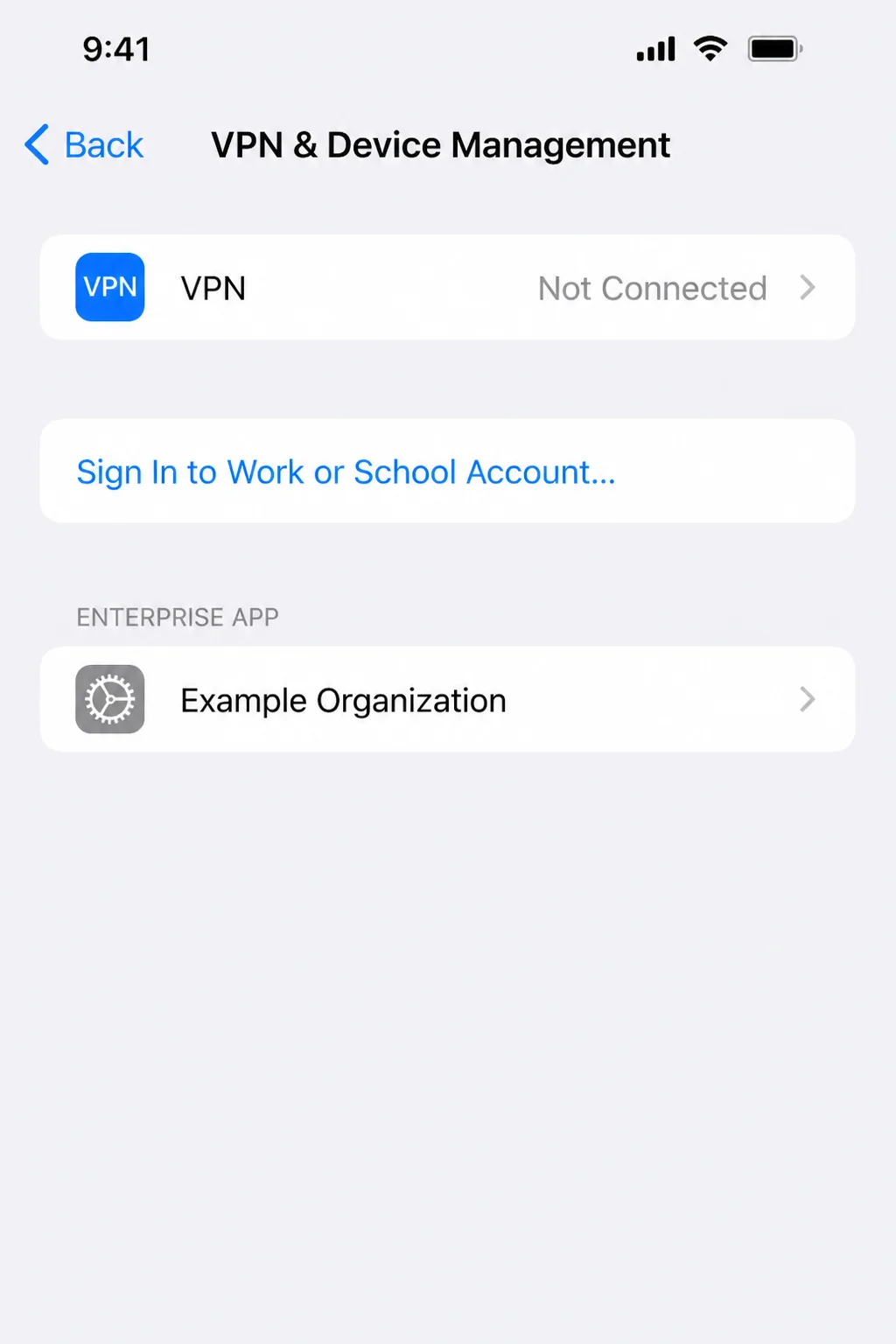
Contact your administrator when:
- A work VPN reports an expired certificate.
- Organization-issued credentials no longer work.
- The VPN says a managed configuration is invalid.
- A workplace security filter appears to conflict with the VPN.
- The device has an always-on VPN you can’t disconnect.
- The problem began after an employer or school changed its systems.
- You aren’t sure whether a profile is managed.
Keep device management, certificates, content filters, and managed VPN profiles installed. Your administrator may ask for details from the app before changing anything.
Configuration Issues to Check
Multiple VPN Profiles
Open Settings > General > VPN & Device Management > VPN and review the installed profiles.
Several profiles can exist without causing trouble. Problems often appear when two consumer VPN or security apps both try to connect on their own.
For a safe test, disconnect the service you control but aren’t testing. Leave managed profiles alone, and don’t delete profiles in bulk.
The Wrong Profile Is Selected
An iPhone can keep an old consumer profile beside a newer one from the same provider. Check that the active profile matches the app you use now.
Remove a profile only when every statement below is true:
- You recognize the provider.
- You installed it through your own consumer VPN app.
- You have confirmed that this specific profile is broken or obsolete.
- It isn’t marked as managed.
- You know how the provider recreates it.
If one detail is uncertain, keep the profile and ask the provider or administrator.
Automatic Connection Settings
Options such as Auto-Connect and Connect on Demand can turn a disconnected VPN back on. Check these controls inside the provider app before blaming an iOS switch that won’t stay off.
Turning off automatic connections may leave public Wi-Fi traffic outside the VPN. Restore the provider’s recommended setting after testing.
Connection Method or Protocol
The connection method, sometimes called a protocol, controls how the VPN app talks to its server. A network may allow one method but block another.
If your provider gives you this control:
- Open the VPN app’s Settings.
- Find Connection, Protocol, or VPN Protocol.
- Note the current choice.
- Select another method supported by the provider.
- Reconnect and test.
- Return to the recommended or automatic option if the change doesn’t help.
Use only settings supplied by your VPN provider. Server details copied from another service won’t create a valid setup.
Private Relay and Other Privacy Services
iCloud Private Relay protects Safari and some other internet traffic. It covers less traffic than a full-device VPN. A short test can still help when your VPN provider reports a conflict.
Private Relay requires an eligible iCloud+ subscription. The setting may be unavailable for some accounts, regions, or managed devices.
To test it for a short time:
- Open Settings > [your name] > iCloud > Private Relay.
- Note the current setting.
- Temporarily change the setting for the test.
- Reconnect the VPN.
- Restore Private Relay to its original setting afterward.
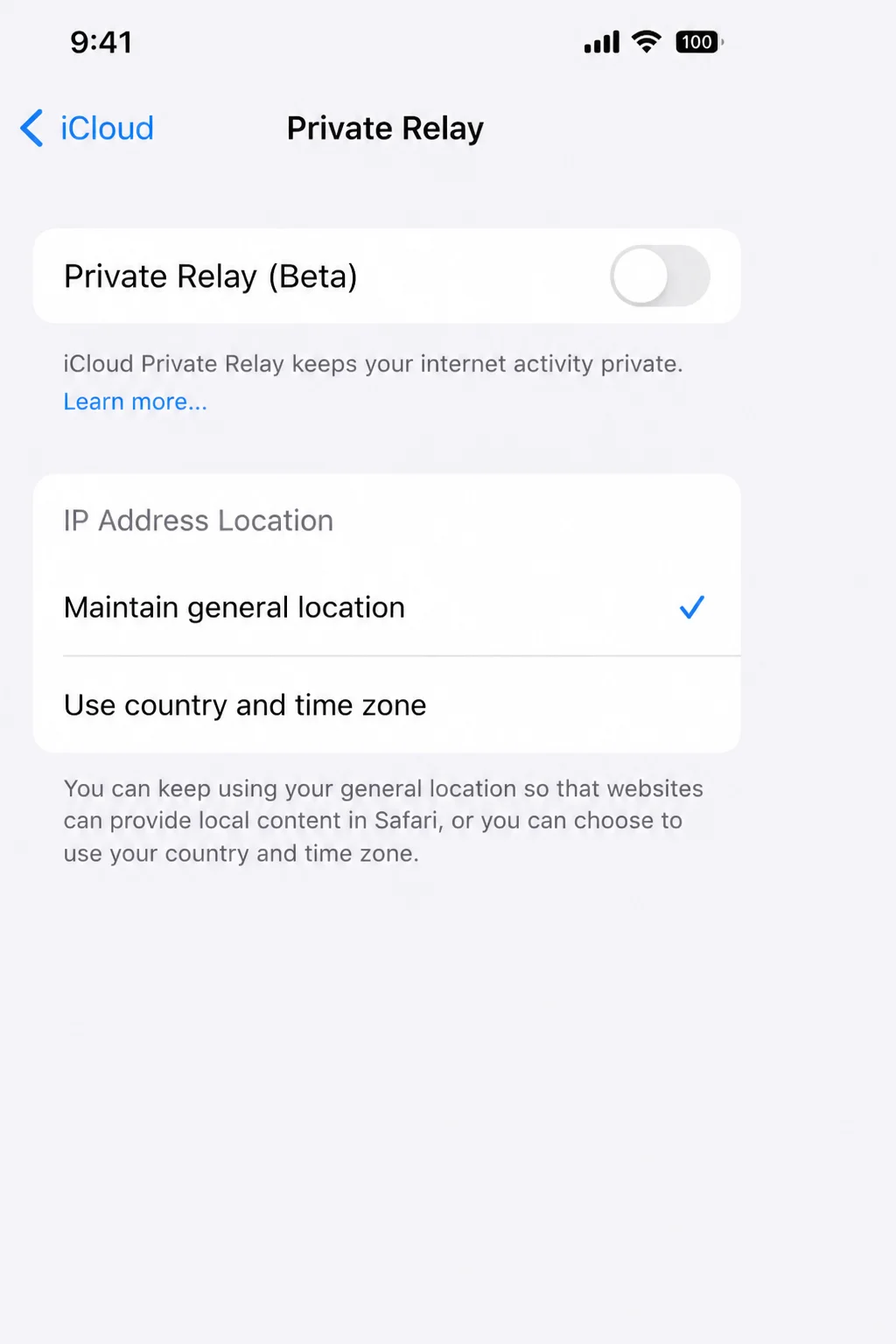
Private Relay causes only some VPN conflicts. Use this as a controlled test. Restore the privacy setting unless you’ve found a documented reason to change it.
Reset Network Settings as the Final iOS Step
Save this step until you’ve checked the provider, account, servers, Wi-Fi, cellular, updates, and confirmed consumer VPN profile.
Reset Network Settings keeps your photos, apps, and messages. It erases saved Wi-Fi networks and passwords. It also resets cellular, VPN, and related network settings. You’ll need to join your Wi-Fi networks again.
Before you continue, find the password for your home Wi-Fi and any other network you’ll need soon. The reset removes saved networks from the iPhone.
- Open Settings > General > Transfer or Reset iPhone.
- Tap Reset.
- Tap Reset Network Settings.
- Enter the iPhone passcode if requested.
- Confirm the reset.
- Wait for the iPhone to restart.
- Rejoin Wi-Fi and open the provider app.
- Allow the trusted VPN app to recreate its configuration if necessary.
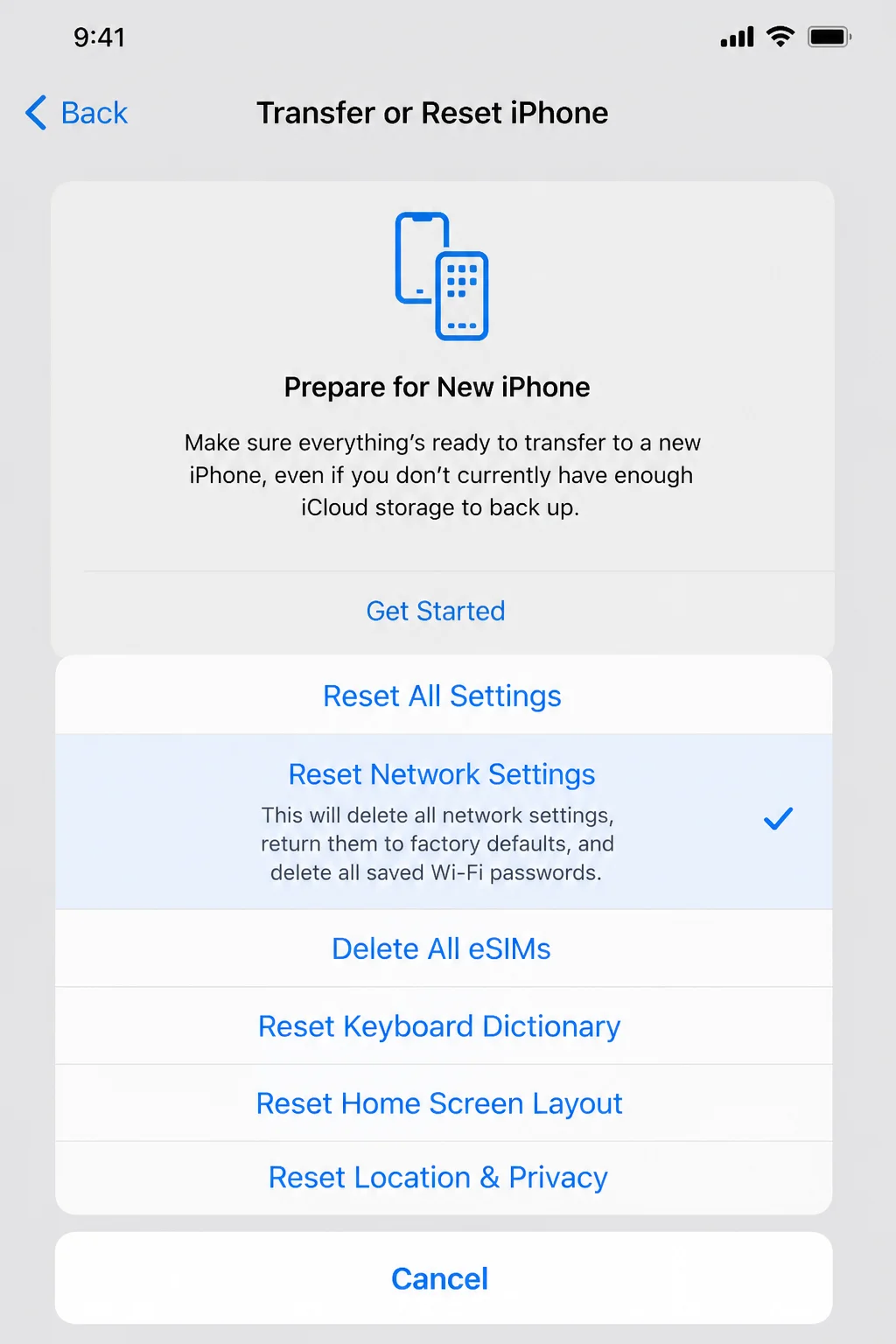
Verification: Test Safari without the VPN, connect the VPN, and test Safari again. Compare Wi-Fi and cellular one last time.
Take care on the Reset menu. Erase All Content and Settings wipes the iPhone and has no place in normal VPN troubleshooting.
Getting Help
If the VPN still won’t work, gather a few details before contacting support. Clear test results can save several rounds of repetitive email.
Write down:
- Your iPhone model, such as iPhone 15 or later.
- The installed iOS version from Settings > General > About > iOS Version.
- The VPN app version shown on its App Store page or inside its settings.
- The exact error message.
- Whether ordinary internet access works with the VPN disconnected.
- Whether the problem occurs on Wi-Fi, cellular, or both.
- Whether another server connects.
- Whether another supported connection method works.
- When the problem started.
- Whether the iPhone is managed by a workplace or school.
Find VPN App Logs
Many VPN apps include a support or connection log. Check the provider app under a path such as Settings > Help, Support, Diagnostics, or Connection Log.
The labels vary. If support asks for a log, use the app’s built-in sharing option when possible.
Review the log before sending it. Logs may include connection times, server names, device details, or IP addresses. Don’t post an unedited log in a public forum.
Check iPhone Analytics Only When Requested
If Apple or the VPN provider asks for system details, open Settings > Privacy & Security > Analytics & Improvements > Analytics Data.
That list contains many files unrelated to your VPN. Follow the support agent’s instructions when choosing one, and don’t share analytics in public.
Choose the Right Support Team
Contact the VPN provider when:
- One or more of its servers fail.
- The app reports an account or subscription problem.
- You need help choosing a supported connection method.
- The app keeps disconnecting after updates.
- The app can’t recreate its own consumer VPN profile.
Contact the Wi-Fi owner when:
- The VPN fails only on one hotel, school, workplace, or public network.
- The browser sign-in page doesn’t appear.
- The network may restrict VPN connections.
Contact your employer or school administrator when:
- The VPN or iPhone is organization-managed.
- A managed certificate or credential has expired.
- You can’t change a managed connection.
- A workplace filter or always-on VPN appears to be involved.
Contact Apple Support when:
- Multiple unrelated VPN apps fail on every network.
- Wi-Fi or cellular remains broken with every VPN disconnected.
- The VPN settings page doesn’t respond.
- Network problems continue after an iOS update and network-settings reset.
You can also use the Apple Support app or book a Genius Bar appointment. Start with the VPN company for account, server, and protocol problems. Apple can’t inspect the provider’s systems.
Prevention Tips
- Keep the app current: Install VPN app updates from the App Store. They often fix problems with newer iOS versions.
- Update iOS: Check Settings > General > Software Update regularly.
- Use the provider app to connect: This avoids errors from entering server details by hand.
- Keep a backup server in mind: If your provider offers server selection, learn where to choose another location.
- Complete public Wi-Fi sign-ins first: Join the network and open Safari before starting the VPN.
- Avoid overlapping services: Don’t leave two consumer VPN apps set to connect automatically.
- Review before removing profiles: Delete only a confirmed broken consumer profile that you recognize.
- Keep Wi-Fi passwords available: A network-settings reset erases saved Wi-Fi networks and passwords.
- Protect managed settings: Let your employer or school handle profiles and certificates it controls.
- Restore temporary changes: Turn any privacy or security feature back on after testing.
- Check subscription notices: An expired plan can look like an iPhone connection fault.
- Record exact errors: A screenshot of a stable error can help support find the cause. Hide names, email addresses, server addresses, and IP addresses first.
Frequently Asked Questions
Why does my iPhone say the VPN is connected when there is no internet?
The iPhone may have created a tunnel to the VPN server even though the server can’t pass internet traffic. Disconnect and reconnect, then select another server. If the problem remains, test other user-controlled VPNs, security apps, content filters, and Private Relay one at a time.
How can I tell whether the VPN provider is down?
Disconnect the VPN and confirm that ordinary websites load. Check the provider’s official status page and try another server. If several servers fail on Wi-Fi and cellular while other websites work, check the provider and your account.
Why does my VPN work on cellular but not Wi-Fi?
That Wi-Fi network may need a browser sign-in or may block VPN traffic. Disconnect the VPN, open Safari, and complete any network login. Confirm that websites load before reconnecting the VPN.
Which VPN profile can I safely remove?
Remove only a consumer VPN profile that you installed, recognize, and confirmed is broken or old. Keep unfamiliar, managed, workplace, school, certificate, and content-filter profiles installed.
What does Reset Network Settings erase?
It erases saved Wi-Fi networks and passwords. It also resets cellular, VPN, and related network settings. Your photos, messages, apps, and personal files remain on the iPhone.
Should I turn off Private Relay permanently?
No. Private Relay causes only some VPN conflicts. Test it briefly when your provider recommends it. Then restore the original setting unless Apple or the VPN provider gives you a specific reason to change it.
When should I send a work VPN problem to an administrator?
Contact your administrator when the iPhone is managed, your organization issued the credentials or certificates, or an always-on VPN is involved. Ask them if you don’t recognize the owner of a profile.
Wrapping Up
| Step | Action | Applies To |
|---|---|---|
| 1 | Test internet access without the VPN | Every connection problem |
| 2 | Try another VPN server | Providers with server selection |
| 3 | Compare Wi-Fi and cellular | Network-specific failures |
| 4 | Check the account and credentials | Login and connection errors |
| 5 | Restart and update the app and iOS | Repeated or unexplained failures |
| 6 | Inspect only the affected VPN profile | Suspected configuration problems |
| 7 | Test user-controlled service conflicts | Connected but no internet |
| 8 | Reset Network Settings | Final reversible iOS step |
A failed server, blocked Wi-Fi network, or account problem explains many iPhone VPN failures. Comparing Wi-Fi with cellular remains my favorite test. It gives you a useful direction without erasing anything.
After all eight fixes, you’ll have clear evidence for the right support team. That’s better than deleting every profile and later trying to remember the cafe’s Wi-Fi password.