
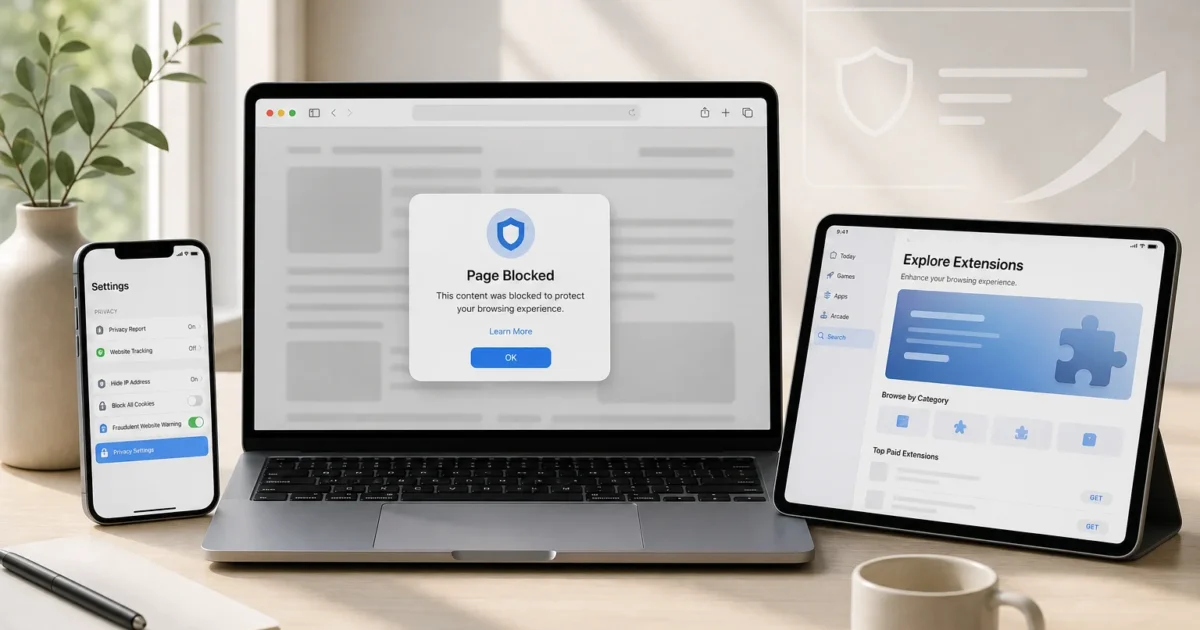
Safari handles everyday browsing well, but certain pain points remain. Ads cover the page, cookie banners block what you’re reading, and some websites disable basic controls such as copy and paste.
The right extensions solve those problems without turning Safari into a cluttered mess. These picks focus on privacy, usability, and tools that earn their place on your toolbar.
How Safari Extensions Work in 2026
Modern Safari Web Extensions use the same web technologies as many Chrome and Firefox extensions. Developers distribute them as apps through the App Store, sometimes with support for Mac, iPhone, and iPad from one purchase.
That doesn’t guarantee every extension works everywhere. Check the App Store’s compatibility section before paying, especially if you want to use an extension across multiple devices.
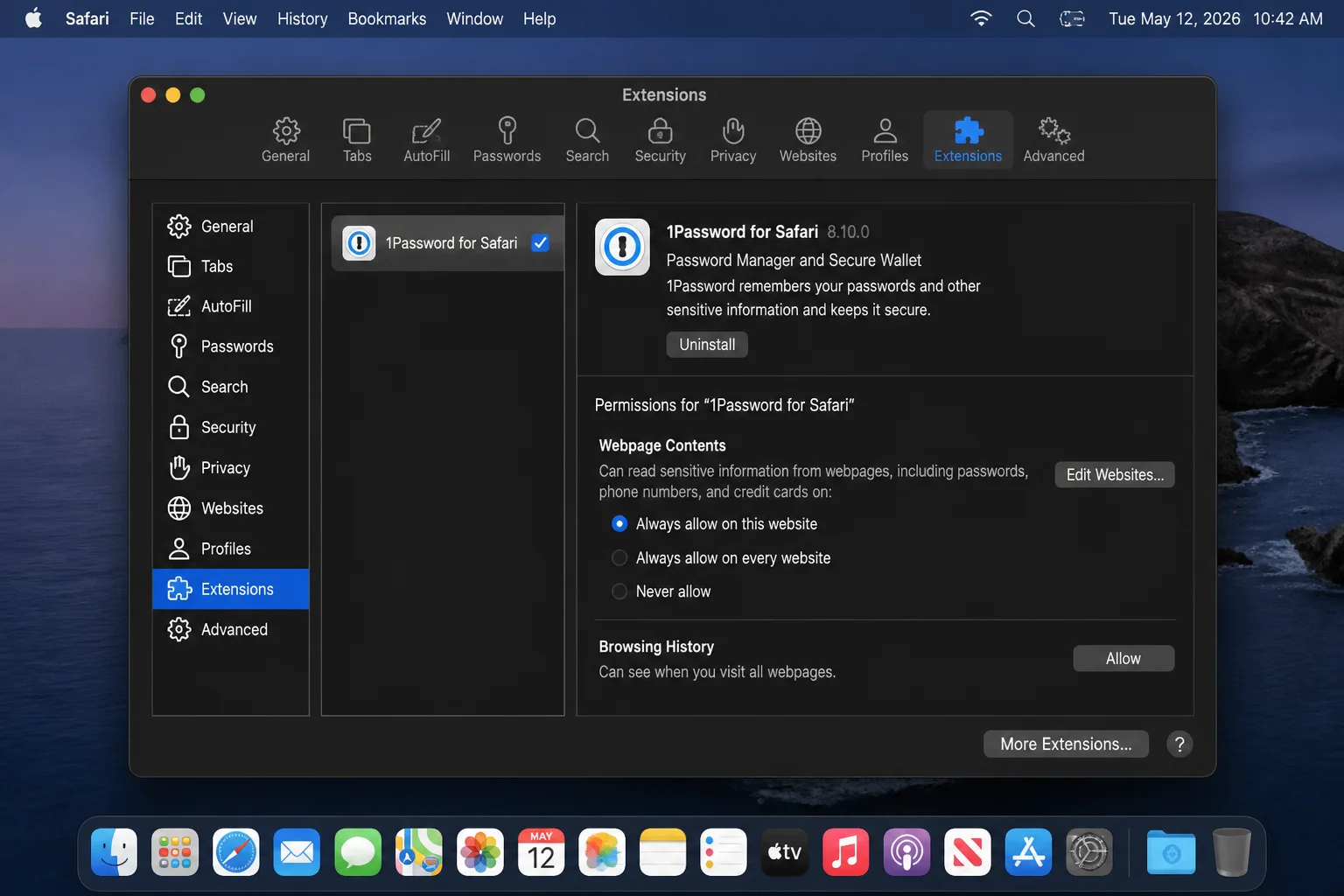
Safari also controls which websites an extension can read or modify. Review those permissions carefully. An extension that changes every webpage needs broad access, while a password manager may only need access when you activate it.
How to Install Safari Extensions on Mac
Update macOS first through System Settings > General > Software Update. Safari updates arrive with macOS, and older releases may not support a current extension.
- Open Safari.
- Choose Safari > Safari Extensions from the menu bar.
- Browse the Safari Extensions section in the App Store.
- Select Get or the displayed price, then authenticate if prompted.
- Return to Safari and open Safari > Settings > Extensions.
- Check the box beside the extension to enable it.
- Select the extension and set its website access to Ask, All Websites, or the specific domains it needs.
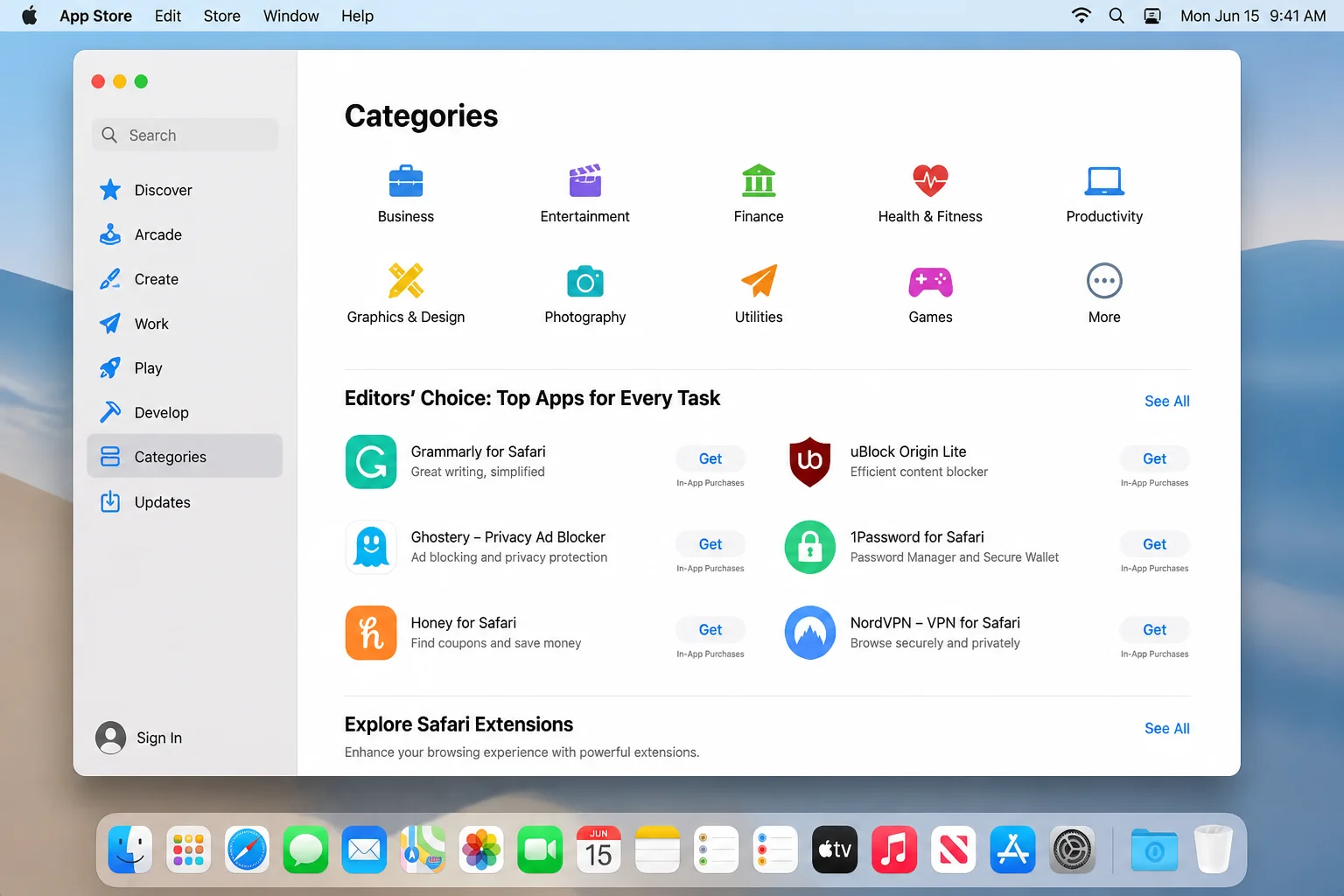
I’d start with Ask when you’re unsure about an extension’s access. You’ll receive an approval prompt when it needs to work on a website, which adds friction but limits unnecessary access.
How to Install Safari Extensions on iPhone
Safari extensions require iOS 15 or later, though current extensions may set a newer minimum version.
- Open Settings.
- Go to Safari > Extensions.
- Tap More Extensions to open the Safari Extensions section of the App Store.
- Tap Get or the displayed price and authenticate with Face ID, Touch ID, or your Apple ID.
- Return to Settings > Safari > Extensions.
- Tap the extension and turn it on.
- Choose whether it can access all websites, ask for permission, or work only on selected domains.
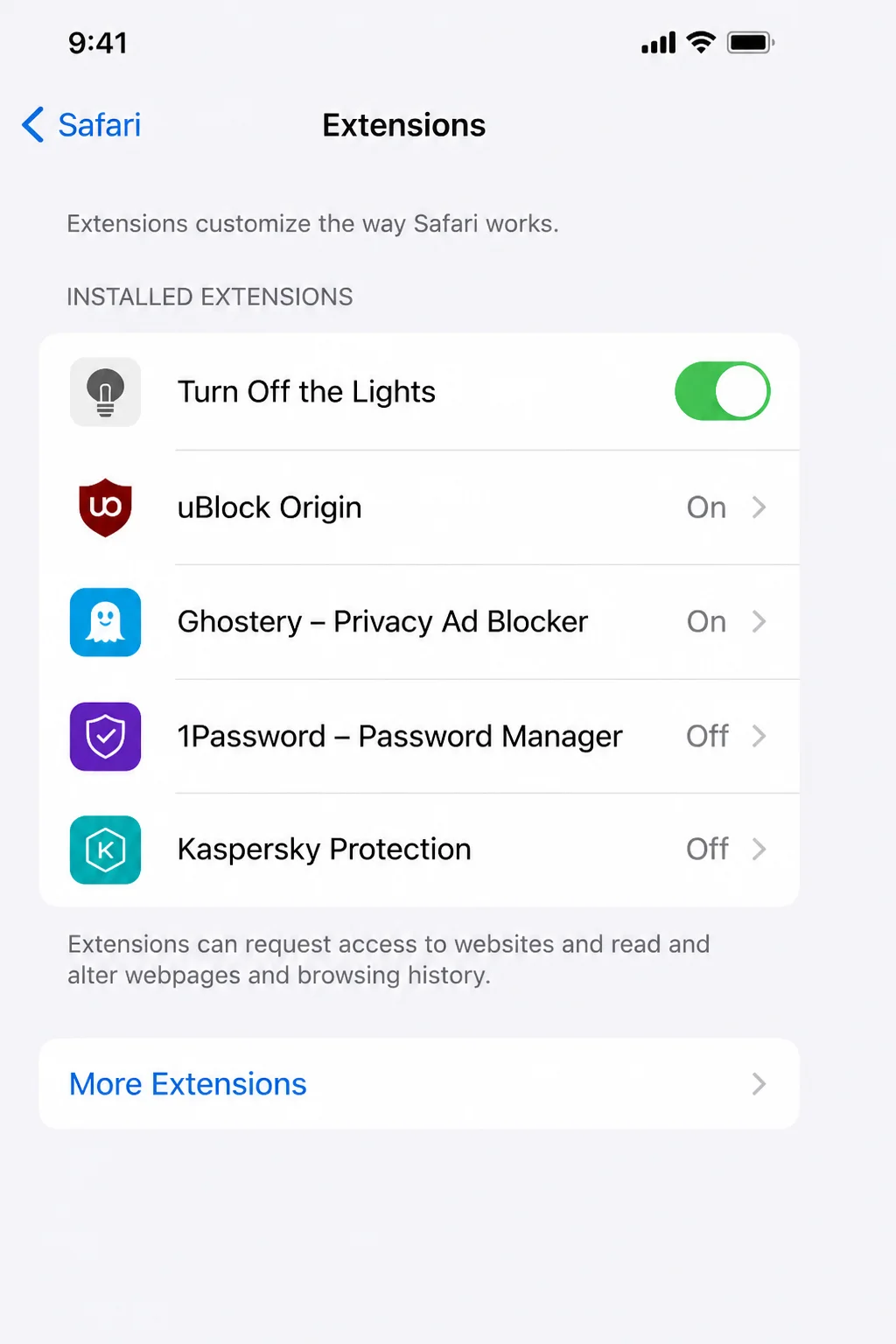
Installing the companion app doesn’t always enable its Safari extension. That extra switch catches plenty of people out.
How to Install Safari Extensions on iPad
The iPad workflow matches the iPhone version, but the Settings layout uses a wider sidebar.
- Open Settings.
- Select Safari > Extensions.
- Tap More Extensions.
- Install an extension from the App Store.
- Return to Settings > Safari > Extensions.
- Select the extension, enable it, and configure its website access.
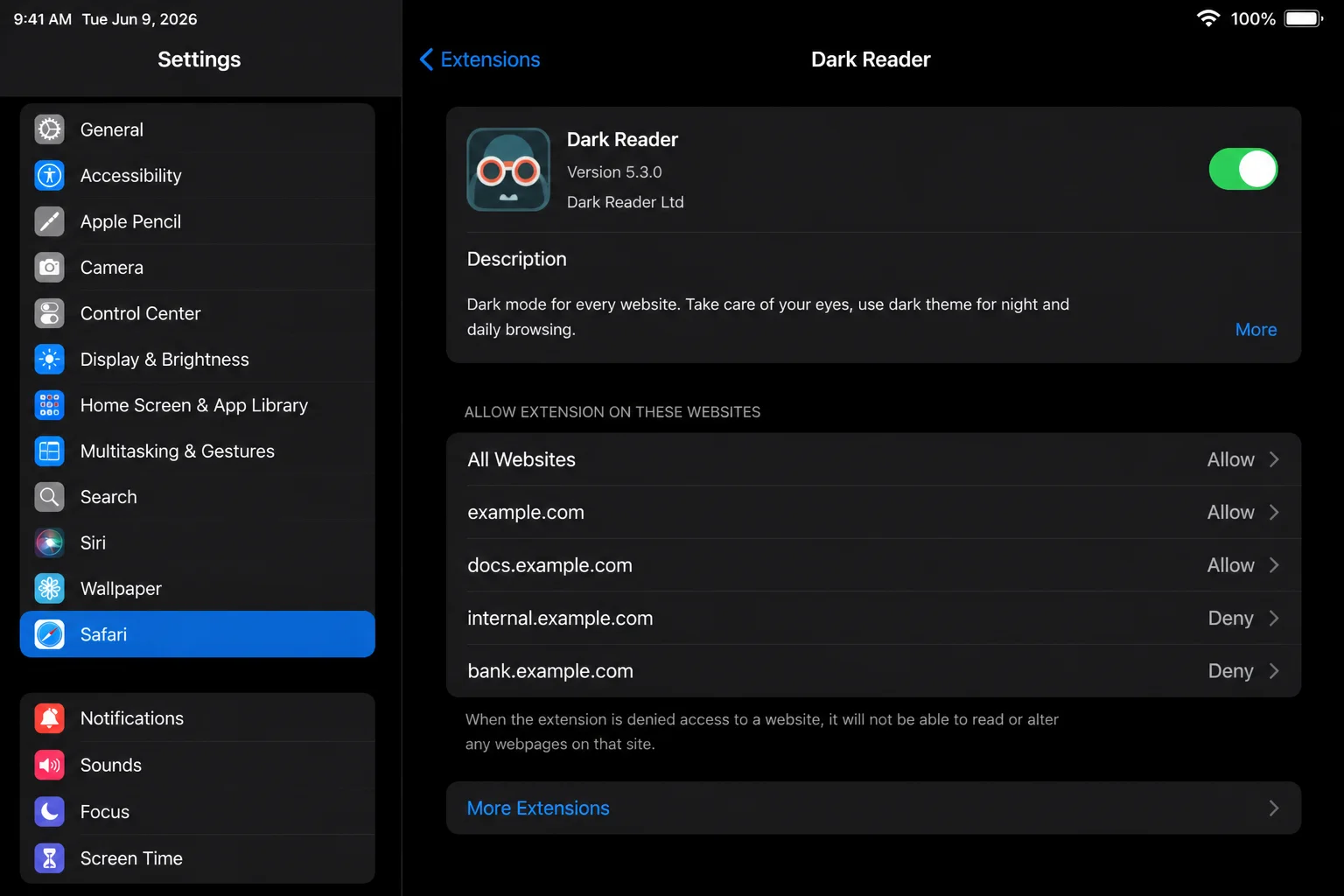
Some developers release their extensions only for Mac. If an installed Mac extension doesn’t appear on your iPad, check its App Store compatibility rather than repeatedly reinstalling it.
The Best Safari Extensions in 2026
Pricing and platform support can vary by region and device. Check each App Store listing for the current price before installing.
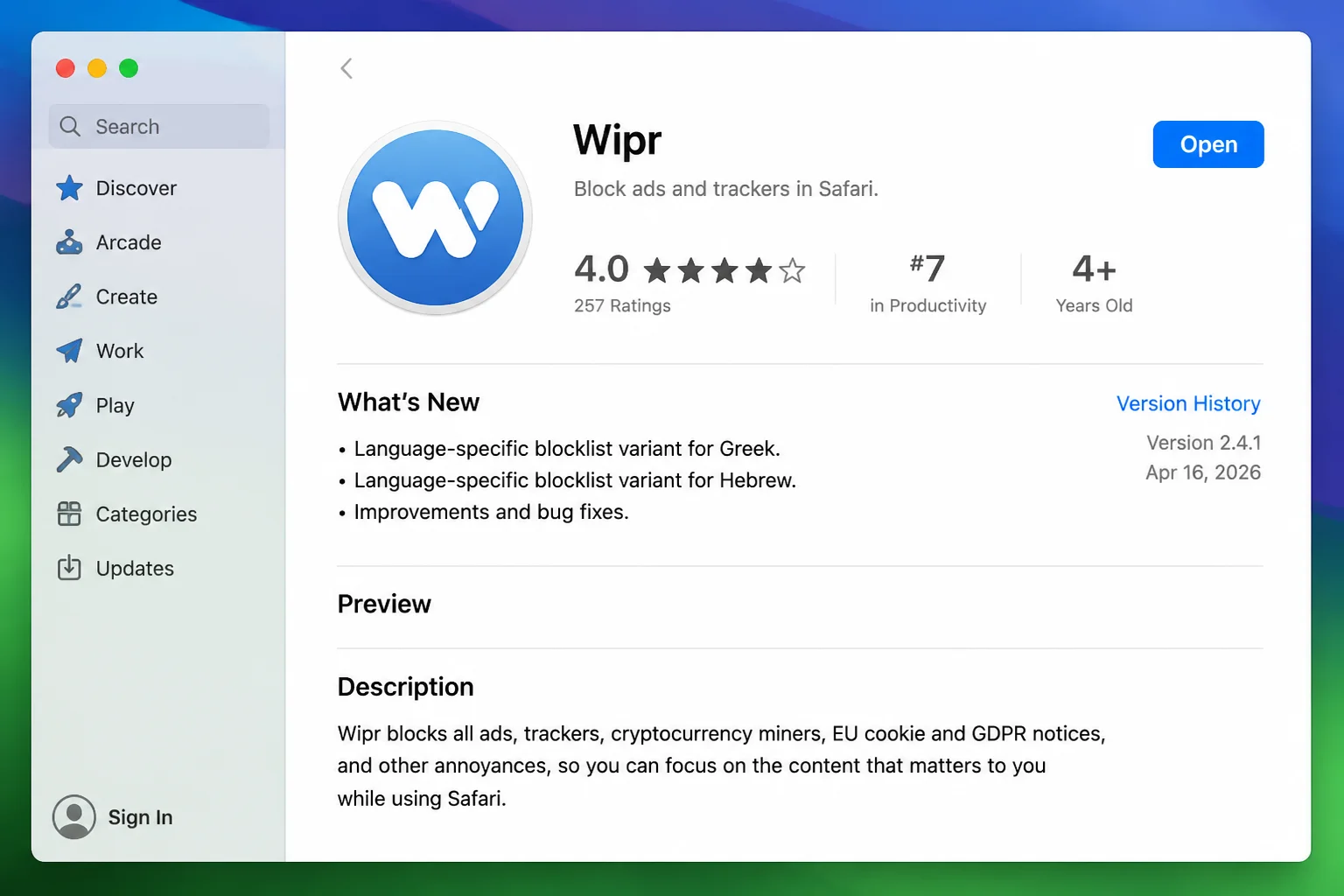
Wipr
Wipr addresses distracting ads and tracking scripts with little setup. It’s a good fit when you want a content blocker that handles the work without asking you to maintain filter lists.
Content blockers can occasionally hide a checkout button, comment section, or video player. If a page breaks, disable blocking for that website and reload it.
1Blocker
1Blocker gives you more control over what Safari blocks. It suits people who want privacy protection but still need custom rules or exceptions for particular websites.
That control takes more attention than a set-and-forget blocker. I’d pick one main content blocker rather than running 1Blocker alongside several competitors, since overlapping filters can cause broken pages and make troubleshooting harder.
Magic Lasso Adblock
Magic Lasso Adblock is another privacy-focused choice for removing ads and trackers. Its Apple-platform support makes it appealing when you browse across a Mac, iPhone, and iPad.
Compare its current App Store plan with Wipr and 1Blocker before committing. You probably need only one of them.
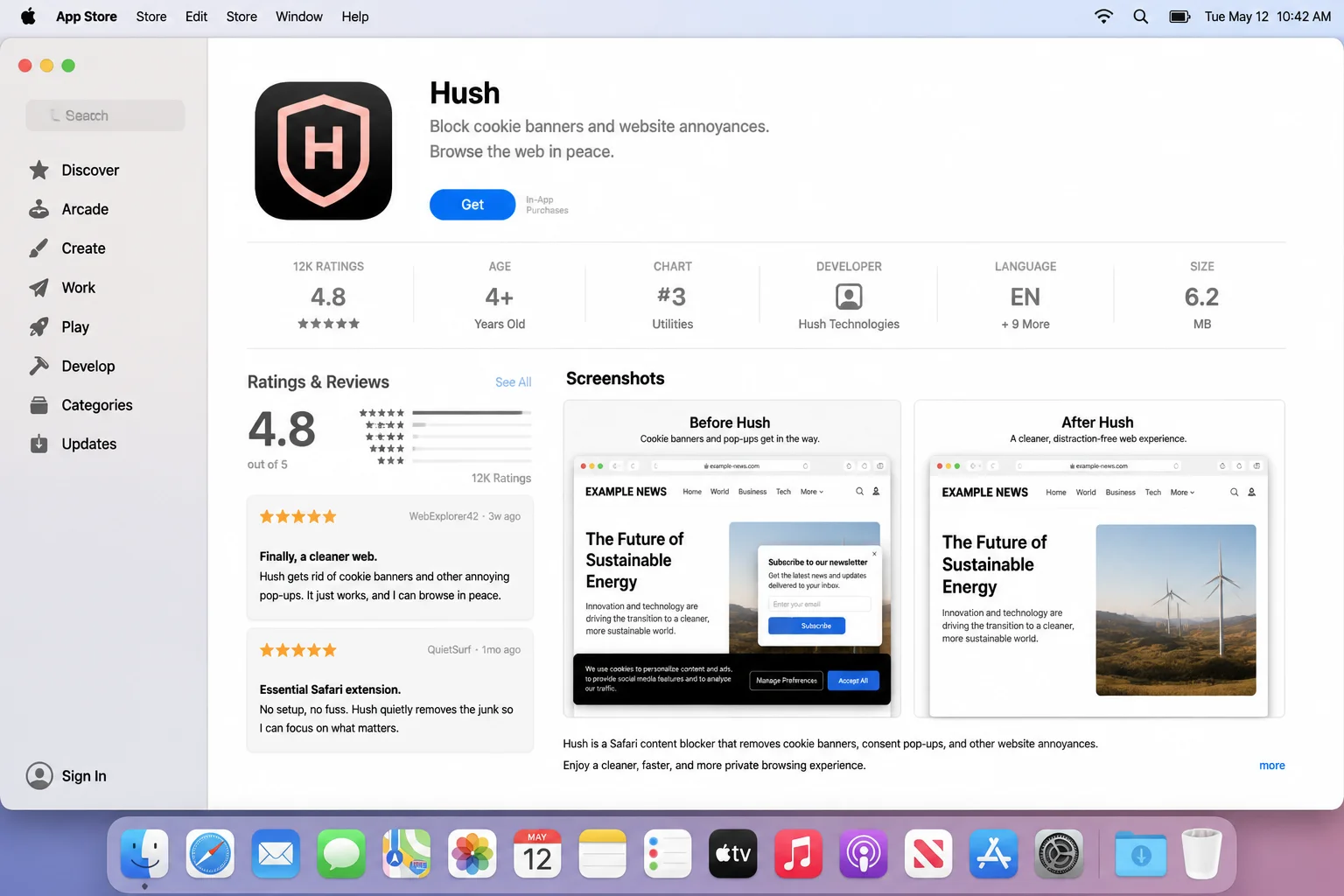
Hush
Hush handles cookie notices, newsletter prompts, and other website interruptions. It solves the familiar problem of dismissing the same banners every time you open a page.
Banner blockers sometimes hide a consent panel without recording a choice. If a website refuses to load its content, disable Hush for that domain and handle the prompt manually.
StopTheMadness Pro
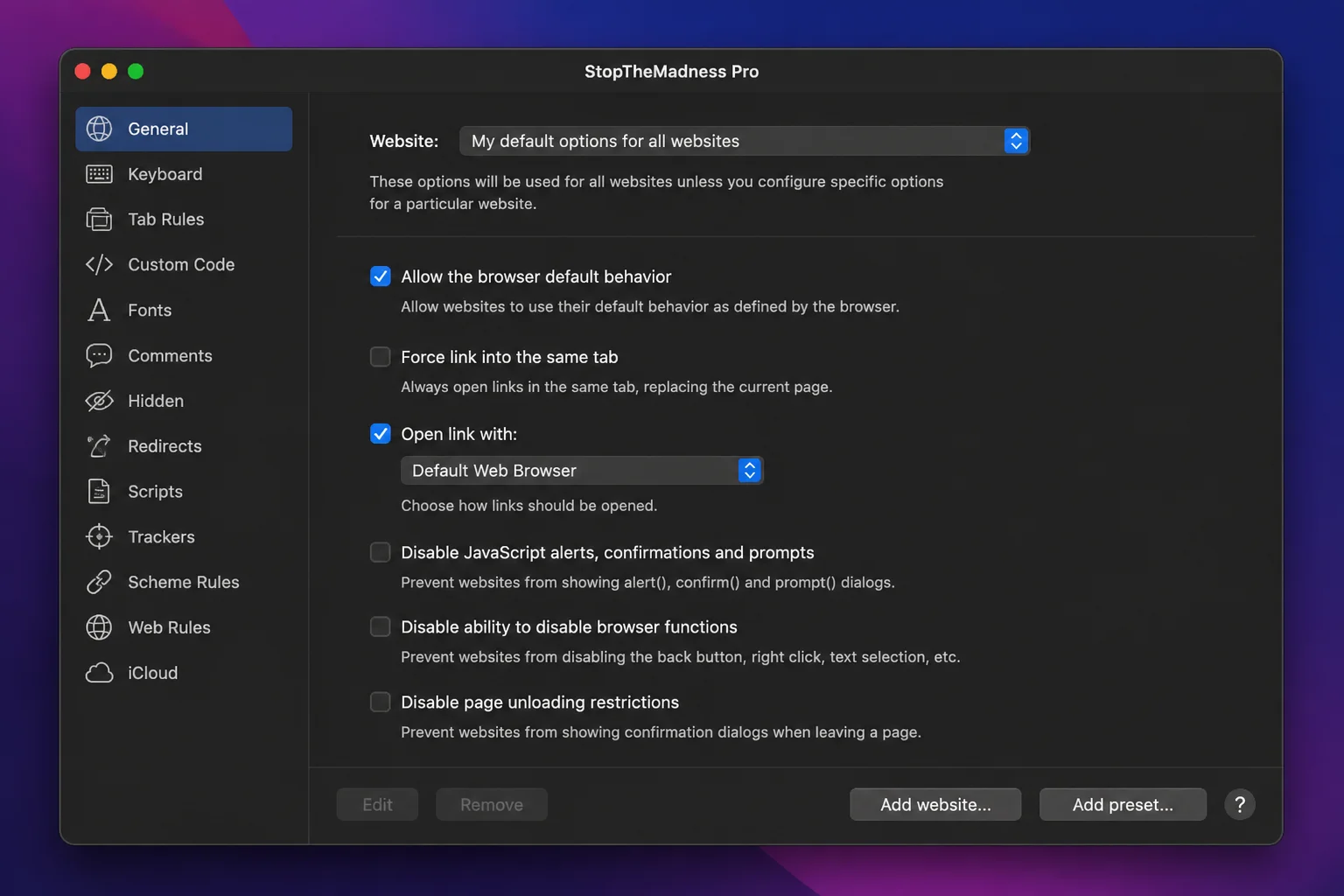
Some websites disable text selection, context menus, keyboard shortcuts, or picture-in-picture playback. StopTheMadness Pro prevents many of those restrictions and restores the browser controls you expect.
This is one of the more practical extensions in the list because it fixes hostile website behavior rather than adding another interface. Its actions require website access, so review the requested permissions before enabling it everywhere.
Noir
Noir adds dark themes to websites that don’t provide their own. It’s especially useful on an iPhone or iPad at night, where a bright white webpage can feel harsher than the rest of the interface.
Dark-mode extensions alter page colors, so photos, diagrams, or buttons can occasionally look wrong. Use per-site controls to disable Noir on any problem pages.
Vimari
Vimari adds Vim-style keyboard controls to Safari. You can follow links, scroll pages, switch tabs, and move through browsing history without reaching for the mouse.
The learning curve only pays off if you already like keyboard-driven workflows. Everyone else can skip it without losing an essential Safari feature.
1Password
1Password fills saved logins, creates strong passwords, and gives you access to your vault while browsing. The extension is free to download, but using the service requires an eligible 1Password plan.
Apple’s built-in Passwords app covers the basics well and costs nothing extra. 1Password makes more sense for families, teams, or anyone who regularly uses devices outside Apple’s ecosystem.
Grammarly
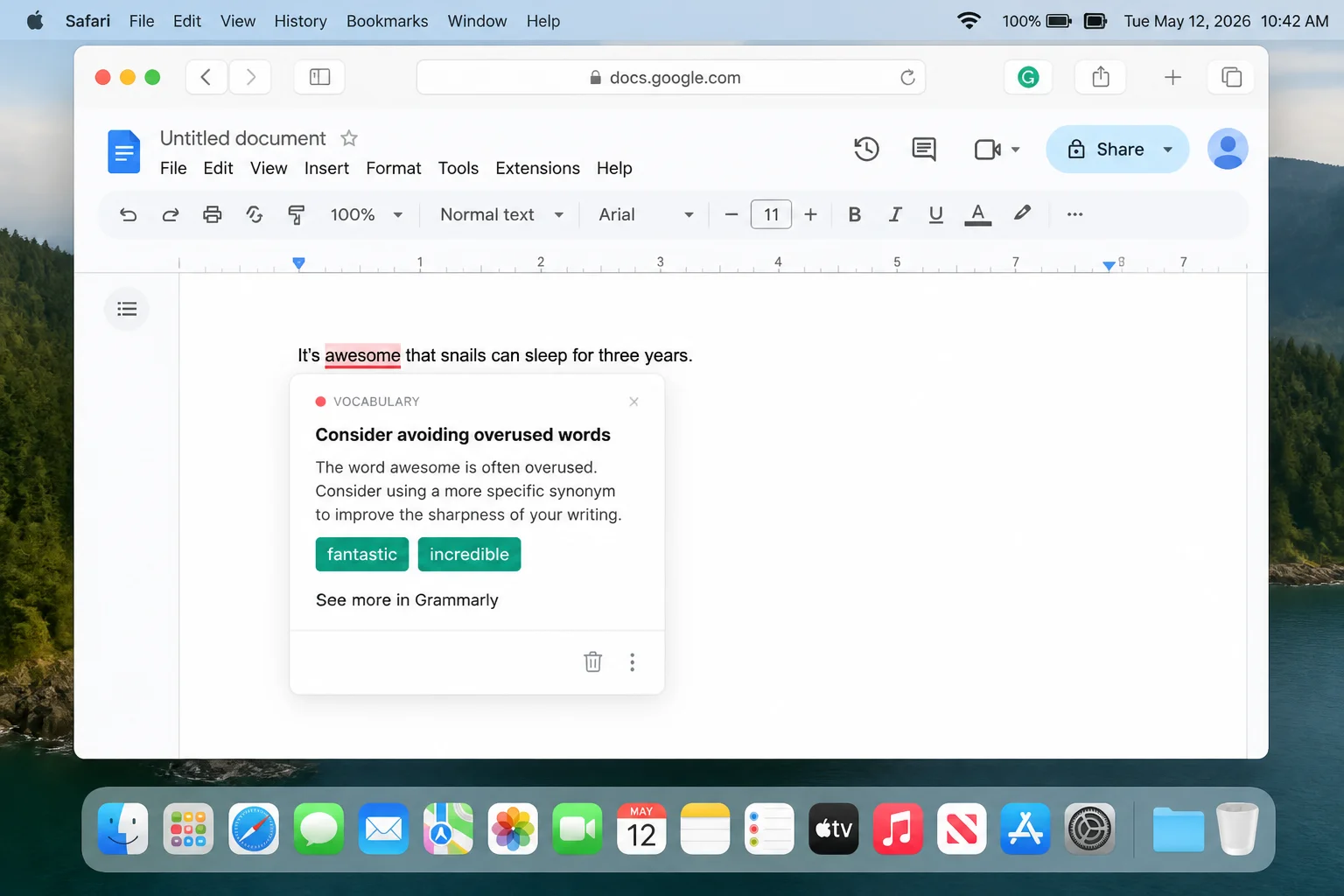
Grammarly checks text you enter on supported websites and suggests corrections. The free download includes in-app purchases for additional writing features.
Granting a writing assistant access to webpages can expose text entered into supported fields. Read its privacy terms and avoid enabling it on sites where you handle sensitive material.
How to Manage Extension Permissions
An extension’s App Store review doesn’t remove the need to inspect its access. Browser extensions can read page contents, depending on the permissions you approve.
On Mac, open Safari > Settings > Extensions, select an extension, and review its website access. On iPhone or iPad, use Settings > Safari > Extensions, then tap the extension.
Use the narrowest access that still lets the extension work:
- Ask requires approval before the extension can access a website.
- Specific websites limits access to the domains you select.
- All Websites lets the extension run across your browsing activity.
A dark-mode extension may reasonably need broad website access. A utility you use on one service doesn’t.
Fix Safari Extensions That Don’t Appear or Work
If you’ve been staring at Safari and wondering where your new extension went, don’t panic. Installation and activation are separate steps.
Confirm the Extension Is Enabled
On Mac, open Safari > Settings > Extensions and check the box beside it. On iPhone or iPad, open Settings > Safari > Extensions, select it, and turn it on.
Check Website Access
An enabled extension can appear broken when it lacks permission for the current website. Change its access to Ask or approve the affected domain, then reload the page.
Open the Companion App
Some extensions require initial setup in their companion app. Open the app from Applications on Mac or the Home Screen on iPhone and iPad, complete any requested setup, and return to Safari.
Check Device Compatibility
A Mac extension won’t automatically appear on iPhone or iPad. Open its App Store page and check which platforms and OS versions the developer supports.
Update Your Device
Install current updates through System Settings > General > Software Update on Mac or Settings > General > Software Update on iPhone and iPad. An extension may require a newer Safari or operating system release.
Remove Conflicting Content Blockers
Running several ad blockers can produce missing page elements, repeated reloads, or confusing permission prompts. Disable all but one, reload the affected website, and test again.
Keep Your Extension List Short
A few well-maintained extensions can fix Safari’s rough edges. A large collection adds permission exposure and makes broken websites harder to diagnose.
Start with the pain point you needed to solve, install one extension for it, and test your usual websites. Once ads, intrusive banners, or awkward site controls are handled, you can stop dealing with the same browsing frustration every day.