
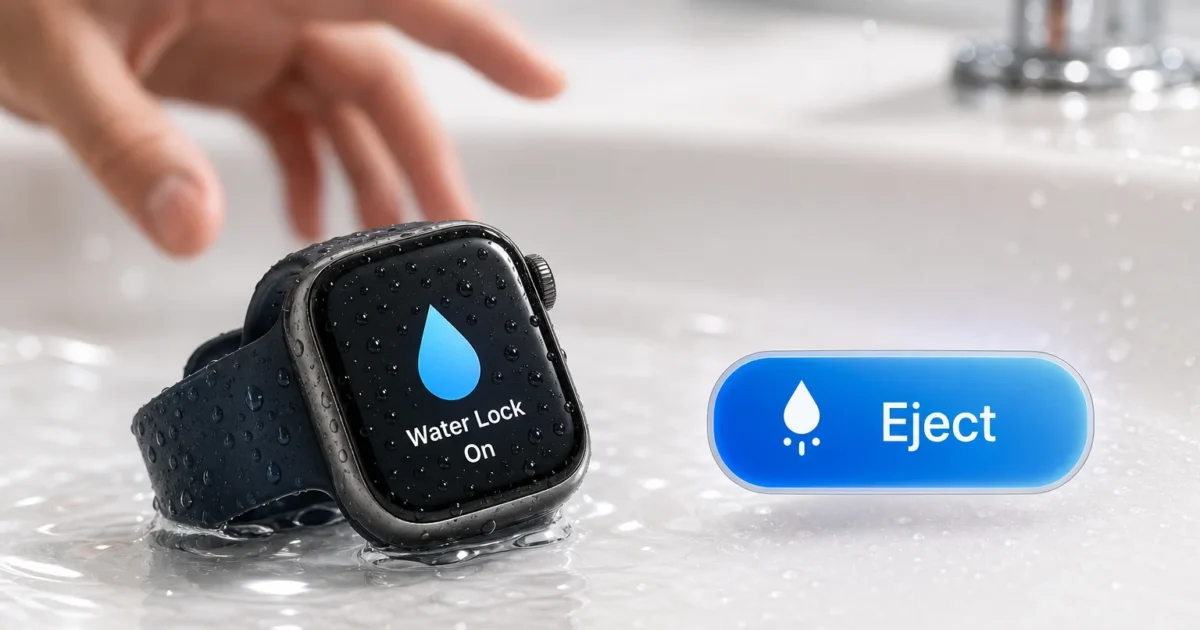
A wet Apple Watch can feel broken when taps stop working and the speaker sounds muffled. Water Lock explains both behaviors: it blocks accidental touches, then plays tones that push water from the speaker.
Everything runs on the watch. You don’t need an iPhone setting, an extra app, or an internet connection.
What Is Apple Watch Water Lock?
Water Lock temporarily disables the Apple Watch touchscreen. Water droplets can otherwise open apps, end workouts, or trigger controls. A blue water-droplet icon at the top of the display means Water Lock is active.
The feature doesn’t add water resistance or change which activities your watch can handle. It controls touch input and provides a speaker-clearing cycle after the watch gets wet.
When you turn off Water Lock, the watch plays several beeping tones. These tones move the speaker diaphragm, the thin part that produces sound, and push remaining water through the speaker opening.
You’ll sometimes see claims that the watch uses a 165 Hz tone. Apple’s official Water Lock documentation says a series of tones clears the speaker, but Apple doesn’t publish 165 Hz as an official specification. Treat that number as unverified unless a reliable technical source supports it.
Prerequisites
Make sure you have:
- An Apple Watch Series 2 or later
- Enough battery power for your activity and the ejection cycle
- A soft, lint-free cloth for drying the watch exterior
- A water activity permitted for your exact Apple Watch model
- watchOS 10 or later for the current Control Center steps
| Requirement | Details |
|---|---|
| Device | Apple Watch Series 2 or later |
| Current interface | watchOS 10 or later |
| Installation | None; Water Lock is built into watchOS |
| iPhone requirement | None |
| Internet connection | None |
| Separate Water Eject app | None |
To check the watchOS version on your paired iPhone, open the Watch app and choose General > About > Version. On the watch, open Settings > General > About.
Step-by-Step Guide
Step 1: Check Whether Your Activity Is Safe for Your Watch
Start by identifying your Apple Watch model. On the paired iPhone, open the Watch app, tap General > About, and read Model Name.
Water Lock works on Apple Watch Series 2 and later, though the permitted water activities vary by model:
- Apple Watch Series 2 and later generally have a water-resistance rating of 50 meters under ISO standard 22810:2010.
- Standard Apple Watch models are intended for shallow-water activities, including swimming in a pool or ocean.
- Scuba diving, water skiing, and activities involving high-velocity water or deep submersion exceed the intended use of standard models.
- Compatible Apple Watch Ultra models have different ratings. They may support recreational scuba diving to 40 meters with a compatible diving app.
- Water resistance can decrease over time and can’t be permanently guaranteed.
Check Apple’s safety and water-resistance guidance for your exact model before diving, cliff jumping, water skiing, or entering high-speed water. Water Lock doesn’t change the watch’s physical limits.
Expected result: You know your Apple Watch model and have confirmed that it supports your planned activity.
Step 2: Open Control Center on watchOS 10 or Later
Press and release the flat side button once. You’ll find it below the round Digital Crown.
A long press opens the emergency call, Medical ID, and power controls. If that screen appears, release the button and try a shorter press.
If you can’t see Water Lock right away, turn the Digital Crown or swipe vertically through the controls. It’s often lower in the list.
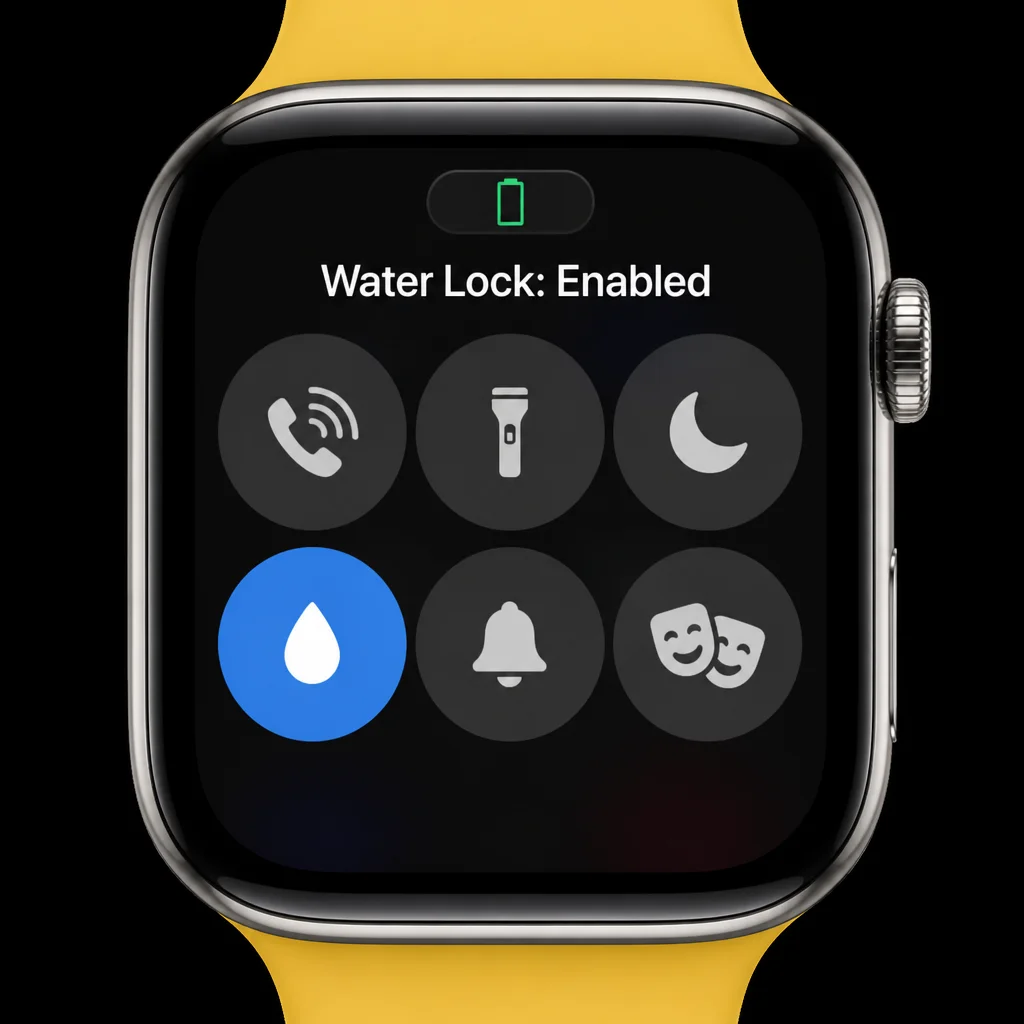
Expected result: Control Center opens and shows a water-droplet button.
Step 3: Turn On Water Lock
In Control Center, tap the Water Lock button. Its icon looks like a water droplet.
Return to the watch face or your current app. A small water-droplet status icon should appear at the top of the display, confirming that Water Lock is active.
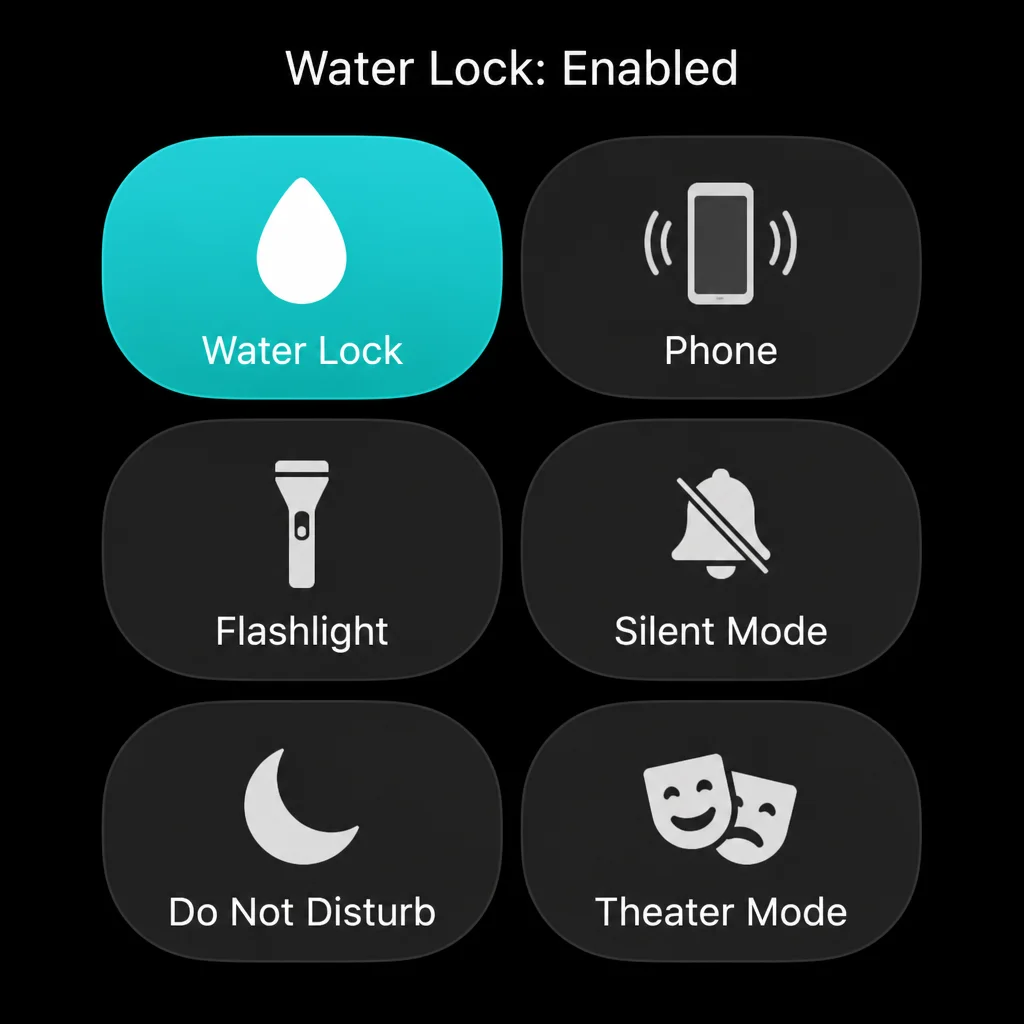
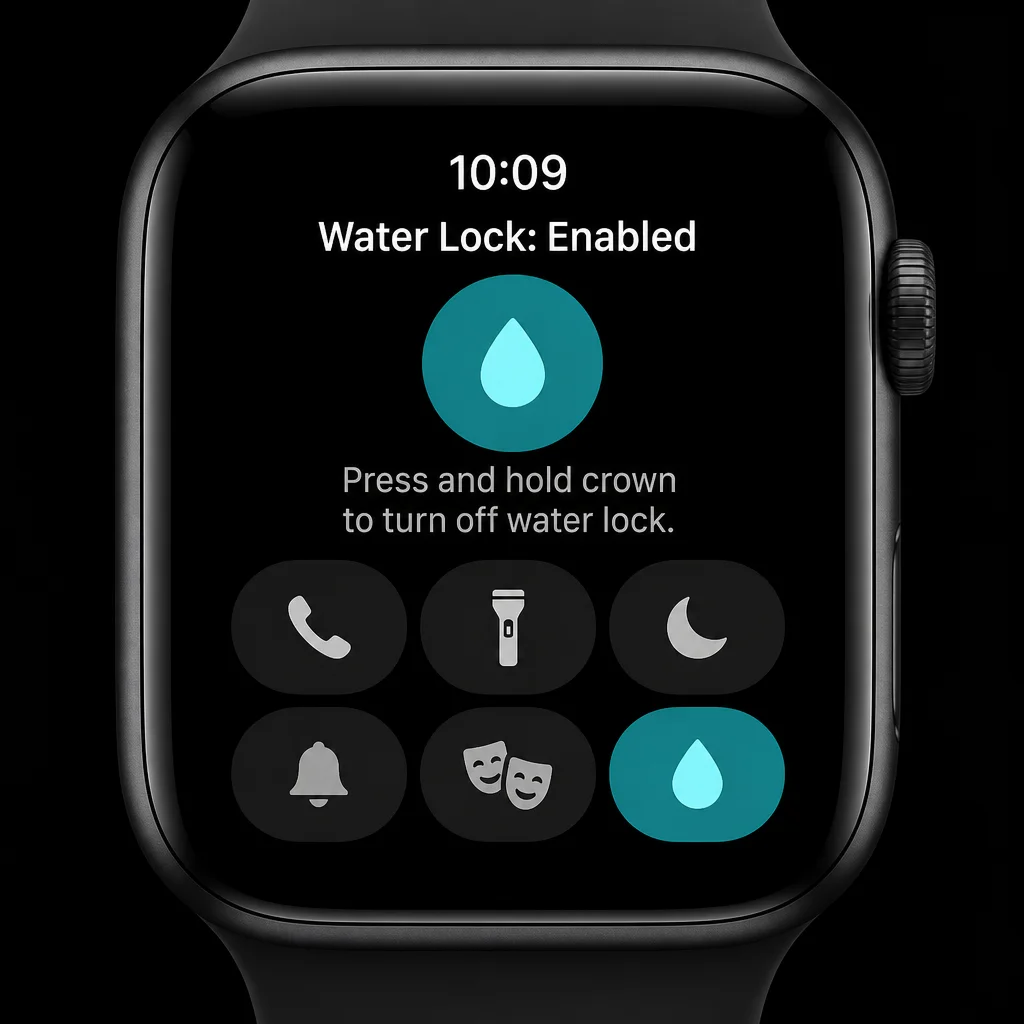
Expected result: The droplet icon appears, and normal taps and swipes stop working.
Tip: A swimming workout can enable Water Lock automatically. Open Workout, select Pool Swim or Open Water Swim, and start the workout. If the droplet icon appears, Water Lock is already active.
Step 4: Use the Watch While Water Lock Is Active
Continue your swim or other supported activity. The touchscreen stays locked, while the watch and any active workout continue running.
The Digital Crown and side button may still handle supported hardware-button actions. If taps appear to do nothing, that’s expected while the droplet icon is visible. Save yourself the repeated poking.
Expected result: Water droplets don’t cause accidental touchscreen input during your activity.
Step 5: Dry the Outside of the Apple Watch
After leaving the water, wipe the watch and band with a soft, lint-free cloth. Dry carefully around the speaker opening, microphone, and Digital Crown.
Salt water, pool water, soap, and lotion can leave residue behind. Apple recommends gently rinsing compatible models with warm, fresh water after this type of exposure. Avoid soap, cleaning sprays, compressed air, and heat.
Take a moment with this step. Clearing the outside first gives the speaker tones less water and debris to deal with.
Expected result: You’ve removed visible moisture and debris before starting the speaker-clearing cycle.
Step 6: Press and Hold the Digital Crown to Eject Water
Wake the Apple Watch if the display is off. The screen may ask you to press and hold the Digital Crown.
Press and keep holding the round Digital Crown. A quick press won’t complete the process, and current watchOS versions don’t use Crown rotation for this step.
Keep holding until Unlocked appears and the watch begins playing a sequence of tones. Release the Crown, then allow the full sequence to finish.
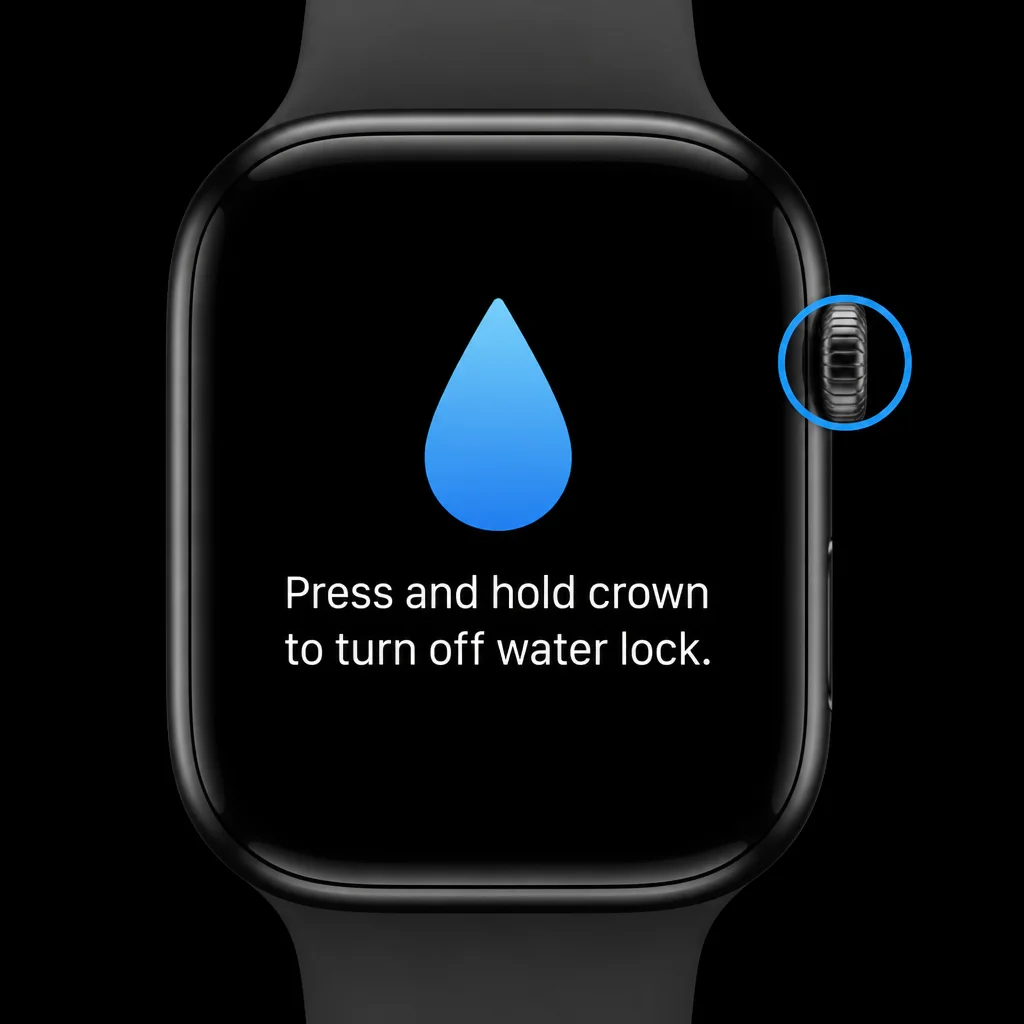
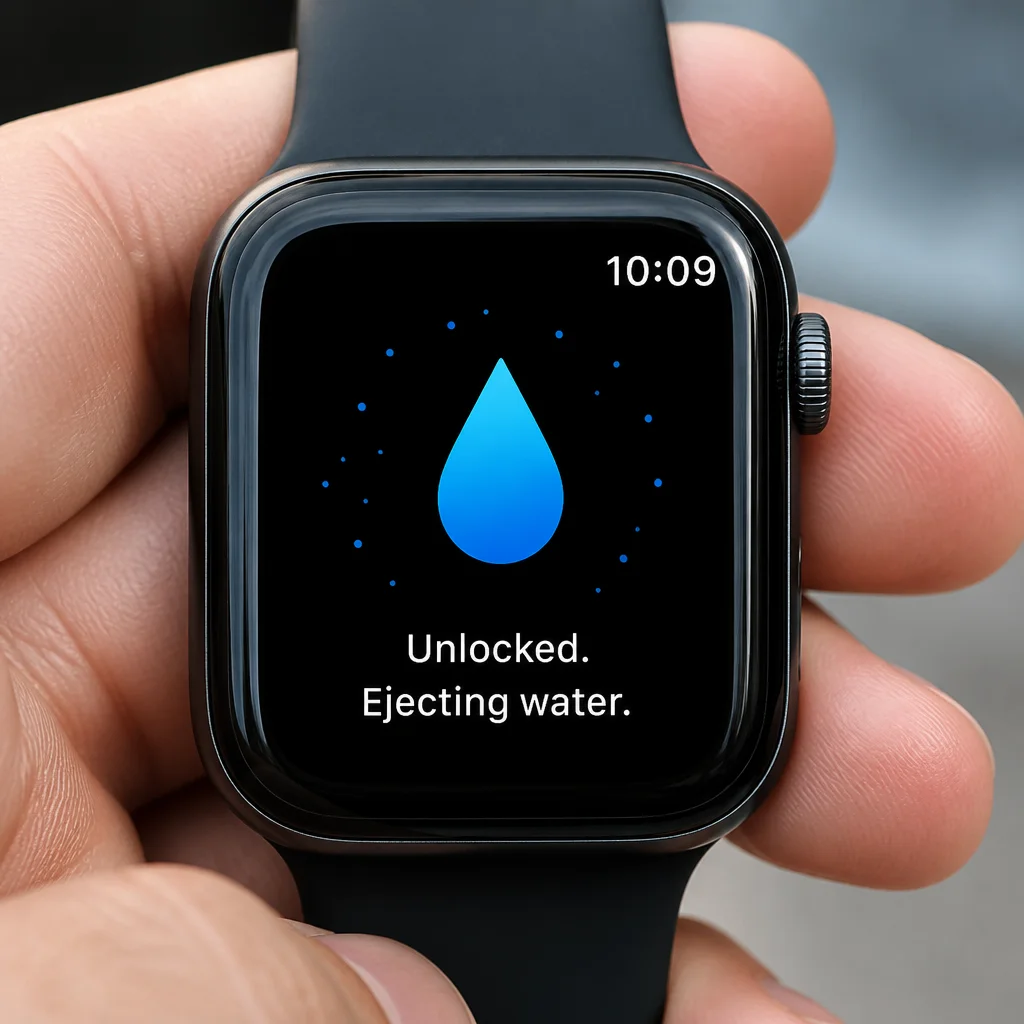
The beeps can sound surprisingly loud at close range. They’re normal. Each tone moves the speaker diaphragm and drives remaining water through the speaker opening.
Expected result: The droplet icon disappears, touch control returns, and the speaker-clearing tones play.
Step 7: Test the Touchscreen and Speaker
Once the tones stop, tap the display and confirm that it responds. Then play a short sound, ask Siri something, or listen to a notification.
The speaker may remain slightly muffled while moisture sits near its opening. If it does, don’t panic. Run another Water Lock cycle using the troubleshooting steps below, then give the watch time to dry.
Expected result: The touchscreen works, and the speaker sounds clear or improves as the remaining moisture evaporates.
Step 8: Use the Correct Steps on Older watchOS Versions
Older watchOS releases use different controls. Follow the instructions shown on your watch rather than forcing the current method.
On watchOS 9:
- Touch and hold the bottom of the display until Control Center begins to appear.
- Swipe up.
- Tap the Water Lock button.
- When finished, press and hold the Digital Crown until the watch unlocks and plays the clearing tones.
On watchOS 8 or earlier:
- From the watch face, swipe up to open Control Center.
- Tap the Water Lock button.
- When finished, rotate the Digital Crown continuously.
- Stop when the progress indicator completes and the ejection tones begin.
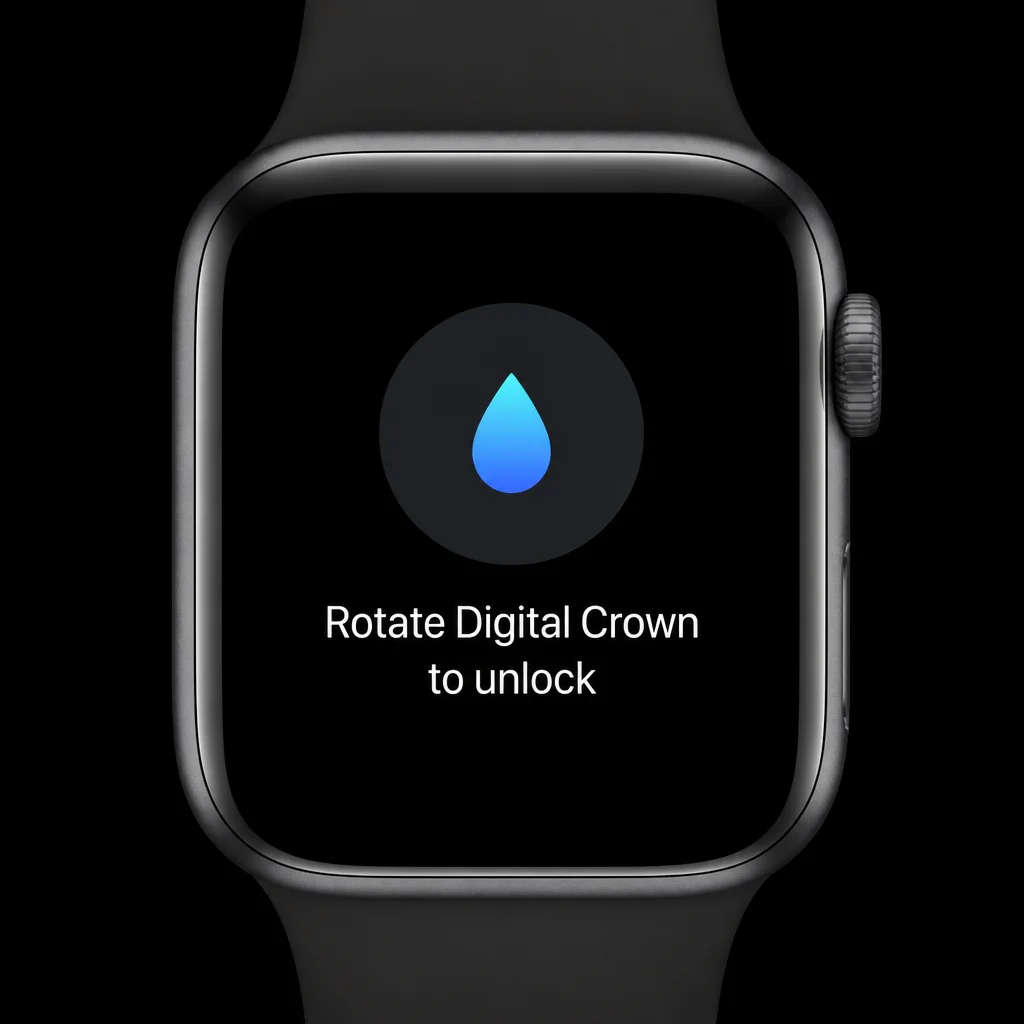
Expected result: Water Lock turns off using the action required by your installed watchOS version.
Configuration
Water Lock has no permanent setup page, schedule, or sensitivity control. It stays off until you enable it manually or start a supported water workout.
Manual Water Lock
Use manual Water Lock when you expect the screen to get wet and don’t want to record a workout. Heavy rain and work around splashing water are good examples.
On watchOS 10 or later, use:
Side button > Control Center > Water Lock
This is worth enabling before the watch gets soaked. Trying to tap a wet display accurately becomes annoying very quickly.
Automatic Water Lock During Swimming
Starting Pool Swim or Open Water Swim in the Workout app can enable Water Lock automatically. The workout and touchscreen lock then begin together.
After the swim, press and hold the Digital Crown to unlock the display and eject water. You can then end or review the workout.
Water Ejection Without a Swim
You can run the ejection cycle after washing your hands or getting caught in rain. No recorded swim is needed:
- Press the side button.
- Tap Water Lock.
- Press and hold the Digital Crown.
- Wait for the tones to finish.
Apple doesn’t provide a separate Water Eject control, and a third-party app adds little value here. The built-in cycle already handles the job.
Tips and Troubleshooting
Swiping Up Does Not Open Control Center
Why it happens: On watchOS 10 or later, swiping up opens the Smart Stack. Control Center has moved to the side button.
Fix: Press and release the side button once. Keep the press brief, since holding the button opens the emergency and power controls.
The Water-Droplet Icon Is Missing
Why it happens: You may be checking the old swipe-up screen, or the Water Lock control may sit farther down the Control Center list.
Fix: On watchOS 10 or later, press the side button, then scroll with the Digital Crown. Find the water-droplet control. Water ejection begins when you disable Water Lock; there isn’t a second eject button.
The Watch Does Not Respond to Touch
Why it happens: Water Lock disables touch input, so a wet screen can’t trigger controls by accident.
Fix: Press and hold the Digital Crown until Unlocked appears and the tones begin. Touch control should return when Water Lock turns off.
That frozen feeling can be unsettling if you didn’t enable Water Lock yourself. Check for the blue droplet before assuming the display has failed.
A Quick Crown Press Does Nothing
Why it happens: Current watchOS versions require you to hold the Crown continuously.
Fix: Press and hold the Digital Crown until the watch unlocks. A quick press may return to an app or run the Crown’s usual action.
Rotating the Digital Crown Does Not Unlock the Watch
Why it happens: Crown rotation is the older method used by watchOS 8 and earlier.
Fix: On current software, press and hold the Crown. Rotate it continuously only when the watch displays the older rotation prompt.
The Speaker Still Sounds Muffled
Why it happens: One ejection cycle may leave moisture around the speaker opening.
Fix:
- Wipe the exterior with a soft, lint-free cloth.
- Press the side button and tap Water Lock.
- Press and hold the Digital Crown to run another ejection cycle.
- Place the watch with the speaker facing downward on a clean cloth.
- Leave it in a dry area with good airflow.
Keep cotton swabs and other objects away from the speaker opening. Aggressive shaking, compressed air, and hair dryers can cause more trouble than a little trapped water.
Repeated Ejection Cycles Do Not Help
Why it happens: Moisture may need more time to evaporate. Debris or physical damage can also distort the speaker.
Fix: Leave the watch to air-dry, then test it again later. Avoid charging it while moisture may be present. If the sound remains distorted after the watch is fully dry, contact Apple Support or arrange an inspection.
If you’ve been testing the same alert sound every few minutes, give the watch a longer break. Airflow and time often do more than a fifth ejection cycle.
Water Lock Started Automatically
Why it happens: A swimming workout can enable Water Lock as soon as the workout starts.
Fix: This behavior is expected. After the workout, press and hold the Digital Crown until the watch unlocks and the ejection tones finish.
Can Water Lock Make Any Apple Watch Safe for Diving?
No. Water Lock doesn’t alter the seals, depth rating, or supported activities. Standard Apple Watch models are intended for shallow-water use and shouldn’t be used for scuba diving or high-velocity water activities.
Certain Apple Watch Ultra models support recreational scuba diving to specified depths when used as directed with compatible software. Check Apple’s guidance for your exact model, band, activity, and planned depth before entering the water.
Wrapping Up
| Step | Action | Applies To |
|---|---|---|
| 1 | Confirm the model and permitted activity | Series 2 and later |
| 2 | Press the side button to open Control Center | watchOS 10 or later |
| 3 | Tap the water-droplet icon | Supported Apple Watch models |
| 4 | Press and hold the Digital Crown after getting out | Current watchOS versions |
| 5 | Let the tones finish and test the speaker | All supported models |
| 6 | Rotate the Digital Crown only when prompted | watchOS 8 or earlier |
Water Lock does two practical jobs: it blocks wet-screen taps and clears water from the speaker. Enable it before a supported water activity, then let the complete tone sequence run when you’re finished.
The important limit is physical. Water Lock can’t extend your watch’s depth rating, so check the exact model guidance whenever diving or high-speed water is involved.
For more information on Apple Watch water resistance, visit Apple’s official support page or learn how to get water out of your Apple Watch. If you’re experiencing issues with your Apple Watch, you can also try to fix Apple Watch charging problems or find out why your Apple Watch keeps locking. Additionally, you can learn about how to expel water from your Apple Watch speaker or visit getwateroutofphone.com for more tips.