
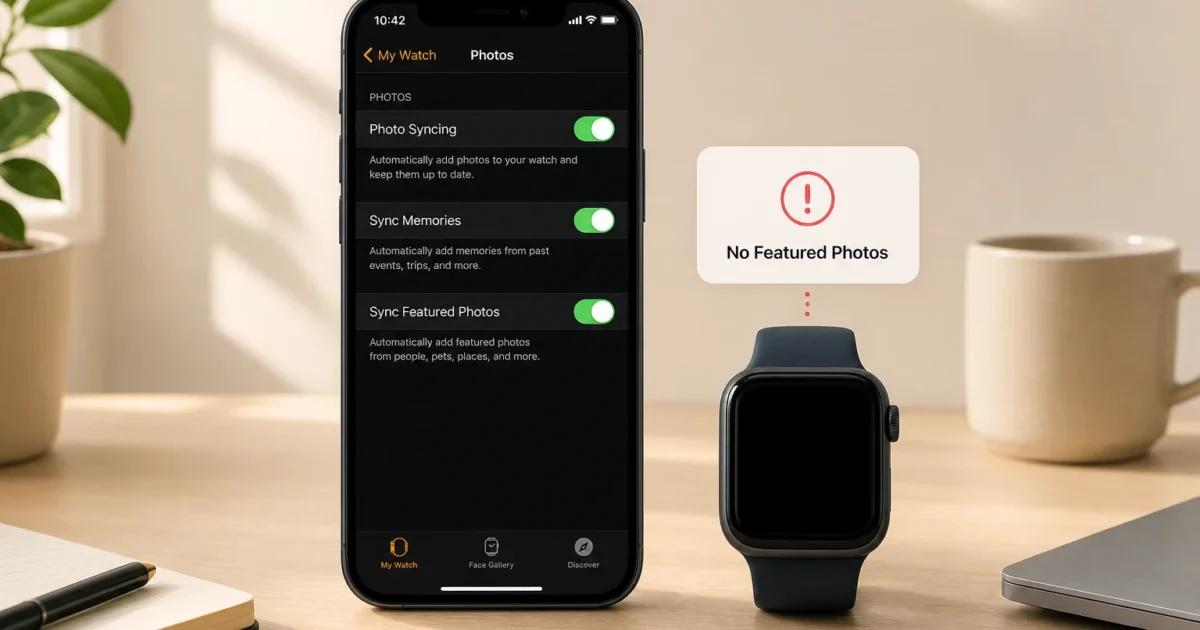
Your Apple Watch Photos face is supposed to change on its own, so a frozen or blank face feels oddly personal. Start with the Sync Featured Photos switch in the Watch app. A stalled sync, the wrong photo source, low storage, or a disconnected iPhone can also stop new pictures from appearing.
These steps cover a compatible Apple Watch running watchOS 26 and its paired iPhone running iOS 26. Older releases may place some controls in different menus.
Quick Fixes to Try First
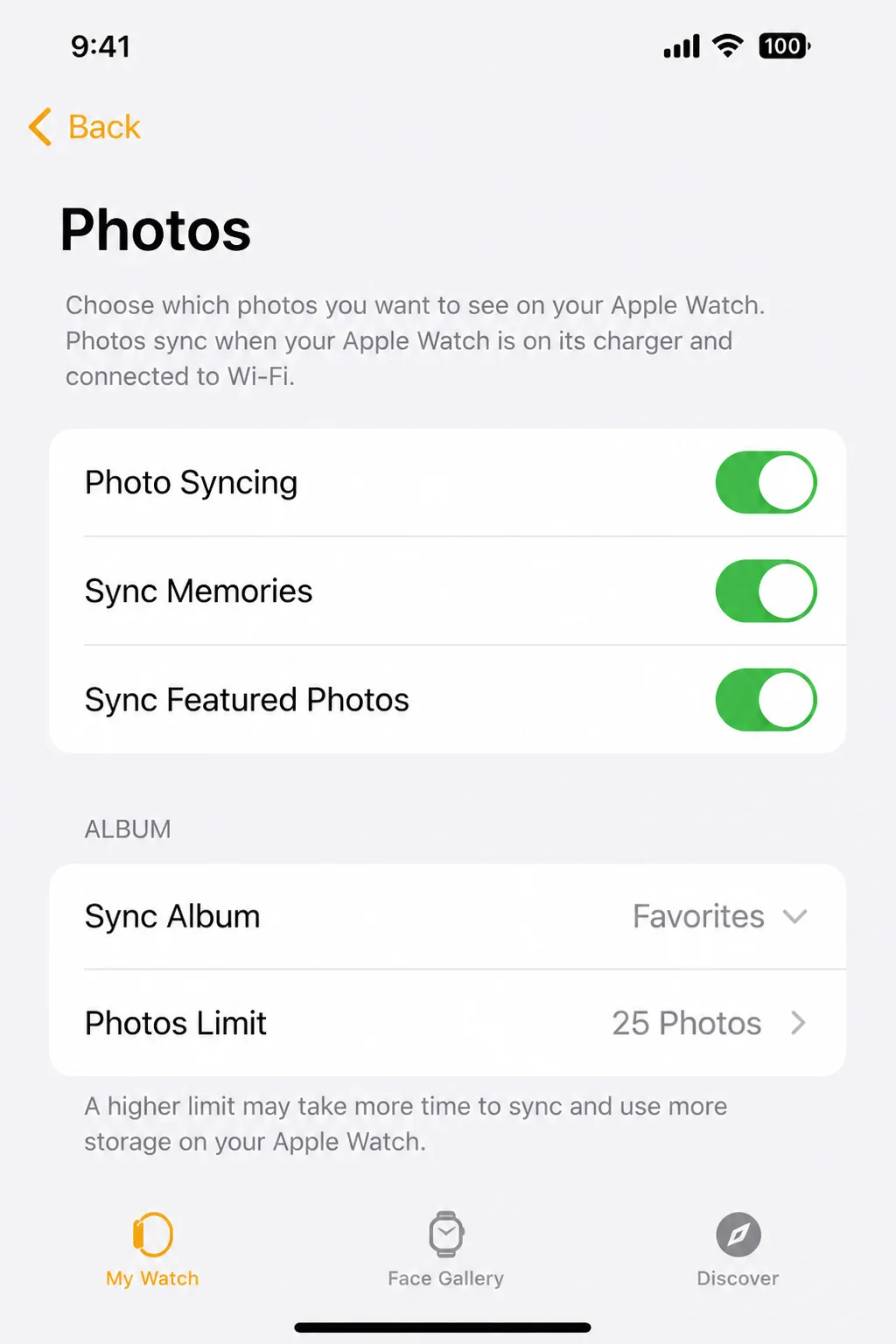
- On your iPhone, open Watch > My Watch > Photos.
- Turn on Photo Syncing, Sync Memories, and Sync Featured Photos.
- Keep the iPhone and Apple Watch close together and connected.
- Wait several minutes, then raise your wrist or tap the Photos face to check for another image.
- Restart both devices if nothing changes.
That short wait matters. Photo syncing usually happens in the background, and Apple doesn’t provide a button that forces it to finish immediately.
Common Issues and Solutions
Problem 1: Featured Photos Never Appear
Symptoms:
- The Photos face is blank or doesn’t use Featured Photos.
- Only manually selected pictures appear.
- New Featured Photos never reach the watch.
Why it happens: Photo Syncing or Sync Featured Photos is off. Sync Memories has its own switch. Featured Photos don’t require it, but turning it on allows Memories to sync and removes one variable during troubleshooting.
Fix:
- On the paired iPhone, open Watch.
- Go to My Watch > Photos.
- Turn on Photo Syncing.
- Turn on Sync Featured Photos.
- Turn on Sync Memories if you also want Memories available.
Verify: Leave the devices close together for several minutes, then check the Photos face again. If the old image remains, tap the face or raise your wrist a few times.
Problem 2: Photo Syncing Is Stuck
Symptoms:
- All the correct switches are on, but nothing changes.
- Recently added photos don’t appear.
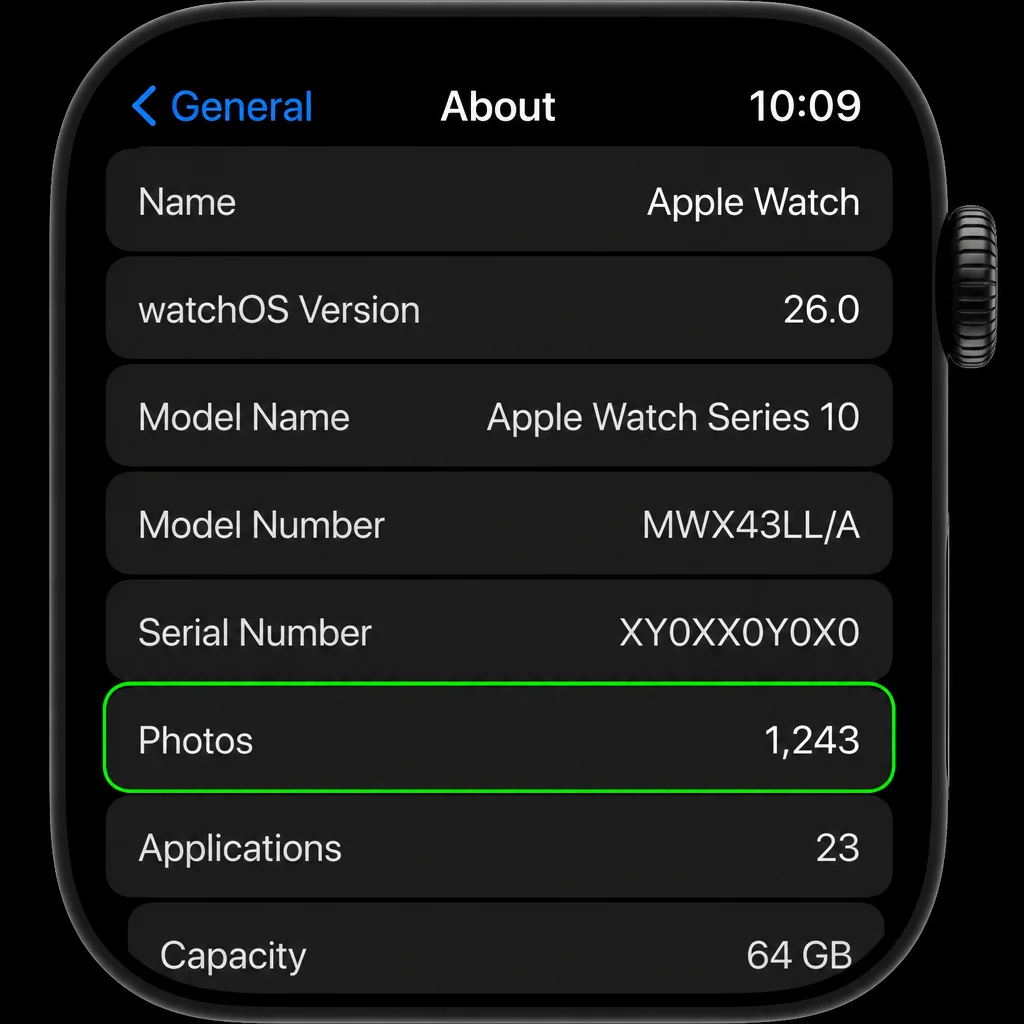
- The stored photo count stays the same.
Why it happens: The current sync session may have stalled. This can happen without an error message, which makes the problem more annoying than it needs to be.
Fix:
- Open Watch > My Watch > Photos on the iPhone.
- Turn off Photo Syncing.
- Wait 10-20 seconds.
- Turn Photo Syncing back on.
- Confirm that Sync Featured Photos and, if wanted, Sync Memories are on.
- Restart the Apple Watch by holding the side button, tapping the power button, and dragging the Power Off slider. Turn it on again.
Verify: On the watch, open Settings > General > About and check whether the Photos count increases. Give it several minutes before checking; the count doesn’t refresh the instant you flip the switch.
Problem 3: The Wrong Photos Are Syncing
Symptoms:
- The watch shows pictures from an unexpected album.
- A chosen album appears instead of Featured Photos.
- Unwanted pictures keep returning.
Why it happens: Featured Photos and a manually synced album use separate sources. The album under Sync Album may differ from the source selected for the Photos face.
Fix:
- On the iPhone, open Watch > My Watch > Photos > Sync Album.
- Review the selected album.
- Choose Favorites or another album if you want predictable control over stored photos.
- Return to the Photos face configuration and check whether it uses Featured content or an album.
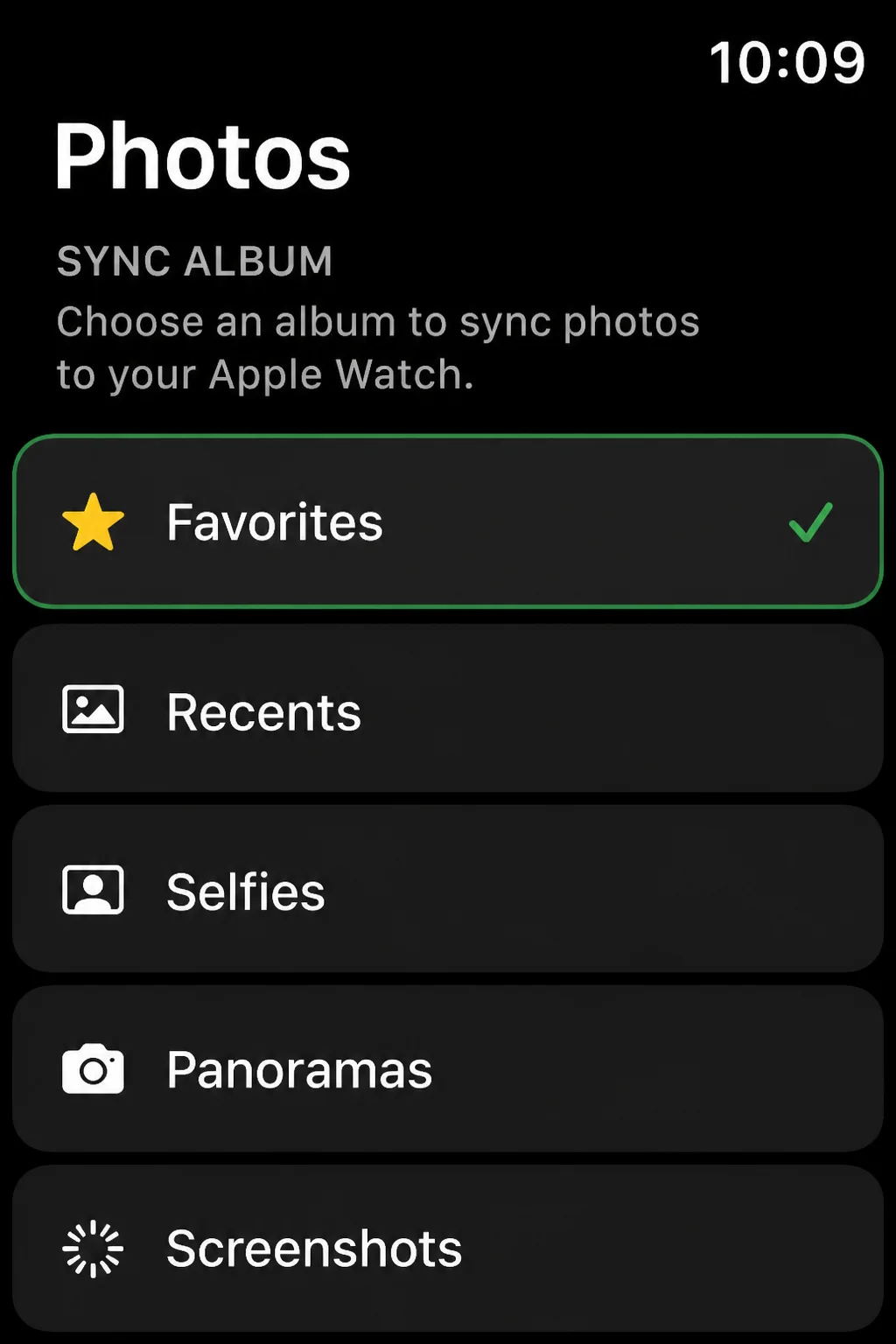
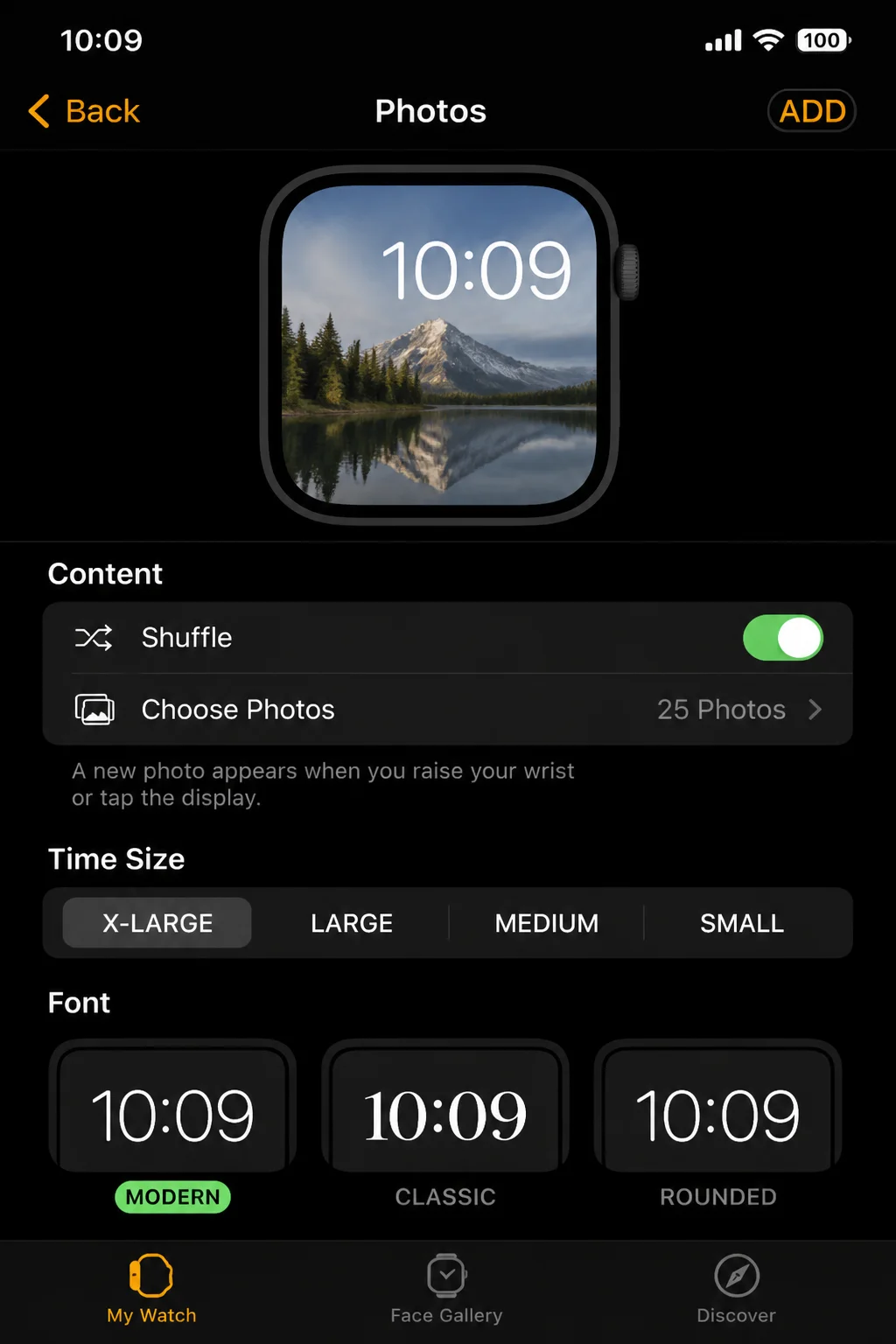
Verify: Add a recognizable test photo to the selected album, allow time to sync, and check whether it appears. A brightly colored screenshot works well because it’s easy to spot. With Featured content, Apple chooses the collection automatically rather than following your synced album.
Problem 4: Only a Few Photos Appear
Symptoms:
- The same small set repeats.
- A large album produces only a handful of pictures.
- The watch reports fewer stored photos than expected.
Why it happens: The Photos Limit may be low, or the Apple Watch may have little free storage. Raising the limit won’t help when music, podcasts, or apps already fill the watch.
Fix:
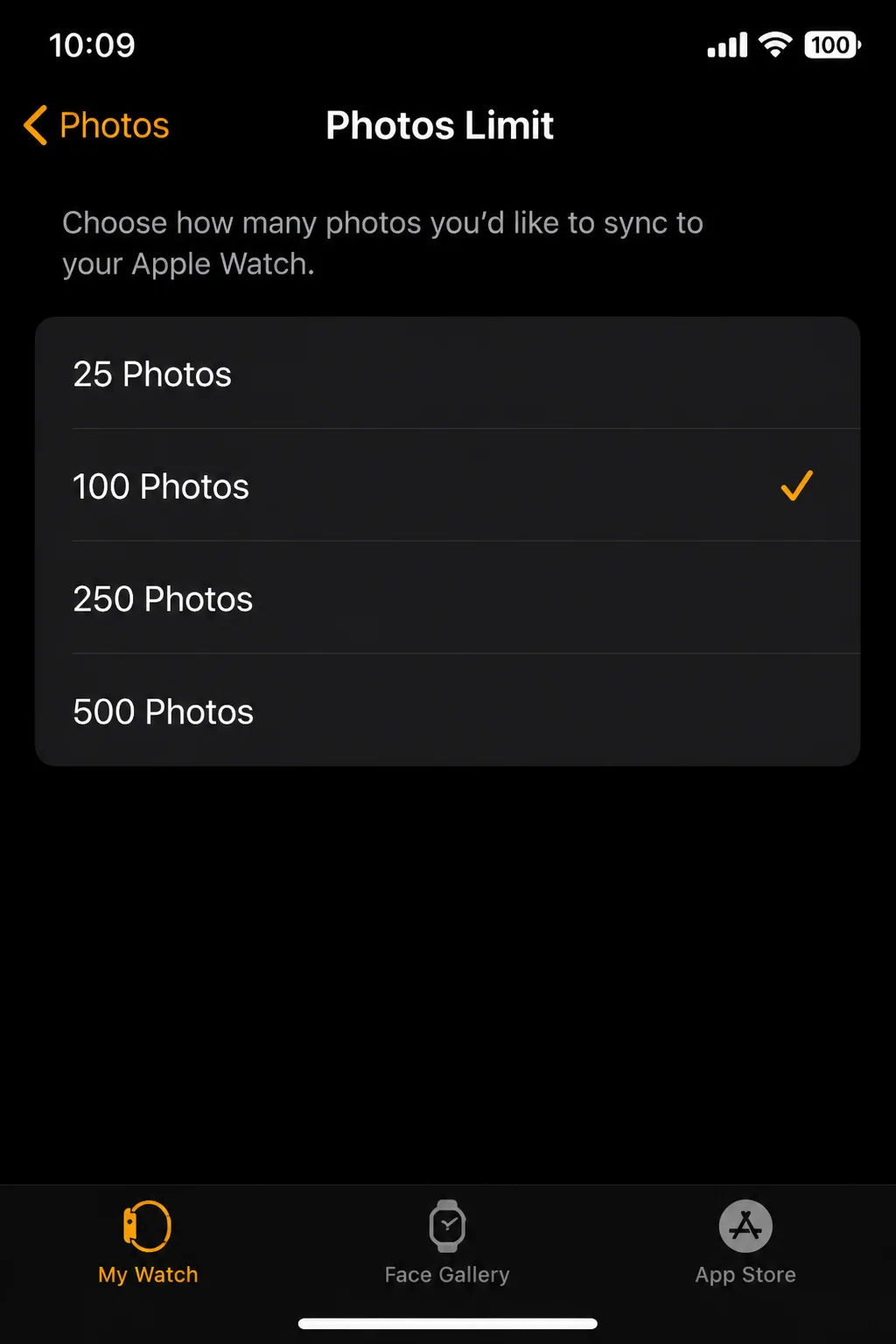
- On the iPhone, open Watch > My Watch > Photos > Photos Limit.
- Select a higher limit, such as 250 Photos or 500 Photos, if available.
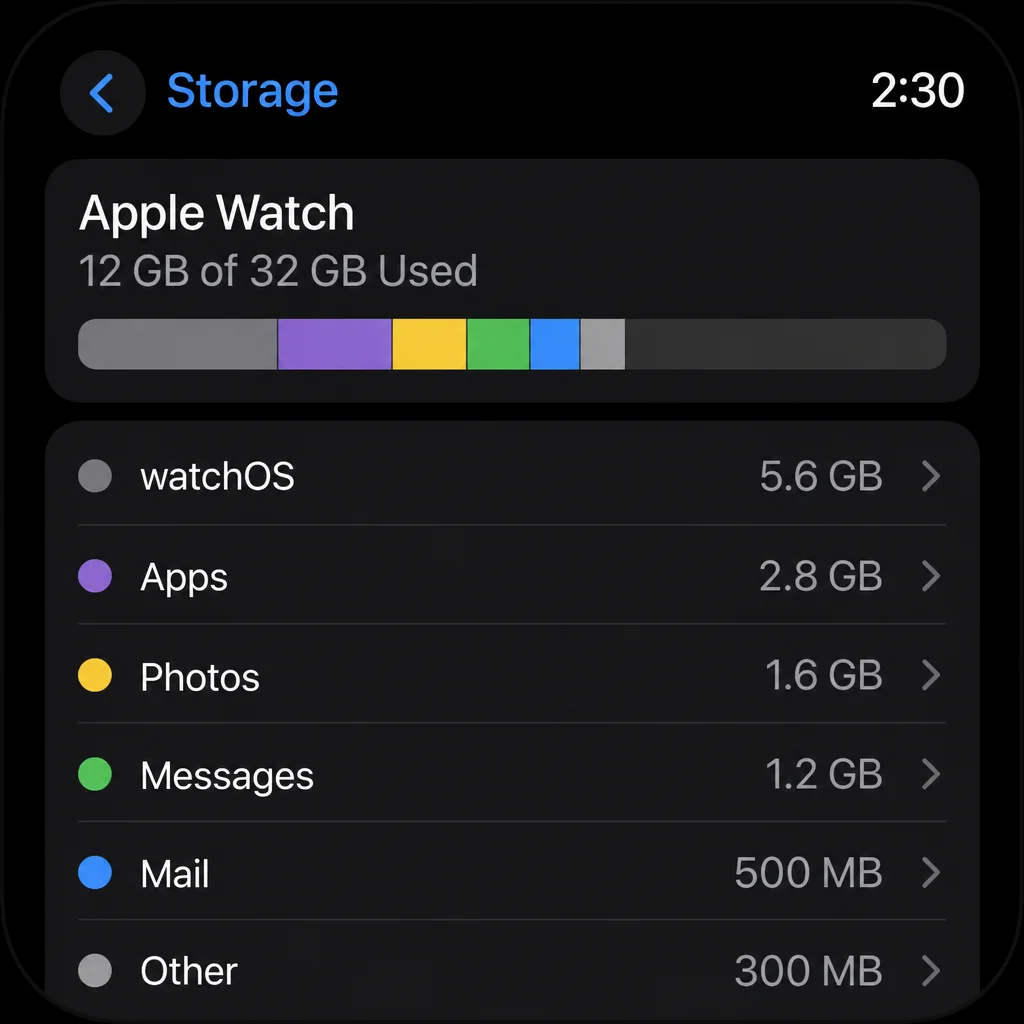
- On the watch, open Settings > General > Storage.
- Remove unused apps, music, or podcasts if storage is nearly full.
I’d remove downloaded podcasts first unless you regularly listen without your iPhone. They can take more space than expected, especially when automatic downloads are enabled.
Verify: Check Settings > General > About on the watch later to see whether the photo count has increased.
Problem 5: The iPhone and Watch Are Disconnected
Symptoms:
- Photo changes never transfer.
- A disconnected-iPhone symbol appears.
- Other synchronized Watch data is also unreliable.
Why it happens: Photo synchronization needs a working connection. Airplane Mode, disabled Bluetooth or Wi-Fi, or too much distance between the devices can interrupt it.
Fix:
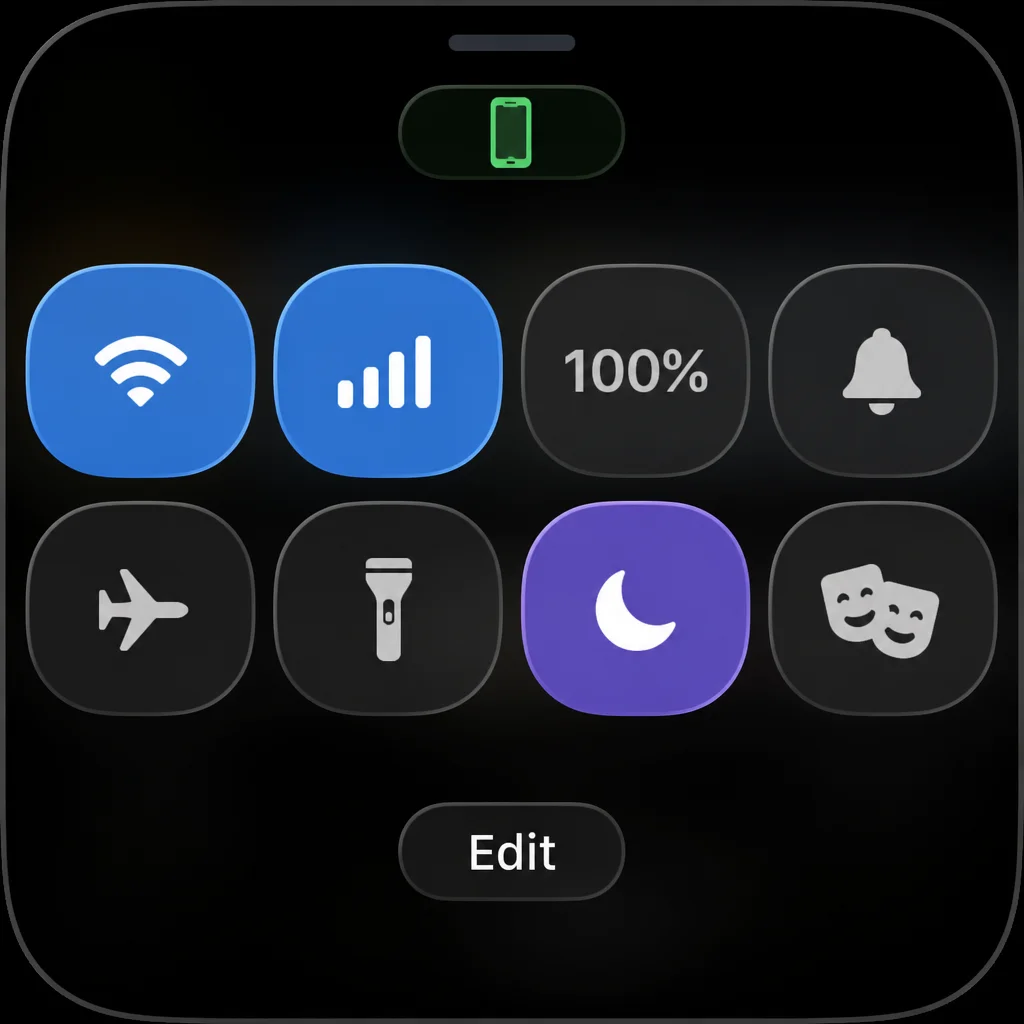
- Press the Apple Watch side button to open Control Center.
- Make sure Airplane Mode is off.
- Look for the green iPhone connection indicator.
- On the iPhone, confirm that Settings > Bluetooth and Settings > Wi-Fi are on.
- Place both devices close together.
If you see the red iPhone icon, deal with the connection first. Rebuilding the Photos face won’t fix a watch that can’t reach its paired phone.
Verify: Make a harmless Watch app change, such as adjusting a face color, and confirm that it reaches the watch. This checks the connection without disturbing your photo setup.
Problem 6: The Photos Watch Face Is Stuck
Symptoms:
- Photos are stored on the watch, but the face doesn’t update.
- The face keeps showing an old or unwanted image.
- Resyncing has no effect on that face.
Why it happens: The watch-face configuration may be stale even though the photos themselves synced correctly.
Fix:
- Touch and hold the affected face on the Apple Watch.
- Swipe up and tap Remove.
- On the iPhone, open Watch > Face Gallery > Photos.
- Choose the intended Featured content or album.
- Tap Add.
Removing a face doesn’t delete photos from your iPhone or Apple Watch. It only removes that face and its layout, so you’ll need to set up its complications again.
Verify: Switch to the recreated face, then tap the screen or raise your wrist several times to confirm that its images change.
Problem 7: iOS or watchOS Is Out of Date
Symptoms:
- Photo controls are missing or behave differently.
- Syncing broke after one device updated.
- The Watch app can’t complete changes.
Why it happens: Mismatched or outdated software can cause syncing errors between the paired devices.
Fix:
- Update the iPhone through Settings > General > Software Update.
- Update the watch through Watch > My Watch > General > Software Update.
- Keep the watch on its charger with at least 50% battery during installation.
Apple Watch updates can sit on “Preparing” for a while. If you’ve been staring at the spinning wheel for 10 minutes, don’t panic. Keep both devices on Wi-Fi and leave the watch charging.
You can review Apple’s official watchOS 26 update information and security release list.
Problem 8: Nothing Else Has Worked
Symptoms:
- Settings, storage, connectivity, updates, and face recreation all check out.
- Other synchronized Watch data is also unreliable.
Why it happens: The pairing data may need to be rebuilt.
Fix: Unpair and re-pair only as a last resort. Keep the iPhone and watch together, open Watch > My Watch > All Watches, tap the information button beside the watch, and select Unpair Apple Watch. Follow the onscreen instructions to pair it again and restore its backup.
This process takes longer than the other fixes and resets the connection between both devices. I’d skip it unless photo syncing and other Watch data remain unreliable.
Verify: After setup finishes, enable the photo-sync controls and recreate the Photos face. Allow extra time for the first sync because apps and settings are still being restored in the background.
Error Messages and Indicators
| Message or Indicator | Meaning | What to Do |
|---|---|---|
| “iPhone not connected” | The watch can’t reach its paired iPhone | Turn off Airplane Mode and check Bluetooth and Wi-Fi |
| Red iPhone icon | The paired iPhone is disconnected | Move the devices closer and confirm the iPhone is on |
| “Unable to Check for Update” | The device can’t contact Apple’s update service | Check Wi-Fi, restart both devices, and try again |
| “Not Enough Storage” | The watch lacks room for an update or more content | Open Settings > General > Storage and free space |
| Photo count doesn’t change | Sync may be stalled or the limit has been reached | Toggle Photo Syncing and review Photos Limit |
Platform-Specific Issues
On iPhone
Manage the photo source, album, limit, and watch-face settings in the paired iPhone’s Watch app. An iPad, Mac, Windows PC, or unpaired iPhone can’t configure photo syncing for the watch.
Apple puts more Watch controls on the iPhone because the larger screen is easier for choosing albums and editing faces. The split can feel confusing when you’re used to managing everything directly on a Windows PC or Android watch.
On Apple Watch
Use the watch to check its connection, available storage, and stored photo count. You can’t manage the source album or Featured Photos switches directly on the watch.
That division is useful for diagnosis: confirm the settings on the iPhone, then confirm the result on the watch.
Configuration Issues to Check
- Featured Photos missing: Watch > My Watch > Photos > Sync Featured Photos should be on.
- Memories missing: Turn on Sync Memories separately.
- Wrong album: Review Watch > My Watch > Photos > Sync Album.
- Too few pictures: Raise Photos Limit, provided the watch has enough storage.
- Wrong face source: Edit or recreate the Photos face and select the intended content type.
Work down this list in order. The first two switches take seconds to check, while rebuilding a face or pairing takes more time.
Getting Help
Apple Watch doesn’t provide photo-sync logs you can view. Before contacting support, note your iPhone model, Apple Watch model, iOS version, watchOS version, free watch storage, stored photo count, and enabled syncing controls. Those details save you from repeating the first round of checks.
You can get help through the Apple Support website, the Apple Support app, or Apple Support Communities. Contact Apple sooner if the watch repeatedly disconnects, can’t update, or fails to sync other data too.
Prevention Tips
- Keep iOS and watchOS updated together.
- Leave some free storage on the Apple Watch.
- Keep the devices nearby while adding a large album or rebuilding a face.
- Use a dedicated album if you want exact control over which photos appear.
- Check the stored photo count before deleting and recreating a working setup.
A dedicated album is the better choice when you care exactly which pictures reach your wrist. Featured Photos require less upkeep, but Apple decides what appears.
Wrapping Up
The three photo-sync switches solve this problem more often than anything else. If they don’t, restart the sync, check the selected source and storage, then recreate the Photos face.
Keep unpairing at the bottom of the list. It can rebuild damaged pairing data, but the restore takes time and simpler fixes usually get Featured Photos moving again.