
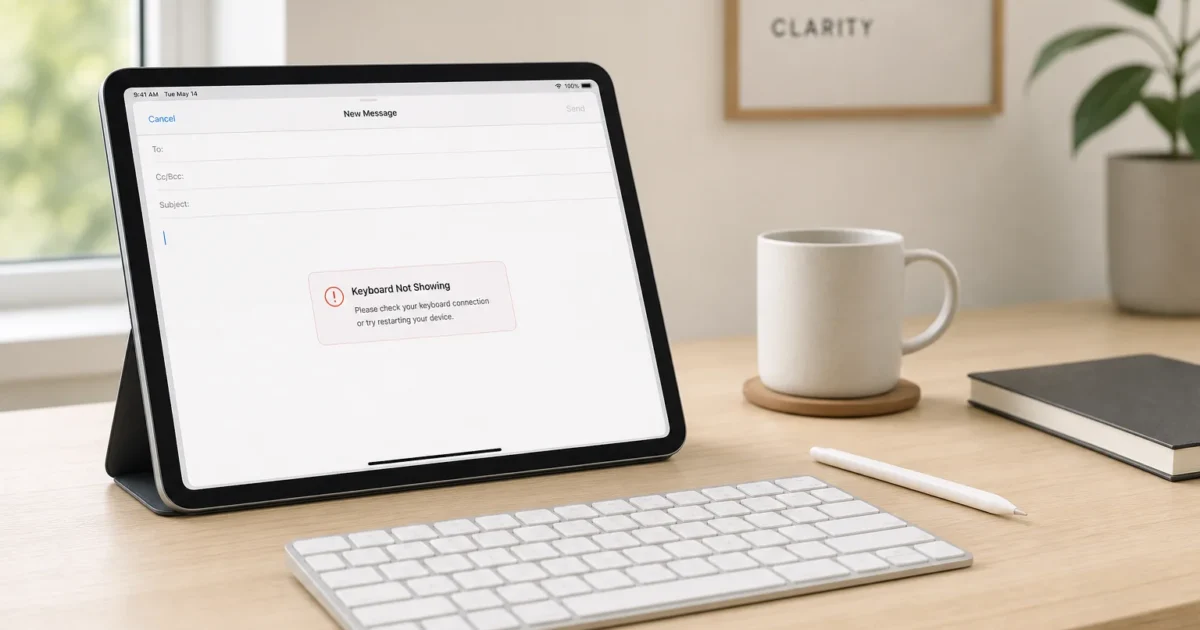
You tap into a text field, and nothing happens. No keyboard slides up, no cursor blinks, nothing. If you’ve been poking at the screen for the last five minutes wondering if you just broke your iPad, take a breath. This almost always comes down to software, or a Bluetooth keyboard sitting nearby that you forgot about, not a hardware failure.
I’ve walked a lot of people through this exact panic, and there’s one culprit that’s responsible for the vast majority of cases. This guide starts there and works through the rest in order, so you don’t waste time on unlikely fixes before trying the obvious one.
Quick Fixes to Try First
Run through these first. They knock out most keyboard problems in under a minute:
- Check for a connected Bluetooth or Smart keyboard: This is the number one cause of a missing on-screen keyboard. iPadOS hides the virtual keyboard whenever it detects a hardware keyboard, even if that keyboard is off or across the room.
- Look for the hidden Show Keyboard button: A quick tap in the Shortcuts bar can force the on-screen keyboard back onto the screen.
- Restart your iPad: A simple reboot clears out temporary glitches that can prevent the keyboard from rendering.
- Tap into a different app: If the keyboard shows up in Notes but not in a specific app, the problem is likely with that app, not your iPad.
Symptoms and Fixes
| Symptom | Likely Cause | Quick Fix |
|---|---|---|
| Keyboard never appears anywhere | Paired Bluetooth/Smart keyboard | Turn off Bluetooth in Settings > Bluetooth to confirm |
| Keyboard missing but you have an accessory nearby | iPadOS suppressing it on purpose | Use the Show Keyboard option in the Shortcuts bar |
| Keyboard tiny or split into two halves | Accidental pinch gesture | Touch and hold the keyboard icon, choose Full |
| Keyboard works in some apps, not others | Stuck third-party keyboard extension | Remove extra keyboards in Settings > General > Keyboard > Keyboards |
| Keyboard missing after an iPadOS update | Software bug | Check Settings > General > Software Update |
| Keyboard shows but predictions are broken | Corrupted keyboard dictionary | Reset the keyboard dictionary |
| Keyboard never returns after every fix | Possible hardware issue | Contact Apple Support |
Common Issues and Solutions
Bluetooth or Smart Keyboard Is Suppressing the On-Screen Keyboard
Symptoms:
- You tap a text field and absolutely nothing happens, no keyboard slides up at all
- The issue happens in every app
- You own a Magic Keyboard, Smart Keyboard Folio, or a Bluetooth keyboard, even if you’re not actively using it
Why it happens: iPadOS figures that if a hardware keyboard is connected, you don’t need the on-screen one taking up half your display, so it hides it automatically. Here’s the annoying part: this kicks in even when the hardware keyboard is powered off, sitting in another room, or just within Bluetooth range. Your iPad still sees it as connected and keeps the virtual keyboard tucked away, whether you’re using it or not.
Fix:
- Open Settings > Bluetooth.
- Check the device list for any keyboard (Magic Keyboard, Smart Keyboard Folio, or a third-party Bluetooth keyboard) marked as Connected.
- Tap the toggle at the top to turn Bluetooth off entirely, or tap the (i) icon next to the keyboard and choose Forget This Device.
- Go back to an app like Notes and tap into a text field.
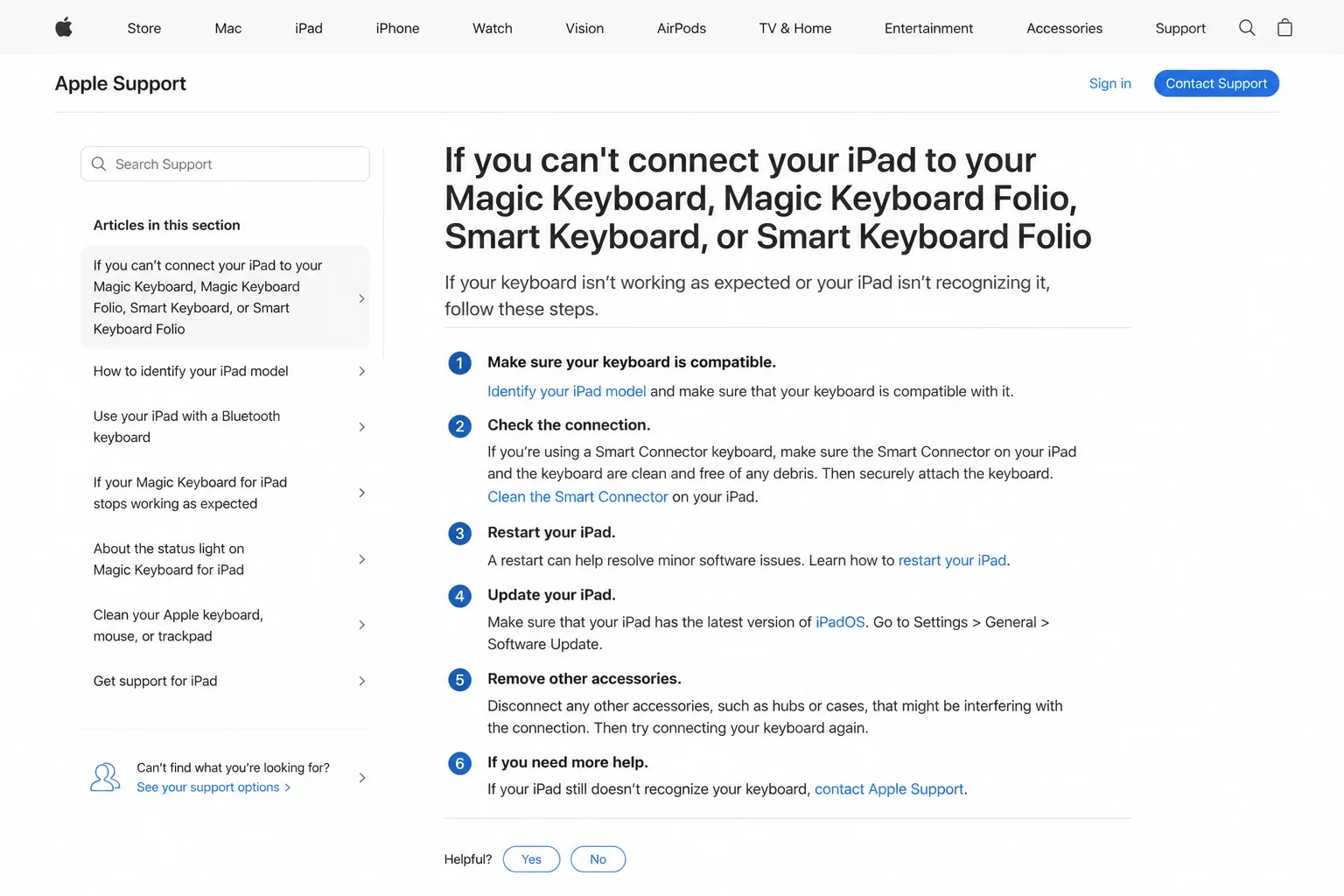
If the on-screen keyboard pops up the moment you disable Bluetooth, that’s your answer. If you use a Smart Keyboard Folio, it connects through the Smart Connector, not Bluetooth. Just detach it from your iPad, or fold it behind the display, and the on-screen keyboard should take over immediately.
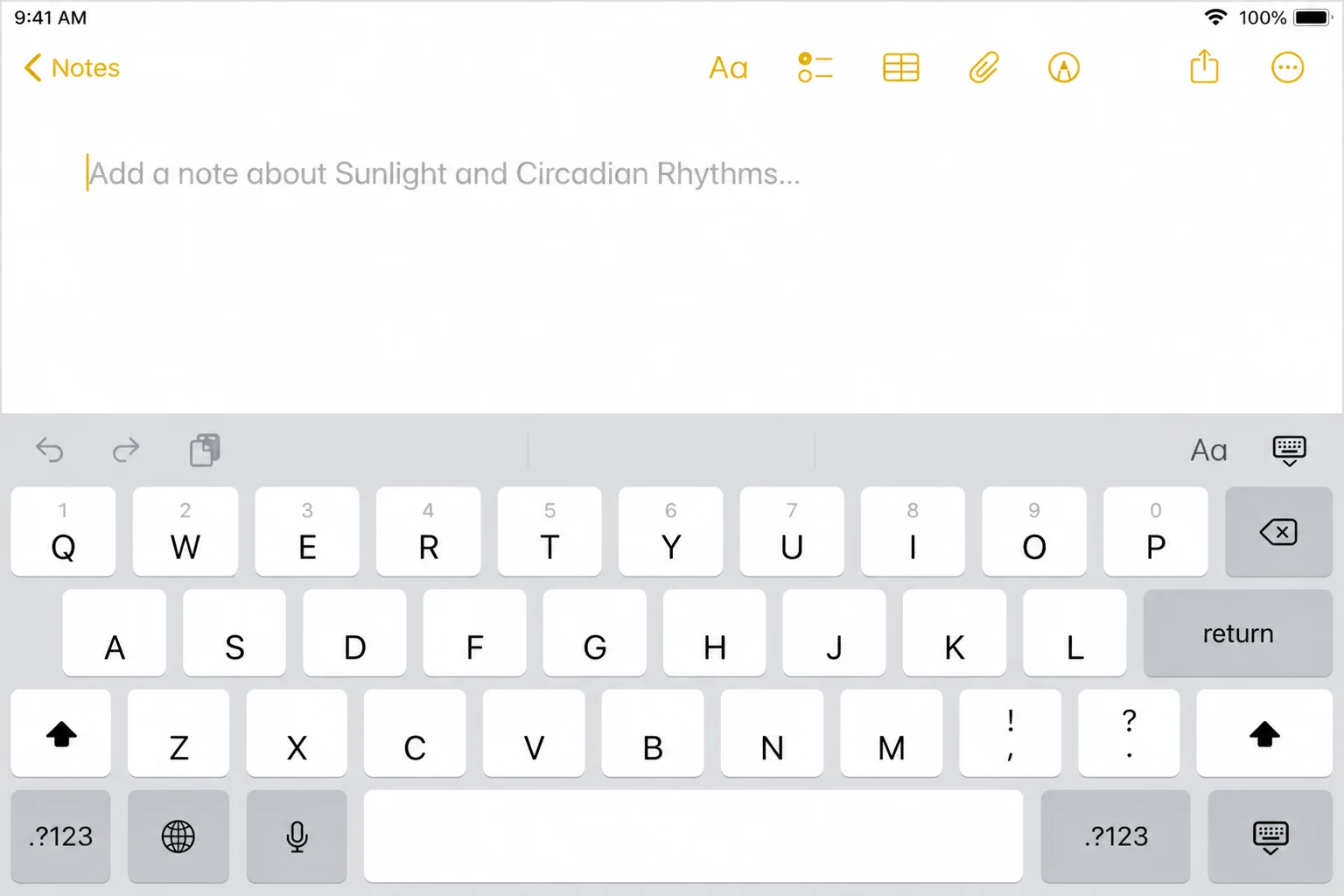
Tip: Only turn Bluetooth back on when you actually want to use your hardware keyboard. If you switch between typing on-screen and with an accessory a lot, the Show Keyboard trick below is faster than toggling Bluetooth every time.
The Hidden “Show Keyboard” Option Isn’t Being Used
Symptoms:
- You have a Bluetooth or Smart keyboard connected and want to type on-screen too
- You’ve seen a small keyboard-shaped icon appear briefly but aren’t sure what it does
- You don’t want to disconnect your hardware keyboard just to type a quick note
Why it happens: iPadOS doesn’t make you pick between a hardware keyboard and the on-screen one; it just defaults to hiding the virtual one when an accessory is active. There’s a command to bring it back without disconnecting anything. It’s just tucked away somewhere most people never think to look.
Fix:
- With your hardware keyboard connected, tap into any text field.
- Look at the Shortcuts bar, the thin row of controls that appears above where the keyboard would normally be (it often shows suggested words, formatting tools, or a small keyboard icon in the corner).
- Tap or long-press the small keyboard icon in the Shortcuts bar.
- Choose Show Keyboard from the menu that appears.
The on-screen keyboard now shows up alongside your hardware keyboard, and it’ll keep appearing until you dismiss it or disconnect the hardware one.
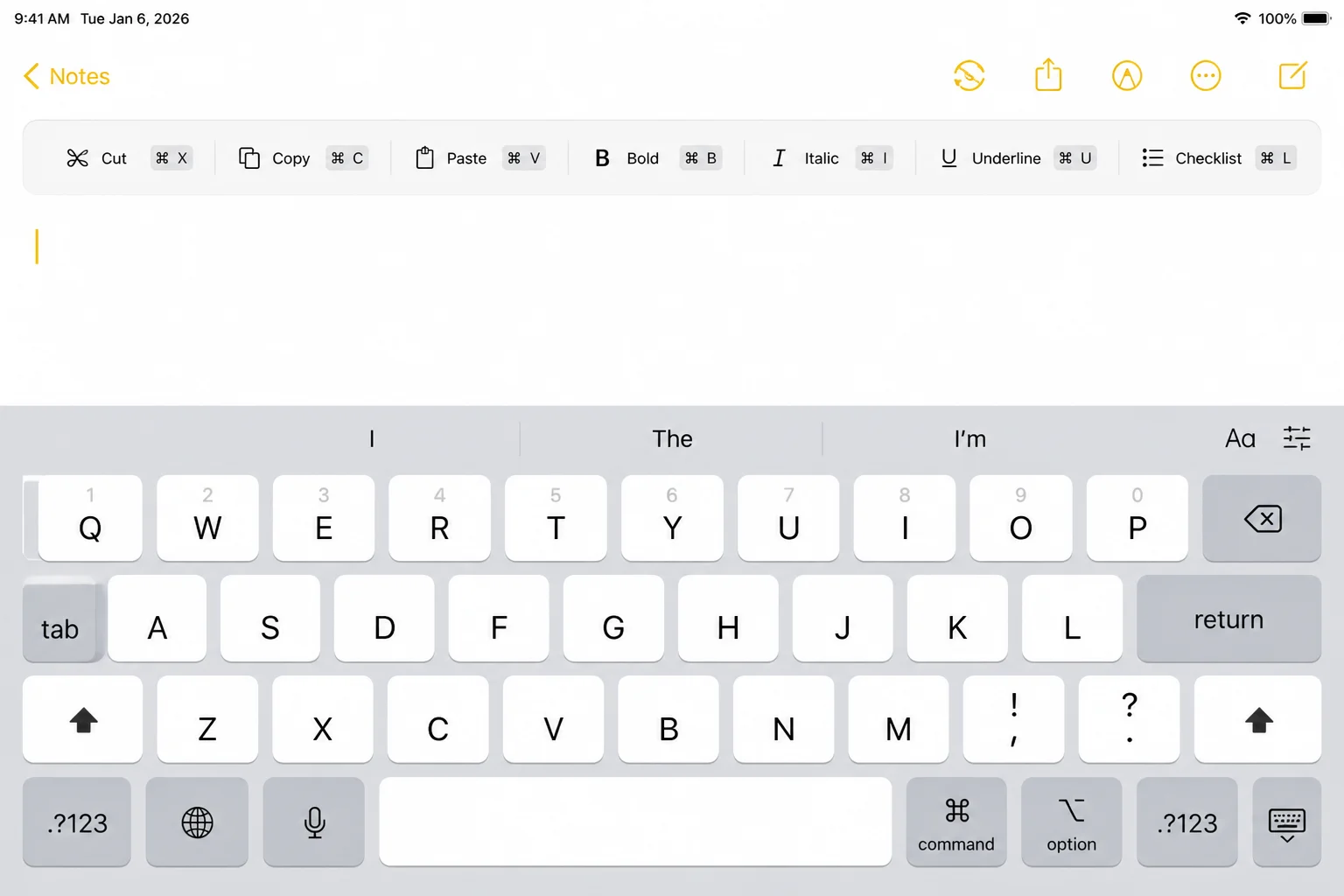
Tip: This icon also handles switching between installed keyboards, like Emoji or a third-party one. Same button, one more use.
The Keyboard Looks Tiny, Split, or Oddly Shaped
Symptoms:
- A small, floating version of the keyboard appears instead of the full-size one
- The keyboard is split into two halves with a gap in the middle
- It looks like the keyboard is “missing” but something small is visible near the bottom corner
Why it happens: A pinch gesture on the keyboard, even an accidental one, switches it into Floating mode. Dragging your thumbs outward from the center splits it in half for one-handed typing. Neither of these is a bug. They’re built-in typing modes, and they’re surprisingly easy to trigger without meaning to.
Fix:
- Touch and hold the keyboard icon in the bottom-right corner of the keyboard (the icon looks like a small keyboard).
- From the menu, choose Full to restore the standard, full-width keyboard.
- If the keyboard is floating, you can also pinch outward with two fingers directly on it to expand it back to full size.
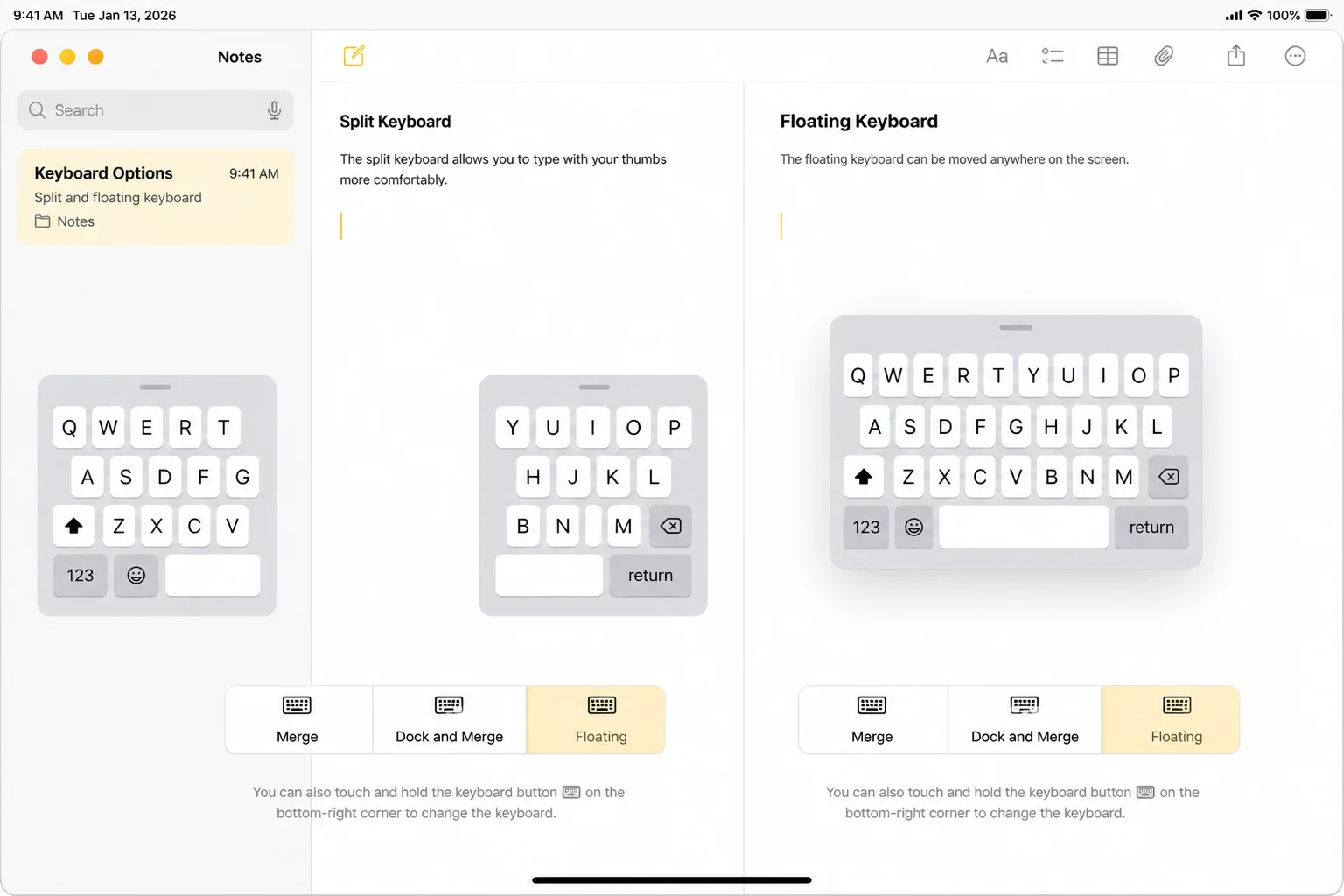
Tip: If you actually like the floating keyboard for one-handed typing, keep it. You can resize and reposition it anytime. It’s a different mode, not a broken one.
Keyboard Still Won’t Show After Checking Bluetooth and the Shortcuts Bar
Symptoms:
- No hardware keyboard is connected, but the on-screen keyboard still refuses to appear
- The keyboard worked earlier today but stopped after switching apps or receiving a notification
- Restarting the specific app doesn’t help
Why it happens: Like any software, iPadOS can get stuck in a bad state occasionally: a background process hangs, or an app’s connection to the system keyboard glitches out. A restart clears memory and reloads every system service, including the one responsible for drawing the keyboard.
Fix:
- Press and hold the top button (or side button, depending on your iPad model) along with either volume button until the power-off slider appears.
- Drag the slider to turn off your iPad.
- Wait about 30 seconds.
- Press and hold the top/side button again until the Apple logo appears.
- Once your iPad restarts, open Notes or Messages and tap into a text field to confirm the keyboard appears.
Verification: If the keyboard pops up normally in Notes after the restart, that confirms it was just a temporary glitch. You’re all set.
A Third-Party Keyboard Extension Is Stuck or Conflicting
Symptoms:
- The keyboard shows up fine in some apps (like Safari) but not others (like a specific messaging app)
- You’ve installed a keyboard app like Gboard or Microsoft SwiftKey
- Switching keyboards via the globe/keyboard icon does nothing or freezes briefly
Why it happens: Third-party keyboard apps run as extensions inside iPadOS, and occasionally one gets stuck or conflicts with the app you’re typing in. Since these extensions load independently in each app, a broken one can block typing everywhere it’s set as active, without touching apps that still default to Apple’s keyboard.
Fix:
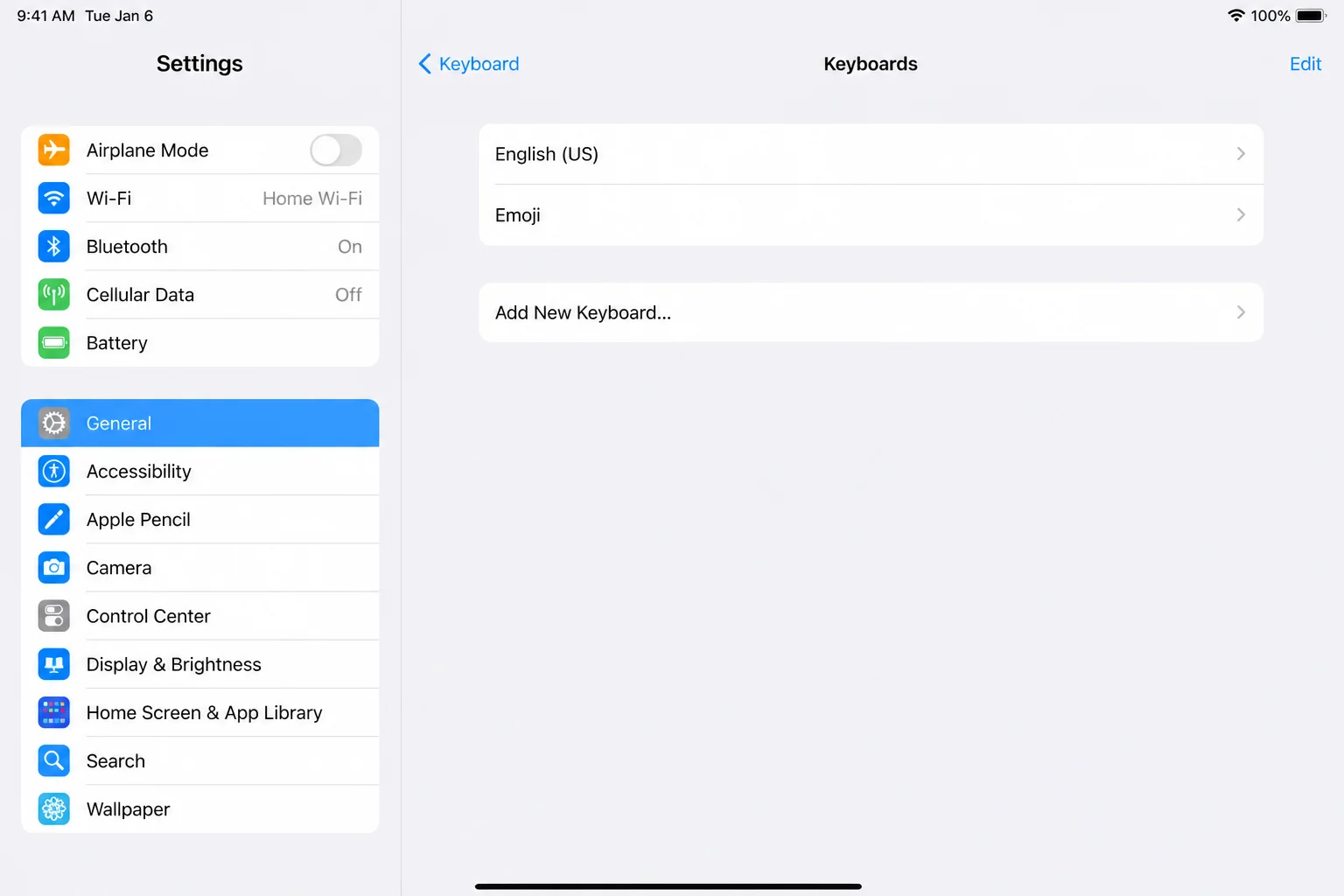
- Go to Settings > General > Keyboard > Keyboards.
- Tap Edit in the top-right corner.
- Tap the red minus icon next to each third-party keyboard, then tap Delete to remove it.
- Reopen the app where the keyboard was missing and test typing again.
- If it works, re-add your third-party keyboards one at a time (Add New Keyboard), testing after each one, to identify which one was causing the conflict.
Tip: If you rely on Gboard or SwiftKey daily, jot down which one caused the issue. Watch for the same conflict again after future app updates.
Keyboard Issue Persists After Basic Troubleshooting
Symptoms:
- You’ve checked Bluetooth, tried Show Keyboard, restarted, and removed third-party keyboards, and the keyboard still won’t show
- The problem started right after an iPadOS update
- Other people with the same iPad model report the same issue online
Why it happens: Occasionally a specific iPadOS version ships with a bug affecting keyboard behavior in certain apps or configurations. It happens more often than Apple would probably like. Usually gets patched fast in a follow-up update.
Fix:
- Open Settings > General > Software Update.
- If an update is available, tap Download and Install.
- Keep your iPad connected to Wi-Fi and power until the update finishes.
- After it restarts, test the keyboard again in a few different apps.
Verification: Check your current version under Settings > General > About > iPadOS Version and compare it against the latest version listed on Apple’s software update support page to confirm you’re up to date.
Keyboard Appears But Predictions or Behavior Seem Broken
Symptoms:
- The keyboard shows up, but autocorrect suggests strange or unrelated words
- Typed words that used to autocomplete correctly no longer do
- The keyboard occasionally freezes mid-typing, even though it’s visible
Why it happens: iPadOS keeps a personal dictionary of words and phrases you type often, to make predictive text smarter over time. That data can get corrupted occasionally, which leads to odd keyboard behavior. This is a last-resort fix; save it for after the steps above haven’t worked, since it wipes learned typing data.
Fix:
- Go to Settings > General > Transfer or Reset iPad.
- Tap Reset.
- Tap Reset Keyboard Dictionary.
- Enter your device passcode if prompted, then confirm.
This clears words and shortcuts your keyboard has learned from your typing, but it does not erase photos, apps, messages, or any personal data. It’s completely safe to use.
Verification: Type a few sentences in Notes afterward. Predictive suggestions should reset to standard dictionary words, and any erratic behavior should be gone.
Error Messages Table
The on-screen keyboard doesn’t throw formal error messages; it just fails silently. Here’s what different symptoms actually mean:
| What You See | What It Means |
|---|---|
| No keyboard, no error, tapping does nothing | A Bluetooth/Smart keyboard is connected and suppressing the on-screen keyboard |
| Small keyboard icon flashes then disappears | The Shortcuts bar loaded, but you didn’t tap Show Keyboard in time |
| Keyboard shrinks to a small floating box | Floating keyboard mode was triggered by a pinch gesture |
| Two half-keyboards with a gap between them | Split keyboard mode was triggered |
| Keyboard works in Safari but not in a specific app | That app’s active keyboard extension is stuck; check third-party keyboards |
| Keyboard types the wrong language or symbols | Wrong keyboard selected; tap the globe icon to cycle through installed keyboards |
Platform-Specific Fixes
On iPadOS
Smart Connector Accessories Behave Differently Than Bluetooth
If you use a Smart Keyboard Folio or a Magic Keyboard that attaches via the Smart Connector (the small magnetic pins on the back of your iPad), it won’t show up in your Bluetooth device list at all. It’s a direct physical connection, not a wireless one. To rule it out as the cause of a missing on-screen keyboard, detach the iPad from the keyboard case or fold the keyboard behind the display, rather than digging through Bluetooth settings.
Floating Keyboard Position Gets “Stuck” Off-Screen
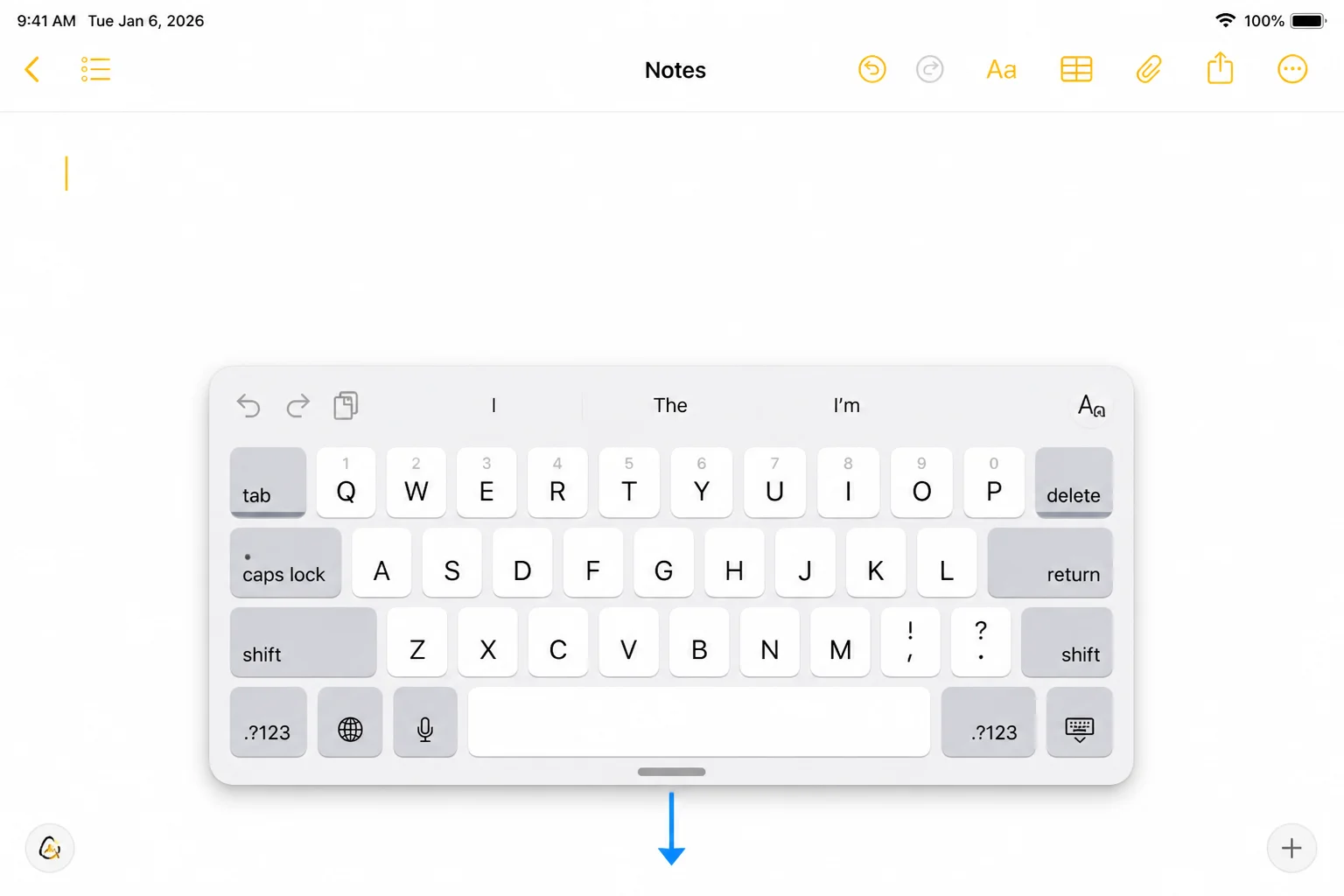
On some iPad models, a floating keyboard can get dragged partially off the visible screen area, making it look like it vanished entirely. Touch and hold the small handle at the bottom of the floating keyboard and drag it back toward the center of the screen.
Settings to Check
These Settings paths are commonly involved in on-screen keyboard issues:
- Bluetooth: Go to Settings > Bluetooth, look for any connected keyboard accessory
- Keyboards list: Go to Settings > General > Keyboard > Keyboards, check for third-party keyboards that may be conflicting
- Software Update: Go to Settings > General > Software Update, confirm you’re on the latest iPadOS version
- Reset Keyboard Dictionary: Go to Settings > General > Transfer or Reset iPad > Reset, use only as a last resort
- Accessibility Keyboard Settings: Go to Settings > Accessibility > Keyboards & Typing, confirm no accessibility keyboard feature (like Full Keyboard Access) is unintentionally overriding normal typing
When to Contact Apple Support
If the steps above haven’t resolved the issue, contact Apple Support when:
The on-screen keyboard still won’t appear after a restart, an iPadOS update, and a keyboard dictionary reset No Bluetooth or Smart Connector accessory is connected, yet the keyboard remains missing in every app Tapping anywhere on the screen feels unresponsive or delayed, including outside text fields, which can point to a touchscreen issue rather than a keyboard software issue Your iPad has visible physical damage, especially near the screen edges or Smart Connector
How to reach Apple Support:
- Apple Support website
- Apple Support app on iPhone or iPad
- Genius Bar appointment at your local Apple Store
Prevention Tips
To avoid running into this issue again:
- Disconnect accessories when not in use: If you only occasionally use a Bluetooth keyboard, turn off Bluetooth or forget the device when you’re done, so it doesn’t silently suppress the on-screen keyboard later.
- Keep iPadOS up to date: Go to Settings > General > Software Update periodically. Apple regularly patches keyboard-related bugs.
- Limit third-party keyboards: Only keep the keyboard apps you actually use installed under Settings > General > Keyboard > Keyboards, since each one is a potential point of conflict.
- Learn the Show Keyboard shortcut: Knowing where the Shortcuts bar and Show Keyboard option live means you’ll never need to disconnect your hardware keyboard just to type a quick note.
Frequently Asked Questions
Why won’t my iPad keyboard pop up when I tap a text field?
The most common reason is a paired or nearby Bluetooth keyboard, Smart Keyboard Folio, or Magic Keyboard. iPadOS automatically hides the on-screen keyboard whenever it detects a hardware keyboard, even if that keyboard is turned off or not being used.
How do I make the keyboard show up if I have a Bluetooth or Smart Keyboard connected?
Tap into a text field, then look for the small keyboard icon in the Shortcuts bar above where the keyboard would normally appear. Tap or long-press it and choose Show Keyboard to bring up the on-screen keyboard alongside your hardware one.
What is the hidden “Show Keyboard” menu and where do I find it?
It’s a command tucked inside the Shortcuts bar’s keyboard icon, made for situations where you have a hardware keyboard connected but still want to use the on-screen one too. It’s easy to miss because the icon is small and only shows this option when a hardware keyboard is active.
Does restarting the iPad fix keyboard problems?
Often, yes. A restart clears out temporary software glitches, including ones that can prevent the on-screen keyboard from rendering, without affecting any of your data.
Can a third-party keyboard app cause the on-screen keyboard to disappear?
Yes. Keyboard apps like Gboard or Microsoft SwiftKey run as extensions and can occasionally get stuck or conflict with a specific app. Removing them under Settings > General > Keyboard > Keyboards and re-adding them one at a time usually identifies the culprit.
Will updating iPadOS fix a missing keyboard?
It can, especially if the issue started right after installing a new iPadOS version. Apple regularly ships bug fixes for keyboard behavior in follow-up updates, so checking Settings > General > Software Update is worth doing if nothing else has worked.
What does resetting the keyboard dictionary do, and is it safe?
It clears the custom words and phrases your iPad has learned from your typing, which can resolve corrupted prediction or display issues. It’s completely safe: it doesn’t touch your photos, apps, messages, or any other personal data.
How do I know if my keyboard issue is a hardware problem instead of software?
If the keyboard still won’t appear after checking Bluetooth, using Show Keyboard, restarting, removing third-party keyboards, updating iPadOS, and resetting the keyboard dictionary, and especially if tapping anywhere on the screen feels unresponsive, it’s time to have Apple check the touchscreen hardware.
Wrapping Up
Nine times out of ten, this comes down to a Bluetooth or Smart keyboard quietly suppressing the on-screen one in the background. Check that first, always. If it’s not the culprit, just work down the list: Show Keyboard, restart, third-party keyboard check, software update, then the dictionary reset as your last resort before calling Apple Support.
Most people never need to go past step two. If you do end up at step seven, you’ve been thorough, and that’s exactly the point of working through this in order.
| Step | Action | Applies To |
|---|---|---|
| 1 | Check Bluetooth for a connected keyboard | All iPads |
| 2 | Use Show Keyboard in the Shortcuts bar | Hardware keyboard users |
| 3 | Restart the iPad | All iPads |
| 4 | Remove/re-add third-party keyboards | Users with Gboard, SwiftKey, etc. |
| 5 | Update iPadOS | All iPads |
| 6 | Reset keyboard dictionary | Last resort, all iPads |
| 7 | Contact Apple Support | Suspected hardware issue |
Last updated: August 14, 2026 | Applies to iPad On-Screen Keyboard on iPadOS