

Password managers can seem alike until you share logins or use several operating systems. Support for private notes and files also varies.
Apple Passwords fits an iPhone, iPad, and Mac setup. 1Password has better organization and account controls. Bitwarden supports more platforms for less money. Quick verdict: Choose Apple Passwords for Apple-only use, 1Password for polished family or business tools, and Bitwarden for low-cost access across platforms.
Overview
Apple Passwords is the visible app built on iCloud Keychain. Apple introduced it with iOS 18, iPadOS 18, and macOS Sequoia 15. It keeps passwords, passkeys, verification codes, and Wi-Fi details in one place. You no longer have to search through Settings and Safari.
That matters if you’ve ever searched three menus for a saved Wi-Fi password. The separate app makes the system much easier to understand.
1Password and Bitwarden are dedicated password managers. Both work on Apple devices, Android, Windows, Linux, and popular browsers. They also give you more ways to organize, store, and share information.
| Product | Best for | Main drawback | Starting price |
|---|---|---|---|
| Apple Passwords | People who mainly use Apple devices | Limited Android, web, and organizational support | Included with compatible Apple devices |
| 1Password | Families and businesses wanting a polished cross-platform service | No permanent free personal plan | Paid subscription |
| Bitwarden | Budget-conscious mixed-platform users | Interface is less polished than 1Password | Free; optional paid plans |
Prices and plan details can change. Check the current 1Password pricing page and Bitwarden pricing page before subscribing.
Feature Comparison
At a Glance
The basics overlap, but storage and device support differ. Apple handles common credentials well. The other two can store many more types of private records.
| Feature | Apple Passwords | 1Password | Bitwarden |
|---|---|---|---|
| Passwords and logins | Yes | Yes | Yes |
| Passkeys | Yes | Yes | Yes |
| Time-based verification codes | Yes | Yes | Paid personal feature |
| Wi-Fi credentials | Yes, on Apple devices | Can be saved manually | Can be saved manually |
| Payment-card records | Safari AutoFill, separate from Passwords | Yes | Yes |
| Secure notes | No general-purpose notes | Yes | Yes |
| Document or file storage | No | Yes, subject to plan limits | Attachments on eligible paid plans |
| Multiple vaults or collections | No | Yes | Yes |
| Tags or folders | No | Tags and vaults | Folders, collections, and organization tools |
| Family sharing | Shared Groups | Family vaults and permissions | Family Organization and collections |
| Android support | No native Apple Passwords app | Yes | Yes |
| Linux support | No | Yes | Yes |
| Browser-based vault | No iCloud.com password vault | Yes | Yes |
| Business administration | No | Yes | Yes |
| Security reports | Basic security recommendations | Watchtower and admin reports | Vault health and organization reports vary by plan |
Apple’s Passwords User Guide explains the current Mac tools. Apple also documents iCloud Passwords on Windows.
Device Support and Everyday Use
macOS
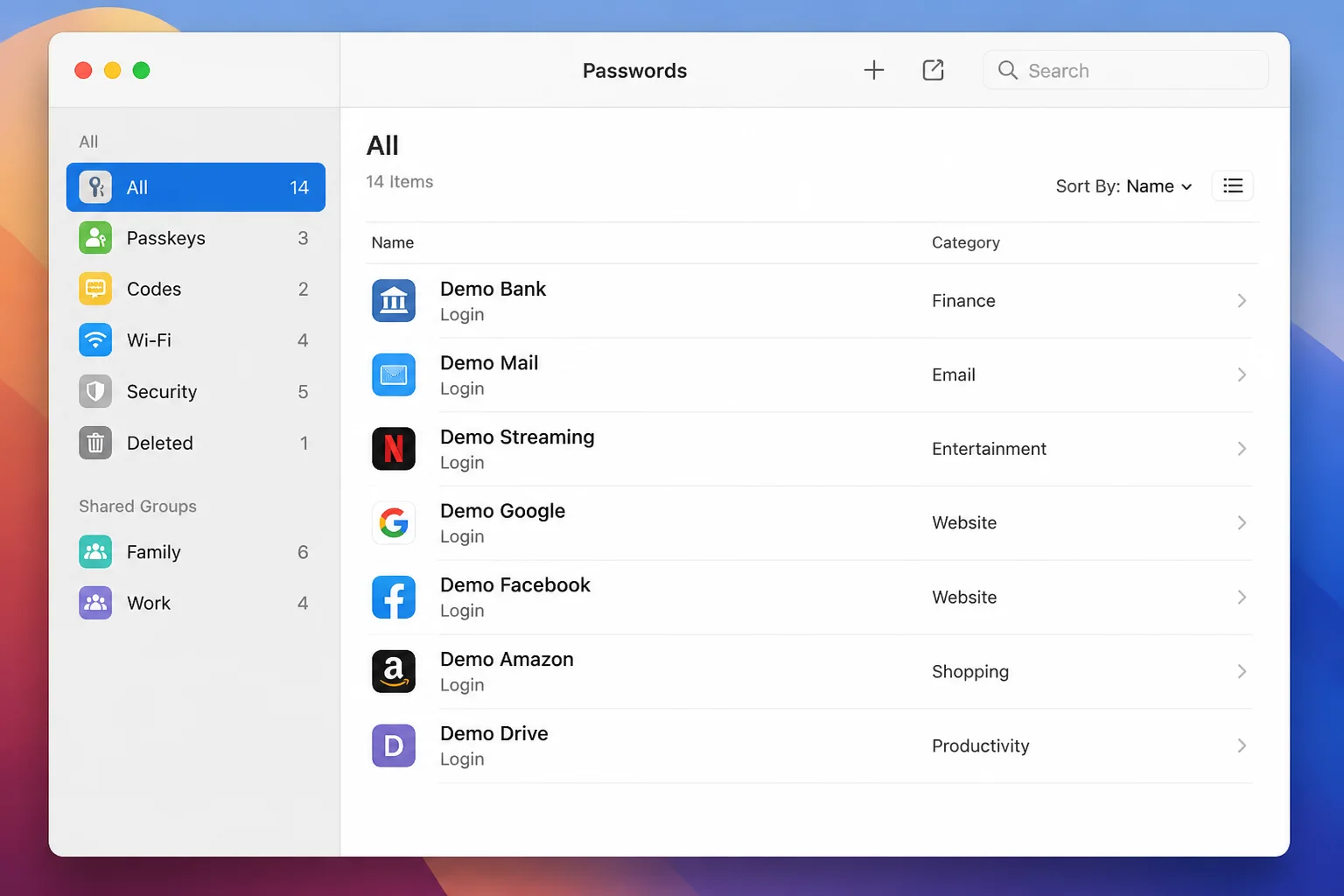
On macOS Sequoia 15 or later, Apple Passwords is closely tied to the system. Open Applications > Passwords, then use Touch ID or enter your Mac password. Choose a category in the sidebar to find a saved item.
You can manage passwords, passkeys, verification codes, Wi-Fi passwords, Shared Groups, and deleted items. The app also warns you about compromised, reused, or weak passwords.
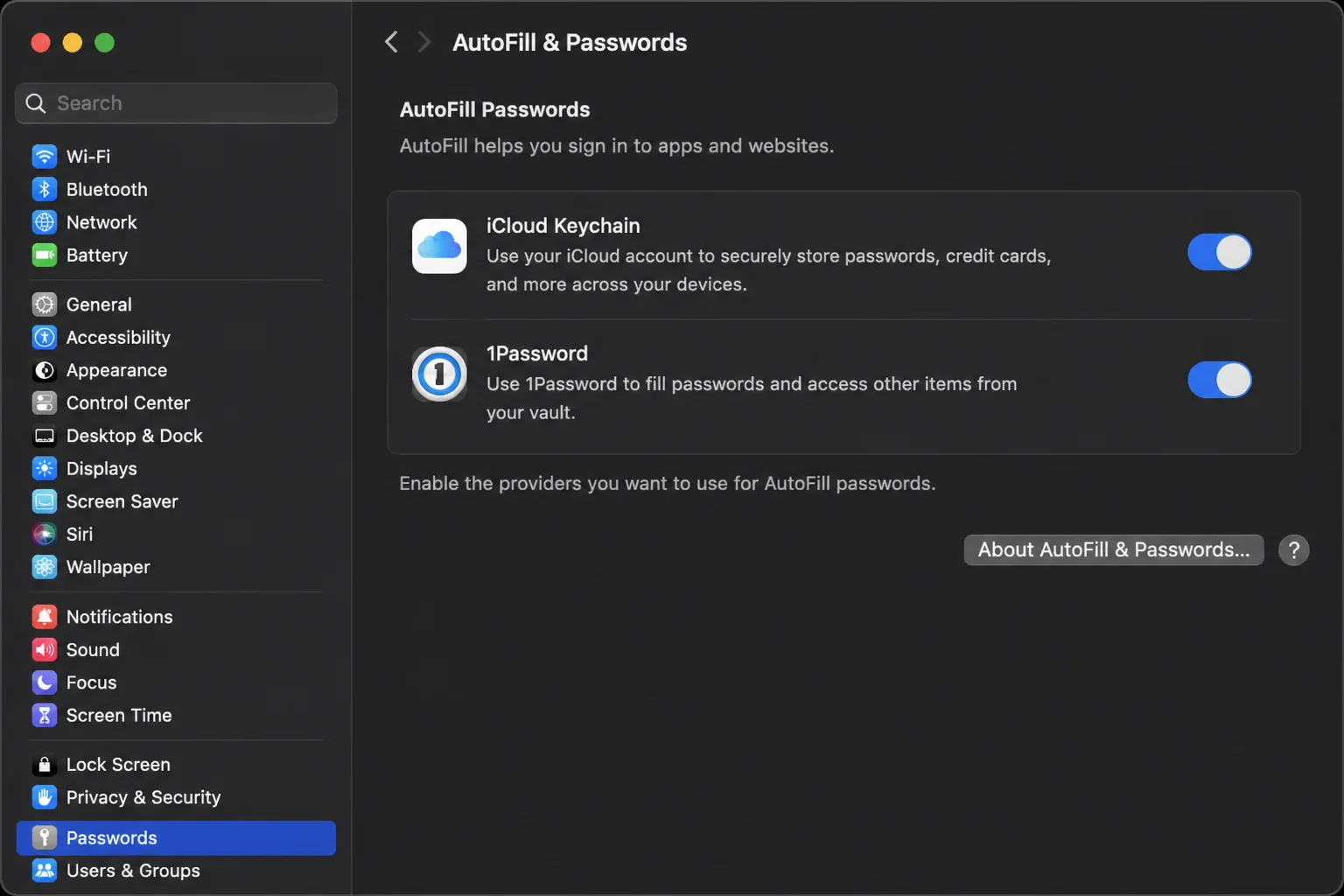
To select an AutoFill provider, open System Settings > General > AutoFill & Passwords. Check this path on the Mac used for publication. Apple may adjust the wording between macOS releases.
1Password and Bitwarden also work with macOS and Safari. Their apps support more record types and better organization, but the controls take longer to learn.
Winner: Apple Passwords. Its system integration works especially well on a personal Mac that already uses iCloud.
iOS and iPadOS
On iOS 18 or later, open the Passwords app. Use Face ID, Touch ID, or your passcode to sign in. To choose which apps can supply AutoFill data, go to Settings > General > AutoFill & Passwords.
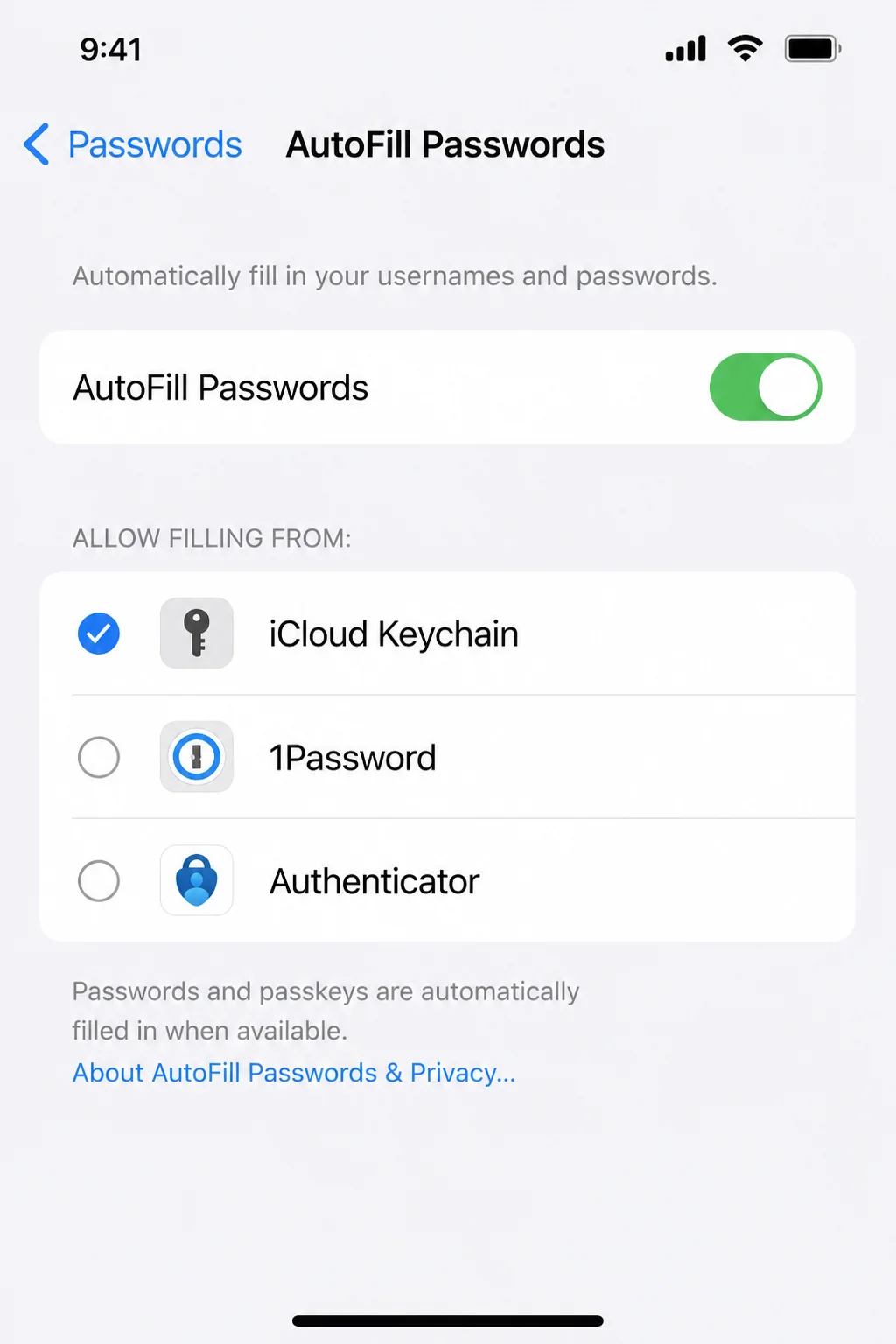
Apple Passwords can fill logins in apps and websites. It can also create passkeys and generate verification codes. Shared Groups give selected credentials to trusted contacts with compatible Apple devices.
The process feels natural on an iPhone. That’s Apple’s strongest case. Sharing is more limited when someone in your household uses Android.
1Password and Bitwarden also have iPhone and iPad apps. Their advantage is clear when the same vault must work on Android, Windows, or Linux.
Winner: Tie. Apple is easier in an Apple-only setup. 1Password and Bitwarden fit homes with a mix of devices.
Web Browsers and Windows
Apple doesn’t provide a complete Passwords vault at iCloud.com. On Windows, you need:
- A Windows PC supported by the current version of iCloud for Windows.
- Passwords & Keychain enabled in iCloud for Windows.
- The iCloud Passwords extension for a supported browser, such as Chrome or Edge.
- The iCloud Passwords Windows app when you need to view or edit supported credentials.
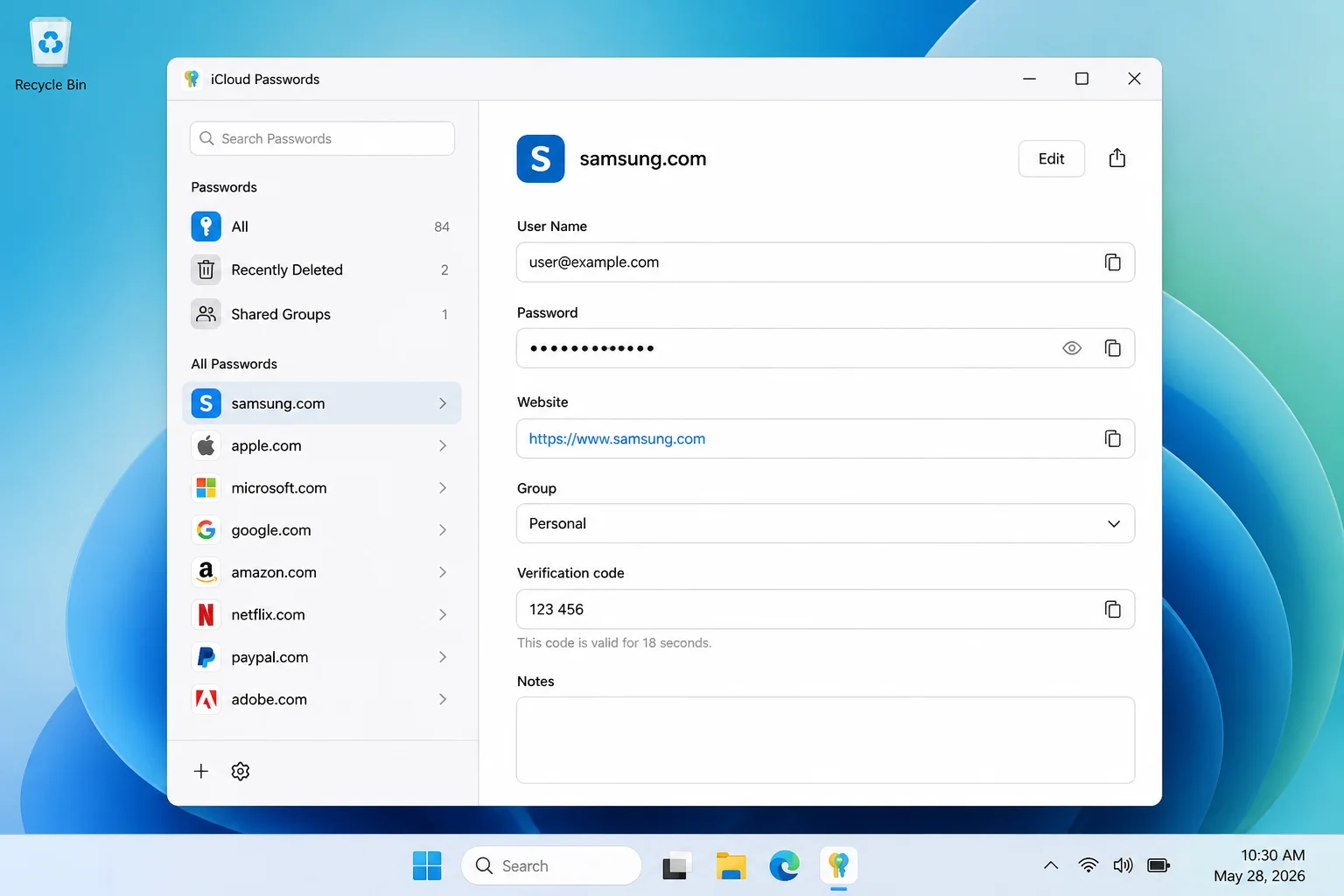
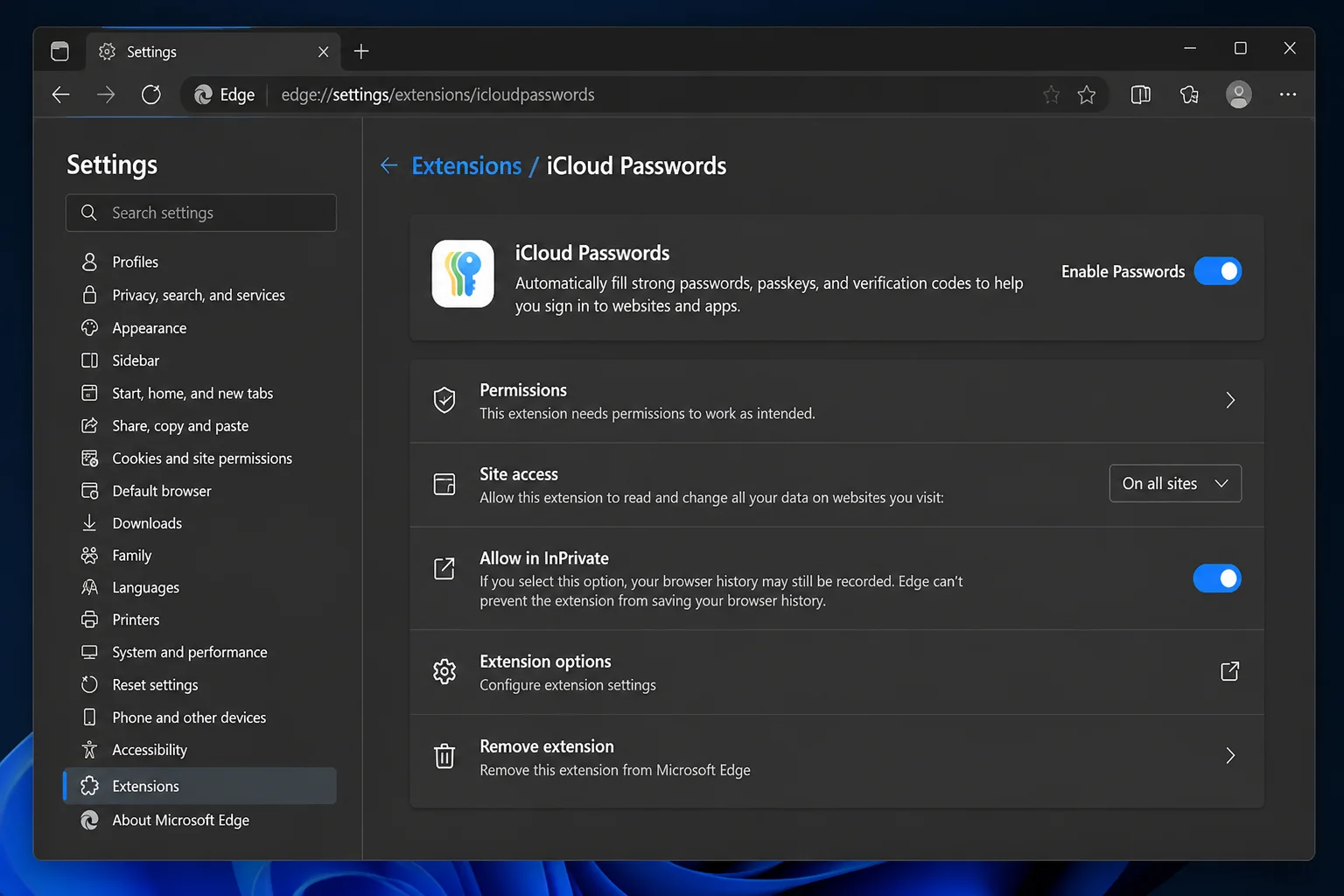
This setup can fill and save website passwords. It needs more parts than the Mac or iPhone version. If iCloud sends you between its app and a browser extension, your confusion is fair. Both parts have a job.
Apple has no Passwords app for Android or Linux. It also lacks a full web vault. Payment-card AutoFill and Wi-Fi password tools remain closely tied to Apple devices.
1Password and Bitwarden provide apps or extensions for the major desktop and mobile systems. Their web vaults also work on computers where you can’t install an app.
Winner: Bitwarden. Its apps, extensions, and web vault offer the most flexibility. 1Password comes close.
Credential Types and Organization
Apple Passwords handles daily items such as passwords, passkeys, verification codes, and Wi-Fi details. You can also create Shared Groups for selected accounts. The focused design is easy to scan, but it has few ways to organize a large collection.
Payment cards need a separate explanation. Safari and iCloud Keychain can save card details for AutoFill. Those cards don’t appear as a category in the Passwords app.
On a Mac, manage cards through Safari > Settings > AutoFill > Credit cards. On an iPhone, go to Settings > Apps > Safari > AutoFill > Saved Credit Cards. The split feels odd at first, though the cards still work with Safari AutoFill.
1Password supports logins, cards, identities, secure notes, documents, and software licenses. It has other structured records too. Multiple vaults and tags can separate work, personal, family, and travel data.
Bitwarden supports logins, cards, identities, secure notes, and custom fields. It also has folders and collections. Eligible paid plans can add file attachments.
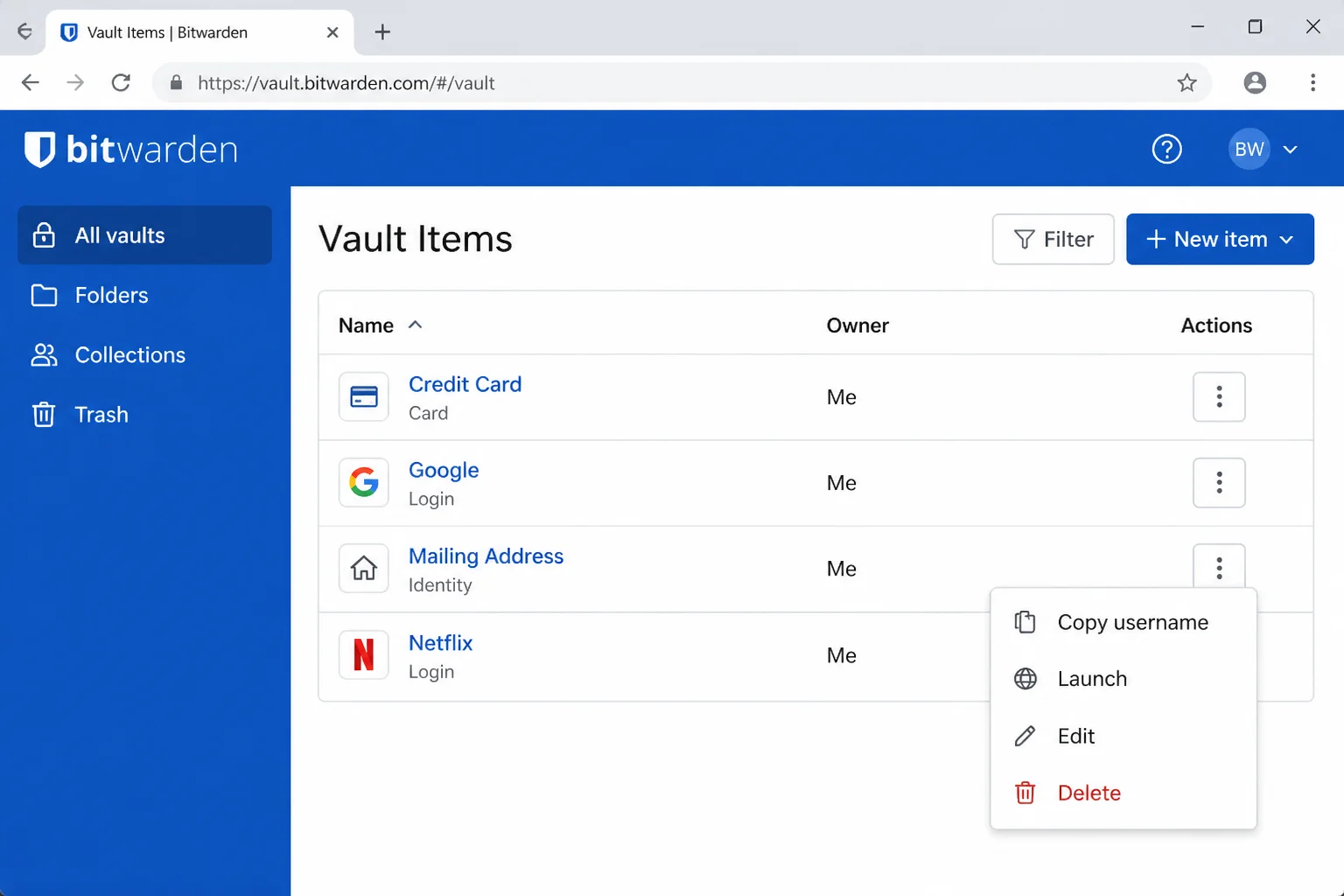
Winner: 1Password. Its record types, tags, and vaults are easier to manage than Bitwarden’s system.
Sharing, Administration, and Security Reports
Apple Shared Groups work well for households that share streaming, utility, or shopping accounts. Every member can add, edit, and delete shared credentials. Invite only people you trust. Apple doesn’t offer detailed permissions within a group.
Apple also lacks business roles, audit logs, policy controls, and detailed admin reports. That’s fine for a few family logins. It becomes a hard limit when a company must track or remove access.
1Password Families gives each member private storage and access to shared vaults. Business plans add account management, policies, activity reports, and finer access controls.
Bitwarden Organizations use collections to share selected records. Family and business tiers support more users and add admin tools. Reports and policy controls vary by plan, so check the exact tier before buying.
For personal security checks, Apple provides password security recommendations. 1Password calls its tool Watchtower. Bitwarden offers vault-health reports based on the selected tier.
Winner: 1Password. Its family sharing is clear, and its business controls are mature.
Pricing Comparison
The table leaves out fixed prices because taxes, billing periods, regions, and plan limits can change. Check the final price on the official site before publication or purchase.
| Product | Free option | Individual plan | Family plan | Business plans |
|---|---|---|---|---|
| Apple Passwords | Included with compatible Apple devices and an Apple Account | No separate subscription | Shared Groups have no separate password-manager fee | No dedicated business-password-manager plan |
| 1Password | Trial only; no permanent personal free tier | Subscription | Subscription | Yes |
| Bitwarden | Yes | Optional Premium subscription | Families subscription | Yes |
Apple is excellent value for an Apple-only household because there’s no extra bill. I’d stay with it unless you need a tool it lacks. Paying each month to copy tools that already work won’t gain you much.
Bitwarden offers better value when you need Android, Windows, Linux, or web access. 1Password costs more, but its clearer sharing and admin tools can save families and businesses time.
Winner: Bitwarden. It offers broad access without making every personal user pay.
Moving Between Password Managers
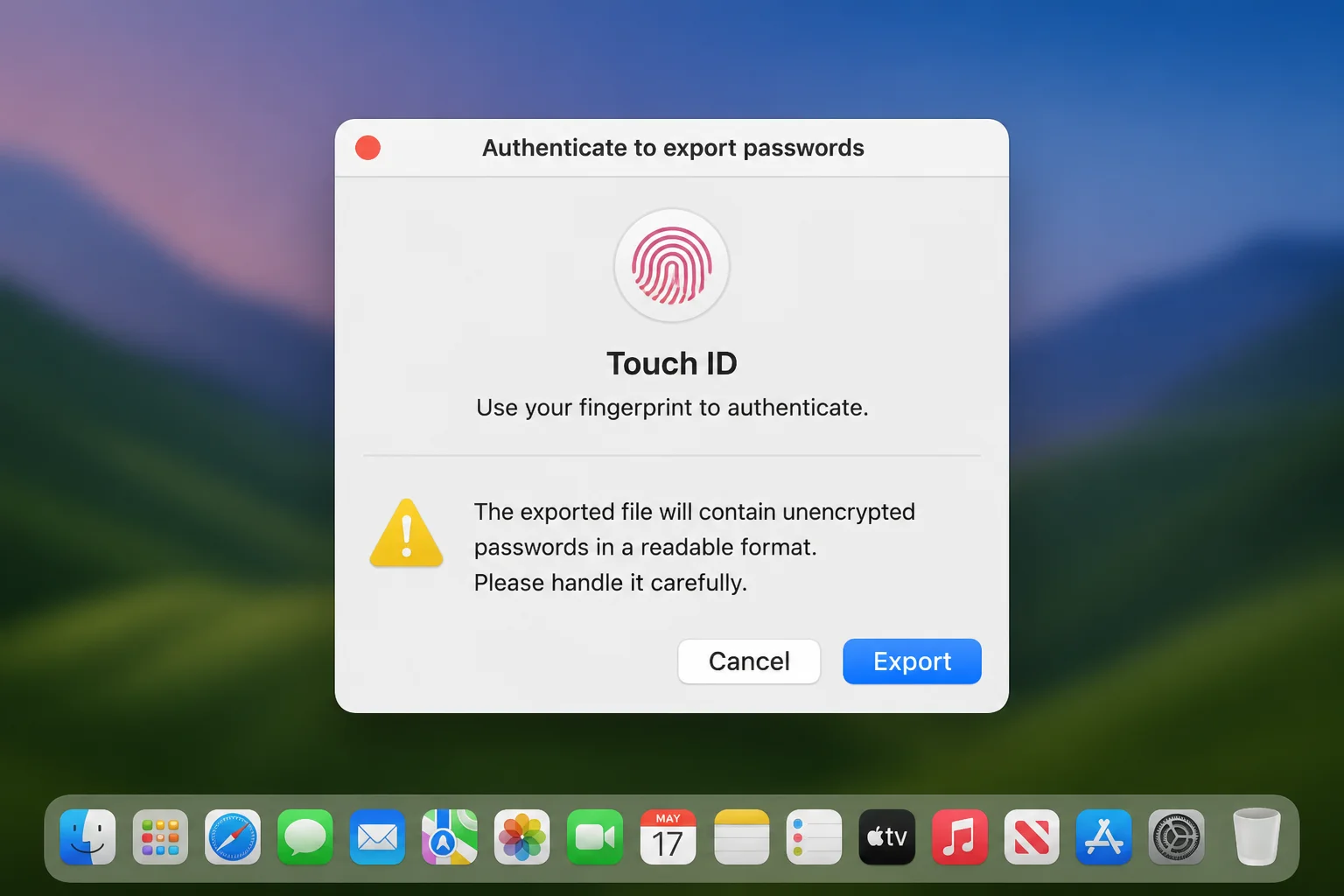
Handle password exports with care. A comma-separated values (CSV) file can store website addresses, usernames, and passwords as readable text. Anyone who opens it may be able to read your credentials.
CSV exports also have limits. They often omit passkeys, verification-code seeds, file attachments, or custom fields. Keep the old vault until you’ve tested the imported copy.
Export Apple Passwords on a Mac
- Open Passwords on a Mac.
- Select File > Export All Passwords to File.
- Read the warning and authenticate.
- Save the file to a temporary, private location.
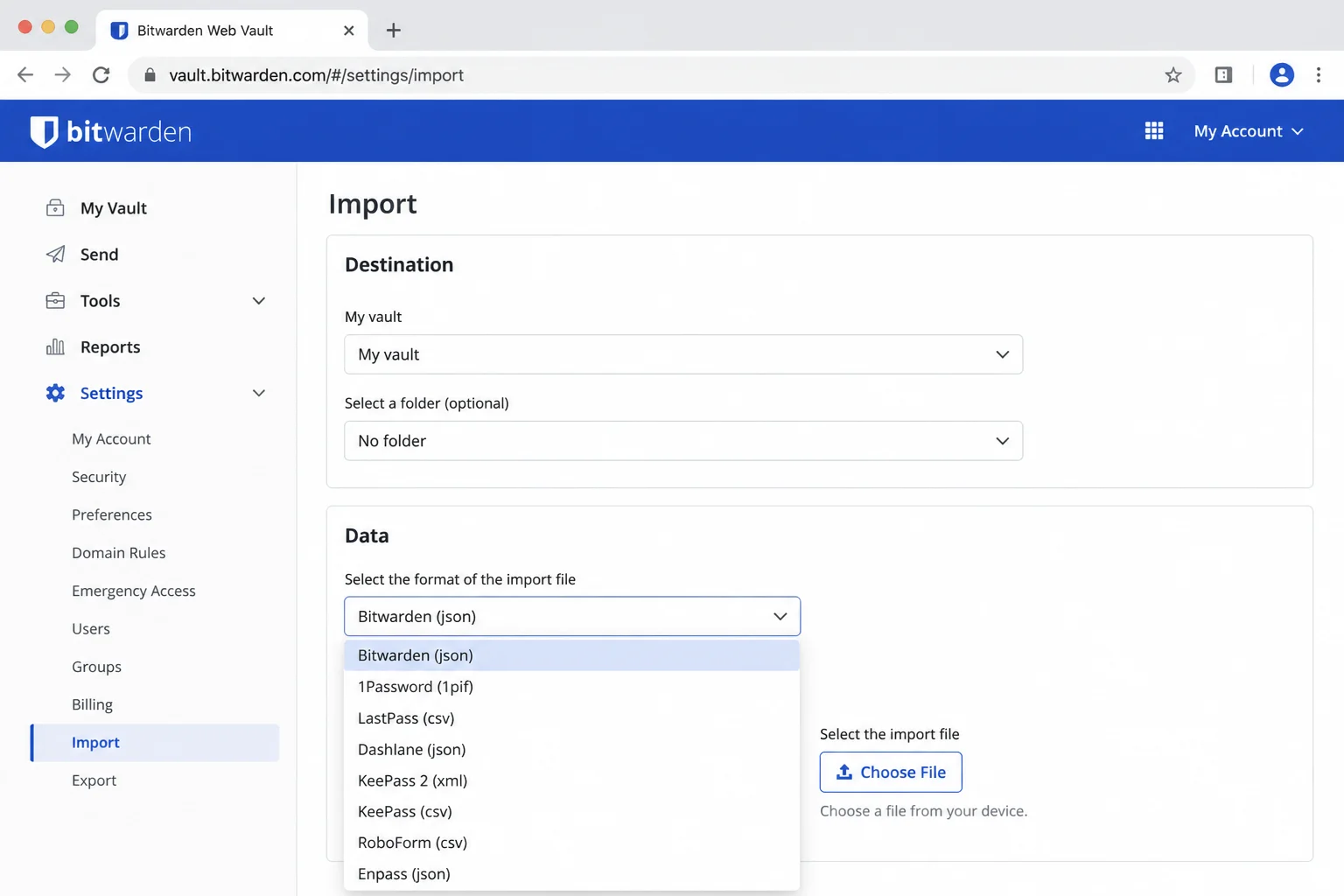
In 1Password, open the import page and choose the matching browser or CSV source. In the Bitwarden web app, open Tools > Import Data. Choose the right format, select the file, and start the import.
Check several records before deleting anything from Apple Passwords. Test accounts with long passwords and unusual usernames. Test verification codes too if you use them.
Import Into Apple Passwords on a Mac
- Export your data from 1Password or Bitwarden using that service’s export settings.
- Open Passwords on your Mac.
- Choose File > Import Passwords from File.
- Select the supported CSV file and review any entries Apple could not import.
- Test several logins before removing the old vault.
Import and export options can change. Compare Apple’s Mac import and export instructions with the current guides from 1Password or Bitwarden before moving your data.
After the move, securely delete the exported file. Then empty the Trash or Recycle Bin. Remove copies from Downloads, cloud storage, backups, and shared folders. Clear your browser’s download history if it shows the file’s location. Don’t email an unencrypted export to yourself, even if it seems quicker.
Which Should You Choose?
Choose Apple Passwords if:
- You mainly use an iPhone, iPad, and Mac.
- Everyone receiving shared passwords uses compatible Apple devices.
- You need passwords, passkeys, verification codes, and Wi-Fi credentials.
- You prefer a focused app with no extra subscription.
- You don’t need secure notes, documents, tags, multiple vaults, or business controls.
Apple Passwords is the sensible default when all five points match your setup. You can move later if your mix of devices changes.
Choose 1Password if:
- You regularly switch between Apple, Android, Windows, and Linux devices.
- You want separate personal, family, and work vaults.
- You store cards, identities, secure notes, documents, or other structured records.
- Your family needs clearer sharing boundaries.
- Your organization needs policies, reports, access controls, or administration.
1Password needs more setup and a recurring payment. In return, you get clear organization plus strong family and workplace controls.
Choose Bitwarden if:
- You want broad device and browser support at the lowest cost.
- You need a usable free personal vault.
- You want folders, collections, secure notes, and custom fields.
- You’re comfortable with a practical interface that is less polished than 1Password.
- You may need family or organization tools later.
Bitwarden’s terms can take a little time to learn. Once folders, collections, and Organizations make sense, it handles mixed-device setups well.
Apple Passwords
- Included with compatible Apple devices
- Excellent iPhone, iPad, Mac, and Safari integration
- Supports passwords, passkeys, verification codes, and Wi-Fi credentials
- Simple Shared Groups
- Easy biometric authentication
- No Android or Linux app
- No complete browser-based vault
- Windows experience requires extra Apple software and an extension
- No tags, multiple vaults, secure notes, or document storage
- No business administration or auditing
1Password
- Polished apps across major platforms
- Strong vault organization and record types
- Excellent family and business sharing
- Useful Watchtower security checks
- Supports passkeys
- Requires a subscription after the trial
- More options create a longer setup process
- Some administration tools require higher-priced plans
Bitwarden
- Strong free tier
- Broad app, extension, and web-vault support
- Secure notes, folders, collections, and custom fields
- Affordable path to family and business features
- Supports passkeys
- Interface can feel less refined than 1Password
- Some reports, verification-code tools, and attachments require payment
- Collection and organization terms take time to learn
Final Verdict
Apple Passwords covers daily use when all your devices come from Apple. It works best if you don’t need a private vault for files and notes. 1Password is the overall pick for organization, sharing, and account management across platforms. Bitwarden earns the same score with wider support and better value.
| Category | Apple Passwords | 1Password | Bitwarden |
|---|---|---|---|
| Apple integration | 10/10 | 9/10 | 8/10 |
| Cross-platform support | 5/10 | 9/10 | 10/10 |
| Organization | 5/10 | 10/10 | 8/10 |
| Sharing and administration | 6/10 | 10/10 | 9/10 |
| Value | 10/10 | 7/10 | 10/10 |
| Overall | 7.2/10 | 9.0/10 | 9.0/10 |
The category scores above are a simple unweighted average, not adjusted for any one factor’s importance to you, which is why 1Password and Bitwarden tie despite different strengths. Pick 1Password for polish and account controls. Choose Bitwarden when cost and device support matter more.
Decision Checklist
| Question | Best choice |
|---|---|
| Do you use only an iPhone, iPad, and Mac? | Apple Passwords |
| Do you regularly use Android, Windows, or Linux? | 1Password or Bitwarden |
| Do you need a free cross-platform vault? | Bitwarden |
| Do you want the most polished family sharing? | 1Password |
| Do you need tags, folders, or multiple vaults? | 1Password or Bitwarden |
| Do you store secure notes, cards, or documents? | 1Password; Bitwarden for lower-cost needs |
| Do you need business reports and access controls? | 1Password or Bitwarden business plan |
| Does every person sharing passwords use Apple devices? | Apple Passwords may be enough |
Wrapping Up
Stick with Apple Passwords if it covers your Apple-only household. There’s little reason to add another bill for tools you won’t use. If you add Android, Windows, detailed sharing, or secure file storage, consider 1Password or Bitwarden. 1Password is more polished, while Bitwarden costs less.
Features, plan limits, and prices were assessed for publication on August 1, 2026. Confirm current operating-system requirements and subscription terms before purchasing.