
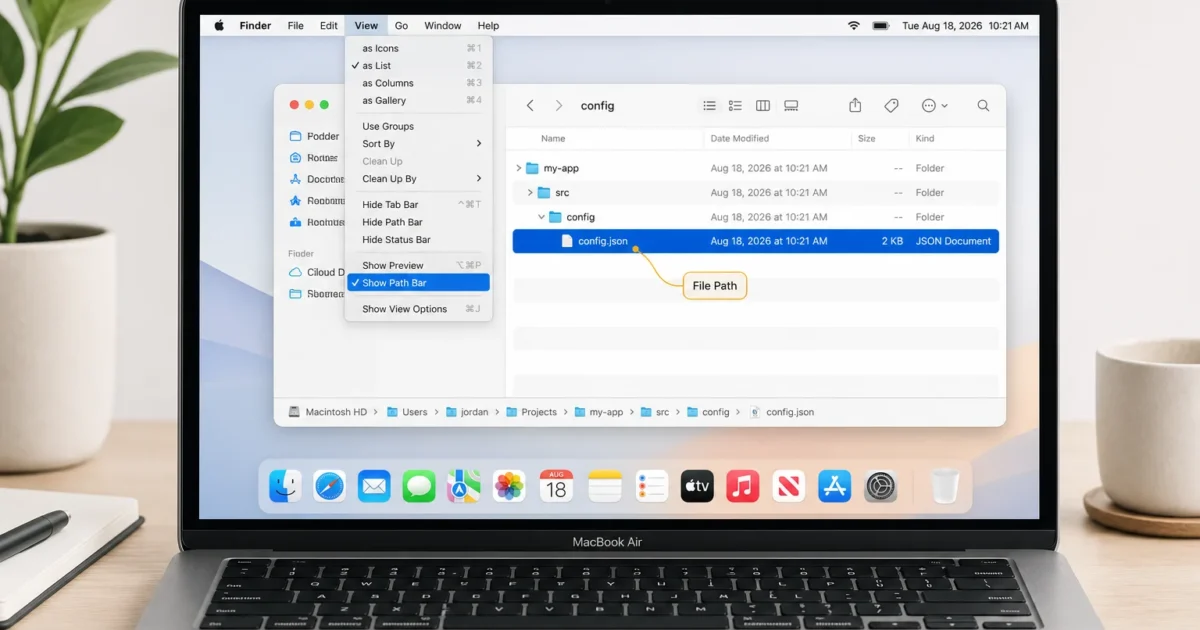
You’re setting up an app and it wants the absolute path to a configuration file. Or you’re building a Terminal command and need to type /Users/yourname/Documents/config.json without making a typo. Worth a look: macOS has five ways to reveal or copy a file’s full path, and the fastest takes about two seconds.
Some of these are hidden well enough that longtime Mac users still miss them. The video walkthrough from our sister channel covers the same ground if you’d rather watch.
1. Enable Path Bar in Finder
The Path Bar is the cleanest way to see where a file lives at a glance. Turn it on once and it sticks, a breadcrumb trail at the bottom of every Finder window showing the full folder chain from your drive to the current location.
- Open Finder.
- Choose View > Show Path Bar.
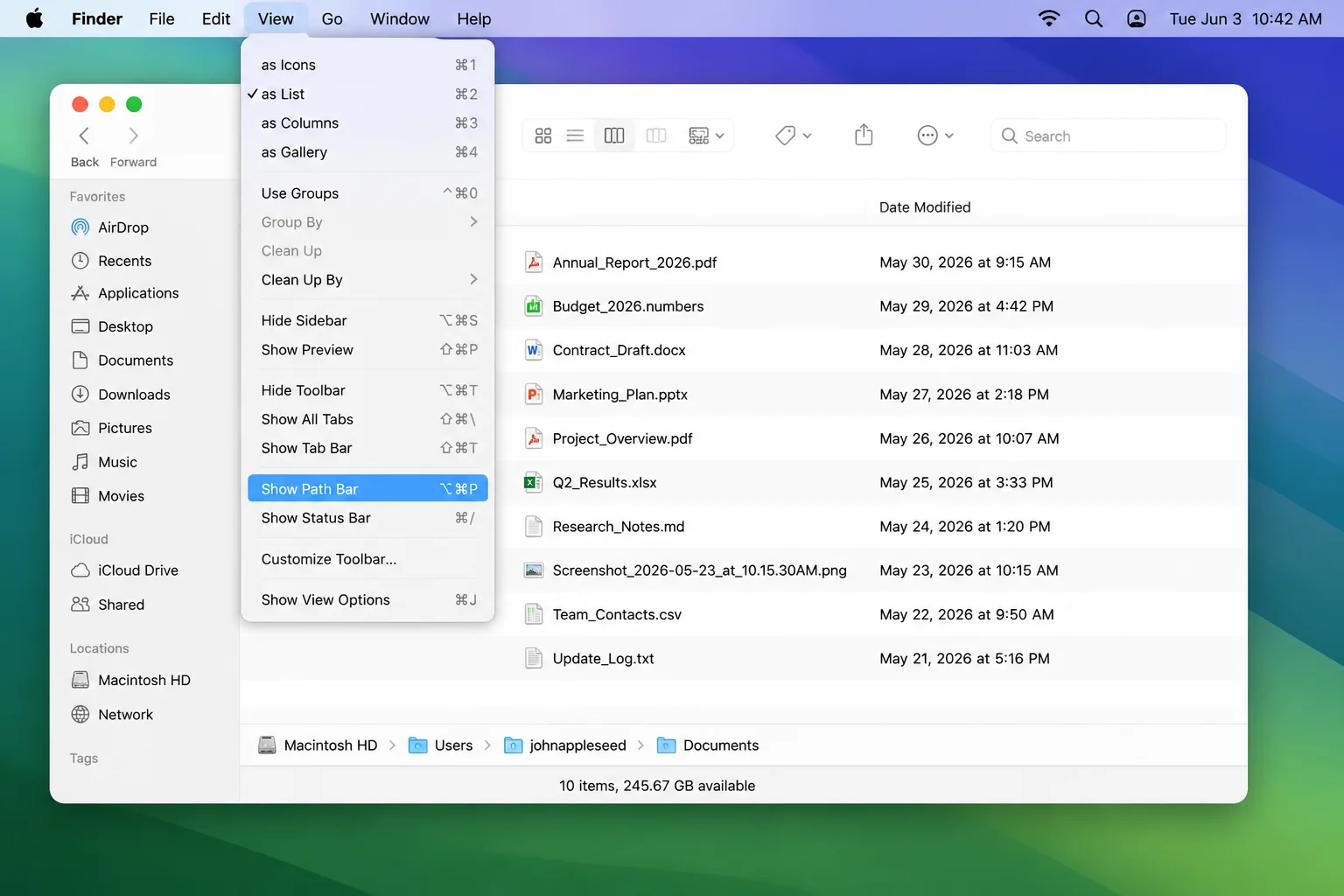
The bar sits at the bottom of the window. Click any folder in the chain to jump straight to it.
The Path Bar is visual only. For copying the actual path text, Method 2 is what you want.
2. Copy as Pathname
This is the method you’ll actually reach for most. Select a file or folder in Finder and press Option + Command + C. The full path lands on your clipboard as plain text, ready to paste.
- Select the file or folder in Finder.
- Press
Option + Command + C. - Paste into Terminal, a config field, or wherever you need it.
If you prefer the mouse: right-click the file, hold Option, and Copy “filename” as Pathname appears in the context menu. It’s hidden without the Option key, but it’s there.
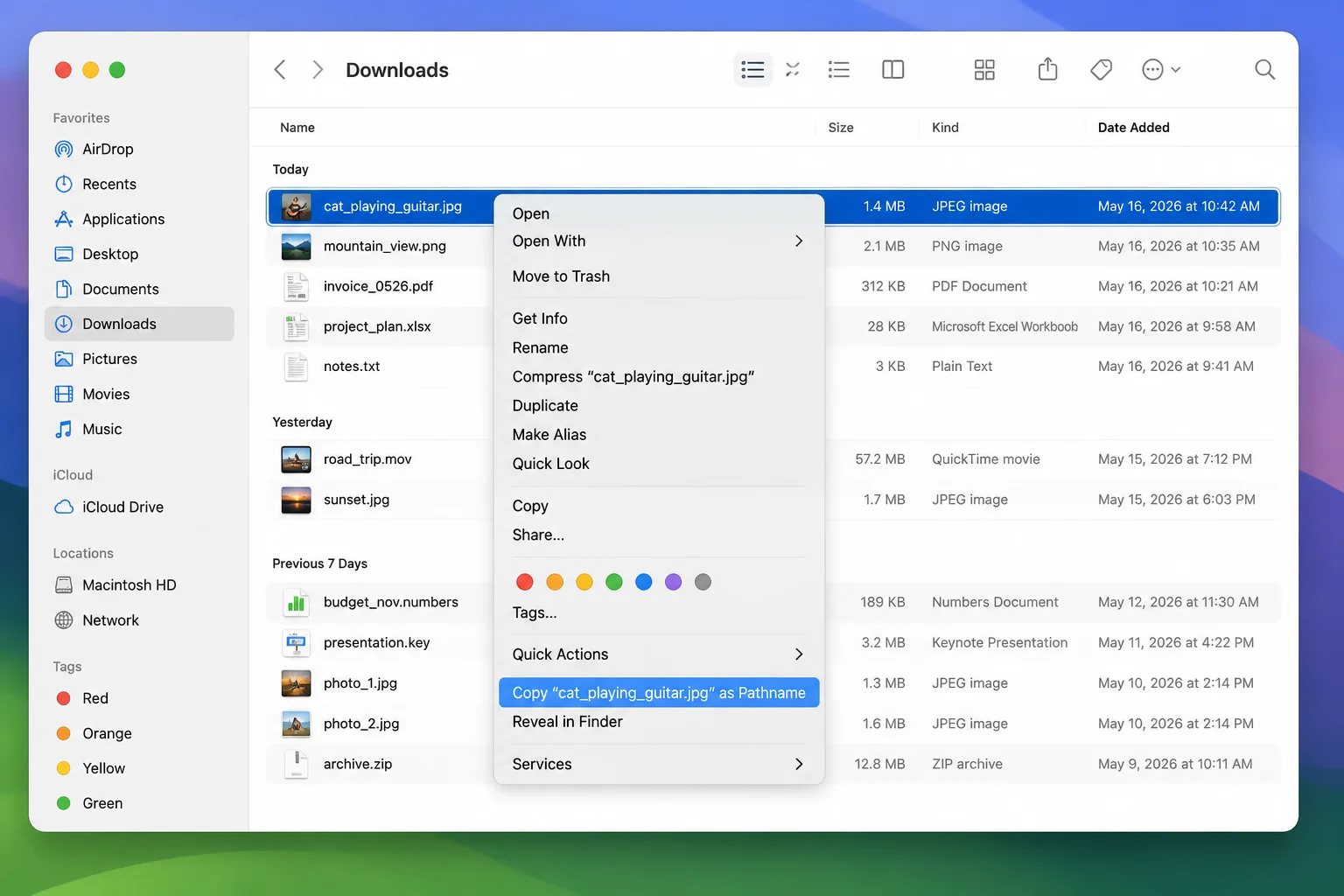
The result is a complete POSIX path, /Users/yourname/Documents/filename.pdf, filename included. Paste it anywhere that needs an exact location string.
3. Get Info
Get Info opens a metadata panel for the selected file, including a Where field that shows the enclosing folder. Good for a quick location check, though not ideal when you need the full path as copyable text.
- Select the file or folder in Finder.
- Press
Command + I, or right-click and choose Get Info. - Look for the Where field in the panel.
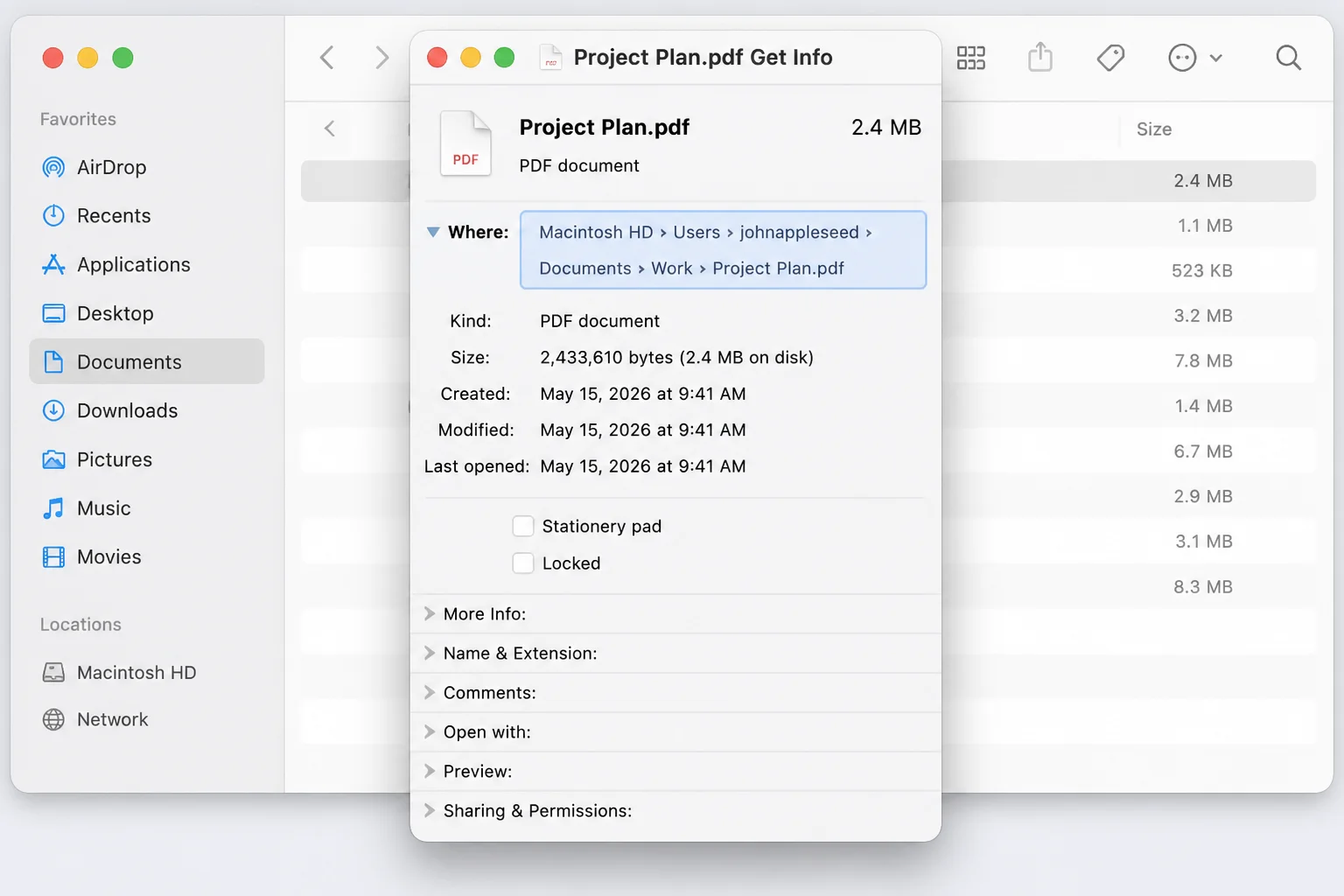
The Where field shows the parent folder, not the file’s own full path. If you need the complete path with the filename attached, Option + Command + C is faster.
4. Go to Folder
Go to Folder is Finder’s shortcut for jumping to any location you can type. It works the other way too: drag a file into the input field and the full path appears, ready to copy.
- In Finder, press
Shift + Command + G, or choose Go > Go to Folder. - Drag a file from a Finder window into the dialog’s input field.
- The path fills in automatically. Select all and press
Command + Cto copy it.
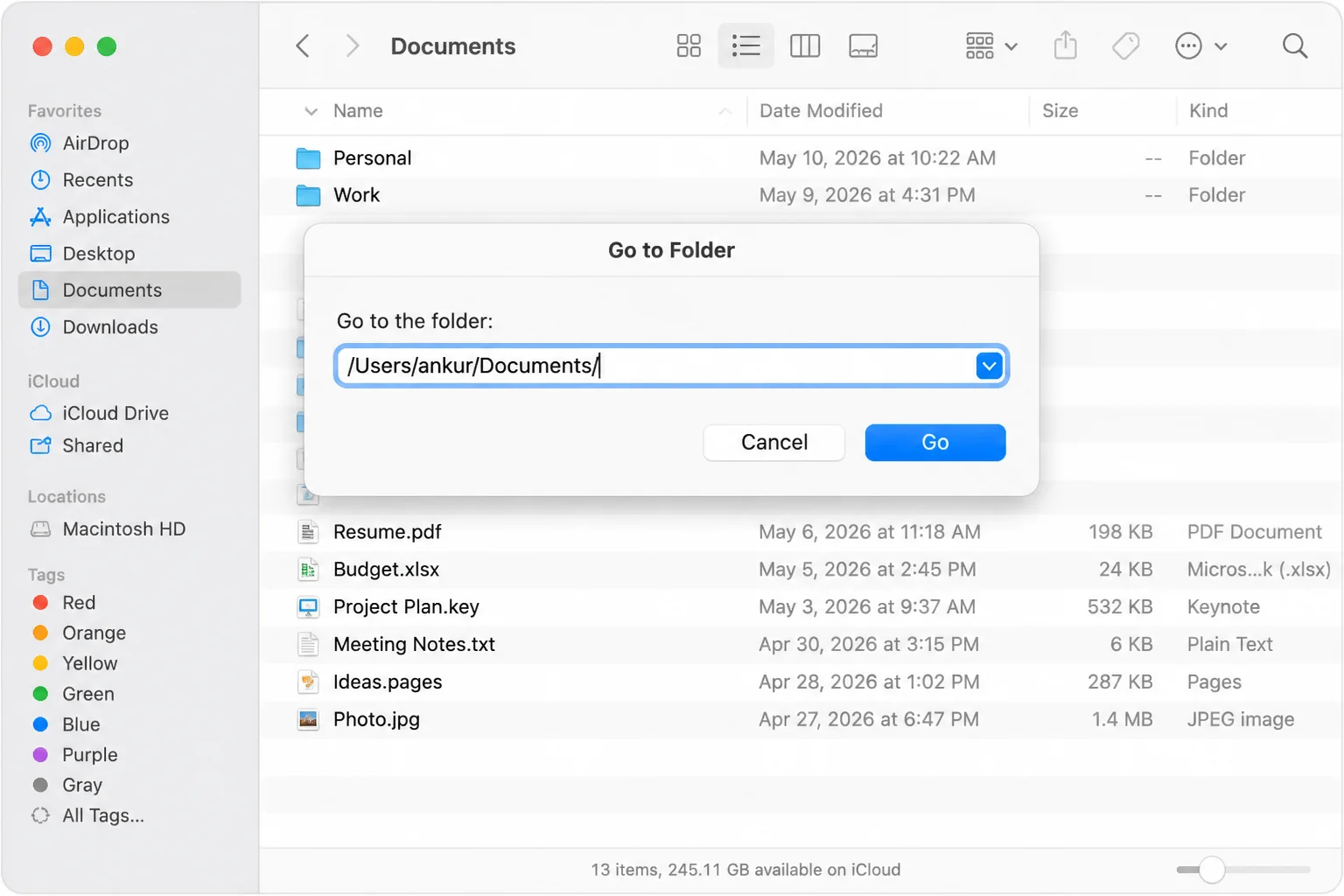
You can also use this in reverse: paste a path you’ve already copied and press Go to open that folder directly. Handy for reaching a deeply nested directory when you have the address but not the patience to click through eight folders.
5. Drag a File into Terminal
If you’re already working in Terminal, this beats every clipboard method. Drag any file or folder from Finder straight into the Terminal window and the full POSIX path appears at the cursor. No copy, no paste required.
- Open Terminal (in Applications > Utilities).
- Start typing your command, stopping where the file path should go.
- Drag the file from a Finder window into the Terminal window.
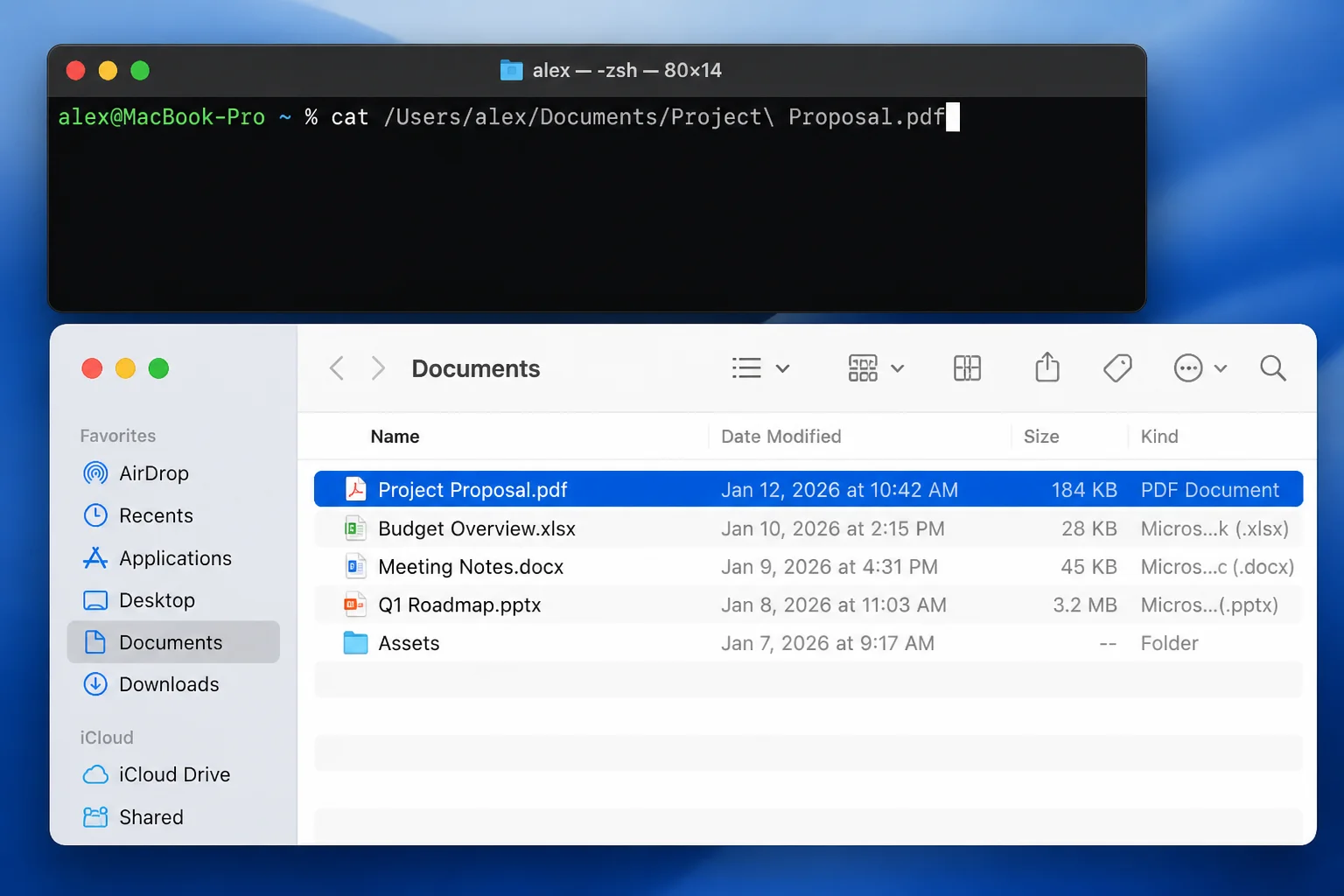
The path drops in at the cursor position, with spaces escaped automatically. Particularly useful when you’re running cp, mv, or open and don’t want to type a long nested path by hand.
Troubleshooting
“Copy as Pathname” doesn’t appear when I hold Option
You probably right-clicked outside a Finder window, on the Desktop or in a Spotlight result. Select the file inside an open Finder window first, then right-click while holding Option.
The Path Bar isn’t showing up
Go to View > Show Path Bar in Finder. If you’re in fullscreen, the menu bar may be hidden, so move your cursor to the top of the screen to reveal it first.
I found the file in Spotlight and need its path
Hold Command and click the Spotlight result, or right-click it and choose Show in Finder. Once Finder opens with the file selected, use any method above.
I can see the folder chain but need the actual path text
The Path Bar is visual only. With the file selected, press Option + Command + C to put the text version on your clipboard.
Quick reference for when to use each:
- Path Bar: leave it on permanently; good for orientation and quick folder-level context
Option + Command + C: your default whenever you need a path string- Get Info: when you want location alongside the rest of a file’s metadata
- Go to Folder: dragging a file in to grab its path, or pasting a path to jump there
- Terminal drag: fastest option when you’re already in a Terminal session
Option + Command + C is genuinely one of those shortcuts you’ll use every week once it’s in muscle memory. It’s a gem, worth bookmarking and passing along to anyone else in your Mac circle. For more on customizing your Mac experience, consider exploring macOS Dark Mode or learning about macOS Spotlight. If you’re looking for external resources, Apple’s official support page on getting file, folder, and disk information can be helpful.