

Those small black dots under your Dock icons caught my eye when I first switched to Mac — worth a look to understand what they actually do.
The black dot indicates that an app is currently running. Think of it like Windows’ taskbar highlighting, but more subtle. The Finder always shows a black dot because it never fully closes on macOS.
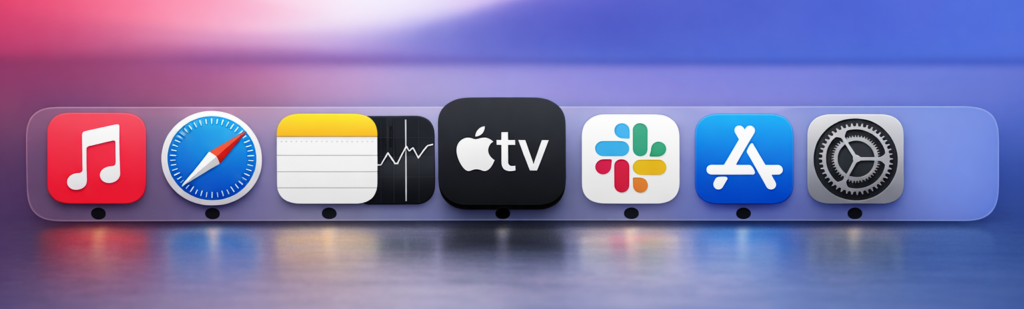
Here’s what actually works well about this system: you can see which apps are running without cluttering your screen. But there’s a crucial detail many users miss.
Running Apps Don’t Always Have Visible Windows
An app can be running (black dot visible) without having any open windows. This trips up new Mac users who expect every running app to show a window.
If you see a black dot but no window when you click the Dock icon, the app is running in the background. Click the icon to open a new window, or use Command + Tab to switch between all running apps — including those without visible windows.
How to Hide the Black Dot Indicators
If you prefer using Mission Control or Command + Tab to track open apps, you can disable the dots entirely.
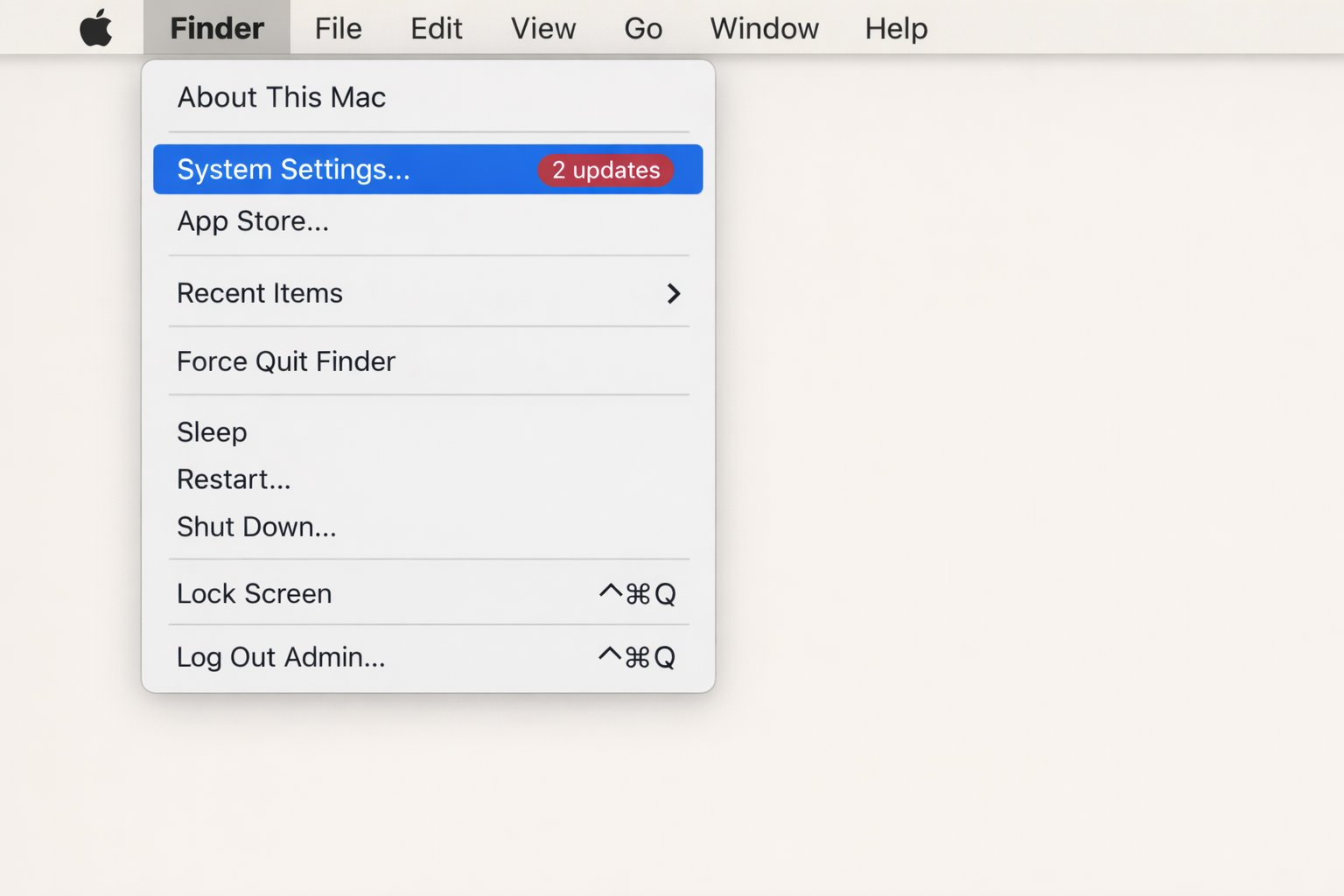
Click the Apple menu and select System Settings.
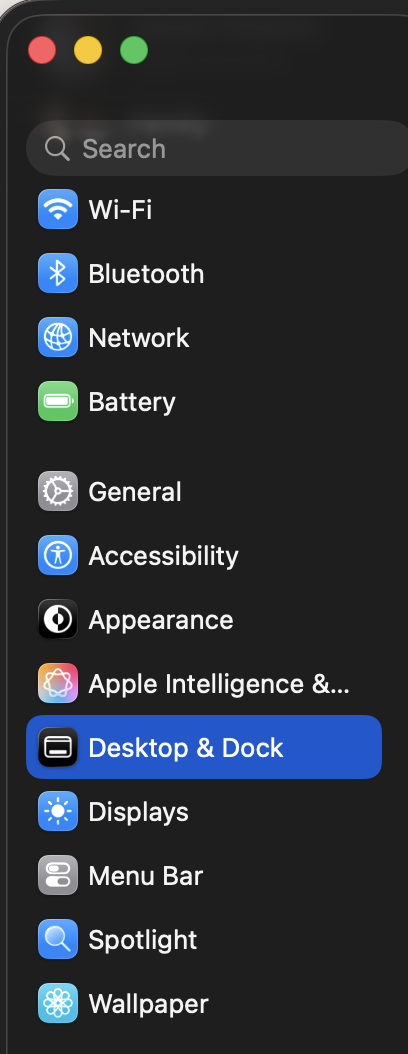
Look for Dock in the sidebar (it’s under “Desktop & Dock” in macOS 26).
Uncheck Show indicators for open applications.
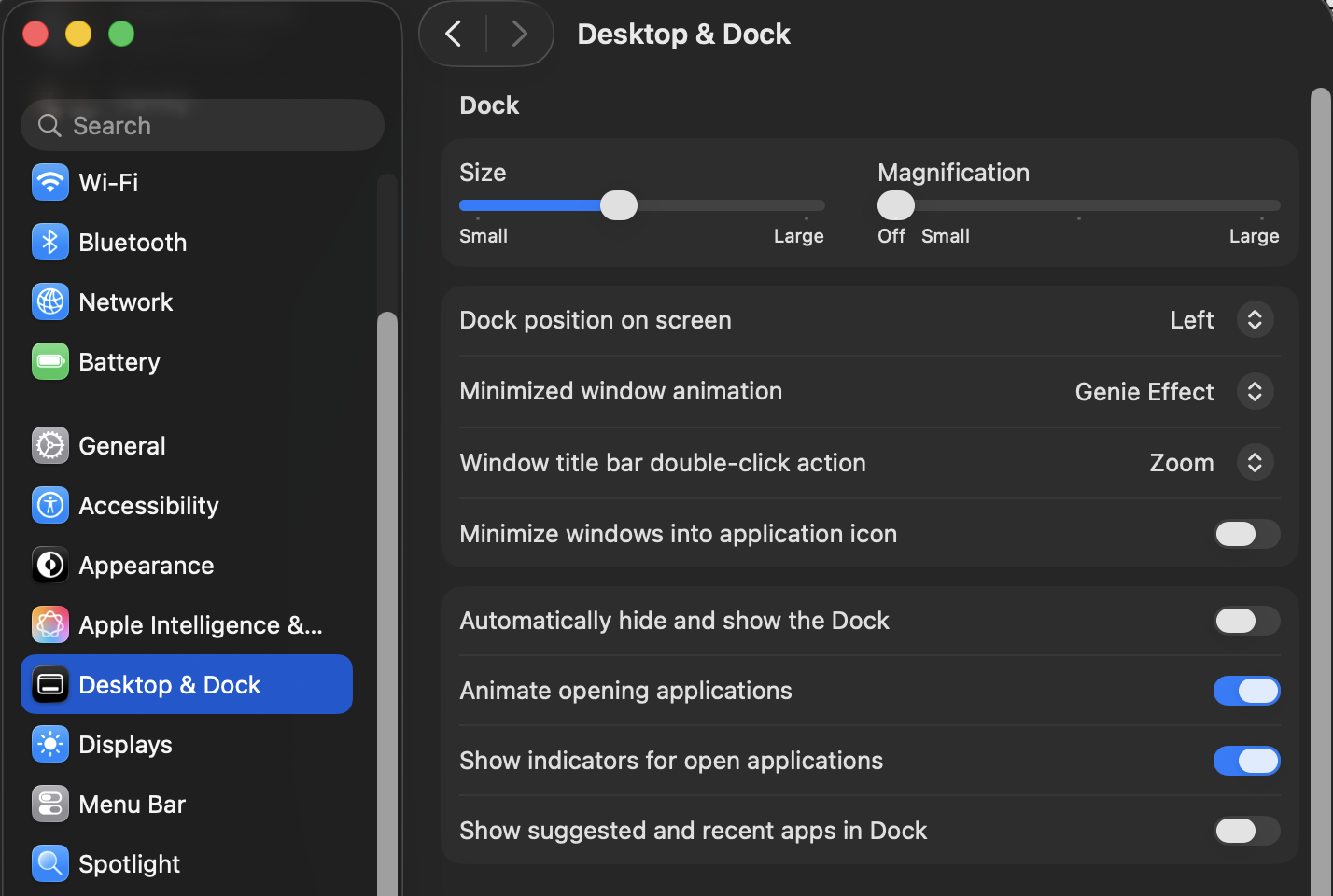
The dots disappear immediately. Clicking Dock icons still works the same way — it just brings the app to focus or opens a new window if none exist.
Alternative: Use Mission Control Instead
Mission Control gives you a better overview than tiny dots anyway. Swipe up with three fingers (or press F3) to see all open windows and full-screen apps.
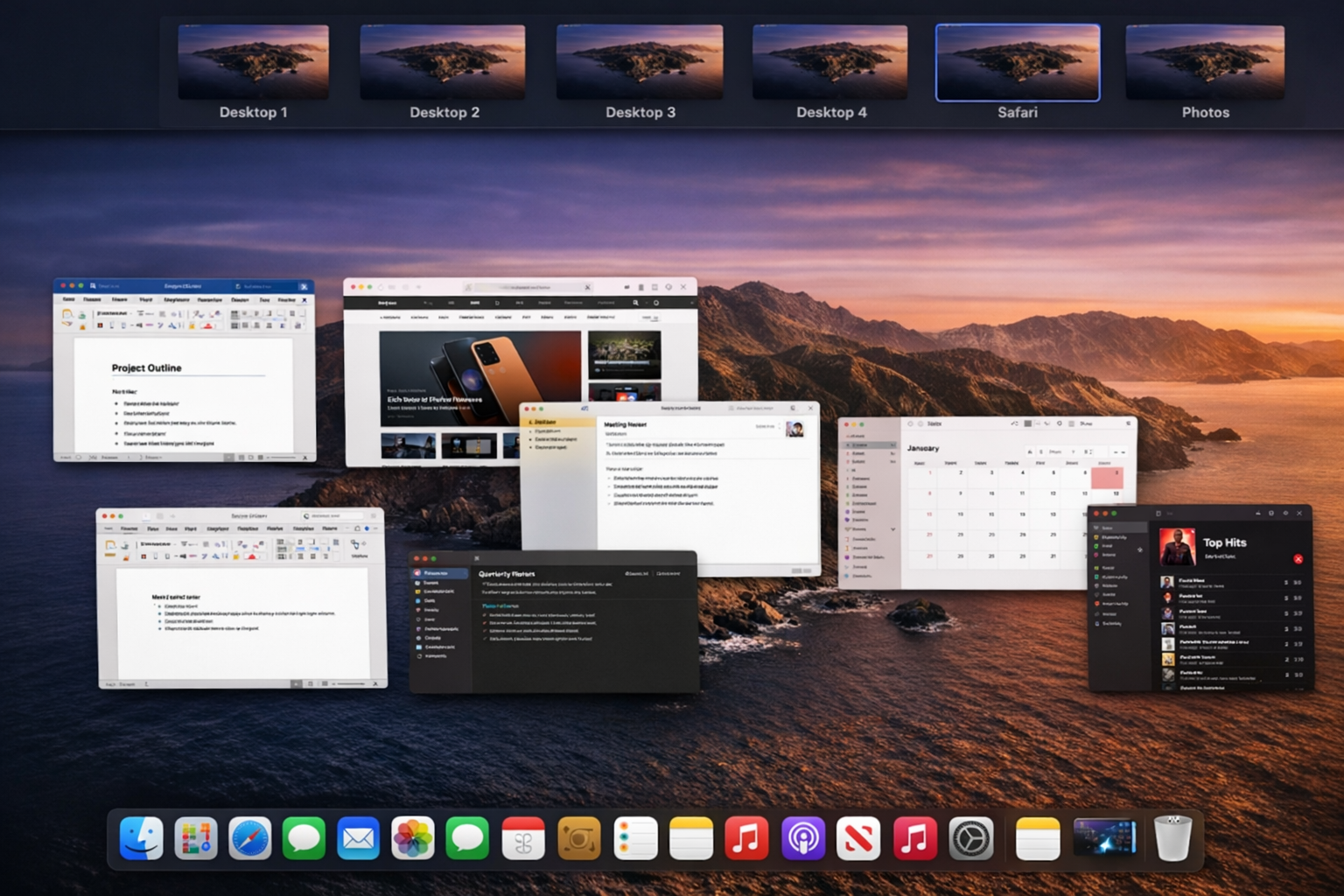
Mission Control shows actual windows, not just running processes, which is often more useful than the Dock indicators.
Bonus Dock Tip: Minimize Into App Icons
While you’re in Dock settings, consider enabling Minimize windows into application icon. By default, macOS creates separate Dock icons for minimized windows, which clutters things up.

With this option enabled, minimized windows tuck into their app’s existing Dock icon instead of creating new ones. Much cleaner, and more like Windows behavior if you’re coming from that world.
Visual Customization in macOS 26
macOS 26 introduced four icon appearance options as part of its Liquid Glass design language, accessible via System Settings > Appearance > Icon and Widget Style: Default (standard Liquid Glass styling), Dark (darker rendering), Clear (semi-transparent, glassy effect that lets your wallpaper show through), and Tinted (color tinting in light, dark, or auto). These visual changes don’t affect the black dot functionality, but they might make the indicators more or less visible depending on your choice.
The black dot system is honestly well-designed once you understand that running doesn’t always mean visible. It’s a small detail that makes the Mac feel more intentional than a traditional taskbar. Whether you keep the dots or hide them depends on how you prefer to work, both approaches are perfectly valid.