

If you’re a developer, version control software allows you to keep track of changes to your code. This is essential on projects where you’re working as part of a team, letting you track changes as they happen. While services like GIT are popular, especially for open-source software, alternatives like Subversion (SVN) offer more control.
Various SVN clients exist, but for Mac users, a popular option is SvnX. We first touched upon this simple, free, and open-source Mac SVN client over a decade ago, with plenty of new features and changes to dive into since then. If you want to use SvnX, here’s everything you need to know to get started.
What is (SVN) Subversion?
Other types of version control, like GIT, rely on a decentralized approach to version control. Each worker gets a copy of the code, they work on that code, and the changes are then patched (committed) onto the larger codebase.
Apache Subversion works differently. Rather than a decentralized approach, Subversion is centralized. There’s only a single, central code repository, with each developer working on their own parts to it. Each revision to the code is tracked, with the ability to revert to past versions made easy.
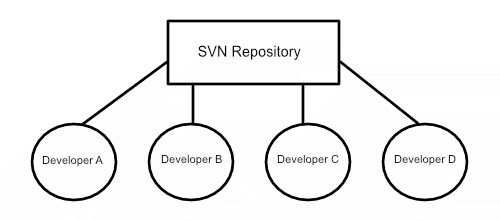
This offers administrators more control, more security, and can be an easier system to begin using. If the centralized approach is for you, then installing SvnX is your first step to using Subversion on Mac. This client adds a GUI interface to the Subversion terminal app.
Installing SvnX Subversion on macOS
Previous versions of SvnX required a manual install of Subversion on macOS before the client would work. Thankfully, macOS now includes a recent version of Subversion, so this is no longer necessary.
To install and run the most up-to-date version of SvnX, you’ll need to install the Homebrew package manager for macOS. Other available versions of SvnX, including those provided on the “official” but long-since abandoned SvnX website, simply won’t work on recent macOS installations because of its older 32-bit status.
- If you don’t have Homebrew installed on macOS, open a terminal window and type /usr/bin/ruby -e “$(curl -fsSL https://raw.githubusercontent.com/Homebrew/install/master/install)” to begin the installation. Wait for the download and installation script to complete, and follow any on-screen instructions.
- Once Homebrew is installed, type brew cask install svnx in the terminal, and hit enter. This will download and install the latest, 64-bit version of SvnX available for macOS. Homebrew will alert you once the installation process has been completed.
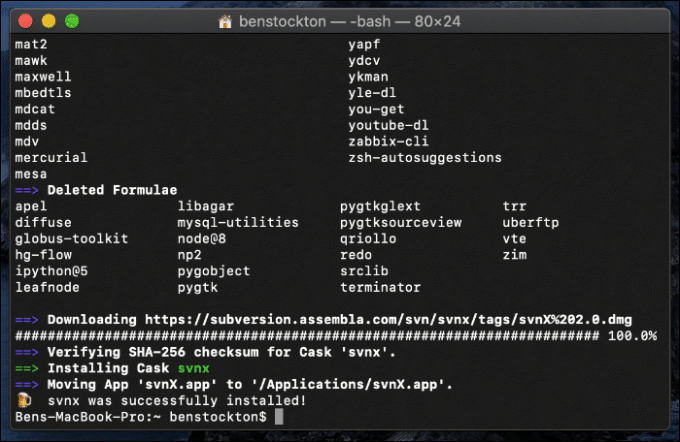
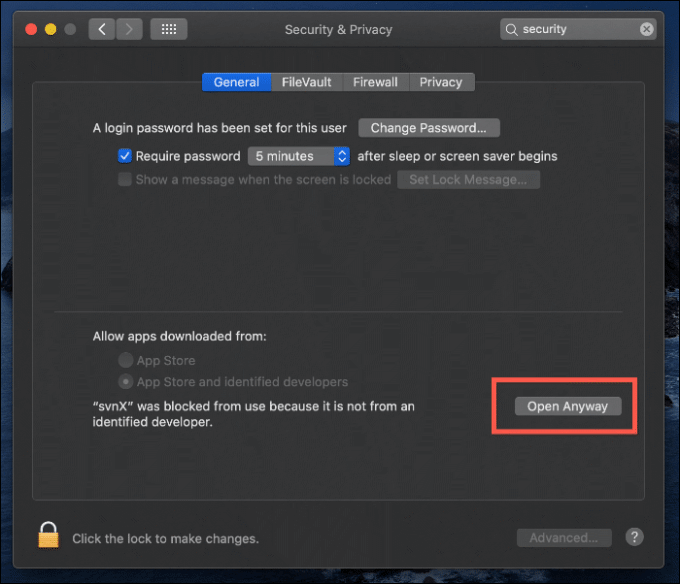
- You can launch SvnX from Launchpad, or by double-clicking on the app in the Applications folder in Finder. However, the first time you do this, macOS will likely block the attempt for security reasons.
You’ll need to allow SvnX to launch by clicking Launchpad > System Preferences > Security & Privacy and, in the General tab, clicking the Open Anyway button next to the SvnX launch warning.
- Before launching, macOS will ask you for final approval. Click Open to allow SvnX to finally launch the app.
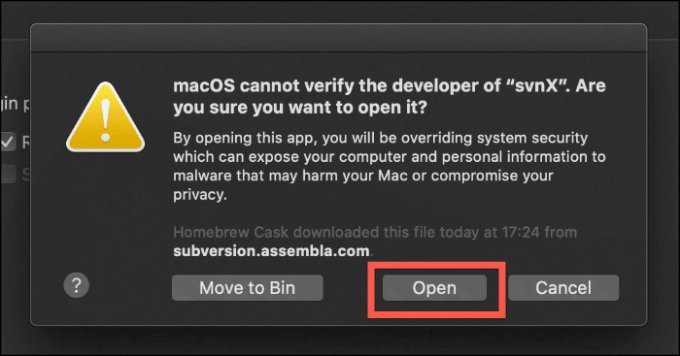
After its first launch, macOS will allow SvnX to run without any further security issues.
How To Use SvnX Subversion
When you first launch SvnX, you’ll be presented with a fairly basic screen. Listed on the left are two categories called Working Copies and Repositories.
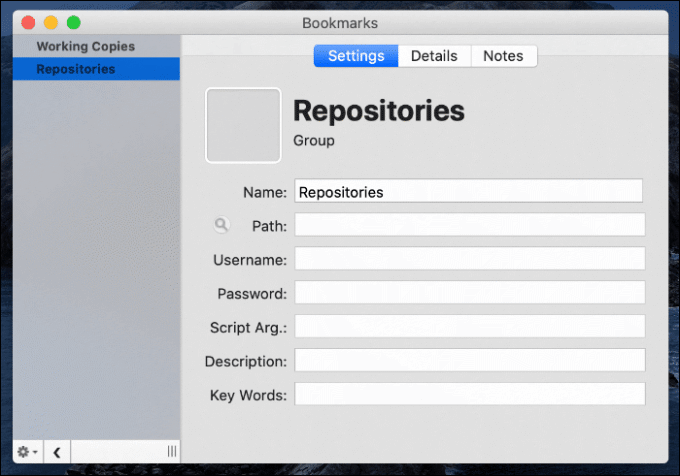
Repositories are the central SVN servers you connect to. An SVN repository holds all the files for your project. When you update a file, a new revision tag is added to it, allowing you to distinguish between older and newer copies of your repository files.
Working copies are where local copies of repository files are saved. This allows you to make changes to your files locally before you commit them to the repository. Files are usually separated into different focus areas like trunk (for stable copies), branch (for files under active development) and tag (for copies of the main repo).
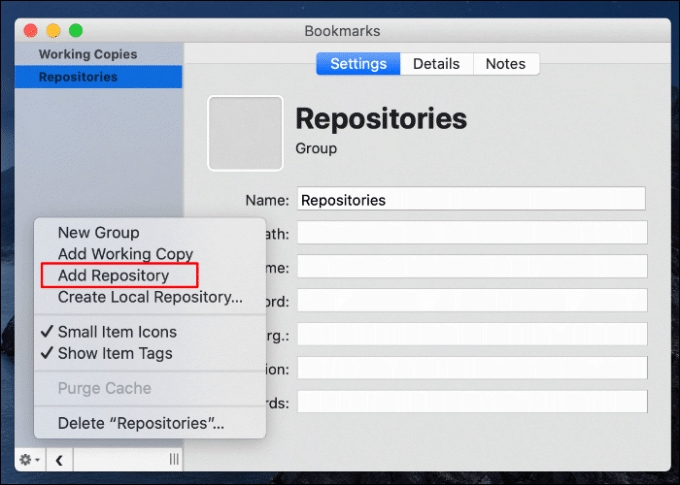
- To add a new repository, click the Settings button in the left-hand menu and click Add Repository.
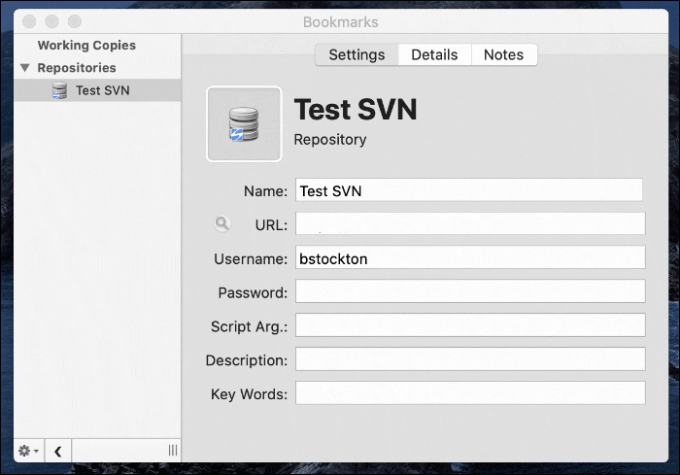
- You’ll need to provide details about your Subversion server to allow you to connect. Type the SVN repository server in the URL box, giving the repository a memorable name under Name. If you have a username and password, type those in the Username and Password boxes.
- Once your details are in place, double-click on the entry for your repository in the left-hand menu, or click Details > Refresh Now. This will open the access menu for your SVN repository, allowing you to access existing repository files and past revisions, and make changes as required.
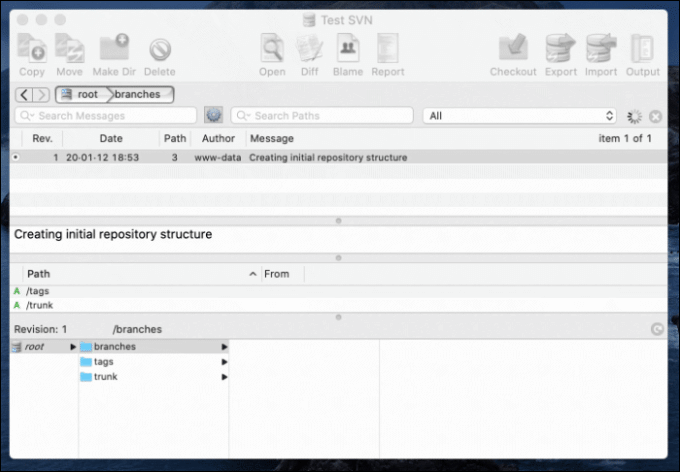
- If you want to export a copy of your SV repository as a working copy to make local edits, select a revision (numbered under the Rev. column), then select a folder at the bottom of the screen.
To make a local copy, click the Checkout button in the top-right. Confirm where you’d like to save these files before clicking the Checkout button.
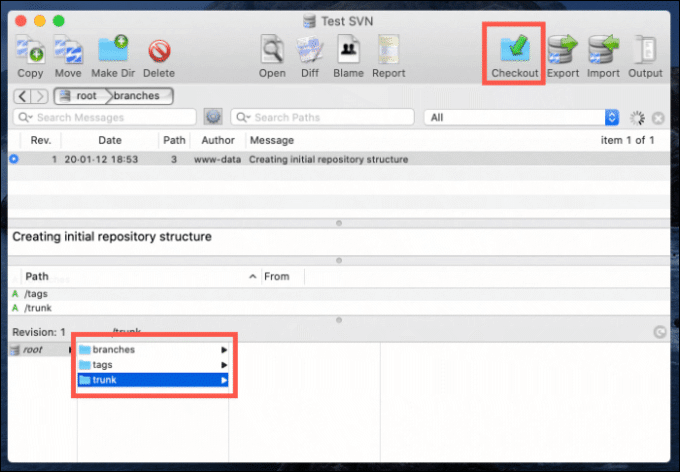
- You’ll be able to find more information about your saved working copy in the main SvnX launch window, listed under Working Copies in the left-hand menu. Once you make changes to your SVN working copy, double-click on the entry in the main SvnX launch window.
In the Working Copy window that appears, select any folders or folders that you’ve edited, then click Commit to save it as a new revision to your central SVN repository.
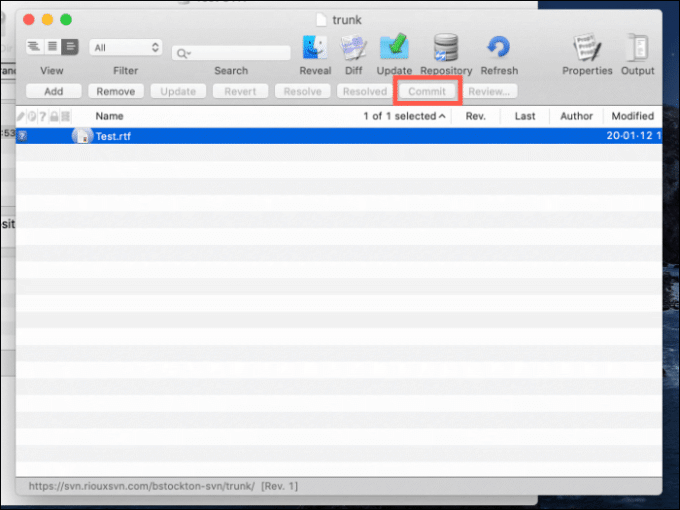
Each new revision you make will be listed in the Repository window for your SVN server. You can make new working copies on older revisions to “fork” your code and revert back to an older version, should you need to.
Effective Version Control with SvnX
If you’re not using a version control system, every change you make to your code is final. You can’t move backward, and you can’t undo the changes you make further down the line. Using SvnX on Mac helps to deal with this problem, offering a simple and effective way to keep track of code changes.
SvnX is a little outdated, though, so feel free to use an alternative like Versions if it isn’t the right Mac SVN client for you. Of course, you can’t run before you can walk, so if you want to learn how to code, there are a number of services and apps out there to help you.