

File handling on a Mac isn’t particularly tricky. For example, if sharing your files between PCs and smartphones is a skill you need to learn, learning to move files on Mac is an easy intuitive process.
Normally, you’d just select the file you’d like to move using the cursor, and then drag and drop it to the location of your choice. However, depending on your desired destination, your Mac can either copy or move that file altogether.
Here we’ll take you through all the different methods of file handling on a Mac, including moving them on the same and to a different drive, and moving and copying your files to the cloud.
How To Move And Copy Files On The Same Mac Drive
Understanding the way the file handling system works in Mac OS will help you make your workflow more efficient. Once you learn the different ways of moving the files around, backing up files on your Mac will become effortless.
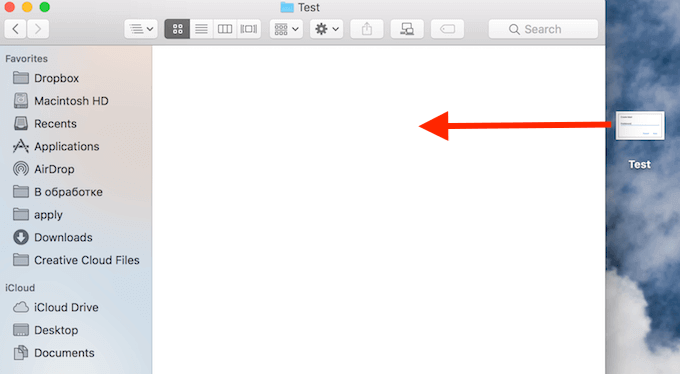
Let’s start with the most basic move when it comes to file handling. Drag and drop a file on the same drive on your Mac. When you do that, your computer will automatically move that file rather than make a copy of it.
- Click on the file you’d like to move to select it.
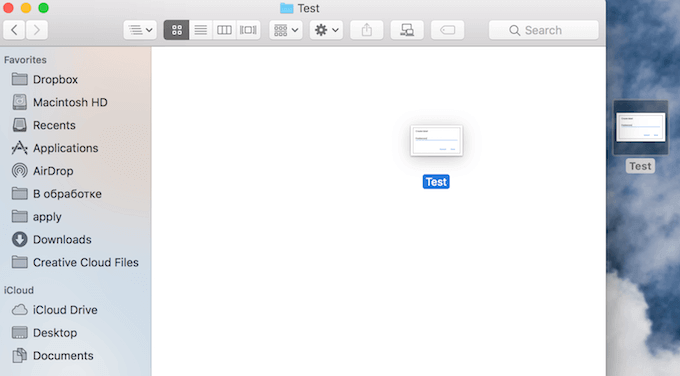
- Hold down the mouse button while you drag the file to the new location.
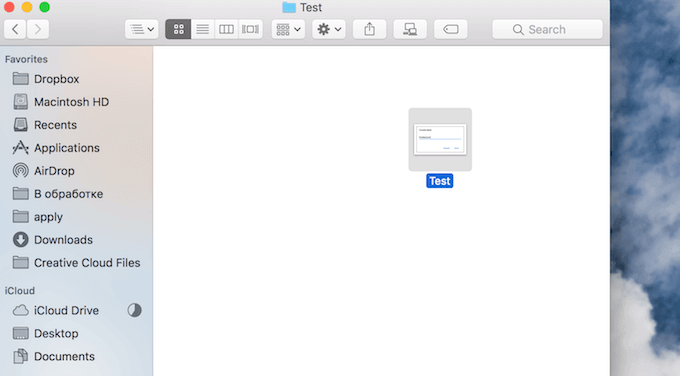
- When you drop it into the new folder you’ll see that the file has moved from its original place to the new destination.
If your goal is to keep the file in its original location, as well as have a copy of it in the new destination folder, you’ll need to use this keyboard trick to do it.
- Click on the file you’d like to move to select it.
- Hold down the Option key (or Alt) on the keyboard while moving the file to its new location.
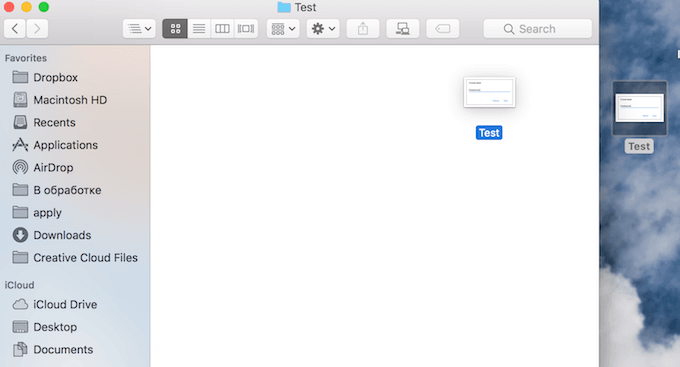
You’ll see that instead of moving the file, your Mac will automatically copy it to the new destination folder. Now you can see that two identical files exist on your computer.
How To Transfer Files To a Different Drive
The default file handling behavior of your Mac changes when you transfer files between the Macintosh HD and another drive. No matter whether it’s an external or an internal drive, the system’s automatic response is to copy a file rather than move it. That’s because your Mac assumes you’re backing up your files.
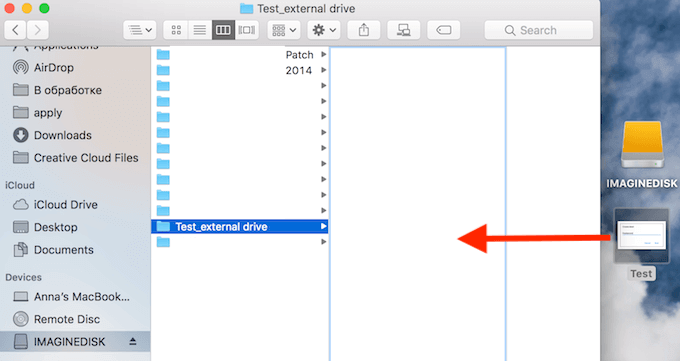
- Click on the file or folder to select it.
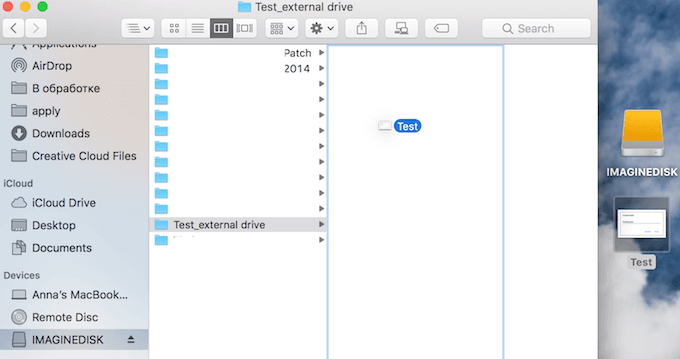
- Move it to a different location by dragging it to a different drive.
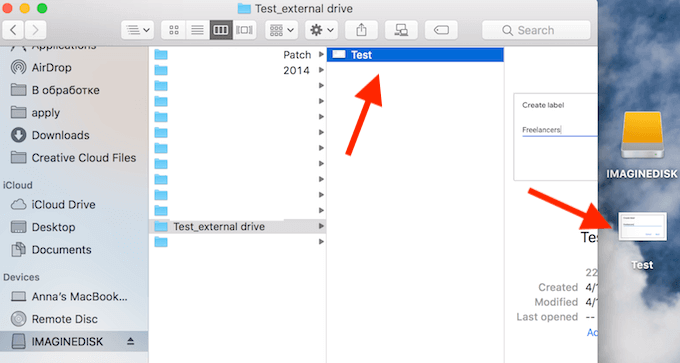
- When you drop it, you will see that Mac will create a copy of it in the new drive rather than move it there.
If you want to only keep the newly created copy of your file, you can trash the original to remove it. Or you can use this trick to move your file to another drive in the first place instead of copying it.
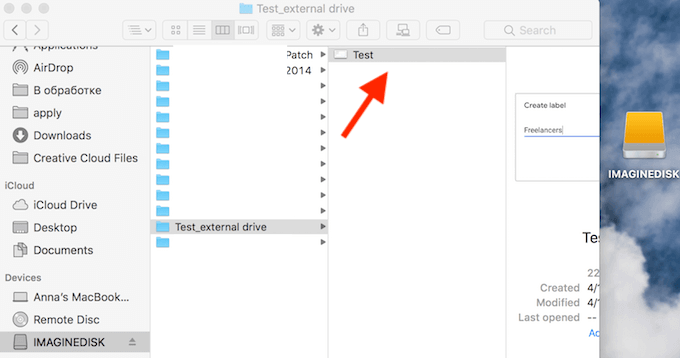
Before you drag and drop your file, hold down the Cmd (Command) key when you select the file. After you drop it in the new destination, you’ll see there’s only one file on your computer now. This saves you time and memory space.
How To Move And Copy Files From Mac To iCloud
If you’re choosing to transfer and store your files online, it’s important to know that your Mac is equipped with a great alternative for services like Google Drive, DropBox, and others. iCloud Drive is a built-in option that you can use to store and access your files by other iOS devices under the same Apple ID. Plus, since it’s already a part of your Mac, it doesn’t require any third-party logins or downloads.
Moving and copying files to and from the iCloud Drive is just as easy as transferring your files elsewhere on your Mac.
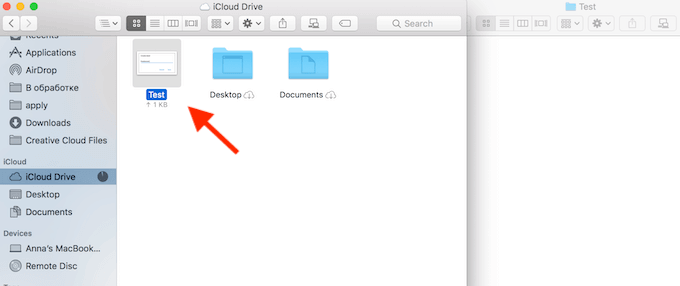
When you drag and drop a file from Macintosh HD to the iCloud, your computer’s default response will be to move it there.
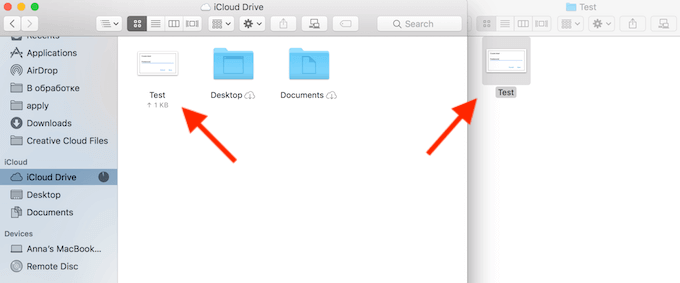
If you want to keep the original file, as well as have a copy of it on the iCloud Drive, hold down the Option key (or Alt) on the keyboard while moving the file to its new location. That way, you will copy your file to iCloud.
Use The File Handling Keyboard Shortcuts
A great way to upgrade your user experience and become a more efficient Mac user is to learn the essential Mac keyboard shortcuts. When it comes to file handling, two keyboard shortcuts will quickly turn you into a power user.
- Cmd + C & Cmd + V
The ultimate keyboard shortcut that most users will have known since day one of using a computer. You can use it to copy and paste any file anywhere on your Mac without touching your mouse or a touchpad.
- Cmd + C & Option + Cmd + V
This shortcut is a little less known. Just add the Option key to the second part of the copy-paste action and you will move your file to the new destination instead of creating a copy of it.
File Handling Made Easy
Moving your files on Mac is rather simple. Once you understand how it works, you can move on to learning how to move files between different devices. A useful skill when you need to migrate files from Windows PC or transfer your data from Android to Mac.
Have you struggled moving files to and from your Mac before? Share your experience with us in the comments below.