
You’ve got a URL on your iPhone that you need on your Mac. Or a block of text on your iPad that belongs in a document you’re editing. The obvious move is to email it to yourself, but there’s a much better way.
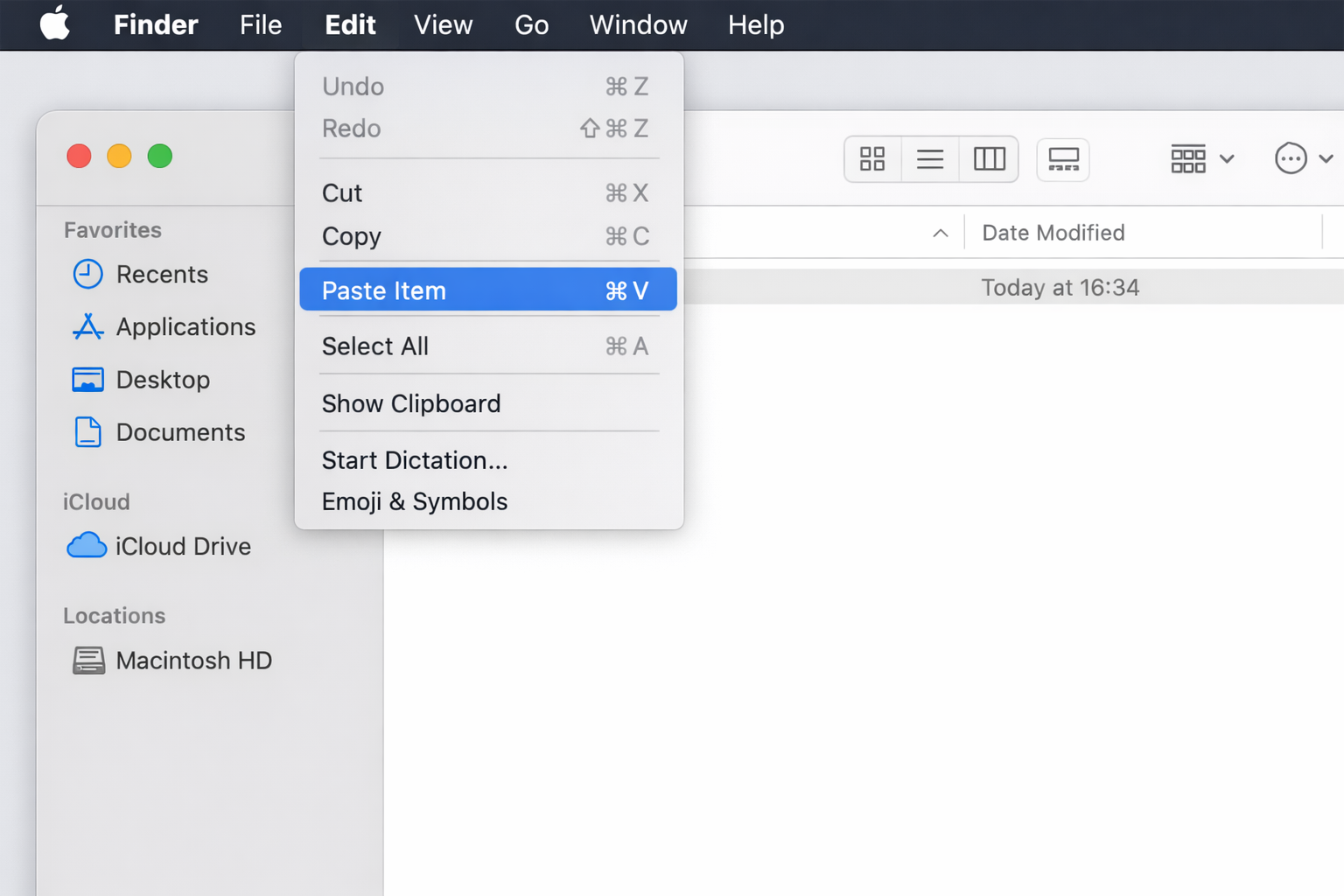
Universal Clipboard is part of Apple’s Continuity feature set, and it does exactly what it sounds like: copy something on one device, paste it on another. No AirDrop, no email, no shared notes hack. Just Cmd + C on one device and Cmd + V (or the equivalent) on another.
It works with text, images, photos, videos, and files. And if you have two Macs, you can even copy and paste entire files between them in Finder.
What You Need
Before you run through the setup, confirm your devices meet these requirements:
- Both devices signed into the same Apple ID
- Wi-Fi enabled on both devices
- Bluetooth enabled on both devices
- Handoff enabled on both devices (it’s on by default)
- Devices within roughly 30 feet (10 meters) of each other
- macOS 10.12 Sierra or later; iOS 10 or later — though realistically, if your hardware is from the last 7–10 years, you’re fine
Universal Clipboard works across Mac, iPhone, iPad, and Apple Vision Pro. As of 2026, that means macOS 26 and iOS 26 are fully supported.
How to Enable Universal Clipboard
Universal Clipboard piggybacks on Handoff, so enabling Handoff is all you need to do. Here’s where to find it on each device.
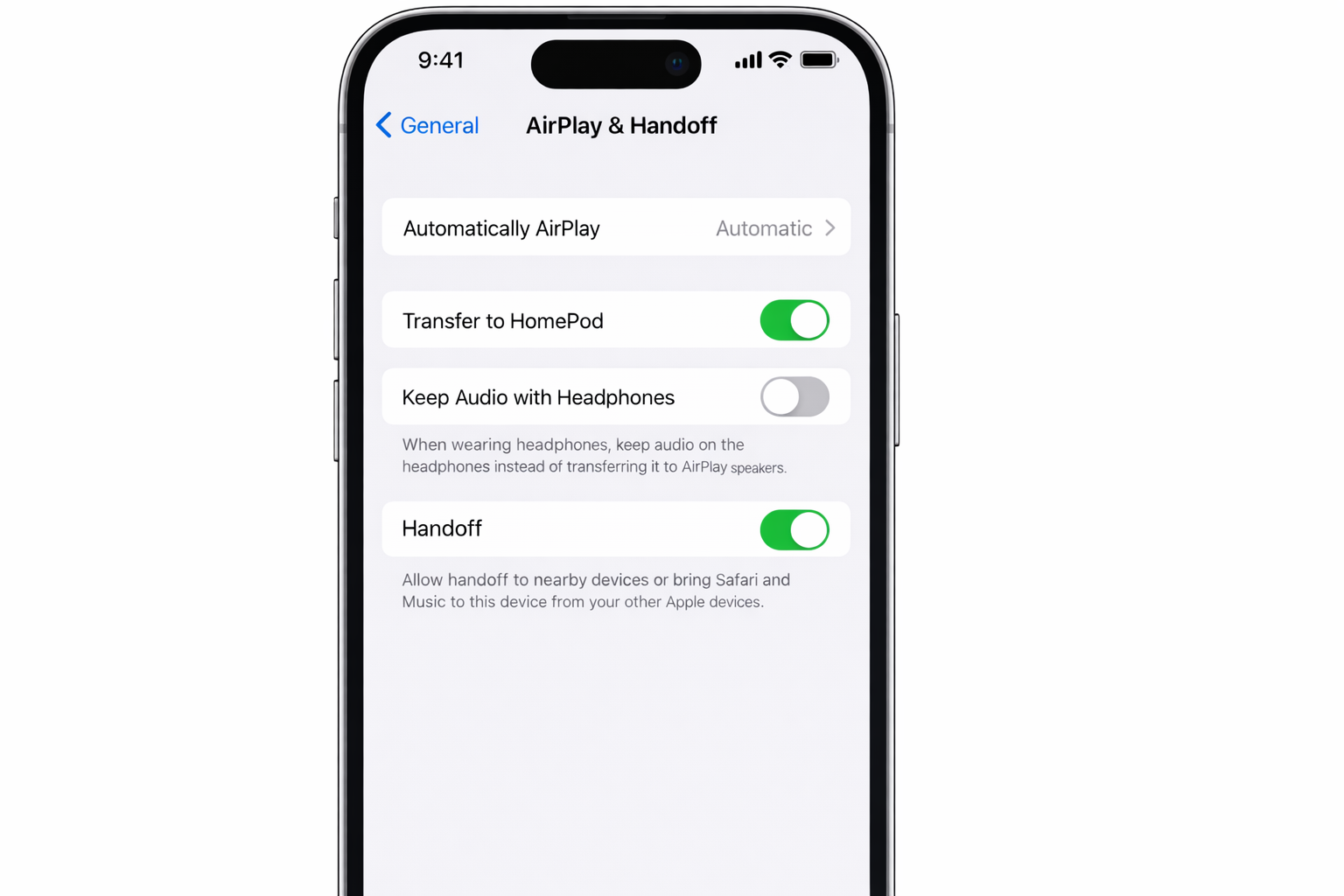
On iPhone or iPad
- Open Settings
- Tap General
- Tap AirPlay & Handoff (or Continuity)
- Toggle Handoff on
On Mac
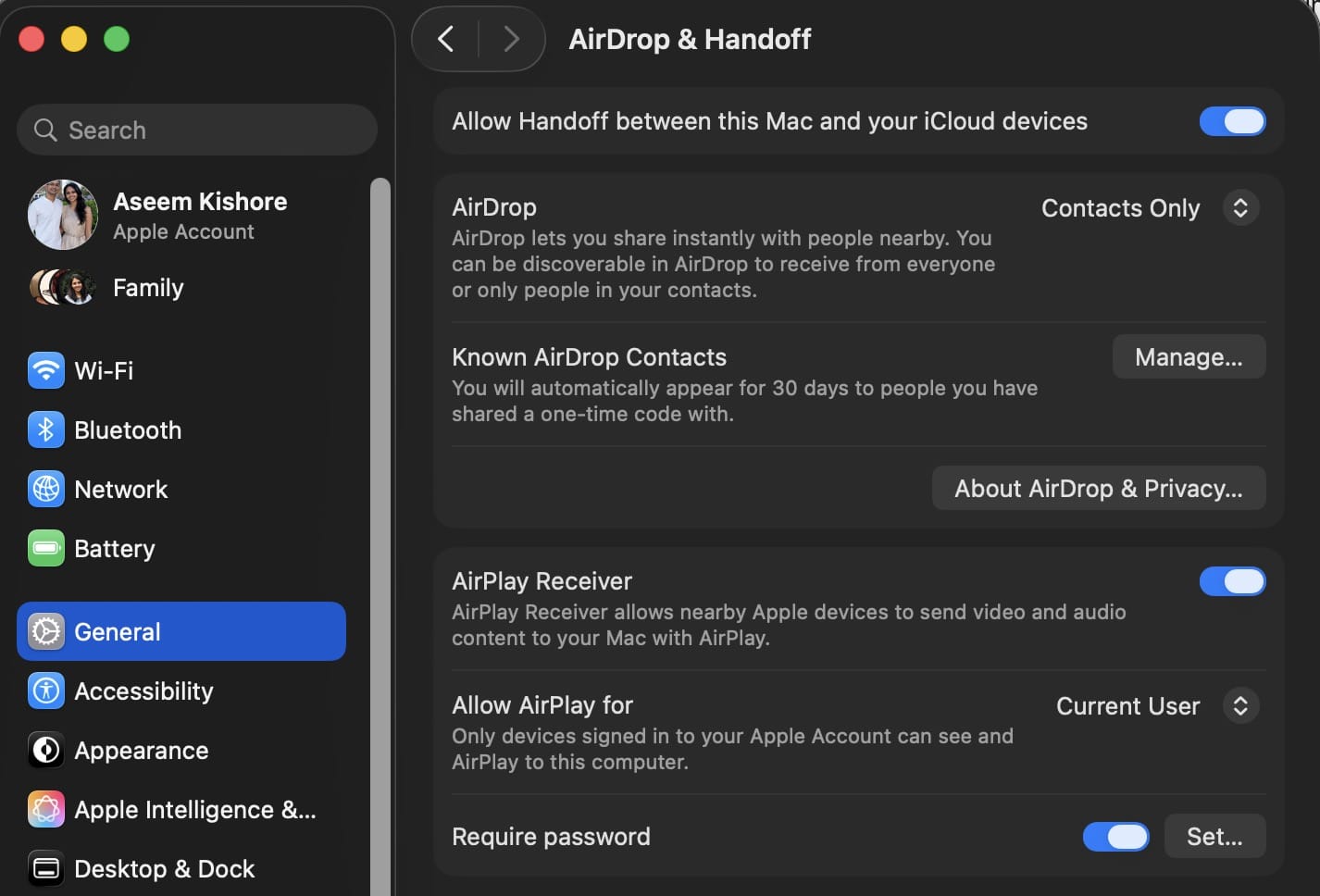
- Open System Settings
- Click General
- Click AirDrop & Handoff
- Enable Allow Handoff between this Mac and your iCloud devices
That’s it for setup. If both devices are signed in to the same Apple ID and have Wi-Fi, Bluetooth, and Handoff on, Universal Clipboard is active.
How to Use It
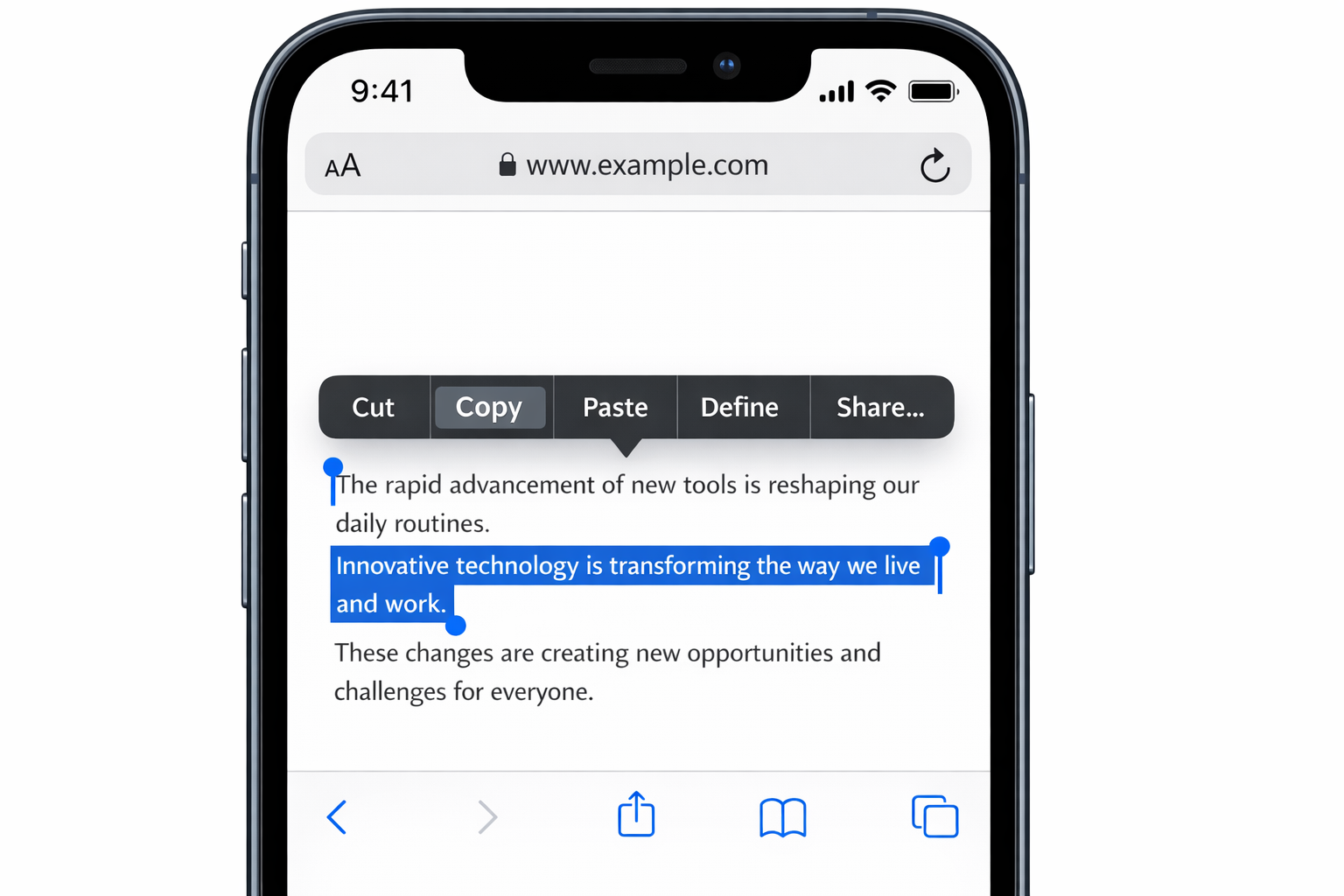
There’s no button to press and no interface to open. The workflow is identical to normal copy-paste:
- Copy content on one device — select text and tap Copy, or press
Cmd + Con a Mac - Switch to your other device
- Paste as normal — tap and hold then tap Paste, or press
Cmd + V
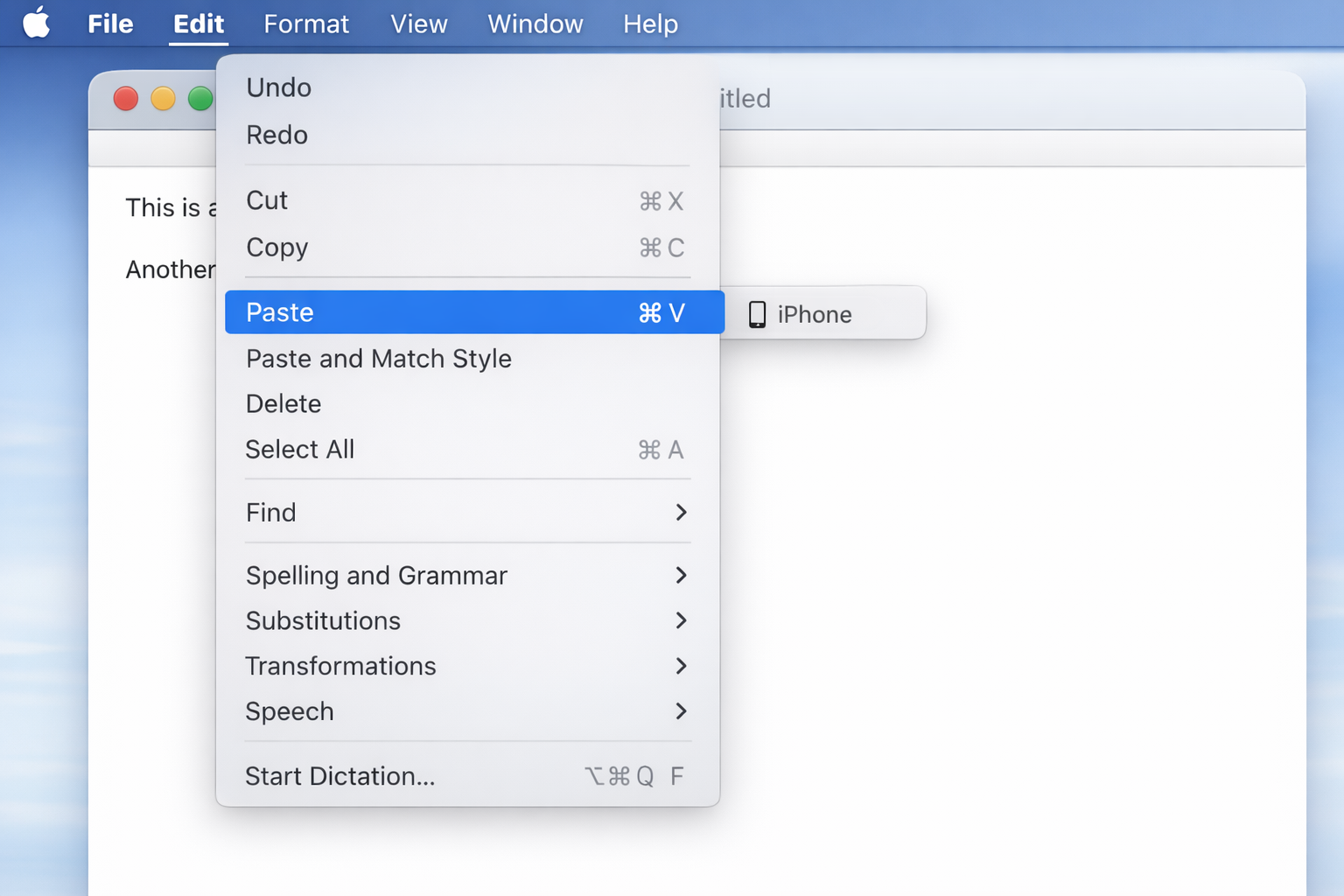
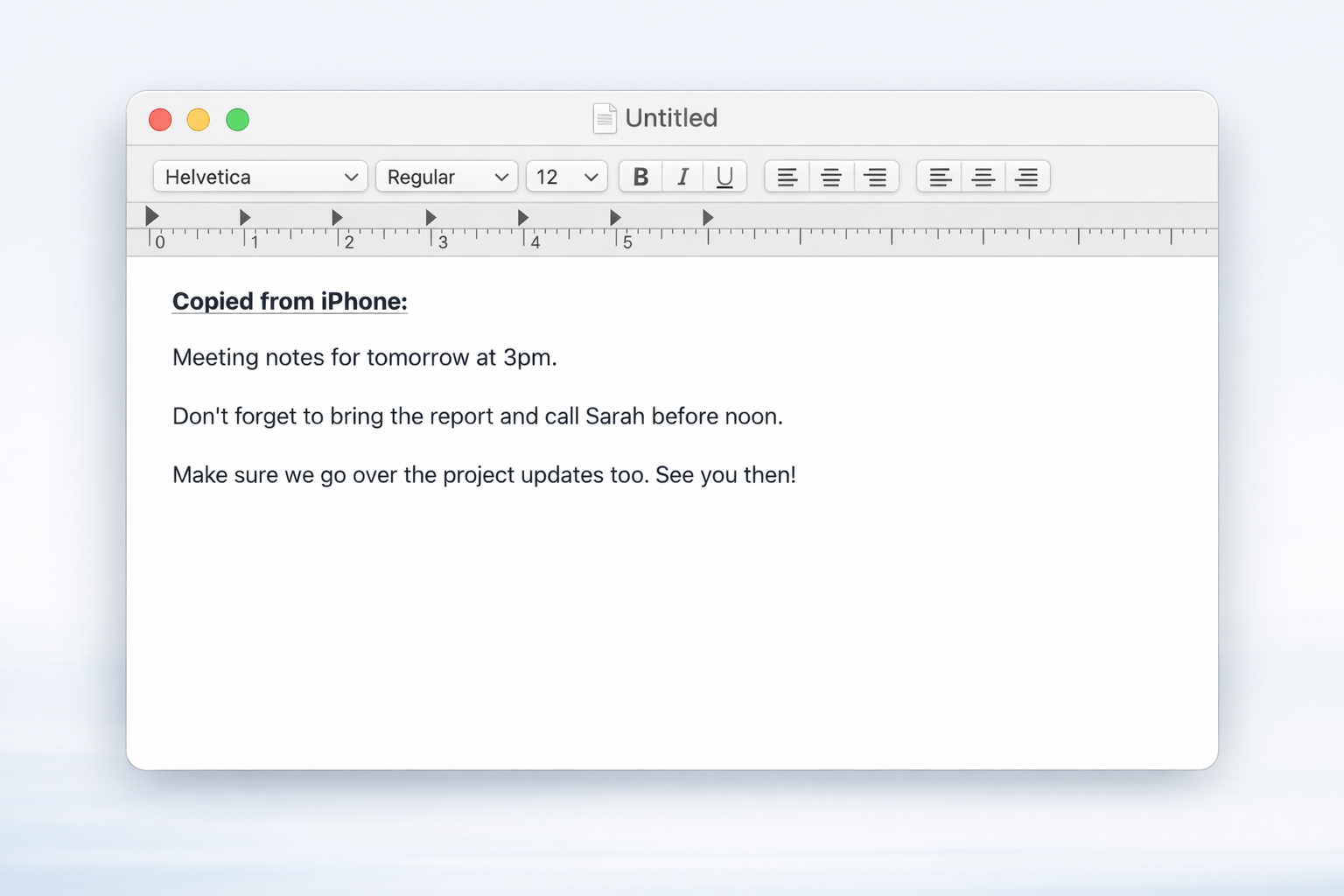
The clipboard syncs automatically in the background. When you paste, you might briefly see “iPhone” or “iPad” labeled next to the paste option on Mac, which confirms it’s pulling from your other device’s clipboard.
Troubleshooting Universal Clipboard
Universal Clipboard works well most of the time, but it has a persistent reliability problem that Apple still hasn’t fully addressed. Here’s how to fix it when it doesn’t behave.
Unlock your iPhone first
This one isn’t documented by Apple, but it’s a real issue: if your iPhone is locked when you copy something, Universal Clipboard may not sync to your Mac. Unlock your device before copying, and the problem usually goes away.
Check the basics
- Wi-Fi enabled on both devices? (They don’t need to be on the same network, but Wi-Fi must be on)
- Bluetooth enabled on both devices?
- Both signed into the same Apple ID?
- Are the devices within 30 feet of each other?
- Handoff enabled on both? (Double-check — it occasionally gets toggled off after an update)
Check your VPN
If you’re running a VPN on either device, it can interfere with local networking and break Universal Clipboard. Try disabling it temporarily to see if that’s the culprit.
Restart both devices
Boring but effective. A full restart clears any state issues and gets Handoff syncing cleanly again.
Update your software
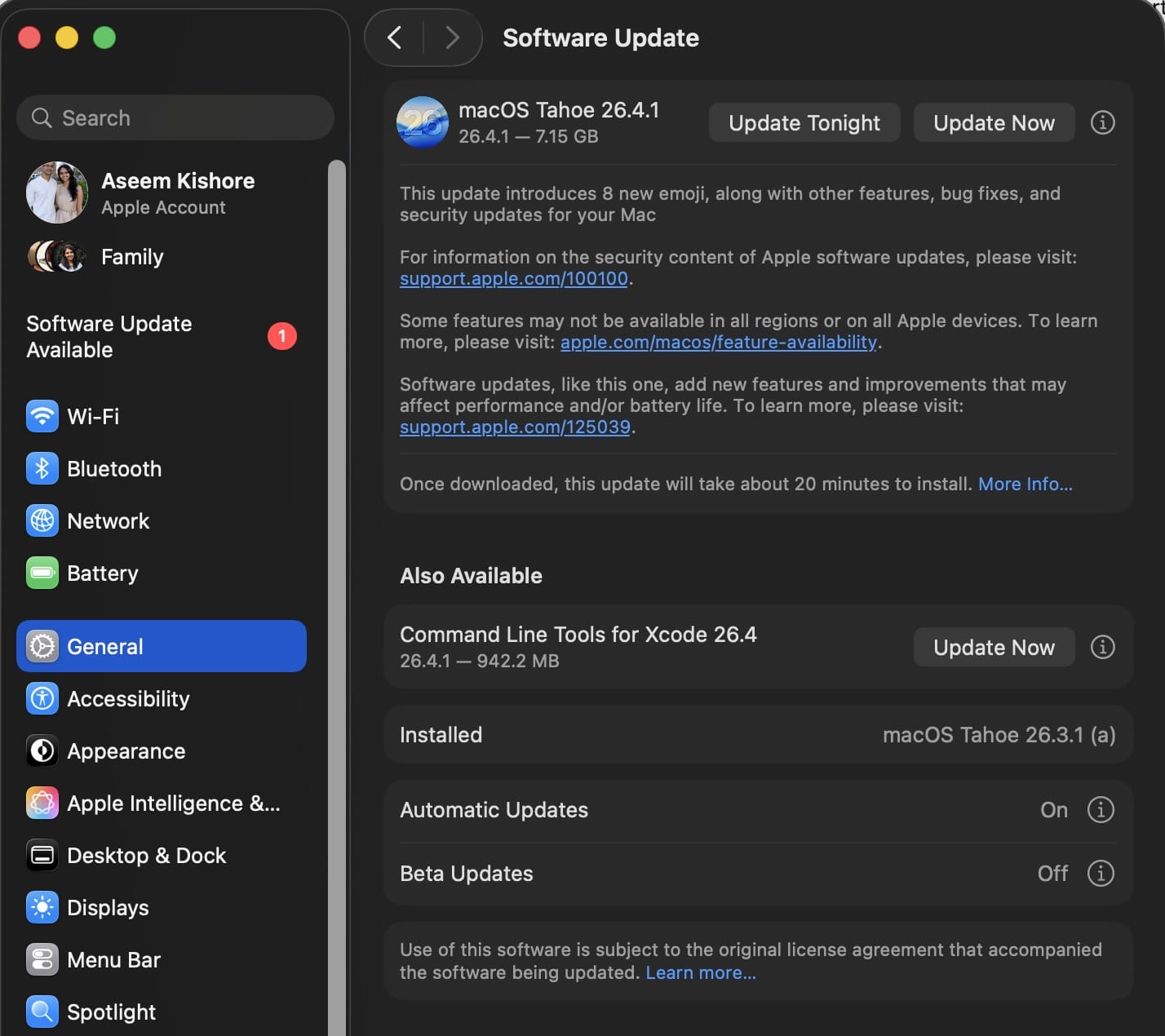
Go to System Settings > General > Software Update on your Mac, and Settings > General > Software Update on your iPhone or iPad. Running mismatched OS versions can cause sync issues.
Toggle Handoff off and back on
If nothing else works, disable Handoff on both devices, wait 10 seconds, then re-enable it. This forces the connection to re-establish.
What Works, What Doesn’t
In practice, Universal Clipboard is reliable for text, images, and files, but some apps handle it better than others. Copying from Safari, Notes, or Photos works consistently. Some third-party apps (particularly those with custom copy behavior) can be hit or miss.
If you find yourself needing a more powerful clipboard solution — persistent history, multiple items, search — apps like Paste or Clipboard Manager build on top of Universal Clipboard and add features Apple hasn’t bothered to include natively. Worth looking at if you copy-paste constantly across devices.
For most people, though, Universal Clipboard handles the job well. Once you’ve used it a few times, emailing yourself links feels genuinely embarrassing by comparison.