

Keyboard shortcuts are one of those things you think you know until someone watches you use your Mac and quietly judges you for navigating menus with a mouse. macOS has hundreds of built-in shortcuts, and even experienced users tend to rely on the same handful while leaving the rest undiscovered.
This list covers the shortcuts that actually matter day-to-day, including a few additions from macOS Sequoia that are genuinely worth knowing. Plus, how to create your own custom shortcuts when the defaults don’t cut it.
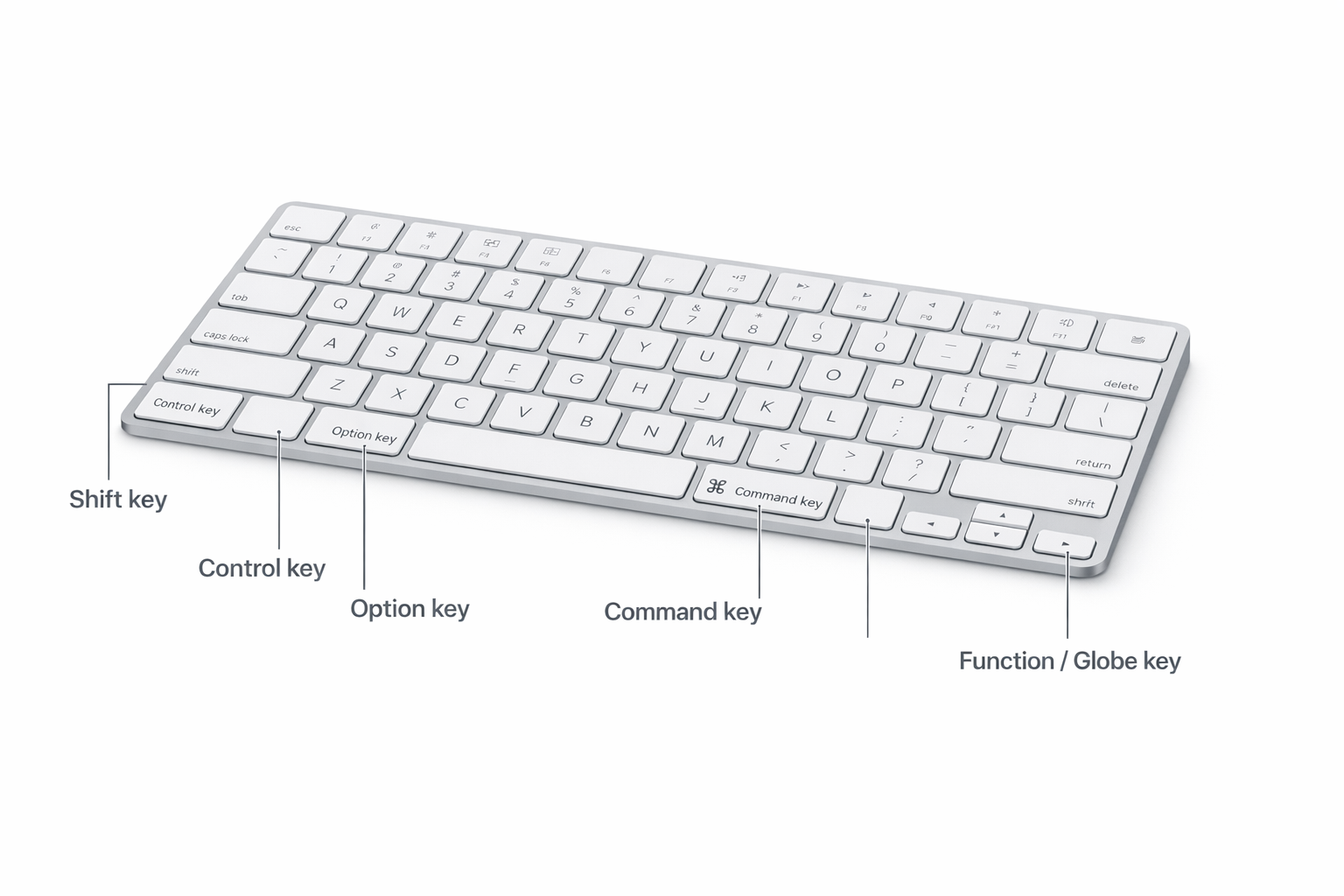
The Essential Shortcuts
1. Spotlight Cmd + Space
Spotlight is still the fastest way to launch apps, find files, run quick calculations, and search the web without touching your mouse. Press Cmd + Space and start typing.
One underused trick: highlight a result in Spotlight and press Cmd + Return to open its containing folder in Finder rather than launching the file directly. Handy when you need to know where something lives.
(If Spotlight doesn’t open, you may have a keyboard input source conflict. Check System Settings > Keyboard > Keyboard Shortcuts > Input Sources, as another shortcut is probably stealing Cmd + Space.)
2. Cut, Copy, and Paste Cmd + X, Cmd + C, Cmd + V
You know these. But a couple of variations are worth keeping in mind:
- Undo:
Cmd + Z - Select All:
Cmd + A - Paste and Match Style:
Cmd + Shift + Vpastes text without dragging in the formatting from wherever you copied it. Use this constantly when moving text between apps.
3. Switch Between Apps Cmd + Tab
Hold Cmd and tap Tab to cycle forward through open apps. Add Shift to go backward. Release Cmd to land on the app you want.
While the app switcher is open, you can also press Q (while still holding Cmd) to quit a highlighted app without switching to it, useful for closing a pile of apps without touching the mouse.
4. Screenshots
Three shortcuts worth knowing:
Cmd + Shift + 3full screen captureCmd + Shift + 4drag to select a regionCmd + Shift + 5opens the screenshot toolbar with options for window capture, screen recording, and save location
By default, screenshots land on your desktop. You can change that in the Cmd + Shift + 5 toolbar under Options > Save to.
5. Close Windows and Quit Apps Cmd + W and Cmd + Q
These do different things and it’s worth keeping them straight:
Cmd + Wcloses the current window (but leaves the app running)Cmd + Qquits the app entirelyCmd + Option + Wcloses all windows for the current app
If an app is frozen, Cmd + Option + Esc brings up Force Quit. Select the unresponsive app and hit Force Quit.
6. Save and Duplicate Cmd + S and Cmd + Shift + S
Save the current file with Cmd + S. If it’s a new file, you’ll be prompted to name it. In most modern Mac apps (TextEdit, Pages, Numbers), Cmd + Shift + S actually triggers Duplicate, creating a copy of the current document, rather than a true Save As. To get the classic Save As behavior, hold the Option key while opening the File menu (Duplicate becomes Save As), or use Option + Shift + Cmd + S.
Most apps with autosave (like Pages or Numbers) still respect Cmd + S it just triggers an immediate save rather than waiting for the next autosave interval.
7. Find Cmd + F
Opens the Find bar in almost every app, browsers, text editors, PDFs, you name it. Type a keyword and it jumps to the first match. Press Return to cycle through additional matches, or Shift + Return to go backward.
8. Window Tiling (New in macOS Sequoia)
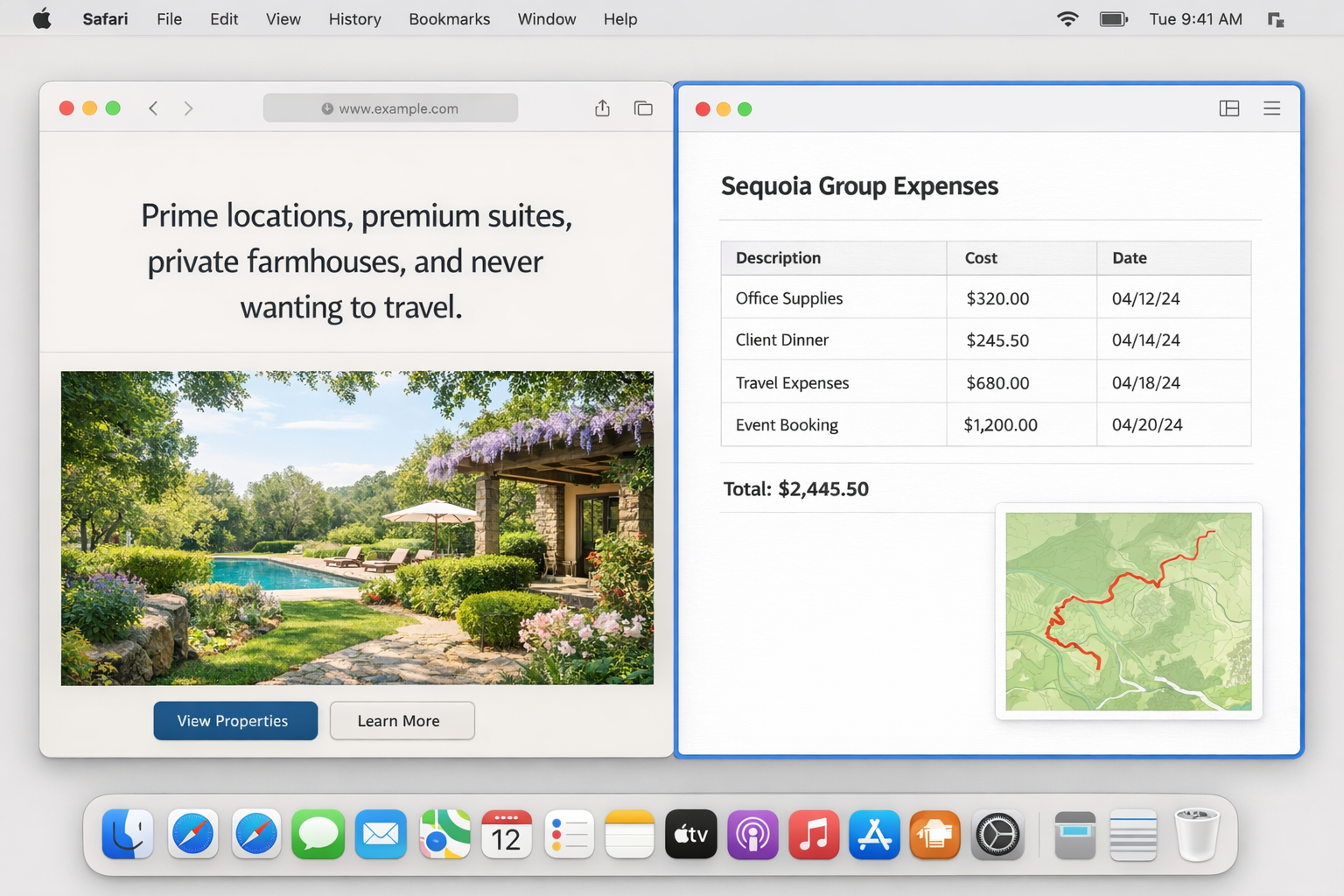
This one’s worth calling out separately because it’s genuinely new and reduces the need for third-party apps like Magnet or Rectangle.
macOS Sequoia added native window tiling shortcuts:
Fn + Control + Left Arrowsnap window to left halfFn + Control + Right Arrowsnap window to right halfFn + Control + Ffill the screenFn + Control + Ccenter the window
You can also drag a window to the edge of the screen to trigger tiling, similar to Windows Snap if you’re coming from that side of the fence. Not Apple’s most discoverable feature, but once you know it’s there, it’s smooth.
9. Mission Control F3 or Control + Up Arrow
Spreads all your open windows out so you can see everything at once. Also gives you access to your Spaces (virtual desktops) at the top. If F3 doesn’t work, check System Settings > Keyboard > Keyboard Shortcuts > Mission Control to confirm the binding.
10. Force Quit Cmd + Option + Esc
The Mac equivalent of Task Manager. Brings up a list of running apps. Anything labeled “not responding” in red is your culprit. Select it and hit Force Quit.
11. Emoji and Symbols Control + Cmd + Space or Fn + E
Opens the Character Viewer, a floating panel for inserting emoji, symbols, and special characters into any text field. Works system-wide.
12. Dictation Fn + D
Starts voice dictation wherever your cursor is. Press Fn + D again to stop. You can customize the trigger in System Settings > Keyboard > Dictation.
How to Create Custom Keyboard Shortcuts
macOS lets you assign a keyboard shortcut to any menu item in any app. The catch: the menu item name has to be spelled exactly right, character for character.
Here’s how to set one up:
- Open System Settings.
- Go to Keyboard > Keyboard Shortcuts.
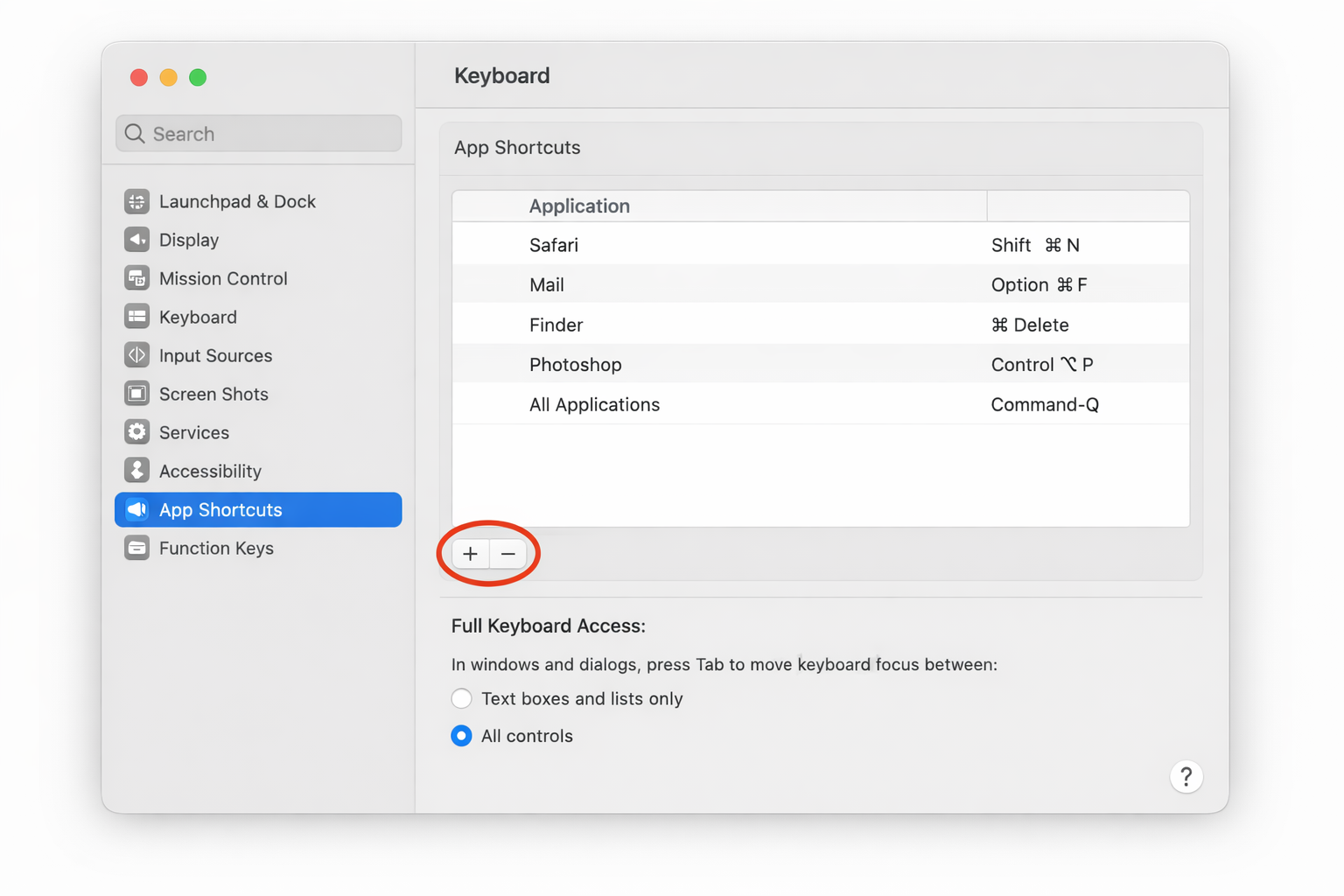
- Select App Shortcuts in the left sidebar.
- Click the + button below the shortcut list.
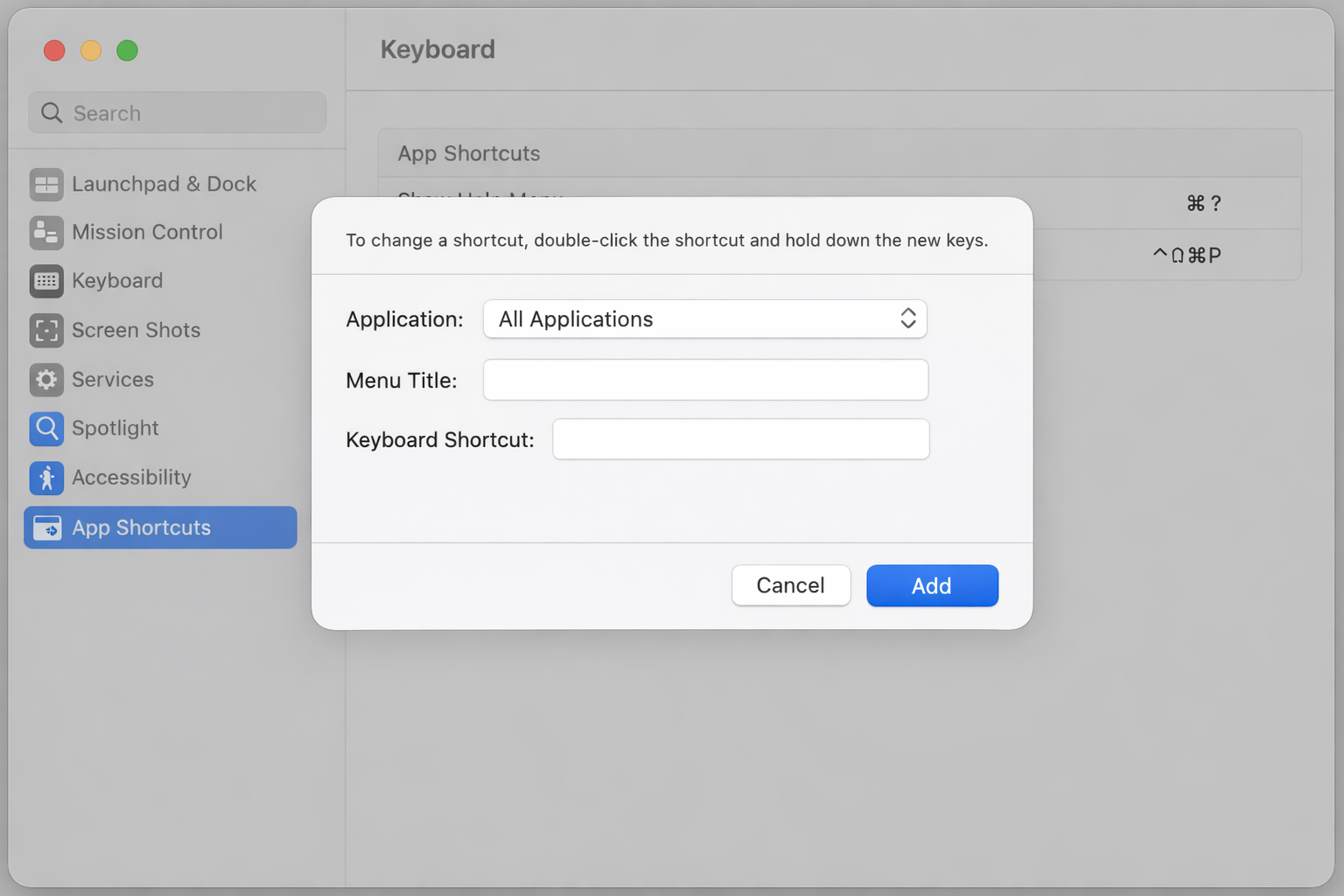
- In the Application dropdown, choose the specific app or leave it on All Applications.
- In the Menu Title field, type the exact name of the menu item you want to shortcut, match it character for character, including any ellipsis (…) at the end.
- Click in the Keyboard Shortcut field and press your desired key combination.
- Click Done.
After saving, open the app and check the menu. Your shortcut should appear next to the menu item. If it doesn’t trigger, the most likely cause is a typo in the menu title or a conflict with an existing shortcut.
Quick Reference
Here’s the full list in one place:
| Action | Shortcut |
|---|---|
| Spotlight | Cmd + Space |
| Cut | Cmd + X |
| Copy | Cmd + C |
| Paste | Cmd + V |
| Paste and Match Style | Cmd + Shift + V |
| Undo | Cmd + Z |
| Select All | Cmd + A |
| Switch Apps | Cmd + Tab |
| Screenshot (full) | Cmd + Shift + 3 |
| Screenshot (region) | Cmd + Shift + 4 |
| Screenshot toolbar | Cmd + Shift + 5 |
| Close window | Cmd + W |
| Quit app | Cmd + Q |
| Force Quit | Cmd + Option + Esc |
| Save | Cmd + S |
| Duplicate | Cmd + Shift + S |
| Save As | Option + Shift + Cmd + S |
| Find | Cmd + F |
| Snap window left | Fn + Control + Left Arrow |
| Snap window right | Fn + Control + Right Arrow |
| Fill screen | Fn + Control + F |
| Center window | Fn + Control + C |
| Mission Control | F3 or Control + Up Arrow |
| Emoji and Symbols | Control + Cmd + Space |
| Dictation | Fn + D |
Bookmark this page or print the table, as there’s a reason printable shortcut cheat sheets are among the most-downloaded Mac resources out there. Two hundred shortcuts is a lot to hold in your head, but the two dozen above will cover the vast majority of what you actually do every day.