
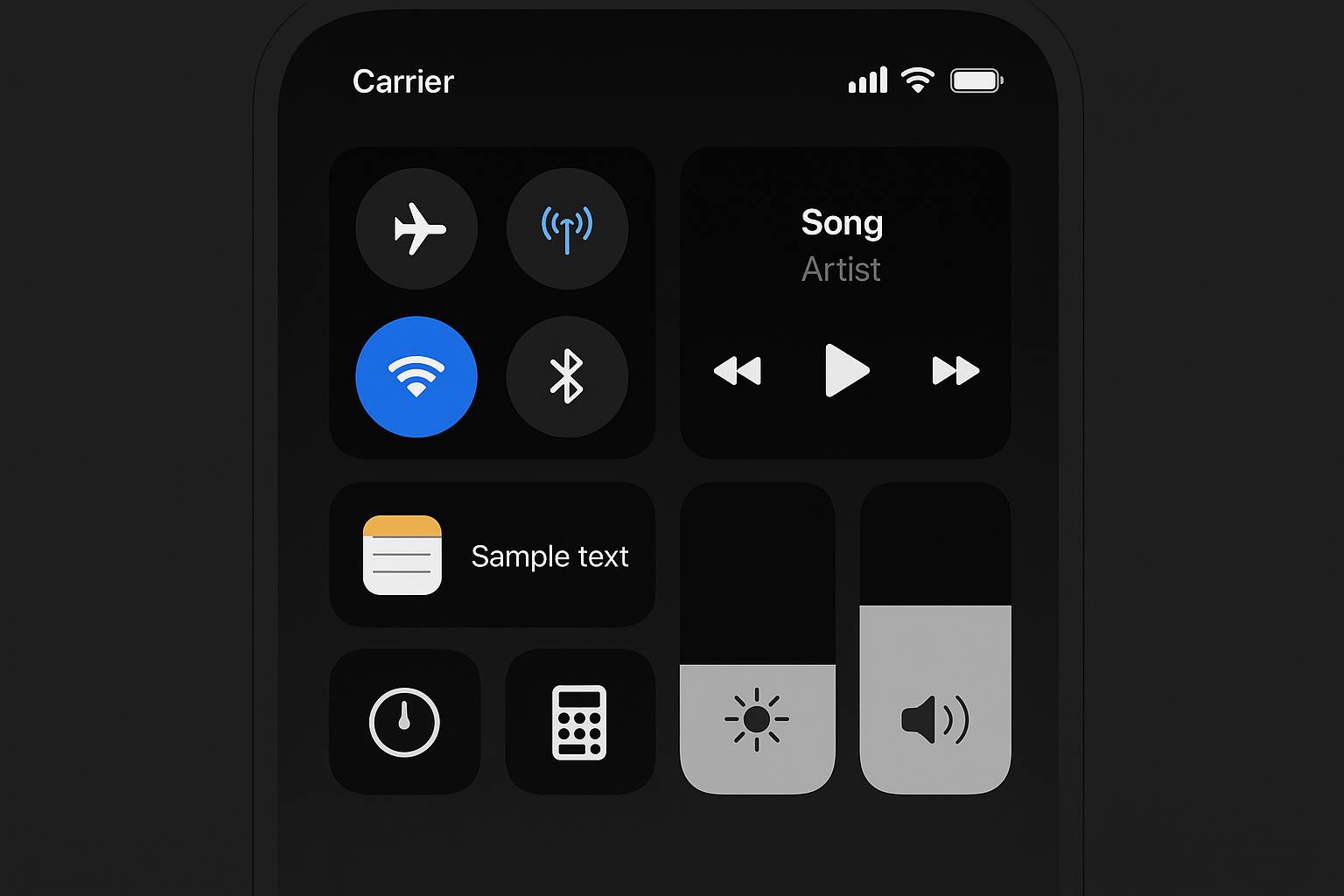
Control Center has come a long way since iOS 11. What started as basic toggle customization has evolved into a flexible system that puts genuine control in your hands.
With iOS 26’s redesigned Control Center, you can add third-party app controls, rearrange your layout freely, and even customize your Lock Screen shortcuts. It’s honestly overdue — and finally worth your time to set up properly.
What’s New in iOS 26
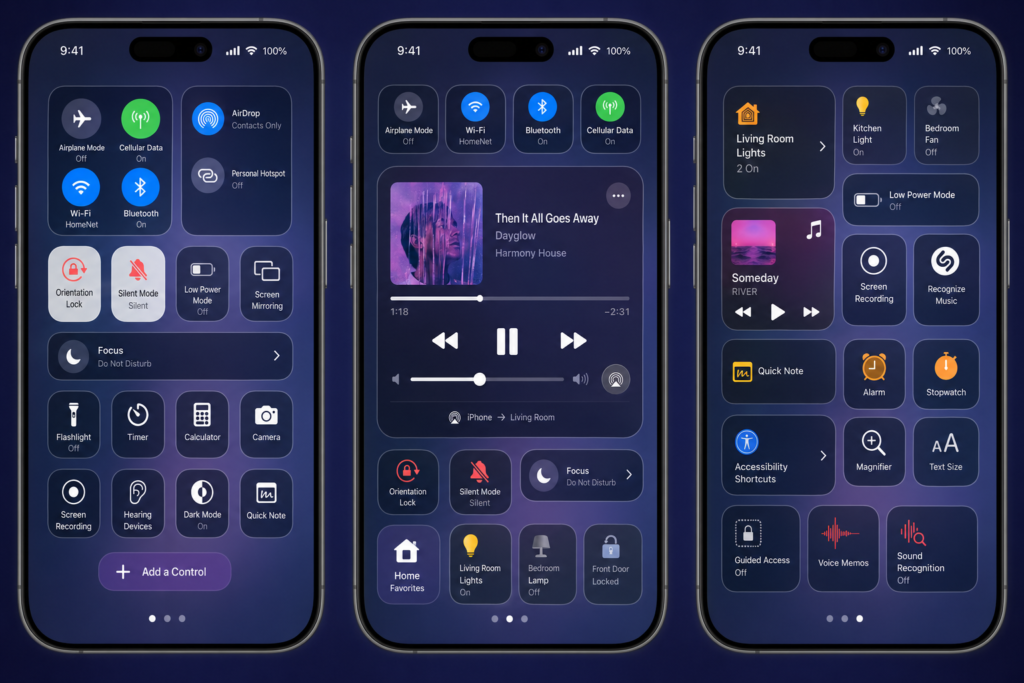
iOS 26 brought the most significant Control Center overhaul in years. The biggest change is the ability to add controls from third-party apps alongside Apple’s built-in options, giving you far more flexibility than before.
You can now freely rearrange controls, remove ones you never use (including some previously permanent ones), and access a broader list of available controls from both Apple and third-party developers.
iOS 26 also introduced a redesigned volume slider that is thicker and provides haptic feedback with tiny clicks as you adjust it. The slider displays a color-coded speaker icon — green for low volume, orange for medium, and red for high. If you need even finer control, an accessibility option called “Precise Volume” in Settings → Accessibility → Audio & Visual makes the slider larger for precise adjustments.
iOS 26.4 added offline Shazam song recognition in Control Center, which can identify songs without an internet connection and delivers results automatically when you reconnect.
How to Access Control Center
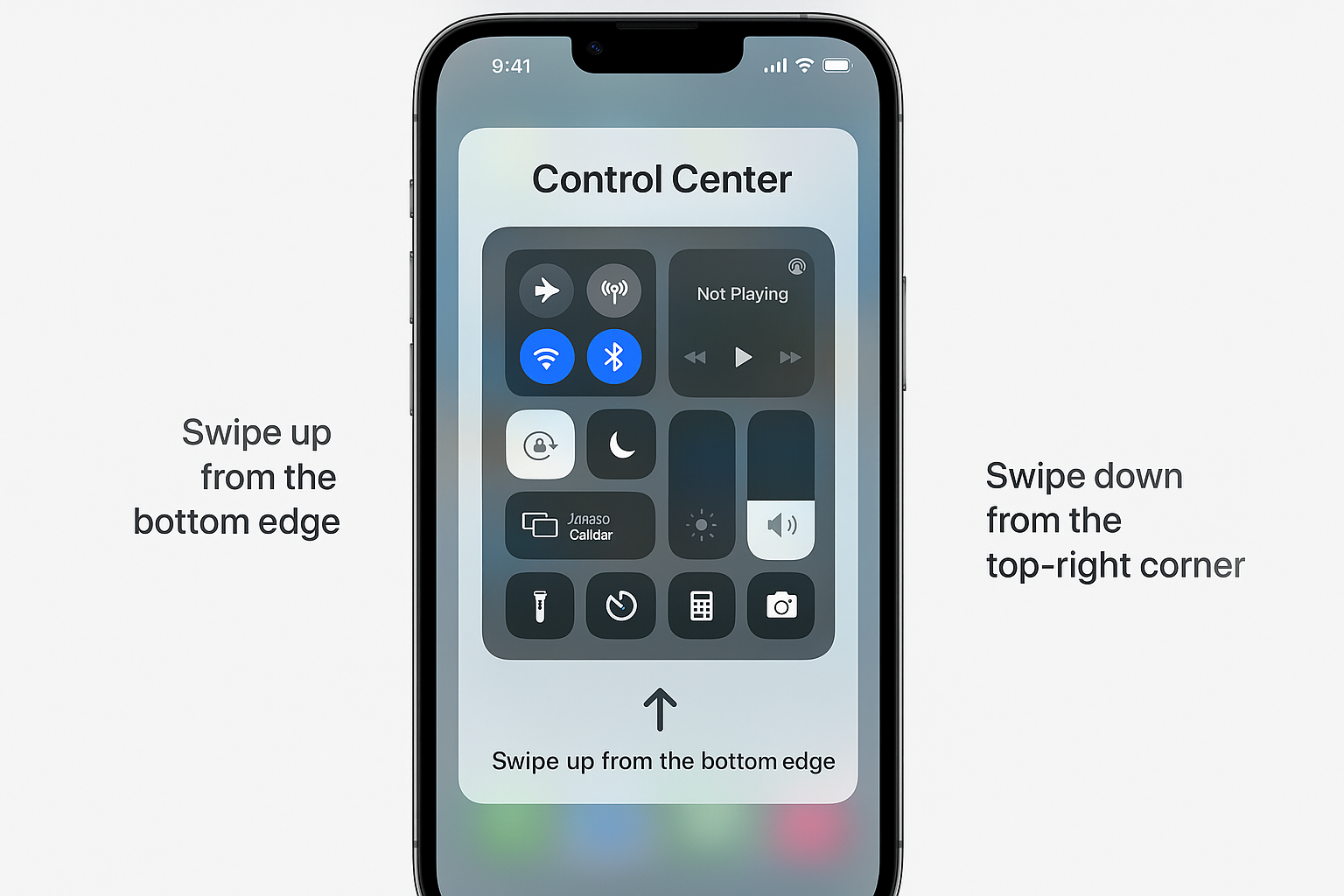
The gesture depends on your iPhone model:
- iPhone with Face ID: Swipe down from the top-right corner
- iPhone with Home button: Swipe up from the bottom edge
- iPad: Swipe down from the top-right corner
You can also jump to specific control groups by swiping through the icons on the right edge of the screen.
Customizing Your Control Center
The customization system works similarly to organizing your Home Screen — straightforward once you know where to look.
Enter Edit Mode
Open Control Center, then tap the top-left area of Control Center to begin editing.
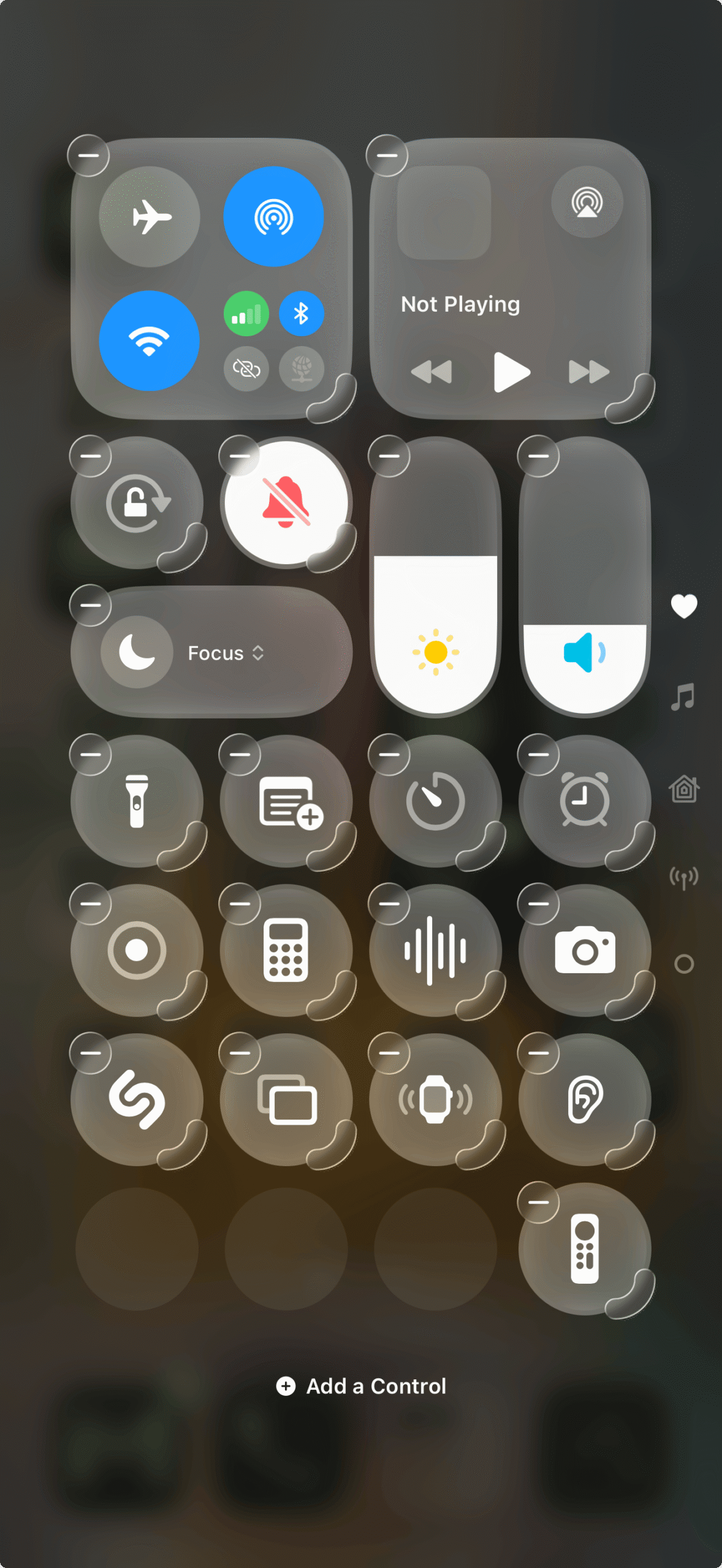
You’ll see your current controls become editable with delete buttons, indicating you’re in edit mode.
Add New Controls
Tap Add a Control at the bottom to open the controls gallery. You can scroll through categories such as:
- Media: Music, podcasts, volume controls
- Connectivity: Wi-Fi, Bluetooth, AirDrop
- Home: HomeKit accessories, scenes
- Third-party apps: Spotify, 1Password, camera apps
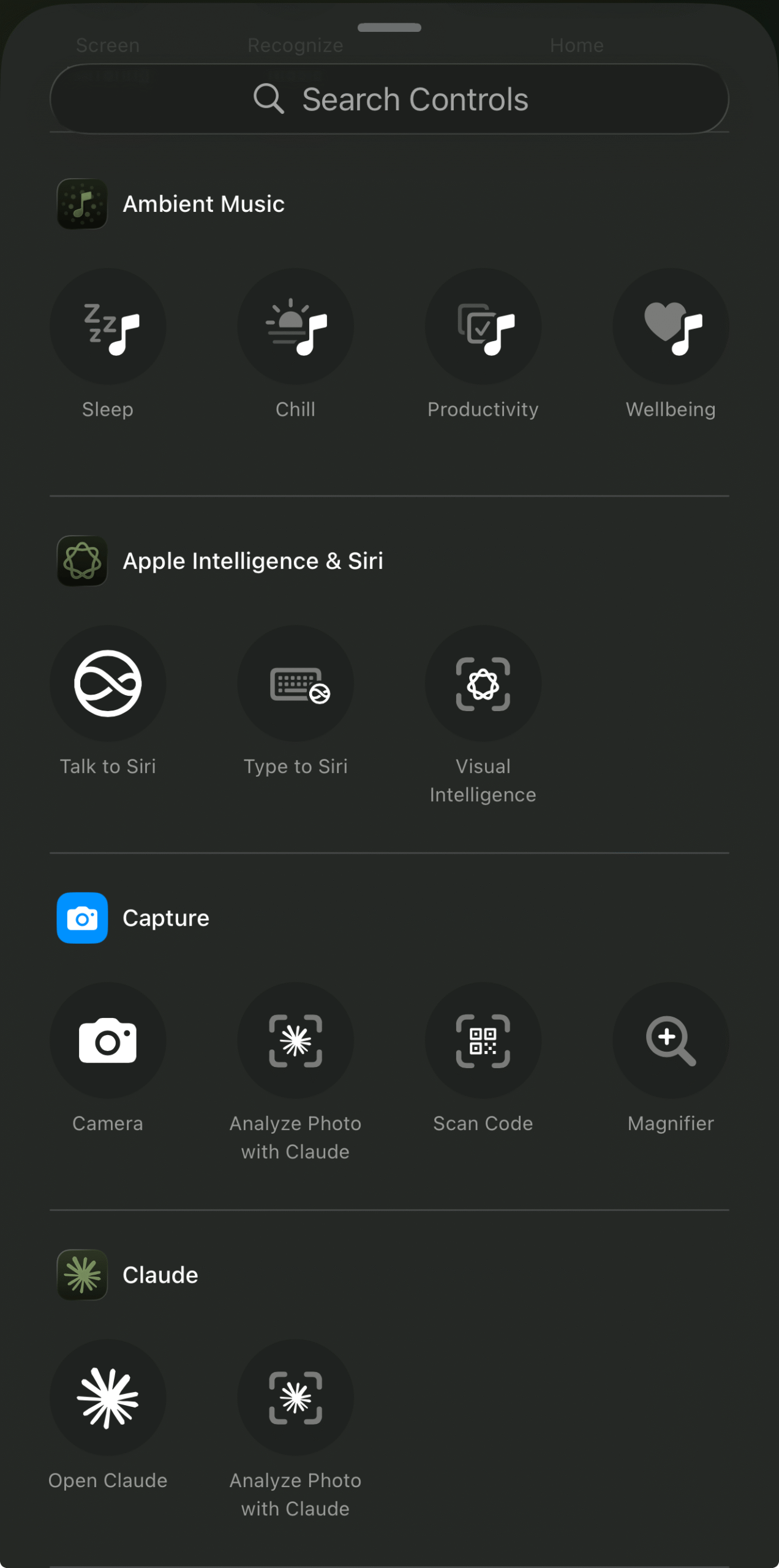
Tap any control to add it to your Control Center.
Rearrange Controls
In edit mode, you can:
- Move controls: Drag them to new positions
- Resize controls: Drag the handle at the lower right of a control
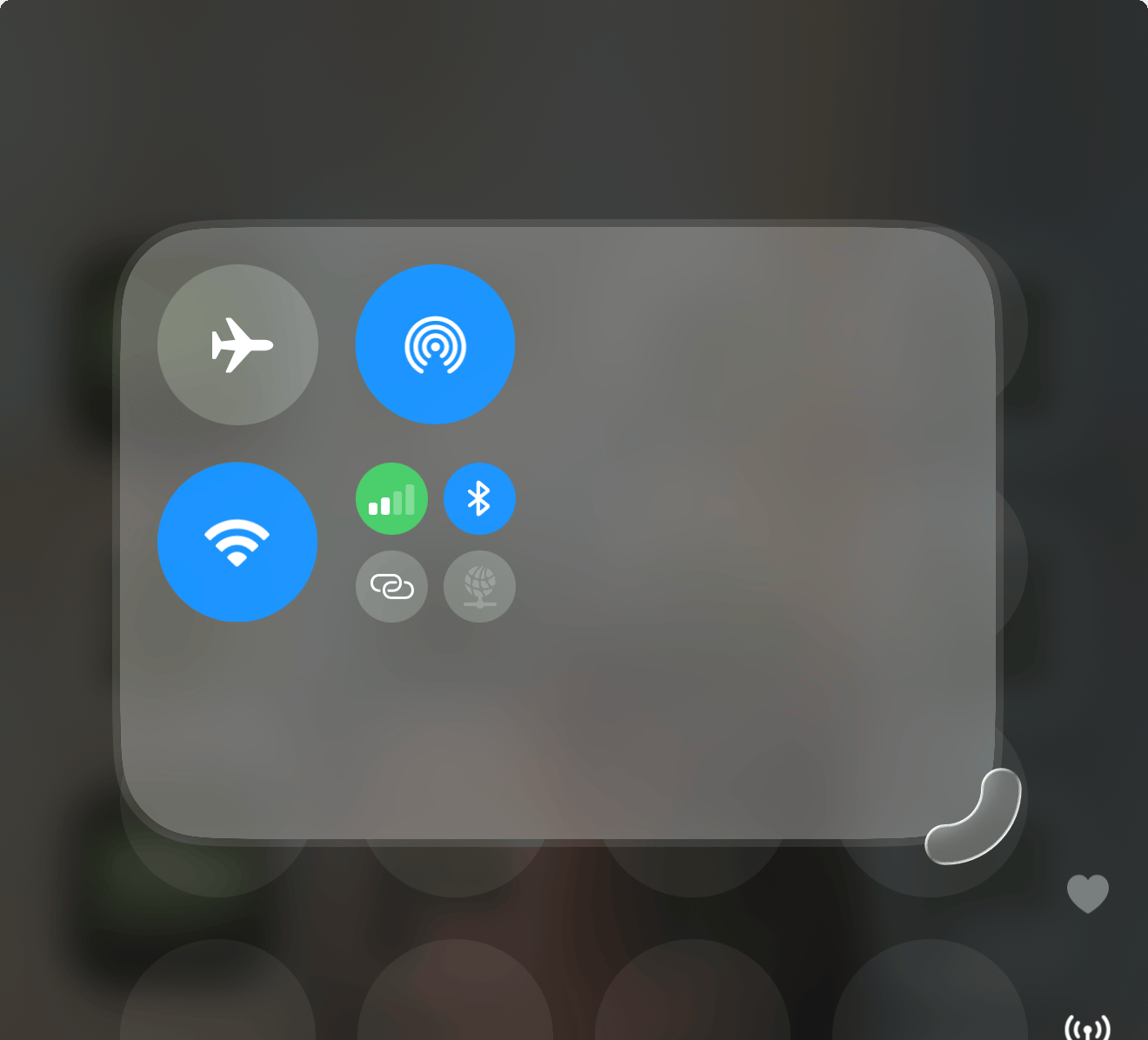
Controls snap into place automatically within the layout.
Remove Controls
Tap the – button on any control to remove it. iOS 26 allows you to remove even some previously “permanent” controls, giving you a cleaner layout.
Tap Done when you’re finished customizing.
Create New Sections
You can also create custom control groups by tapping the bottommost icon along the right edge of Control Center, then selecting the controls you want to add to your new section.
Lock Screen Shortcuts
iOS 26 also supports customizable Lock Screen controls, arguably more useful than Control Center for truly quick access.
Long-press your Lock Screen, tap Customize, then tap either shortcut button at the bottom. You can replace the default flashlight and camera with any supported control from the list.
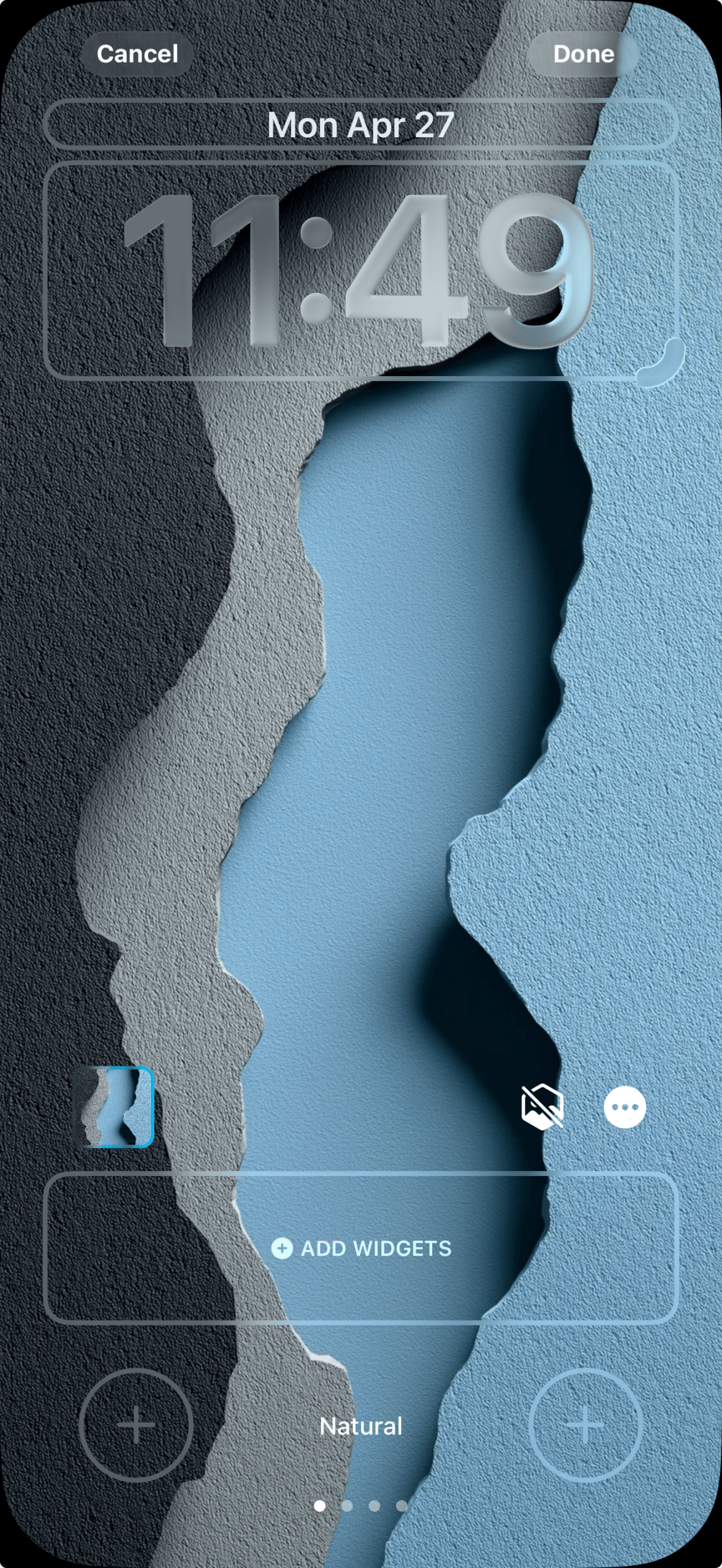
You can set 2 shortcut controls: one on the bottom-left and one on the bottom-right that work without unlocking your phone.
Useful Controls to Add
After testing the expanded options, these controls earn their space:
Apple TV Remote

Still essential if you have an Apple TV. Voice input for passwords alone makes this worth including.
Screen Recording
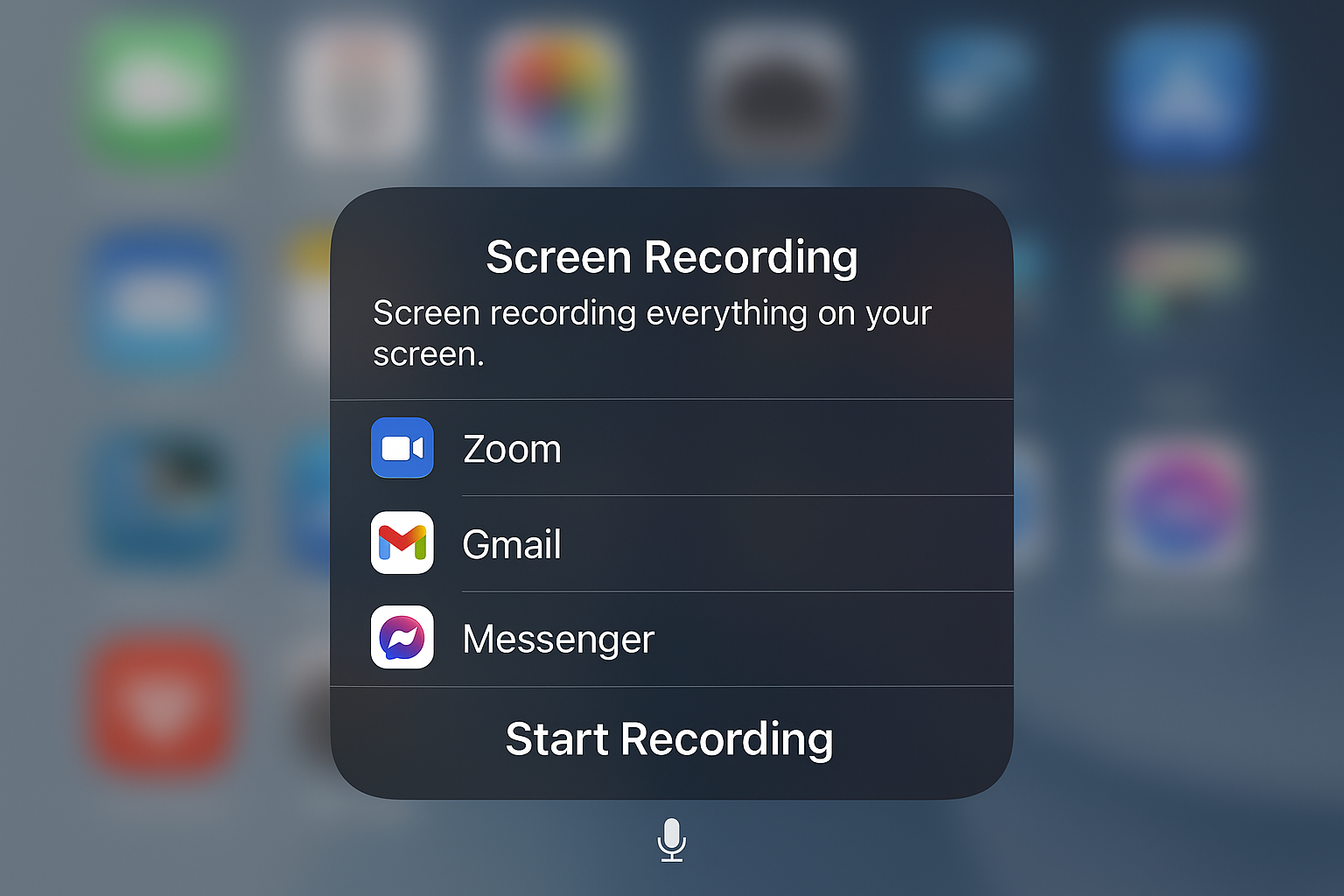
No more digging through Settings to start recording. Essential for creating tutorials or capturing bugs to share with support.
Shortcuts
Add your most-used Shortcuts app automations directly to Control Center. Much faster than opening the app.
Notes
Creates a new note instantly. Surprisingly useful for quick voice memos or jotting down thoughts.
Third-Party App Controls
iOS 26 opened Control Center further to third-party developers. Apps like Spotify, 1Password, and Overcast now offer dedicated controls. Check your favorite apps! Many have added support.
Troubleshooting Common Issues
Icons Appear Dim or Hard to See
If controls are difficult to read, go to Settings > Accessibility > Display & Text Size > Reduce Transparency and toggle it on. This improves contrast across the interface.
Sliders Feel Sluggish
Restart your device. If that doesn’t help, force-quit any apps associated with the problematic control and try again.
Crashes When Adding Controls
If Control Center customization keeps crashing, go to Settings > General > Transfer or Reset iPhone > Reset > Reset All Settings. You’ll need to reconfigure your preferences, but it typically resolves persistent issues.
Controls Don’t Respond
Try disabling Background App Refresh in Settings > General > Background App Refresh for problematic apps, then re-enable it.
Control Center Won’t Open Inside Apps
If Control Center doesn’t respond while you’re inside an app, go to Settings > Control Center and make sure Access Within Apps is turned on.
Making It Work for You
The key is starting simple. Add one or two new controls, use them for a week, then gradually build your ideal layout.
Think about which actions you reach for most throughout the day as those are the ones that belong in Control Center. The flexibility in iOS 26 finally makes Control Center genuinely personal.
After years of limited customization, iOS 26’s Control Center feels like it’s catching up to what users actually wanted. The learning curve is minimal, and the payoff in daily convenience is real.