

I stumbled upon this trick when our Mac user group needed an easier way for members to access our meeting poll. The Google Form has one of those impossibly long URLs that nobody wants to type twice, and buried bookmarks just don’t cut it when you’re trying to check in quickly.
Turns out Safari’s “Add to Home Screen” feature is perfect for this. You get a dedicated app icon that opens your webpage with one tap, no hunting through bookmark folders or retyping URLs.
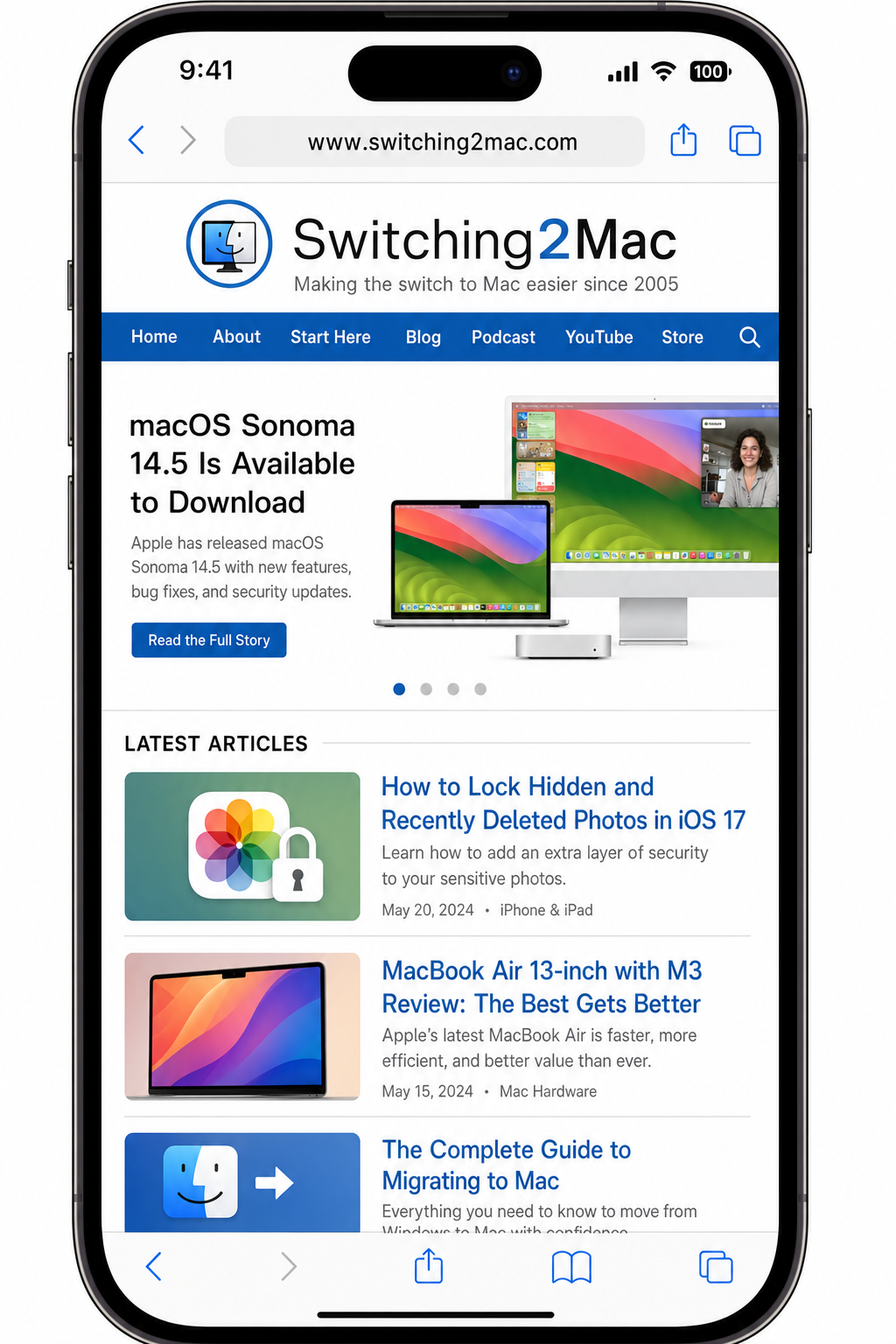
The process works for any website you visit regularly: work dashboards, family calendars, frequently-used Google Docs, or that one recipe you make every week. Here’s how to set it up.
Add Any Website to Your Home Screen
Open Safari on your iPhone or iPad and navigate to the webpage you want quick access to. This works identically on both devices running iOS 26.4 or later.
Look for the Share button in the menu bar at the bottom of your screen.
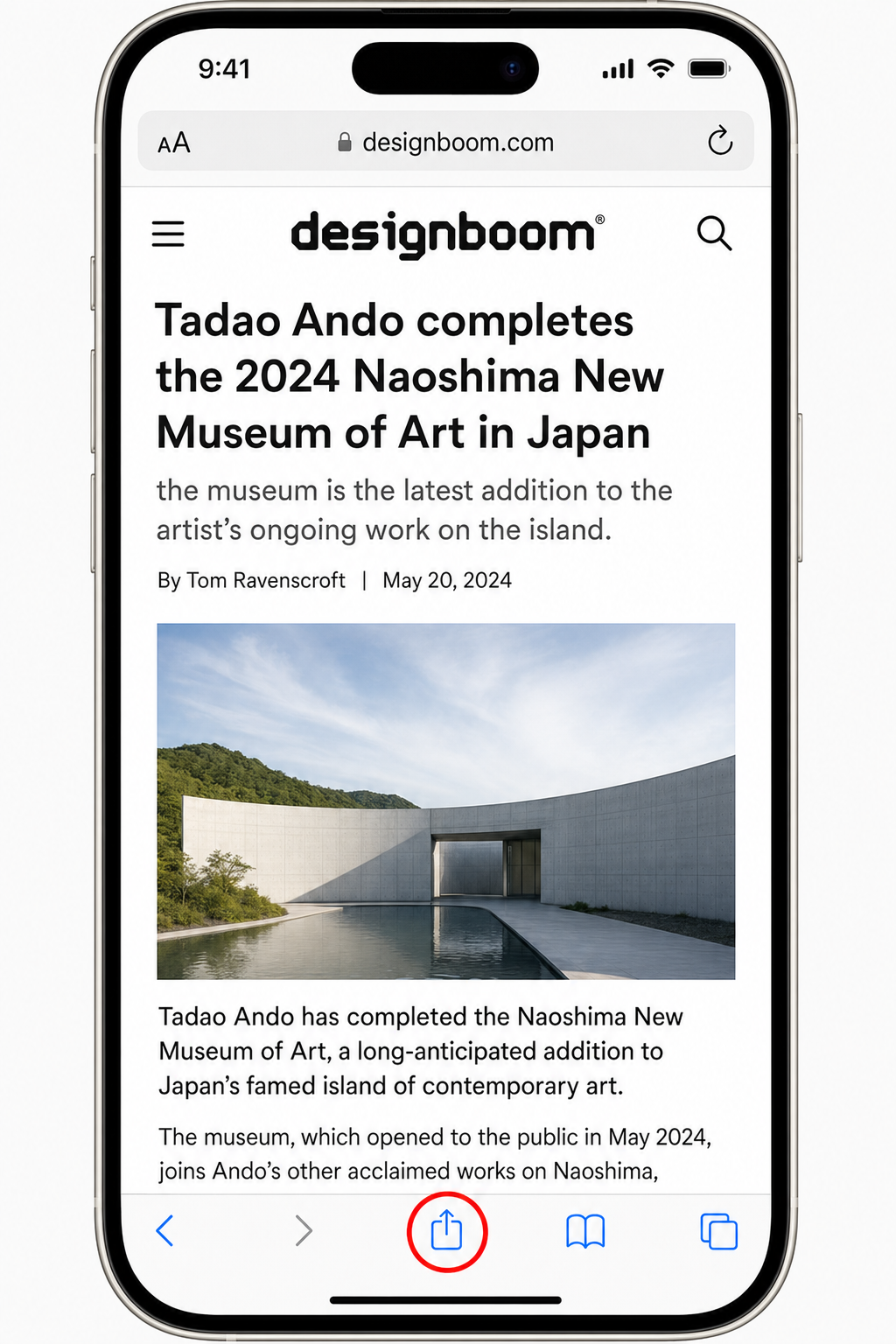
Tap the Share button to open the share sheet. Scroll down through the options until you find Add to Home Screen.
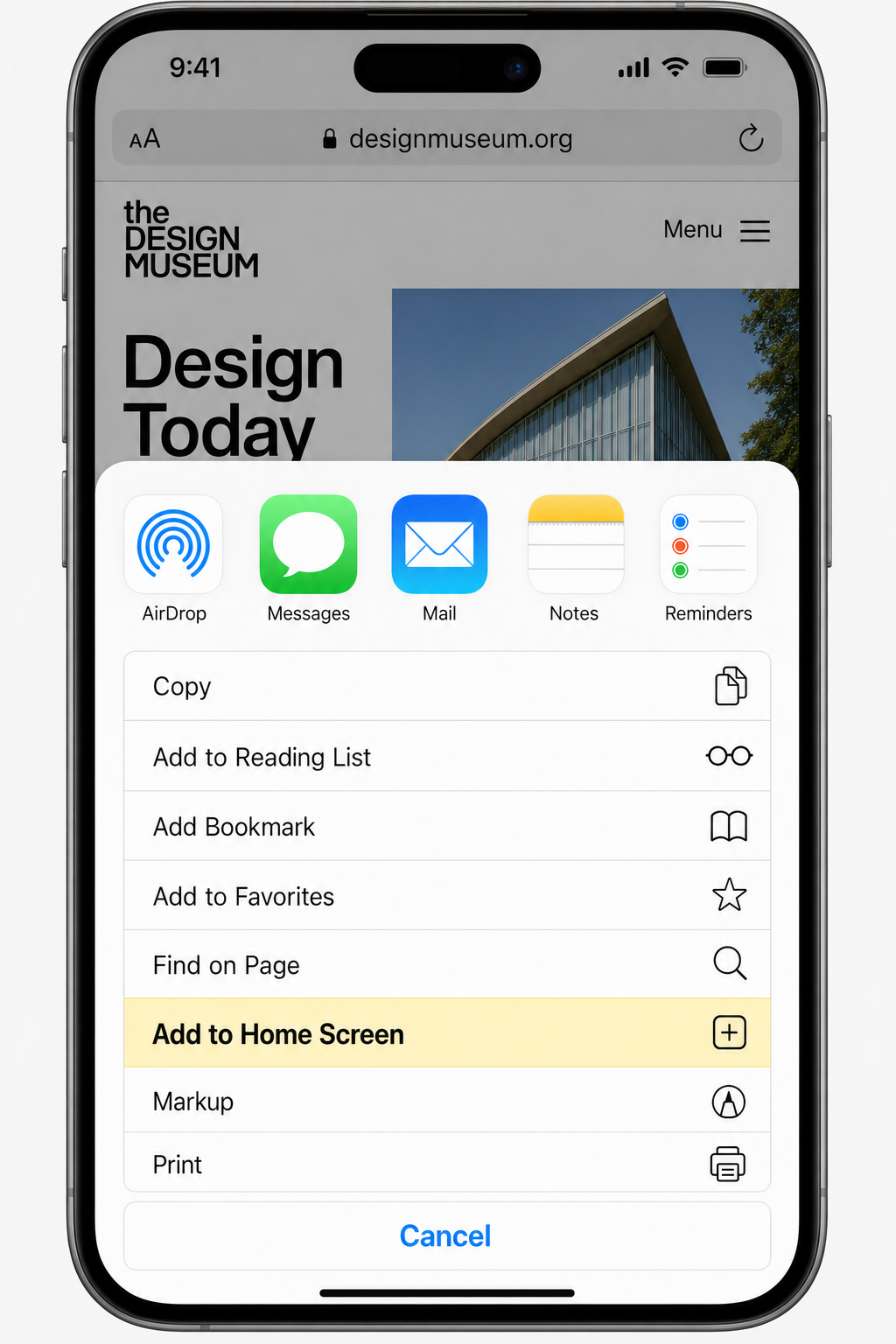
Don’t see it? Apple sometimes hides this option. Scroll to the bottom of the share sheet, tap Edit Actions, then toggle Add to Home Screen on and save your changes.
Once you tap Add to Home Screen, you’ll get a dialog box where you can customize the shortcut’s name. The default is usually the webpage title, but you can change it to something shorter and more memorable — like “Meeting Poll” or “Work Calendar”.
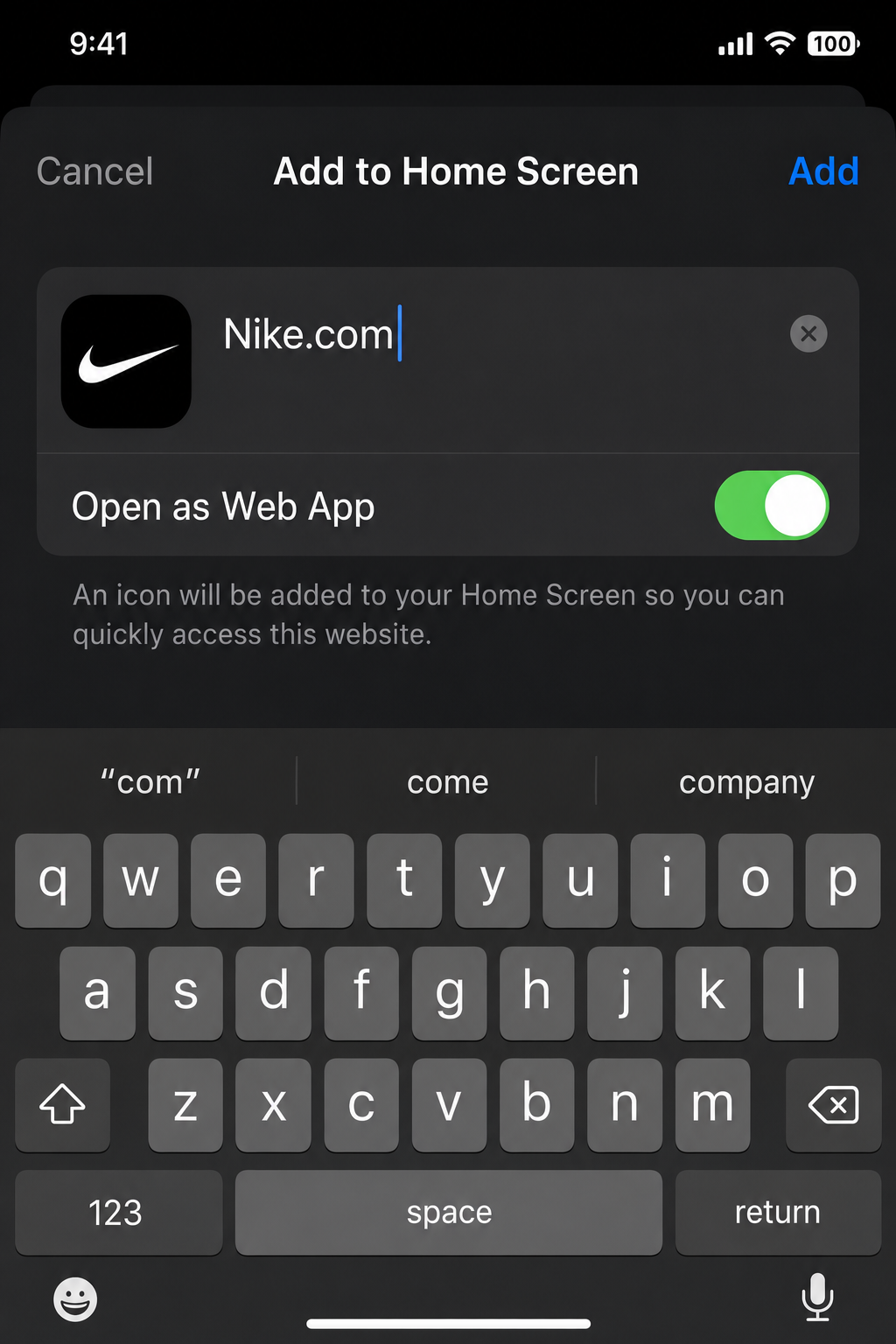
You’ll also see an Open as Web App toggle. Turn this on for a full-screen, app-like experience that hides Safari’s interface entirely. Leave it off if you prefer the traditional bookmark behavior that opens in Safari.
Tap Add and you’re done. Head back to your home screen to see your new shortcut.
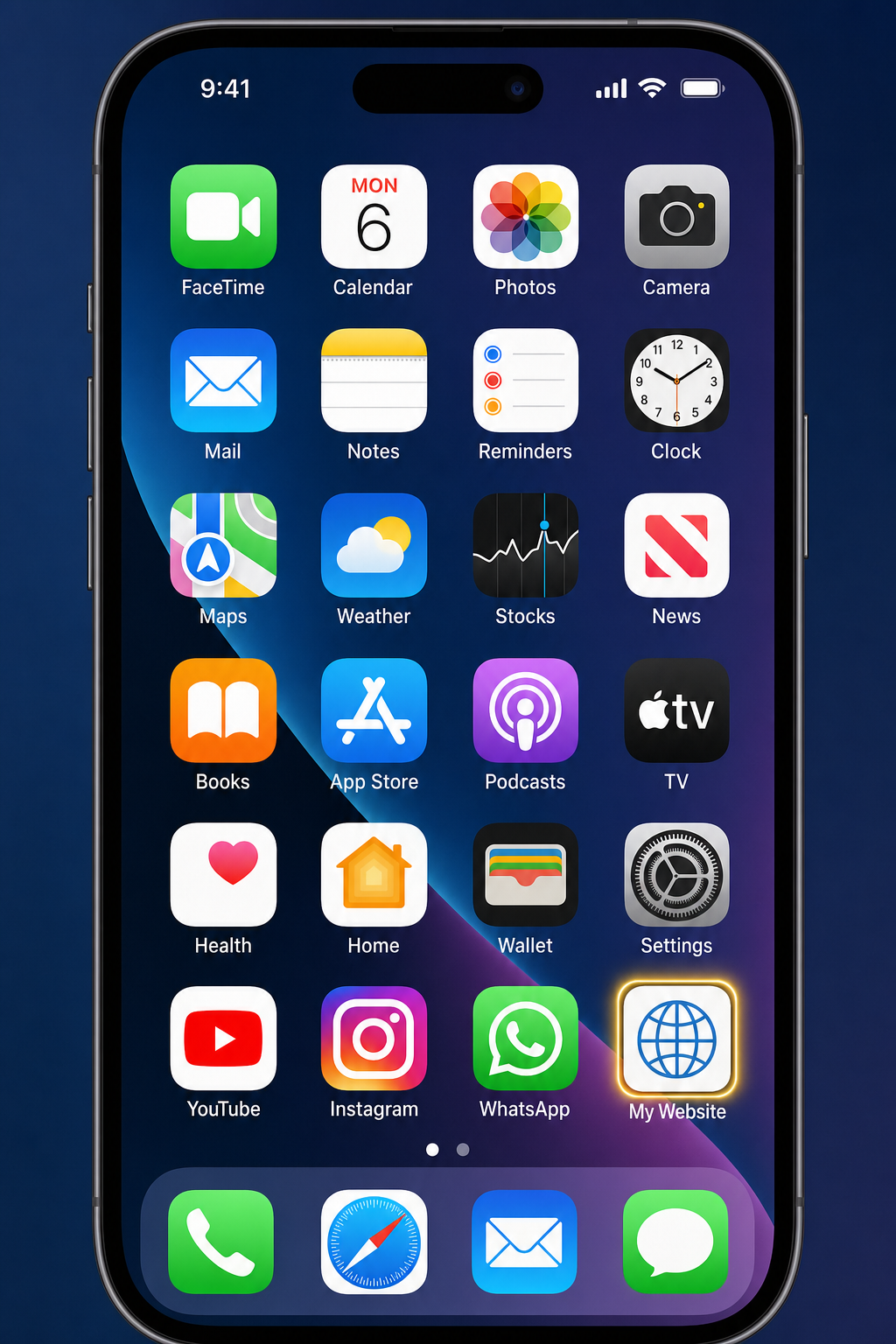
The icon will either use the website’s favicon or a screenshot of the page. Tap it anytime for instant access to your saved webpage.
Quick Troubleshooting
If Add to Home Screen is missing from your share sheet, you’ll need to add it manually through Edit Actions at the bottom of the share menu.
Having issues with the shortcut not loading properly? Clear Safari’s cache on your iPhone by going to Settings > Apps > Safari > Clear History and Website Data. This fixes most loading problems.
For Google Forms specifically (like our meeting poll), sometimes the keyboard won’t appear when you tap input fields. Long-press the home screen shortcut and select Quick Actions to open it differently, or just open the form in full Safari instead.
Bonus: Mac Desktop Shortcuts
On your Mac, you can create similar shortcuts by dragging a website’s favicon directly to your desktop. Open the webpage in Safari, then click and drag the small icon next to the URL from the address bar to wherever you want the shortcut.
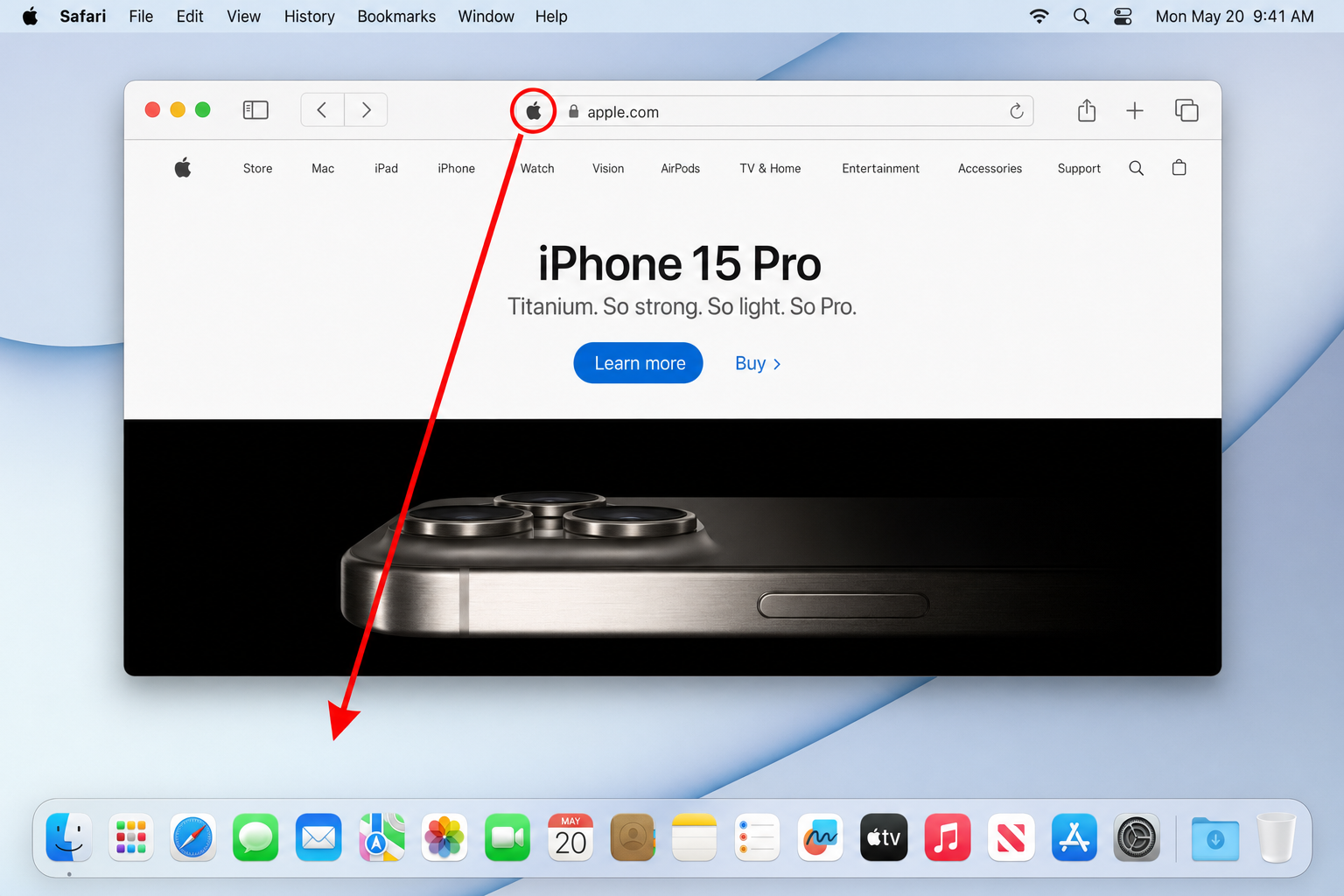
You’ll need to exit full-screen mode first. Oddly, Safari’s share menu on Mac doesn’t include a “save to desktop” option, so the drag-and-drop method is your best bet.
This little trick has saved our group countless minutes of fumbling with URLs during meetings. Whether you’re bookmarking work tools, family calendars, or that one recipe you make weekly, home screen shortcuts are genuinely handy. Give it a try with your most-visited sites and you’ll probably find yourself using it more than you’d expect.