
Need to update your Apple ID payment method? Good news, you can now do this directly on your iPhone, iPad, Mac, or through any web browser. No more downloading iTunes or dealing with confusing workarounds.
Apple finally streamlined this process. You can change your primary payment method (the one used for App Store purchases, iCloud subscriptions, and Family Sharing) from any device. Here’s how to do it the modern way.
Update Payment Method on iPhone or iPad
This is the quickest method if you’re already on your phone.
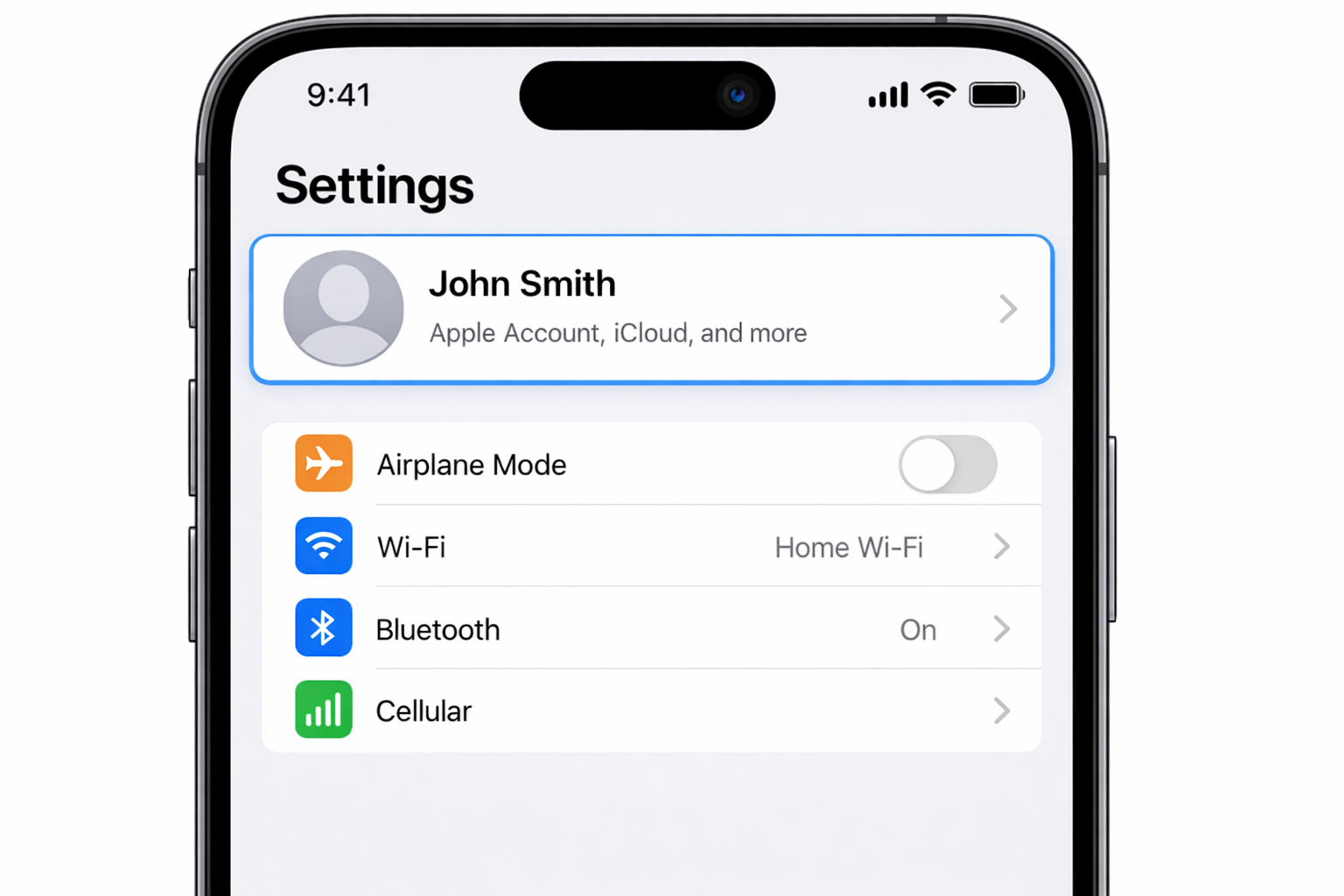
Open the Settings app and tap your name at the top.
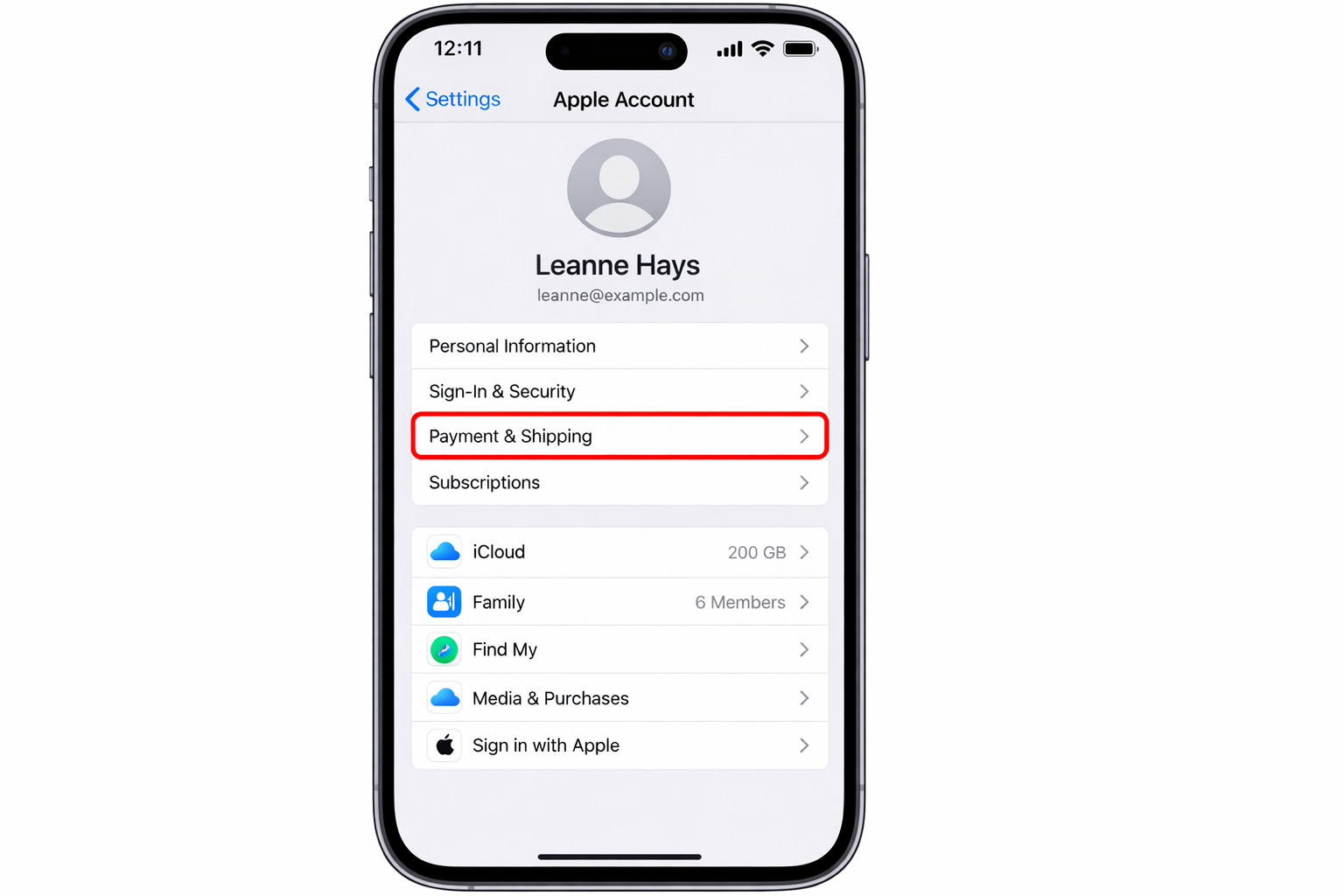
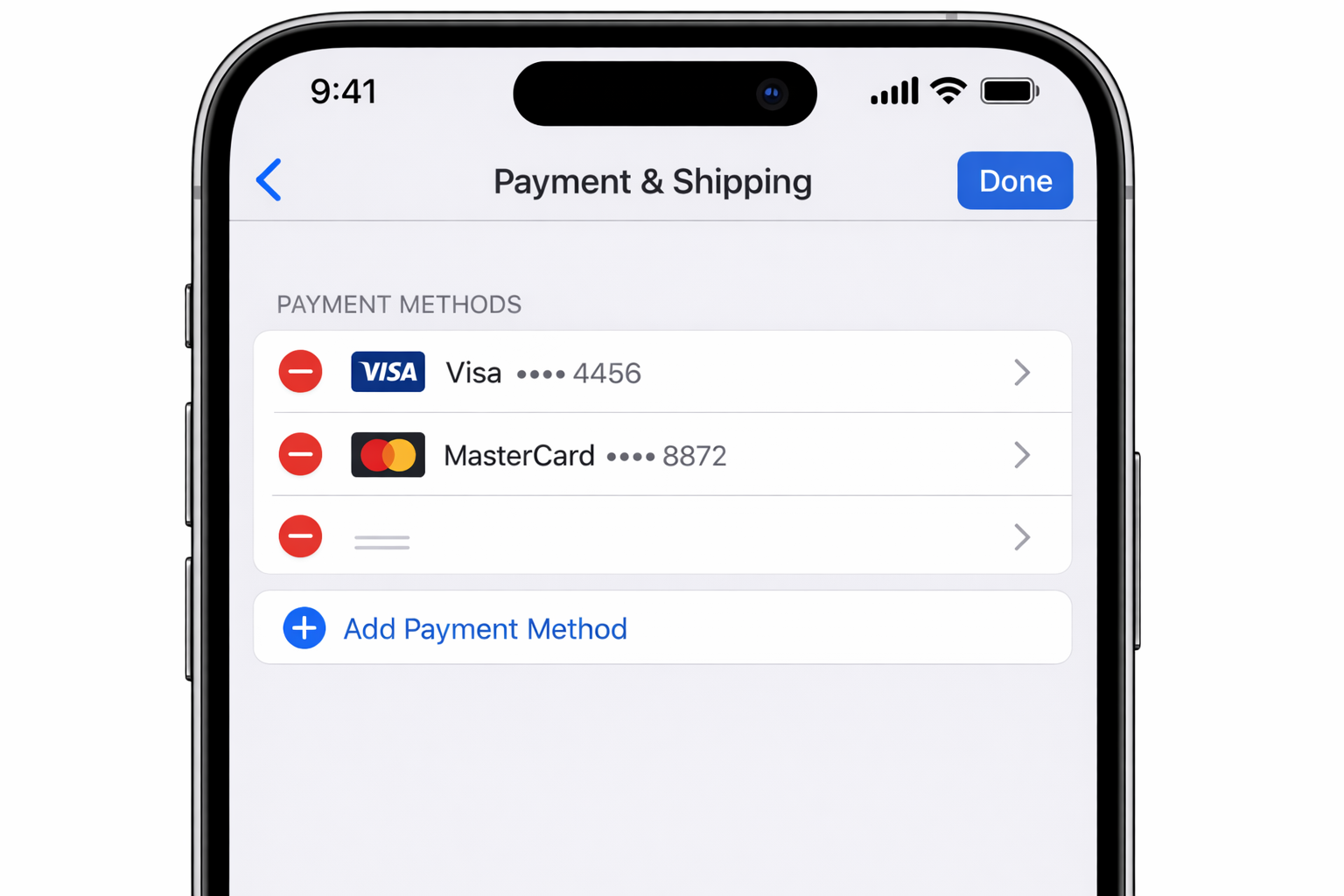
Then tap Payment & Shipping. (You might need to sign in with Face ID, Touch ID, or your password.)
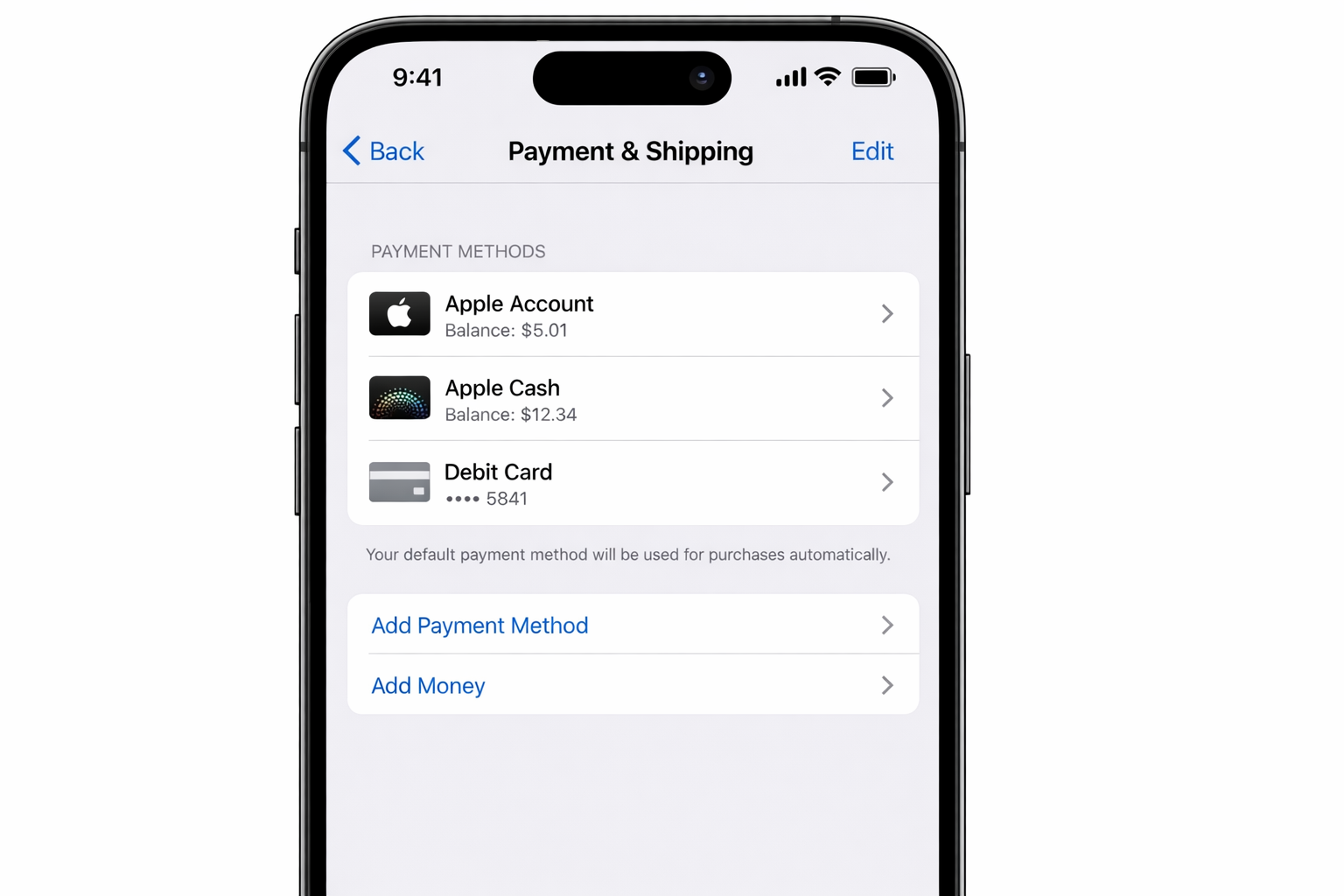
To change your primary payment method, tap Edit in the top-right corner. You can now:
- Tap any existing card to update its details
- Tap Add Payment Method to add a new card
- Drag cards up or down to change their priority order
Apple charges cards in the order they appear, so put your preferred method at the top. Enter your card details (number, expiration, billing address) and tap Done.
Pro tip: You can also add cards through the Wallet & Apple Pay section in Settings and they’ll automatically sync to your Apple ID payment methods.
Update Payment Method on Mac
On macOS Sequoia or later, open System Settings and click your Apple ID at the top. (On older versions, it’s System Preferences > Apple ID.)
Click Payment & Shipping on the left sidebar. The process is identical to iPhone. Click Edit, then update, add, or reorder your payment methods as needed.
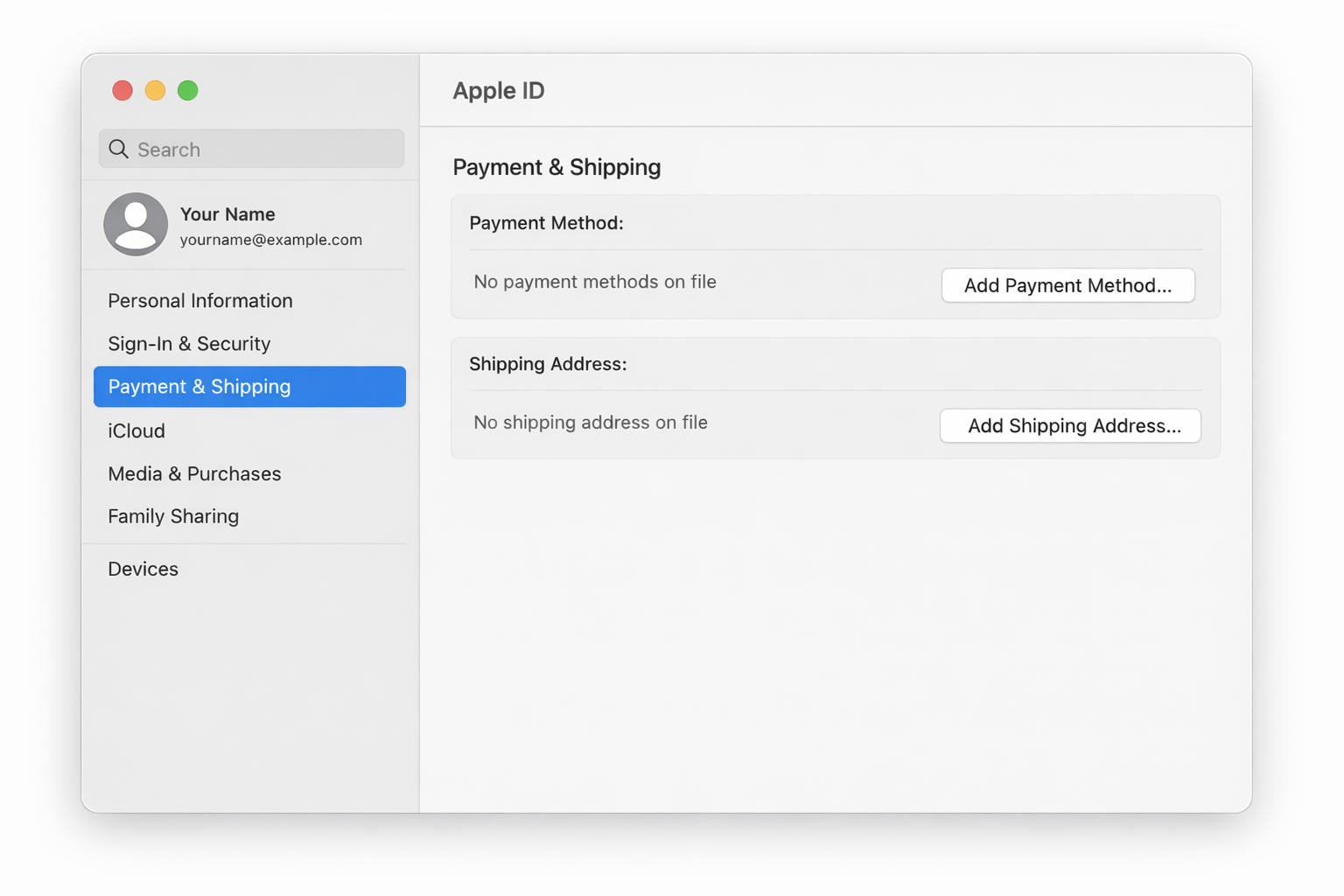
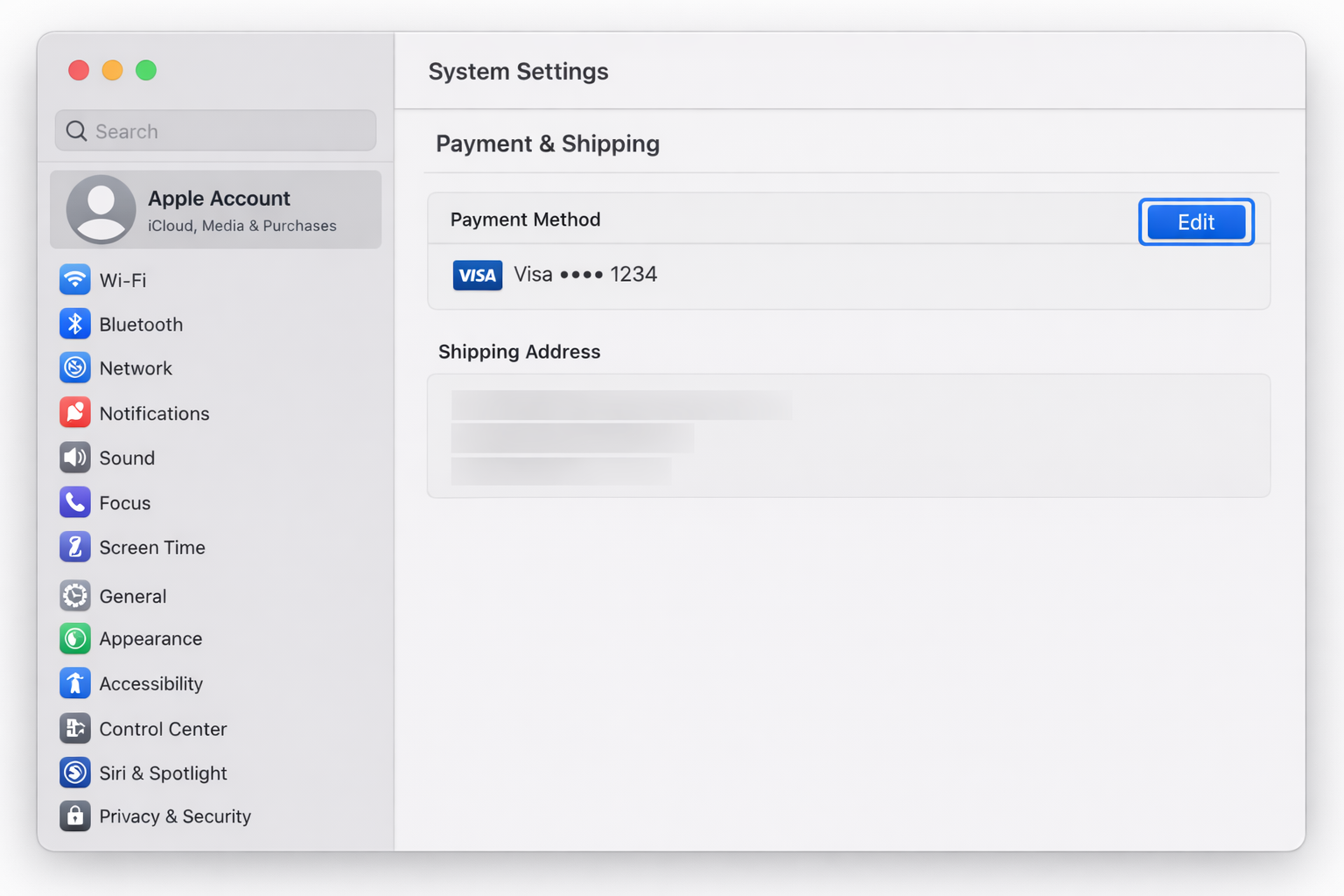
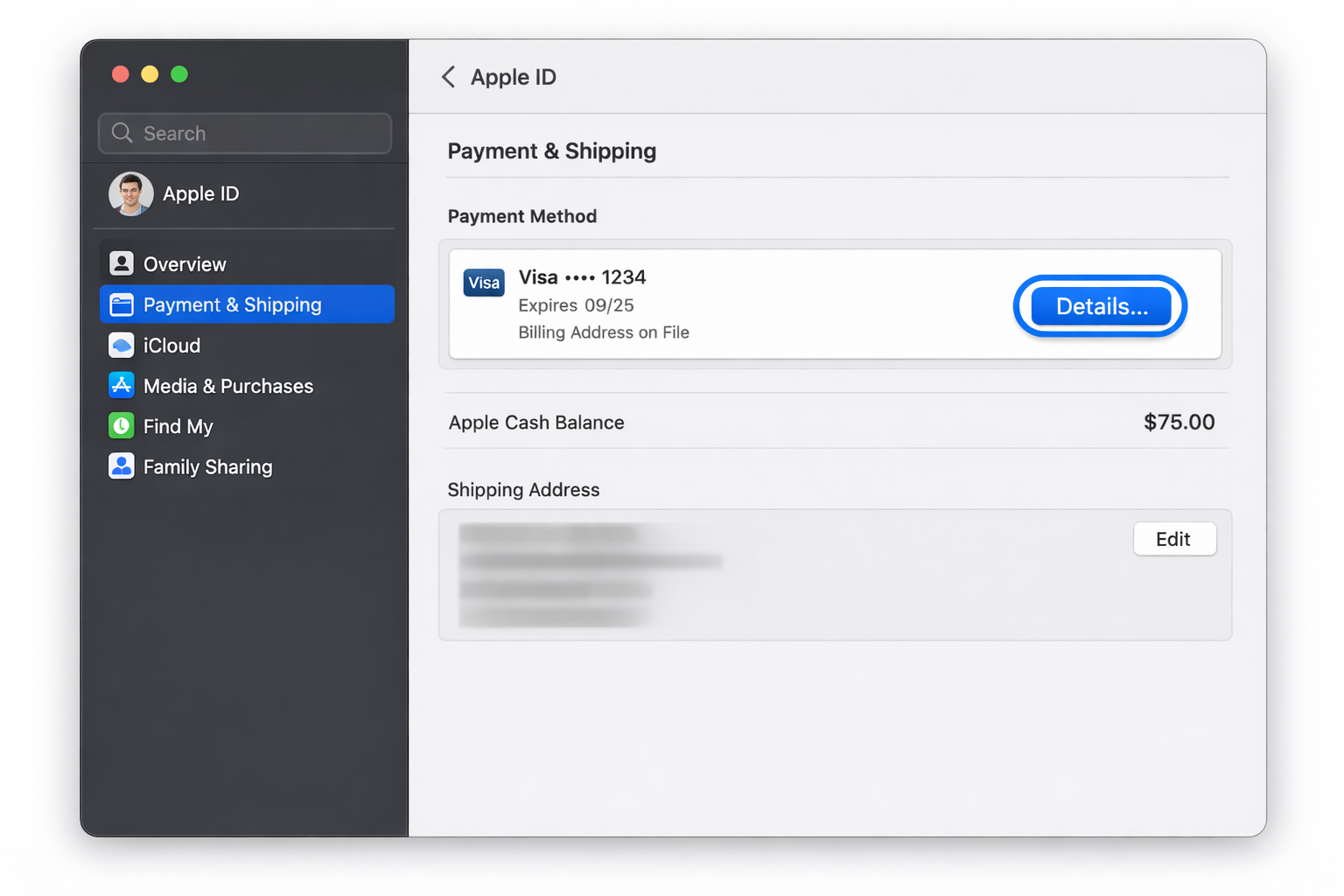
On the latest version of macOS, you will be asked to simple go to account.apple.com and update your payment options there.
Update Payment Method via Web Browser
This method works on any device, including Windows PCs. Go to appleid.apple.com and sign in with your Apple ID.
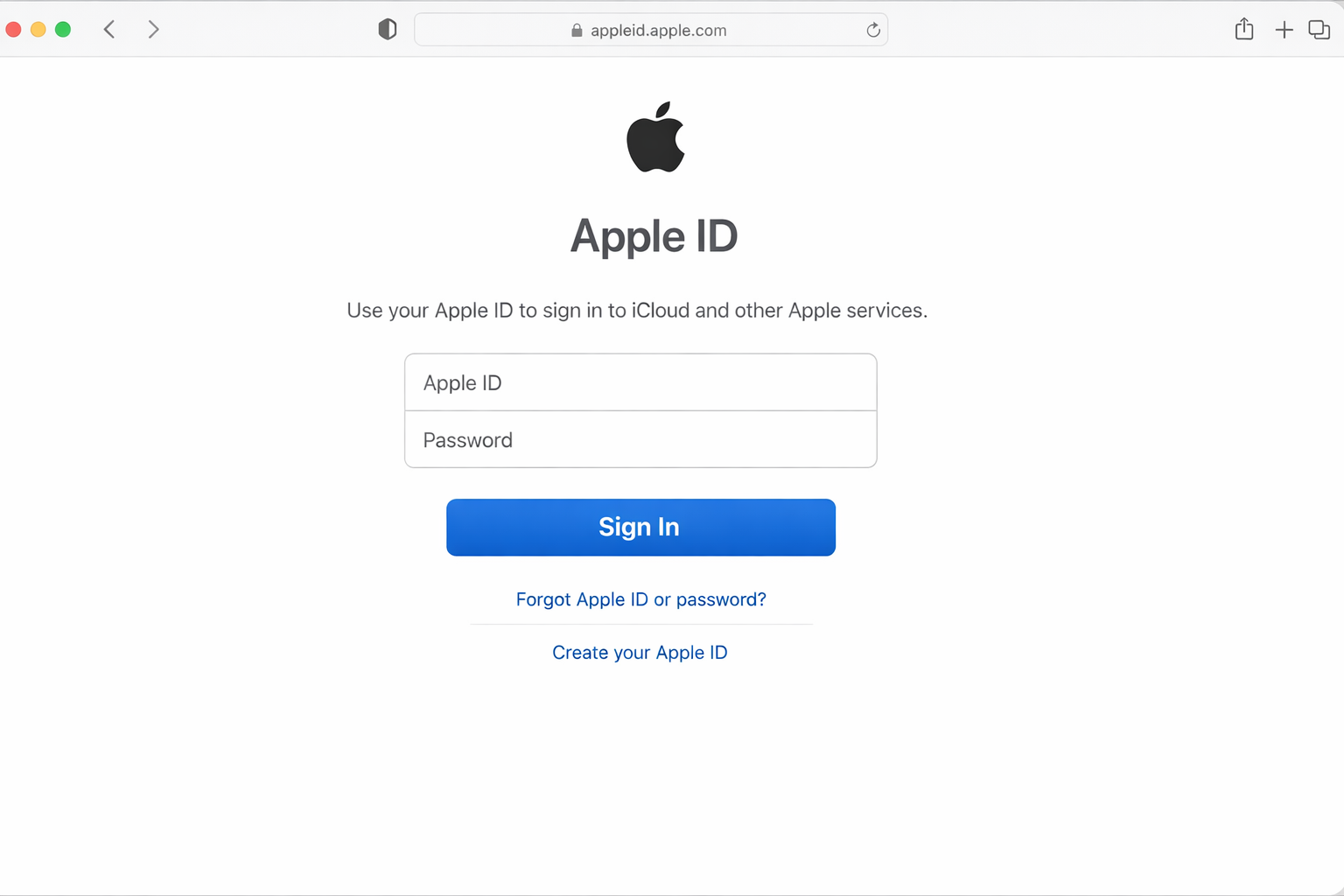
Look for Payment & Shipping in the account section. Click it, then follow the same edit/add/reorder process.
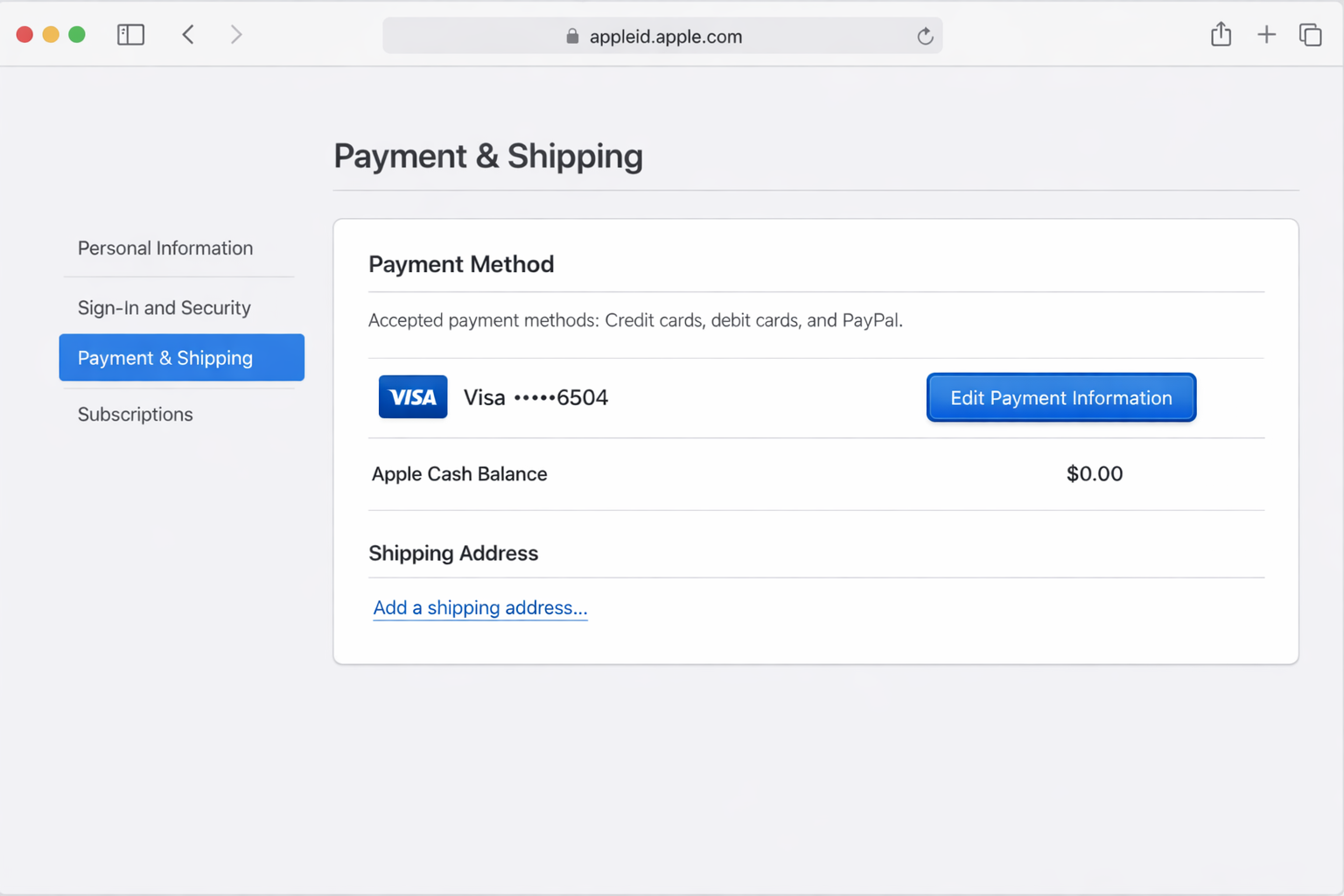
The web method is particularly useful if you don’t have access to your Apple devices or need to manage payment methods from a work computer.
Common Issues and Solutions
Can’t remove your only payment method? If you’re a Family Sharing organizer or have active iCloud+ subscriptions, Apple requires at least one valid payment method. Add a new card first, then remove the old one.
Payment keeps getting declined? Check that your card hasn’t expired, has sufficient funds, and that your billing address matches exactly what your bank has on file. Also verify you don’t have any unpaid balances on your Apple ID.
Verification failing? Try updating to the latest iOS/macOS version, disable any VPN connections, or reset your network settings. Sometimes re-authenticating with Face ID or Touch ID helps too.
Family Sharing complications? If you’re the organizer, any payment changes affect the entire family group. Consider adding the new method first, testing a small purchase, then removing the old card to avoid disrupting family members’ purchases.
What About iTunes?
You don’t need iTunes anymore for this. Apple moved payment management to the Settings app and web interface years ago. If someone tells you to download iTunes to change your payment method, they’re working from outdated information.
The old iTunes method still technically works if you have it installed, but why complicate things? Stick with the Settings app or web browser — they’re faster and more reliable.
Your updated payment method applies immediately across all Apple services: App Store, iTunes Store, iCloud storage, Apple Music, and any other subscriptions tied to your Apple ID. One change updates everything.