
You just picked up an iPhone 17 Pro Max, you know it can shoot 4K at 120 fps and you head straight to Settings > Camera > Record Video…only to find the option isn’t there. Just 4K at 60 fps sitting at the top like that’s the best it can do.
It’s not a bug. It’s a format setting buried one level up, and once you flip it, every high-frame-rate option unlocks immediately. Here’s what’s going on and how to fix it.
Why the 4K 120fps Option Is Missing
By default, the iPhone 17 Pro Max ships with Camera Formats set to Most Compatible. This mode uses H.264 and JPEG, which are older codecs that play nicely with Windows PCs, older TVs, and basically anything that hasn’t been updated in a few years.
The tradeoff: Most Compatible locks you out of the highest recording options, including 4K at 120 fps. Apple buries this in the Formats menu rather than surfacing it as a warning in Record Video, which is why it catches people off guard.
Switch to High Efficiency (HEVC/HEIF) and the full list of options reappears.
How to Enable 4K at 120 FPS
- Open Settings and tap Camera.
- Tap Formats at the top of the Camera settings.
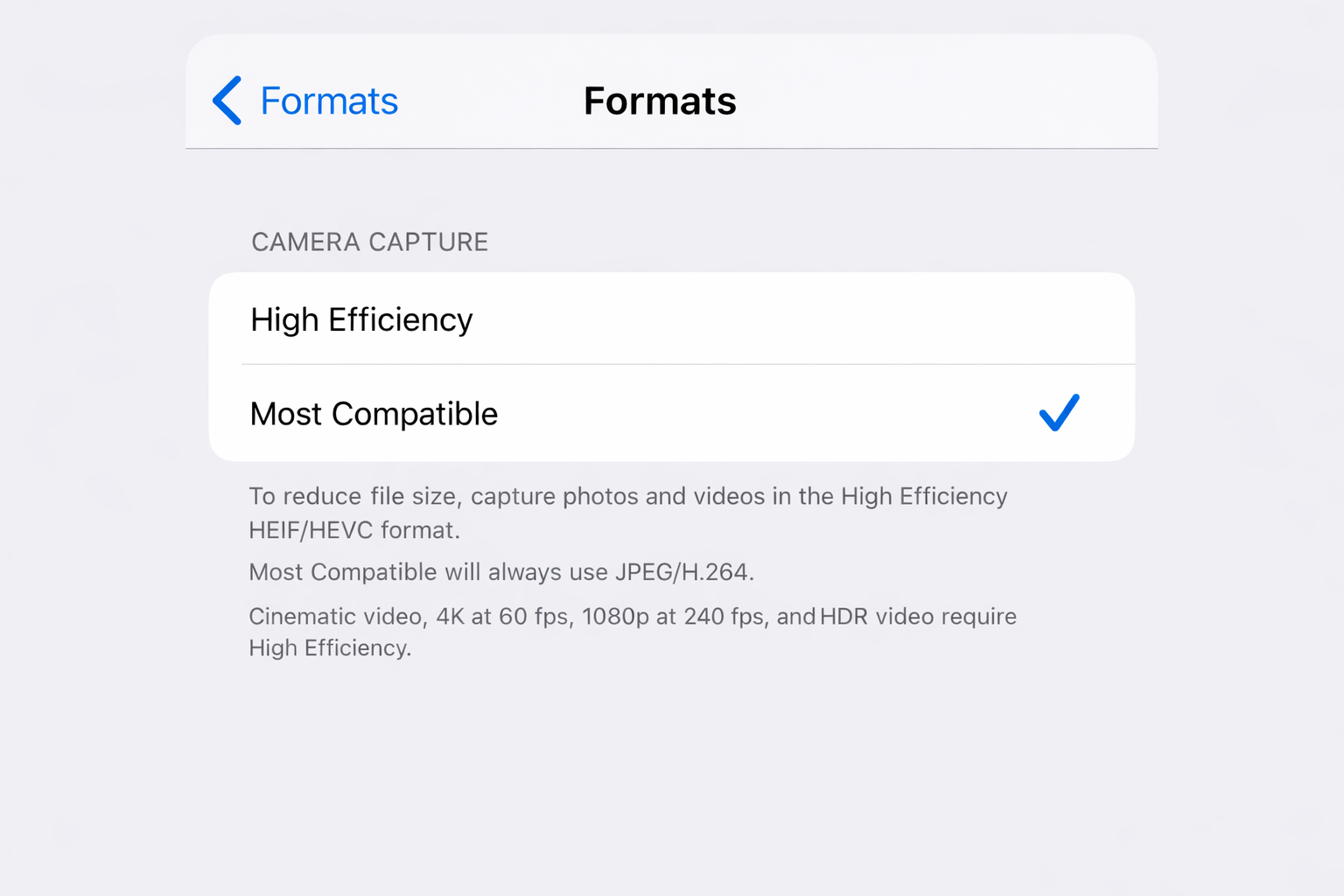
- Select High Efficiency. This switches your camera to HEVC for video and HEIF for photos.
- Go back to Camera and tap Record Video.
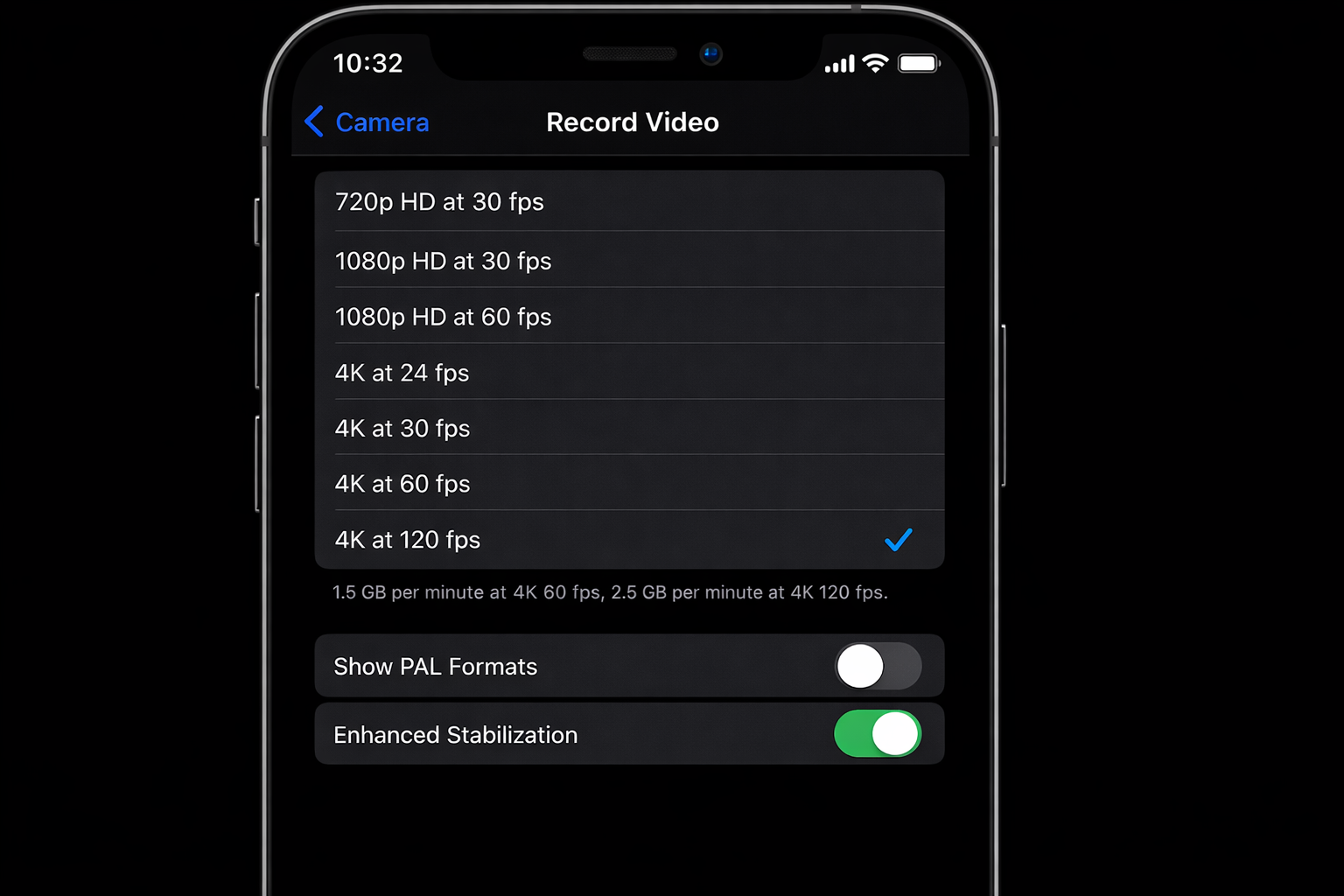
- Select 4K at 120 fps.
That’s it. The option was always there, it just needed the right codec enabled to show up.
A Note on File Size
4K at 120 fps produces very large files! Expect roughly 600–800 MB per minute depending on the scene. Make sure you have adequate storage before a long shoot. If space is tight, 4K at 60 fps is still excellent and cuts file size significantly.
If you’re shooting for social media or casual sharing, 1080p at 60 fps is more than enough and keeps your storage healthy.
The Rest of the Video Settings Worth Knowing
While you’re in Settings > Camera, it’s worth a quick look at the other options as a few of them have a real impact on what you get out of the camera.
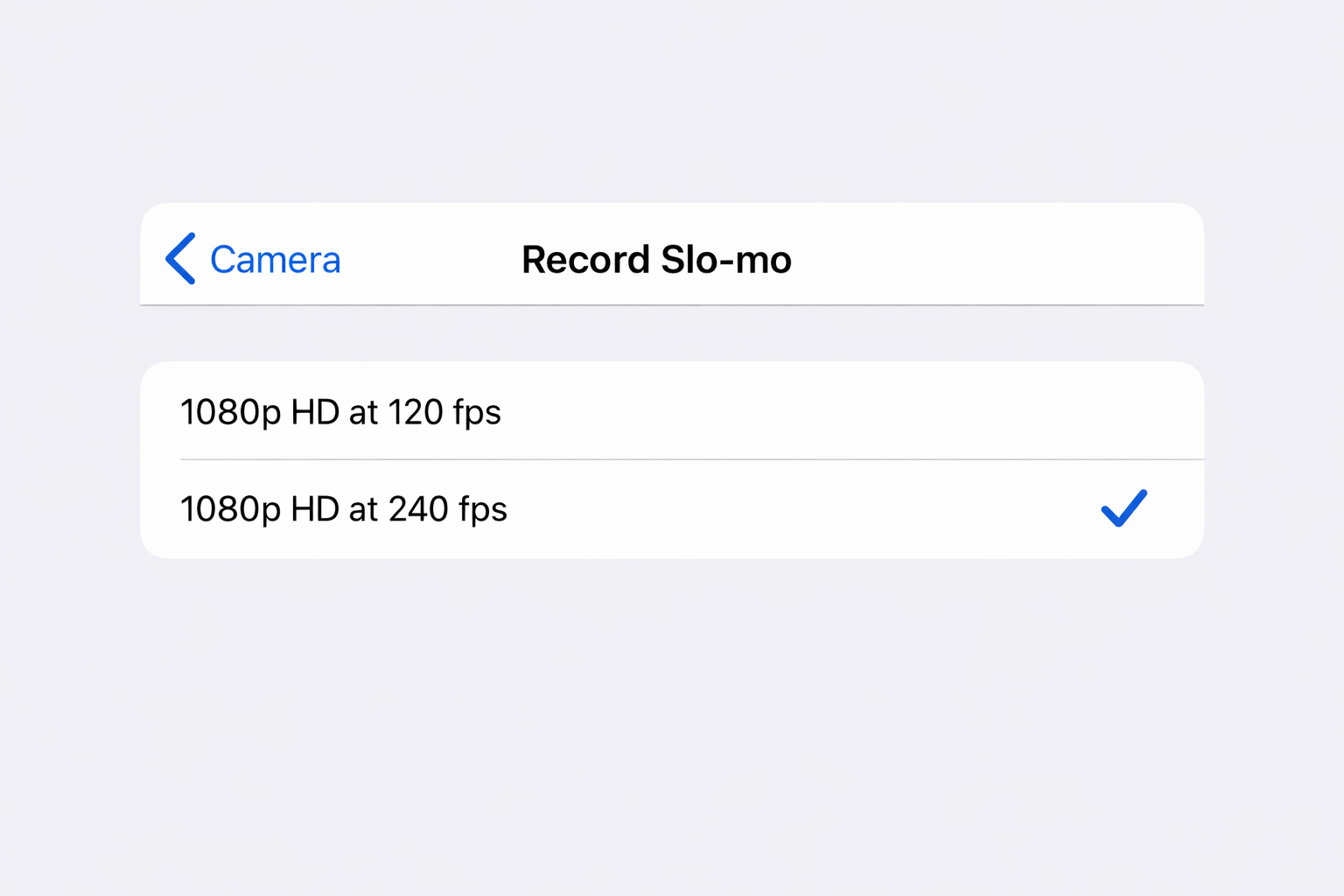
Record Slo-mo
Tap Record Slo-mo to set your slow-motion format. On the iPhone 17 Pro Max you can shoot slo-mo at 1080p at 240 fps with the rear camera. That’s the sweet spot for smooth, detailed slow-motion, so choose it over 120 fps unless you need the extra light sensitivity.
Cinematic Mode
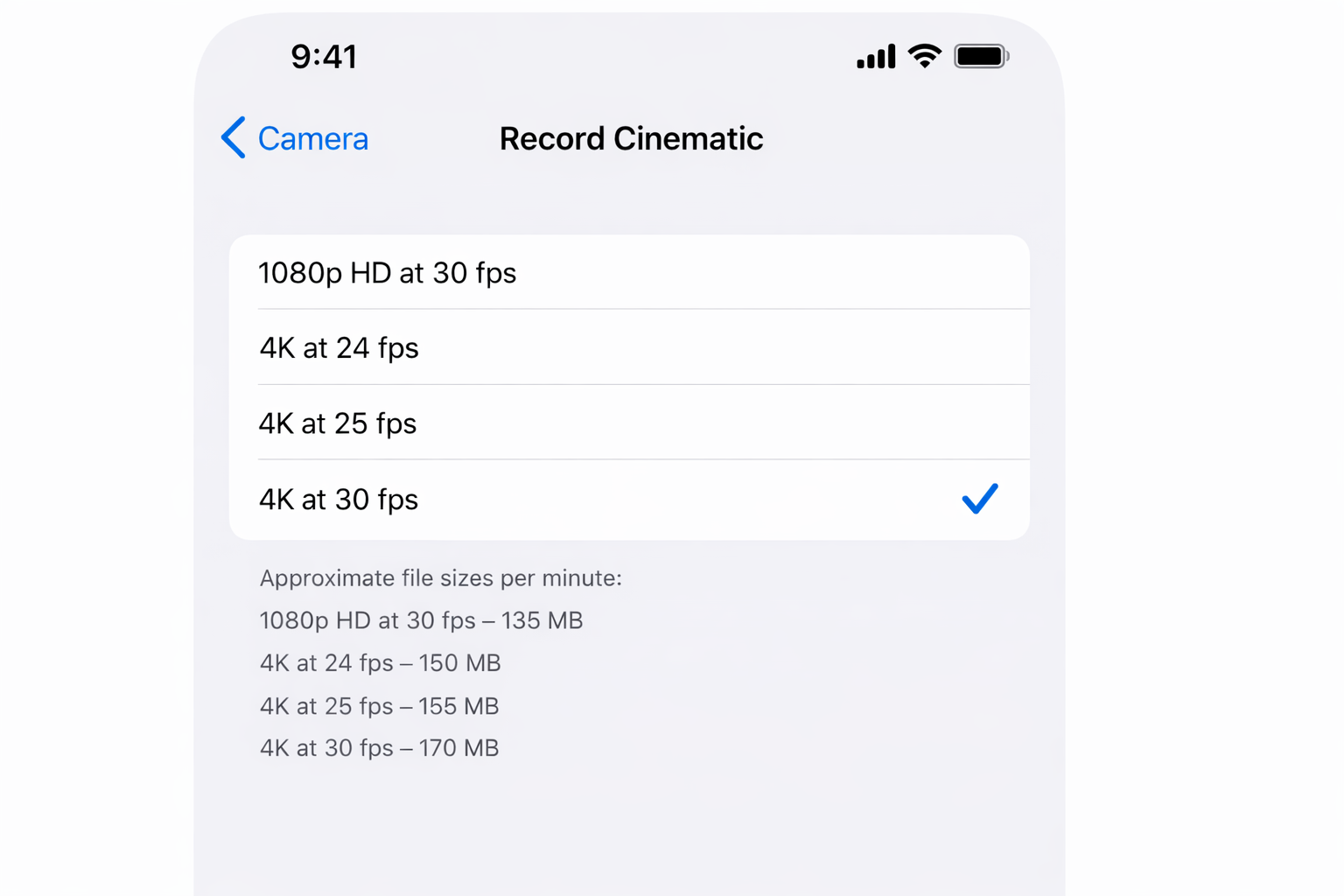
Cinematic mode records with a rack-focus effect that mimics a shallow depth of field: the camera automatically shifts focus between subjects and you can edit the focus points after the fact in Photos or Final Cut Pro. On the iPhone 17 Pro Max, Cinematic mode supports up to 4K at 30 fps.
You’ll find the Cinematic option directly in the Camera app’s mode selector (swipe through Video, Slo-Mo, and Time-Lapse to find it). The quality settings for Cinematic live in Settings > Camera > Record Cinematic.
Auto FPS
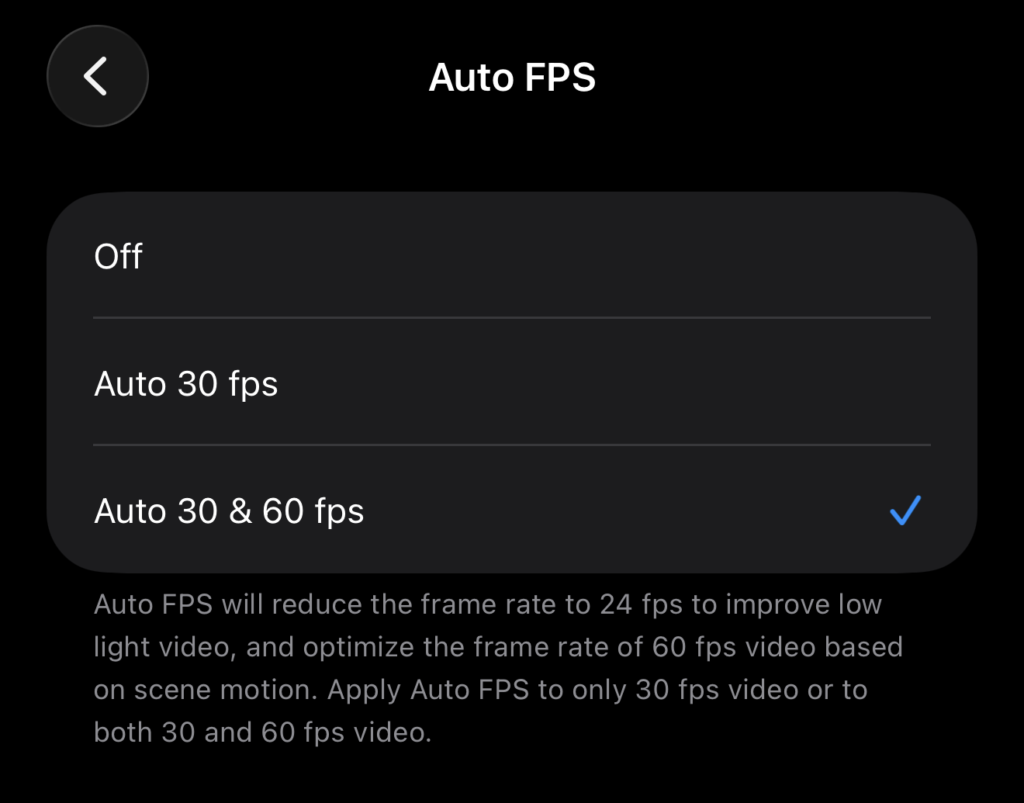
This one is on by default and worth understanding. Auto FPS automatically drops your frame rate in low-light conditions to let in more light, so if you’re shooting 4K at 60 fps in a dim room, the camera might drop to 30 fps or 24 fps without you asking it to.
For consistent 120 fps or 60 fps footage regardless of lighting, turn Auto FPS off in Settings > Camera > Record Video. Scroll down and you’ll see the toggle. The tradeoff is noisier footage in low light, so use your judgment.
HDR Video
Also in Record Video, you’ll find an HDR Video toggle. Leave it on as it captures a wider dynamic range and makes a noticeable difference in high-contrast scenes like outdoor shots with bright sky and shadowed foreground. The footage plays back correctly on any modern HDR display.
Enhanced Stabilization
Enhanced Stabilization applies more aggressive optical and digital stabilization, which is great for handheld walking shots. The downside: it crops in slightly. If you’re on a tripod or gimbal, turn it off to get the full field of view.
Compatibility Heads-Up for Most Compatible Mode
If you switched to High Efficiency and you regularly share videos with people on older Windows PCs or non-Apple devices, they may occasionally have trouble playing back HEVC files. A few options:
- Share via iMessage or AirDrop – iOS automatically converts to H.264 when sharing to incompatible devices.
- Use a converter like VideoProc on your Mac to batch-convert HEVC files to H.264 when needed.
- If compatibility is a constant concern, staying on Most Compatible is a legitimate choice — you just lose the top-end frame rate options.
Quick Summary
If 4K at 120 fps is missing from your iPhone 17 Pro Max, go to Settings > Camera > Formats and switch from Most Compatible to High Efficiency. Head back to Record Video and the full option list will be there. While you’re at it, set slo-mo to 1080p at 240 fps, check that HDR Video is on, and decide whether you want Auto FPS enabled based on where you’re shooting.
Took less than two minutes to set up properly, now go shoot something worth watching.