
Your iPhone’s Lock Screen doesn’t need to show the same boring wallpaper for months. iOS 26 lets you build a rotating gallery of meaningful moments. We’re creating a strategic photo system that serves different emotional purposes throughout your day.
What Are iPhone Photo Widgets and Lock Screen Features?
iPhone photo widgets and Lock Screen customization are built-in iOS features. They let you display photos directly on your Lock Screen and Home Screen. These features go beyond simple wallpaper changes. You can create rotating photo collections, interactive widgets, and personalized visual experiences.
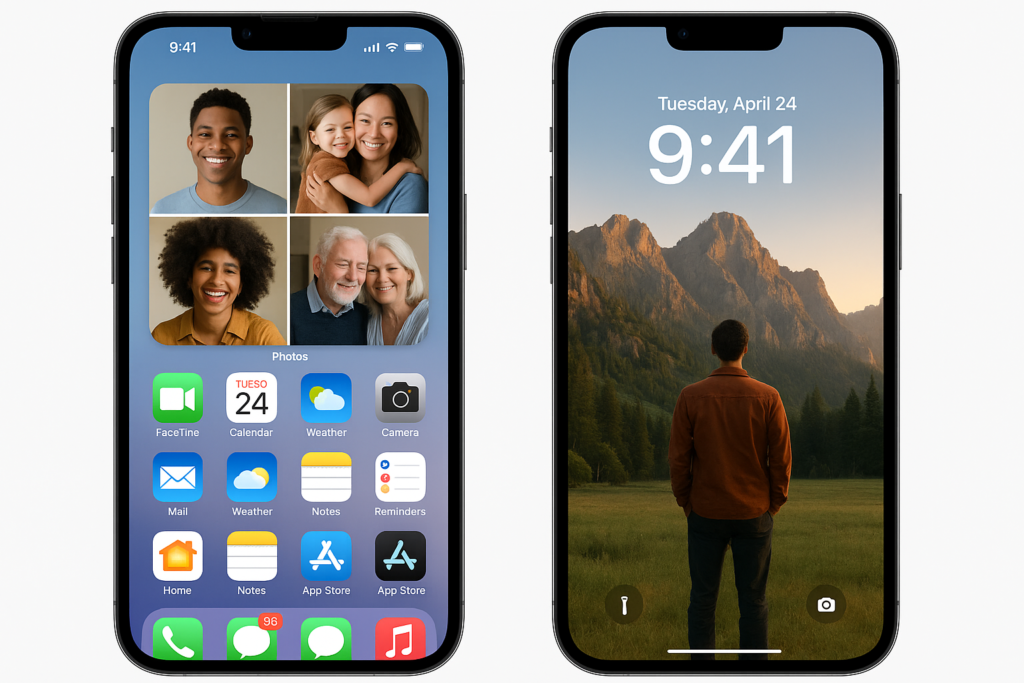
The Lock Screen can showcase photos as wallpapers with depth effects. This makes subjects appear in front of the time display. Photo widgets on both Lock Screen and Home Screen provide quick access to specific photo albums, memories, or rotating collections. Together, these features transform your iPhone into a curated photo experience that changes based on your preferences and schedule.
Before You Begin
Make sure you have:
- iPhone running iOS 26 or later (check in Settings > General > About)
- Photos stored in iCloud Photos or device storage
- At least 1 GB of free storage for photo processing
- Apple ID signed in (check in Settings > [your name])
| Requirement | Details |
|---|---|
| Device | iPhone with Face ID or Touch ID |
| OS version | iOS 26 or later |
| Storage | Photos accessible in Photos app |
| Network | Wi-Fi connection for iCloud Photos sync |
You’ll need some photos already saved to your iPhone. If you’re new to iPhone, make sure your photos have synced from iCloud or have been imported from your previous device.
Step 1: Organize Your Photos Into Story-Based Albums
Before setting up widgets, create photo albums that serve different emotional purposes. This strategic organization makes your photo displays more meaningful and intentional.
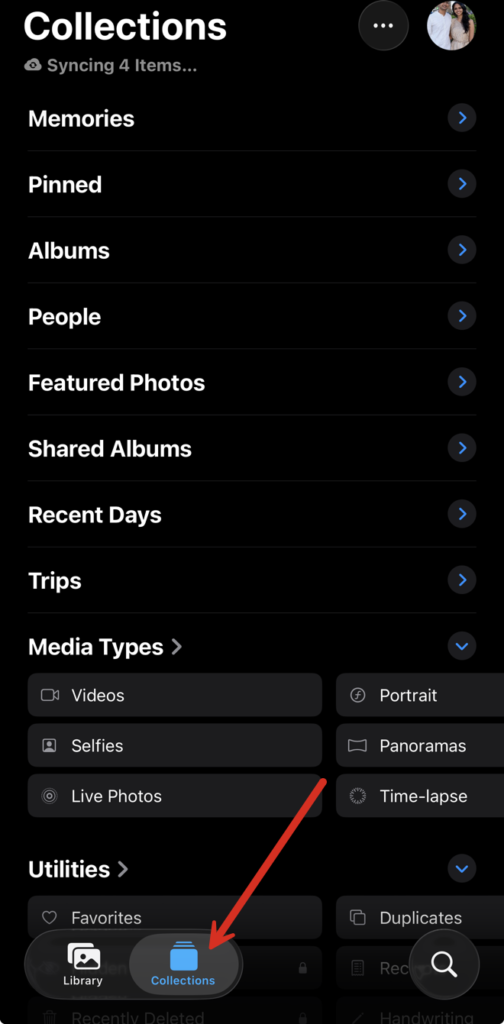
Open the Photos app and tap Collections at the bottom.
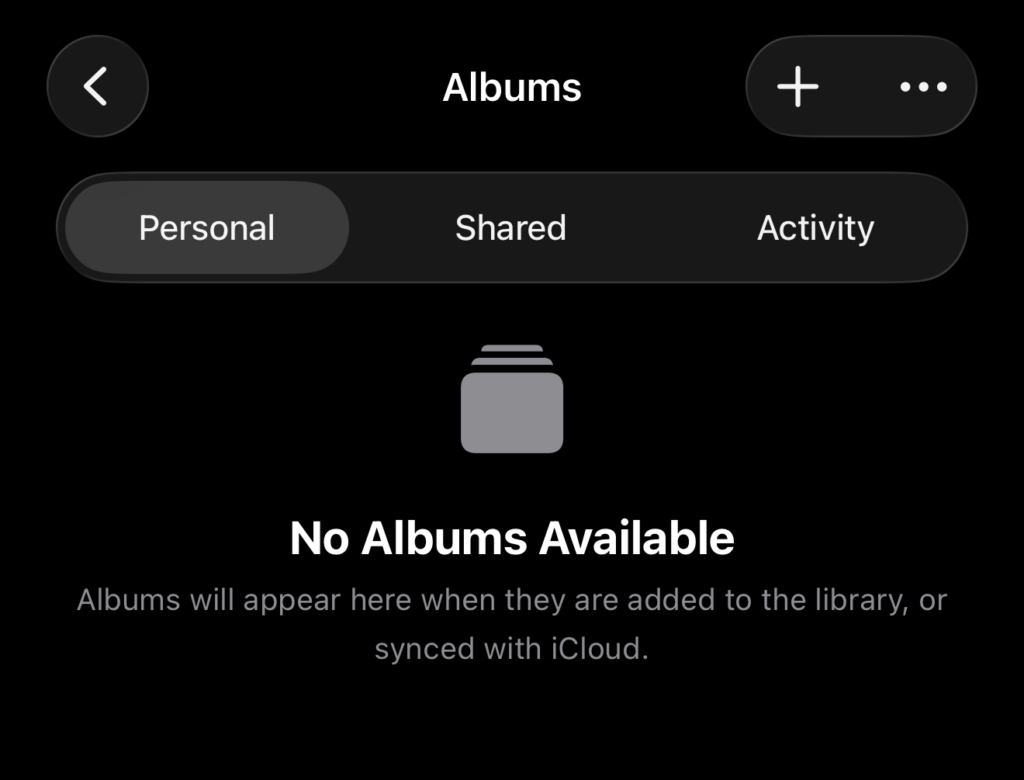
Tap on Albums and then the + button in the top-right corner to add a new album. If you have no albums, you can click the Create button to start your first album.
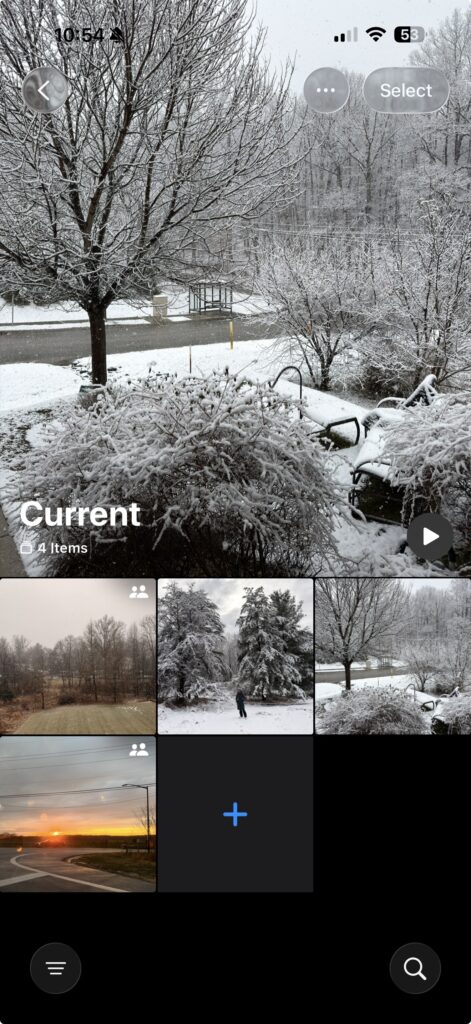
Create these strategic albums:
- Morning Energy (family photos, goals, inspiration)
- Midday Calm (pets, nature, peaceful scenes)
- Evening Memories (special moments, achievements, loved ones)
- Current Season (holiday photos, seasonal content)
For each album, tap the + symbol or Add Photos and select 10-20 high-quality images that fit the theme. Choose photos that work well in small formats. Pick images with good contrast for text overlay.
Tip: Portrait-oriented photos work better for Lock Screen wallpapers, while landscape photos are ideal for Home Screen widgets.
Step 2: Set Up Your First Lock Screen Photo Wallpaper
Lock your iPhone and wake the screen without unlocking it. Long press anywhere on the Lock Screen until the customization interface appears.
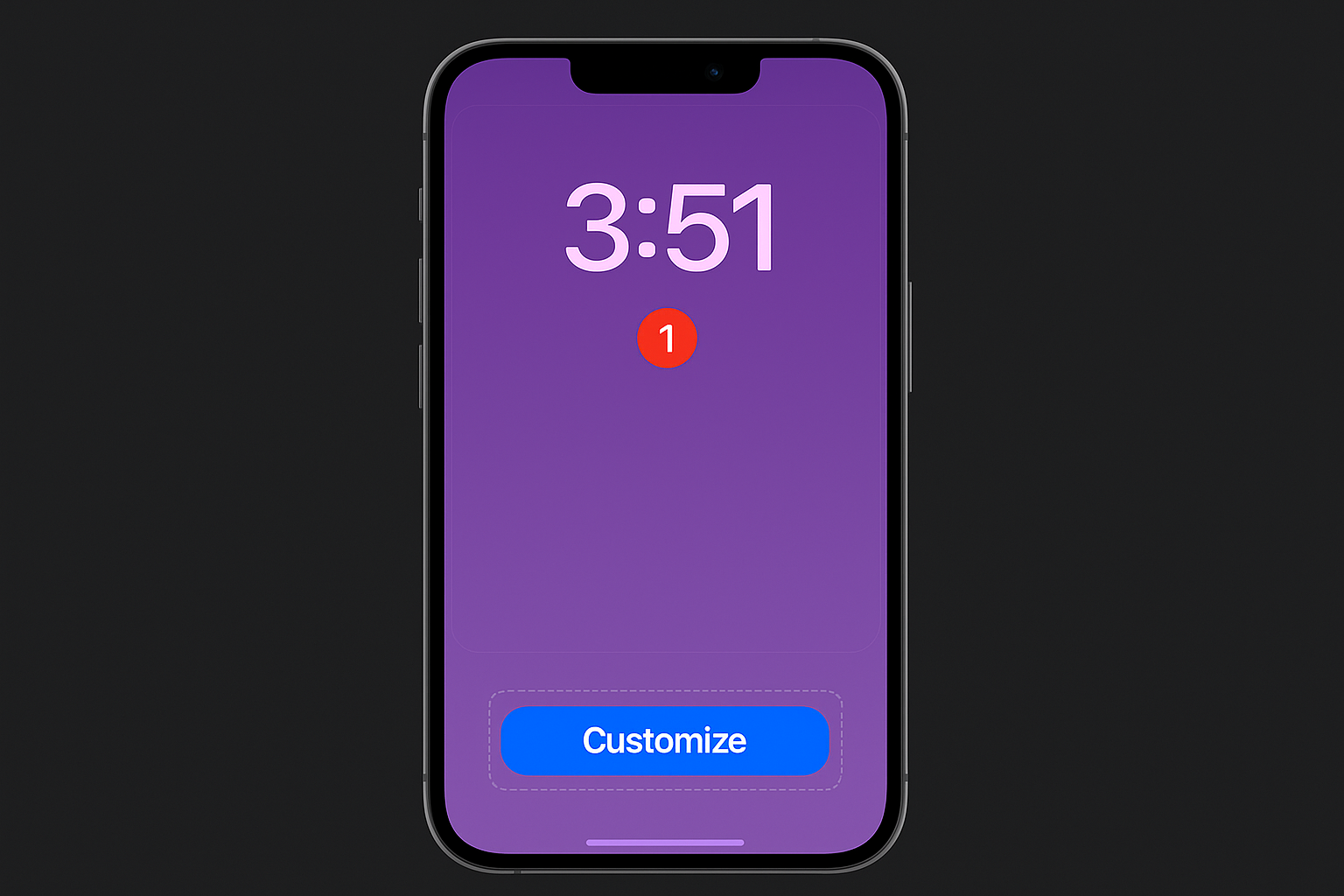
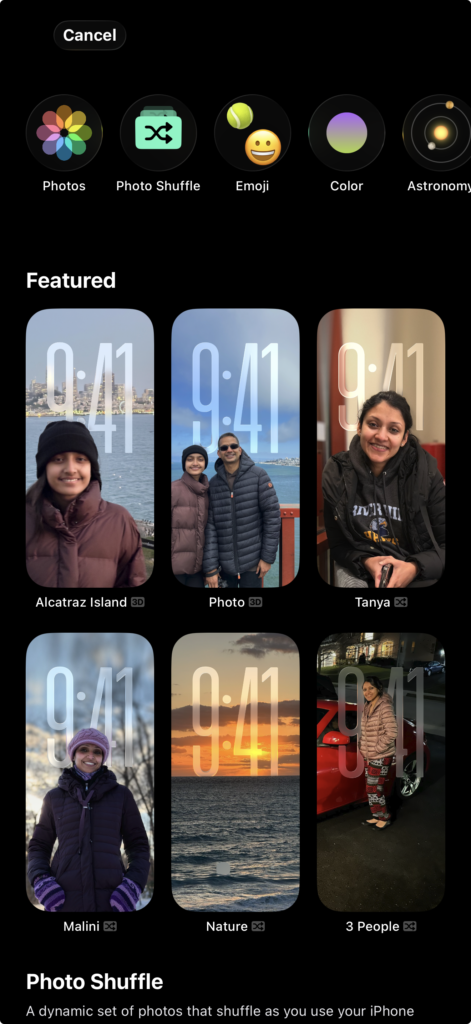
Then tap the + button to the right of the Customize button to create a new Lock Screen. You’ll get a list of options across the top and several rows of Featured images that Apple curates on its own.
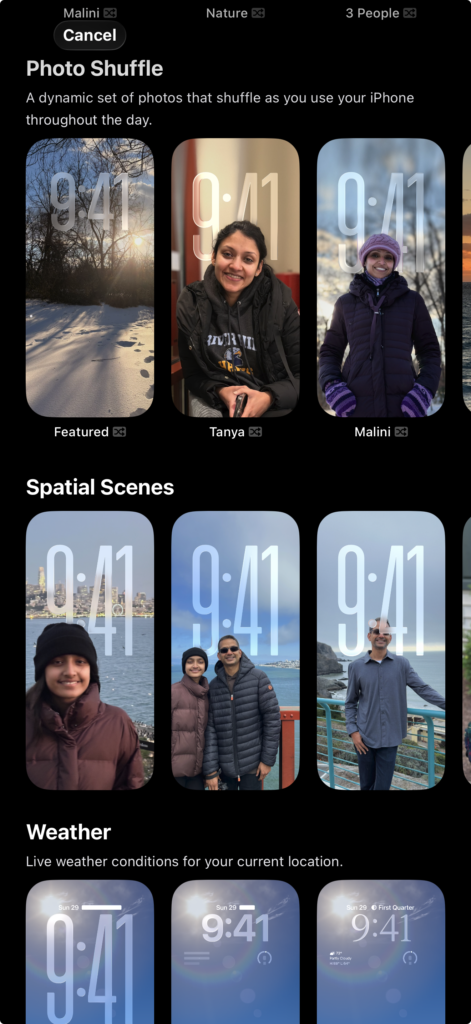
If you keep scrolling down on this page, you’ll also see some other options like Photo Shuffle and Spatial Scenes, which Apple automatically creates from your photo library and have cool 3D effects.
In our case, select Photo Shuffle from the wallpaper options. You’ll see several photo selection methods:
- People: Apple’s AI-selected recognized people you can pick from
- Nature: Any kind of nature photo that Apple recognizes
- Cities: Automatic detection of city landscapes, buildings, bridges, etc.
- Album: Choose from your custom albums
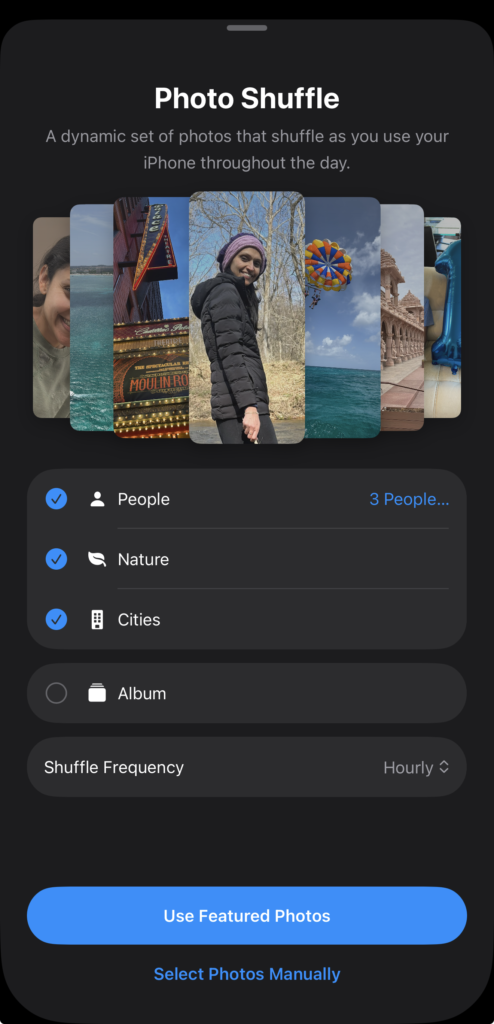
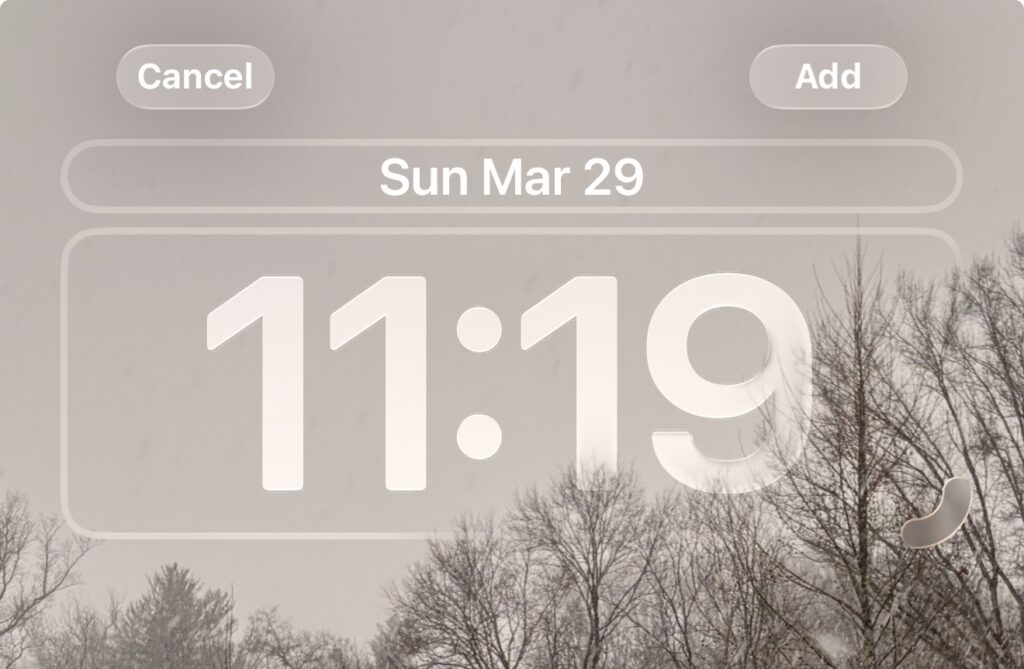
For your first setup, choose Album and tap Favorites to load the albums. This creates a rotating wallpaper that changes daily with motivational photos.
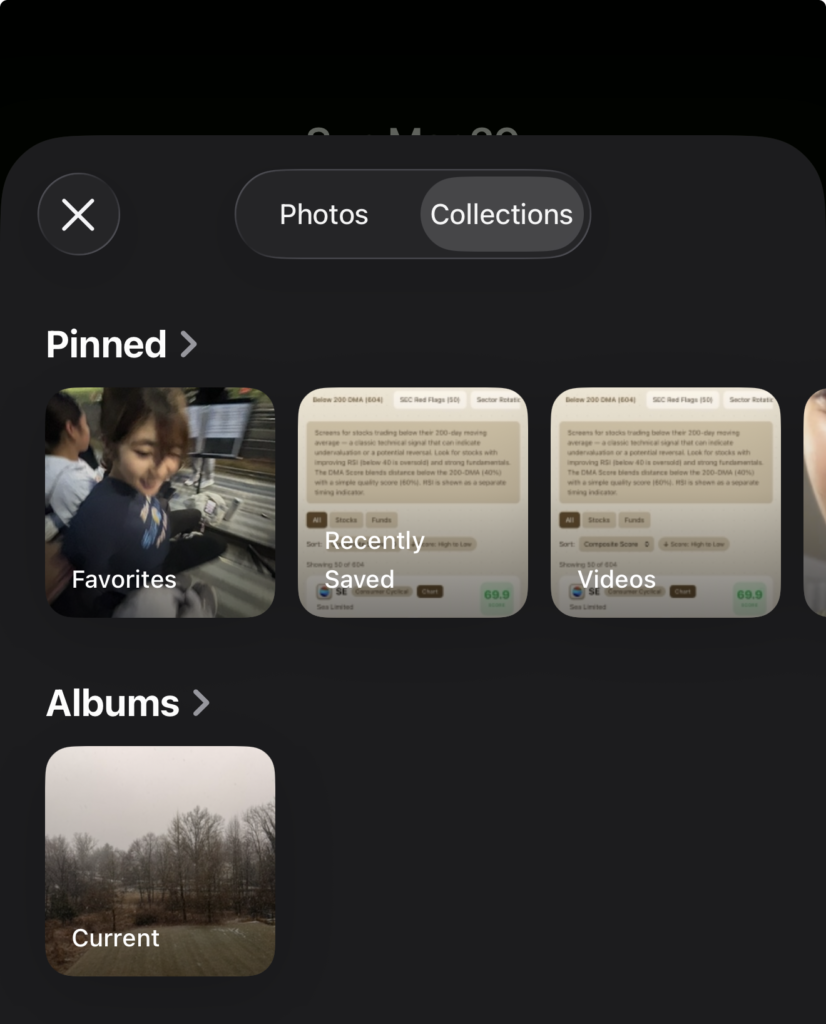
Tap Use Album to confirm your selection. Tap Add at the top to create the new photo shuffle wallpaper.
Step 3: Enable Depth Effect for Portrait Photos
If your selected photos include Portrait mode images, you’ll see a depth effect option. This makes subjects appear in front of the time display. It’s a subtle touch that makes your Lock Screen feel more dynamic.
In the Lock Screen customization interface, look for the depth effect button (three dots in a circle) in the middle-right corner.
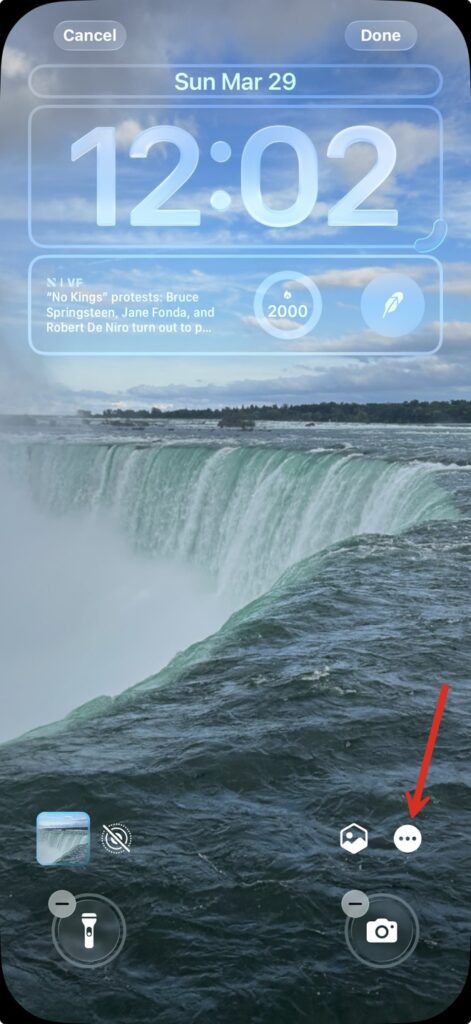
Tap the Depth Effect button to toggle it on or off. When enabled, people or objects in Portrait photos will appear to pop in front of the clock.
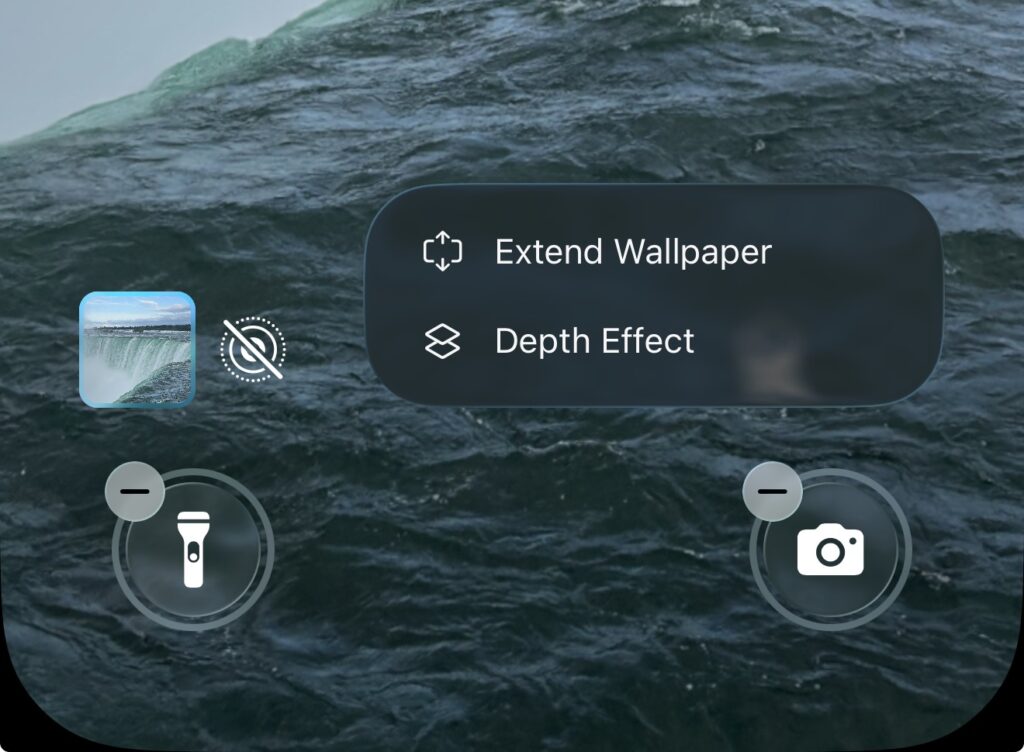
Note: Depth effect only works with Portrait mode photos or images with clear subject-background separation. Not all photos support this feature.
Step 4: Configure Photo Shuffle Settings
Tap the photo shuffle icon (two overlapping squares) in the bottom-left corner to configure how often your Lock Screen changes.
Choose your shuffle frequency:
- On Tap: Changes when you tap the screen
- On Lock: New photo each time you lock your iPhone
- Hourly: Changes every hour
- Daily: New photo each day
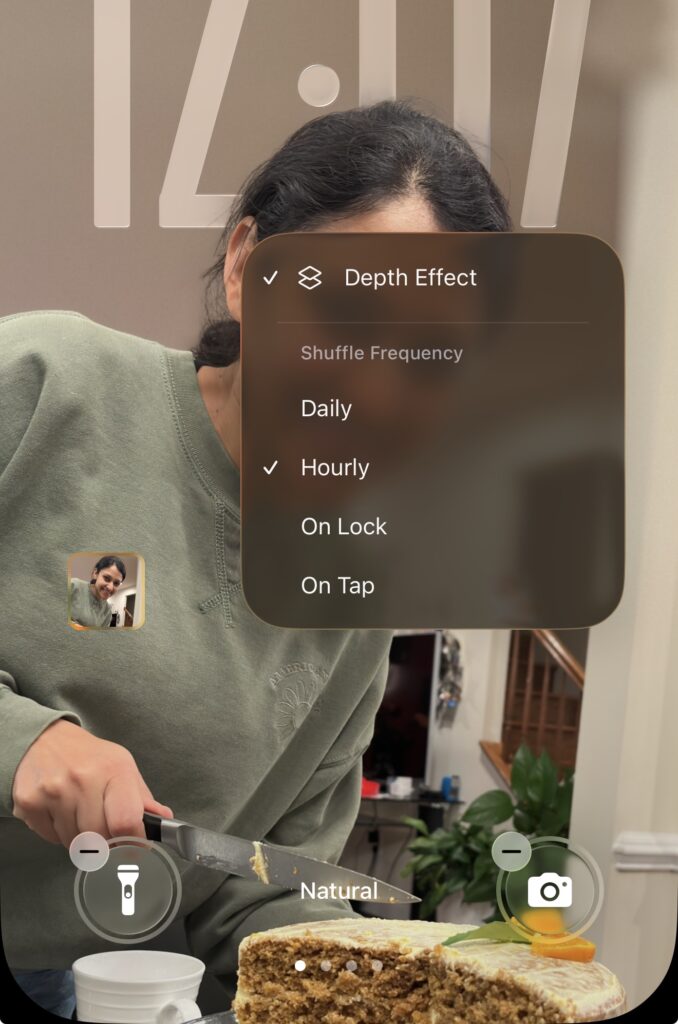
For morning motivation photos, Daily works well. You’ll see a new inspiring image each morning. Tap Done to save your settings.
Step 5: Add Photo Widgets to Your Home Screen
You can add photo widgets to your home screen by long-pressing anywhere on your home screen and taping Edit at the top left. This will put you into customization mode, where everything shakes.
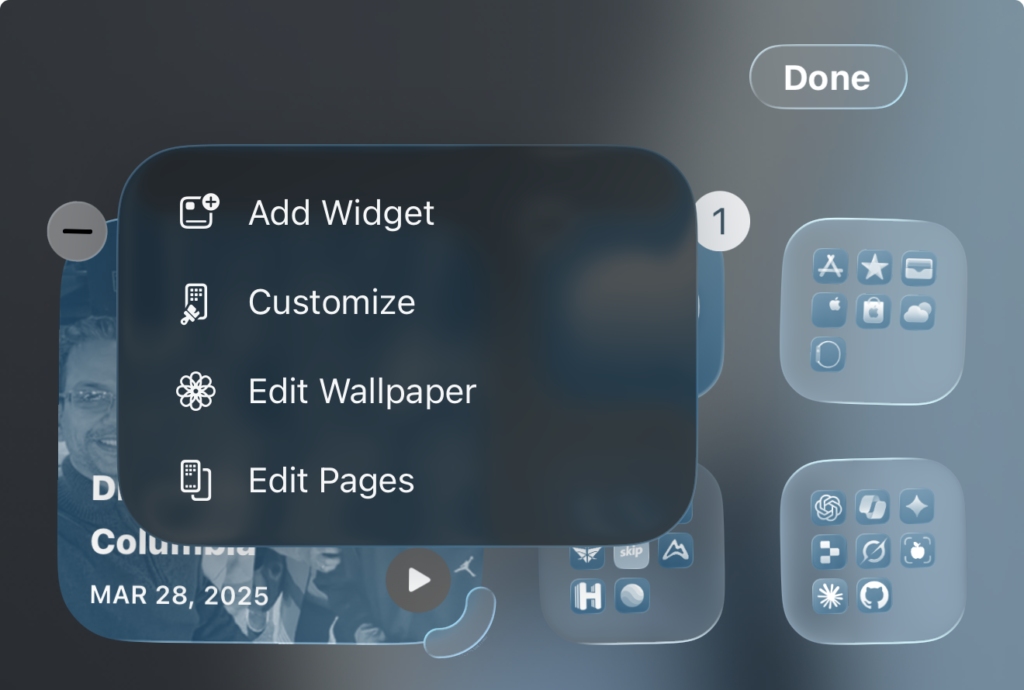
While in Home Screen customization mode, tap Add Widget and then scroll all the way down the list till you reach Photos.
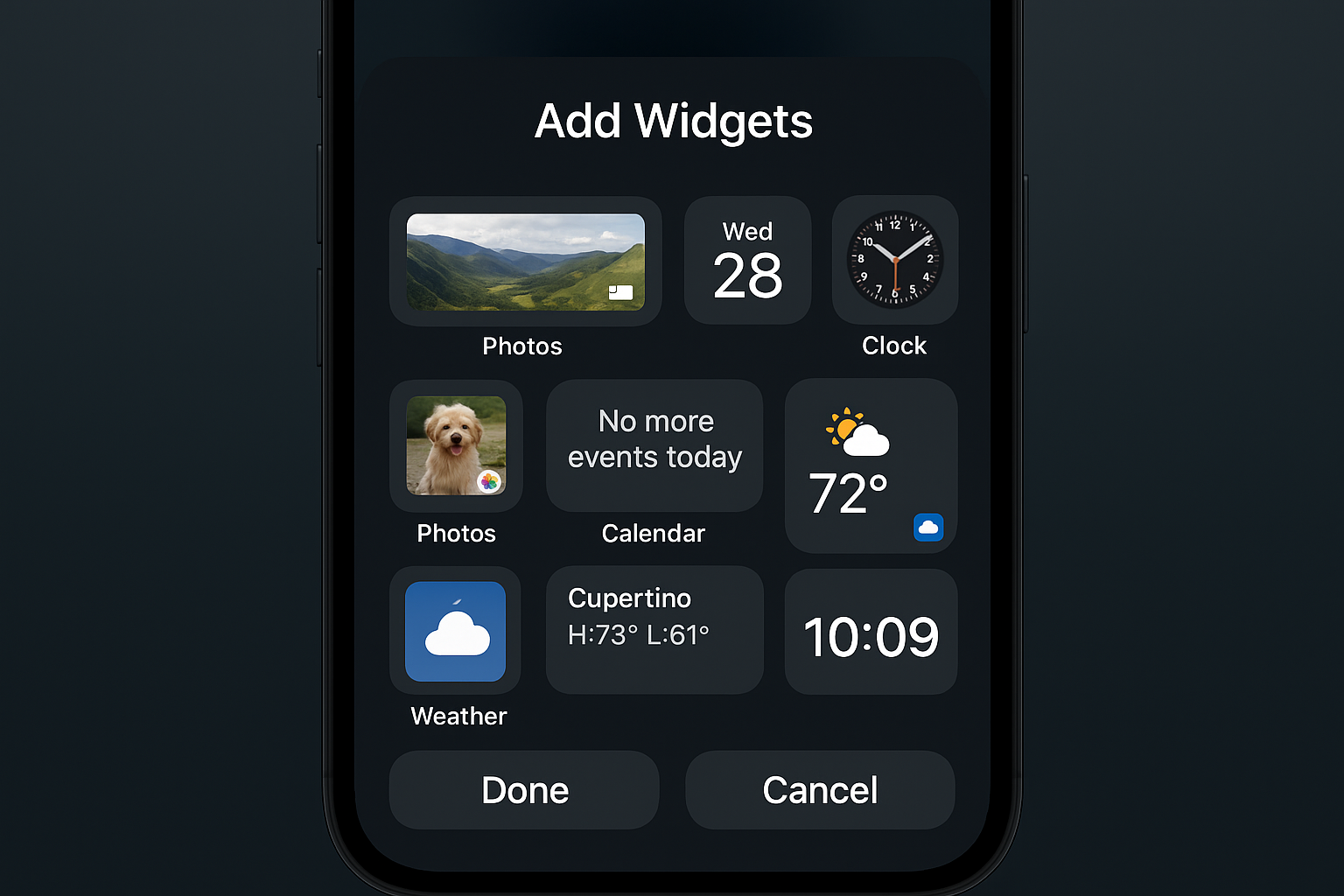
Select the Photos widget. You can choose from:
- Small circular widget: Single photo
- Small rectangular widget: Photo with date
- Large rectangular widget: Featured photo with details
Tap your preferred size to add it. Newer versions of iOS have even more size options to choose from.
Step 6: Configure Your Home Screen Photo Widget
Long press the photo widget you just added to configure its content by tapping Edit Widget.
Select which album or photo source the widget should display:
- Full Color: You can choose to display the photos in their original full color
- Spatial Scene Effect: Photos will automatically have spatial data added
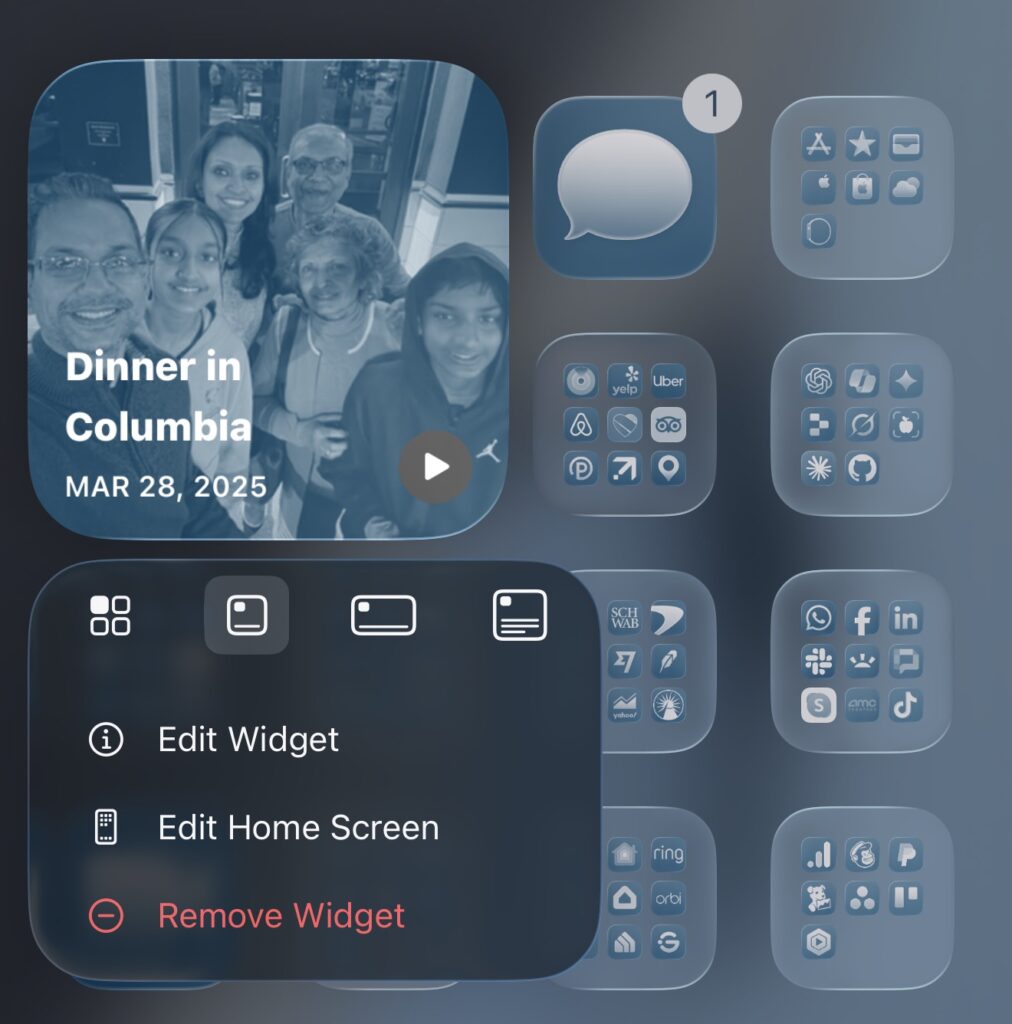
You can also choose a different size for the widget using the icons right at the top of the window. If you tape the four squares on the far left, it’ll convert the widget into the Photos app icon.
Step 7: Position and Configure Home Screen Widgets Strategically
To move your widget around, simply long press and drag your new photo widget anywhere on your Home Screen. The other icons will be shifted accordingly.
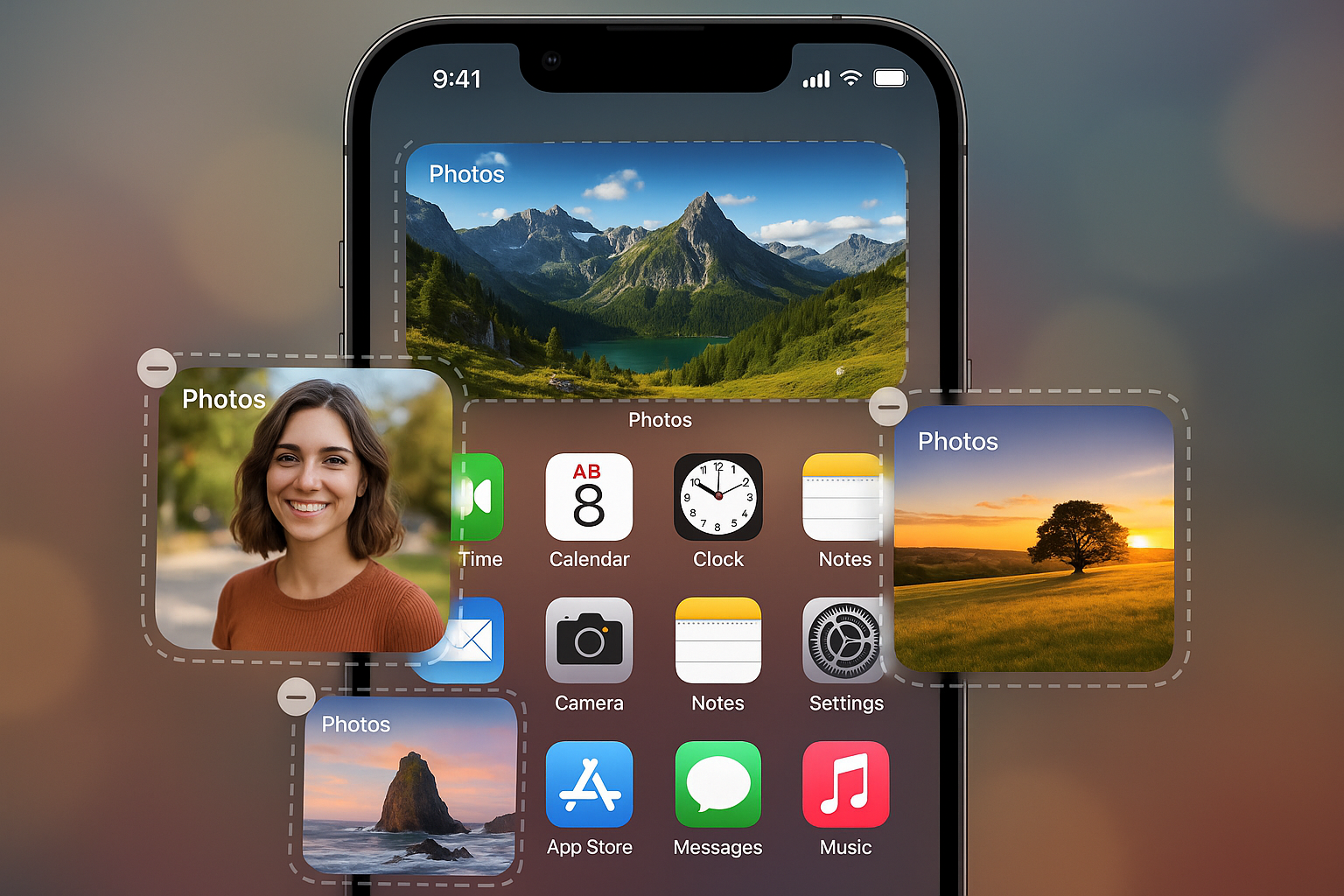
You can also move it to another page by simply dragging to the edge of the phone screen and it will bring the widget over to the adjacent page. Continue holding it there and it’ll keep moving to the next page and eventually create a new page.
Advanced Configuration Options
Creating Seasonal Photo Collections
Set up additional albums for holidays and seasons:
- Holiday Memories: Christmas, birthdays, anniversaries
- Summer Adventures: Vacation and outdoor photos
- Family Milestones: Graduations, achievements, special events
Switch your Lock Screen and widget sources seasonally to keep content relevant and fresh.
Using Smart Albums for Dynamic Content
iPhone’s built-in smart albums automatically organize photos:
- People: Shows photos of specific family members
- Places: Displays photos from particular locations
- Recently Added: Always shows your newest photos
Configure widgets to use these smart albums for content that updates automatically as you take new photos.
Focus Mode Integration
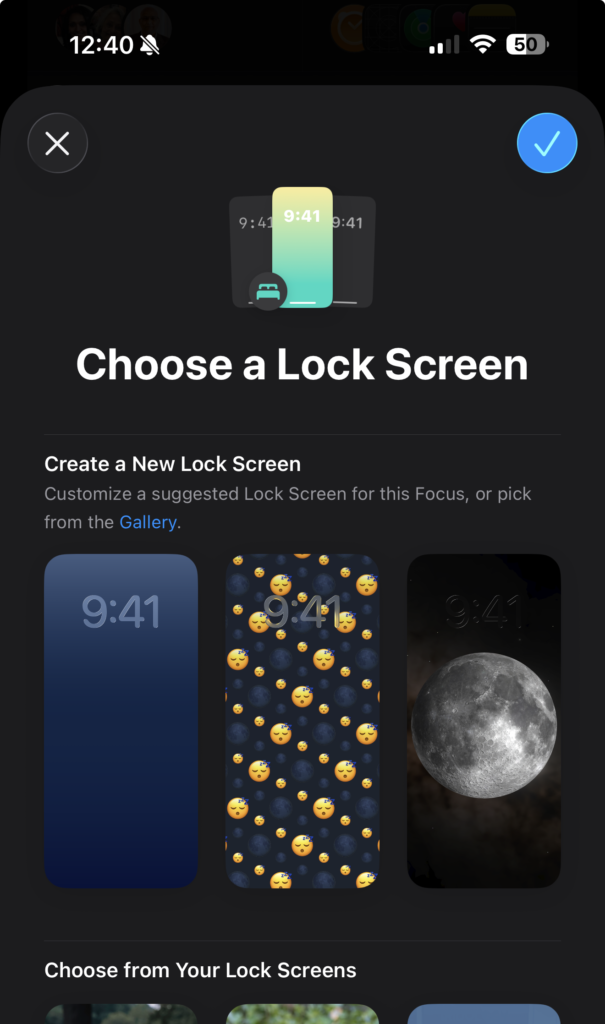
Link your photo displays to Focus modes:
- Go to Settings > Focus
- Select a Focus mode (Work, Sleep, Personal)
- Tap Lock Screen and choose different photo Lock Screens for each mode
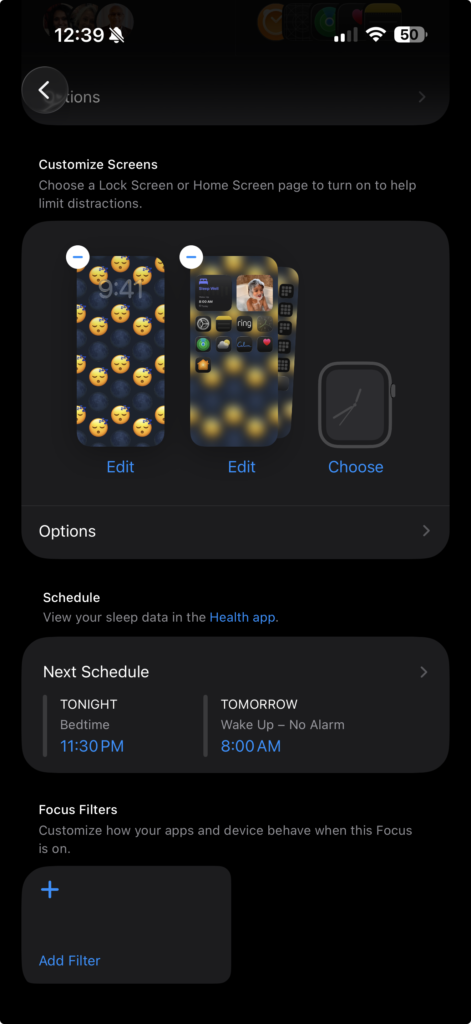
- Your photo displays will change automatically based on your current Focus
Third-Party Photo Widget Apps
While Apple’s built-in features are powerful, third-party apps offer additional customization:
Widgetsmith
- Custom photo frames and borders
- Text overlay options
- Advanced scheduling features
- Multiple photo sources per widget
Color Widgets
- Aesthetic frame designs
- Seasonal themes and templates
- Enhanced visual styling options
Photo Widget Simple
- Minimalist, clean photo displays
- Reduced battery usage
- Simple album integration
Download these apps from the App Store. Follow their setup instructions to add more sophisticated photo widgets to your Home Screen.
Troubleshooting Common Issues
Photos Not Appearing in Widgets
Why it happens: iCloud Photos sync issues or empty albums.
Fix: Go to Settings > Photos > iCloud Photos and ensure it’s enabled. Check that your selected albums contain photos and aren’t empty. Try toggling iCloud Photos off and on to refresh sync.
Photo Shuffle Not Changing Wallpapers
Why it happens: Incorrect frequency settings or device not being unlocked at scheduled times.
Fix: Check your Photo Shuffle settings in Lock Screen customization. Ensure you’re unlocking your device at the scheduled change times. Try changing the frequency to On Wake to see immediate changes.
Blurry or Low-Quality Photos in Widgets
Why it happens: Photos are low resolution or heavily compressed.
Fix: Use high-resolution photos (at least 1080p). In Settings > Photos, ensure Download and Keep Originals is selected. This stores full-quality images on your device.
Widget Showing Wrong Photos
Why it happens: Widget configured to show wrong album or source.
Fix: Long press the widget and tap Edit Widget. Verify the correct album is selected. Some widgets default to “Recently Added” instead of your custom albums.
Depth Effect Not Working
Why it happens: Photo doesn’t have portrait mode depth information.
Fix: Use Portrait mode photos or images with clear subject-background separation. The depth effect requires specific photo data that not all images contain.
Tips for Better Photo Storytelling
Choose High-Contrast Images
Select photos that remain clear and readable even with text overlay. Avoid photos that are too busy or have low contrast between subjects and backgrounds.
Rotate Content Regularly
Update your story-based albums monthly. This keeps content fresh and relevant to your current life situation.
Consider Emotional Impact
Think about how different photos make you feel at different times of day. Morning photos should energize. Midday photos should calm. Evening photos should reflect and inspire.
Use Live Photos Strategically
Live Photos add motion and interest to widgets. But use them sparingly to avoid distraction. They work best for special moments you want to relive.
Maintain Photo Quality
Regularly review and remove blurry, outdated, or irrelevant photos from your story albums. This maintains a high-quality visual experience.
Wrapping Up
Your iPhone now runs a photo storytelling system that serves your daily emotional needs. Update your story-based albums every few weeks as your life evolves. For more customization options, explore how to add and edit widgets on your Mac’s desktop to create a cohesive photo experience across all your Apple devices. You can also learn about changing the font and color of the time on your iPhone Lock Screen to complement your photo displays perfectly.