

Your MacBook was fast once. Now it’s not. Before you start shopping for a new machine, there’s a good chance one of five common culprits is to blame, and most of them are fixable in under ten minutes.
Here’s what’s usually causing the slowdown:
- Background applications hogging CPU and memory
- A storage drive that’s nearly full
- Outdated hardware that’s hit its ceiling
- Too many apps launching at login
- Software that’s overdue for an update
Let’s work through each one.
1. Kill Background Applications That Are Eating Your Resources
Apps running in the background are the most common cause of a sluggish Mac. On macOS Sequoia and Tahoe, Apple Intelligence features can be one contributing factor here — Writing Tools, Siri improvements, and background model processing use some CPU and memory even when you’re not actively using them, though they’re rarely the primary cause of a broadly sluggish Mac on their own.
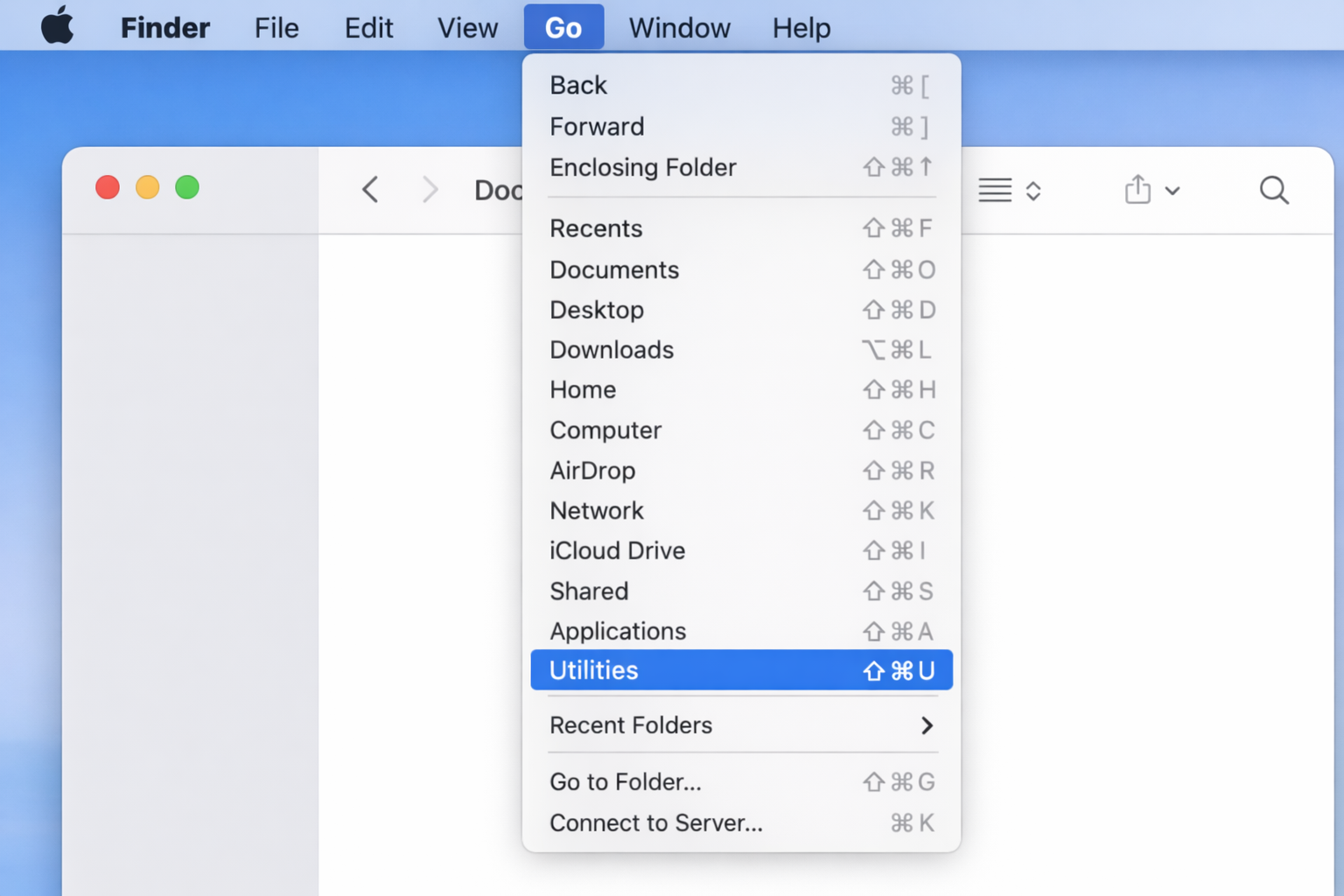
Open Activity Monitor by pressing Cmd + Space to open Spotlight, then type “Activity Monitor” and hit Return. (You can also get there via Finder > Go > Utilities > Activity Monitor.)
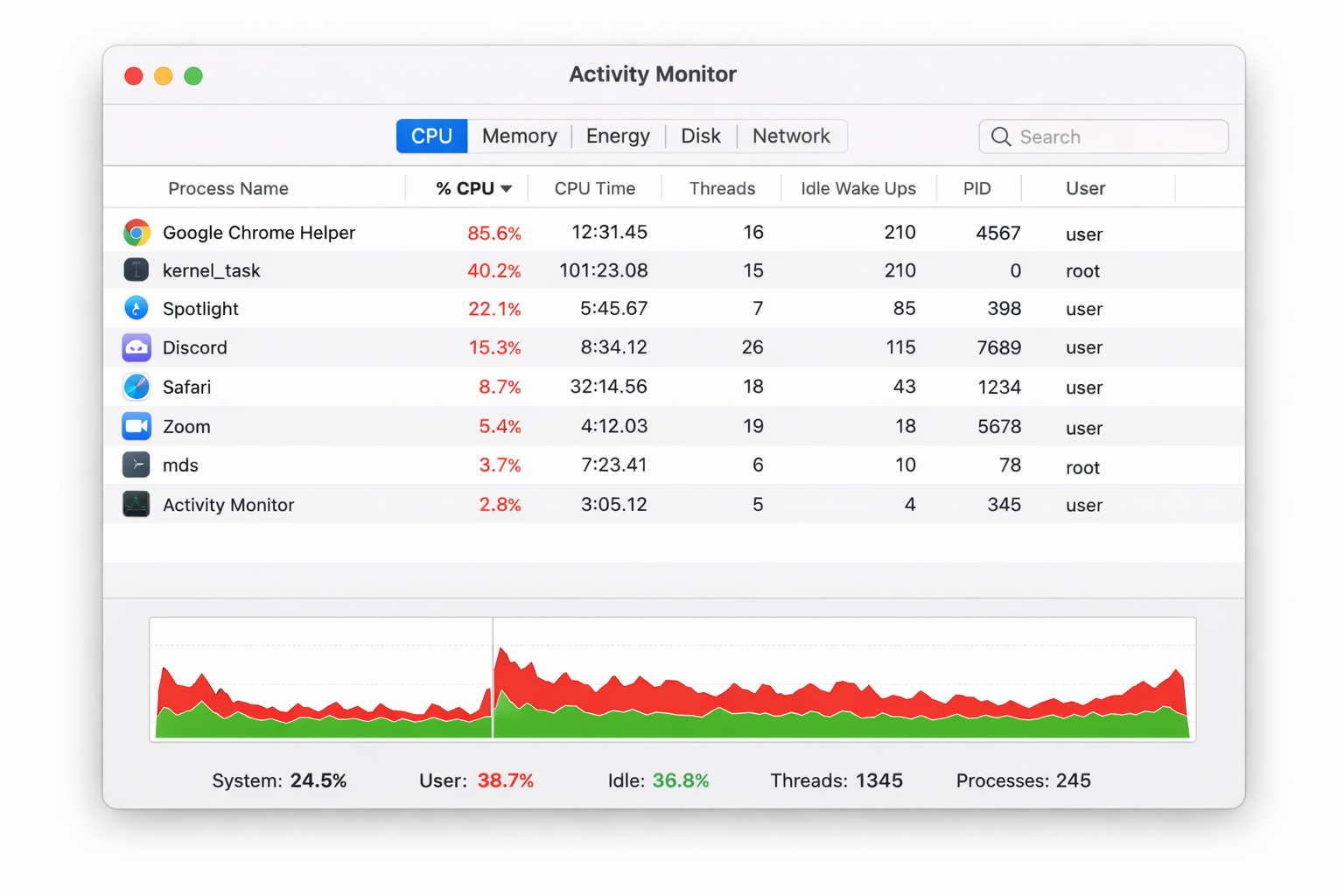
Once it’s open, click the CPU tab and click the % CPU column header to sort by highest usage. Anything above 80–90% CPU usage that you don’t recognize is worth investigating.
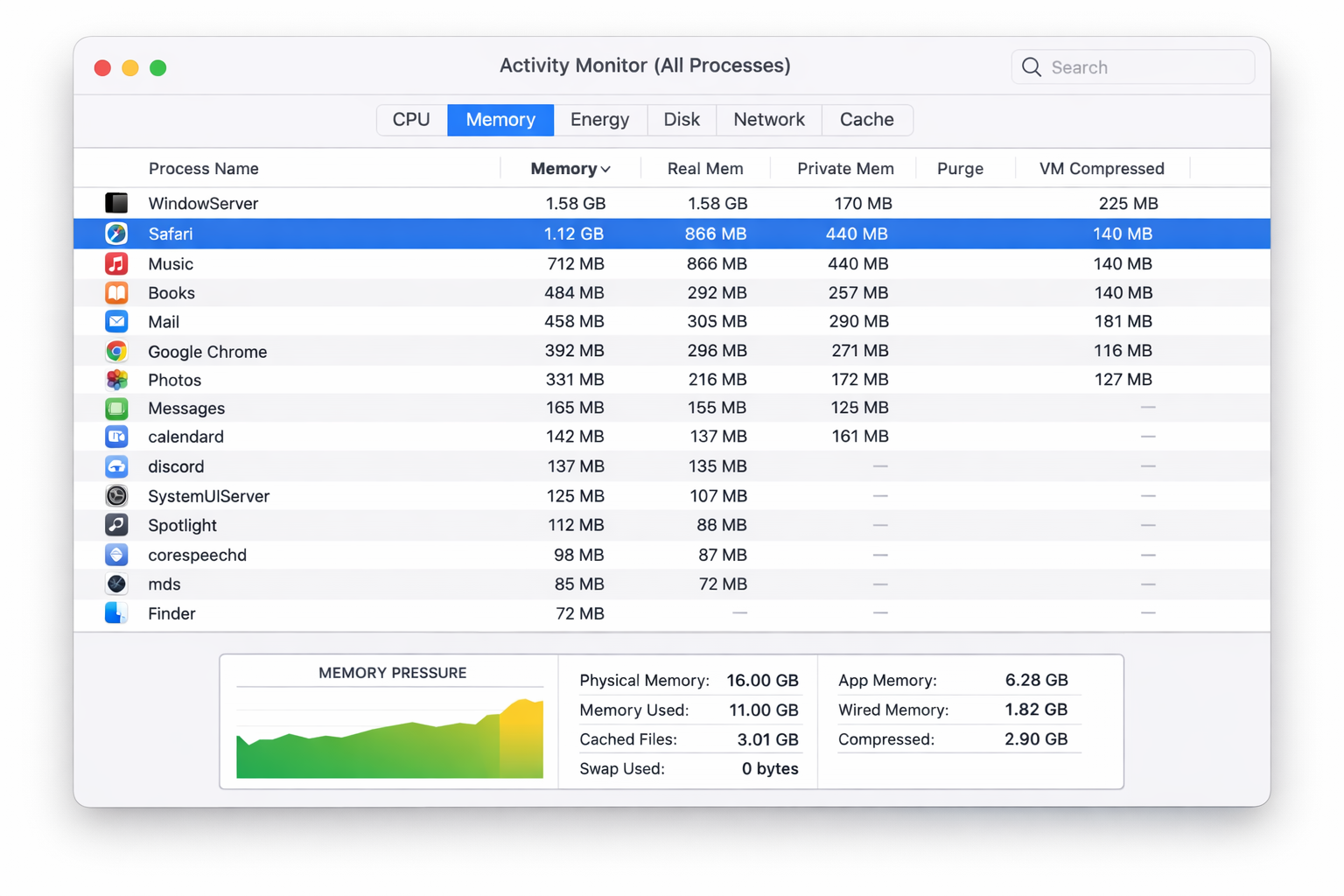
Do the same on the Memory tab, sort by Memory to see what’s consuming the most RAM. On Macs with 8GB of unified memory, this column tells you a lot.
To stop a misbehaving process, select it and click the X button in the top-left of the toolbar, then choose Force Quit. Don’t force-quit processes with names like kernel_task, WindowServer, or anything prefixed with com.apple those are system processes and killing them can cause instability.
If you’re on an Apple Silicon Mac (M1 through M4 and beyond), the Energy tab is also worth checking. It shows which apps are preventing your Mac from using its efficiency cores, which directly impacts battery life and thermal performance.
2. Free Up Storage Space
A nearly full drive slows down any computer. On SSDs, which every Mac has shipped with for years now, macOS needs free space for virtual memory, temporary files, and swap. Let it get too cramped and things get sluggish fast.
Click the Apple menu () and select About This Mac.
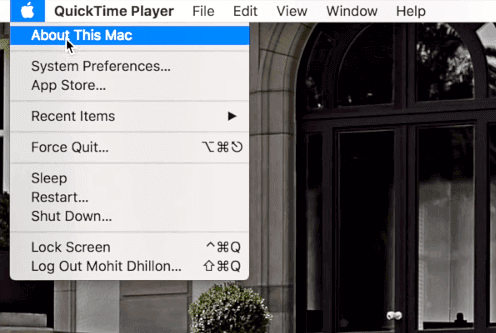
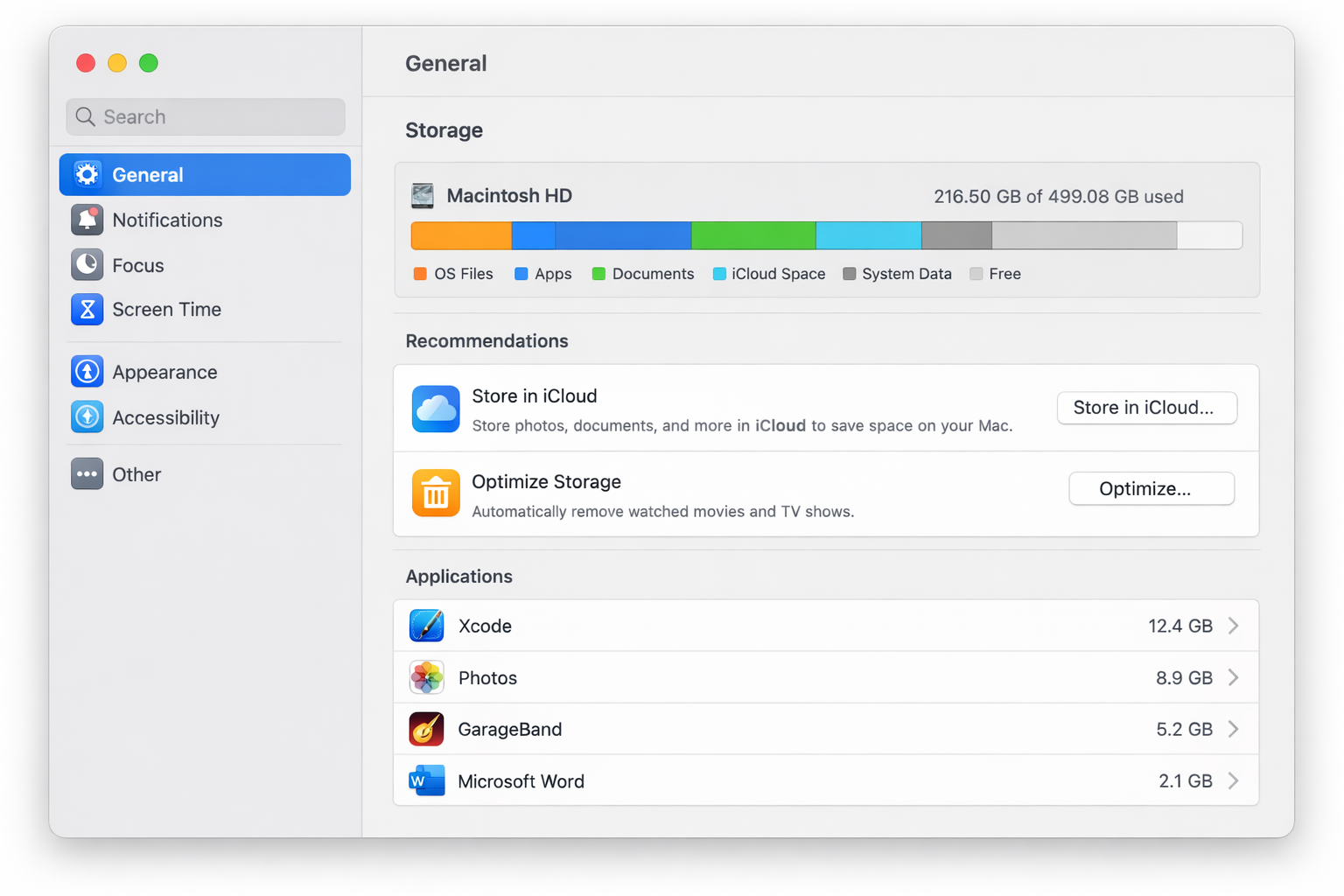
In the window that appears, click More Info. This opens System Settings, where you can scroll down to find the Storage section. Click it to see a breakdown of what’s using space on your drive.
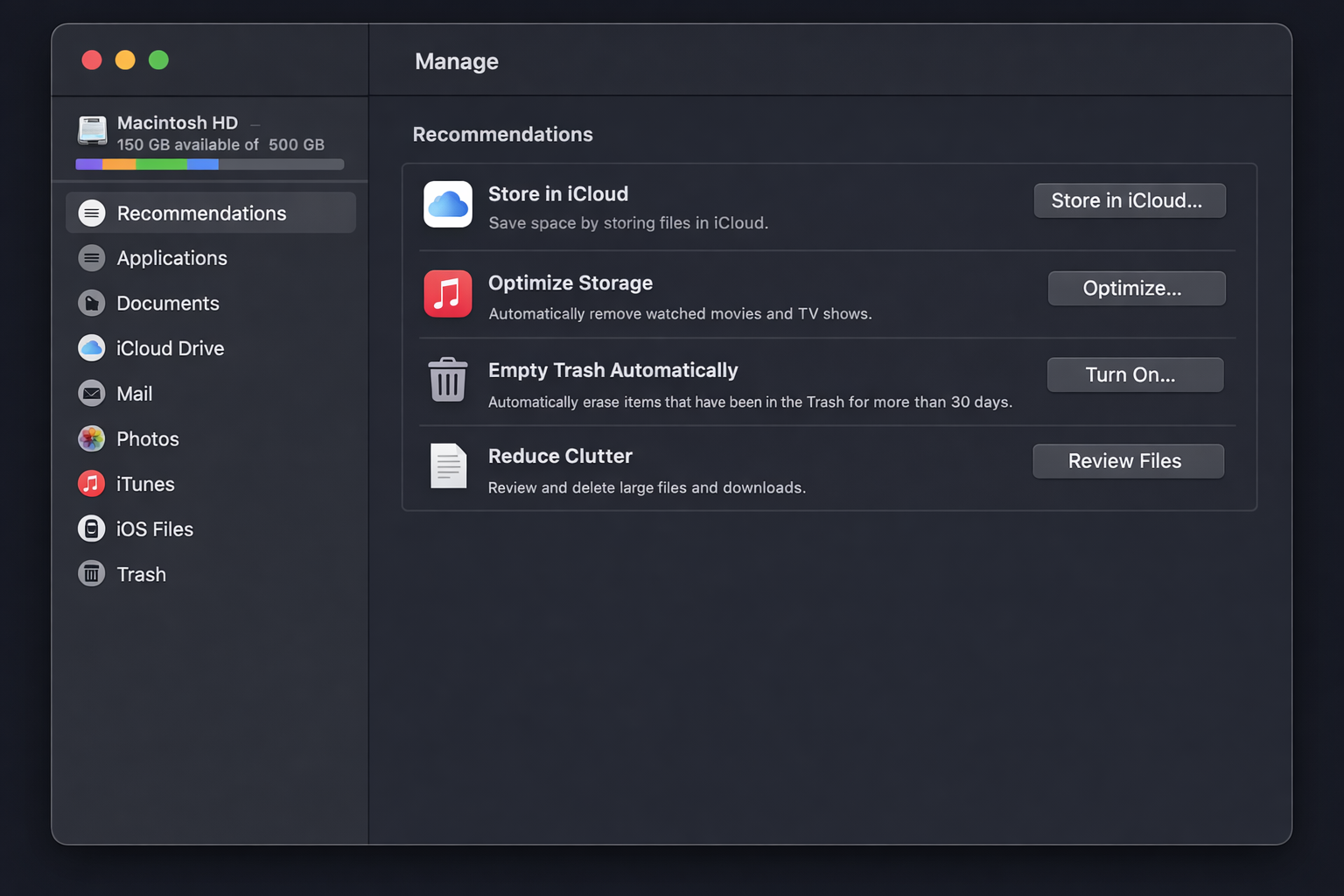
Click Manage to open macOS’s built-in storage recommendations. You’ll see several options:
- Store in iCloud, Offloads files, photos, and Desktop/Documents folders to iCloud. Useful if you’re paying for iCloud+ storage already; less so if you’re on the free 5GB tier.
- Optimize Storage, Removes Apple TV movies and shows you’ve already watched. Low-effort, worth enabling.
- Empty Trash Automatically, Deletes Trash items after 30 days. Turn this on and forget about it.
- Reduce Clutter, Lets you manually sort through large files and downloads. This one requires some effort but often recovers the most space.
Apple Intelligence features in macOS Sequoia and Tahoe also require local storage for on-device model files. If you’re running low on space, check System Data in the storage breakdown. That’s where those model files live, and they can be several gigabytes.
As a general rule: keep at least 10–15% of your drive free. On a 256GB Mac, that’s around 25–38GB of breathing room.
3. Consider Whether Your Hardware Has Hit Its Limit
This one’s harder to hear, but sometimes the Mac itself is the bottleneck.
If you’re running a MacBook from 2017 or earlier, you’re likely on an Intel chip that’s now several generations behind. macOS Sequoia still runs on some of those machines, but not gracefully. Apple Silicon Macs (M1 and later) have a fundamentally different performance architecture, and the gap between a 2018 Intel MacBook Pro and a current M4 MacBook Pro is enormous.
For Intel Macs that still allow it, RAM and storage upgrades can help, but Apple has made this increasingly difficult over the years, and most modern Macs have memory soldered to the board. Check iFixit for model-specific repairability guides before you buy anything. For compatible SSD upgrades on older models, Crucial is still a reliable reference.
If your Mac is running hot constantly, throttling under light loads, or struggling with tasks it handled fine two years ago, a hardware upgrade or a new machine is probably the honest answer.
4. Cut Down Your Login Items
Every app that launches at startup is competing for resources before you’ve even opened a browser tab. Most people have far more login items than they realize.
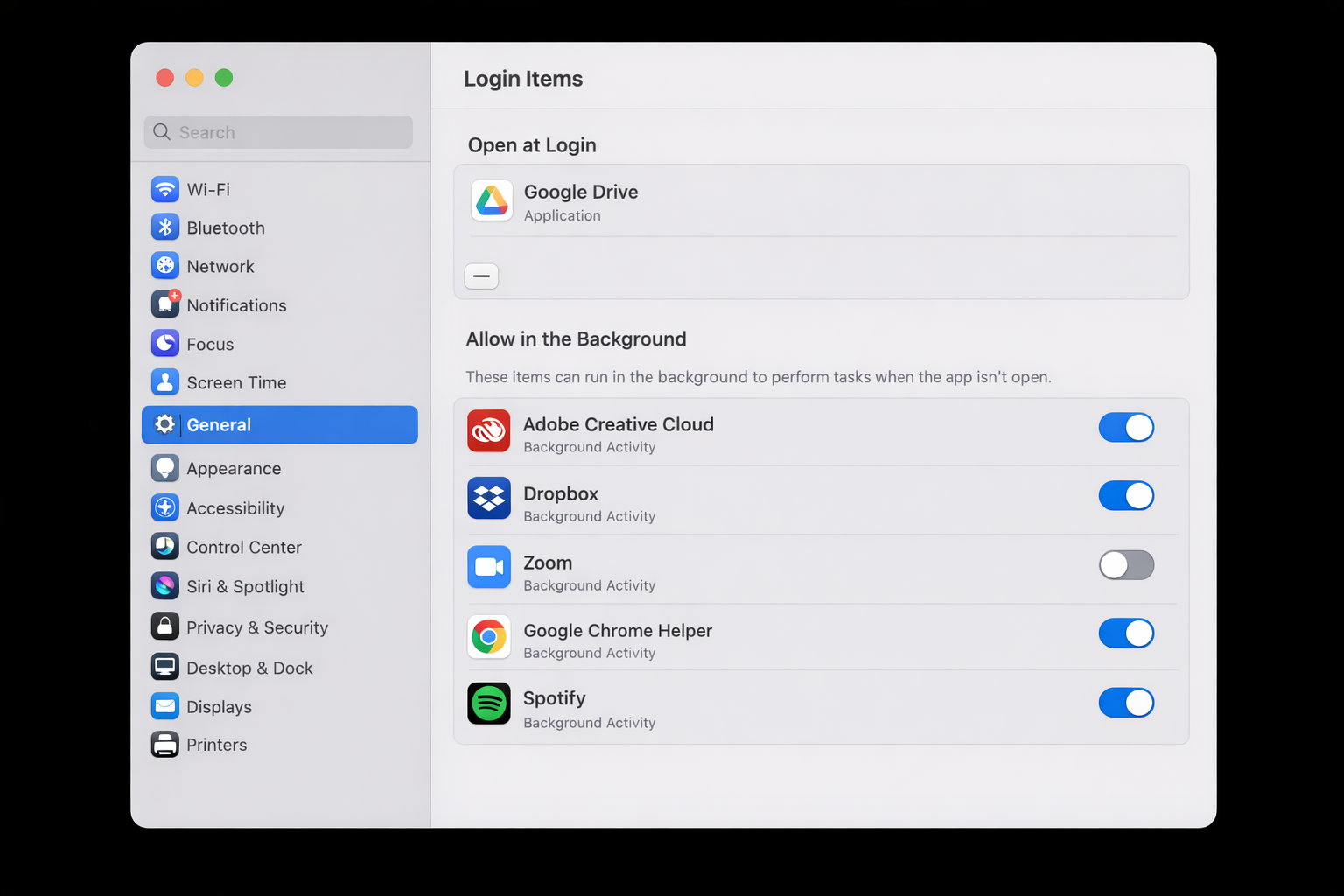
Go to System Settings > General > Login Items & Extensions.
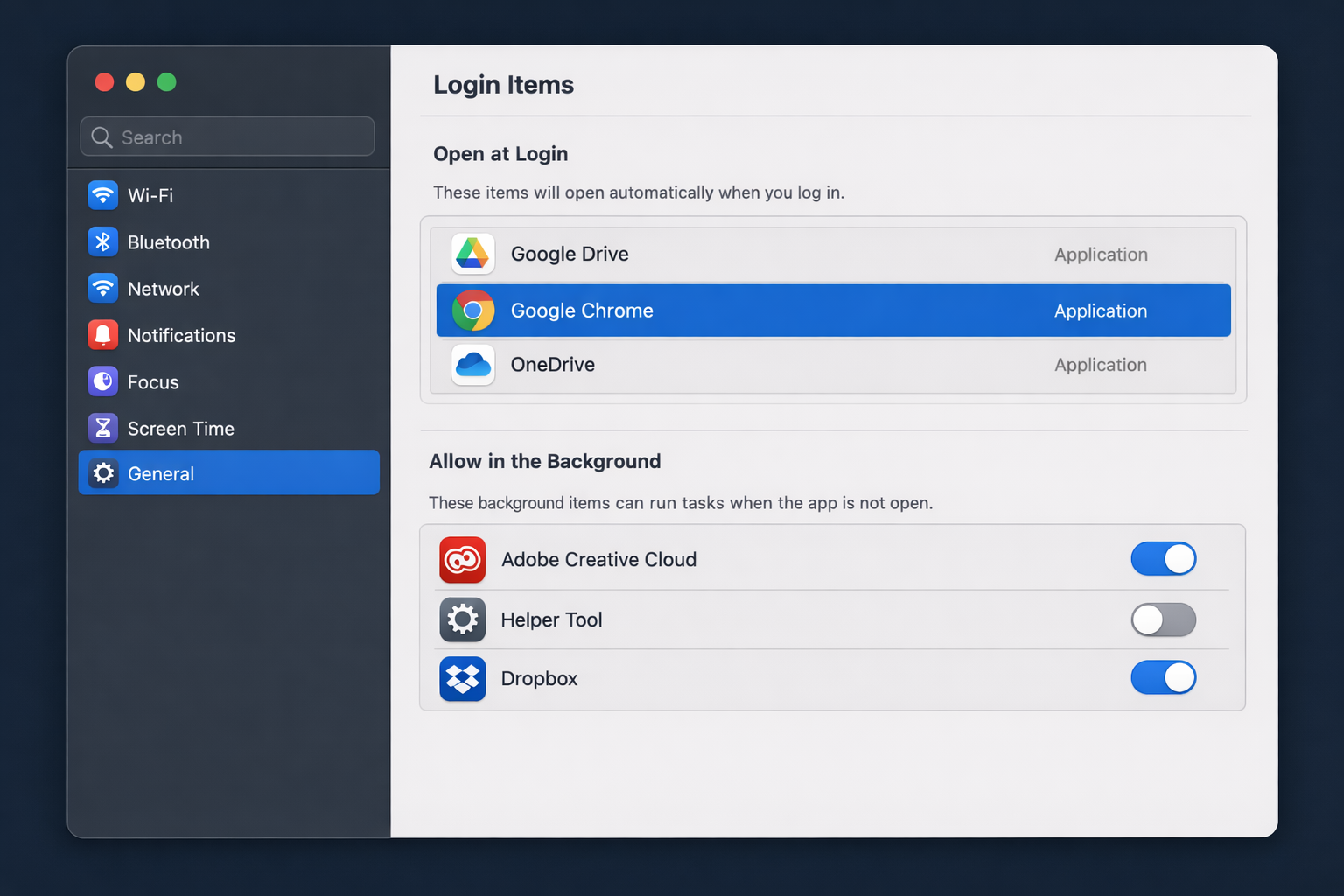
You’ll see two sections: Open at Login (apps that launch visibly at startup) and Allow in Background (processes that run silently). Both matter.
Go through the list and toggle off anything you don’t need running immediately on boot. Slack, Spotify, Dropbox, OneDrive, Adobe Creative Cloud, these are common offenders. You can always open them manually when you actually need them.
The Allow in Background section is worth paying attention to on macOS Sequoia specifically. Some apps register background processes that persist even after you quit the app. If something’s in that list and you don’t recognize it, toggle it off. You can also stop “Background Items Added” notifications on Mac if these alerts are becoming a nuisance.
5. Keep macOS and Your Apps Updated
This sounds basic, but it matters more than people give it credit for. macOS updates frequently include performance fixes, security patches, and optimizations for specific hardware. Running an outdated version means you’re missing those improvements and potentially running buggy code that’s already been fixed.
Go to System Settings > General > Software Update to check your current status.
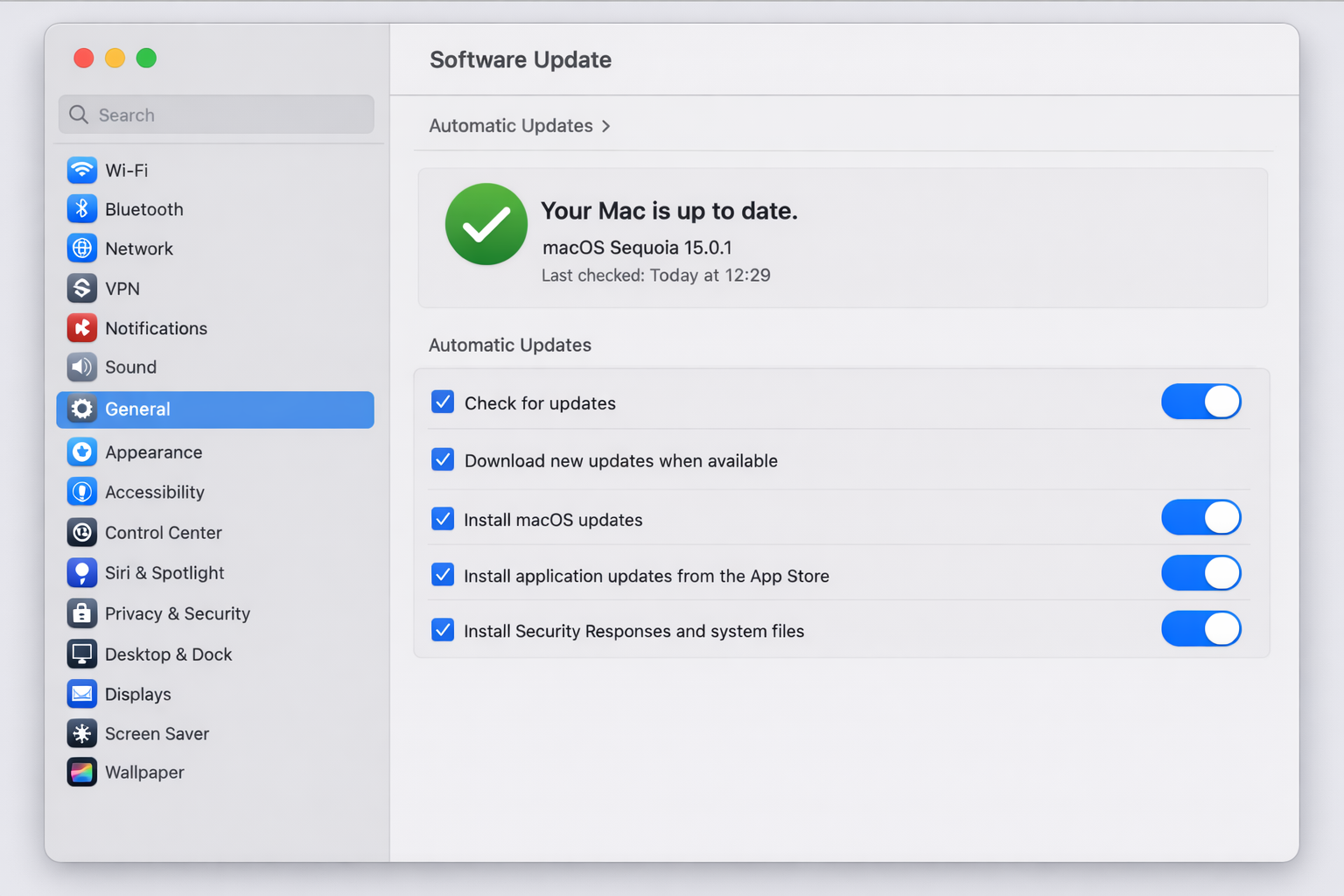
Enable Automatic Updates so macOS downloads updates in the background. You still get to choose when to install them. It won’t restart your Mac without warning.
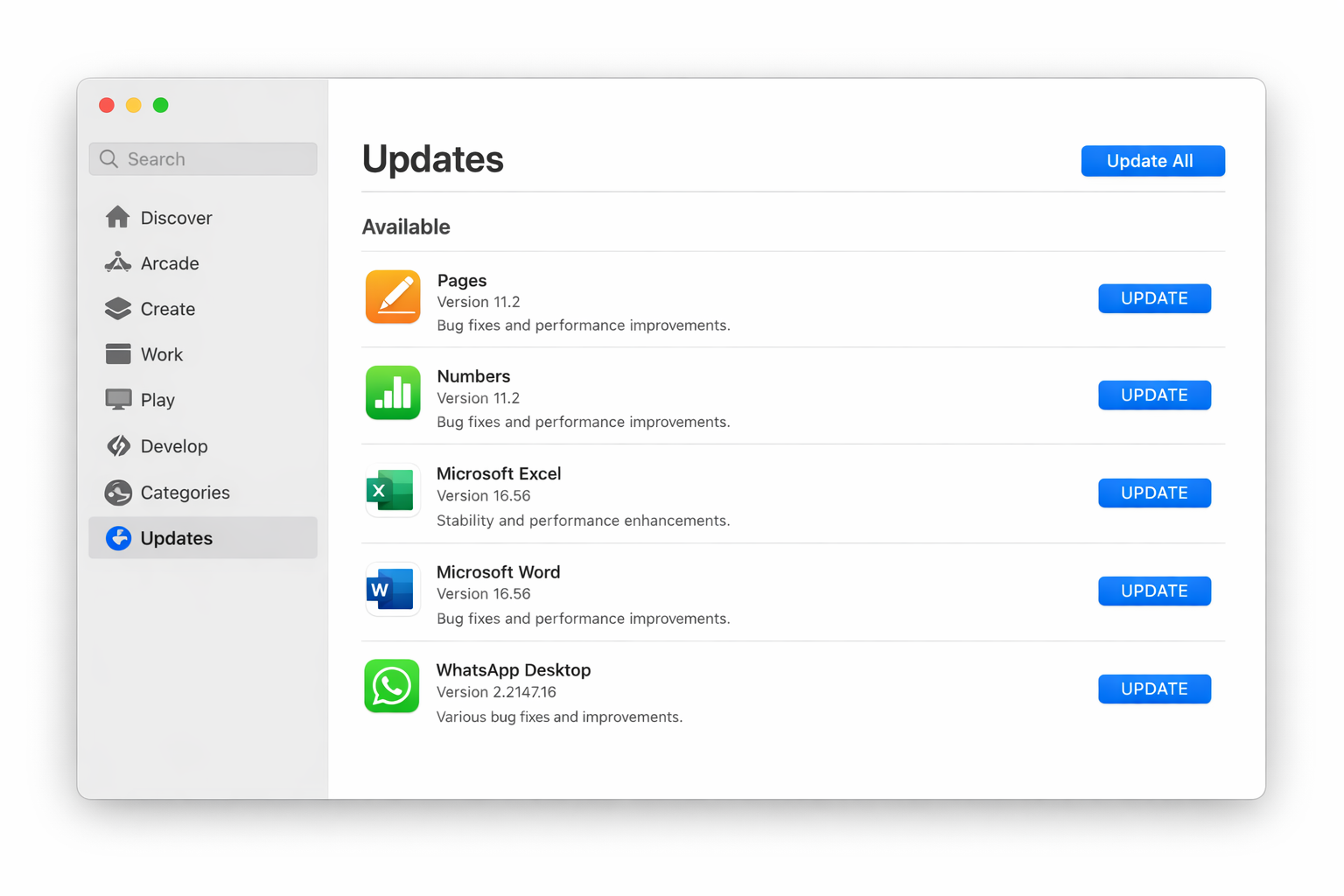
For App Store apps, open the App Store and click Updates in the sidebar. Hit Update All if anything’s pending. If you ever encounter an App Store blank screen on your Mac, that’s a separate issue worth addressing.
For apps installed outside the App Store, things like Chrome, Zoom, or Figma, check for updates within the app itself. Most have an auto-update option buried in preferences that’s worth enabling.
One more thing on this front: if you’re using Apple Intelligence features and they feel slow or unreliable, make sure you’re on the latest point release for your macOS version (Sequoia or Tahoe). Apple has been shipping performance improvements to its on-device models with each update, and the difference between an early release and the current one is noticeable.
Still Slow After All That?
If you’ve worked through all five fixes and your Mac is still dragging, it’s worth trying a full restart (not just sleep) and checking whether the issue persists after a fresh boot. Sometimes macOS just needs a clean slate after a long uptime.
If the problem is specific to one app, try deleting and reinstalling it. Corrupted app caches are more common than you’d think. If you’re experiencing issues beyond slowness, like a MacBook white screen of death, that points to a different underlying problem entirely.
And if nothing helps, it may be time to contact Apple Support or book a Genius Bar appointment. There’s no shame in it. Sometimes the hardware itself is failing, and that’s a different problem than any software fix can solve.
Most of the time, though, one of these five fixes is all it takes. A Mac that feels slow usually just needs a bit of housekeeping.