

Do you want a temporary or permanent break from Instagram? Do you need help deleting an Instagram account you no longer use? This tutorial covers everything you need to know about deleting and deactivating your Instagram account on Apple iPhones.
Delete Your Instagram Account on iPhone
You can delete your account through the Instagram app or a mobile web browser.
Delete Your Instagram Account in the App
- Open the Instagram app and tap your profile icon in the bottom-right corner.
- Tap the hamburger menu icon (three horizontal lines) in the top-right corner and tap Settings.
- Tap Account.
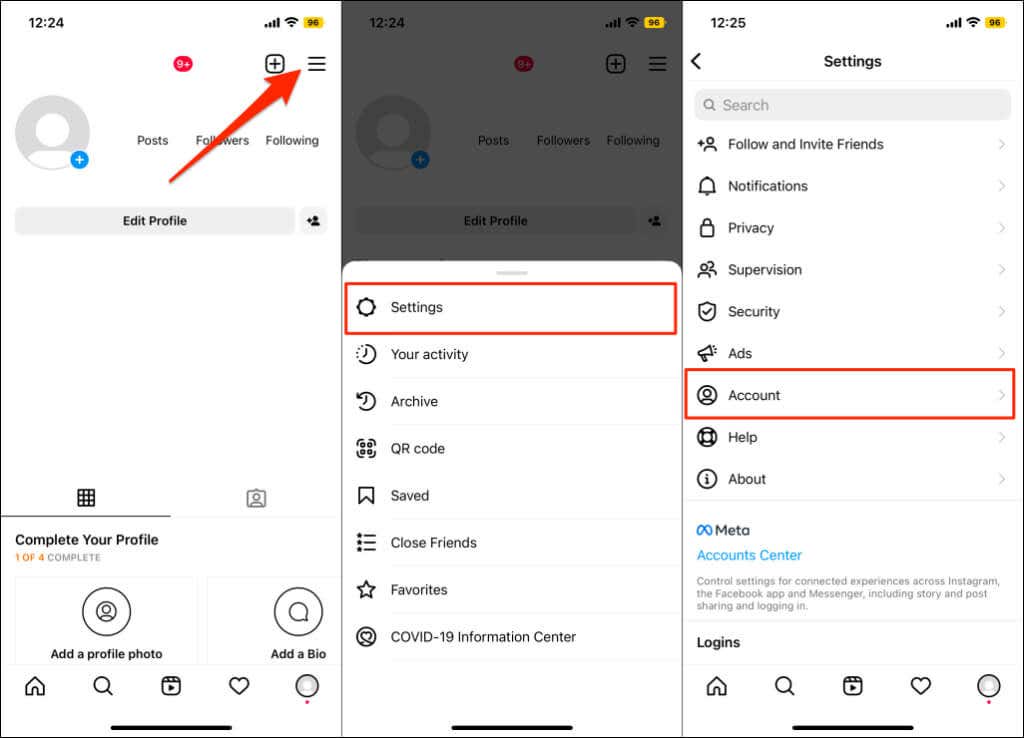
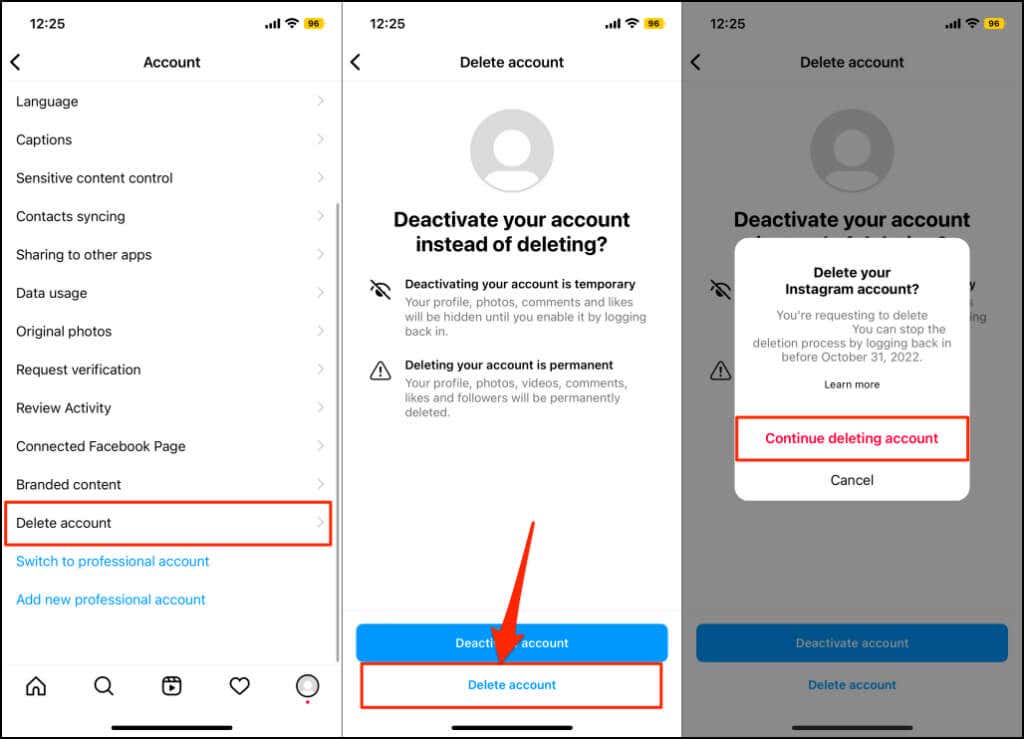
- Scroll to the bottom of the Account page and tap Delete account.
- Tap Delete account and select Continue deleting account.
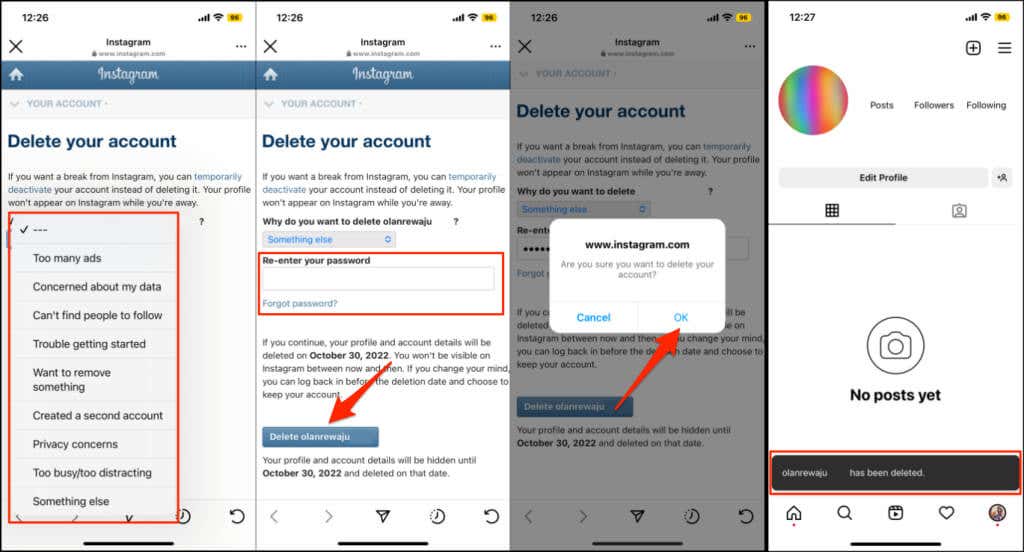
- Select a reason for deleting your Instagram account in the drop-down menu. Afterward, re-enter your password and tap Delete [account username].
- Tap OK on the pop-up to delete your account. When the account deletion process is complete, Instagram displays a success message at the bottom of the screen.
Delete Your Instagram Account from a Web Browser
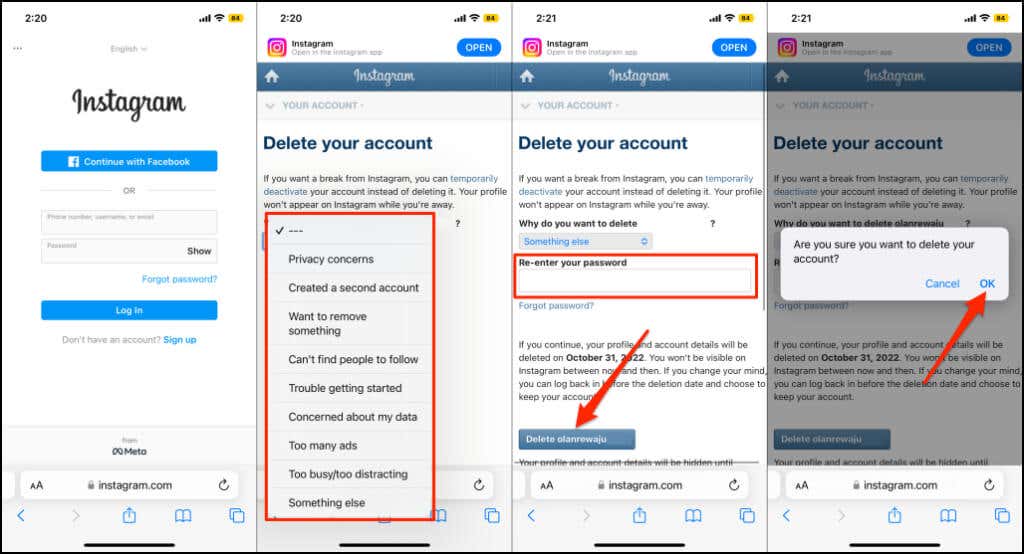
- Visit Instagram’s Delete Your Account page in Safari or your preferred web browser.
- Log in to your Instagram account if prompted.
- Select a reason why you’re deleting your account, enter your password, and tap Delete [username].
- Tap OK to confirm you want your account deleted.
You’ll get an email from Instagram confirming that your account is scheduled for submission.
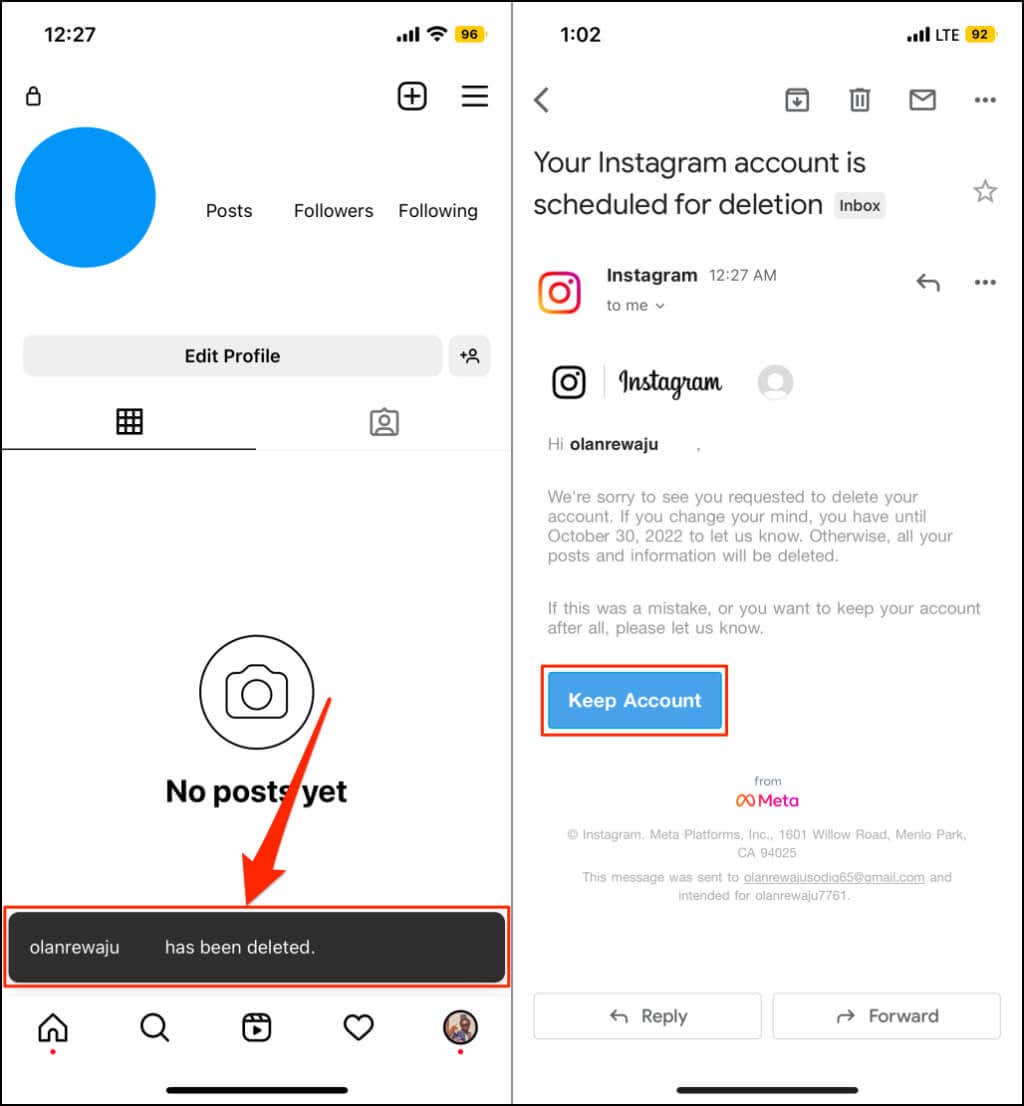
Instagram doesn’t delete your account the minute you submit a request. It holds the deletion for some days, marking it “pending” in case you rethink your decision. Like Microsoft, Instagram gives a 30 days grace period to undo the deletion request and retrieve your account.
Tap Keep Account in the email if you change your mind about deleting your account. Instagram immediately reactivates and reconnects your account to the Instagram app on your iPhone.
Deleting your Instagram account is permanent and non-reversible. You’ll no longer have access to your photos, videos, likes, etc. We recommend downloading a copy of your Instagram data before permanently.
Download Your Instagram Account Data

Use Instagram’s “Data Download tool” to request a copy of your account data. The data includes everything you’ve shared on Instagram—photos, videos, comments, reels, stories, profile information, etc.
Instagram sends the data in Hypertext Markup Language (HTML) or JavaScript Object Notation (JSON) formats. You can open files in both formats using your notepads, web browsers, or third-party text editors.
It may take Instagram about 14 days to email a download link, depending on the size of your account data. The link has a four days expiration, so download your account data as soon as Instagram sends the email. If the link expires, submit a new request for your account data to get a new download link.
Download Instagram Data in the Instagram App
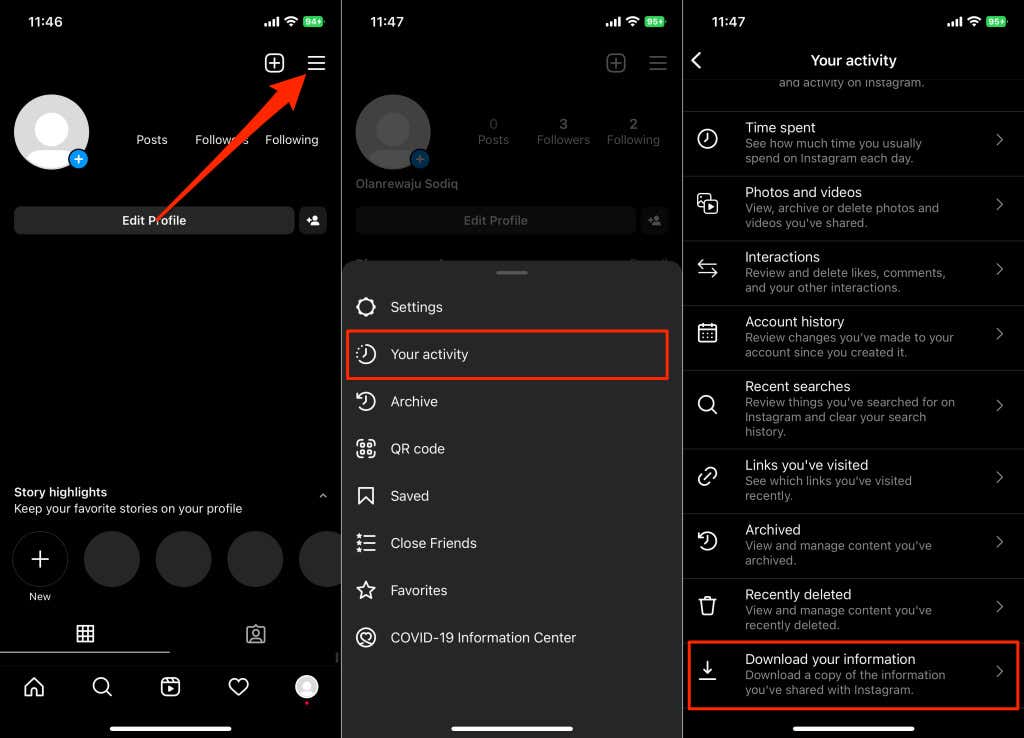
- Open the Instagram app and tap your profile picture in the top-right corner.
- Tap the hamburger icon and select Your activity.
- Tap Download your information.
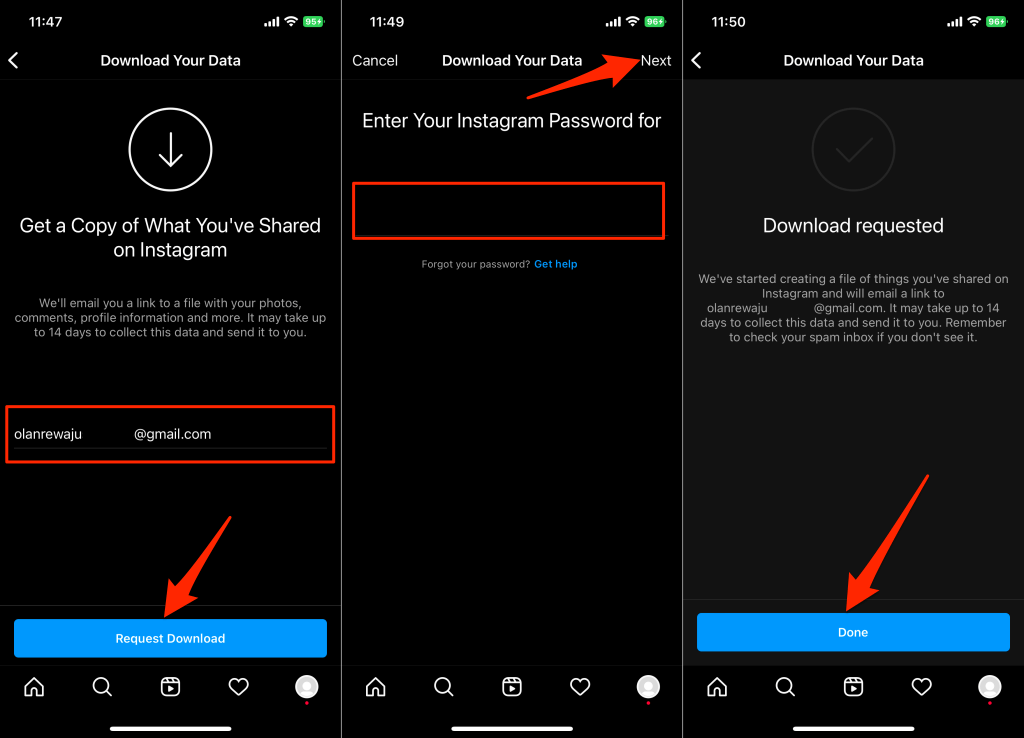
- Enter your email address in the dialog box and tap Request Download.
- Enter your Instagram password and tap Next.
- Tap Done to return to your Instagram profile.
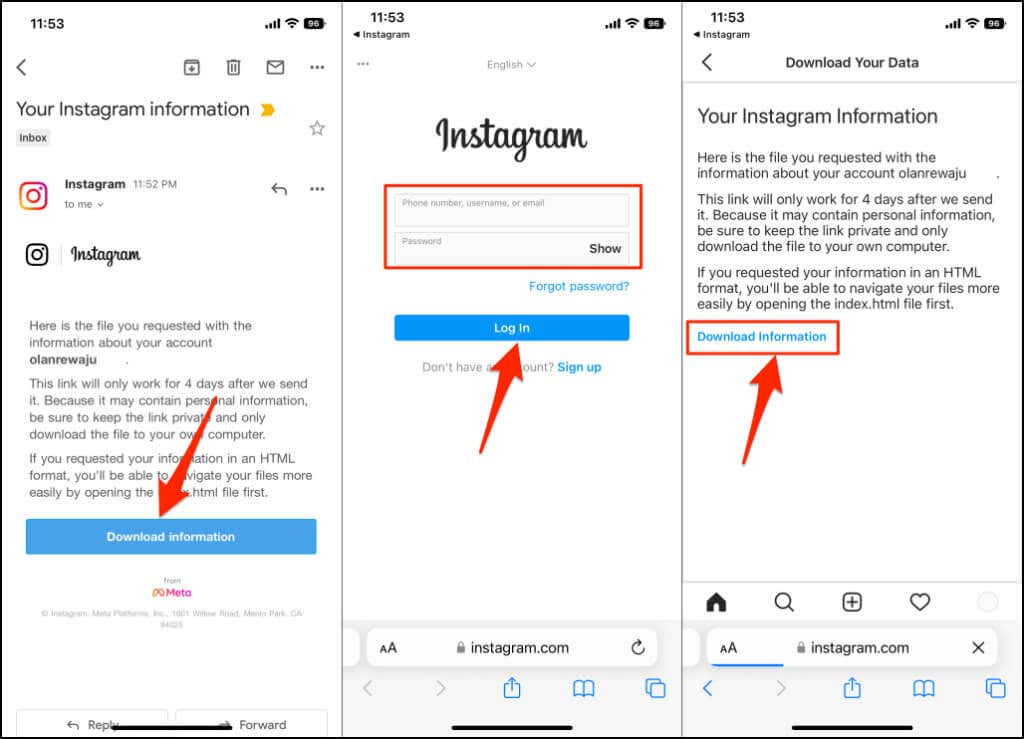
- Check your mail app’s inbox or spam folder for an email from Instagram. The email has a “Your Instagram information” subject. Open the email and tap the Download Information button.
- Enter your account password and tap Log In.
- Tap Download Information and save the ZIP file to your iPhone.
Unzip and open the ZIP file in the Files app on your iPhone. You’ll find several folders in the file, each folder holding different account data—comments, messages, synced contacts, followers and following, guides, recent searches, etc.
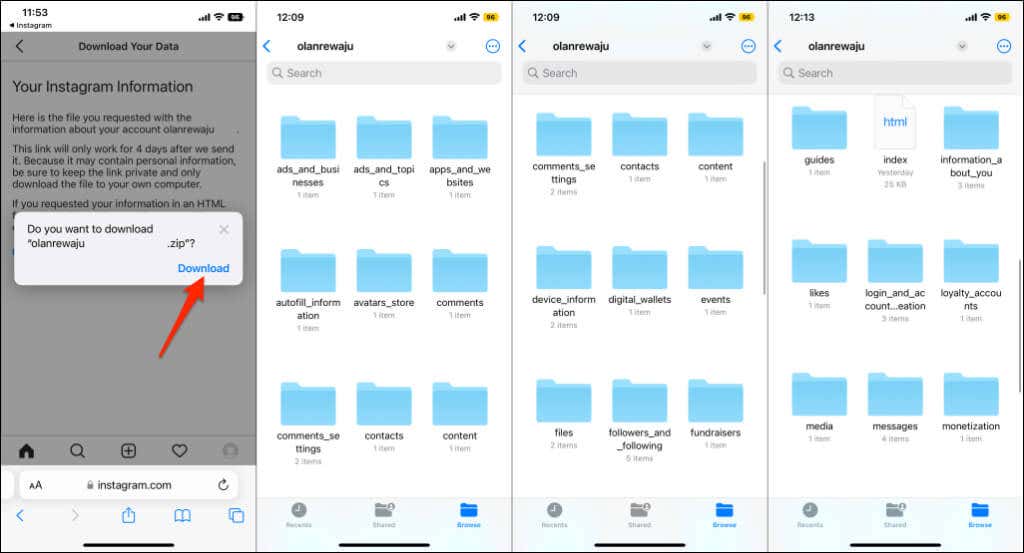
The folders and data in the ZIP file will vary depending on your account activity. Back up the Instagram data file to iCloud or Google Drive, so you don’t lose it.
Download Instagram Data from a Mobile Browser
Follow the steps below to download your Instagram account data if you don’t have the iPhone app.
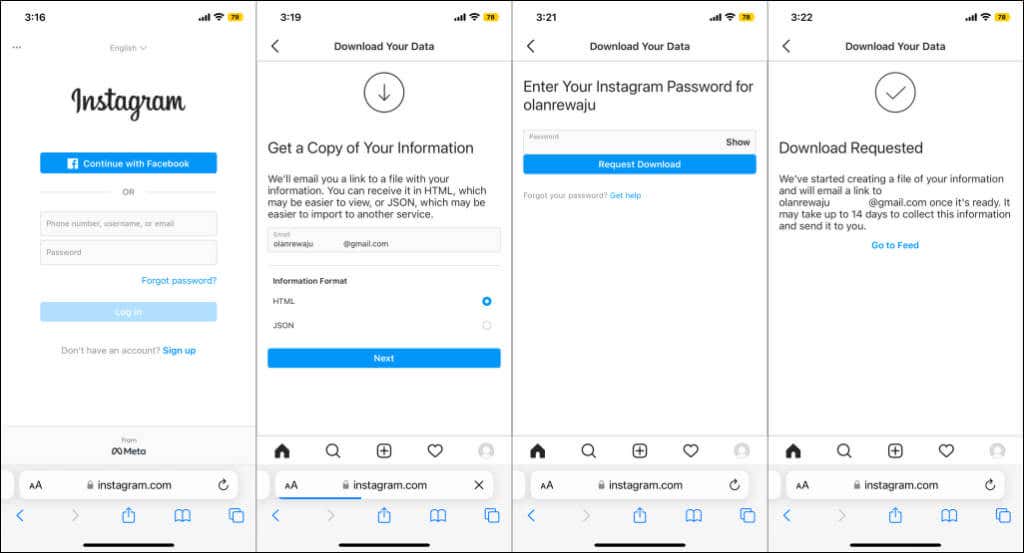
- Visit Instagram’s Download Your Data page in Safari or your preferred mobile browser.
- Log in to your Instagram account to proceed.
- Provide your email address, select your preferred file format, and tap Next.
- Re-enter your Instagram password and tap Request Download.
Want a Temporary Instagram Break? Deactivate Your Account Instead
Deactivating Instagram hides your profile, photos, comments, and likes from the public without deleting your data. Deactivate Instagram if you want a temporary break from the social media platform.
You can deactivate your account in Instagram’s iOS app or any mobile browser. When you’re ready to get back on the gram, sign in to your account on any device to reactivate your account. Before we show you the steps, note that you can only deactivate your Instagram account once a week.
Deactivate Instagram Account in the App
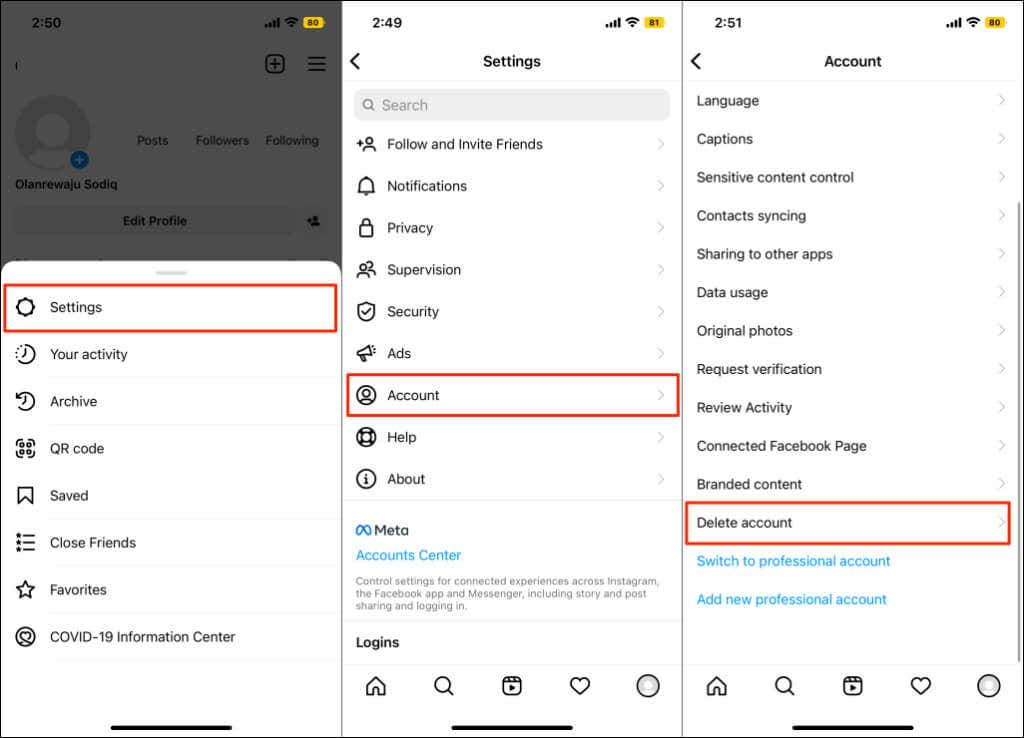
- Open your Instagram profile and tap the menu icon in the top-right corner.
- Tap Settings and select Account on the next page.
- Select Delete account.
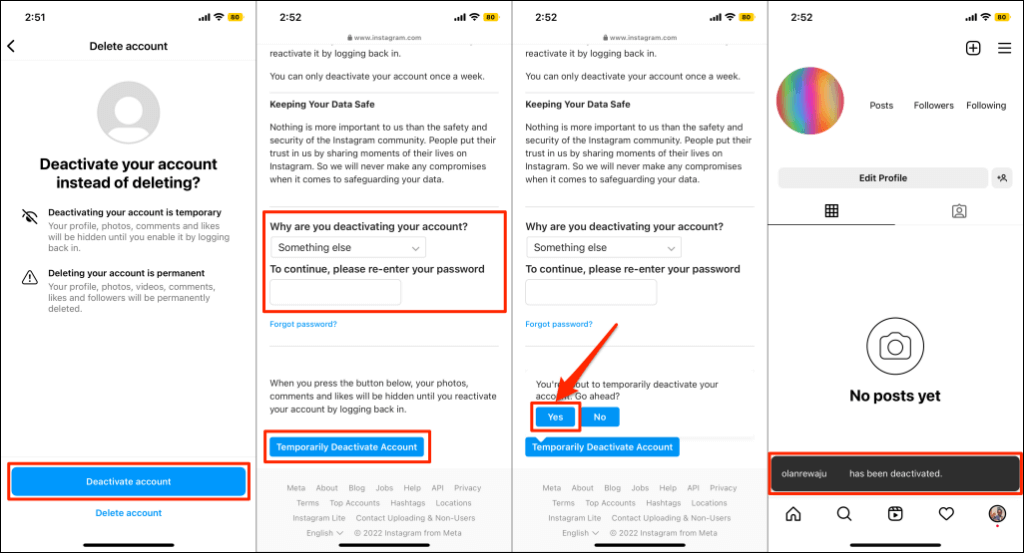
- Tap Deactivate account and choose a reason why you’re deactivating your account from the drop-down menu.
- Re-enter your Instagram password and tap Temporarily Deactivate Account.
- Select Yes on the confirmation pop-up. Instagram displays a success message when your account’s deactivated.
Deactivate Instagram Account in the App
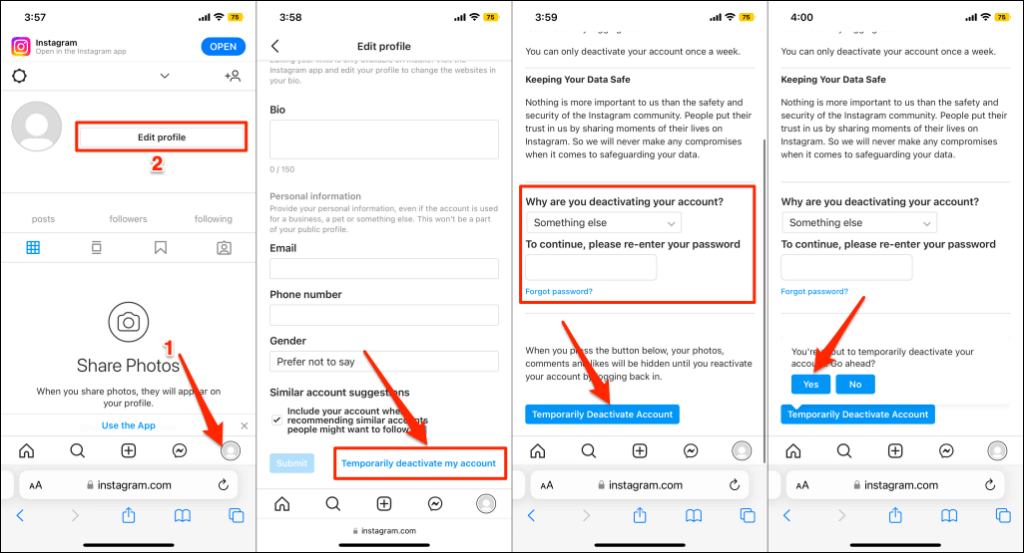
- Sign in to Instagram on any browser and top your profile photo in the bottom corner of the screen.
- Tap Edit Profile.
- Scroll down the page and tap Temporarily deactivate my account.
- Select why you’re deactivating, enter your account password, tap Temporarily Deactivate Account, and select Yes.
Bye, Instagram!
Instagram only starts deleting your account data from its database 30 days after your request. You can’t recover your account if you don’t cancel the deletion request within the grace period. Interestingly, you can reuse the deleted account’s username (if available), but you won’t get back your account data.