Skip to content
SWITCHING 2 MAC
  • How-To
  • Social Media
  • Streaming
  • Reviews
  • How-To
  • Social Media
  • Streaming
  • Reviews
  1. Home/
  2. Social Media/
  3. How to Clear the Facebook App Cache on Your iPhone

How to Clear the Facebook App Cache on Your iPhone

Nicolae Bochis
Oct 3, 2023
3 min read

Switching to Mac is reader-supported. We may earn a commission when you buy through links on our site. Learn more.

Facebook app icon.

Did you know you should regularly clean the Facebook app cache on your iPhone or iPad? The cache folder contains files that tell the app all about your Facebook activity, from the posts you made, pages you visited, and links you clicked. The app can then use these files to load the content quicker next time you use the Facebook app.

However, these temporary files can easily pile up and fill your iPhone’s storage space. This will significantly slow down your iOS device. Cache files can also get corrupted, further impairing your phone’s ability to work properly. That’s why you should regularly clean the Facebook app cache on your iPhone.

Table of Contents

    How to Clear Facebook Cache on iPhone

    The iOS Facebook app offers cache purging and you can use it to clear the website data, or the browser cache, gathered by the Facebook app. Clearing the Facebook App cache will get rid of the data that Facebook stored from the websites you visited using the in-app browser. The data regarding posts, ads, or product pages will remain. To clear these, you’ll have to reinstall the Facebook app.

    How to Clear the Facebook App Cache: Method 1

    To clear browsing data from your iPhone or iPad:

    1. Launch the Facebook app.
    2. Tap the menu icon represented by three lines. It should be in the bottom-right corner.

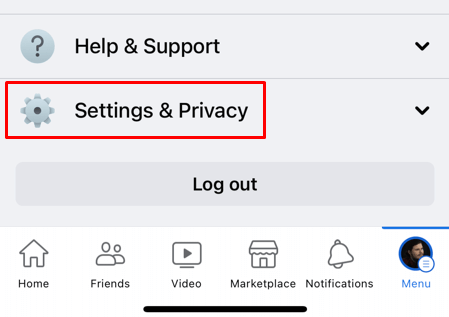
    1. Tap Settings & Privacy in the menu.
    Facebook settings and privacy.
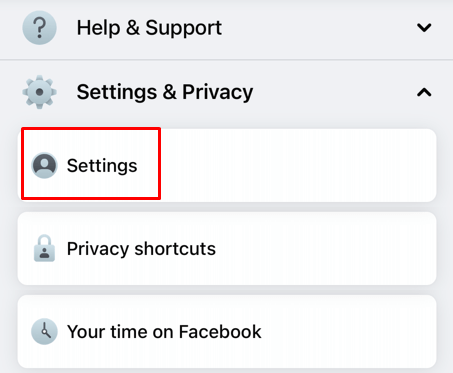
    1. Tap Settings.
    1. Scroll down to find the Preferences section, and tap Browser.
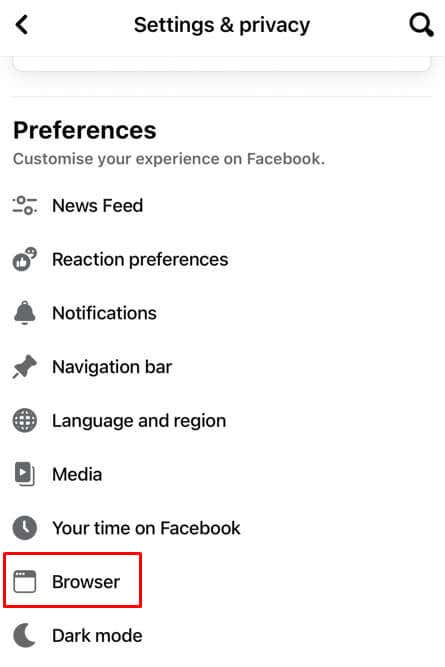
    Facebook browser settings.
    1. Tap the Clear button under the Browsing Data section.
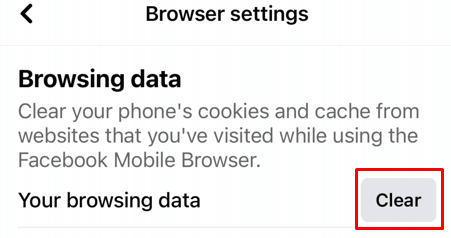
    Clearing the Facebook app cache won’t delete any of your pictures, videos, or posts. In fact, you won’t notice any difference in the Facebook app or what content is visible on Facebook pages. But the app will work faster and overall better.

    How to Clear the Facebook App Cache: Method 2

    To get rid of all possible cache files that could affect how well your iPhone works you’ll have to uninstall the app and install it again.

    1. Open the Settings app on your iPhone.
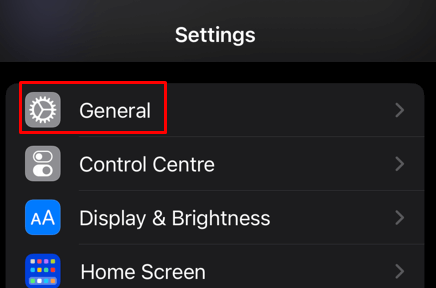
    2. Tap General.
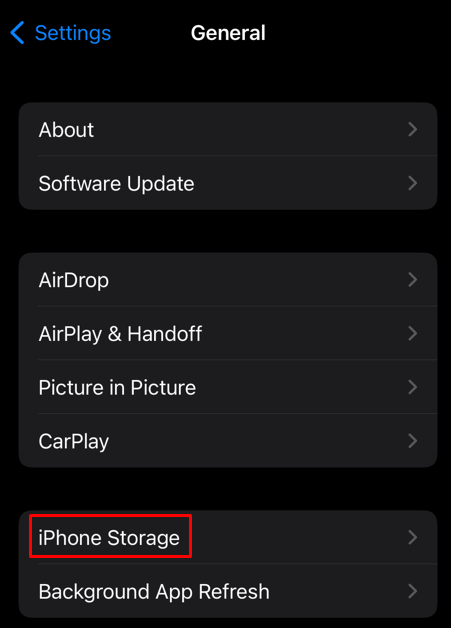
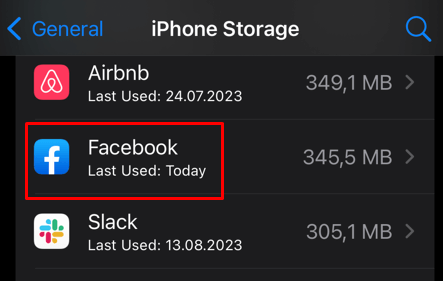
    1. Select Iphone Storage.
    iPhone storage settings.
    1. Select Facebook from the list of installed apps, and swipe it to the left.
    1. Select Delete from the side menu and tap Delete App when prompted to confirm.
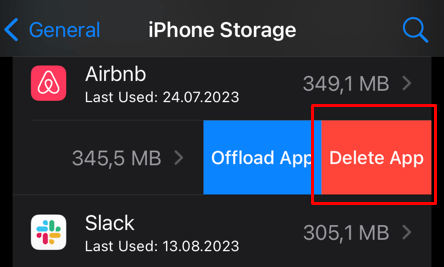
    Delete Airbnb app.
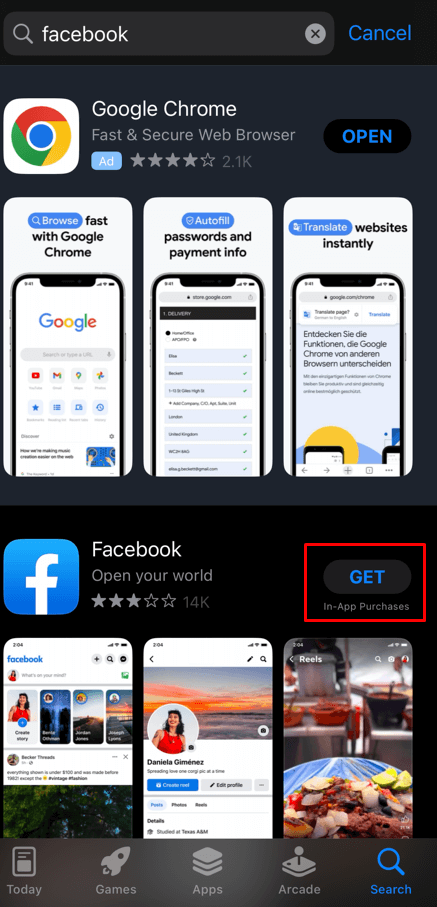
    1. Go back to the Home Screen and launch the App Store.
    2. Type Facebook into the search bar and reinstall the app.
    You can also use the alternate way of deleting the apps on your iPhone and iPad.

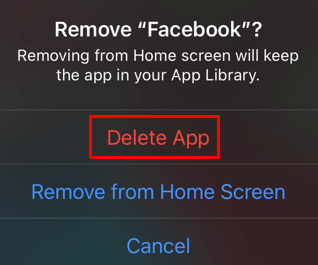
    1. Press and hold the Facebook app on your iPhone’s home screen until the menu appears. Tap Remove App.
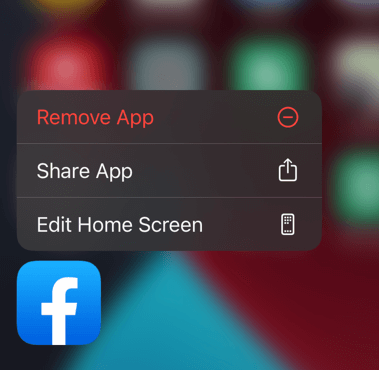
    Facebook app options menu.
    1. Tap Delete App.
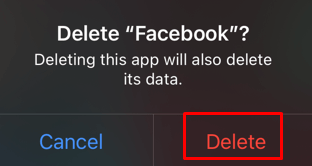
    Delete Facebook app prompt.
    1. Select Delete to confirm.

    Even if you reinstall the app, your Facebook account data, photos, videos, and posts will remain intact.

    Tags: Facebook iPhone
    Share
    Written by

    Nicolae Bochis

    Nicolae is a Jack of all trades technology writer with a focus on hardware, programming languages, and AI image-processing software. Over the last five years, he has ghostwritten numerous tech how-to guides and books on a variety of topics ranging from Linux to C# programming and game development. Nicolae loves everything that has to do with technology and his goal is to share his knowledge and experience with others. Read Nicolae's Full Bio

    View Nicolae's Profile

    Recent Posts

    • Advanced iPhone Shortcuts: Build AI-Enhanced Automations with Apple Intelligence (iOS 26)
      Unlock the Power of iOS 26: Master Advanced Shortcuts & AutomationsApr 28, 2026
    • Focus Modes vs Do Not Disturb: Which iPhone Feature Should You Use in 2026?
      Focus Modes vs Do Not Disturb: Which is Better for iPhone Notifications?Apr 14, 2026
    • How to Use Apple Watch Water Lock: Complete 2026 Guide for Swimming and Water Sports
      How to Use Apple Watch Water Lock: Complete Guide for Swimming and Water SportsApr 8, 2026
    • How to Control Apple Maps Ads Privacy Settings in iOS 26.5 (2026 Guide)
      How to Control Apple Maps Ads Privacy Settings in iOS 26.5 (2026 Guide)Apr 6, 2026

    Search

    Categories

    • Announcements
    • How-To
    • News
    • Reviews
    • Social Media
    • Streaming

    Tags

    AirDrop AirPlay AirPods AirTags Android Antivirus Apple App Store AppleCare Apple Home Apple ID Apple Magic Mouse Apple Magic Wireless Keyboard Apple Mail Apple Maps Apple Music Apple Notes Apple Pay Apple Pencil Apple TV Apple Watch Beats Buying Guides Face ID FaceTime Featured Gadget Reviews GarageBand iCloud iMessage iMovie Instagram iPad iPhone iPod Touch iTunes MacBook macOS Microsoft Outlook Microsoft Word Roundups Safari Siri Spotify Time Machine Windows 10

    Our Publishing Family

    Switching to Mac is part of the AK Internet Consulting publishing family.

    • HELP DESK GEEK
    • THE BACK ROOM TECH
    • ONLINE TECH TIPS
    • XBOX ADVISOR

    Daily Email Newsletter

    About Switching to Mac

    Switching to Mac has published easy-to-follow technology tutorials, honest reviews, and practical how-to guides since 2007 — helping millions of readers solve tech problems and get more from their devices.

    Learn More →

    © 2007-2026 Switching to Mac.com, LLC.
    All Rights Reserved.

    • Home
    • About Us
    • Editorial Standards
    • Contact Us
    • Terms of Use
    Terms of Use | Privacy Policy
    Online