
Been struggling with your iPhone battery draining faster after the iOS 26 update? You’re not alone. While Apple’s “Batterygate” controversy from 2017 is ancient history, post-update battery drain remains a real pain point for many users.
The good news: iOS 26 and macOS Tahoe 26 include better battery management tools than ever before. iOS now suggests personalized charge limits to reduce battery wear. Here’s how to fix the immediate drain issues and set up your devices for long-term battery health.
Fix iOS 26 Battery Drain First
If your iPhone or iPad started draining faster after updating to iOS 26, this addresses the immediate problem. The system is likely re-indexing apps and photos in the background — a temporary but annoying process.
Update to the latest version: Go to Settings > General > Software Update. Apple often releases point updates within weeks that fix battery optimizations.
Enable Low Power Mode: Go to Settings > Battery > Low Power Mode and toggle it on. It reduces background activity and performance demands to extend battery life when you need it most.
Disable Background App Refresh temporarily: Settings > General > Background App Refresh and set it to Off for a few days. You can re-enable it once the indexing settles down.
Restart weekly: Not exactly groundbreaking advice, but iOS 26 benefits from regular restarts to clear cached processes.
Check Settings > Battery after 24 hours to see which apps are actually draining power. Games, widgets like Weather, and Live Activities are common culprits.
Set Up Smart Charging Limits
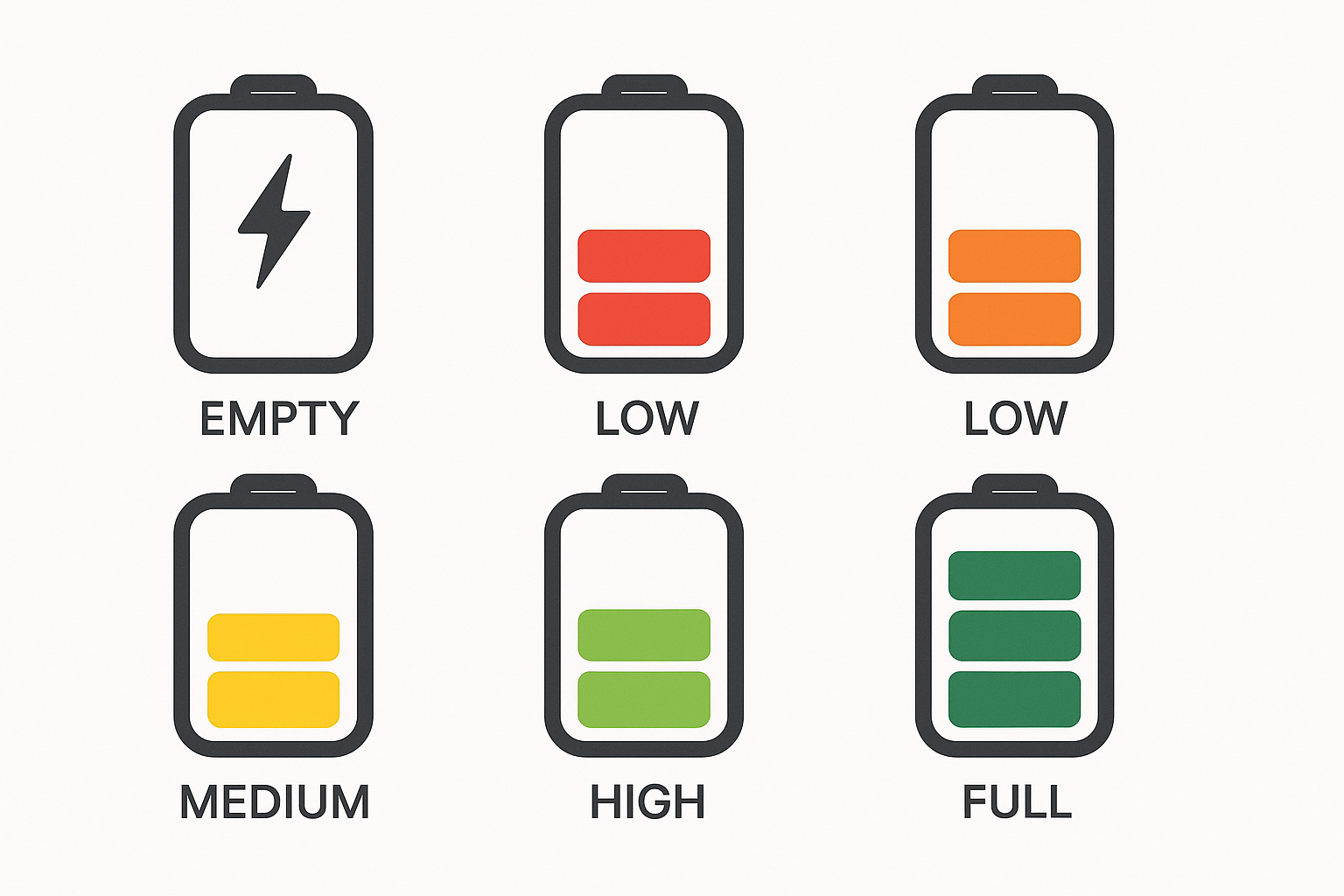
iOS 26 finally lets you set charge limits below 100% — something Android users have had for years. This solves the biggest battery wear issue: keeping lithium-ion batteries at full charge.
Go to Settings > Battery > Charging. iOS will suggest a limit (usually 80-95%) based on your daily patterns. If you charge overnight and unplug in the morning, 80% is probably fine. If you need full capacity for long days, 90% is a good compromise.
The Optimized Battery Charging feature (which learns when you typically unplug) works alongside this. Keep both enabled unless you have unpredictable charging schedules.
Optimize Display and Connectivity
Lower brightness and enable Auto-Brightness: Settings > Display & Brightness. The display is still the biggest battery drain on any device.
Disable Always On Display: If you have an iPhone 14 Pro or newer, this feature looks cool but hammers battery life. Settings > Display & Brightness > Always On Display.
Shorten Auto-Lock: Set it to 1-2 minutes max in the same Display settings.
Use Wi-Fi over cellular when possible: Weak cellular signals drain battery faster than strong Wi-Fi. Settings > Wi-Fi should be your default.
Reduce notifications: Settings > Notifications. Turn off lock screen previews for apps you don’t need immediately.
MacBook Battery Management
macOS Tahoe 26 handles battery management more intelligently than previous versions, but you still need to configure it properly.
Enable Low Power Mode: System Settings > Battery. Unlike iOS, this doesn’t significantly limit functionality on modern MacBooks.
Set up Battery Health Management: In the same Battery settings, enable this to automatically hold charge at 80% when you’re plugged in for extended periods. Perfect for desk setups.
Monitor Energy usage: Open Activity Monitor and click the Energy tab. Quit any apps showing high energy impact that you’re not actively using.
Adjust display and sleep settings: System Settings > Displays for auto-brightness, and Energy Saver for shorter display sleep times.
What Actually Damages Batteries
Modern lithium-ion batteries are remarkably resilient, but three things will shorten their lifespan:
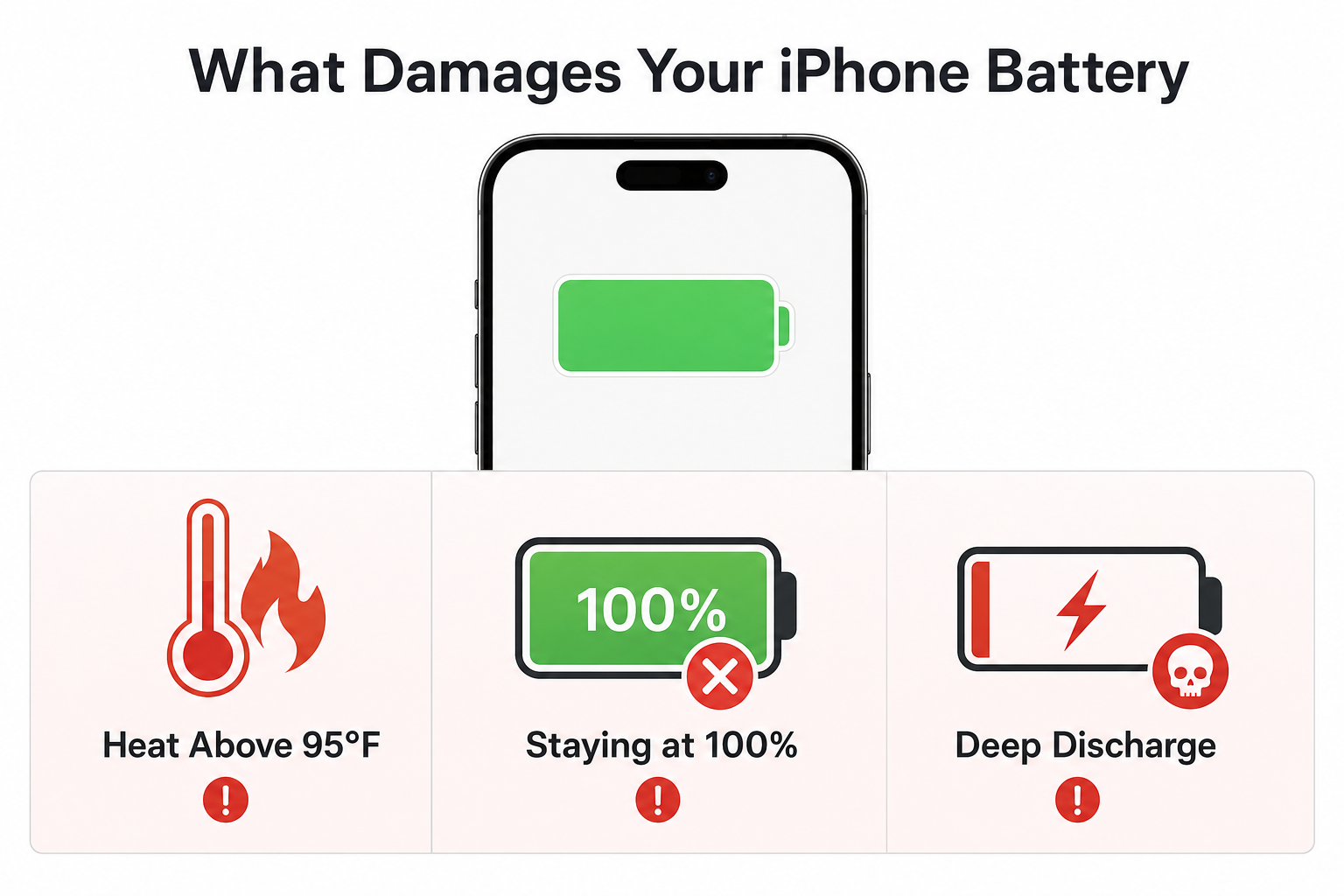
Heat above 95°F (35°C): Don’t leave devices in hot cars or direct sunlight. Remove thick cases when charging if the device gets warm.
Staying at 100% charge constantly: If you work plugged in all day, the new charge limits solve this problem.
Deep discharge cycles: Letting your device die completely is worse for the battery than frequent top-ups. The old “drain to zero” advice doesn’t apply to lithium-ion.
Ignore the myths: Force-closing apps actually increases battery drain (iOS has to reload them), and using your device while charging won’t hurt anything. You can learn more about iPhone performance monitoring and avoid cheap chargers that might damage your device.
When to Contact Apple
If your battery health shows below 80% capacity in Settings > Battery > Battery Health & Charging, and your device is less than two years old, contact Apple Support. You might be eligible for a free replacement.
For devices older than three years experiencing sudden battery issues, the problem is often software-related rather than battery degradation. A clean iOS install sometimes works better than a battery replacement.
These steps have solved my workflow issues with post-update battery drain, and the new charging limits mean I’m no longer dealing with rapid battery degradation on devices I keep plugged in. For more tips on keeping your device running smoothly, check out our guide on how to maintain your iPhone properly.