
If you’re upgrading to iOS 26, you have two options: a standard over-the-air update or a clean install. For newer devices like the iPhone 17 series, the regular update through Settings works fine.
But on older devices — anything from iPhone XS through iPhone 16 — a clean install can make a noticeable difference in performance. Even my iPhone 15 Pro felt snappier after a clean iOS 26 install compared to updating from iOS 25.
A clean install erases everything and installs fresh iOS 26 firmware. You can then either set up as new (truly starting over) or restore from a backup. The key difference from a regular update is that you’re wiping away years of accumulated system cruft.
If you restore from backup afterward, you’ll get your messages, Health data, apps, and settings back. Just know that Health data only transfers from encrypted backups or iCloud as regular iTunes backups won’t include it.
What You’ll Need
You can’t clean install directly from your iPhone. You need a Mac running macOS Sequoia (15.x) or later, or a Windows PC with the Apple Devices app (Windows 11 24H2 or newer). iTunes is long gone and Apple replaced it with Finder on Mac and the dedicated Apple Devices app on Windows.
You’ll also need a USB cable (Lightning for older iPhones, USB-C for iPhone 15 and later) and about 30-45 minutes of uninterrupted time. Make sure your Mac or PC has at least 6-8GB free space for the iOS 26 IPSW file before you begin.
Clean Installing iOS 26
First, back up your iPhone if you plan to restore your data later. Connect your device to your Mac or PC, then either use Finder (Mac) or Apple Devices (Windows) to create an encrypted backup, or use iCloud backup from Settings > [Your Name] > iCloud > iCloud Backup.
With your iPhone connected, open Finder on Mac (your iPhone appears in the sidebar) or the Apple Devices app on Windows. Click on your device to see the summary screen.
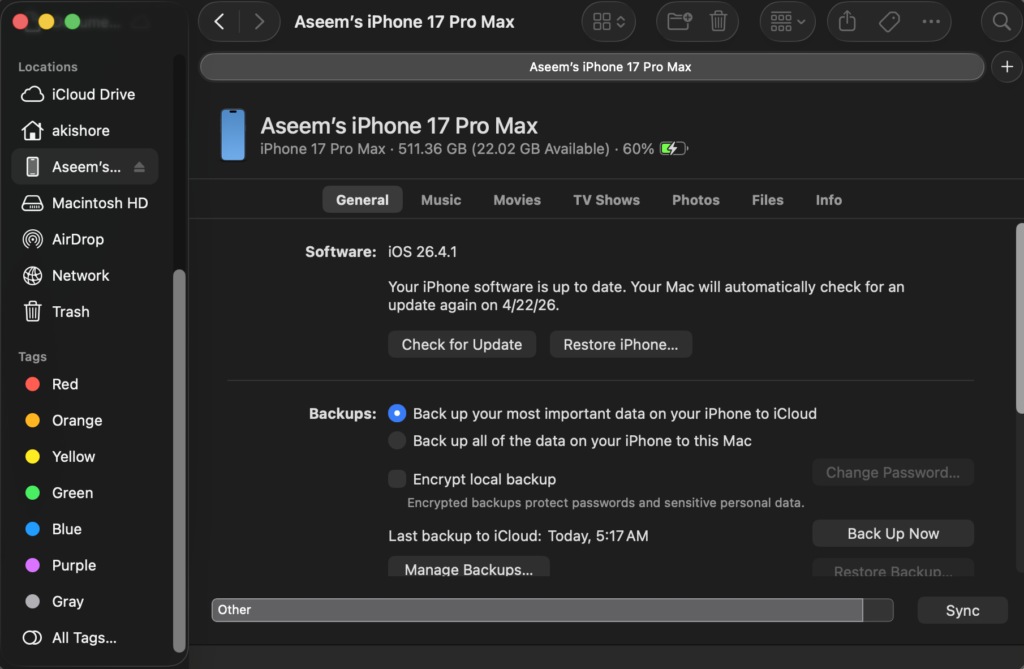
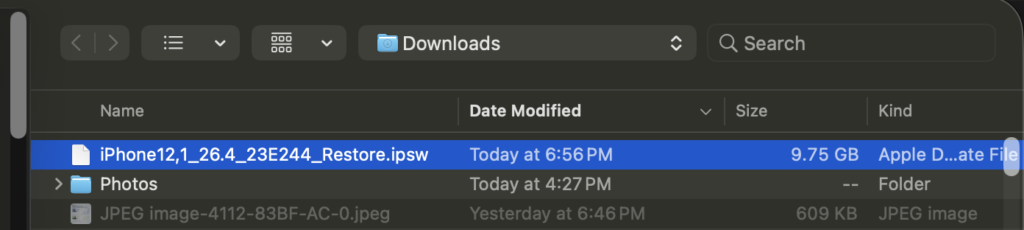
You’ll see basic info about your iPhone: model, serial number, and current iOS version. If you’re coming from iOS 25 or earlier, you’ll need to download the iOS 26 firmware file. If you don’t have an Apple Developer account, you can also try The Apple Wiki site. The download can take 15-20 minutes depending on your connection.
Once the download finishes, the real work begins. This is the key step: Hold down Option (Mac) or Shift (Windows) and click Check for Update. You’ll be prompted to select the iOS 26 IPSW file you just downloaded.
If you haven’t backed up recently, you’ll get a warning asking if you want to back up first. Choose Back Up if you want your data — this is your last chance before everything gets erased.
The final confirmation dialog is pretty clear: this will erase your iPhone and install iOS 26. Click Restore and Update to proceed.
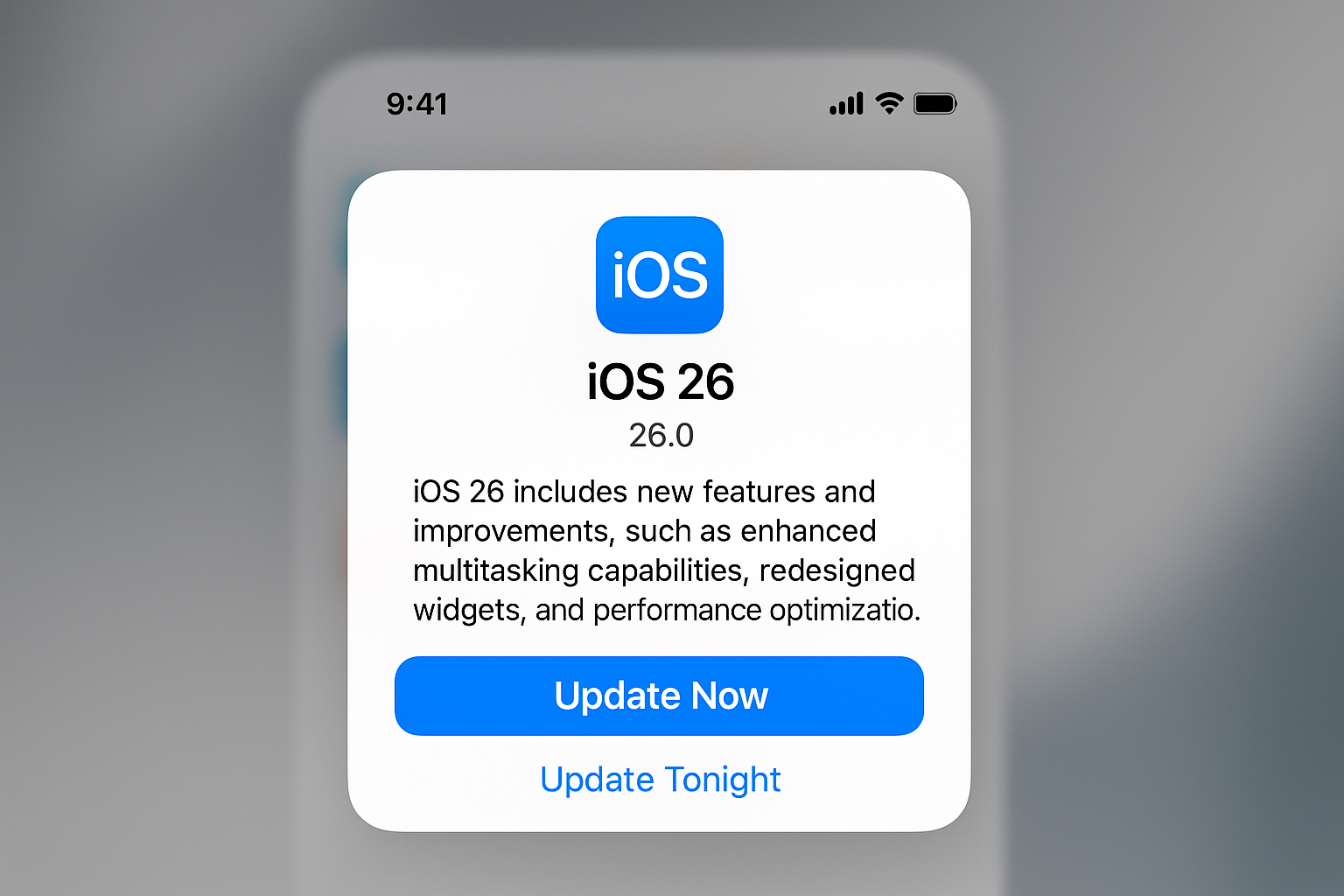
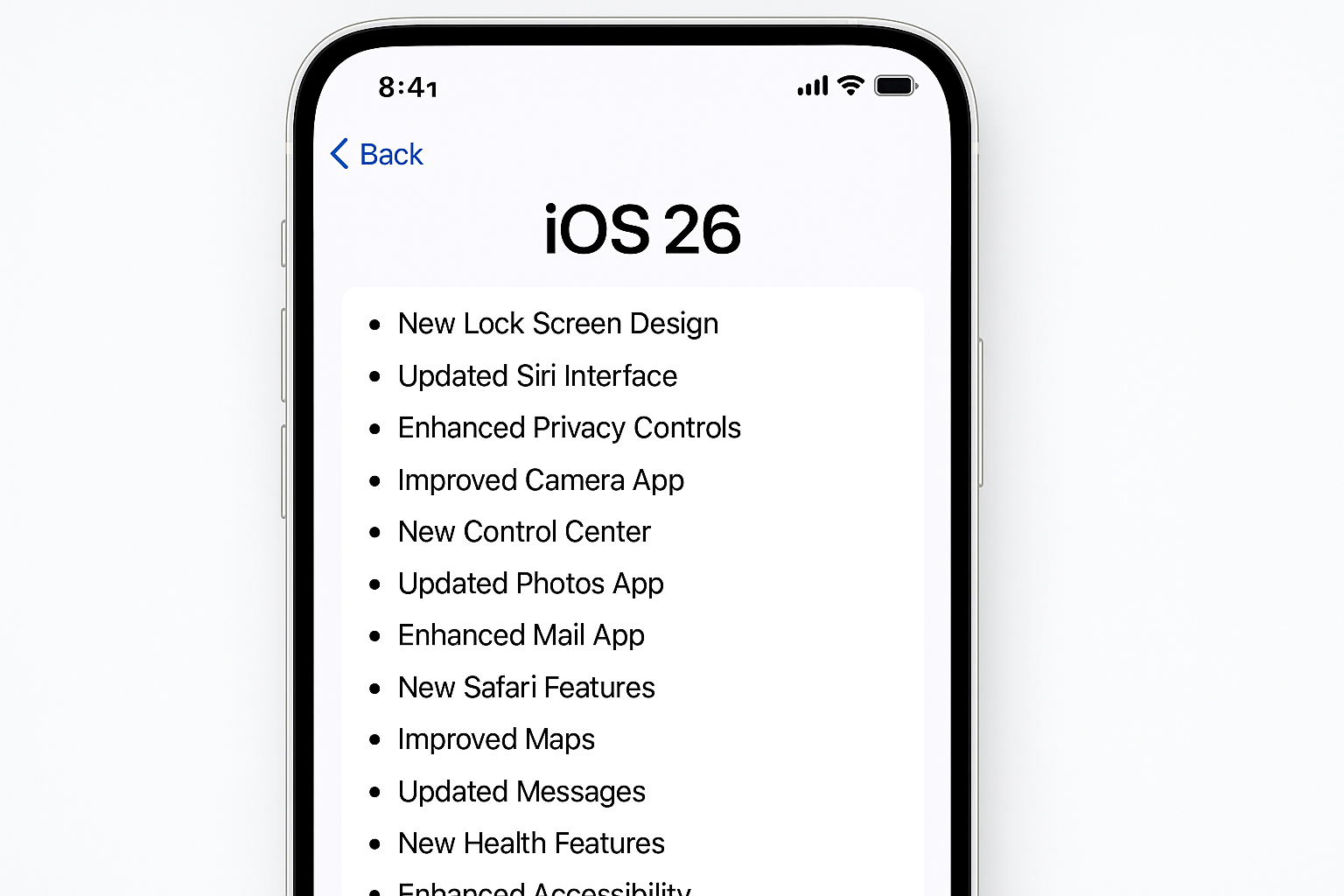
You might see a features overview for iOS 26 highlighting Apple Intelligence improvements, the new Liquid Glass design, and enhanced Messages features. Click through it as your iPhone is about to get wiped anyway.
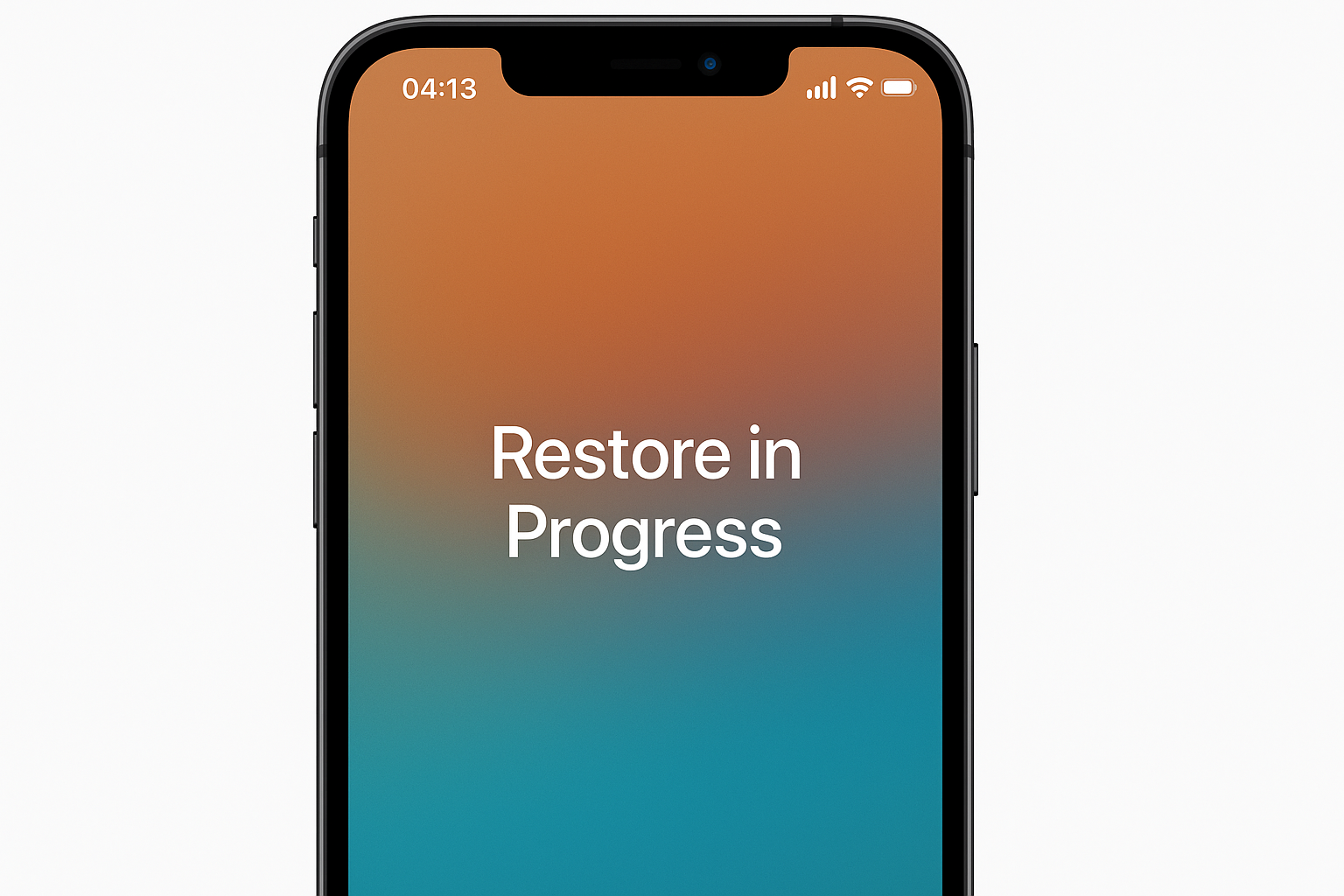
The restore process takes 20-30 minutes. Your iPhone will show “Restore in Progress” and restart several times. Don’t disconnect it or try to use it during this time.
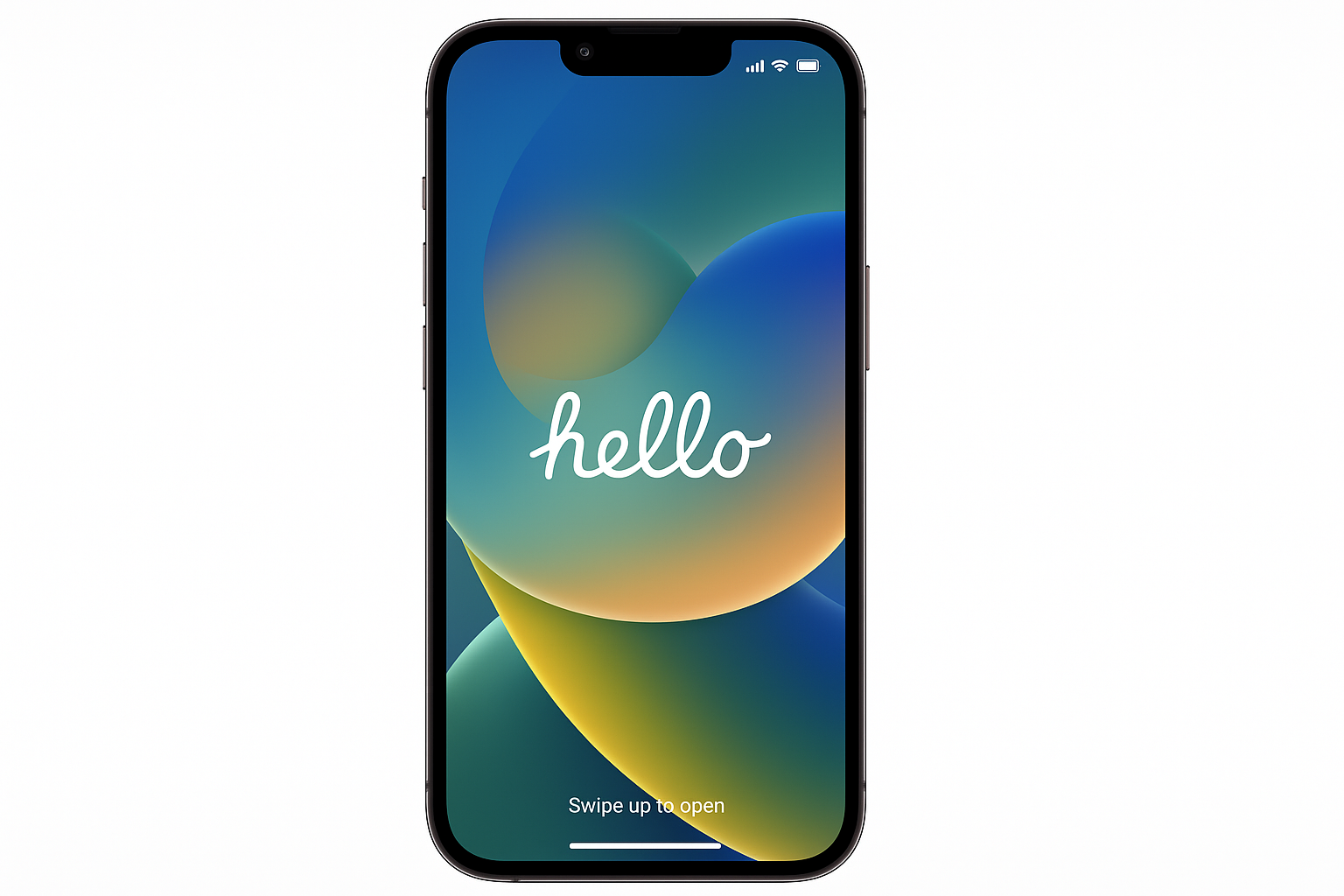
When it’s done, you’ll see the “Welcome to Your New iPhone” setup screen both on your device and in Finder/Apple Devices.
The Critical Choice
This is where you decide between maximum performance and convenience. For the absolute cleanest experience, choose Set up as new iPhone. You’ll manually reinstall apps, reconfigure settings, and lose message history, but you’ll get the snappiest possible performance.
If that sounds like too much work, choose Restore from this backup and select your most recent backup. You’ll get your apps, settings, and data back, but you’ll also restore some of the system overhead you were trying to eliminate.
Honestly? Even restoring from backup after a clean install runs better than a direct upgrade. The fresh iOS 26 foundation makes a difference.
Alternative: Settings Reset Method
If connecting to a computer feels like overkill, iOS 26 offers a simpler option: Settings > General > Transfer or Reset iPhone > Erase All Content and Settings. This wipes your device and automatically downloads the latest iOS 26 over Wi-Fi during setup.
It’s not quite as “clean” as the IPSW method since it doesn’t rewrite the firmware, but it’s much easier and gives most of the same benefits.
Common Issues
If your iPhone gets stuck in recovery mode (shows a cable pointing to a computer), don’t panic. Put it in DFU mode: on iPhone 8 and later, quickly press Volume Up, then Volume Down, then hold the Side button until the screen goes black. Then try the restore process again.
Some users report issues with encrypted backups failing to restore across major iOS versions. If that happens, use iCloud restore instead as it’s more reliable for cross-version transfers.
The whole process feels unnecessarily complicated compared to Android’s factory reset, but the performance gains on older iPhones make it worthwhile. A clean iOS 26 install can make a three-year-old iPhone feel almost new again.