

Finder is macOS’s equivalent of Windows File Explorer. It manages your files, your desktop, and a surprising amount of what makes the Mac feel like the Mac. Which makes it all the more annoying when it freezes, glitches, or just stops responding.
The fastest fix is usually to quit Finder and let it relaunch. But here’s the thing: Apple hides the Quit Finder option by default. It exists, it works, and it takes about 10 seconds to unlock. Here’s how to do it, plus every other method for restarting Finder when things go sideways on macOS Sequoia.

Why You’d Want to Quit Finder (Not Just Relaunch It)
Most of the time, you want Finder to relaunch immediately after quitting, that’s what Cmd + Option + Esc does. You select Finder, click Relaunch, and it restarts cleanly. Done.
But sometimes you want Finder fully stopped. The most common scenario: your Mac refuses to shut down because Finder is stuck and won’t close gracefully. Having a proper Quit option in the menu gives you a clean way to kill it without reaching for Terminal every time.
Method 1: Unlock the Hidden Quit Finder Menu Option
This is the most useful fix if Finder misbehaves regularly. Apple includes a Quit Finder menu item in the Finder menu. It’s just hidden by default. One Terminal command flips it on permanently.
Step 1: Open Terminal
Press Cmd + Space to open Spotlight, type Terminal, and hit Return.
Step 2: Run the defaults command
Paste this into Terminal and press Return:
defaults write com.apple.finder QuitMenuItem -bool YESStep 3: Restart Finder to apply the change
Run this immediately after:
killall FinderNote: the capital F in Finder is required. Lowercase won’t work.
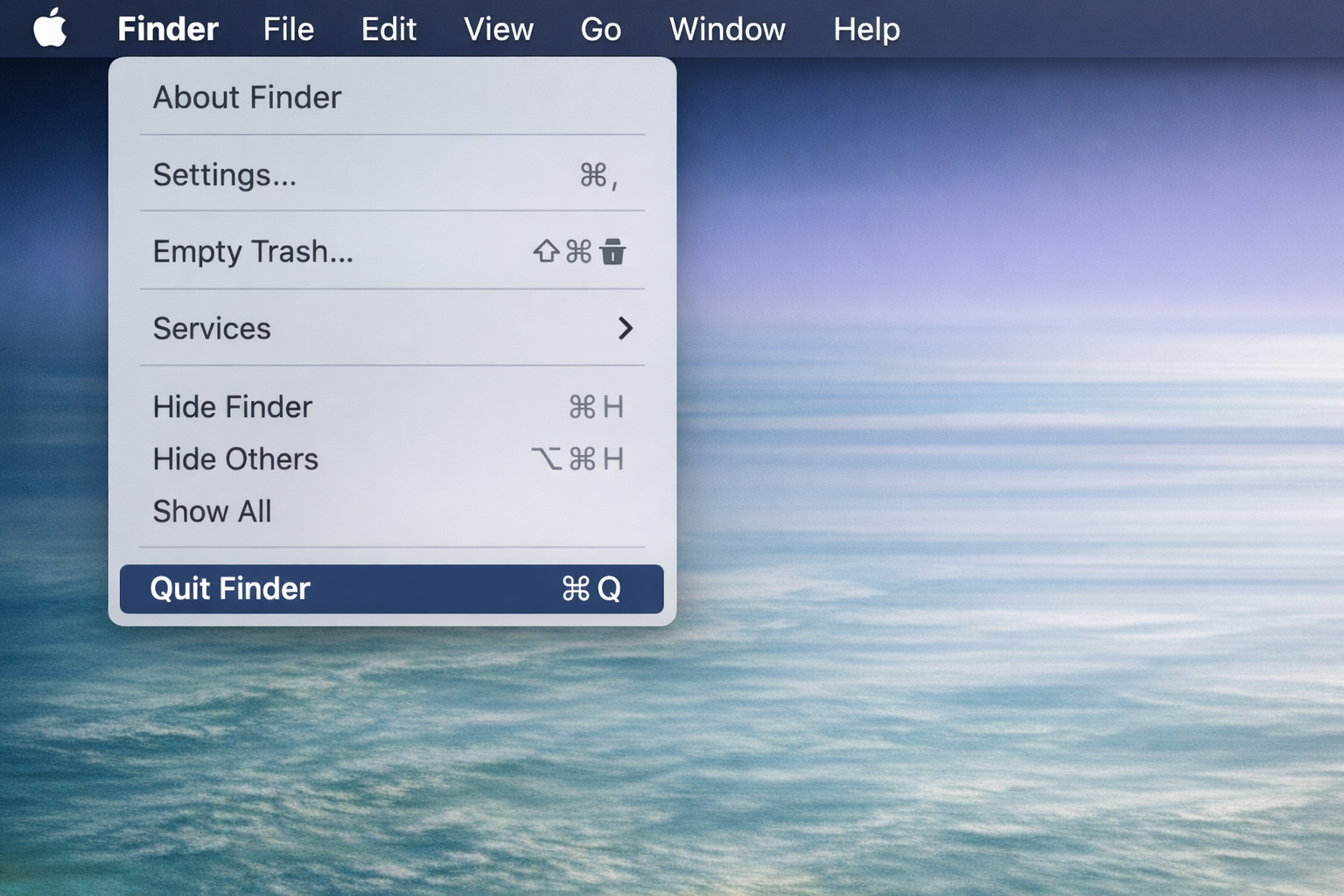
Now open the Finder menu in the top-left menu bar and you’ll see Quit Finder at the bottom, with its keyboard shortcut (Cmd + Q) right next to it.
What happens when you quit Finder
When Finder is running, you’ll see a small dot beneath its icon in the Dock, same as any open app.

Click Quit Finder and that dot disappears. All Finder windows close, and the process stops running entirely.

To reopen Finder, click its icon in the Dock. Occasionally you’ll need a second click if it doesn’t respond immediately.
To remove the Quit option later
Run the same command with NO instead of YES, then restart Finder:
defaults write com.apple.finder QuitMenuItem -bool NOkillall FinderMethod 2: Force Quit and Relaunch via Keyboard Shortcut
If Finder is frozen and you need it back up fast, this is your go-to. Press Cmd + Option + Esc to open the Force Quit Applications window, select Finder from the list, and click Relaunch.
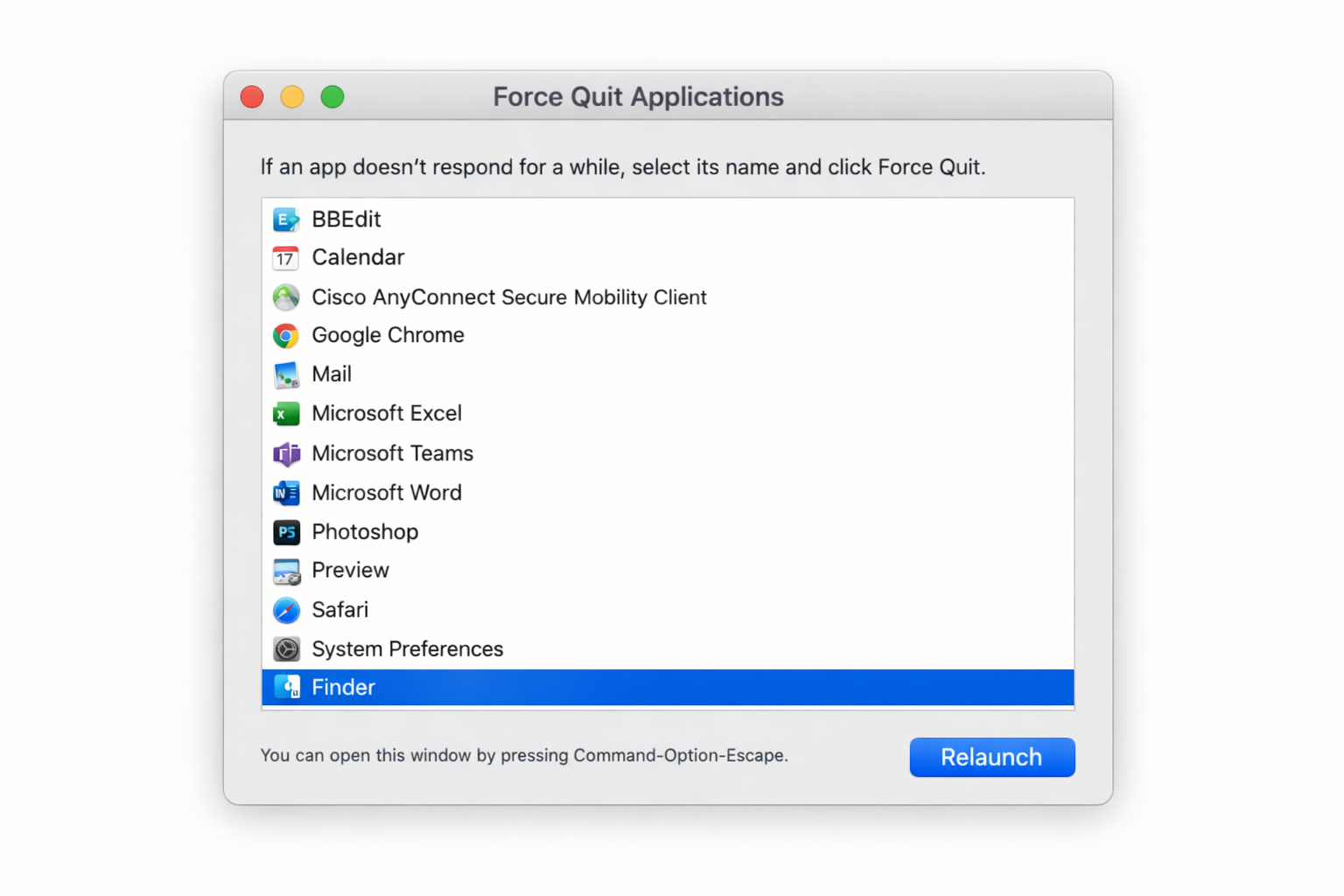
Unlike quitting most apps, relaunching Finder here brings it back immediately. It doesn’t stay closed. This is the right move when Finder is acting up but you still need it running.
Method 3: Relaunch from the Dock
Hold Option and right-click the Finder icon in the Dock. You’ll see a Relaunch option appear in the contextual menu. Click it.
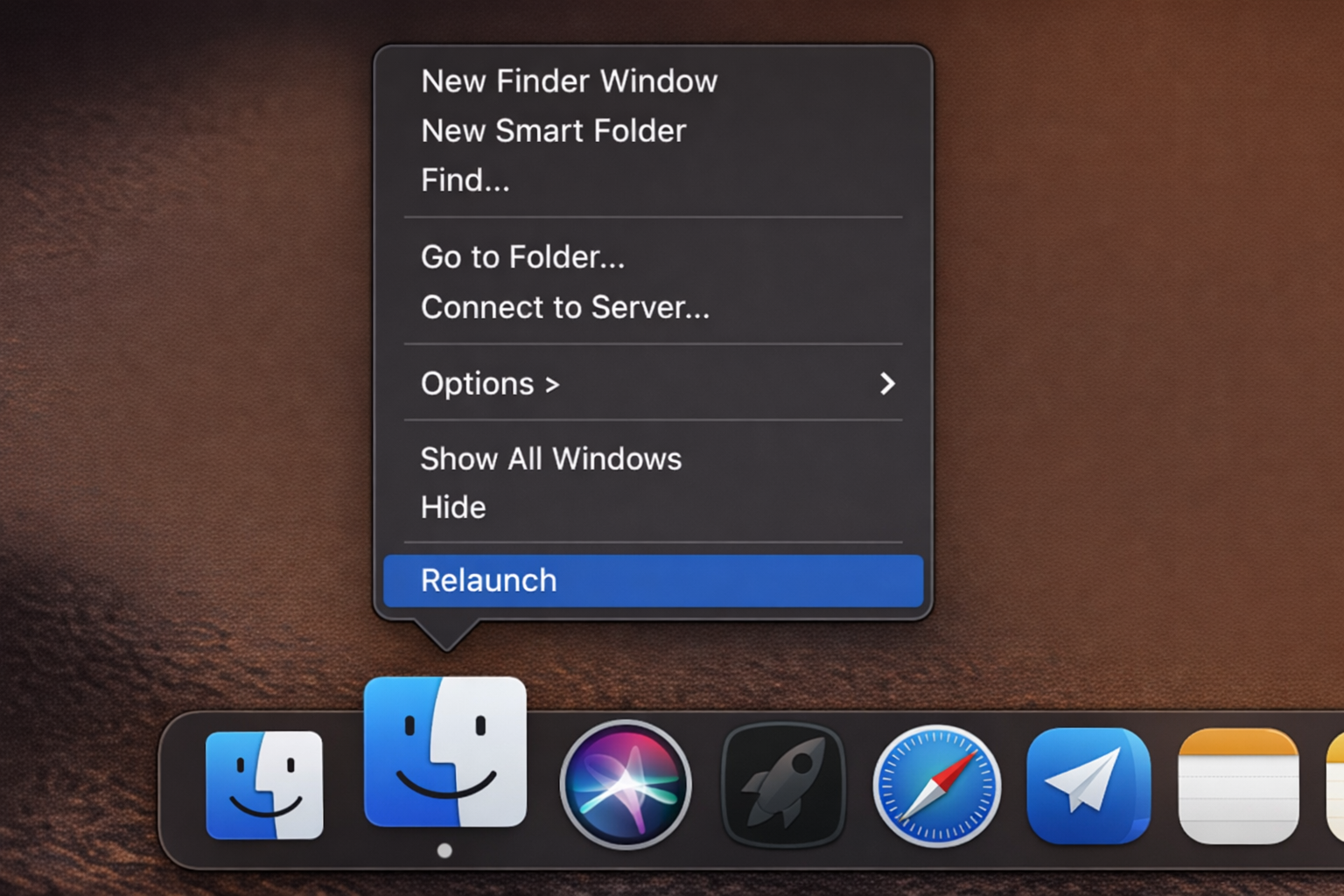
This skips Terminal entirely and works well when Finder is sluggish but still technically responding.
Method 4: Kill It from Terminal
Already covered above, but worth calling out as a standalone method. Open Terminal and run:
killall FinderFinder quits and relaunches automatically. This is the fastest option if you’re already in Terminal, and it’s scriptable if you want to automate it.
Method 5: Use Activity Monitor
Press Cmd + Space, search for Activity Monitor, and open it. Find Finder in the process list (the CPU or Memory tab both work), select it, and click the X button in the toolbar to quit the process.
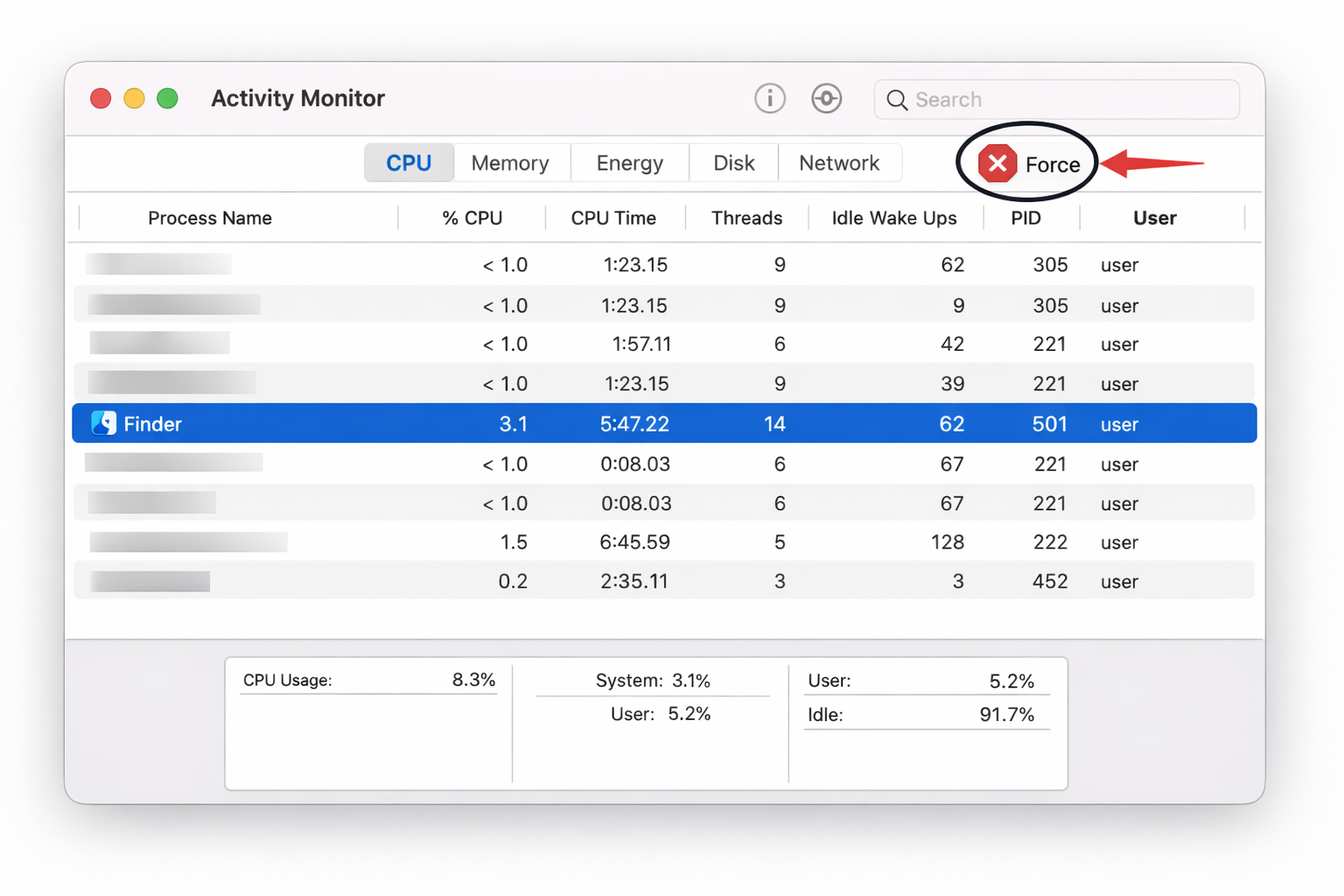
Finder will relaunch on its own. This method is useful when you want to check whether Finder is actually consuming abnormal CPU or memory before pulling the trigger.
Troubleshooting
The Terminal command didn’t add the Quit option
Make sure you ran killall Finder immediately after the defaults write command. The change doesn’t take effect until Finder restarts. If it still doesn’t show, log out and back in.
Finder won’t relaunch after quitting
Rare, but it happens. Click the Finder icon in the Dock, sometimes twice. If nothing happens, open Terminal and run killall Finder (it’ll relaunch even if it’s not currently running, because macOS treats Finder as a system process). If all else fails, restart the Mac.
Custom keyboard shortcuts for Finder aren’t working on macOS Sequoia
macOS Sequoia introduced restrictions on Option-key shortcuts in App Store apps, so if you’ve set up a custom hotkey using Option + something through a third-party app, it may silently fail. Check System Settings > Keyboard > Keyboard Shortcuts for conflicts. For reliable custom shortcuts, Hammerspoon (free, open-source) bypasses these restrictions entirely.
Finder keeps freezing repeatedly
A one-off restart usually fixes a frozen Finder. If it’s happening constantly, the issue is likely something deeper: a misbehaving extension, a problematic external drive, or a corrupted preference file. Restarting Finder is a band-aid in that case, not a cure.
Which Method Should You Use?
- Finder is frozen, you need it back immediately →
Cmd + Option + Esc→ Relaunch - Finder is stuck and blocking a Mac shutdown → Unlock the Quit Finder menu option, then use it
- You’re already in Terminal →
killall Finder - You want to check resource usage first → Activity Monitor
- You want a one-click Dock option → Option + right-click the Dock icon → Relaunch
The hidden Quit Finder menu option is the one worth enabling regardless. It’s a solid addition to have available, and you’ll be glad it’s there the first time your Mac refuses to shut down cleanly. Takes 10 seconds to set up and you only have to do it once.