
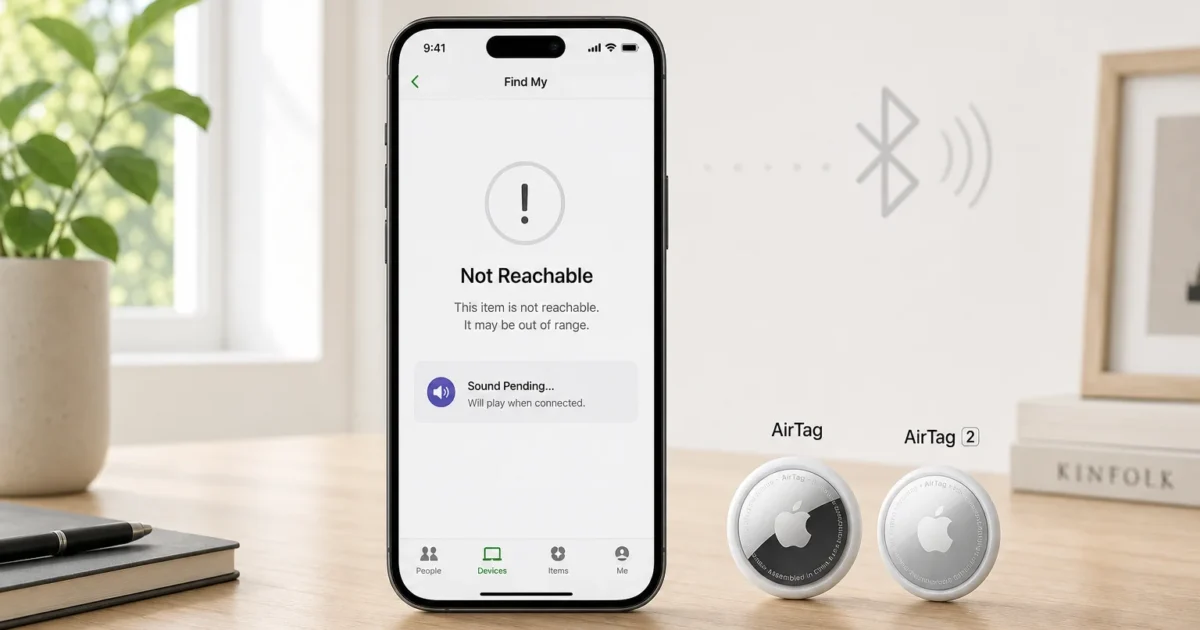
If you’ve opened Find My and seen “Not Reachable” sitting under your AirTag, your stomach probably dropped a little. Don’t panic. That label on its own doesn’t mean your AirTag is broken or gone for good. It means Find My can’t get a current location for it right now.
This guide walks through the fixes in order, starting with the 30-second checks and working up to the involved stuff. Everything here applies to both the original AirTag and the AirTag (2nd generation) Apple introduced in 2026. Both use the same user-replaceable CR2032 battery and a similar Find My setup flow, though AirTag 2 needs iOS or iPadOS 26.2.1 or later to set up, and the full reset sequence differs slightly between generations (see Problem 7).
What “Not Reachable” Actually Means
“Not Reachable” means Find My can’t currently reach that specific AirTag or get a fresh location for it. If one is available, Find My may show you the AirTag’s last known location instead: the most recent location reported for it, either by one of your own devices or through the Find My network. Apple says Find My can show a last known location for up to seven days.
That’s different from the item being lost. A lost AirTag that’s still powered can update its location when a device in the Find My network detects it. Common reasons for “Not Reachable” include distance, a dead battery, Bluetooth or Location Services switched off on your iPhone, or no recent report from a nearby device. It doesn’t necessarily mean the item is gone, and the label alone doesn’t tell you which cause applies, which is why the fixes below go one at a time.
Quick Diagnosis
Before you work through the detailed fixes below, run this 60-second checklist:
- Check the AirTag’s age: Apple says AirTag works for more than a year on a standard battery, though actual life depends on how you use it. If you haven’t replaced it since setup, that’s your prime suspect.
- Confirm Bluetooth is on: Swipe down to Control Center or check Settings > Bluetooth.
- Confirm Location Services is on: Settings > Privacy & Security > Location Services.
- Check how far away the item was last seen: If it’s across town, “Not Reachable” is expected until you or another Apple device gets close.
- Check for a pending iOS update: Settings > General > Software Update.
Nothing obvious jump out? Move through the ranked fixes below.
Common Issues
Problem 1: AirTag Battery Is Dead or Seated Wrong
Symptoms:
- AirTag has shown “Not Reachable” for more than a day despite being nearby
- No chime when you press the AirTag’s back cover
- Find My shows a low battery warning before the tag went silent
Cause: The CR2032 coin-cell battery has drained (Apple rates AirTag for more than a year on a standard battery, but real-world life depends on use) or was inserted with the wrong polarity, which stops the AirTag from working.
Solution:
- Flip the AirTag over so the shiny metal back faces up.
- Press down firmly on the cover and rotate it counterclockwise until it stops and lifts off.
- Remove the old CR2032 battery.
- Insert a fresh CR2032 with the + (positive) side facing up, toward you, as Apple’s battery instructions describe.
- Press the cover back down and rotate it clockwise until it clicks into place. You should hear a chime confirming power is restored.

Verification: Open Find My > Items and tap the AirTag’s name. If your iPhone reconnects to it, the status may update from “Not Reachable” to a current location, though that can take a moment depending on range, battery, and permissions.
Tip: Both AirTag and AirTag 2 use the same CR2032 battery, so you don’t need to buy anything different for the new model.
Problem 2: Bluetooth or Location Services Got Turned Off
Symptoms:
- Several items stop updating at the same time, including ones that are close by
- You recently changed Bluetooth, privacy, or location settings
- Other Bluetooth accessories (AirPods, a smartwatch) also seem disconnected
These are clues rather than proof. Find My uses several status labels (see the table below), so check the settings here before assuming they’re the cause.
Cause: Bluetooth may have been turned off (an accidental Control Center tap is a common culprit), or Location Access for Find My may be off. Apple’s AirTag and Find My support page says that if you don’t see Find (Find Nearby), you should make sure Location Access for Find My is turned on.
Solution:
- Go to Settings > Bluetooth and make sure the toggle is green (on). If it’s already on, toggle it off and back on to refresh the connection.
- Go to Settings > Privacy & Security > Location Services and confirm the master toggle is on.
- Scroll down to Find My in that same Location Services list and tap it.
- Choose how you want Find My to access your location (any option other than Never), and turn on Precise Location for more accurate location results.
Verification: Reopen Find My > Items and select the AirTag. If you’re in range and a setting was the cause, its location should update; how quickly depends on range, battery, and connection conditions.
Problem 3: Find My Network Isn’t Enabled for Your Apple ID
Symptoms:
- The AirTag never shows up in the Items tab at all, even after pairing
- Other Find My features (like locating your iPhone) work fine
- You recently signed into a new Apple ID or reset your device
Cause: The Find My network setting on your iPhone is turned off. This setting lets your device take part in the Find My network; an AirTag that’s away from your own devices still needs a nearby compatible device to detect it and report its location.
Solution:
- Go to Settings > [your name] > Find My.
- Tap Find My iPhone and make sure it’s switched on.
- Turn on Find My network so nearby devices in the Find My network can help report your AirTag’s location when it’s away from your own devices.
Verification: Wait a minute, then reopen Find My > Items. The AirTag should appear in the list with either a live status or a “Not Reachable” label showing a last-known map location, which is expected if you’re not near it yet.
Problem 4: iOS Is Out of Date
Symptoms:
- AirTag 2 won’t pair at all, or drops connection repeatedly
- Precision Finding (“Find Nearby”) is missing or grayed out
- A software update banner has been sitting unaddressed in Settings
Cause: Apple’s tech specs for AirTag (2nd generation) list iOS 26.0 or later (iPad: iPadOS 26.0 or later) as the system requirement, while Apple’s setup guide says you need iOS or iPadOS 26.2.1 or later to add an AirTag (2nd generation). Apple’s AirTag and Find My support page also tells you to update to the latest iOS “to ensure that all of your items appear in Find My.”
Installing the latest iOS update covers all of these. The original AirTag needs iOS 14.5 or later (iPad: iPadOS 14.5 or later), so an iPhone that isn’t on iOS 26.2.1 or later can still add an original AirTag but can’t set up an AirTag 2.
Solution:
- Open Settings > General > Software Update.
- If an update is available, tap Download and Install and connect to Wi-Fi and power if prompted.
- Once updated, restart your iPhone.
Verification: After the restart, open Find My and check the AirTag’s status. If your iPhone supports Precision Finding, you should now see the option to tap Find (Find Nearby). Apple’s current AirTag and Find My support page says Find (Find Nearby) works on iPhone 15 and later; see the iPhone section below for how Apple’s tech specs describe compatibility for each AirTag model.
Problem 5: Distance or Physical Interference
Symptoms:
- AirTag was recently in a car, gym bag, or checked luggage
- “Not Reachable” clears itself once you get home or back to the item’s area
- The AirTag is wrapped in a metal case, thick leather wallet, or inside a suitcase lining
Cause: Bluetooth has a limited range. Apple says AirTag 2’s second-generation Ultra Wideband chip gives up to 1.5x greater Precision Finding range on supported iPhones, but any connection gets weaker when the signal is blocked by metal, dense fabric, or building materials.
Solution:
- Check the last known location pin in Find My > Items > [AirTag name].
- Physically walk toward that location if it’s somewhere you can reach.
- If the AirTag is inside a bag or case, remove thick or metallic covers where possible.
- If you can’t get to it yourself, wait: when a device in the Find My network detects the AirTag, its location can update anonymously.
Verification: Once you’re back within Bluetooth range, the AirTag’s location should update, and you can try Find Nearby on supported iPhones.
Problem 6: AirTag Pairing Is Stuck or Corrupted
Symptoms:
- The AirTag is right next to your iPhone, fully charged, but still says “Not Reachable”
- Play Sound does nothing even at close range
- The item randomly disappeared from the Items list, then reappeared broken
Cause: The cause isn’t always clear, but removing the AirTag from Find My and setting it up again is a reasonable next step once battery, settings, and range are ruled out. Only remove an AirTag that you own and have with you, because removing it unlinks it from your Apple Account.
Solution:
- Open Find My > Items and tap the affected AirTag.
- Scroll down and tap Remove Item, then confirm.
- Restart your iPhone.
- Bring the AirTag close to your iPhone again; a setup card should appear automatically, just like when you first unboxed it.
- Follow the prompts to name it and re-pair it.
Verification: After re-pairing, the AirTag should appear in Find My > Items. A current location may take a little time to show, depending on battery, Bluetooth, and nearby devices. On a supported iPhone within range, you can also try Find Nearby.
Problem 7: Nothing Above Worked, Full Hardware Reset
Symptoms:
- You’ve replaced the battery, confirmed Bluetooth and Location Services are on, updated iOS, and re-paired, and it’s still “Not Reachable” at close range
- The AirTag chimes inconsistently or not at all when pressed
Cause: A problem that removing and re-adding the AirTag didn’t clear. A full reset returns the AirTag to an unpaired state so you can set it up again; if it still fails afterward, the battery contacts or hardware may be at fault (see When to Contact Apple Support).
Solution:
The steps are slightly different for each generation, according to Apple’s reset instructions.
Original AirTag:
- Remove the battery cover as in Problem 1, and take out the battery.
- Replace the battery and press down on it for about 2 seconds until you hear a sound.
- When the sound finishes, remove and replace the battery and press down again. Repeat this four more times, for a total of five sounds. The fifth sound is different from the first four, which means the AirTag is ready to pair.
AirTag (2nd generation):
- Remove the battery cover as in Problem 1, and take out the battery.
- Replace the battery and press down on it for about 2 seconds until you hear a sound, then keep pressing for 2 more seconds.
- When the sound finishes, remove the battery and wait 12 seconds.
- Repeat the replace-and-remove cycle four more times, for a total of five sounds. The fifth sound is different from the first four. You may need to press the battery for 12 seconds to hear it.
Then, for either model:
- Reseal the back cover by rotating it clockwise until it clicks.
- Bring the AirTag near your iPhone and follow the setup prompts to pair it as new.
Verification: The AirTag should show up as unpaired at first, since a full reset clears its previous pairing, then appear in Find My > Items once you complete setup. Its status may take a little time to update.
Tip: If the fifth sound isn’t different from the first four, Apple says to keep repeating the cycle until you hear a different sound.
Problem 8: AirTag Won’t Show Up in Find My at All
Symptoms:
- You’ve never seen the AirTag appear in Find My, even during initial setup
- No setup card pops up when you hold it near your iPhone
- No chime when pressing the back cover
Cause: Several things can block setup: a battery that was never activated (the plastic pull-tab wasn’t fully removed) or has run down, an iPhone that isn’t up to date, or a settings or account problem. Apple’s guide for when you can’t add an AirTag lists these checks: the latest iOS or iPadOS (26.2.1 or later for AirTag 2), Bluetooth, Location Services and Find My location access, a finished Apple Account setup, Find My network, iCloud Keychain, a strong Wi-Fi or cellular connection, and a restart.
Solution:
- Confirm your Apple Account setup is finished: open Settings, tap your name, and check for any Update Apple Account Settings alerts.
- Make sure Bluetooth, Location Services, and Find My network are on (Problems 2 and 3), turn on iCloud Keychain, and check that you have a strong Wi-Fi or cellular connection.
- Remove the AirTag’s back cover and reseat the battery to trigger the setup chime.
- Hold the AirTag close to your iPhone, similar to pairing AirPods.
- If the setup animation disappeared, press the side button to put your iPhone to sleep, then wake and unlock it and wait 15 seconds, as Apple suggests. If it still doesn’t appear, restart your iPhone and try again, or add it manually: open Find My, tap Items, tap the Add button, then tap AirTag and follow the onscreen steps.
Verification: A setup card should appear on screen with an option to name the AirTag. If it still doesn’t, Apple suggests you might need to replace the battery (Problem 1) or reset the AirTag (Problem 7).
Error Messages Table
| What You See | What It Means | Fastest Fix |
|---|---|---|
| Not Reachable | Find My can’t reach the AirTag right now; showing last known location | Get closer, check Bluetooth and battery |
| No Location Found | Find My can’t display a location, for example because more than seven days have passed since the item last sent its location through the Find My network (such as when its battery has run out) | Replace the battery if needed, then bring it near your iPhone |
| Last seen [time/place] | Historical location from the last successful connection | Travel to that location or wait for network updates |
| Low Battery | Battery is nearing depletion but still working | Replace the CR2032 soon |
| AirTag missing from Items after a reset or removal | Pairing was removed or reset | Re-pair an AirTag you own through the on-screen setup card |
Platform-Specific Issues
On iOS
You can set up an AirTag on an iPhone or iPad, and iPhone is where Precision Finding lives. If Find Nearby doesn’t appear as an option on the AirTag’s detail page, your iPhone may not support Precision Finding. Apple’s current AirTag and Find My support page says Find (Find Nearby) works on iPhone 15 and later.
Apple’s original AirTag tech specs list Precision Finding for iPhone 11 models and later, excluding iPhone SE (2nd and 3rd generation) and iPhone 16e, and AirTag 2’s expanded, longer-range Precision Finding requires iPhone Air or iPhone 15 or later (excluding iPhone 16e and iPhone 17e). Without Precision Finding, you can still use the map and try Play Sound when the AirTag is in range.
On iPadOS
iPad can view, rename, and mark an AirTag as lost, but Apple’s AirTag tech specs list Precision Finding only for iPhone models (and, for AirTag 2, Apple Watch Series 9 or later or Apple Watch Ultra 2 or later with watchOS 26.2.1). If your AirTag shows “Not Reachable” only on iPad while your iPhone connects fine, rely on your iPhone for close-range finding.
On macOS
The Find My app on Mac shows your AirTag in the Items list and on the map, so you can locate and manage an existing AirTag from your Mac. Set up a new AirTag from an iPhone or iPad, which run the on-screen setup card. Either way, AirTag requires an Apple device and an Apple Account, so you can’t set one up from a Windows PC or Android phone. If an AirTag shows “Not Reachable” on Mac, troubleshoot it from your iPhone, which handles setup and close-range finding.
Settings to Check
These Settings paths are commonly involved in AirTag “Not Reachable” issues:
- Bluetooth: Settings > Bluetooth, must be on for any local AirTag detection
- Location Services: Settings > Privacy & Security > Location Services, master toggle must be on
- Find My location access: Settings > Privacy & Security > Location Services > Find My, Apple says Location Access for Find My must be on to see Find (Find Nearby); turn on Precise Location for the most accurate location
- Find My network: Settings > [your name] > Find My > Find My iPhone, must include Find My network enabled
- Software Update: Settings > General > Software Update, Apple’s tech specs list iOS 26.0 or later for AirTag 2, and Apple’s setup guide says you need iOS 26.2.1 or later to add one, so install the latest update
When to Contact Apple Support
If you’ve worked through every fix above and your AirTag still won’t reconnect, it’s worth calling in the pros. Contact Apple Support when:
- The AirTag never chimes at all, even with a brand-new battery correctly inserted
- The item is confirmed physically present, at close range, but still shows “Not Reachable” after a full hardware reset
- You suspect water damage or physical cracking of the case
- The AirTag is still covered by Apple’s limited warranty (terms can vary by region) and you believe it’s a hardware defect
How to reach Apple Support:
- Apple Support website
- Apple Support app on iPhone or iPad
- Genius Bar appointment at your local Apple Store
Prevention Tips
- Replace the battery proactively: Don’t wait for a low battery alert; swap the CR2032 once a year if you rely on the AirTag for something important, like luggage.
- Keep iOS current: Settings > General > Software Update, set to automatically install updates so AirTag 2 features stay compatible.
- Double-check Find My network is on: Especially after signing into a new Apple ID or restoring a device from backup.
- Avoid thick metal cases: They block Bluetooth signal and make “Not Reachable” far more common.
Frequently Asked Questions
Is “Not Reachable” the same as the AirTag being lost or broken?
No. It means Find My can’t get a current location for it right now. A dead battery, disabled Bluetooth, or simply being out of range are common causes, and none of them means the AirTag is broken.
Do I need to update iOS for AirTag 2 to work?
Yes. Apple’s tech specs list iOS 26.0 or later (iPad: iPadOS 26.0 or later) for AirTag (2nd generation), and Apple’s setup guide says you need iOS or iPadOS 26.2.1 or later to add one. Update to the latest iOS before setting up or troubleshooting AirTag 2.
Are AirTag and AirTag 2 troubleshooting steps different?
Mostly no. Both generations use the same CR2032 battery and a similar Find My setup flow (AirTag 2 needs iOS or iPadOS 26.2.1 or later), so Problems 1 through 6 and Problem 8 apply to both. The full reset in Problem 7 differs slightly: AirTag 2 needs a longer press and a 12-second wait between battery removals.
Wrapping Up
Take a breath: “Not Reachable” looks scarier than it is. Most cases clear up with a fresh battery, a quick Bluetooth toggle, or just walking back within range. If none of the simpler fixes help, Problem 7’s full reset and Apple Support are your next steps.
Work through the fixes in order, and you’ll almost always land on the answer before you get anywhere near a Genius Bar appointment.
| Step | Action | Applies To |
|---|---|---|
| 1 | Replace/reseat CR2032 battery | AirTag, AirTag 2 |
| 2 | Enable Bluetooth and Location Services | AirTag, AirTag 2 |
| 3 | Turn on Find My network | AirTag, AirTag 2 |
| 4 | Update iOS to latest version | AirTag, AirTag 2 |
| 5 | Close distance / remove interference | AirTag, AirTag 2 |
| 6 | Remove and re-pair in Find My | AirTag, AirTag 2 |
| 7 | Full five-sound hardware reset | AirTag, AirTag 2 (steps differ) |
| 8 | Check the battery pull-tab, account, and setup settings | AirTag, AirTag 2 |
Last updated: 2026-10-18 | Applies to AirTag and AirTag (2nd generation) on iOS, iPadOS, and macOS